* This article is from our Tip of the Day newsletter. Sign Up. *
Can you crop a Live Photo? Yes! Here's how to edit Live Photos by cropping unwanted parts of the picture.
Related: Live Photos: The Complete Guide to the iPhone's Moving Pictures

Why You'll Love This Tip
- Crop live pictures quickly and easily on your iPhone.
- Crop unnecessary parts of your live picture, and focus on your Live Photo subject.
How to Crop Live Photos on iPhone
Live Photos, which some call live pictures, capture 1.5 seconds before and after a shot is taken, resulting in a moving picture. If you have iOS 10 or later on your iPhone, you can edit Live Photos by cropping them, it's similar to how to crop a picture that isn't Live. Here's how to edit Live Photos if you'd like to crop one or more live pictures. For more great photo-editing tutorials, check out our free Tip of the Day.
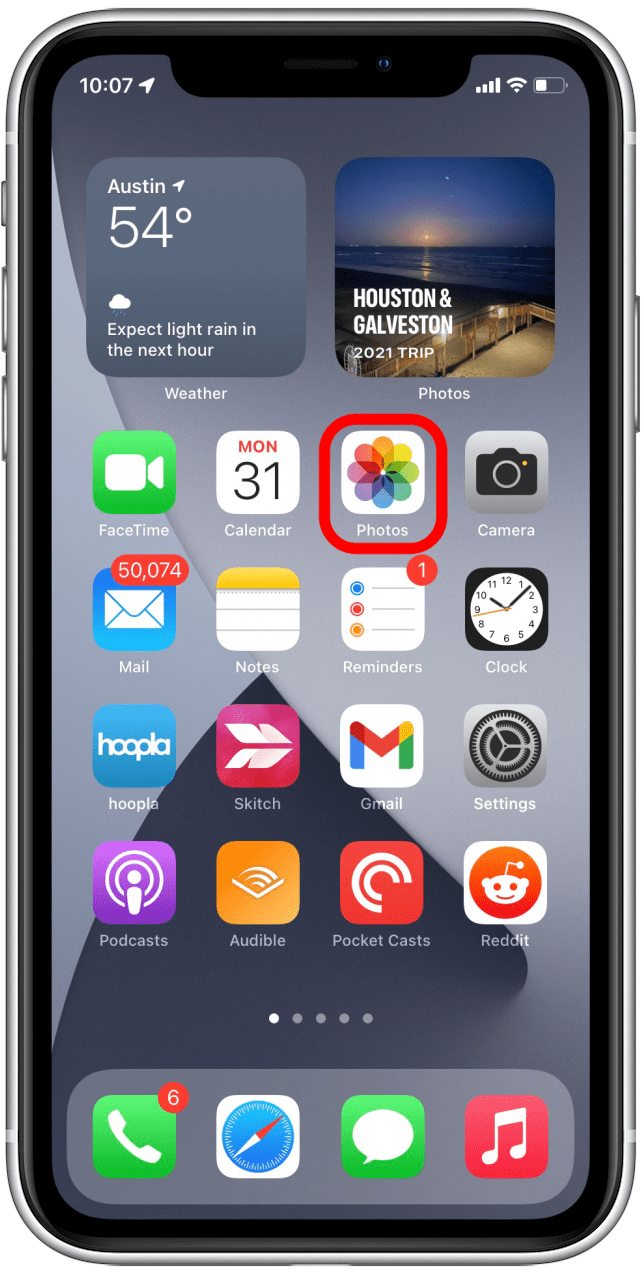
- Open the Photos app.
![Open Photos app]()
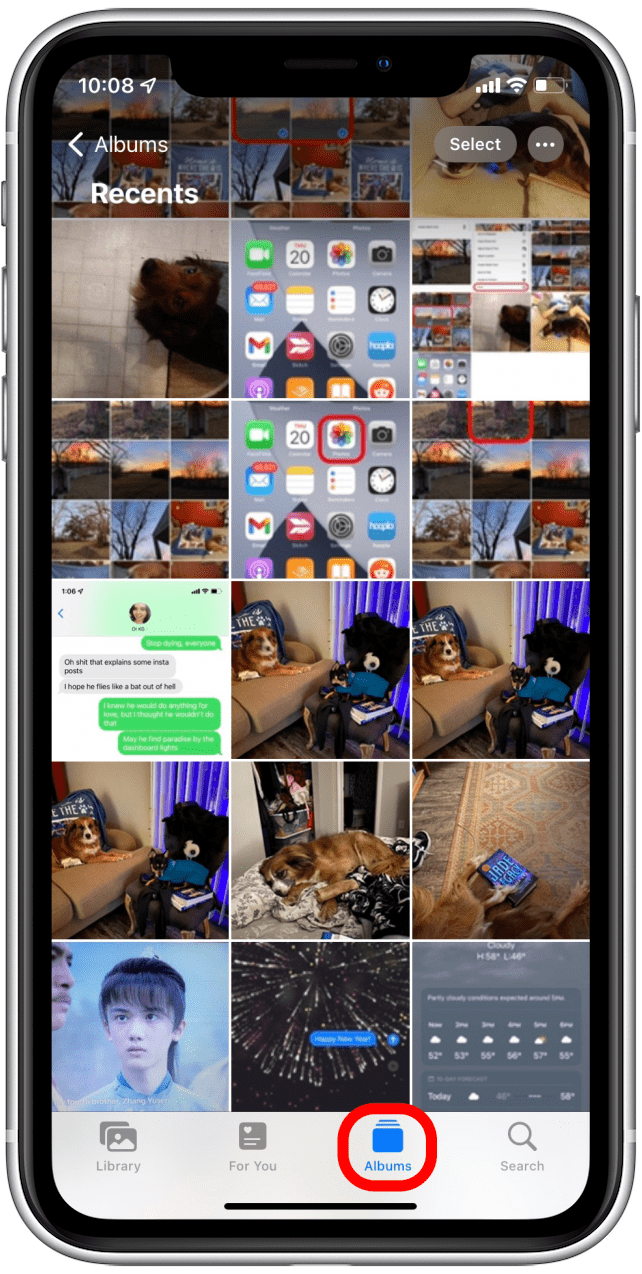
- Tap the Albums tab.
![Tap Albums]()
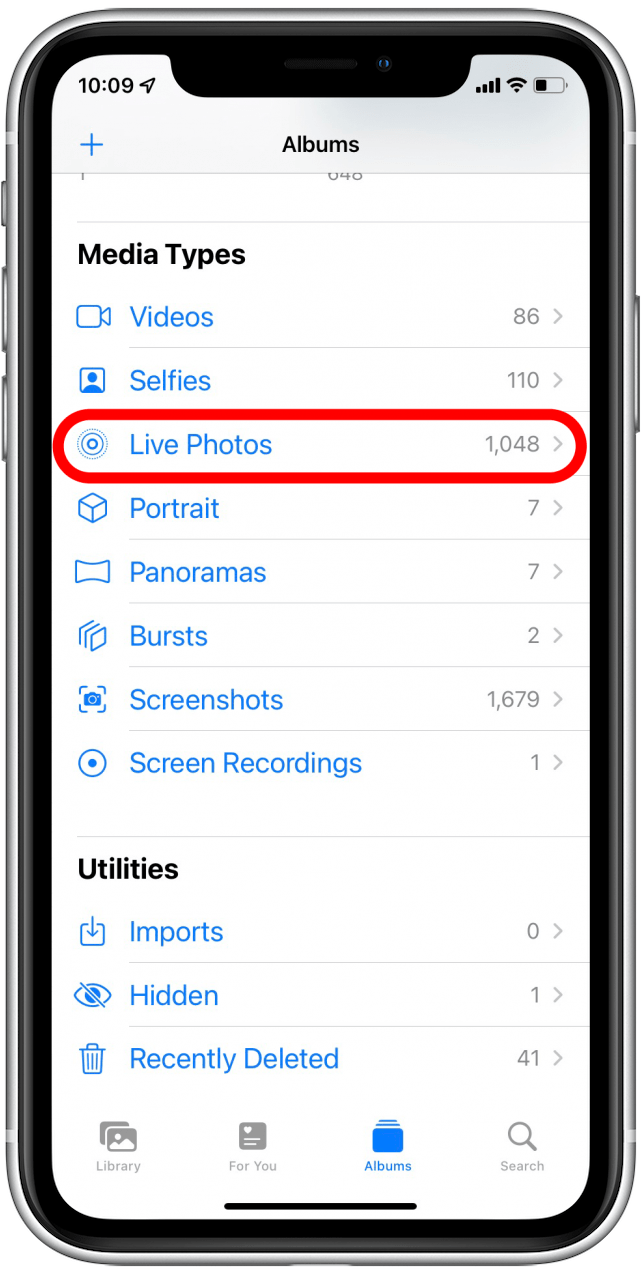
- Scroll down and tap Live Photos under Media Types.
![Tap Live Photos]()
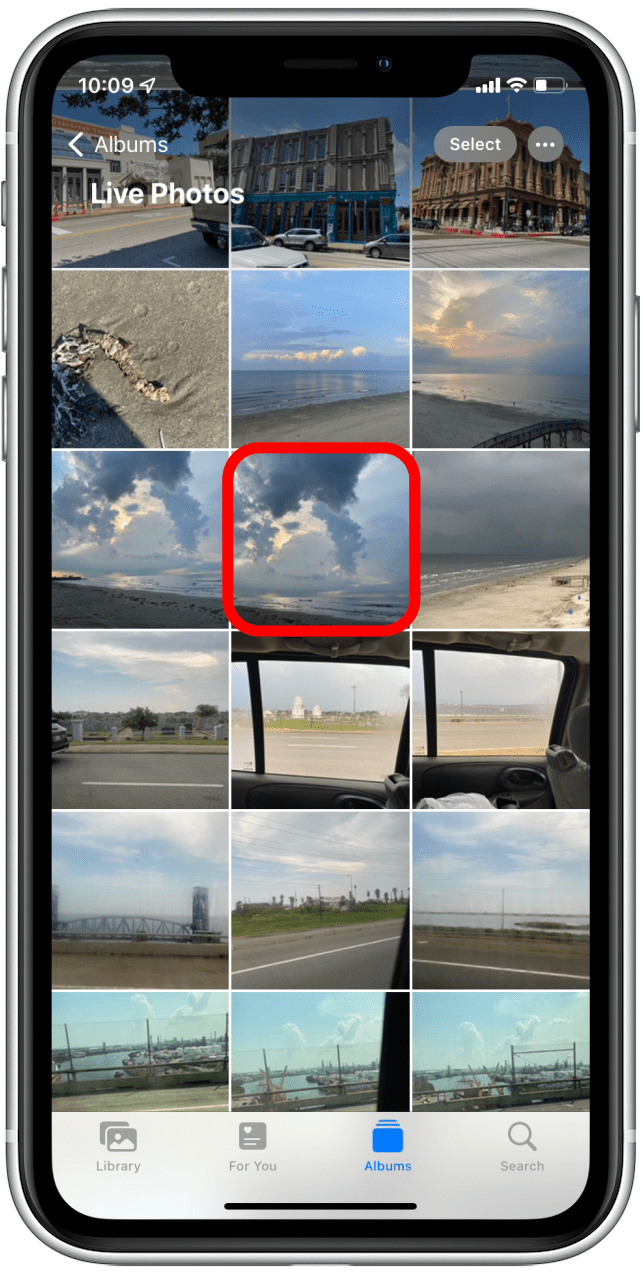
- Select the photo you want to crop.
![Tap Live Photo]()
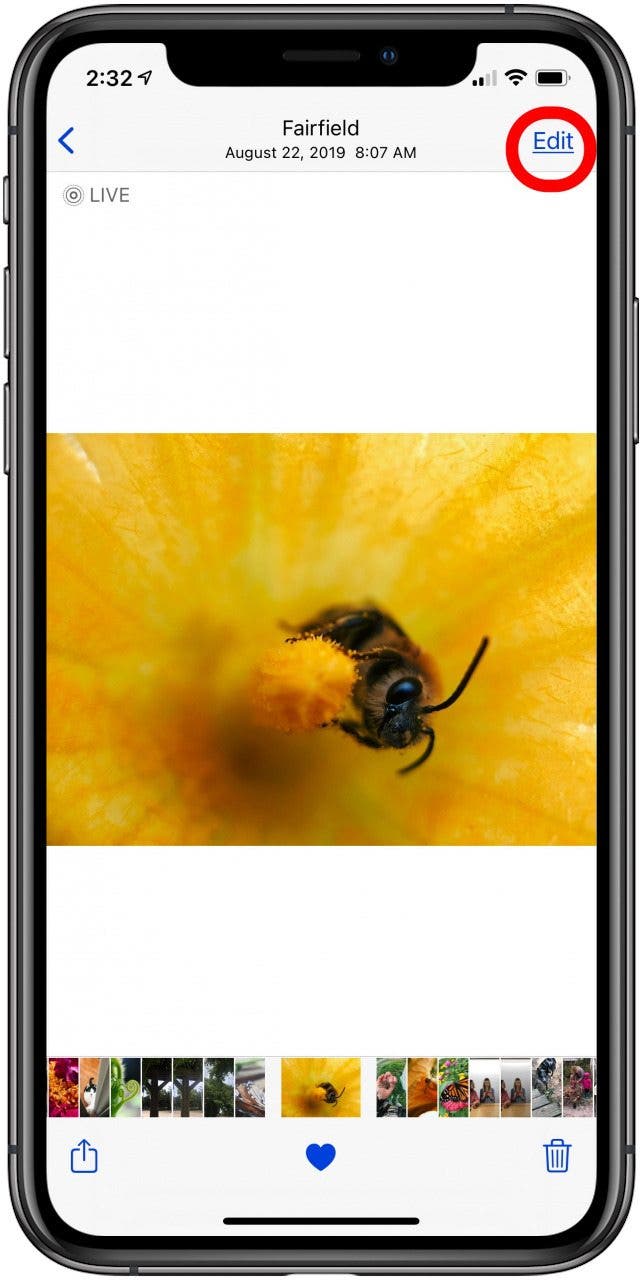
- Tap Edit.
![choose the live photo and tap edit]()
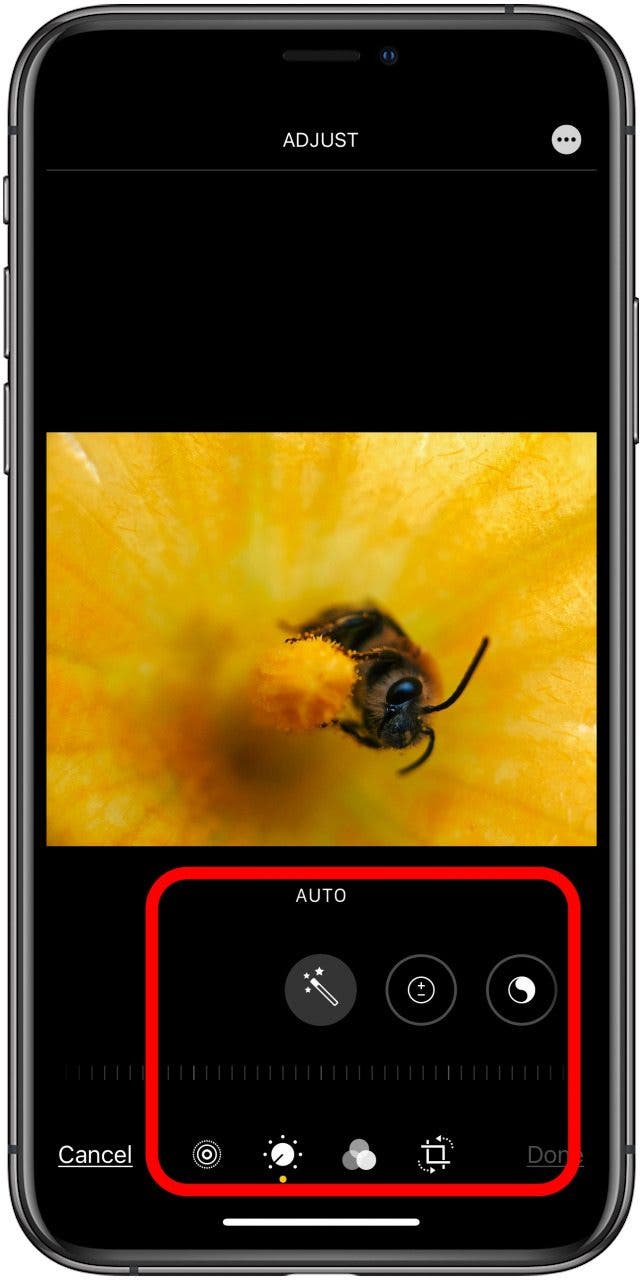
- Use the controls below the image to add filters, trim, crop, rotate, add effects, and more.
![editing controls live photos]()
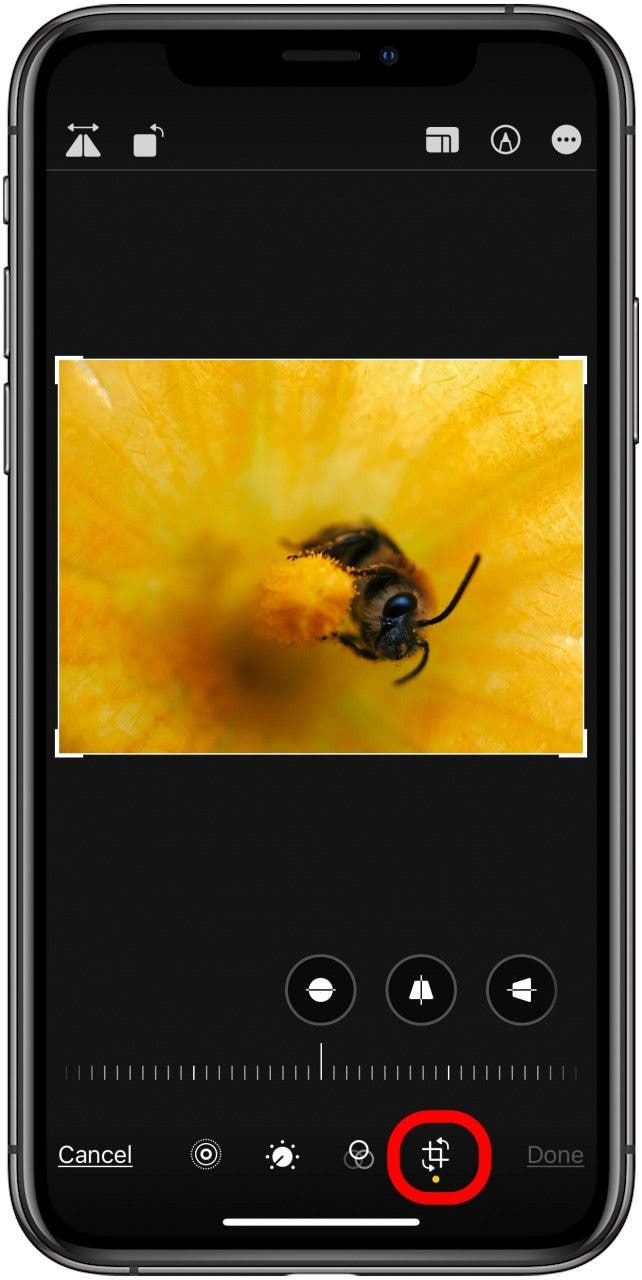
- Click the Rotate & Crop icon.
![Click the rotate and crop icon]()
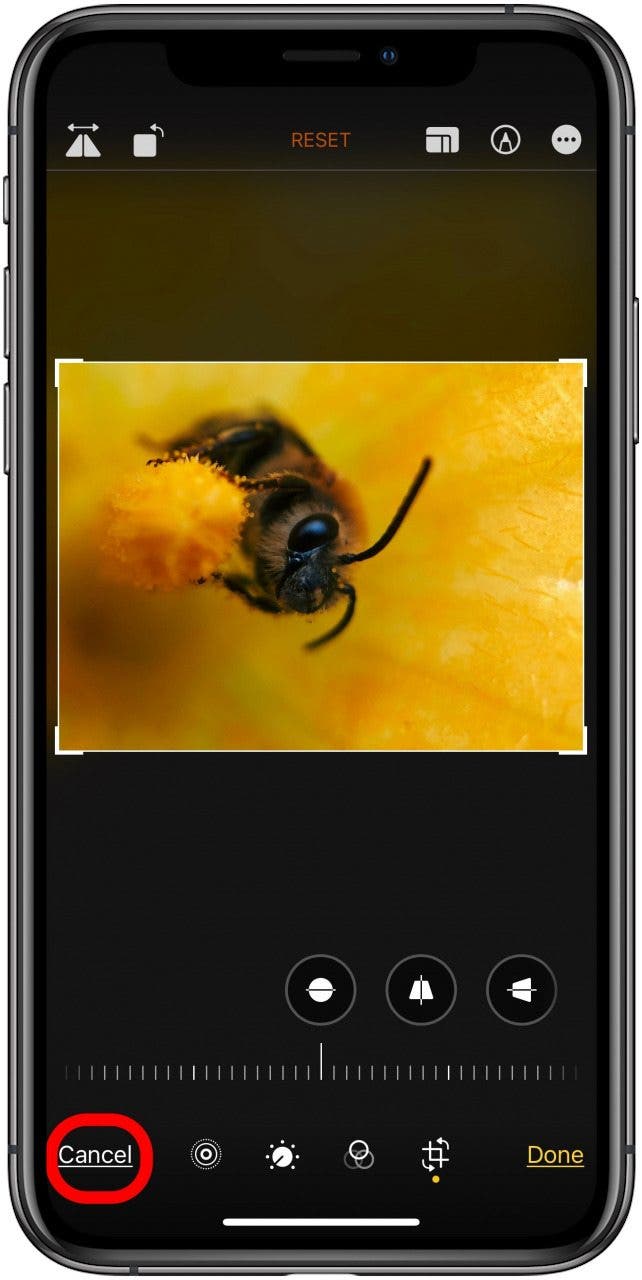
- Click Cancel to discard the cropping, or Done to save your changes.
![click cancel or done]()
Now your Live Photo should play as normal in its new, cropped frame. If you enjoyed this tip, you may also want to learn how to save stills from Live Photos.