Move a Note into a Folder in the Notes App


Hallei has a background in creative and professional writing, with a focus on clear communication and creative thinking.
Learn More Hallei has a background in creative and professional writing, with a focus on clear communication and creative thinking.
Learn MoreThe Apple Notes app is a convenient organizer app for everything from planning projects to writing down your grocery list. The Notes app allows users to create folders so they can group related notes. If you've been wondering how to move a note to a folder in the Notes app, read on.
Why You'll Love This Tip
- Keep your notes organized into specific folders.
- Move your notes to the correct folder if you accidentally place it in the wrong one.
How to Organize Notes on iPhone
System Requirements
This tip was performed on an iPhone 15 Pro running iOS 27. Find out how to update to the latest version of iOS.
Sometimes I'll make a note and later realize it's in the wrong folder. Other times I won't put the note in a folder, and it will end up in the general Notes folder by default. The Notes app has a simple way to fix this; you can move a note to another folder, or start a new folder. Once your notes are organized into a folder, you can share that whole folder of notes with anyone else who needs it. For more useful iPhone tips and tricks, be sure to sign up for our free Tip of the Day newsletter. Now, here's how to organize Apple Notes by moving them into folders:
- Open the Notes app.
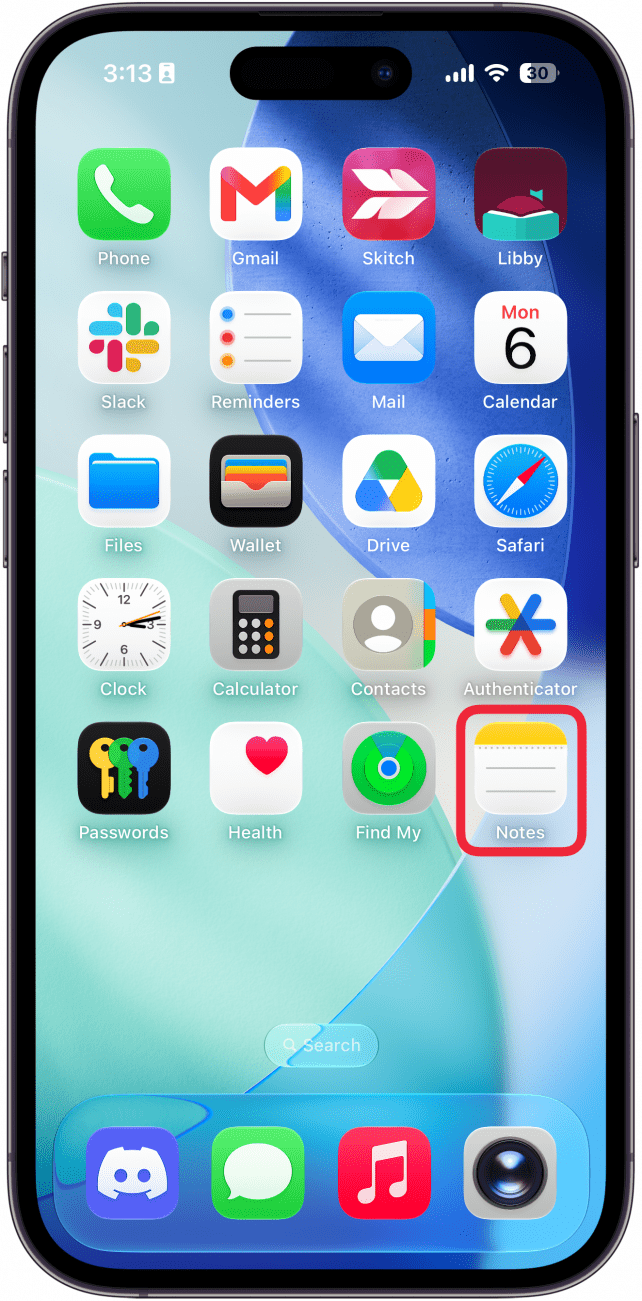
- Tap the three dots in the upper-right corner. If you're already in a note, you'll need to go back to the main menu first.
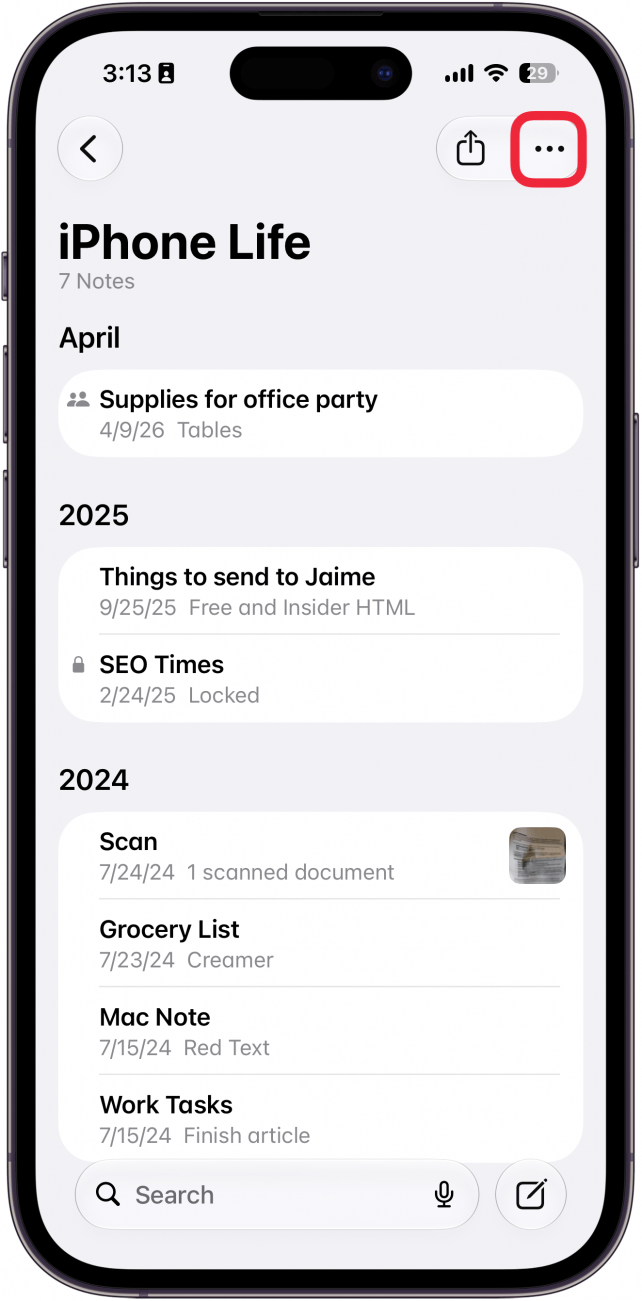
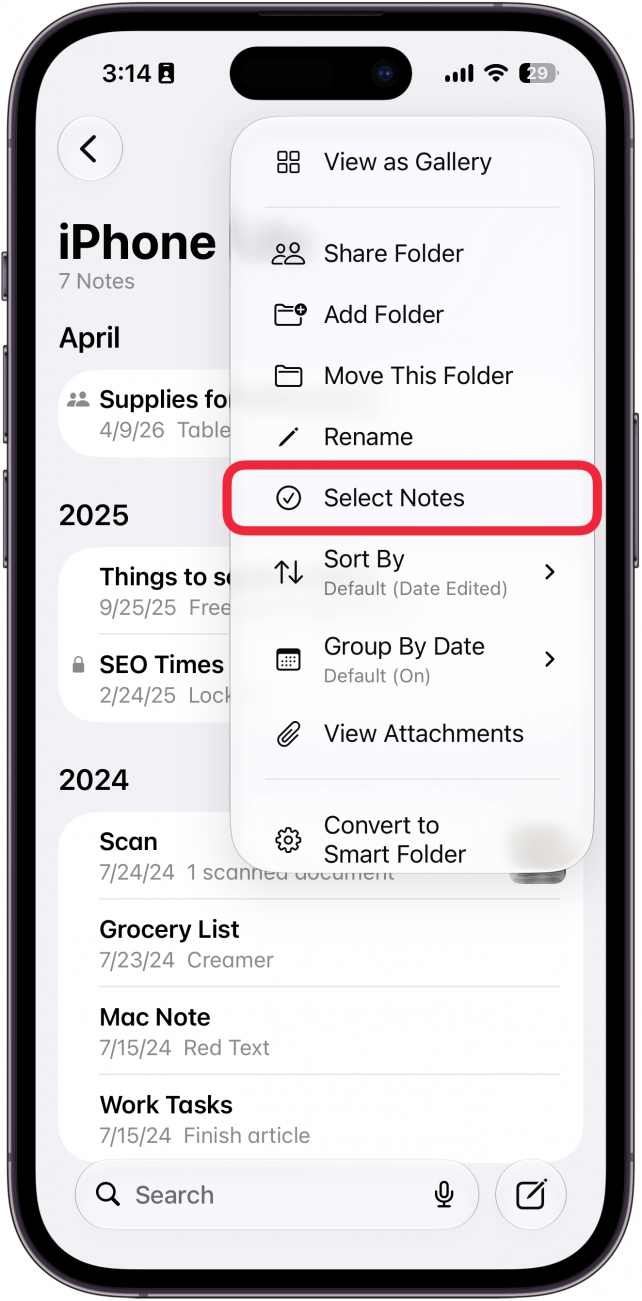
- Tap Select Notes.
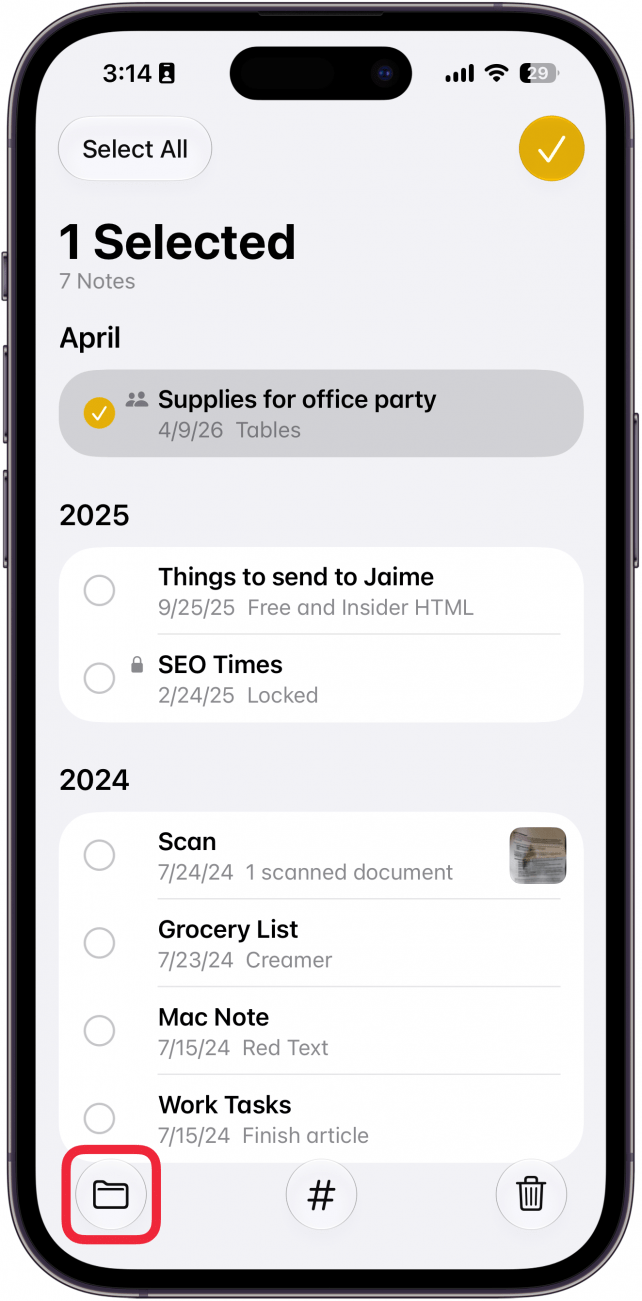
- Select the note you want to move.
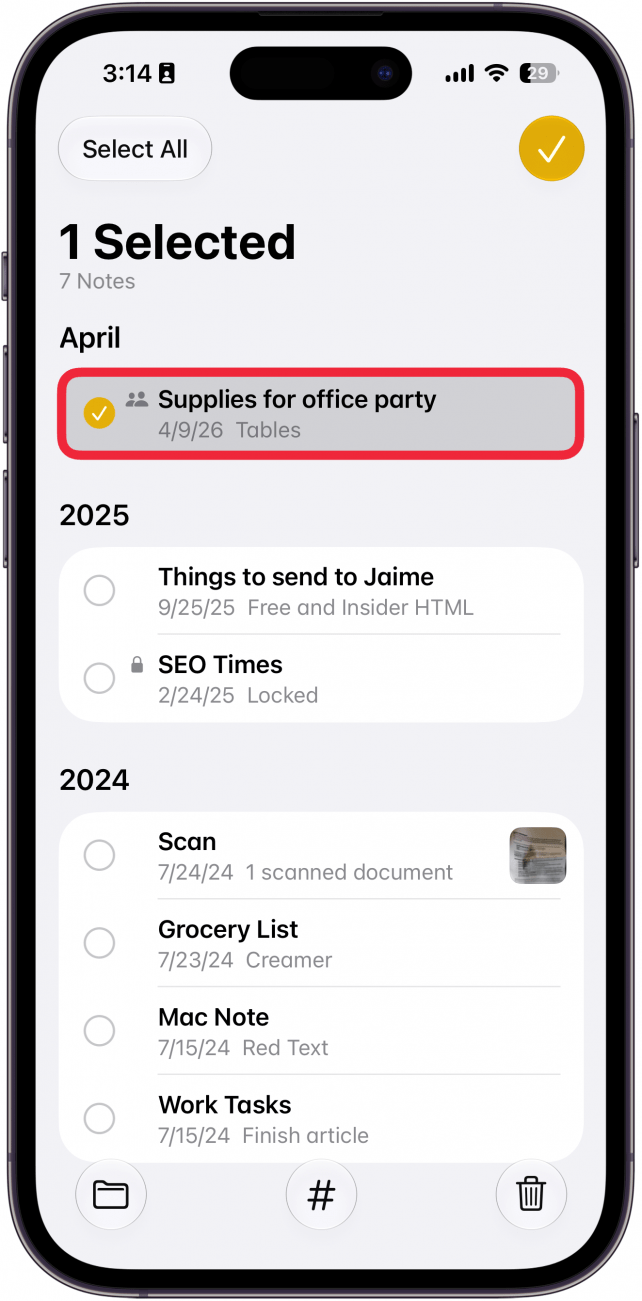
- Then, tap the folder icon in the lower-left corner.
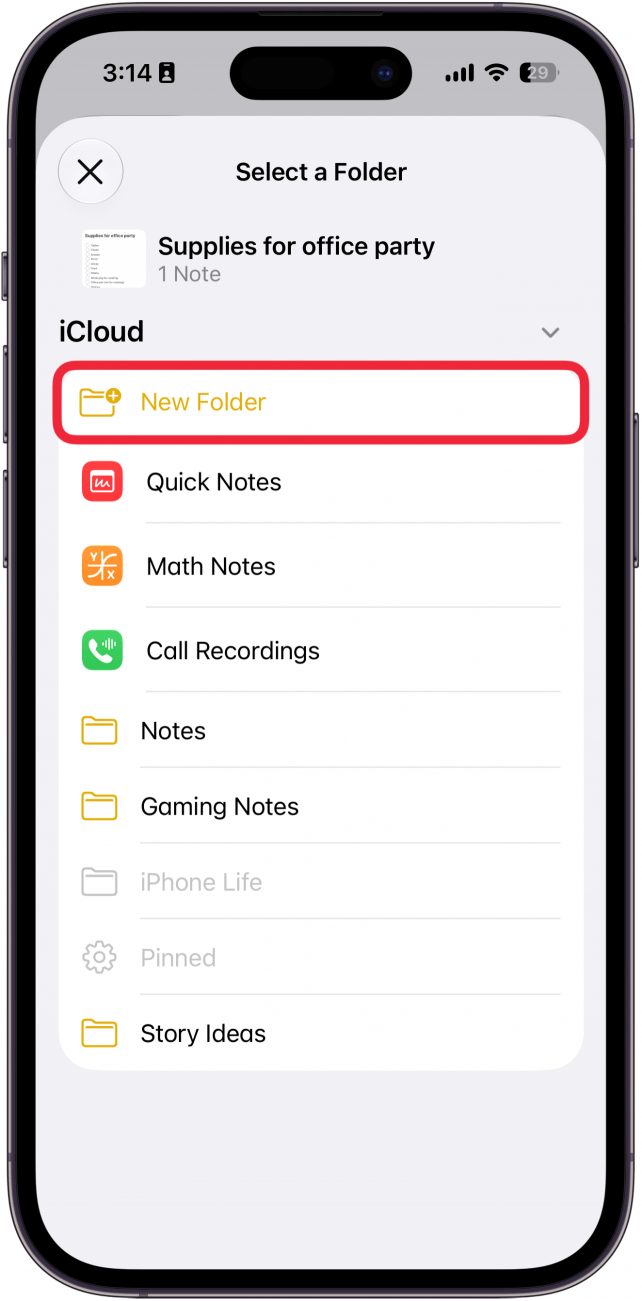
- Tap the folder you want to move the note into, or tap New Folder to create a new folder to deposit your note in.
Now you know how to organize your iPhone notes! If you've ever lost track of your Notes app, we have the answer for you.
More On: The Notes App

Every day, we send useful tips with screenshots and step-by-step instructions to over 600,000 subscribers for free. You'll be surprised what your Apple devices can really do.

Hallei Halter
Hallei is a 2018 graduate of Maharishi University of Management with a BFA in Creative & Professional Writing. She's currently working on a novel about people using witchcraft to clean their houses.
 Olena Kagui
 Cullen Thomas
 Leanne Hays
 Rachel Needell
 Rhett Intriago

 Amy Spitzfaden Both




 Ashleigh Page