Google Search Not Working? Fix It Fast on iPhone & iPad

Leanne puts her love of troubleshooting and repair to use managing our Ask an Expert Facebook group and has authored hundreds of how-to, Apple news, and gear review articles.
Learn More Leanne puts her love of troubleshooting and repair to use managing our Ask an Expert Facebook group and has authored hundreds of how-to, Apple news, and gear review articles.
Learn MoreWhat to Know
- Is Google or Google Chrome not responding or showing search results? Close and reopen the app, and make sure your internet connection is working.
- If that doesn't work, make sure the app is updated, and reboot your iPhone.
- Finally, you can toggle Airplane mode on and off, clear the app cache, or uninstall and reinstall the Google app.
If a Google search is not working in the Google app or the Google Chrome app, you may get an error message like "Unfortunately Google Search has stopped working," "The request was not performed because there was no connectivity," or "We're having trouble connecting to Google. We'll keep trying." Here's how to fix things when Google is not showing web results.
Google Search Not Working? Fix It Fast on Your iPhone & iPad
There are a few easy things you can do to fix things when Google won't show search results. First, close the Google app and reopen it to see if Google search is working again. Next, update the Google app, and update iOS and iPadOS. If you're using the Chrome browser, check the Google Workspace Status Dashboard to see if the issue is with Google itself, and not your iPad or iPhone. If Google is not working still, read on.
Is Airplane Mode On?
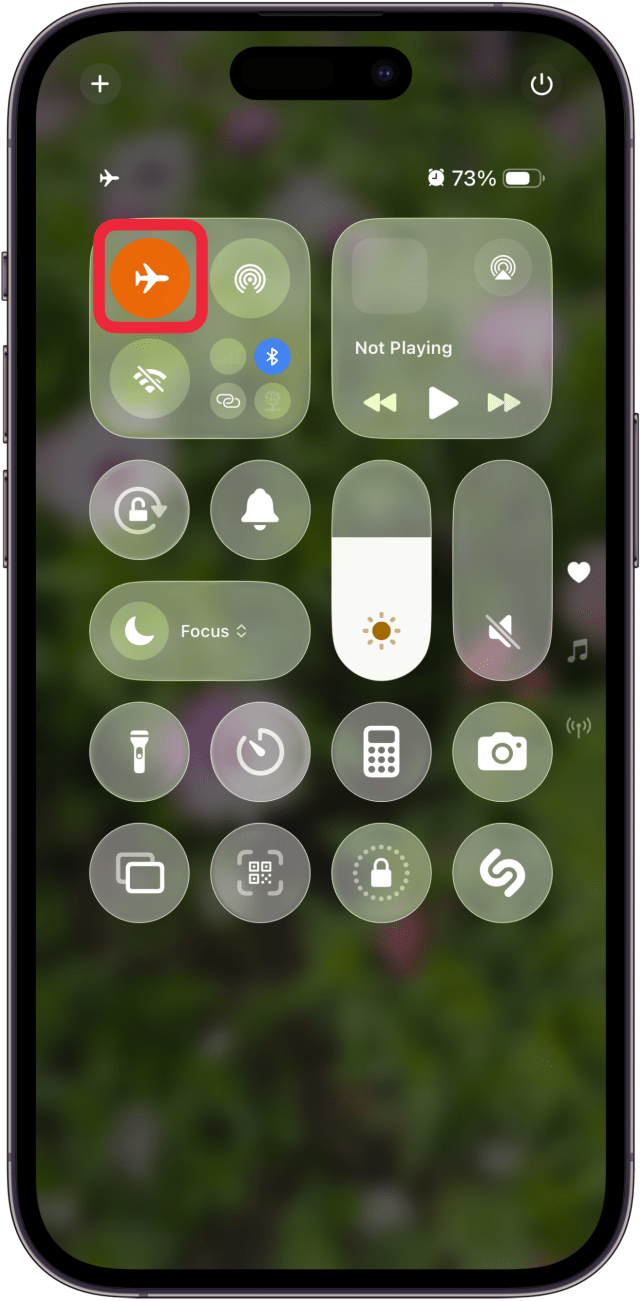
Airplane mode disables all wireless and cellular signals from your iPad or iPhone. To make sure your iPad or iPhone isn't in Airplane mode:
Open the Control Center, and make sure the Airplane Mode button is gray, not orange. You can also turn Airplane mode on, leave it for a few seconds, then turn it off again and see if your Google search is working.
Check Your Wi-Fi & Cellular Data Connection
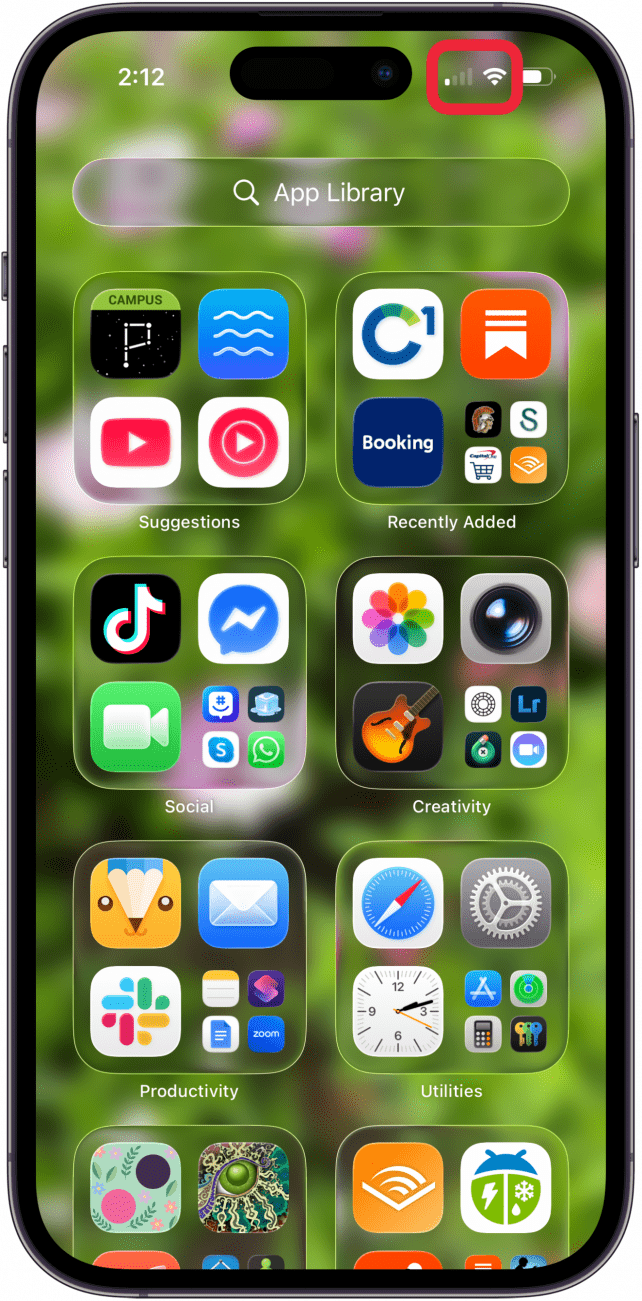
You need a Wi-Fi or cellular connection to do a Google search on your iPhone. So, make sure your internet connection is working by using a different app or feature to see if they're still able to connect and work as usual. You can also check your connection using iPhone icons.
Look at the top-right corner of your screen. The icon to the far right shows your battery percentage; to the left of that is your Wi-Fi connection, and to the left of the Wi-Fi icon is your cellular connection. The more white bars in your cellular and Wi-Fi icons, the stronger your iPhone's connection.
Clear the Google App Cache
If the Google app has too much data cached, or if that data is corrupted, it can cause glitches like Google search results not showing up. Here's how to clear the data cache from the Google app, or the Google Chrome app.
Note: This will clear out any usernames and passwords not saved to your iCloud Keychain. So, make sure you have that info written down or in your iCloud Keychain before clearing your Google cache.
- Open the Google or Google Chrome app and tap the More icon.
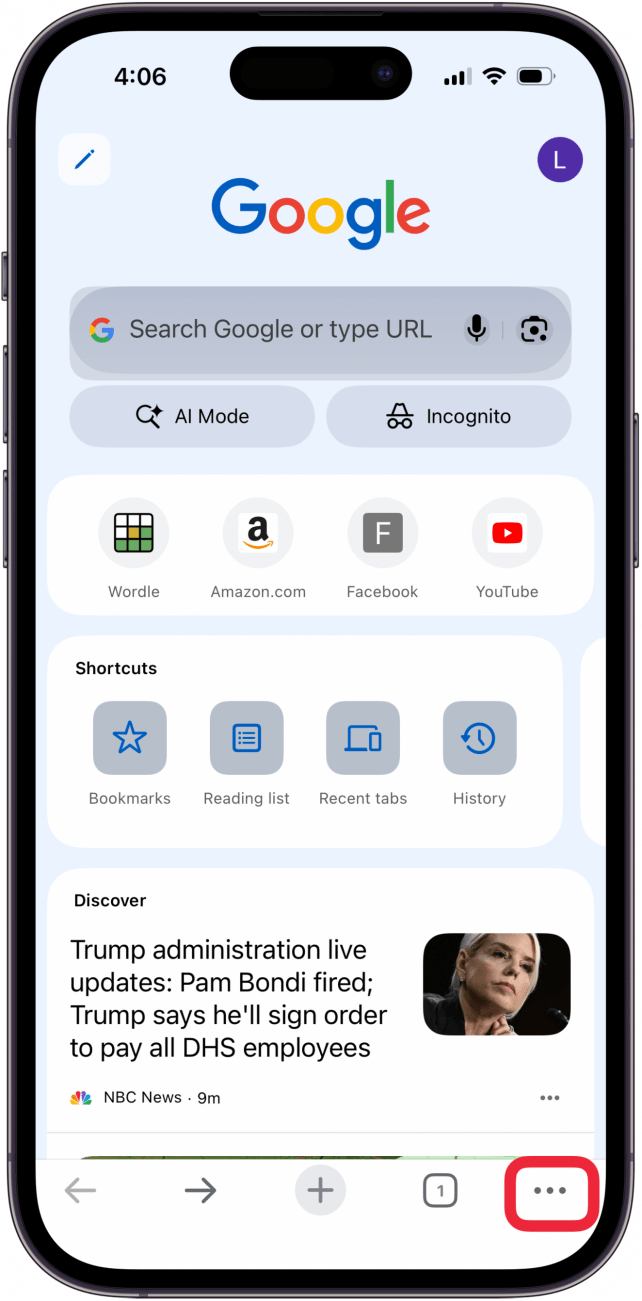
- Tap Delete Browsing Data.

- Choose the Time range and Browsing data, then tap Delete data to confirm.

Uninstall & Reinstall Google Chrome
If you've tried all the previous steps and Google doesn't show results still, it's time to uninstall the Google or Google Chrome app, then reinstall the app.
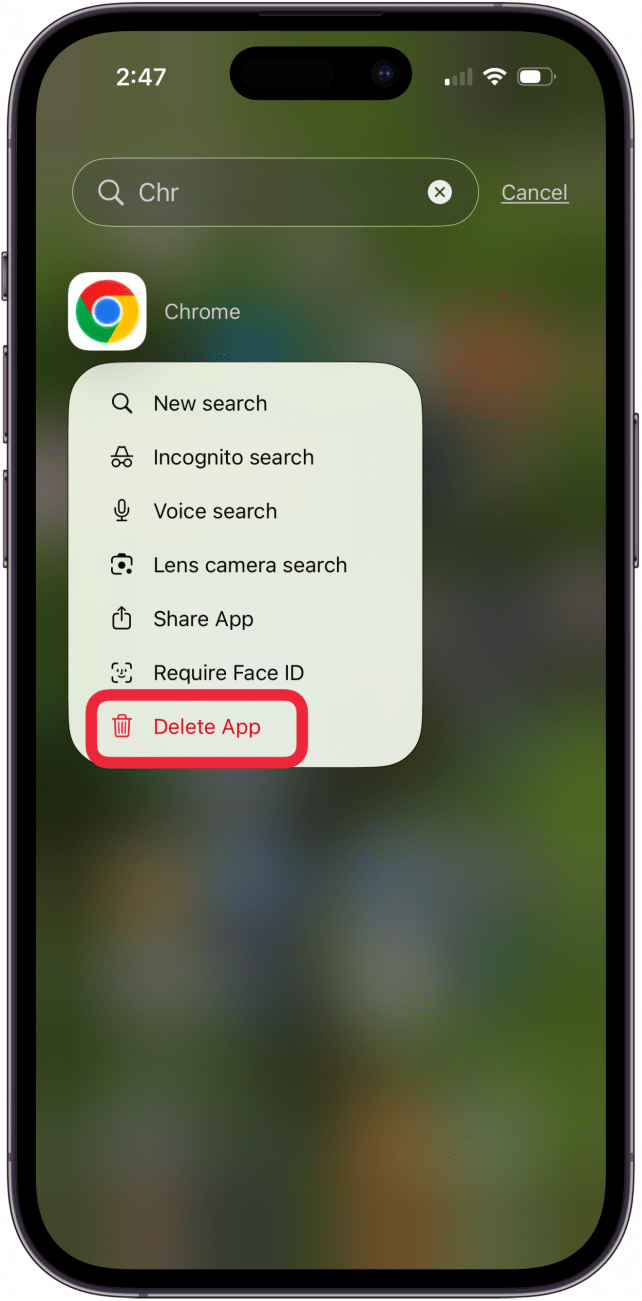
By now, Google searches should be working for you again. If you found this troubleshooting article helpful, be sure to check back here at iPhone Life the next time you need help, Sign up for our free Tip of the Day for more Google search and Chrome app tutorials.
FAQ
- Are there standard steps to take for different problems with my iPhone? Yes, we have a guide to common iPhone troubleshooting steps you can use when apps are crashing, your screen is frozen, and more.
- What can I do if AirDrop isn't working? If AirDrop won't work, you can do a hard reboot or turn Wi-Fi and Bluetooth off, then on again.
- Why do my apps keep crashing? If your iPhone apps keep crashing, reboot apps by closing them using the App Switcher.
Top image credit: BongkarnGraphic / Shutterstock.com

Leanne Hays
Leanne Hays has more than sixteen years of experience writing for online publications. As a SEO Specialist and Feature Writer for iPhone Life, she has authored hundreds of how-to, Apple news, and gear review articles, as well as a comprehensive Photos App guide. Leanne holds degrees in education and science and loves troubleshooting and repair. This combination makes her a perfect fit as manager of our Ask an Expert service, which helps iPhone Life Insiders with Apple hardware and software issues.
In off-work hours, Leanne is a mother of two, homesteader, audiobook fanatic, musician, and learning enthusiast.
Related Articles
 Olena Kagui
 Rhett Intriago
 Nicholas Naioti
 Leanne Hays
 Rachel Needell



 David Averbach

 Ashleigh Page