How to Turn Off Notify Anyway on iPhone & iPad

A lifelong tech enthusiast, with experiences ranging from jailbreaking his iPhone to building his own gaming PC, Rhett specializes in maintaining privacy in a digital world and iPhone security.
Learn More A lifelong tech enthusiast, with experiences ranging from jailbreaking his iPhone to building his own gaming PC, Rhett specializes in maintaining privacy in a digital world and iPhone security.
Learn MoreWhen texting someone who has a Focus active, you've probably noticed a message asking if you want to notify them anyway. Maybe you've even gotten an annoying notification even when you had Focus turned on. What does Notify Anyway do? Can you disable it? In this article, we'll show you how to turn off Notify Anyway on your iPhone.
Why You'll Love This Tip
- Disable the Notify Anyway iPhone option to completely stop notifications while in Do Not Disturb and Focus modes.
- We'll also show you how to turn off Share Focus Status for specific Focuses and contacts if you don't want to disable Notify Anyway.
How to Turn Off Notify Anyway on DnD
System Requirements
This tip was tested on an iPhone 17 Pro running iOS 26.4. Learn how to update to the latest operating system.
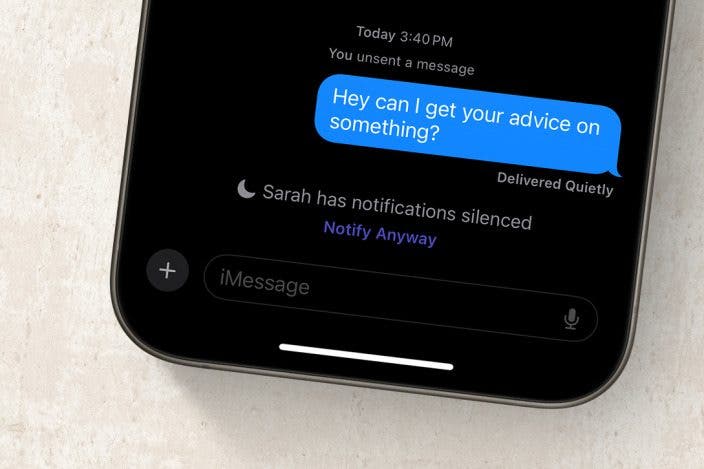
If you have a Focus, such as Do Not Disturb, active, and someone sends you a text message, they will see a message on their end saying that you have notifications silenced. They'll also see a button labeled Notify Anyway. If they tap this, their message will be pushed through, and you'll receive a notification on your iPhone even if you have notifications silenced.
This feature is meant to make it so that others can still reach you if the situation is urgent, like in case of an emergency. However, it also leaves the door open for others to annoy you with texts when you're trying to sleep or get some work done. Now, let's go over how to disable Notify Anyway on iPhone.
Notify Anyway is linked to your Focus Status. If you are sharing your Focus Status, your contacts will be able to see when you have Focuses (like Do Not Disturb) active, so you'll need to turn it off. You can turn off Focus Status in the Settings app:
- Open Settings, and tap Focus.
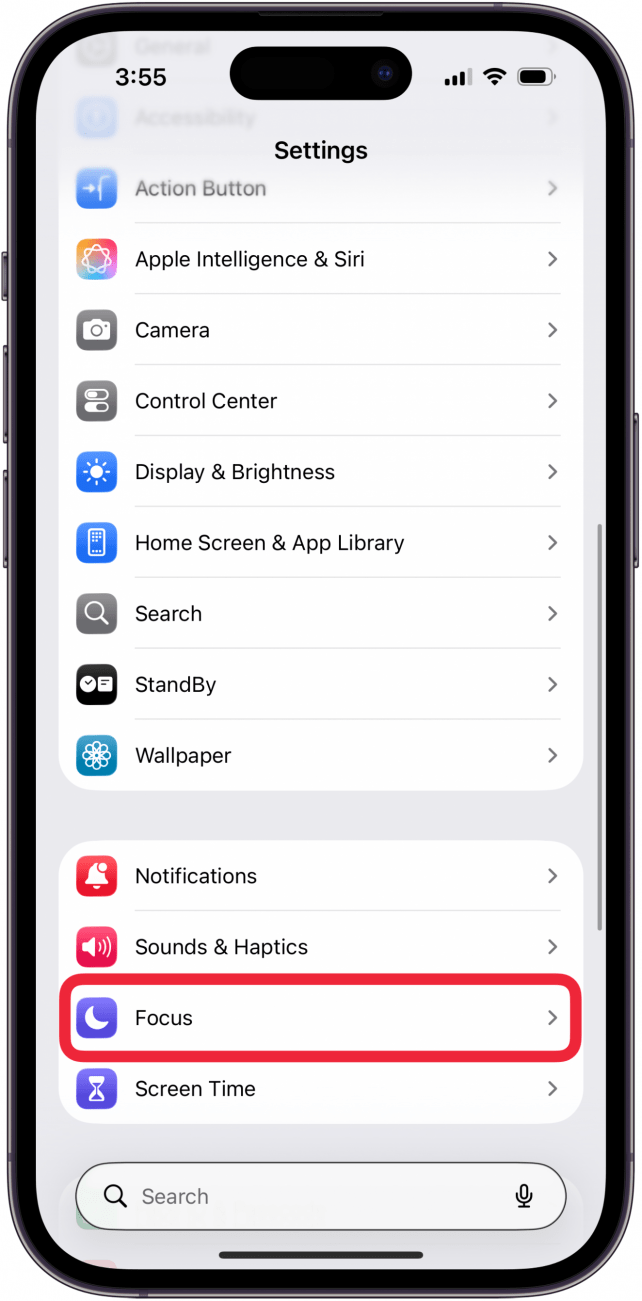
- Tap Focus Status.
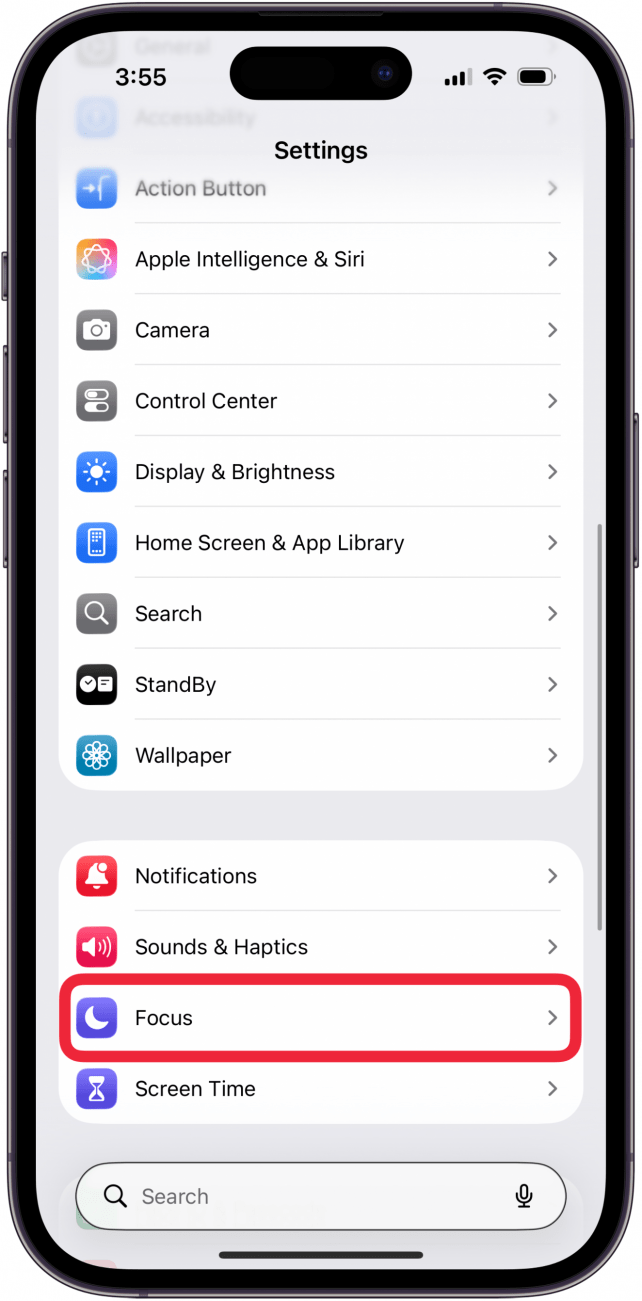
- You can tap toggle off Share Focus Status to turn off sharing completely. If you turn this off, no one will ever know whether or not you have a Focus active, no matter which Focus. The toggle will be gray and to the left when turned off.
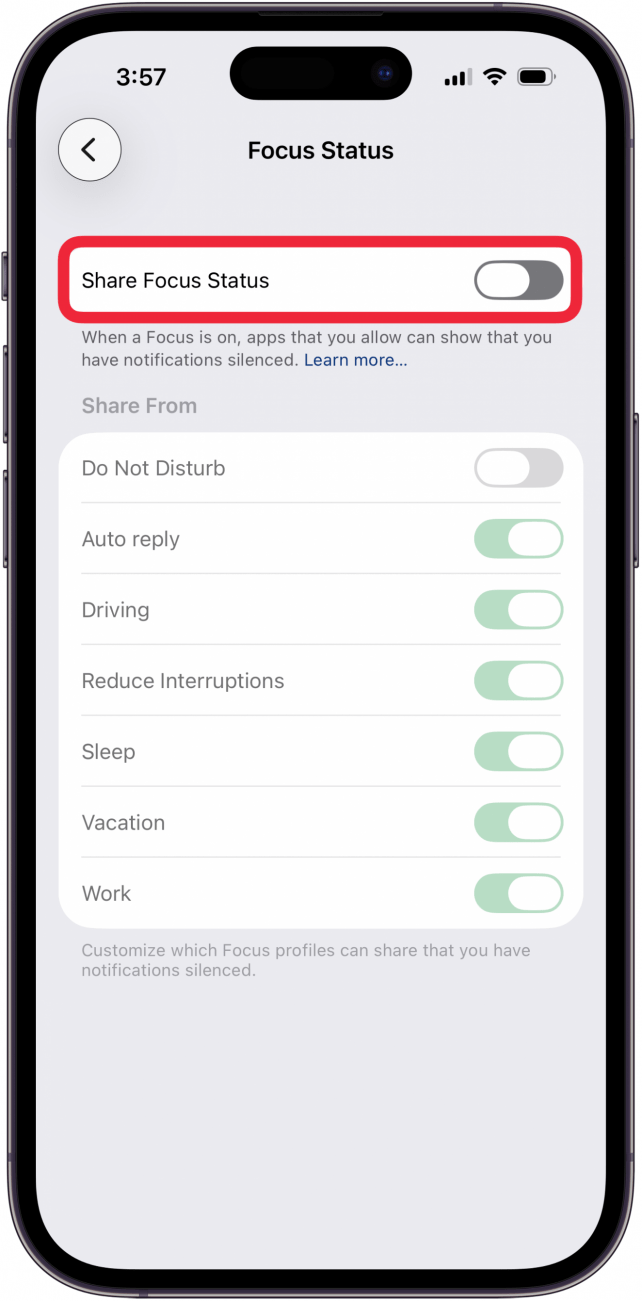
- Alternatively, you can turn off sharing for specific Focuses. For example, if you don't want anyone to be able to text you while you're sleeping, tap the toggle next to Sleep. The toggle will be gray and to the left when turned off.
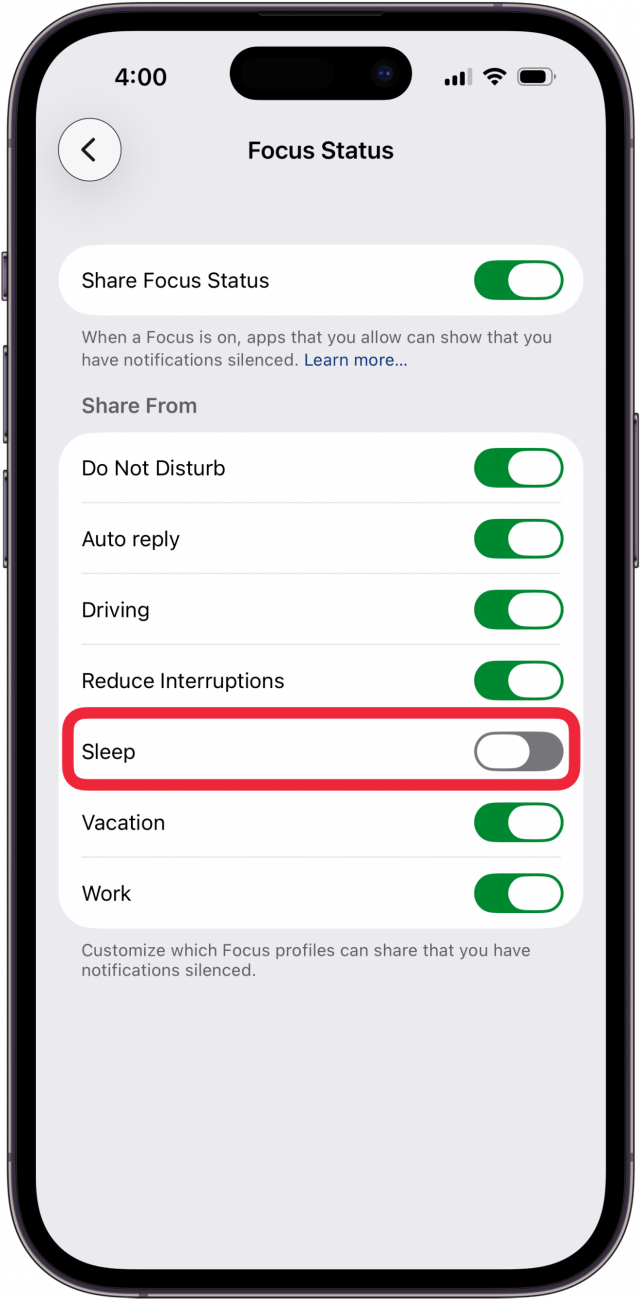
That's how to stop Notify Anyway on DnD. Now, whenever the specified Focus is active, your contacts will not see the message that you have notifications silenced, and they will not have the option to Notify Anyway. If there's a specific person in your contacts who tends to abuse the Notify Anyway functionality, you can simply turn off sharing Focus Status for that person. For more Focus-related tips and tricks, be sure to sign up for our free Tip of the Day newsletter.
More On: Focus Modes & Do Not Disturb
Top image credit: W. Phokin / Shutterstock.com

Every day, we send useful tips with screenshots and step-by-step instructions to over 600,000 subscribers for free. You'll be surprised what your Apple devices can really do.

Rhett Intriago
Rhett Intriago is a Feature Writer at iPhone Life, offering his expertise in all things iPhone, Apple Watch, and AirPods. He enjoys writing on topics related to maintaining privacy in a digital world, as well as iPhone security. He’s been a tech enthusiast all his life, with experiences ranging from jailbreaking his iPhone to building his own gaming PC.
Despite his disdain for the beach, Rhett is based in Florida. In his free time, he enjoys playing the latest games, spoiling his cats, or discovering new places with his wife, Kyla.
 Rachel Needell

 Olena Kagui
 Rhett Intriago

 Leanne Hays