* This article is from our Tip of the Day newsletter. Sign Up. *
Whether you're a caregiver for a friend or family member or just looking to create a little bit of friendly competition by sharing your Health app fitness details, you'll be able to do so thanks to the new Sharing feature in the Health app on iPhone. We'll walk you through how to select whom to share with and exactly what Health app data you share.
Related: Get Better Apple Watch Calories Burned Accuracy

Why Sharing Health App Data Matters
- Keep an eye on a loved one or someone you provide care for by setting up sharing for important metrics like Walking Steadiness.
- Get competitive with a friend or family member by sharing your fitness data automatically.
- Opt out of sharing or change what information is shared at any time.
Important: Since this Health app tip uses a feature only available in iOS 15 and later, if you have an earlier software version you will need to update to the latest version of iOS before using these steps.
How to Share Health App Data with Someone
Sharing your health and fitness data is simple and comes with quite a few benefits. Use the steps below to choose a recipient of your Health app data and customize exactly what data you want to share. Want to learn about the other new features included in the latest version of iOS? Sign up for our free Tip of the Day newsletter!
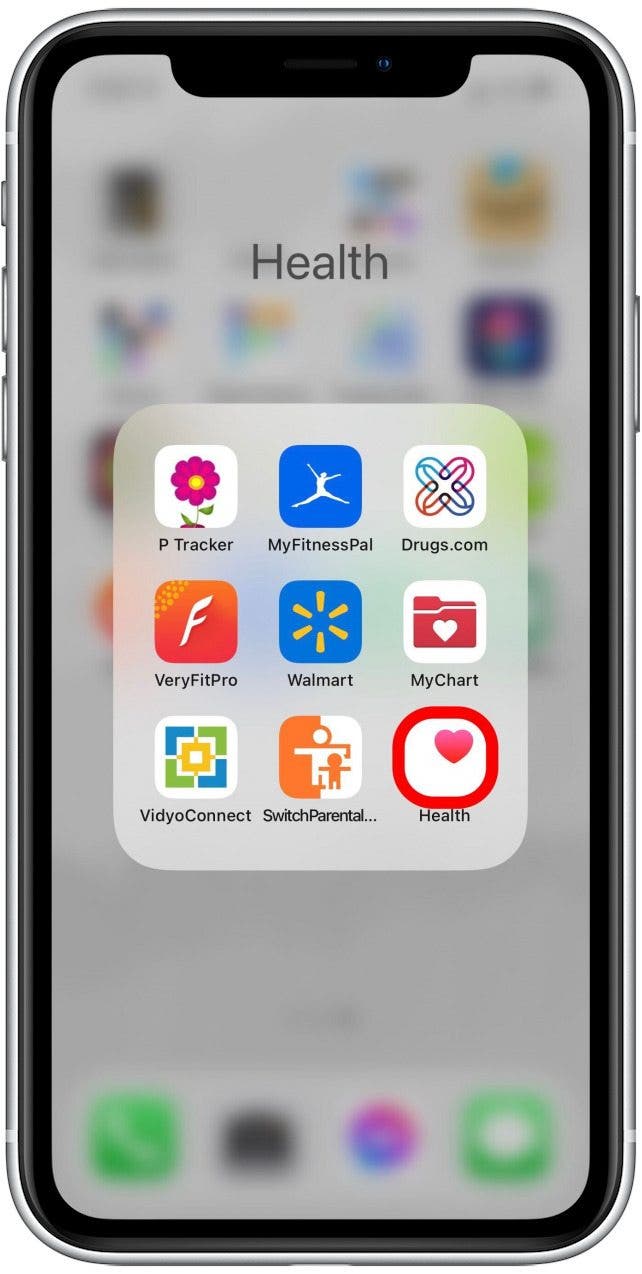
- Open the Health app.
![Share with someone in Health app iPhone]()
- Tap on the Sharing tab.
![Health app sharing iPhone]()
- If this is the first person you're sharing with, tap Share with Someone. If not, tap Add another person.
![share health info with someone]()
- Enter the name of the contact you'd like to share with and select them from the list.
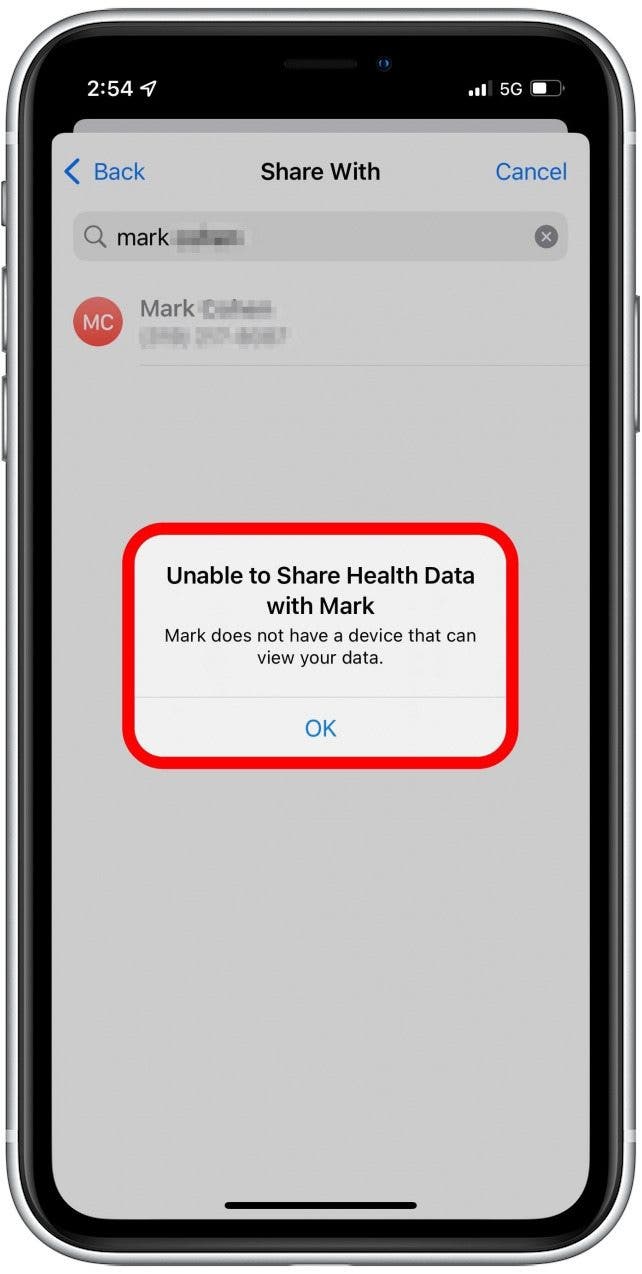
- If the person does not have an iPhone or isn't using iOS 15, you'll get an error message like the one below.
![share data in Health on iPhone]()
- Once you've successfully selected a contact, it's time to choose topics to share.
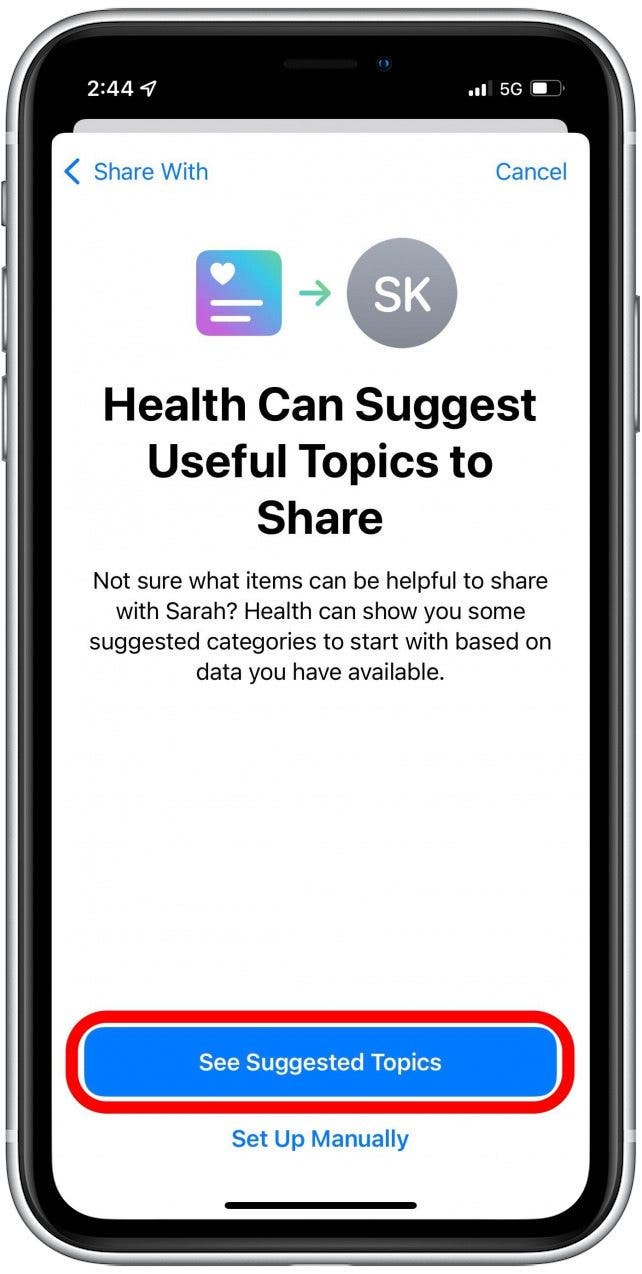
- Tap See Suggested Topics to go through guided setup as demonstrated in these steps, or Set Up Manually to search for metrics to share on your own.
![health app data sharing iPhone]()
- Tap the toggle next to each metric you want to share.
![how to share info in Health app]()
- Tap Next at the bottom of each page when you're done.
![How to share with someone in Health app iPhone]()
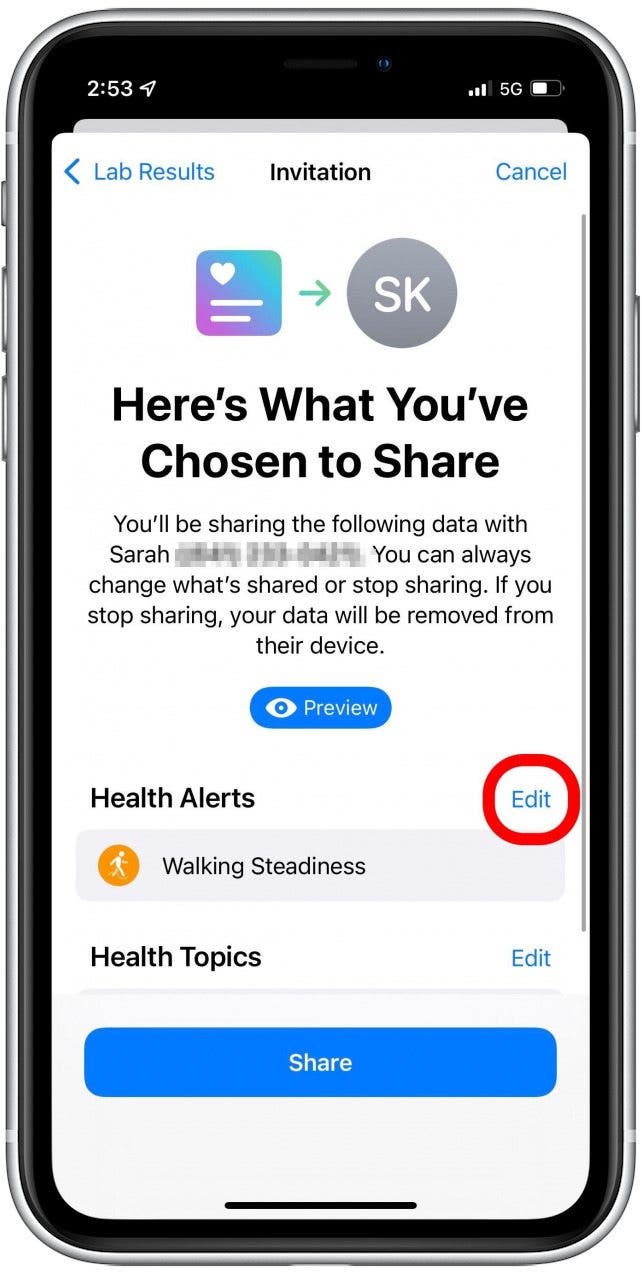
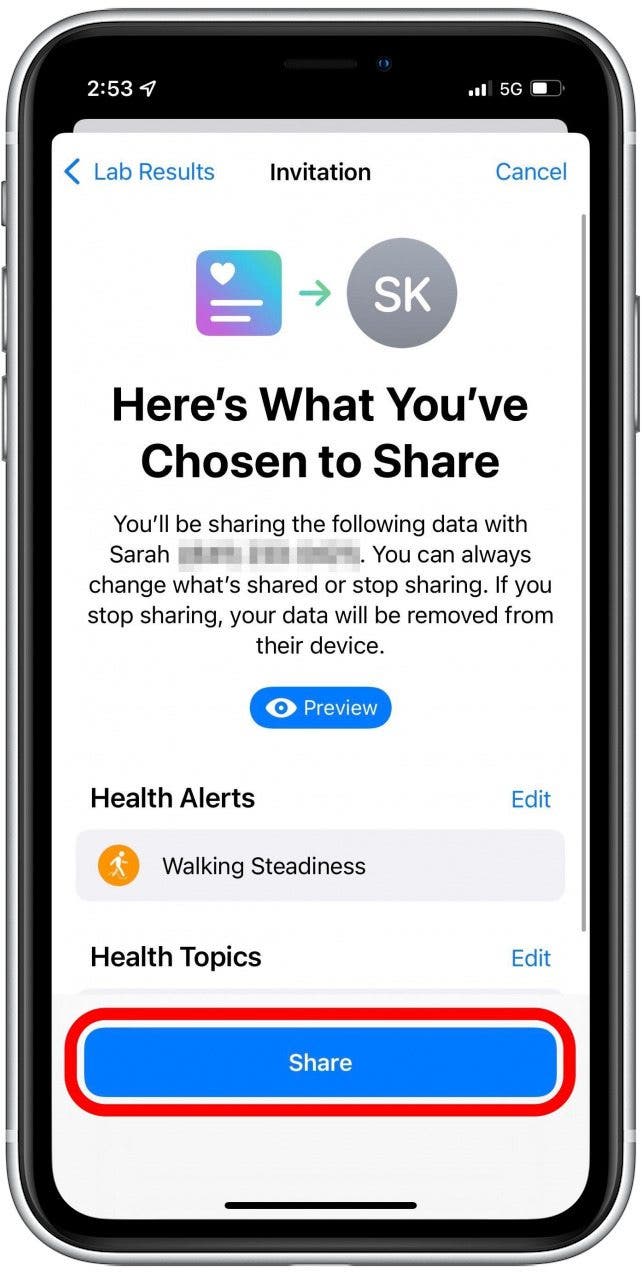
- At the end you'll see a preview including the person you're sharing with and the details you've opted to share.
- You can still make edits at this point by disabling toggles or tapping Edit next to the metric you want to change.
![Health app sharing]()
- Tap Share to send the sharing invitation to your chosen recipient.
![Health app share with someone]()
- Tap Done.
![health app data sharing]()





At this point it's best to let your friend, family member, or caregiver know that they need to look in the Health app on the Sharing tab to accept your Health Sharing invitation. Next, find out how to set up an Apple Health eye prescription.