* This article is from our Tip of the Day newsletter. Sign Up. *
How do you check Apple Watch battery levels? There are a couple of easy methods to find out how much battery life your Apple Watch has left, so you'll know if your Apple Watch needs a charge before your workout or bedtime. We'll go over both of these methods below.
Related: The Best Ways to Save Apple Watch Battery Life

Jump To:
- How to Check Battery on Apple Watch with the Control Center
- Add a Battery Complication to Apple Watch Face
How to Check Battery on Apple Watch with the Control Center
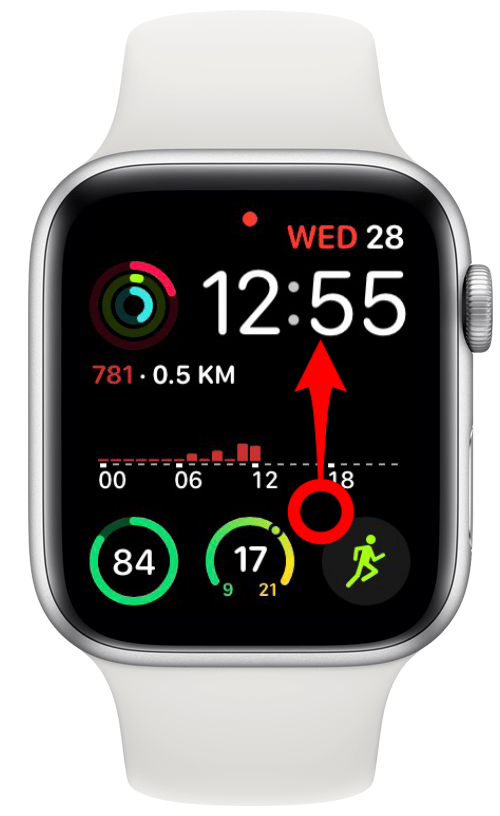
- Swipe up on your Apple Watch face.
![Swipe up]()
- This will open the Apple Watch Control Center.
- Your battery charge level will appear as a percentage inside a gray icon.
![Control center battery]()
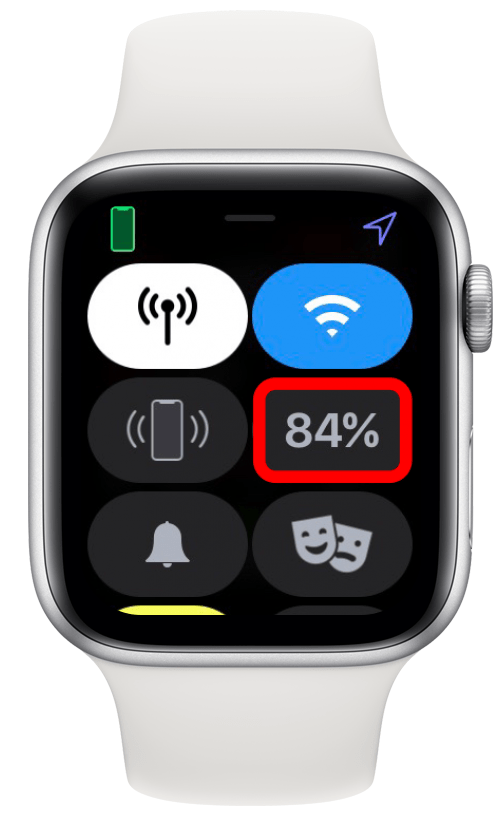
This simple but effective Apple Watch battery trick will tell you if you have enough to go for a hike or run without worrying about your watch dying.
Add a Battery Complication to Apple Watch Face
This method only works for Apple Watch faces that are customizable. We've gone over how to find a customizable watch face, if you need a refresher. To learn more ways to customize your Apple Watch, sign up for our free Tip of the Day newsletter.
Here's how to add an Apple Watch battery complication to your watch face:
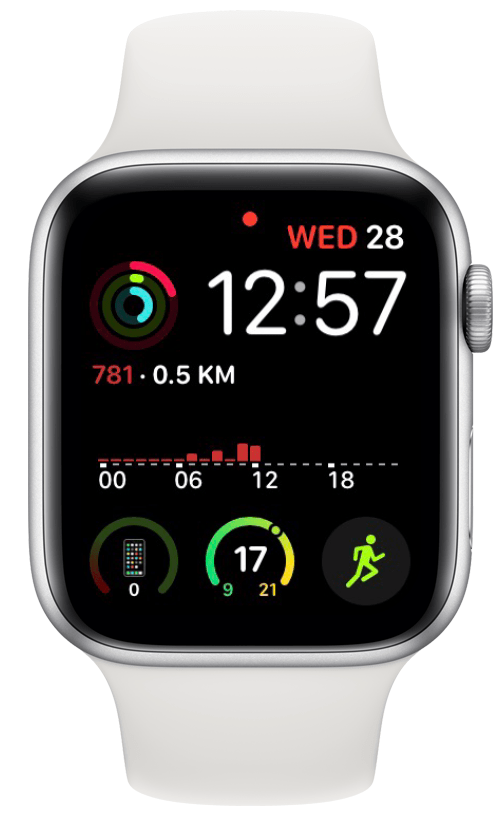
- Press the Digital Crown to return to your Apple Watch face.
![Watch Face]()
- Long press the display.
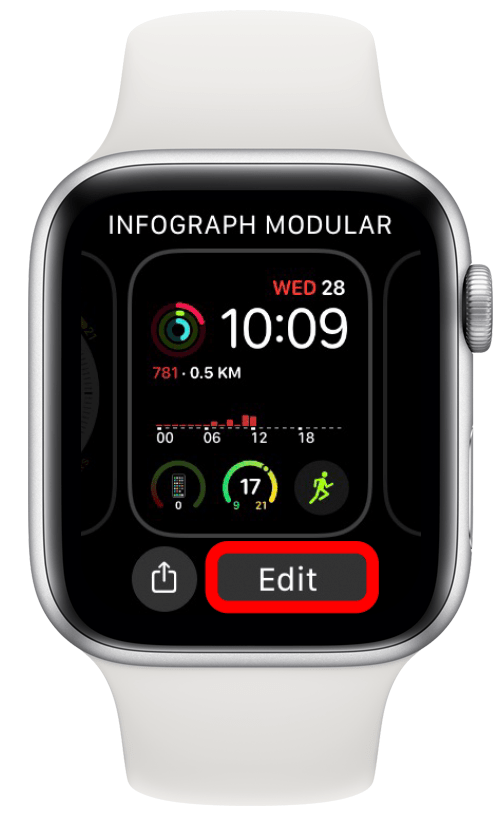
- An option to edit the watch face will pop up.
- Tap Edit.
![Tap edit]()
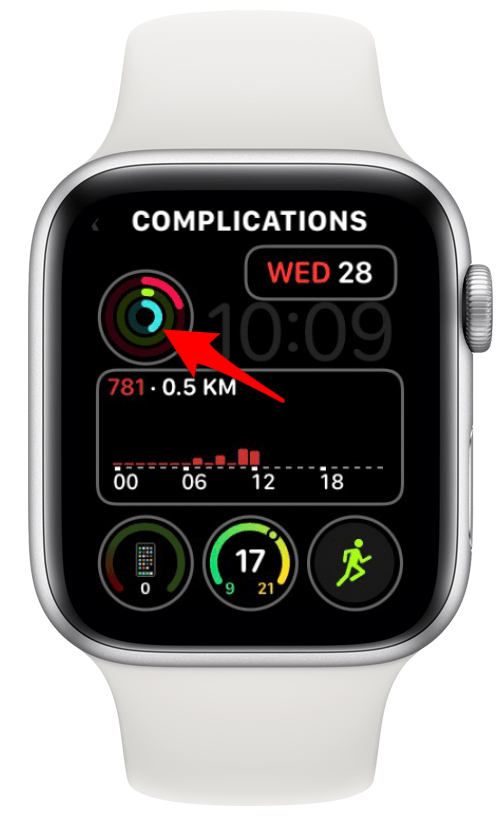
- Tap the complication node you would like to edit.
![Tap complication]()
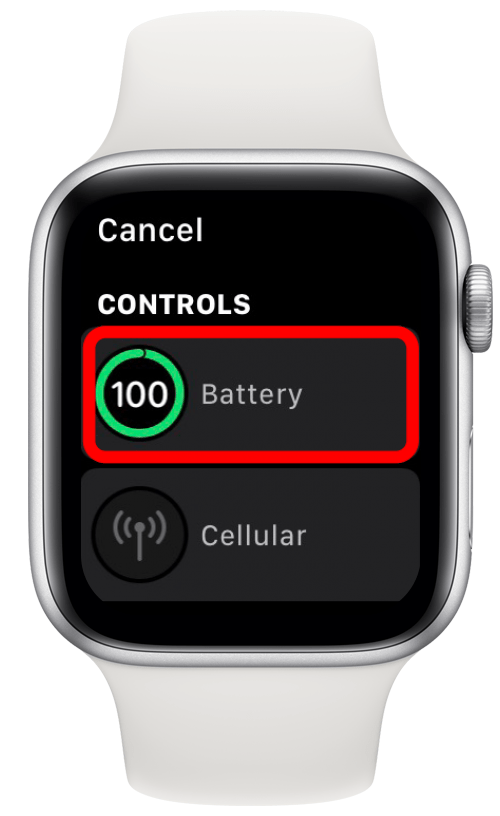
- Turn the Digital Crown to scroll through the available complication options. When you see Battery, tap it.
![Select Battery]()
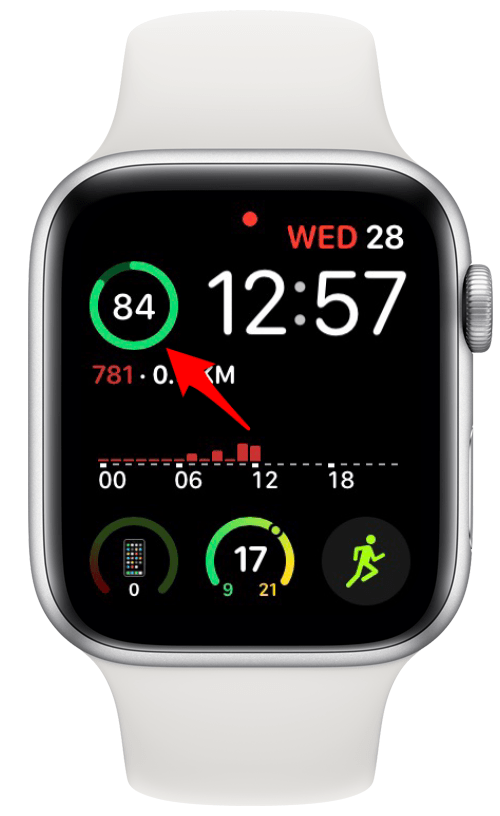
- You should now see your Apple Watch battery level displayed in that complication node.
![Battery charge level on Watch face]()
Whether you choose to add a new Apple Watch battery life complication or simply look in the Control Center, you'll never have to wonder about you're watch's battery percentage again! Next, learn how to fast charge your Apple Watch 7.