Sharing your ETA with a contact using Apple Maps allows you to keep a friend or colleague up to date on your arrival time so that you can focus on driving. You can share your ETA, route, and current location with a contact using the Maps app on your iPhone.
Why You'll Love This Tip
- Share an Apple Maps ETA to let contacts know you're on your way.
- Let friends and family know where you're going and when you'll be there for safety purposes.
How to Send ETA on iPhone via Apple Maps
System Requirements
This tip was performed on an iPhone 17 Pro Max running iOS 26.1. Find out how to update to the latest version of iOS.
Learning how to share ETA with live updates is great in case your plans change or there's unexpected traffic. Instead of worrying about updating someone while you drive, let Apple Maps do it for you automatically. For more great iPhone tutorials, check out our free Tip of the Day. Here's how to use the send ETA Apple Maps feature:
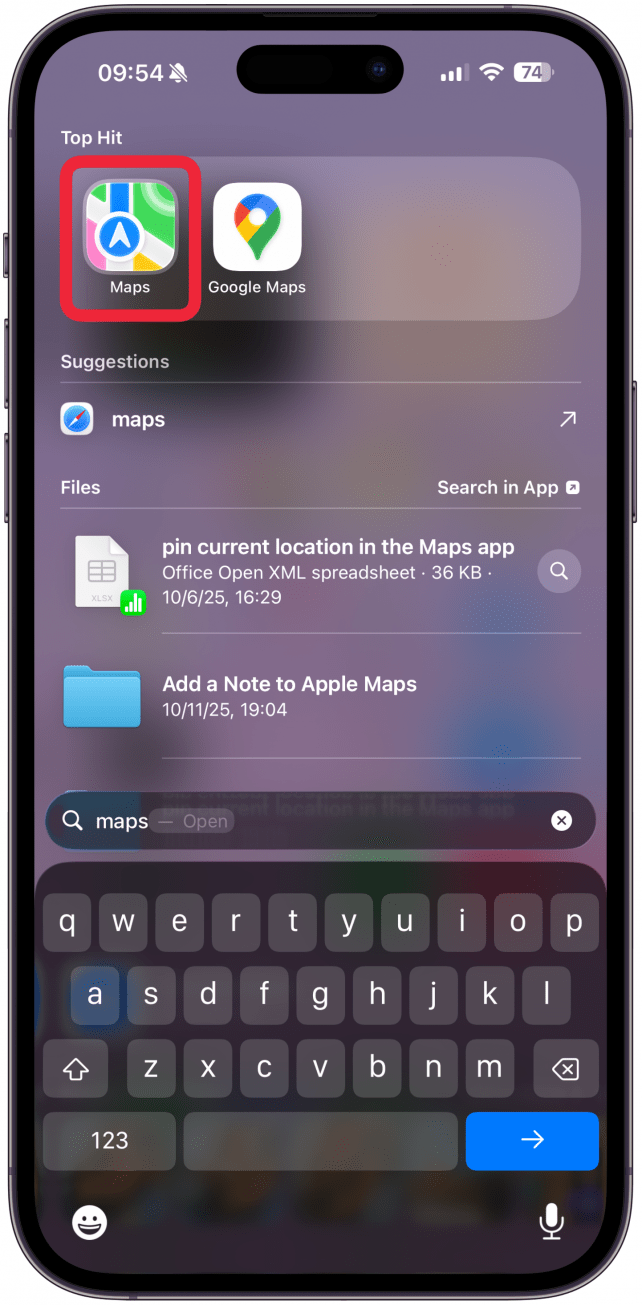
- Open the Maps app.
![Open the Maps app.]()
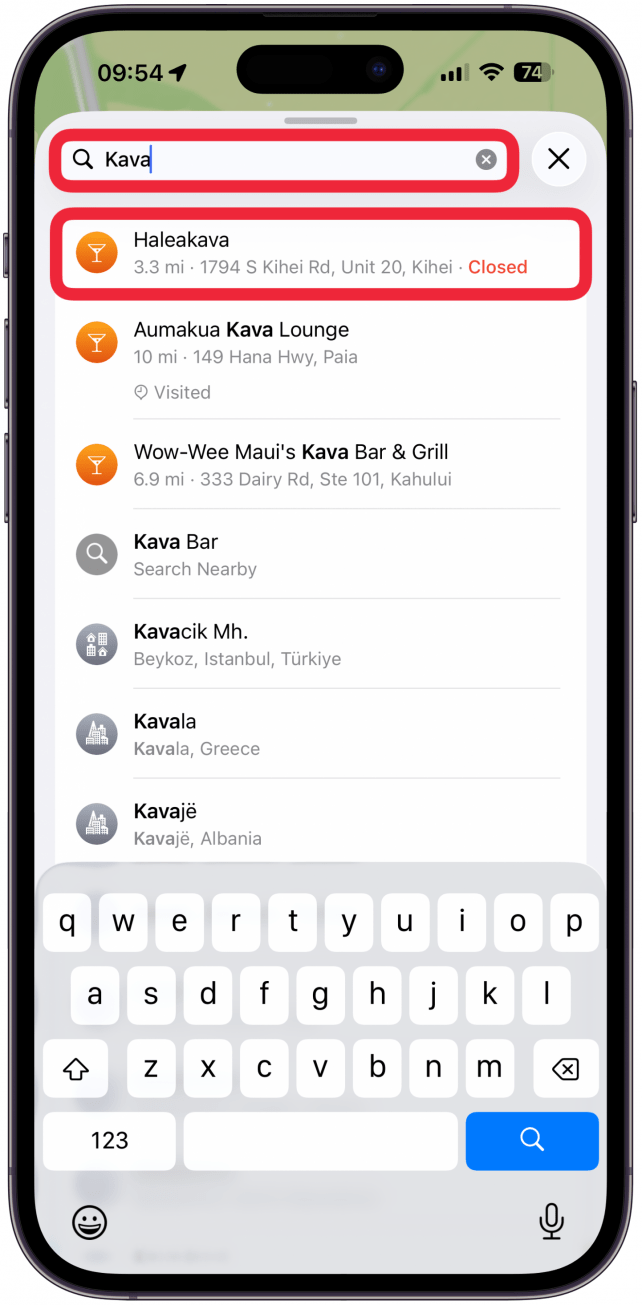
- Enter your destination in the search field and tap on the one you wish to navigate to.
![Enter your destination in the search field and tap on the one you wish to navigate to.]()
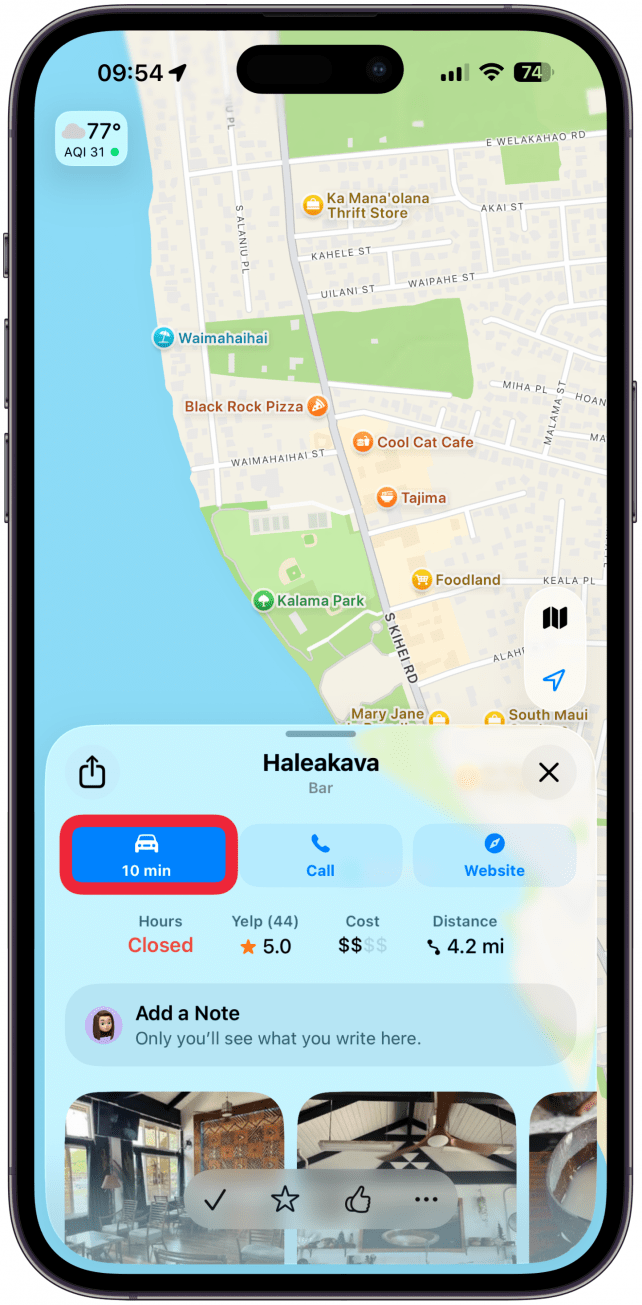
- Tap the icon showing your set mode of transportation to get directions.
![Tap the icon showing your set mode of transportation to get directions.]()
- Tap Go.
![Tap Go.]()
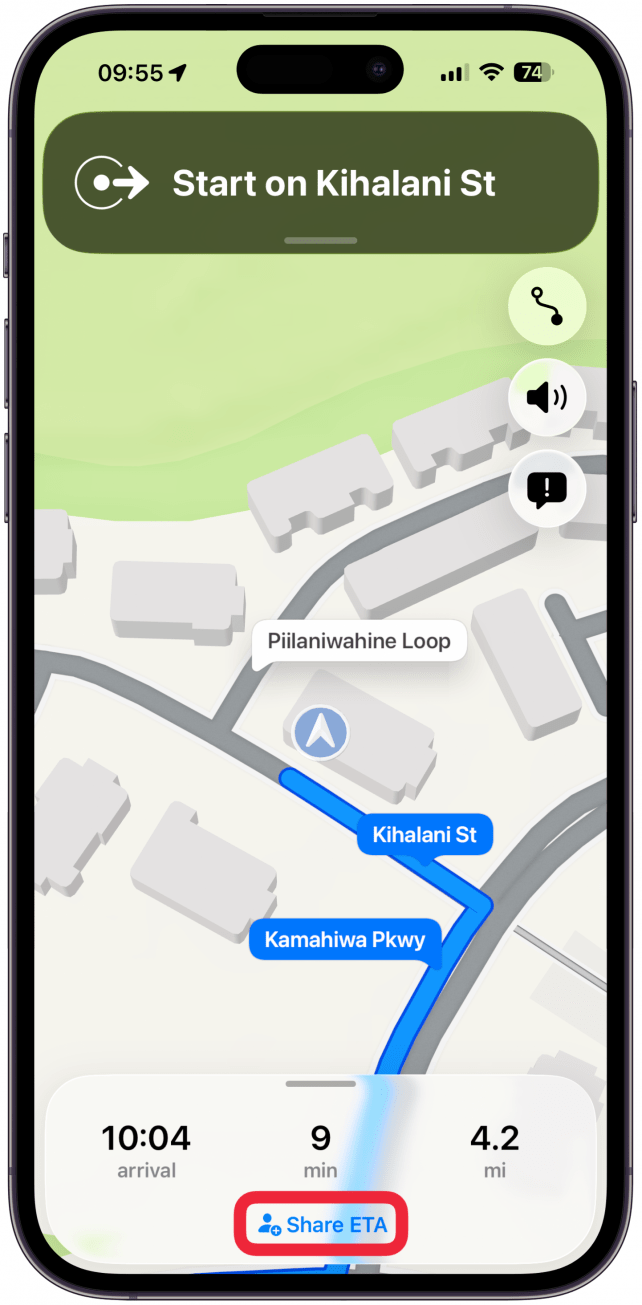
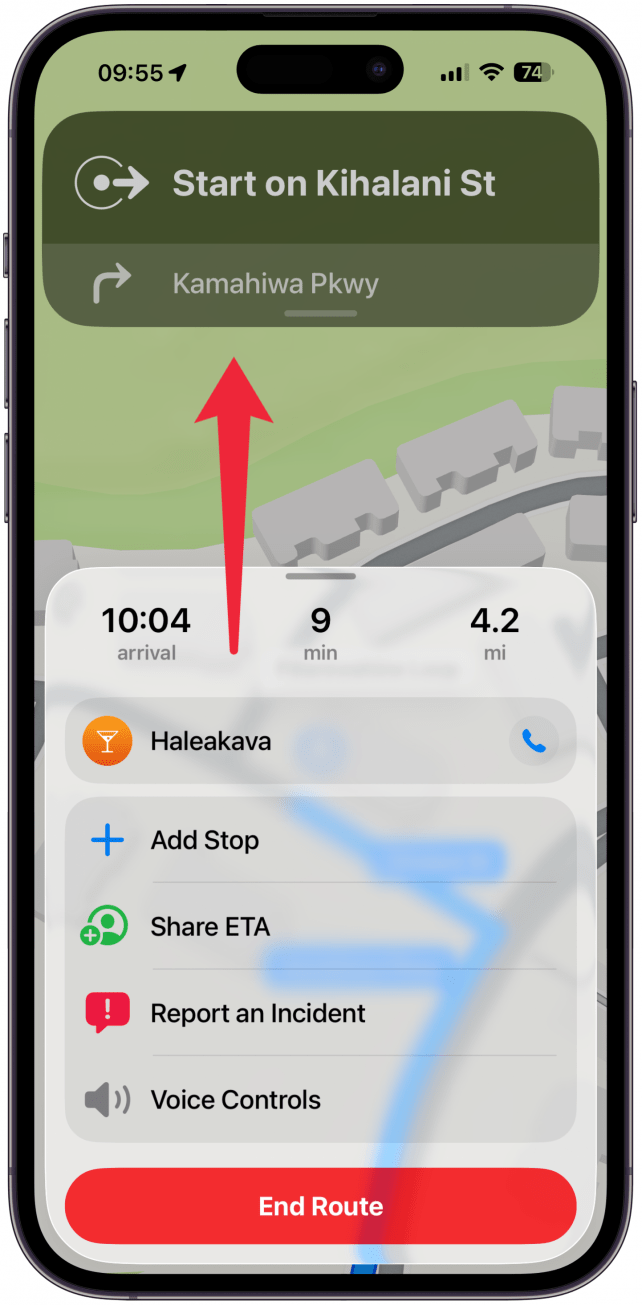
- Tap on Share ETA at the bottom of the screen or swipe up on the card that appears over the map view to see more options.
![Tap on Share ETA at the bottom of the screen or swipe up on the card that appears over the map view to see more options.]()
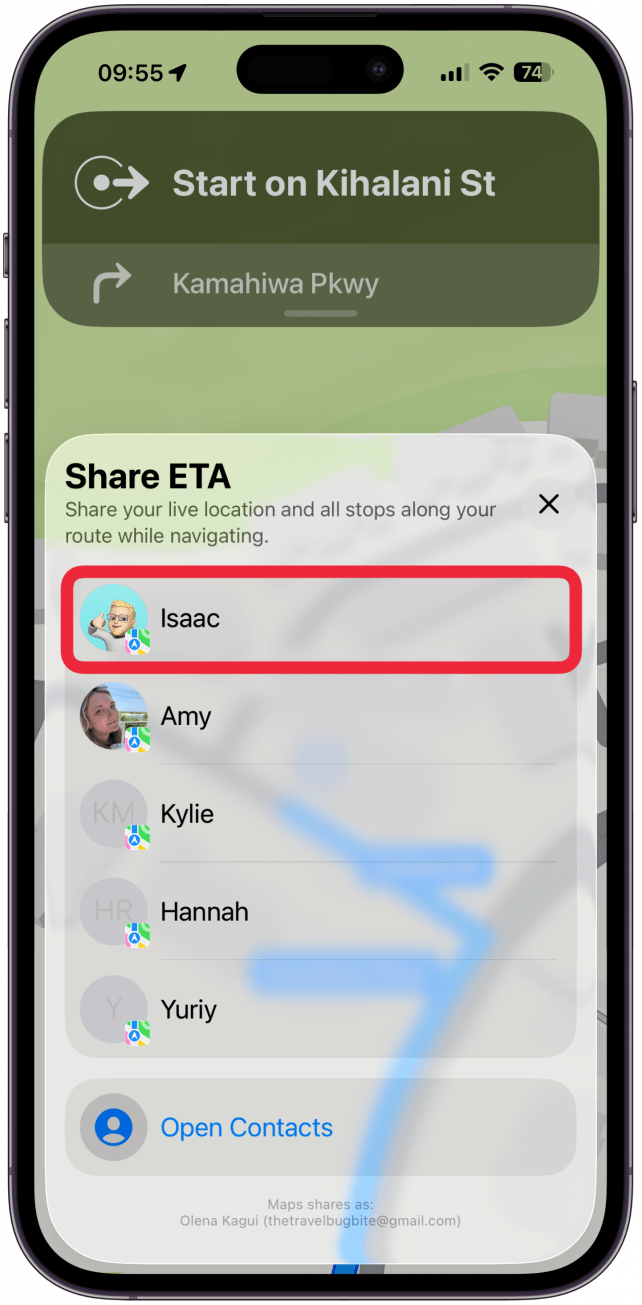
- Select a suggested contact or tap Open Contacts to search for a specific person.
![Tap Share ETA.]()
- You can swipe up from the map view at any time to invite more people to share your ETA with, add stops, stop navigating, and more.
![You can swipe up from the map view at any time to invite more people to share your ETA with, add stops, stop navigating, and more.]()
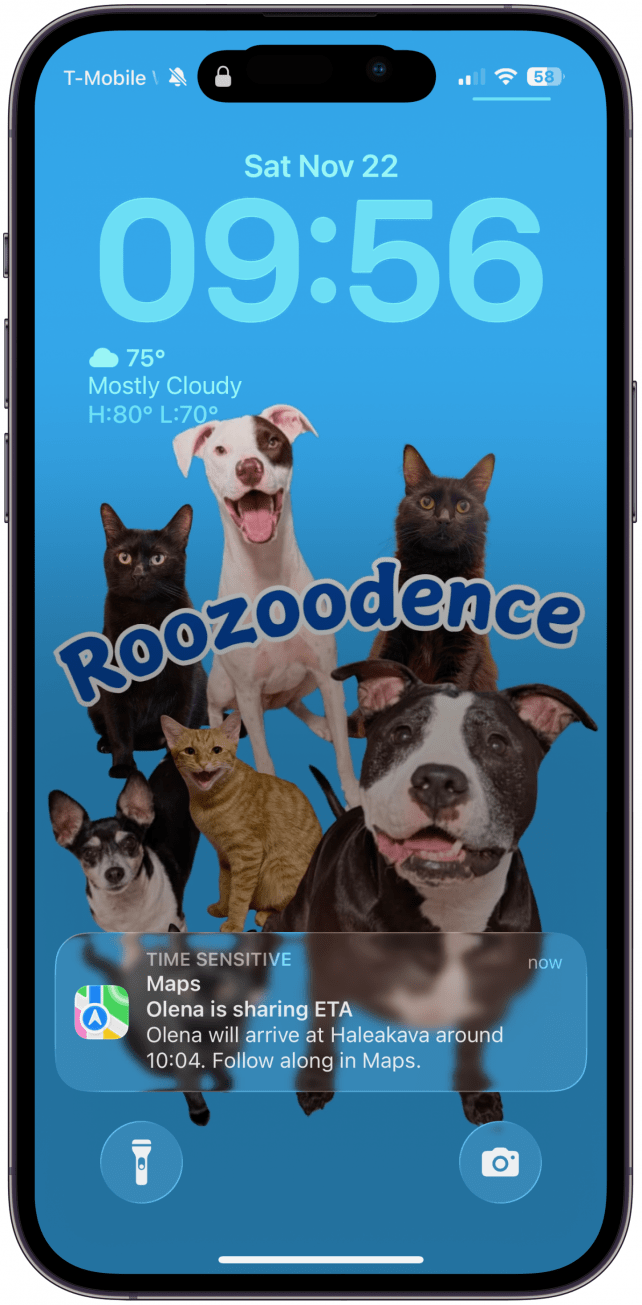
- The person you share your ETA with will receive a notification on your phone and can follow your exact location and see your ETA in the Maps app.
![The person you share your ETA with will receive a notification on your phone and can follow your exact location and see your ETA in the Maps app.]()

Now you know how to share ETA on Apple mMaps! With Share ETA enabled, your contact will receive regular updates regarding your arrival time, including delays. Happy (and safe) driving!