The default iPad and iPhone signature in iOS Mail is "Sent from my iPad" or "Sent from my iPhone." But while some people may be happy to declare what device they are using at the bottom of every email they send, others prefer to provide other information, such as the name of the sender or additional contact information. Here's how to turn off "Sent from my iPhone" or change it to something else.
Why You'll Love This Tip:
- Keep the device you sent an email on private.
- Adjust the email signature to say whatever you'd like.
- Put your name and contact info in the signature field so you don't have to type them every time you write an email.
Remove or Change Sent from My iPhone Signature
System Requirements
This tip was performed on an iPhone 15 Pro running iOS 18.4.1. Find out how to update to the latest version of iOS.
This tip will let you change your mail signature on your iPhone for Gmail, Yahoo, and Outlook emails sent from iPhone. Here's how to remove "Sent from my iPhone" from your emails:

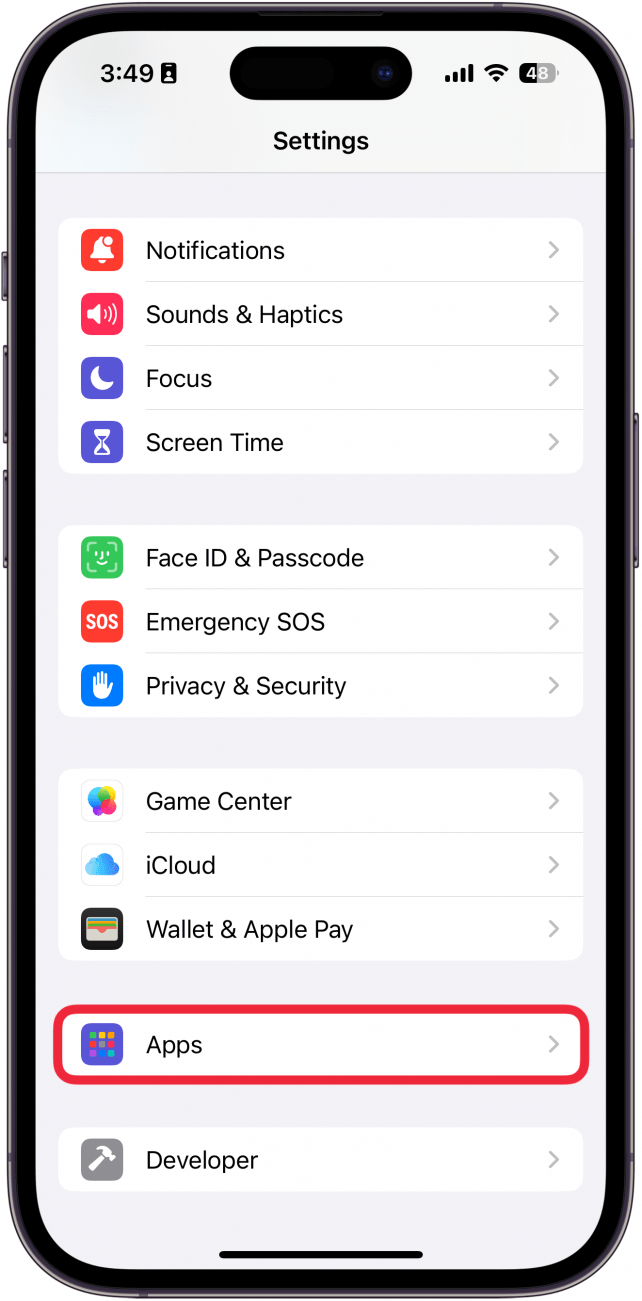
- Open Settings, and tap Apps.
![a screenshot of iphone settings app with a red box around apps]()
- Find Mail in the app list or use the search bar.
![a screenshot of iphone settings displaying app list with a red box around mail app]()
- Scroll down, and tap Signature.
![a screenshot of iphone mail settings with a red box around signature]()
- Select All Accounts to change the email signature for all your email accounts at once, or select Per Account to edit the signatures for each individual account. Note: If you only have one email account associated with your Mail app, you may not see the "Per Account" option.
![a screenshot of iphone email signature settings with a red box around the all accounts and per account options]()
- Tap the Signature Box.
![a screenshot of iphone email signature settings with a red box around the signature box]()
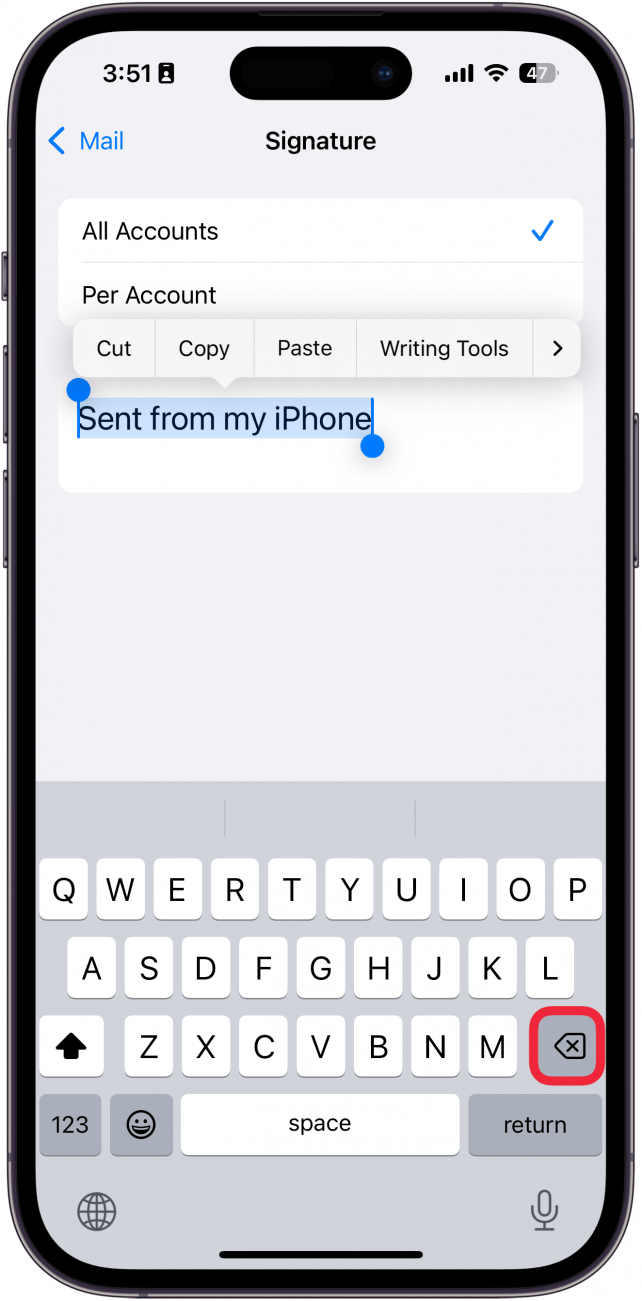
- Tap the backspace key to delete the signature (or change it to whatever you like).
![a screenshot of iphone email signature settings displaying the keyboard with a red box around the backspace key]()


That's how to delete "Sent from my iPhone" from your email signature. Next, find out how to go back to the old email format on your iPhone after the iOS 18.2 update.
More On: Inbox Management
Top image credit: TippaPatt / Shutterstock.com