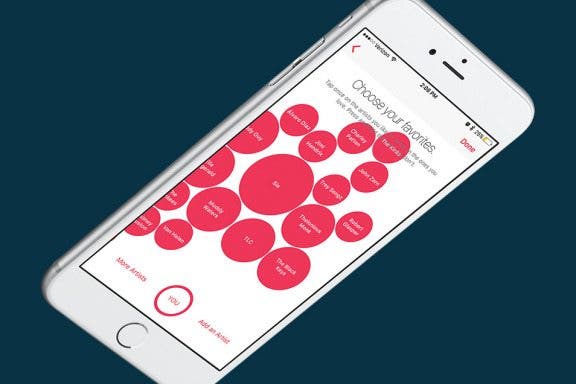
When you first sign up for Apple Music, it tries to get an understanding of what music you’re interested in. But if you want to tweak those selections and expand what music Apple Music selects for you, you can go back and choose more music that you like. Of course, there are other factors as to why Apple Music has selected the song for you that it has, but playing around with this setting in Apple Music will let the service know where your music-listening priorities stand. Here’s how to choose more music you like in Apple Music on iPhone.
Music
How to Create a Shared Music Playlist with Apple SharePlay
By Ashleigh Page
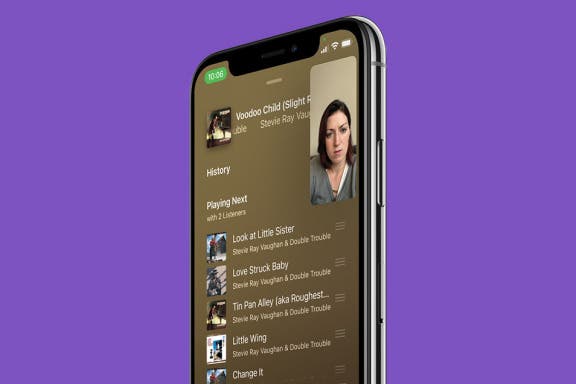
Apple SharePlay is a new feature that allows you to play movies and music during your FaceTime calls. It's fun to listen to music together, and even more so when everyone can add their favorite tunes. Let's cover how to play music on FaceTime and make a shared playlist.
Apple Adds a Siri-Based Music Plan & New HomePod Mini Colors
By Ashleigh Page
As Tim Cook explained during the October 18 Apple event, 'Unleashed,' recent innovations to Apple products have been focused on "music and Macs." Let's talk music, specifically the new tier in Apple Music's subscription options, the Apple Music Voice Plan and the new HomePod mini colors Apple announced at the same time. We'll cover the pros and cons of this monthly plan and discuss how it compares to other Apple Music subscriptions options and third-party music services.
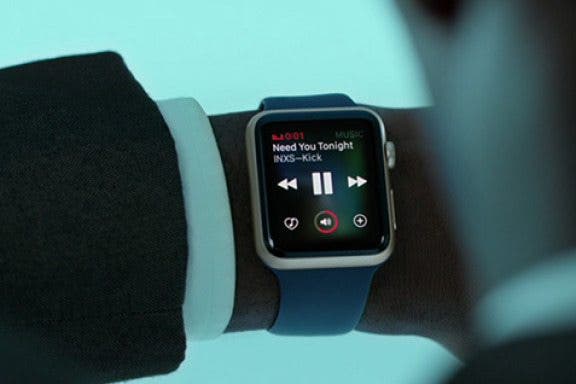
You probably already know that you can control your iPhone’s music from the Apple Watch. And if you have the Apple Watch Series 3 with Cellular, you know you can stream music directly on your watch without your iPhone. But if you have an Apple Watch without cellular data and want to leave your phone at home, how will you listen to music without your iPhone? And if you have the Apple Watch Series 3 with Cellular, how can you listen to music without data or Wi-Fi? The best way to listen to music while running or doing another iPhone-free activity is to put it on your Apple Watch, of course. We’ll go over how to make a playlist on your iPhone, how to sync music to your Apple Watch, and how to pair Bluetooth headphones with your Apple Watch so you can listen without data. Here’s everything you need to know about how to add music to your Apple Watch.
You can save a ton of money on an iCloud storage plan, Apple Music subscription, and purchases from Apple Music, Books, TV, Game Center, and the App Store. How? By using Apple Family Sharing, a money-saving program that allows up to six family members to share Apple Music and much more. The whole family can access the same content across multiple devices without sharing accounts. Once you've set up Family Sharing and started your family group, it's simple to add a family member; you can invite new members at any time. We've already gone over how to set up Family Sharing and how to share an Apple Music family plan with Family Group members. Now, here's how to send and accept family sharing invitations, so more family members can save money by sharing Apple purchases.
How to Exclude Songs from Shuffle in Apple Music
By Amy Spitzfaden Both
Going to your library of songs in Apple Music and hitting Shuffle can be a freeing experience when you don't want to limit yourself to one album, artist, or playlist, but few things ruin a mood quite like an unexpected Christmas song popping up on your playlist. So what do you do when you want to shuffle almost all of you songs but want to leave a couple options out? Here is how to exclude a song from Shuffle on your iPhone or iPad.
You can stream music from your iPad, iPod Touch, and iPhone to your Apple TV using Apple's AirPlay feature. This wireless option makes listening to your music on an Apple TV easy to do. We'll answer the questions, "what is AirPlay", and "what is Screen Mirroring", as well as the differences between the features. Then, we'll jump into how to AirPlay music on an Apple TV from an iPhone from Apple Music or a third-party app.
Want to know how to hide music purchases from Family Sharing? Do you have some movies or shows you'd like to keep private? When using Family Sharing, some family members (like children) sometimes end up with things on their devices that others (like parents) didn’t really want to share with everyone, like when my favorite song (with explicit lyrics) popped up on my 10 year-old's iPad! In that moment, I was inspired to write a how-to for setting up your Family Sharing so you can share what you’d like, and keep hidden what you don’t. You can use your iPhone to hide app and book purchases, but not music or shows, so this tip focuses on how use your Mac to hide shows, movies, and music. Here’s how to use your Mac to hide purchases in Family Sharing.
How to Shuffle Music & Repeat Songs in Apple Music
By Tamlin Day
If you want to know how to repeat a song or shuffle music, you'll like this tip on how to find and use playback controls in Apple Music. The controls to shuffle music and repeat songs can be hard to locate, especially when you’ve accidentally enabled them and need to turn shuffle or repeat off! Read on to learn how to repeat songs and shuffle music, plus how to turn shuffle off.
The 10 Best Apps for Making & Listening to Music
By Kenneth Boshell
Whether you're a music maker, a music lover, or both, you're probably on the lookout for the best apps to record songs or find new favorites. We've rounded up ten free and paid apps; some, like Pandora, YouTube, and Amazon Music are well known, others are more obscure. Whether you'd like to learn a new instrument or improve your skills, listen to favorites or discover new artists, we have the app for you.
Now that Apple has announced that it's getting rid of iTunes and splitting it into three, everyone wants to know, without iTunes, what will happen to my music library, will my playlists be transferred, and will the iTunes backup be replaced with a new option? Don’t worry; we’ve got the answers to all your burning iTunes related questions.
App Saturday: Amazon Music
By Hallei Halter
While you may think of Spotify or Apple Music when it comes to streaming music, if you're wanting to stay up to date with new music or browse your tried and true favorite albums, Amazon Music just about has it all. And you already have access to it if you are an Amazon Prime member. With the ability to find and listen to thousands of hours of music, you won't have to search for long to settle on something you enjoy.
How to Easily Access Music While Working Out on Apple Watch
By Conner Carey
WatchOS 4 was probably the best Apple Watch software update we’d ever seen, especially for those who workout with their Apple Watch. In this update, not only did Apple add new workouts like HIIT, it also added the ability to quickly and easily swipe over to music from within the Workout app on Apple Watch. Now you don’t need to change apps and fumble around mid workout just to change the song. Here’s how to easily access music while working out with your Apple Watch.
How to Share Apple Music Playlists on iPhone
By Conner Carey
Apple Music has a plethora of playlist choices, and Apple heavily promotes the fact that humans curate these playlists instead of computers. There are various options for finding Apple Playlists from the For You section of Apple Music, and you can create playlists as well! If you discover or create a playlist you particularly love, you might be wondering how to share Apple Music playlists. It’s easy to share music on your iPhone with Apple Music playlists; let's learn how now!
I'm just now diving into the world of Spotify, and one of my favorite features is, of course, the Spotify playlist! After using Spotify for at least two weeks, a new Spotify playlist appears; it's called the Spotify Discover Weekly playlist. Discover Weekly is a batch of song recommendations that are based on the music you've played and liked over the course of the week. The frustrating thing about this list, though, is that it disappears and is replaced every Monday. It's great to get the new recommendations, but what if you'd like to save the old playlist? Let's get started learning how to save or download your Discover Weekly playlist on Spotify, so you can save the playlists you really love and listen to them whenever you want.
How to Create & Edit Apple Music Playlists on Your iPhone
By Becca Ludlum
Creating playlists is the best way to curate songs for different events, outings, and moods. I like to create playlists with all of the albums I’ve recently downloaded, so I can see which songs I like and which songs I want to remove. You can create a workout playlist for the gym, a beach playlist for vacation, or any number of other possibilities. And with iOS 11, your friends can easily check out your public playlists too. Here’s how to create and edit Apple Music playlists on iPhone.
One of the coolest features of Apple's new HomePod is its ability to team up with your Apple Music subscription and act as a personal DJ, playing custom playlists based on your listening habits for you enjoy whenever you ask. Your HomePod's mixology skills can get thrown off kilter, though, if family members or visitors are also asking Siri to play their favorite tunes. And this will also influence what Apple Music thinks you like and plays for you on your other Apple Devices as well. Fortunately, there's a HomePod setting you can change to ensure that you won't end up listening to a mish-mosh of all your friends' and family members' musical tastes. Let's get started learning how to keep other HomePod users from influencing your "For You" Apple Music recommendations on your HomePod.
Apple HomePod Review: 5 Things We Love About Apple's Smart Speaker, & a Few We Don't
By David Averbach
Should You Purchase the HomePod?
iPhoneLife CEO and writer David Averbach reviews audio quality, "Hey Siri" performance, the HomePod's fit into Apple's ecosystem, five of his favorite HomePod features, and who should and shouldn't purchase a HomePod.
How to Make Song Volume Consistent on iPhone
By Leanne Hays
iPhones provide many useful services, not least of which is listening to music in a portable, convenient, and customizable fashion. One thing that can really deter from enjoying music on our iPhones, though, is the way that the volume can shift up and down from song to song. It can be a bit of a Goldilocks experience; first the iPhone volume is too high, then the volume level is too low, and sometimes it's just right. Luckily there's an easy iPhone trick to fix this issue so that you're not constantly having to adjust the volume on your iPhone. Let's get started learning how to enable Sound Check on your iPhone to level out the volume throughout your listening experience.
How to Remove the U2 Album from iPhone in 2018
By Conner Carey
How to Remove U2 Album on iPhone:
- Visit: https://itunes.com/soi-remove.
- Click Remove Album.
- Sign in with your Apple ID and password.
- A confirmation page will let you know that you’ve removed the U2 album from your library.
- You may still see the album in your iTunes library. The confirmation page suggests signing out of iTunes and back in. You can also select the songs, right click, and select Delete from Library.
This will remove the U2 album from your iTunes library; the next part will show you how to delete the U2 album off your phone as well.