How to Watermark Photos on iPhone
By Amy Spitzfaden Both
By Devala Rees
Dropping a pin is an easy way to temporarily mark a spot on the map so that you can easily find or retrace your steps to a marked location. This is especially useful when giving people directions to a large area without an address (such as a city park). Let's cover how to pin your location on the iPhone Maps app.
By Conner Carey
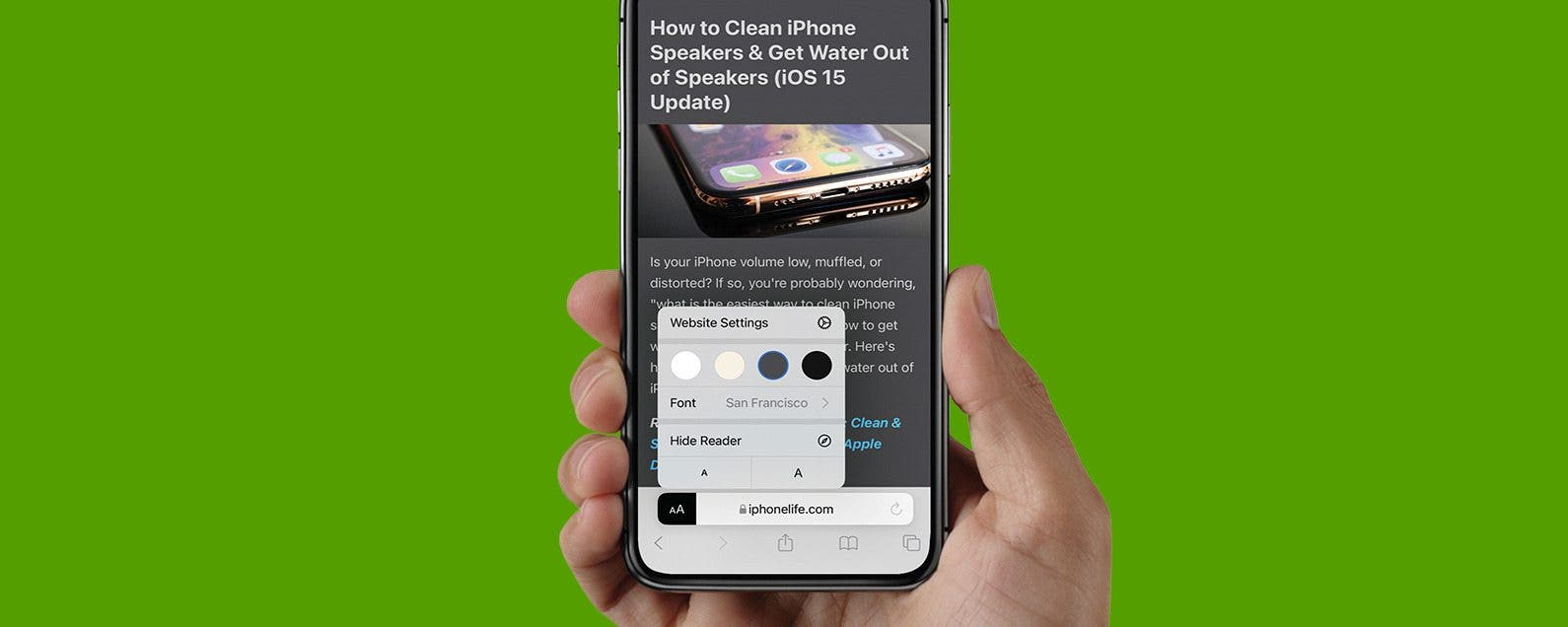
Safari Reader mode removes the clutter of a web page so you can easily read content without interruptions from ads. With Safari settings for Reader mode, you can customize your font, text size, and background color for a fun and easy-to-read browsing experience. Let's learn how!
By Devala Rees
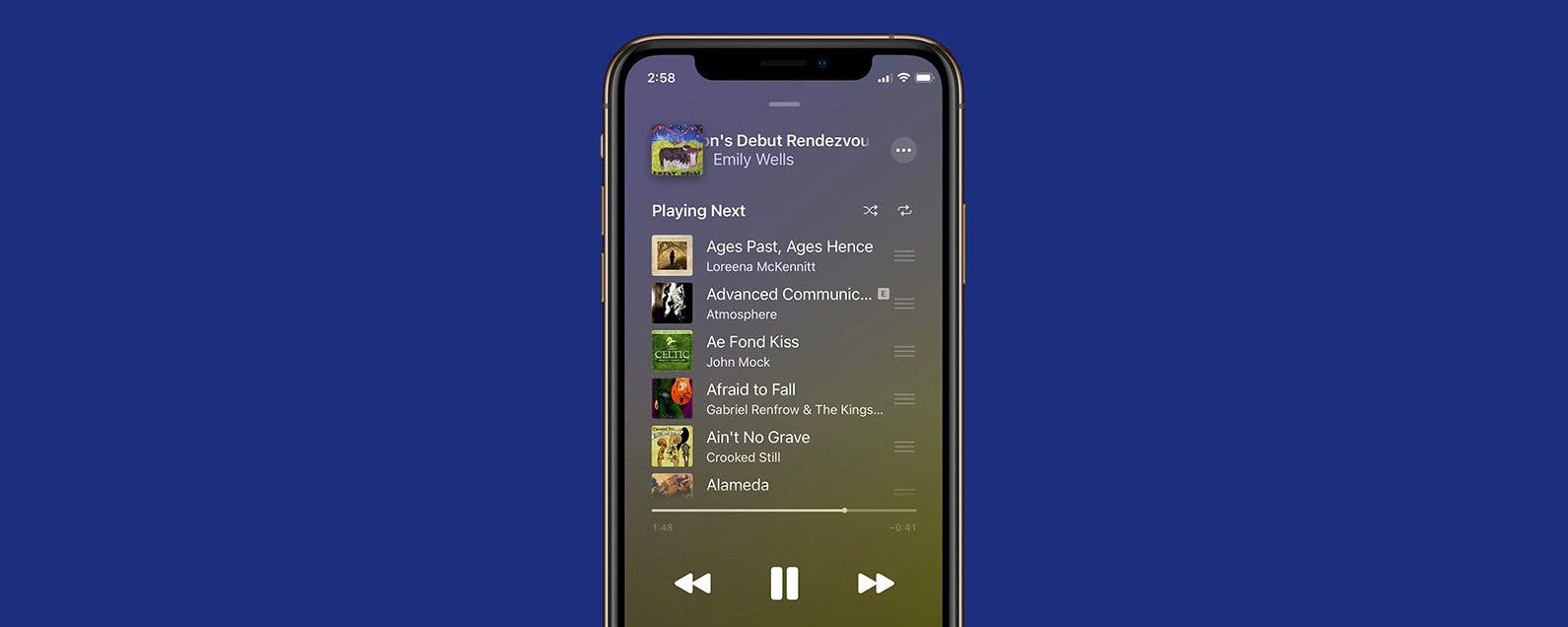
Apple Music features on iPhone allow you to queue up songs so that when the current song finishes, the app automatically moves on to the next song you selected. This lets you easily create custom playlists while you're listening. Let's cover how to queue songs on Apple Music.
By Ashleigh Page
Got an adorable, hilarious, or action-packed video that you're dying to add music to? While you can't add music to videos using your Photos app, the good news is that you can do this with the native Apple iMovie app. Below, we'll show you how to add music to a video for free using iMovie and with the third-party InShot video editing app.
The iPhone Notes app offers checklists as an extremely easy way to keep your to-do lists and jotted-down ideas close at hand. If you use Notes checklists often, you may want to consider changing your settings so that Notes automatically sorts checked items to the bottom!
By Erin MacPherson
If you want to save an article or recipe on paper instead of on your iPhone, you'll probably want to print without ads. There's an easy way to do it, but you'll have to use a special setting to make it happen. We'll show you how to print webpages without ads the easy way!
By Cullen Thomas
Sometimes the right side is the left side—you've taken a picture that needs to be flipped, or mirrored, in order to get the best effect. The Photos app on your iPhone and iPad makes this really easy to do! Read on for how to horizontally flip pictures or images in the Photos app on the iPhone.
By Olena Kagui
Safari is the default web browser app on all Apple devices. When you select links in other apps and open them in Safari, new tabs will open. After a while, it can become difficult to navigate and manage your tabs. Learn to close all safari tabs, bookmark tabs, open incognito tabs, and navigate the Safari web browser seamlessly.
By Rheanne Taylor
Need to revert a photo to its original state? If you find you've accidentally over-edited an otherwise great image in the Photos app and then saved it—no worries! This tip will allow you to restore the original photo like the changes never even happened. Here’s how to revert an image back to its original form.
Sometimes in the middle of editing a photo, you start to forget how your original photo looked and wonder if the changes you're making are an improvement! Luckily, you can compare before and after images while you're in the middle of editing a photo. Let's get started learning how to compare photos on iPhone.
By Abbey Dufoe
iPhone reminders are an easy way to keep your life on schedule. You can set them via the Reminders app or simply tell Siri when and what you need to be reminded of. However, I don't use the reminders app very often; therefore, it's buried in a folder on my third Home Screen and is annoying to access. But, did you know that you don't have to unlock your phone to mark a reminder as complete? You can even Snooze the reminder from Lock Screen as though it were any other alarm. Once you've set a reminder in the native app, the reminder will be set to go off. Here's how to mark it complete from Lock Screen.
Did you know that the Apple Books app (formerly iBooks) lets you buy e-books, audiobooks, and even radio-plays? When you’re stuck at home, listening to audiobooks and reading ebooks is an enriching way to pass the time, especially as a family. Apple’s Books app doesn’t get much love, but it’s got a great collection of books to buy as well as some freebies! Let’s dive in with how to make purchases in Apple’s Books app.
By Devala Rees
Mac startup programs are applications that automatically open every time you log in to your Mac. This is a useful feature if you routinely use certain applications each time you use your Mac or a specific Mac login. Here's how to change what apps open on startup.
By Olena Kagui
Markup is a nifty iPhone feature that allows users to doodle, magnify, and add text to images and PDFs in the Photos, Mail, Notes, Files, and Messages apps. Whether you need to add a signature, insert text, or draw shapes onto existing documents or photos, Markup has you covered. With Markup, you can save time when signing digital documents and add your personal flair to your images. Here how to use the markup tools on your iPhone.
By Sarah Kingsbury
When you turn on Reader View in Safari on an iPhone or iPad, you can enjoy articles without the clutter of ads and menus. Better yet, you can also share and even print this ad-free Reader mode version! Here’s how to use this convenient Safari setting to share web articles without ads.
By Emma Chase
It’s possible to turn off in-app purchases, but what about when you need to turn in-app purchases back on to help you pass a particularly challenging level or get more coins to give you an advantage? We'll show you how to turn on in-app purchases for when you need them.
By August Garry
Connecting your Apple Watch to your Peloton Bike+ is easy since the Bike+ comes equipped with Apple GymKit already on board. In this article, we'll go over how to connect your Apple Watch to your Peloton Bike+ and what benefits you can expect.
By Paula Bostrom
Now that we’re regularly using our iPhones to take videos, you may want to trim out unwanted frames to reduce file size. There are also those moments when you record preemptively in order to catch your shot, but afterward, you want to edit out the excess footage. Read on to learn how to cut a video on your iPhone or iPad to shorten it.
By Hallei Halter
Occasionally, you will see upside-down pictures in your iPhone Photos app, whether you've just downloaded images from your email or took an awesome action shot at a weird angle. We'll briefly cover the reasons why this happens and then walk through how to fix upside-down photos on your iPhone.
NULL