When iOS 27 was released, it brought a new Siri powered by AI. While this new Siri is smarter and more efficient than previous versions of the virtual assistant, some users prefer to use Siri without AI. However, turning off AI on the iPhone isn't the simplest process. Here's how it works.
Why You'll Love This Tip
- Revert to the old version of Siri and avoid using AI.
- Clear up the storage consumed by Apple Intelligence.
How to Turn Off AI on iPhone
System Requirements
This tip was performed on an iPhone 15 Pro running iOS 27. Find out how to update to the latest version of iOS.
Apple is going all-in on AI, starting with a new and improved Siri, dubbed Siri AI. However, despite this new version of the virtual assistant being smarter, there are still many who are against the use of AI, whether it's for privacy, moral, or environmental reasons. So can you turn off Apple Intelligence? Thankfully, there's an option to disable Siri AI. For more hidden iPhone tips and tricks, be sure to sign up for our free Tip of the Day newsletter. Now, here's how to turn off AI on your iPhone:
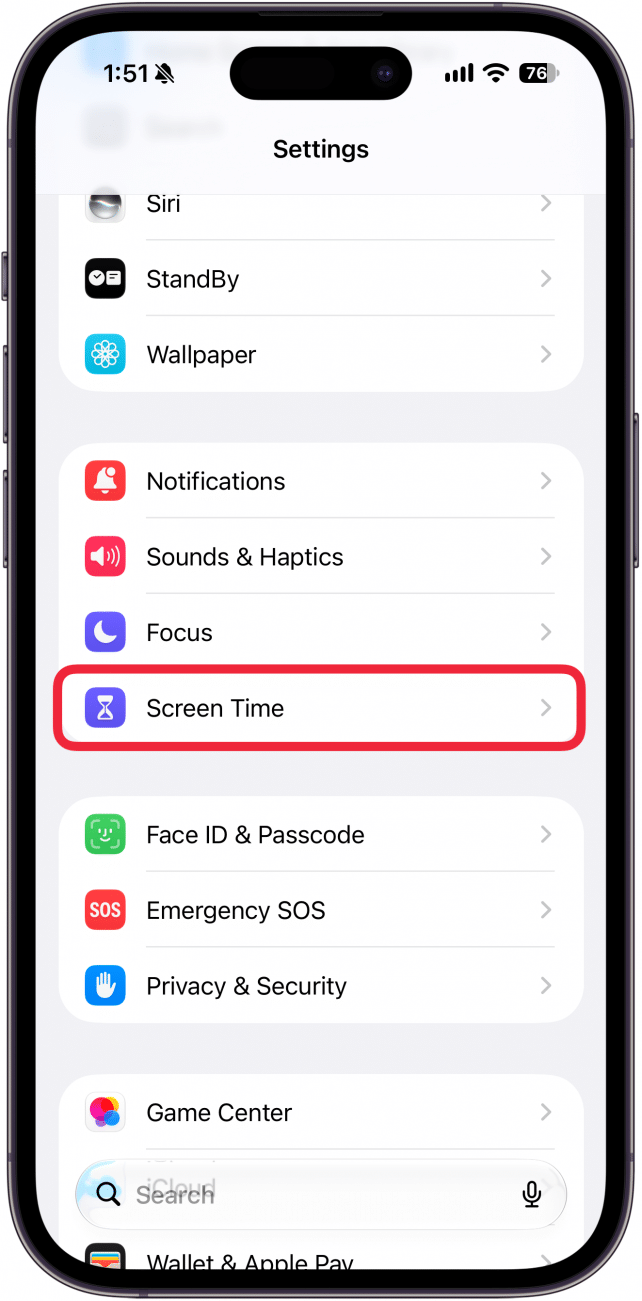
- Open the Settings app, and tap Screen Time.
![a screenshot of the iphone settings app with a red box around screen time]()
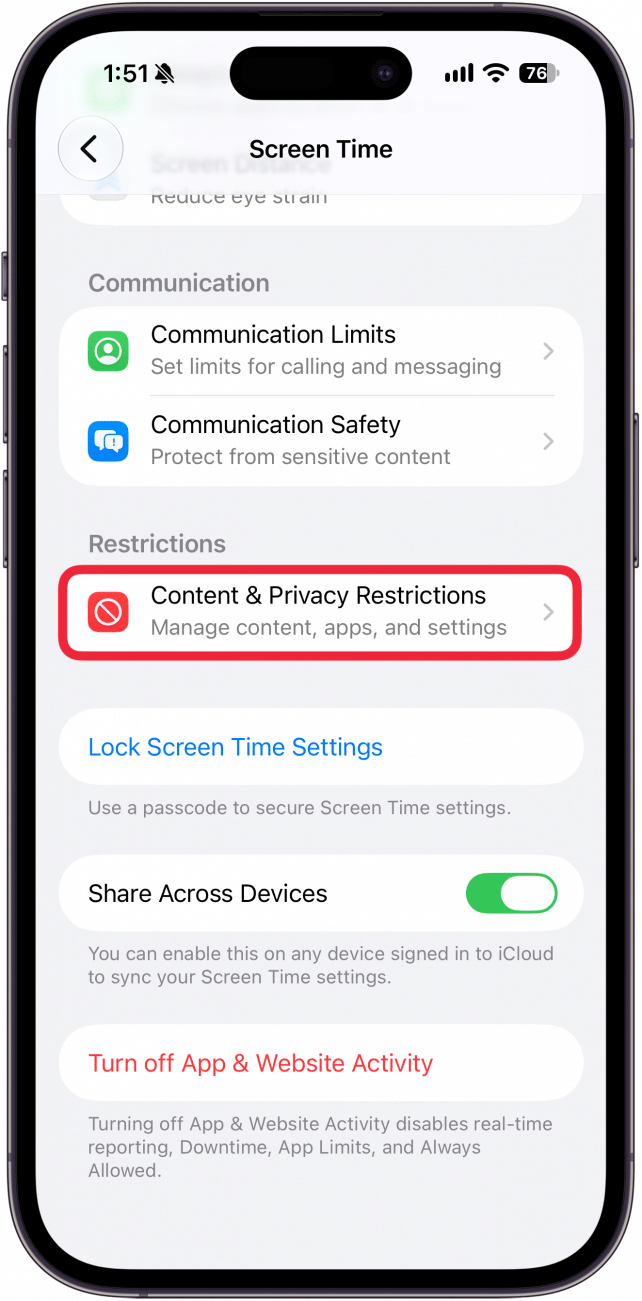
- Scroll down and select Content & Privacy Restrictions.
![a screenshot of iphone screen time settings with a red box around content and privacy restrictions]()
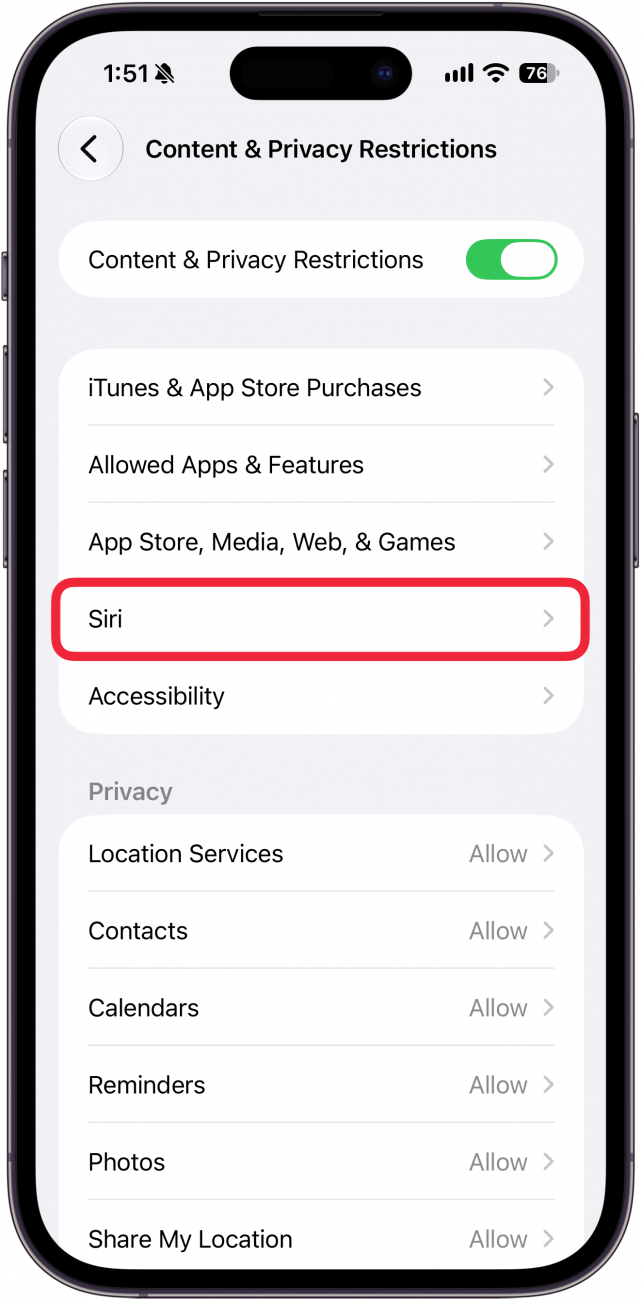
- Tap Siri.
![a screenshot of iphone screen time settings with a red box around siri]()
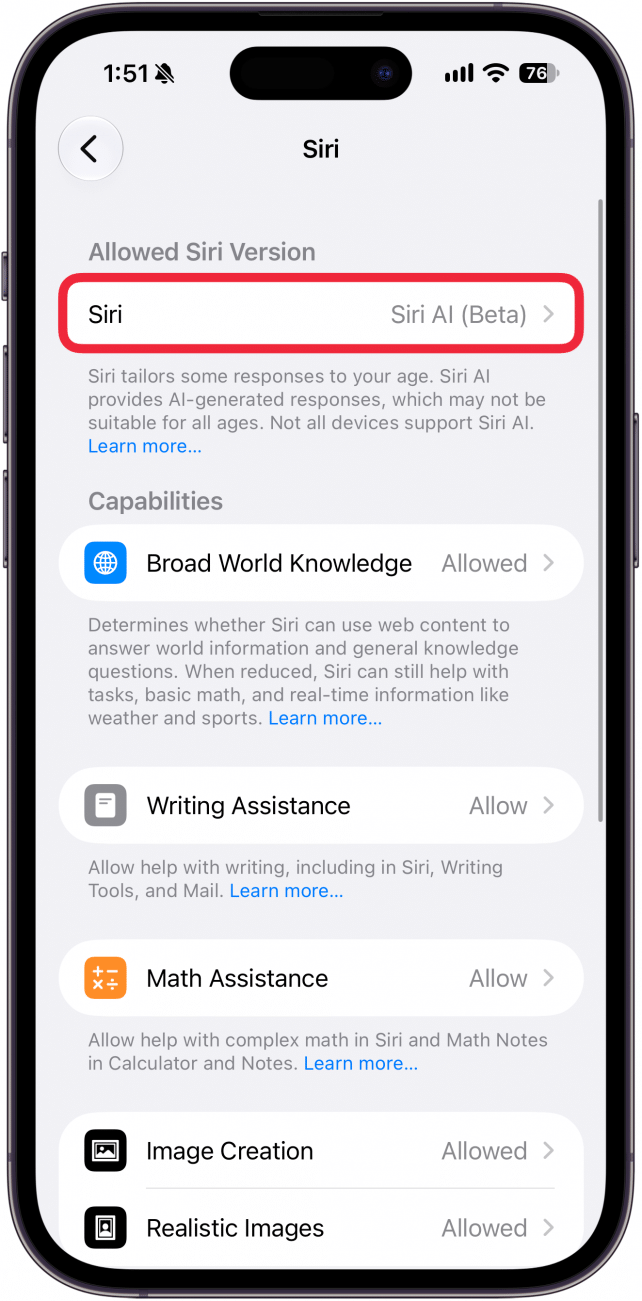
- Under Allowed Siri Version, tap Siri.
![a screenshot of siri screen time settings with a red box siri]()
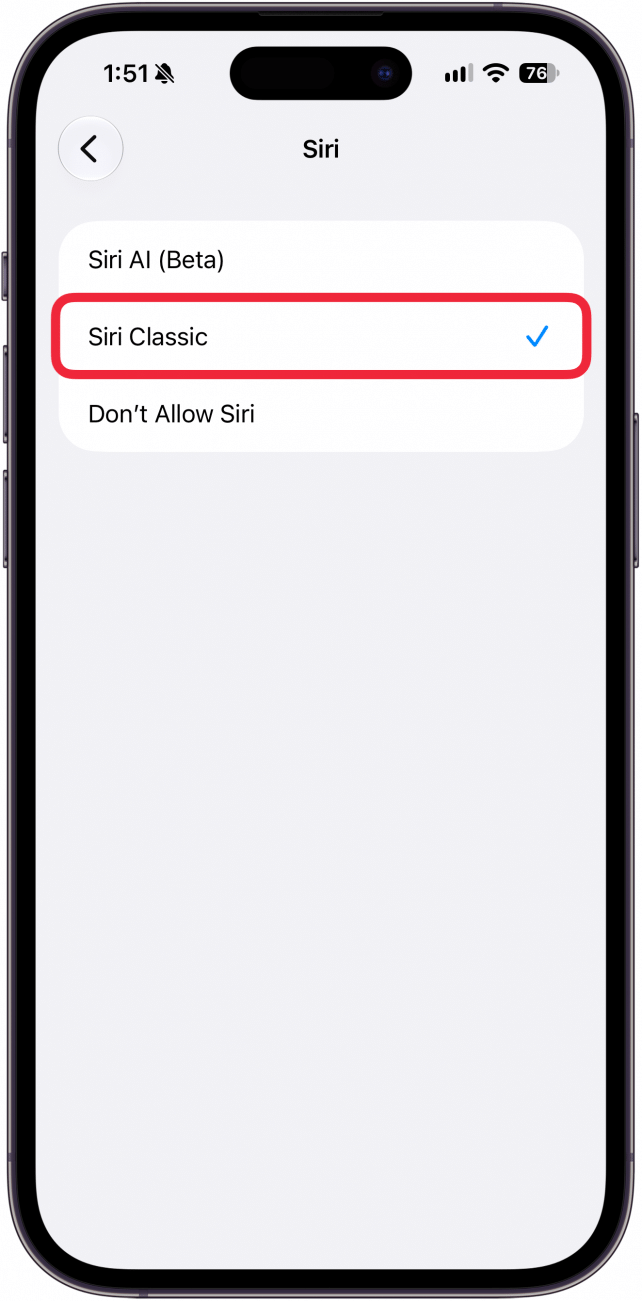
- Tap Siri Classic.
![a screenshot of siri screen time settings with a red box siri classic]()
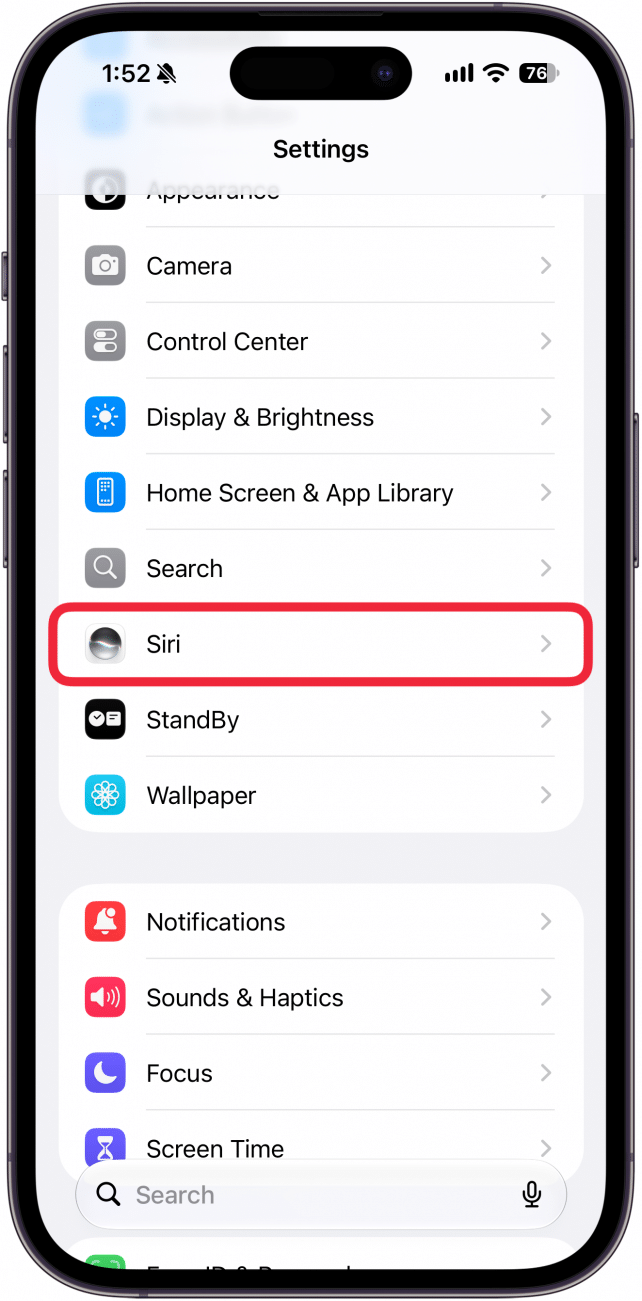
- If you don't use Screen Time, there's another way to turn off AI on the iPhone. In Settings, tap Siri.
![a screenshot of the iphone settings app with a red box around siri]()
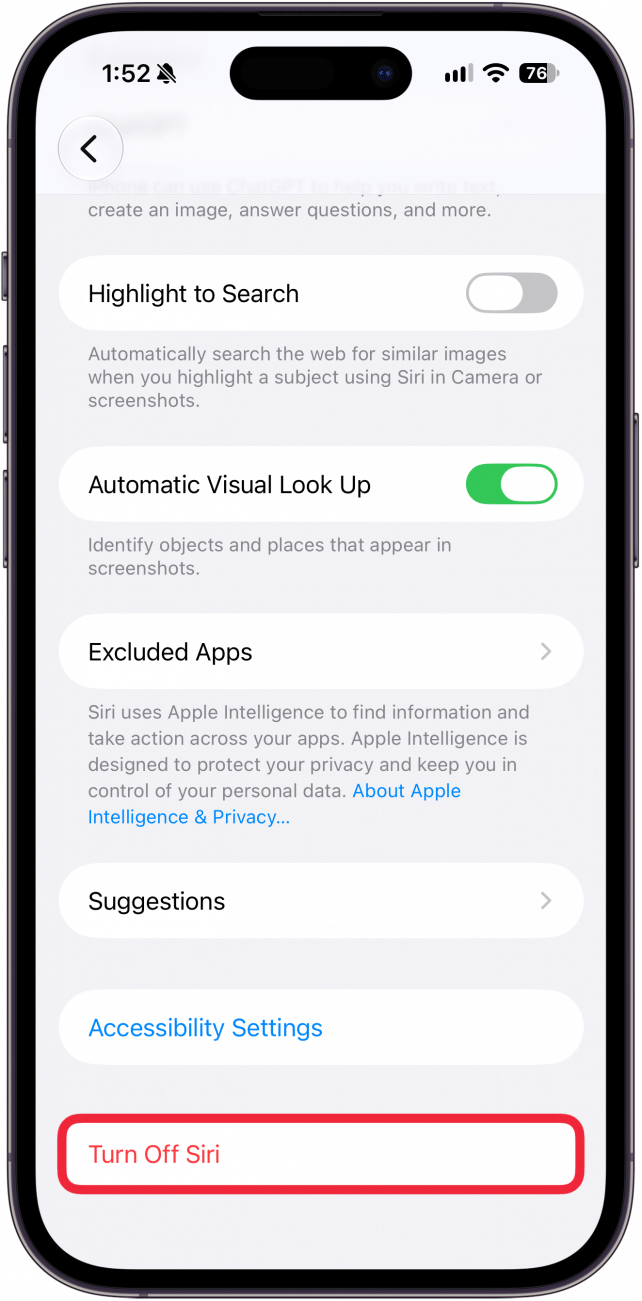
- Scroll down and tap Turn Off Siri.
![a screenshot of siri settings on iphone with a red box around turn off siri]()
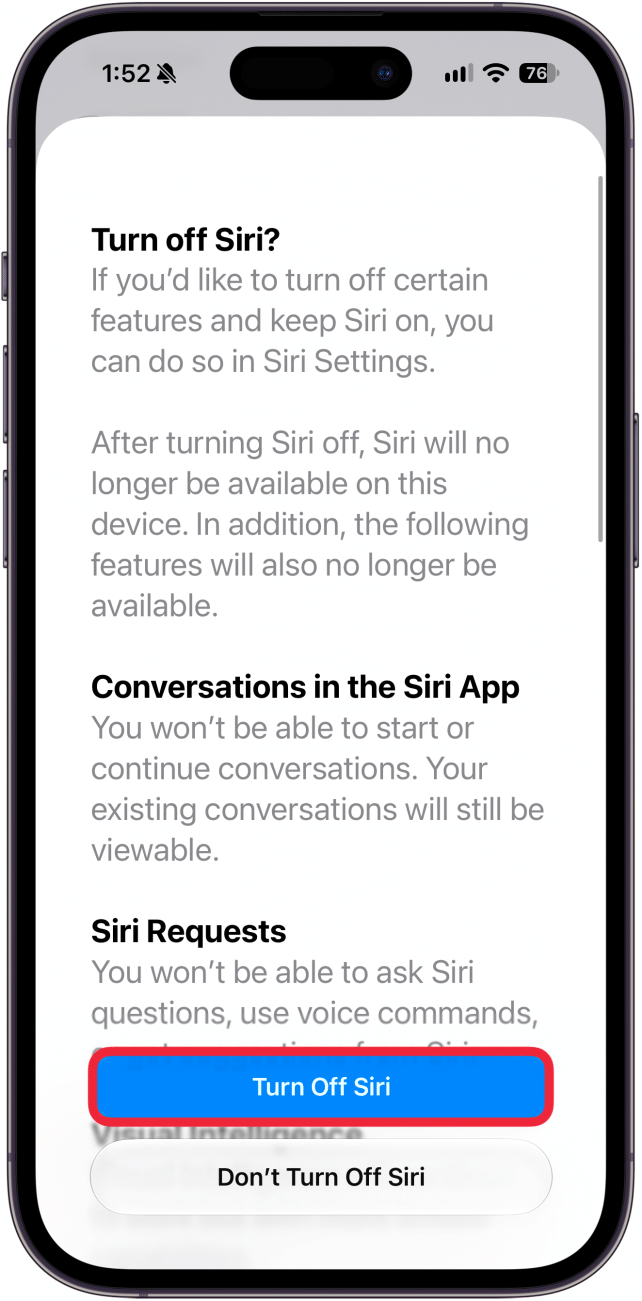
- Tap Turn Off Siri again.
![a screenshot of siri settings on iphone displaying a prompt asking to confirm with a red box around turn off siri]()
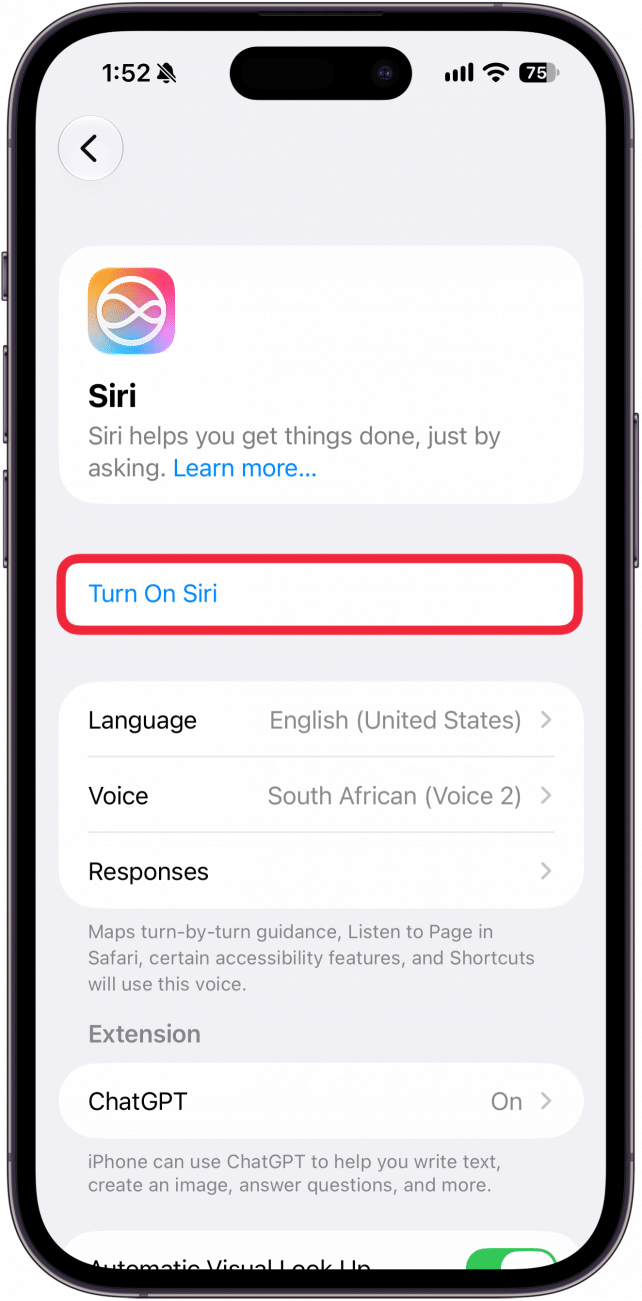
- Tap Turn On Siri.
![a screenshot of siri settings on iphone with a red box around turn on siri]()
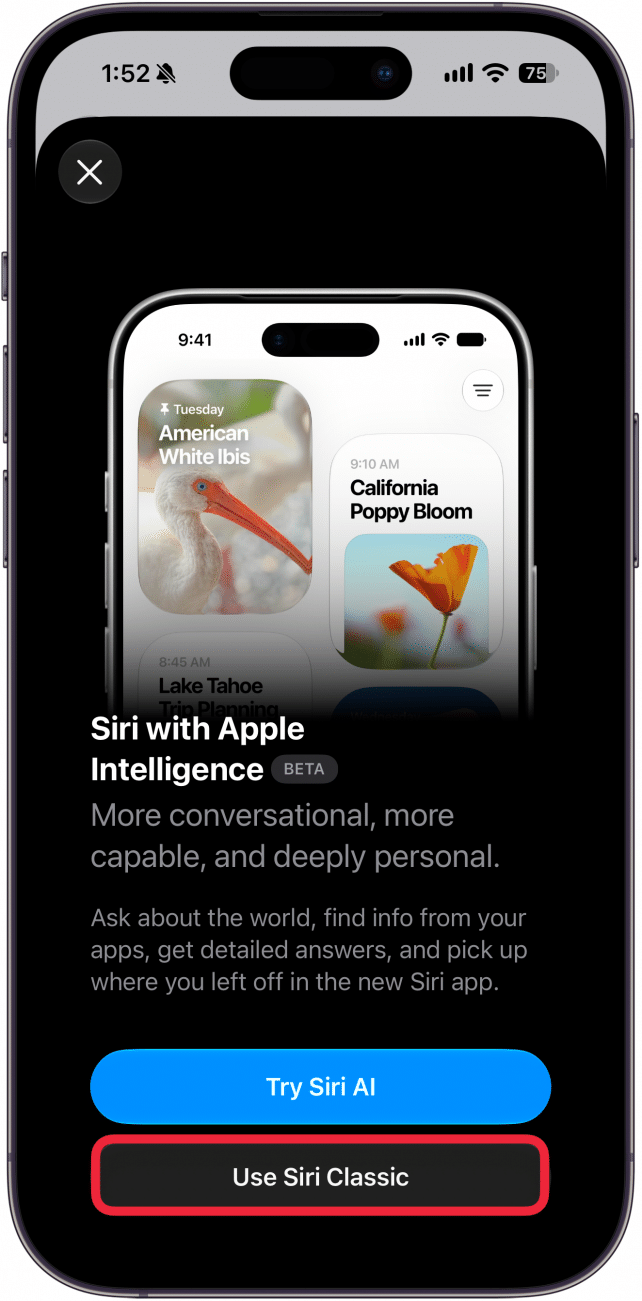
- Tap Use Siri Classic, and follow any additional on-screen prompts.
![a screenshot of siri settings on iphone displaying a prompt asking if the users wants to use siri ai or siri classic with a red box around siri classic]()
Note
Any time you turn Siri off and back on again, you will need to set up Hey Siri again.
That's how to turn AI off on your iPhone. This should also clear up a small amount of storage since Siri AI requires additional storage for the AI models. If you ever decide you want to use Apple Intelligence again, go back into Settings, select Siri (as seen in step 6), and then tap Try Siri AI.
More On: Siri
Top image credit: W. Phokin / Shutterstock.com