Want to know how to customize your iPhone Control Center? Read on to learn how to edit the Control Center on your iPhone, including how to rearrange the Control Center any way you want.
Why You'll Love This Tip
- Rearrange the Control Center to have your most used controls front and center.
- Learn how to customize the iPhone Control Center to keep it neat and organized.
How to Customize iPhone Control Center
System Requirements
This tip works on iPhones running iOS 18 or later, and was tested on an iPhone 17 Pro running iOS 26. Find out how to update to the latest version of iOS.
Here's how to edit the Control Center on your iPhone, including how to add the Screen Recorder to the Control Center, and how to remove icons you don't need. Read on to learn how to customize the Control Center on your iPhone.
Note
I have already customized my Control Center, so yours will likely look a bit different than mine when you start.
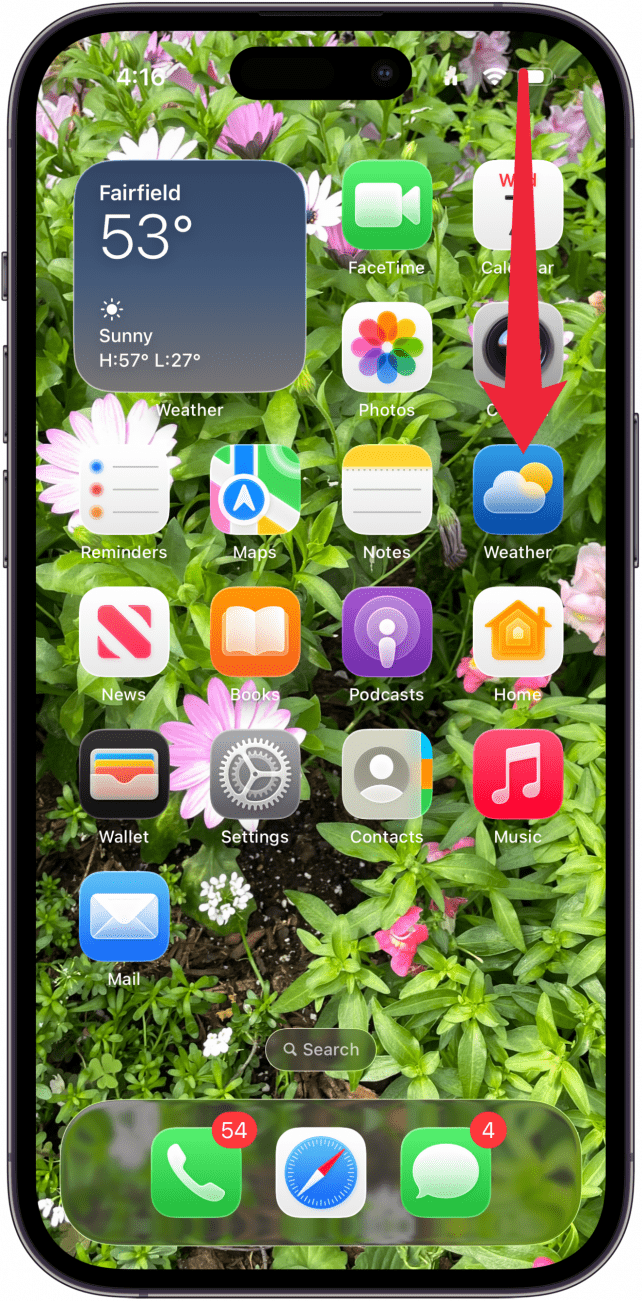
- Swipe down from the upper right edge to open the Control Center.

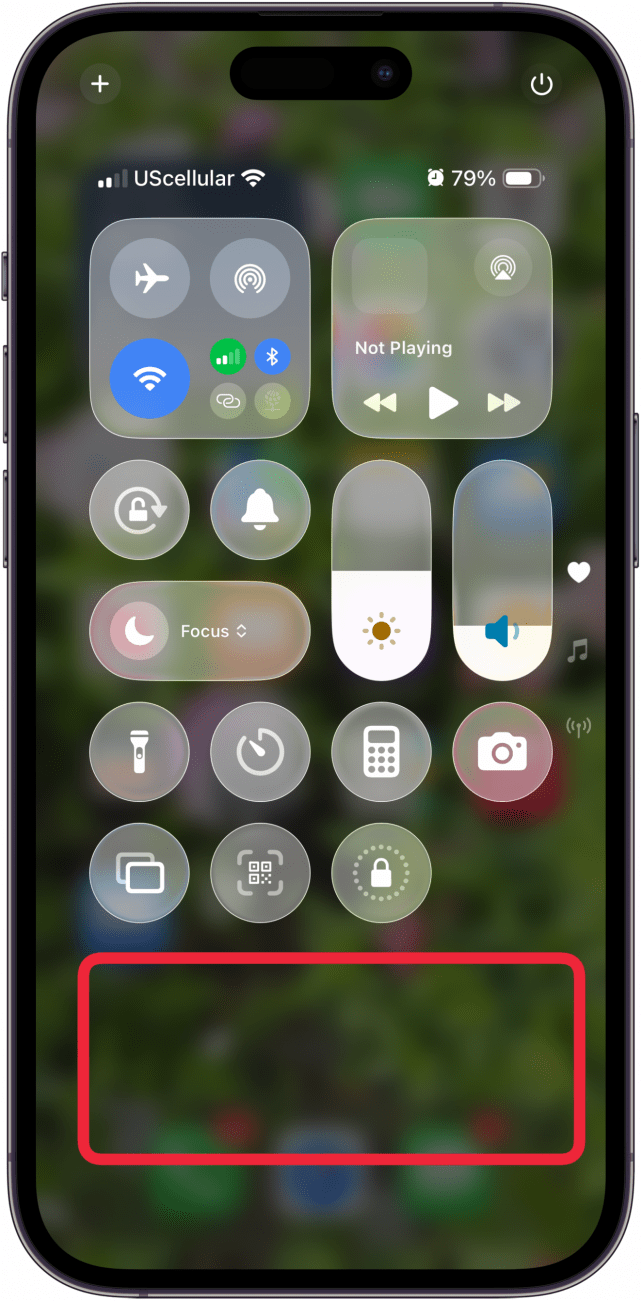
- Tap and hold in an empty area.

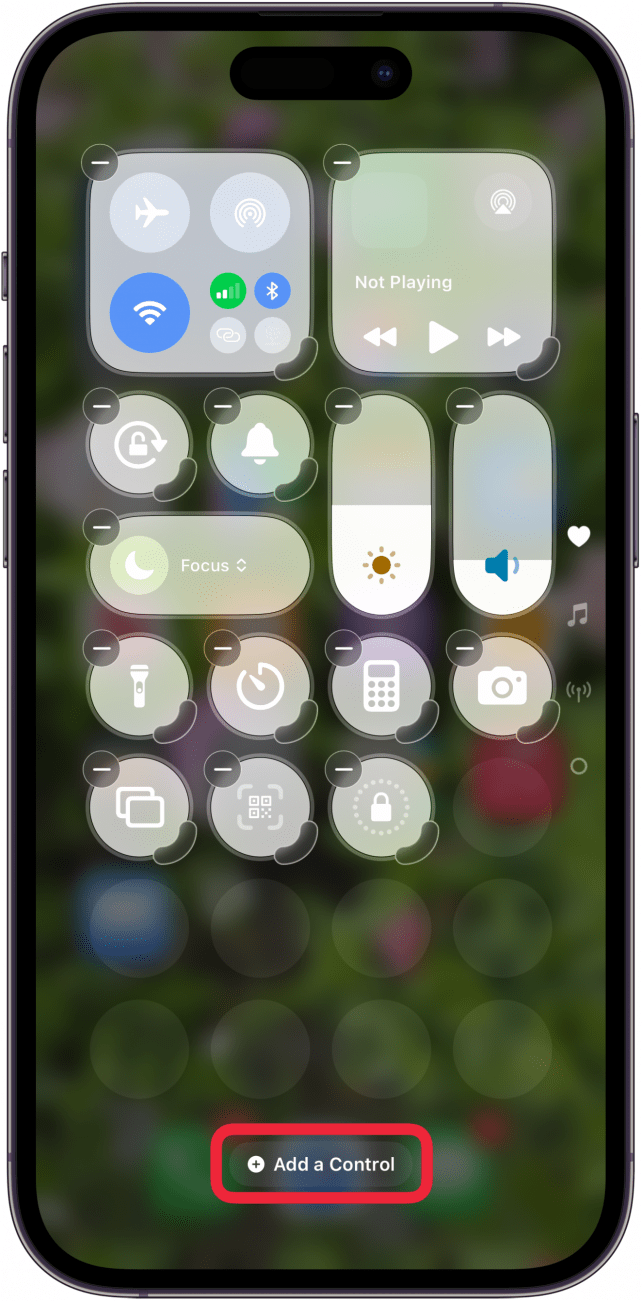
- The controls will now have minus symbols next to them, indicating that you are in edit mode. Tap Add a Control to get started.

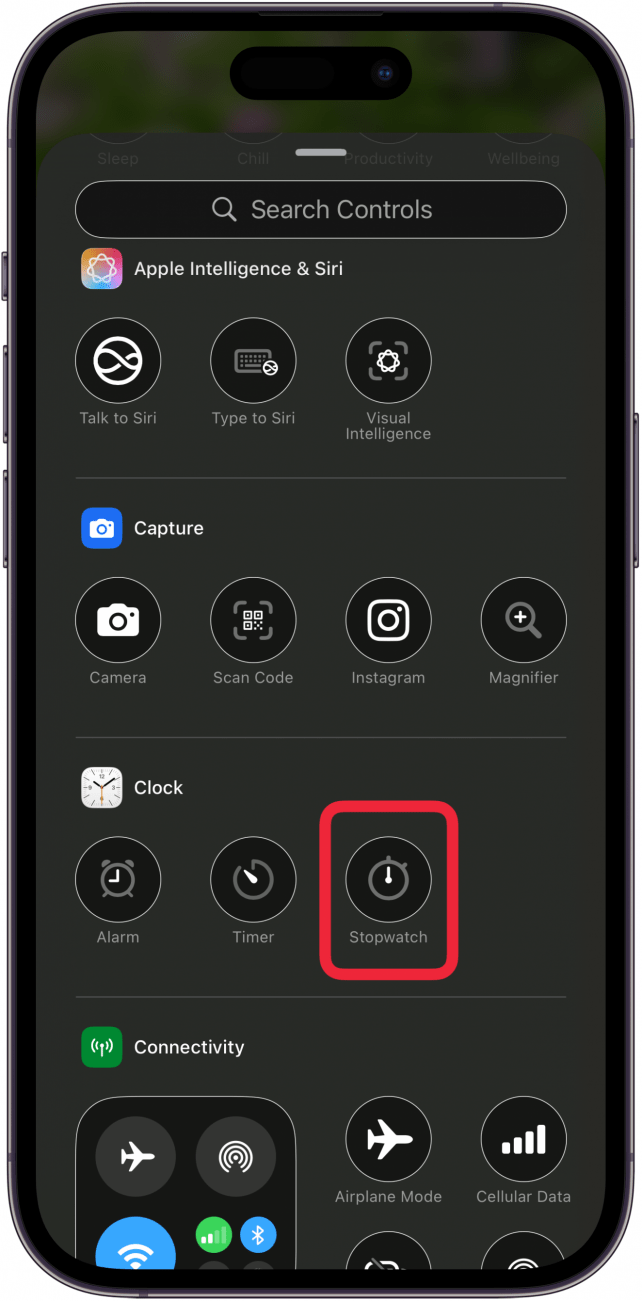
- Find a control you want easy access to and tap on it to add it to the Control Center.

- If your first page is too full, a second page will automatically be created. You can swipe up and down to navigate between Control Center pages.
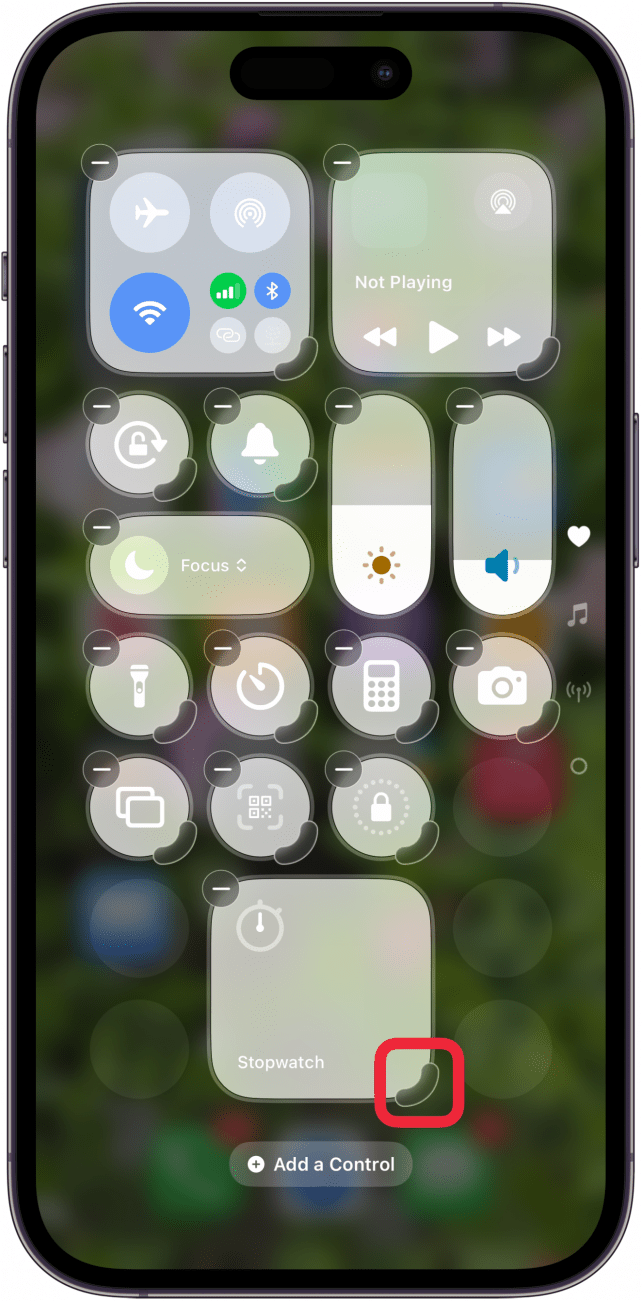
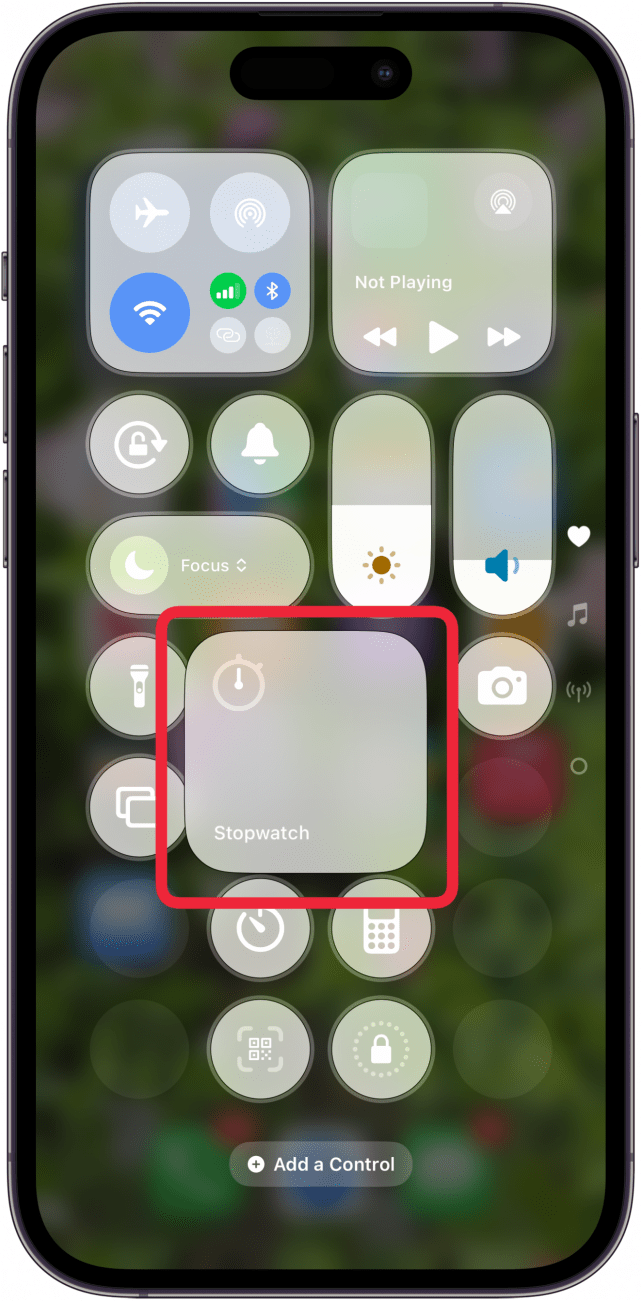
- To change the size of a control, tap and drag the corner. Keep in mind that some controls only have one size.

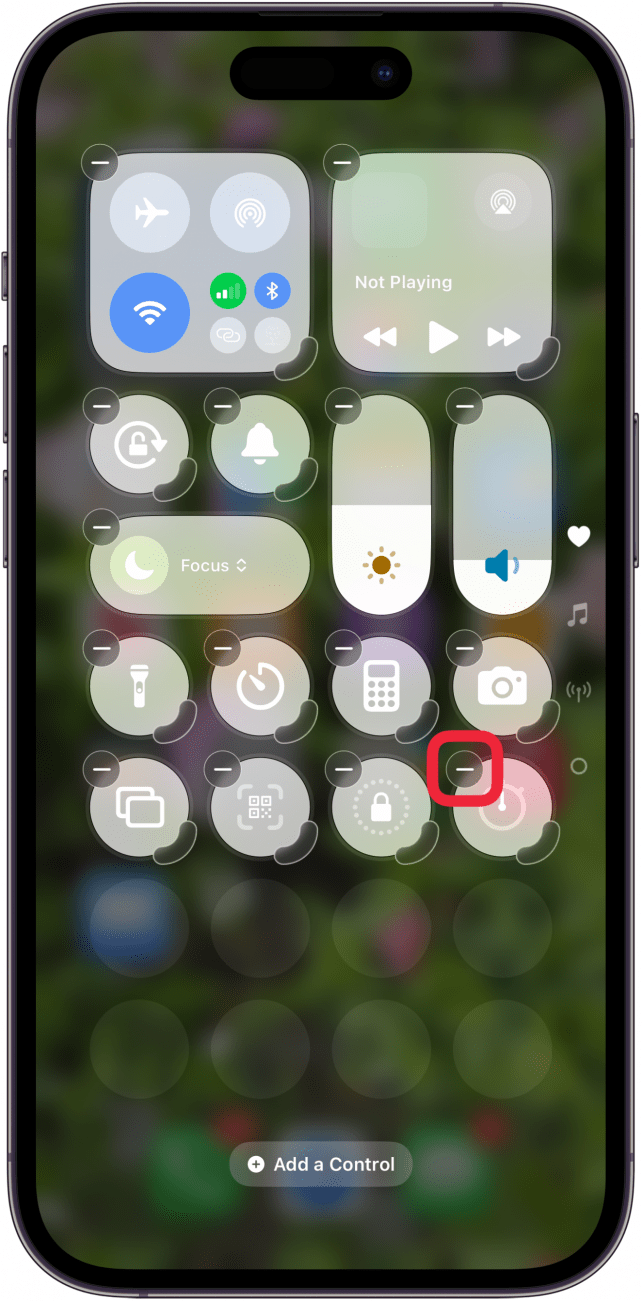
- To remove a control, simply tap the minus symbol next to it.

- Touch and drag to place controls anywhere, without worrying about a specific order.

- Tap the screen in a blank place again to exit edit mode.
That's how to customize the Control Center on your iPhone! I recommend placing your most-used controls on the first page. Next, find out how to customize your iPhone's Home Screen. Also, check out our free Tip of the Day for more great iPhone customization tutorials.