* This article is from our Tip of the Day newsletter. Sign Up. *
With the release of iOS 17.2, Apple has added an extra action to the iPhone 15 Pro’s Action button. You can now press the Action button to instantly Translate your own voice. Here’s how to set up this handy new feature.
Why You’ll Love This Tip:
- Translate your own voice in real-time.
- Communicate with those who might not speak your language.
- Perfect for when you're traveling abroad.
How to Translate on iPhone with the Action Button
System Requirements
This tip works on iPhone 15 Pro and Pro Max running iOS 17.2 or later. Find out how to update to the latest version of iOS.
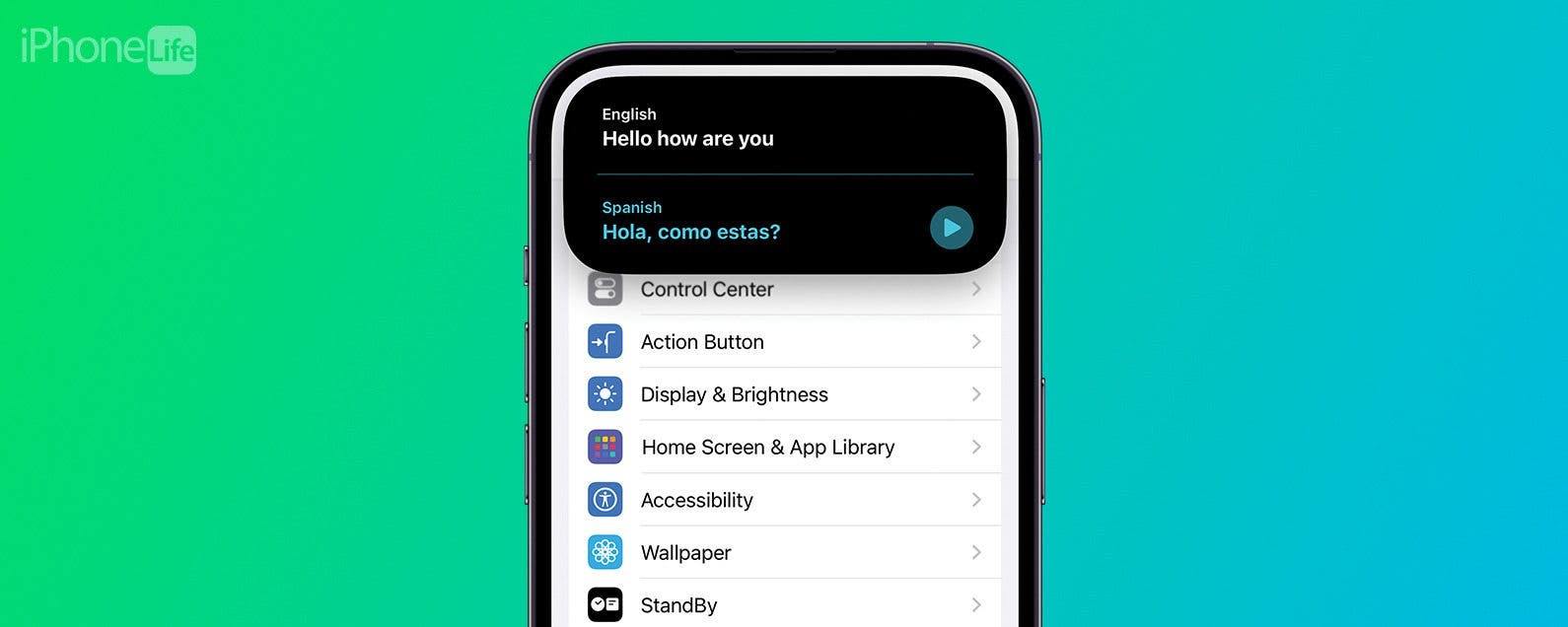
With this new action, you can immediately start translating. Press the Action button on your iPhone 15 Pro or Pro Max, and a translate window will open in the Dynamic Island, and start listening for your voice. For more iPhone 15 hidden tips and tricks, sign up for our free Tip of the Day newsletter. Now, here’s how to use the Action button on iPhone 15 Pro to translate:

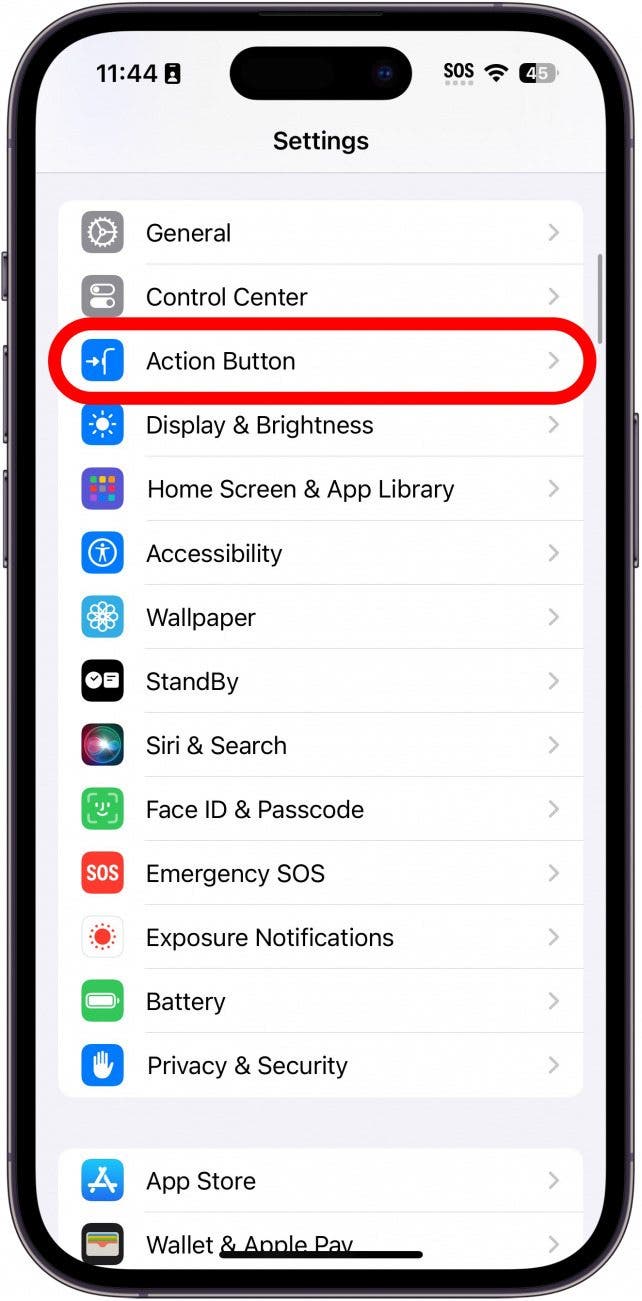
- Open the Settings app, and tap Action Button.
![iphone settings with action button circled in red]()
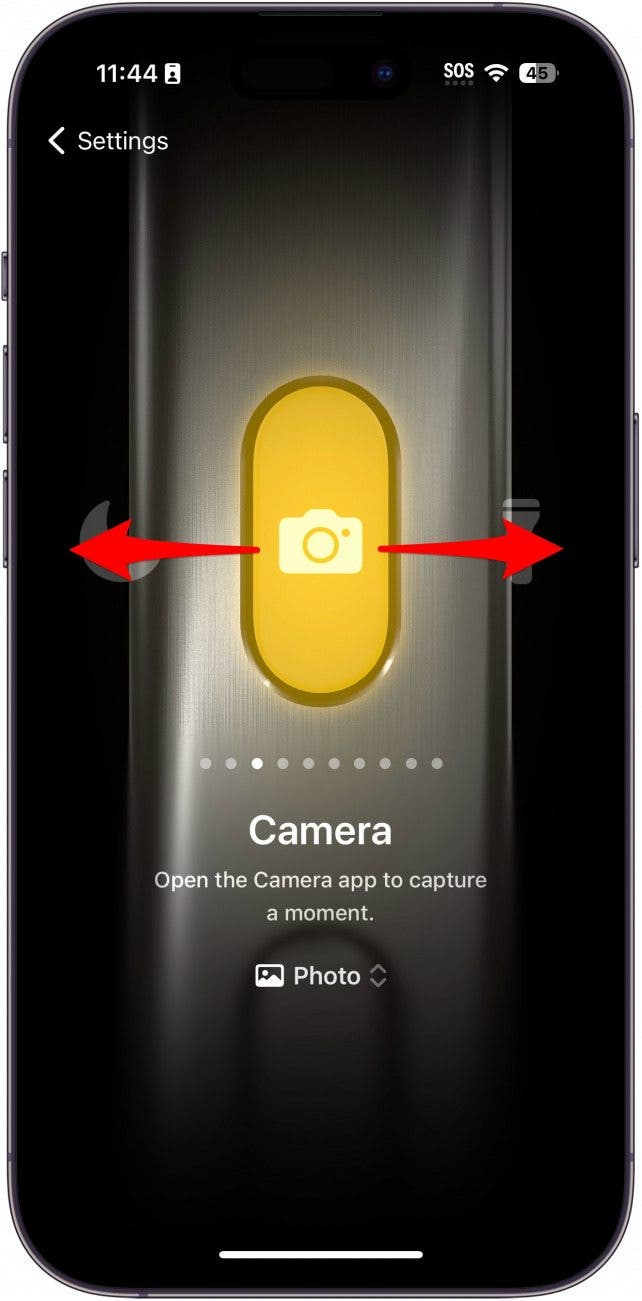
- Scroll left or right to find the Translate option.
![iphone action button settings showing camera icon with a red arrows pointing left and right, indicating to swipe left or right]()
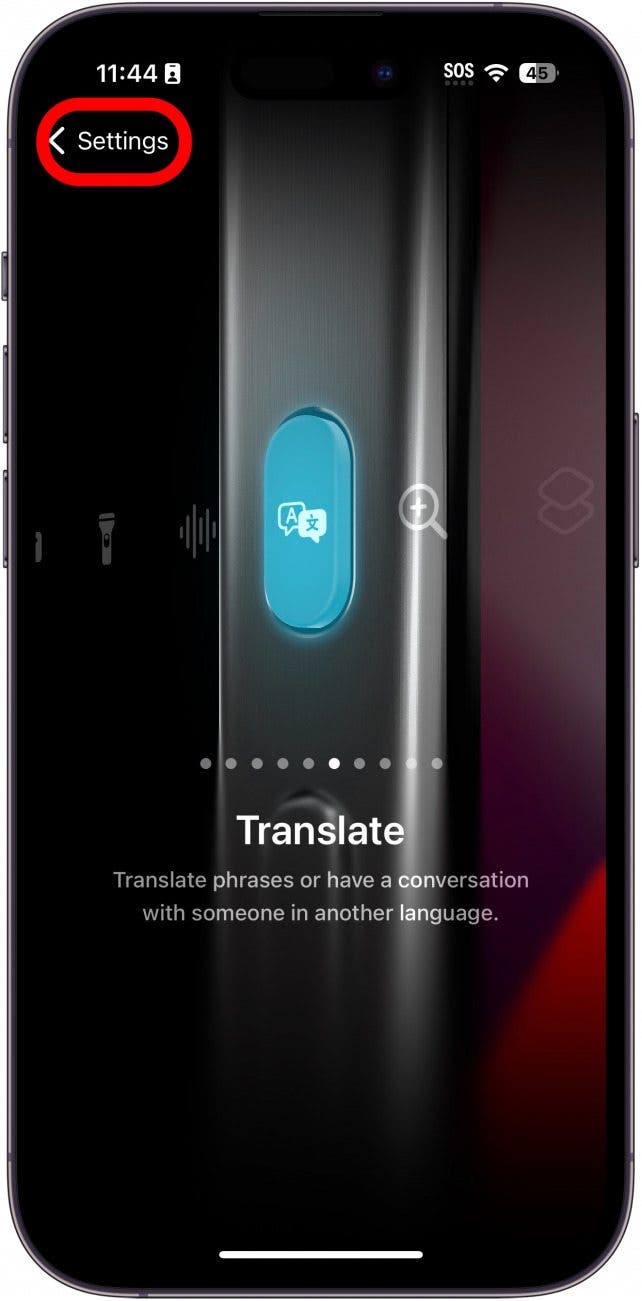
- Once you have Translate selected, tap the Settings button to go back.
![iphone action button settings showing translate icon with a red box around the settings button]()
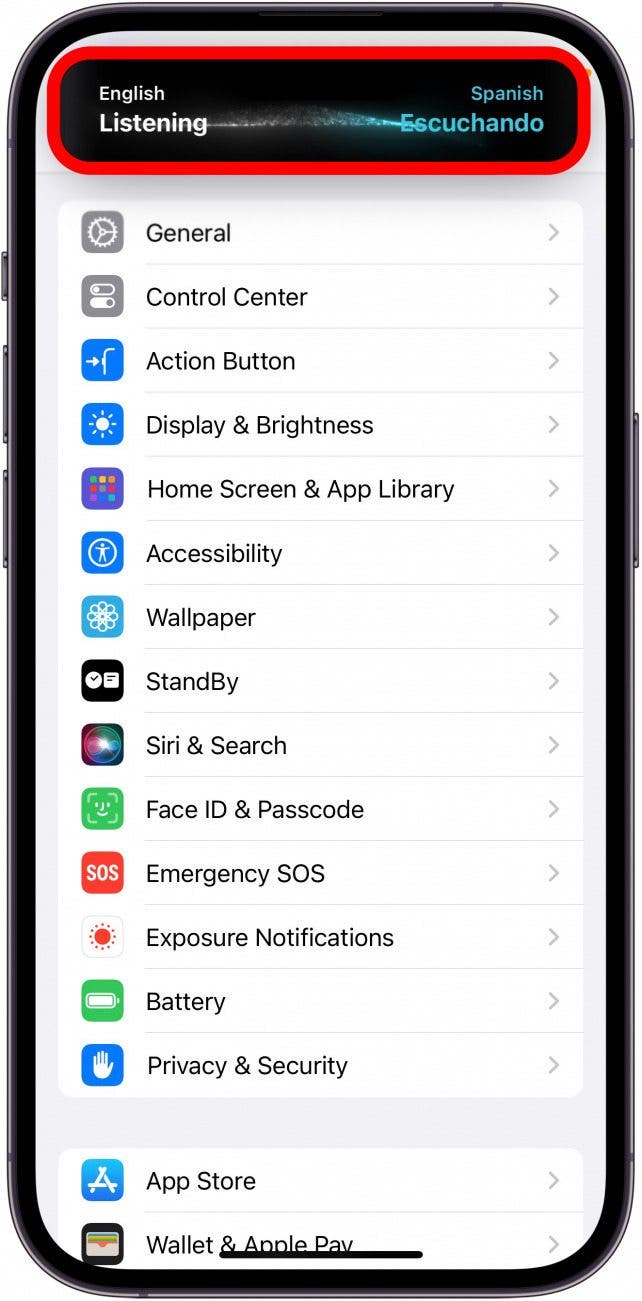
- Press and hold the Action Button and the translate window will open in the Dynamic Island. Start speaking, and your iPhone will translate.
![iphone settings with a translate pop up open in the dynamic island showing english to spanish]()
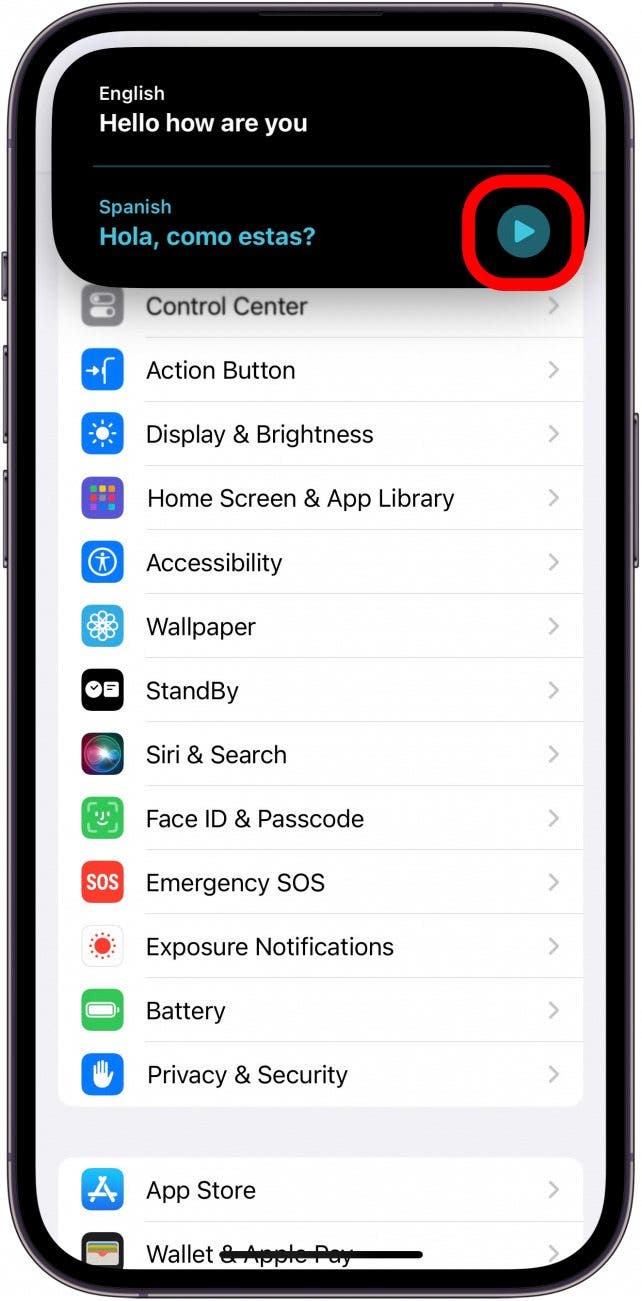
- You can tap the play button to listen to a computer-generated voice speak the translation aloud.
![iphone settings with a translate pop up open in the dynamic island showing english text, "hello how are you," and a spanish translation underneath, "Hola, como estas?"]()
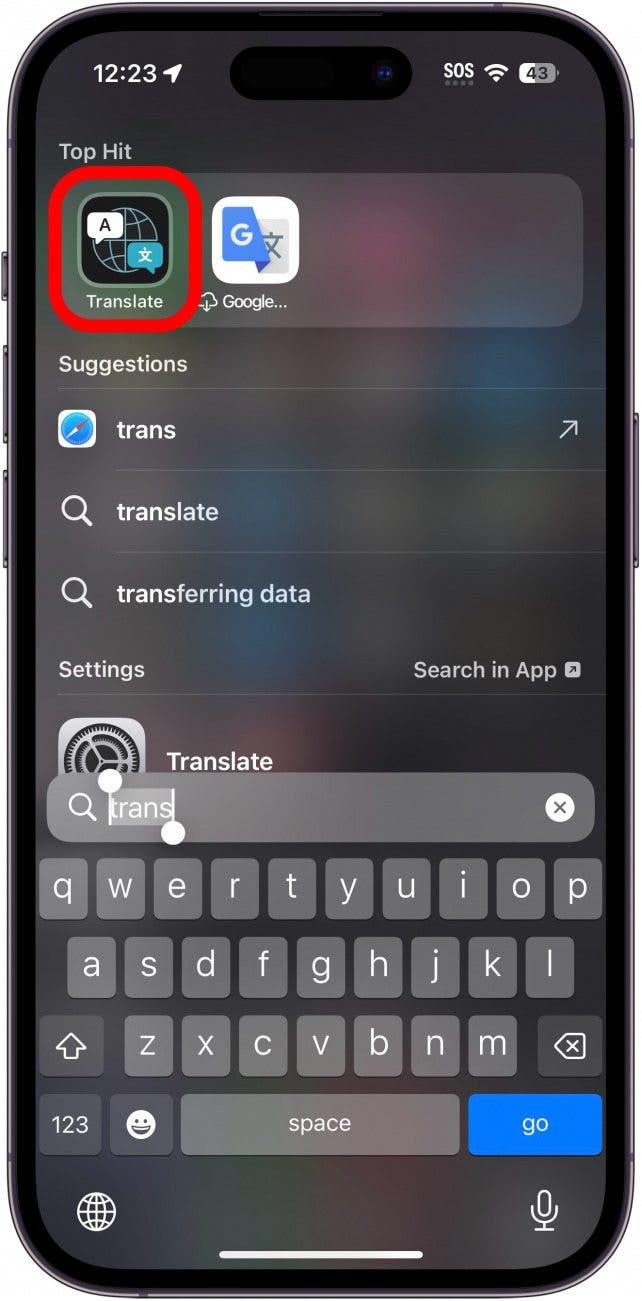
- To change languages, you will need to open the Translate app itself.
![iphone spotlight search with translate app circled in red]()
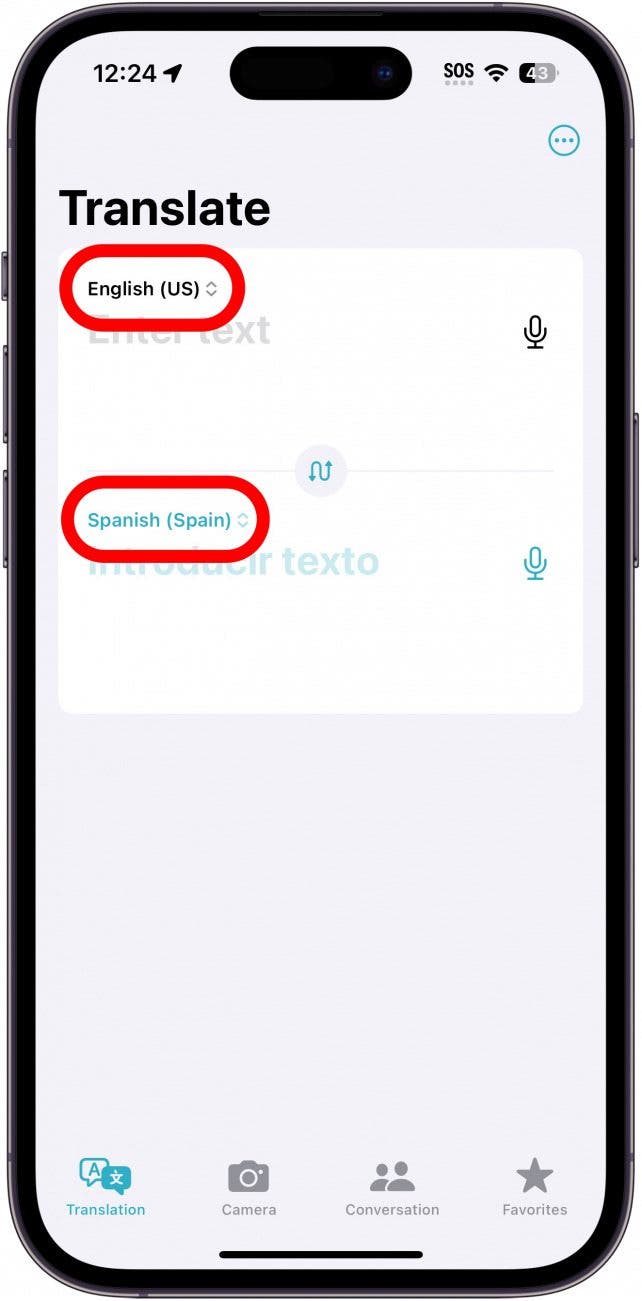
- Tap either the input language or the output language.
![iphone translate app with a red circle around the english and spanish language options]()
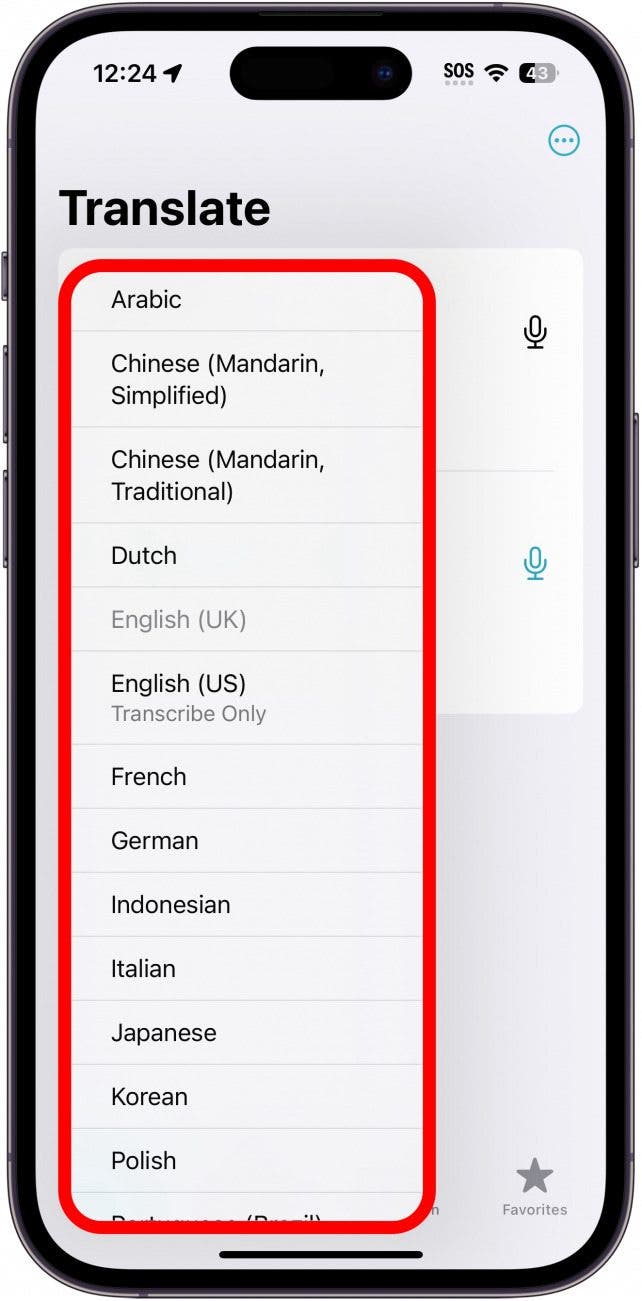
- Tap a language from the list.
![iphone translate app with a red box around the list of languages]()
- Now, when activating the Translate action, it will use your selected language(s).
![iphone home screen with a translate pop up open in the dynamic island showing english to japanese]()

That’s how to translate on iPhone 15 with the Action Button. Now, if you ever find yourself conversing with someone who speaks a different language, you can easily understand them and help them understand you.