Did you know that the iPhone has a secret built-in sound machine hidden in Settings? Maybe you like to go to bed just a bit earlier than everyone else, or maybe you’re a big reader in a loud household. In these circumstances, being able to use your iPhone as a sound machine is a great solution. In this tip, we’ll go over how to find your iPad or iPhone’s white noise feature.
Why You’ll Love This Tip
- Fall asleep easier than ever before with the iPad and iPhone white noise feature.
- Turn on Background Sounds and use white noise on iPhone to focus when reading or working in a distracting environment.
How to Use White Noise on iPhone & iPad
System Requirements
This tip was checked on an iPhone 16 running iOS 18.6. Learn how to update to the latest operating system.
Looking for a white noise app? If you have an iPhone, you already have the ability built-in to use it as a sound machine without needing to pay for a subscription, download an app, or pay for features you’ll never use. Now, here’s how to use background sounds on iPhone or iPad:
- Open the Settings app on your iPhone or iPad.

- Tap Accessibility.

- Tap Audio/Visual.

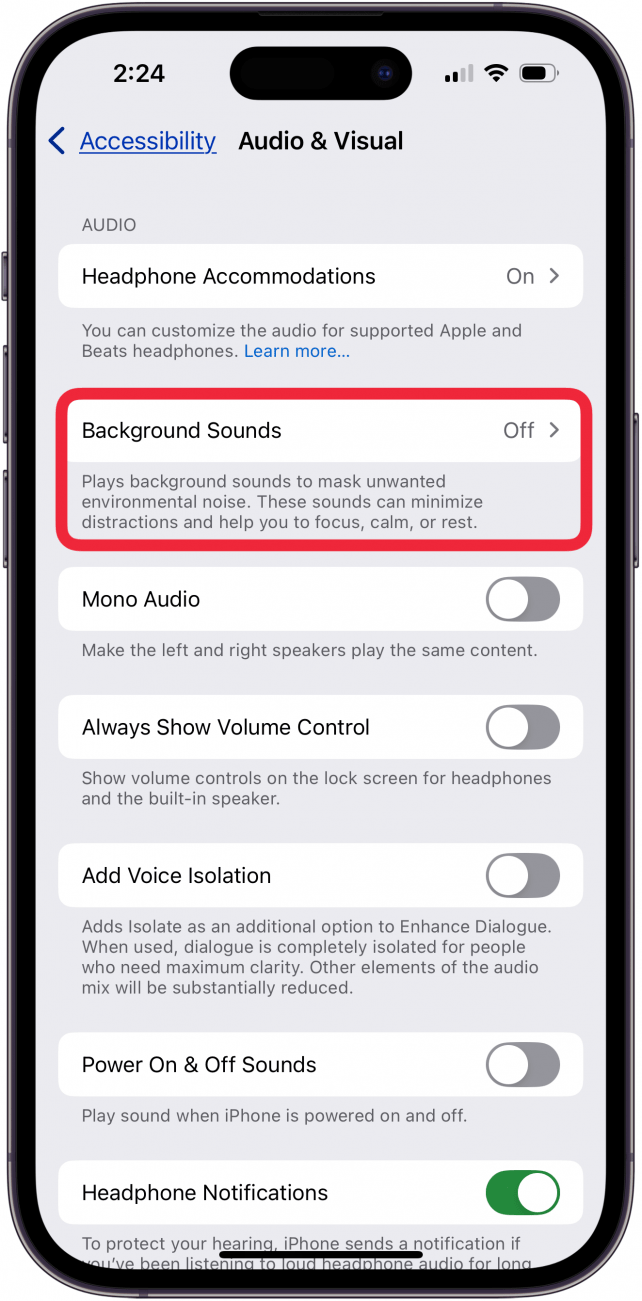
- Tap Background Sounds.

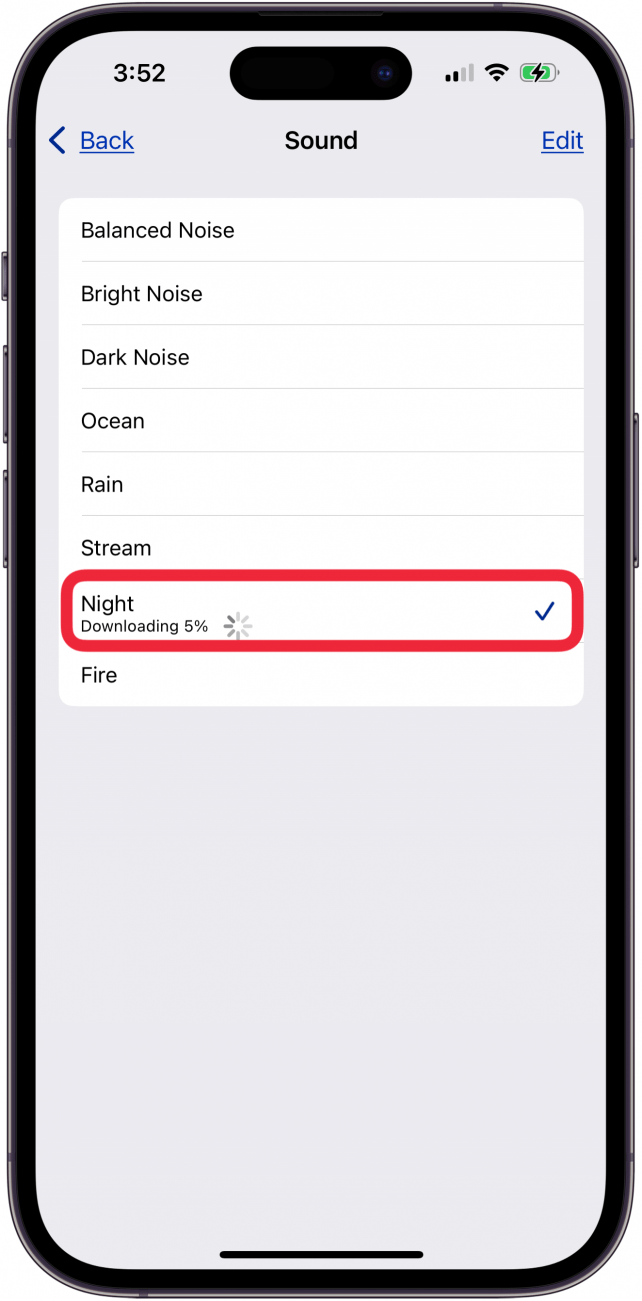
- First, tap Sound to pick the sound you want.

- You’ll have eight white noise iPhone options to choose from. (If you want to preview the noises before you choose one, you'll need to toggle Background Sounds on first, which we'll go over in step 8).

- Then, tap Back.

- Now, toggle on Background Sounds. The sound will automatically begin to play. If you don't like the sound you chose, you can change it at any time using the steps above.

- You can adjust the volume of only this noise by sliding the volume scale up or down.

- You can also toggle on Use When Media is Playing to continue to hear the sound even while scrolling social media or watching other videos. Adjust the volume with the Volume with Media slider below.

- Open the Control Center, touch and hold the screen in a blank space to enter edit mode, then tap Add a Control.

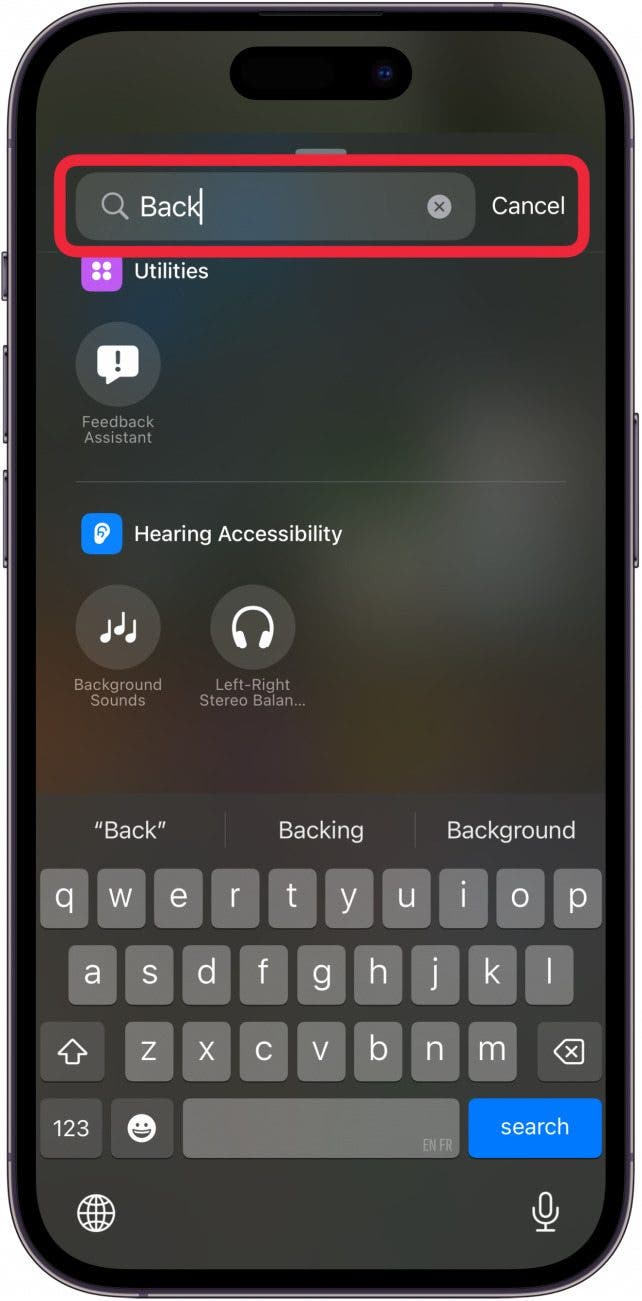
- Scroll down to Hearing Accessibility or start typing "background sounds" in the search bar.
![search for background noise]()
- Tap Background Sounds.

- Tap a blank spot on the screen to exit edit mode.

- If you turned on Use When Media is Playing, the volume slider will change to a Volume with Media slider instead whenever media starts playing.

- Simply tap the Background Sounds icon to turn it off again.







Instead of downloading a sound machine app, you can use the built-in white noise on iPhone. Next, find out how to use Live Listen with the Hearing Control Center shortcut. To discover more iPhone hidden gems, be sure to sign up for our free Tip of the Day newsletter.