What to Know
- To display steps on your Apple Watch face, you'll need to download a third-party step counter app, such as the free Pedometer++.
- Next, edit your watch face to include the app's Apple Watch step counter complication.
- The Activity app does track steps but doesn’t show them on the watch face.
While you can track steps on Apple Watch without downloading a third-party app, there is no built-in way to see them on your watch face. To show steps on the Apple Watch face, you have to download a third-party Apple Watch step tracker and add the app's complication to your watch face. Here’s how to see steps on Apple Watch via the Activity app and on your watch face.
Jump To:
How to Show Steps on Apple Watch Face
Which Watch Face shows steps? Unfortunately, the native Activity app complication doesn't include your Apple Watch steps, only your activity rings that reflect your Move, Calorie, and Stand goals. If you want an Apple Watch Face with steps, you'll have to download a third-party app. My favorite Apple Watch pedometer app is Pedometer++ (Free) because it also offers several ways to see your steps on your Apple Watch face. Here’s how to see steps on Apple Watch once you've downloaded the Pedometer++ app:
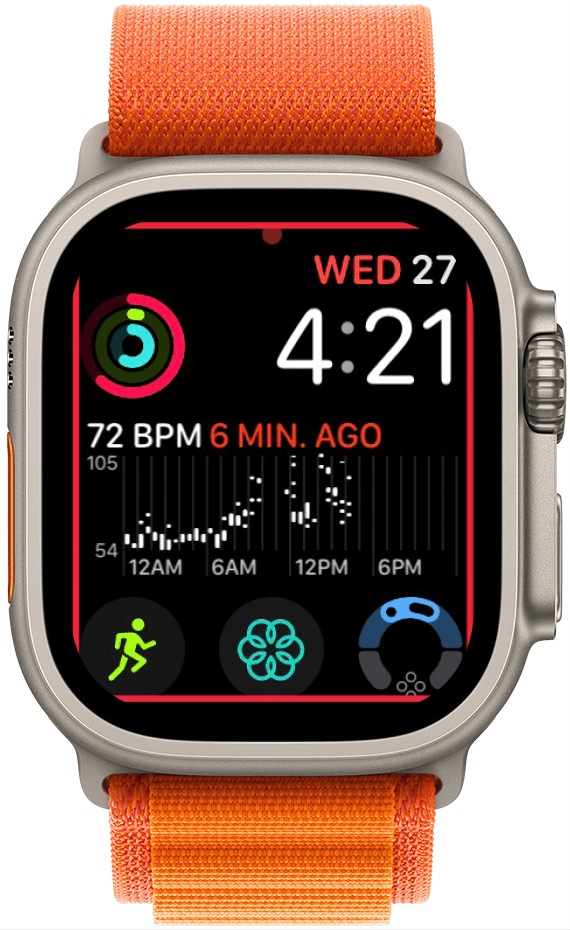
- Tap and hold your watch face display until it zooms out.
![a screenshot of an apple watch face with a red box around the border indicating for the user to tap and hold the screen]()
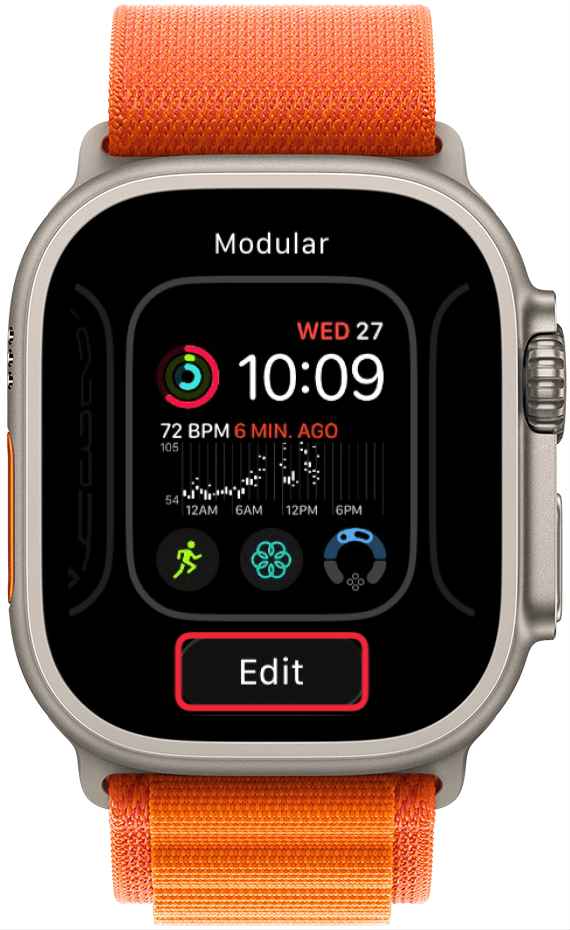
- Tap Edit.
![a screenshot of the apple watch face selection with a red box around the edit button]()
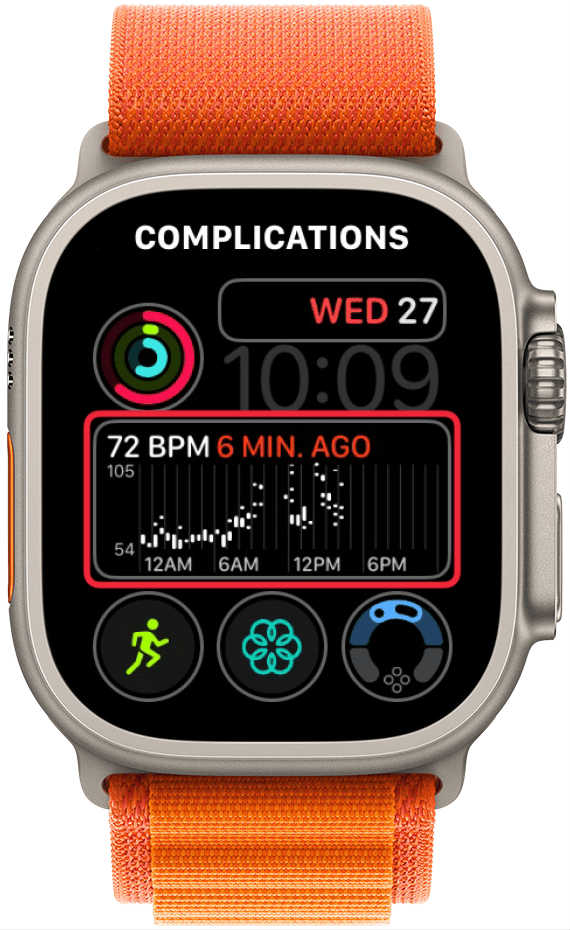
- Depending on the watch face, you may need to either tap on the area where you want to put the complication or swipe left or right to get to the complications options.
![a screenshot of the apple watch face edit screen with a red box around the center complication]()
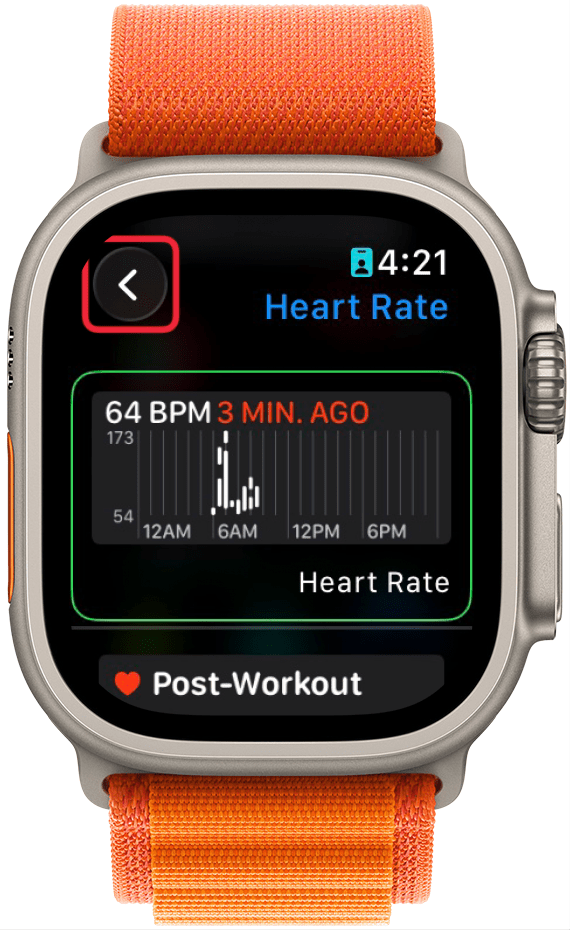
- Tap the back button.
![a screenshot of the complication selection screen on apple watch displaying the heart rate complication with a red box around the back button]()
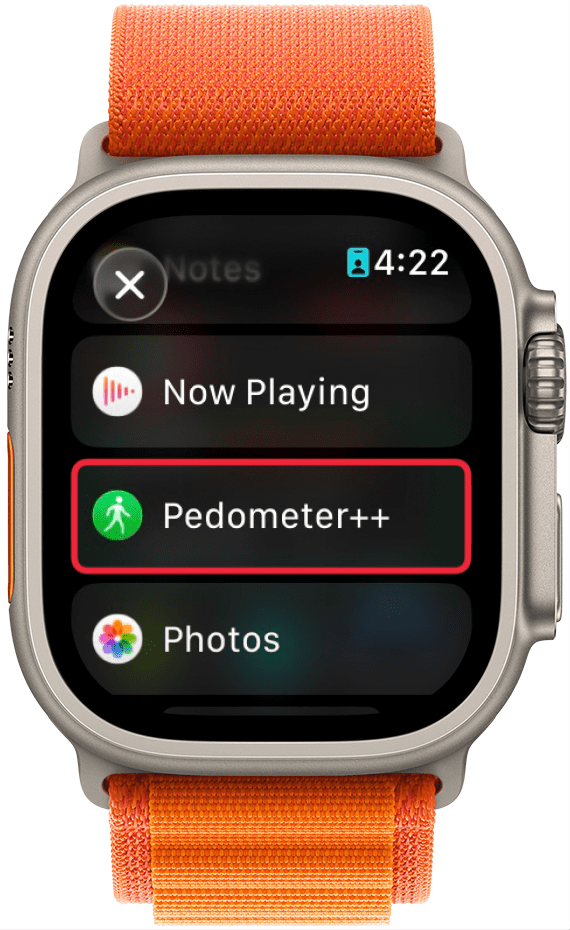
- Scroll down to Pedometer++.
![a screenshot of the complication selection screen on apple watch displaying a list of complications with a red box around pedometer++]()
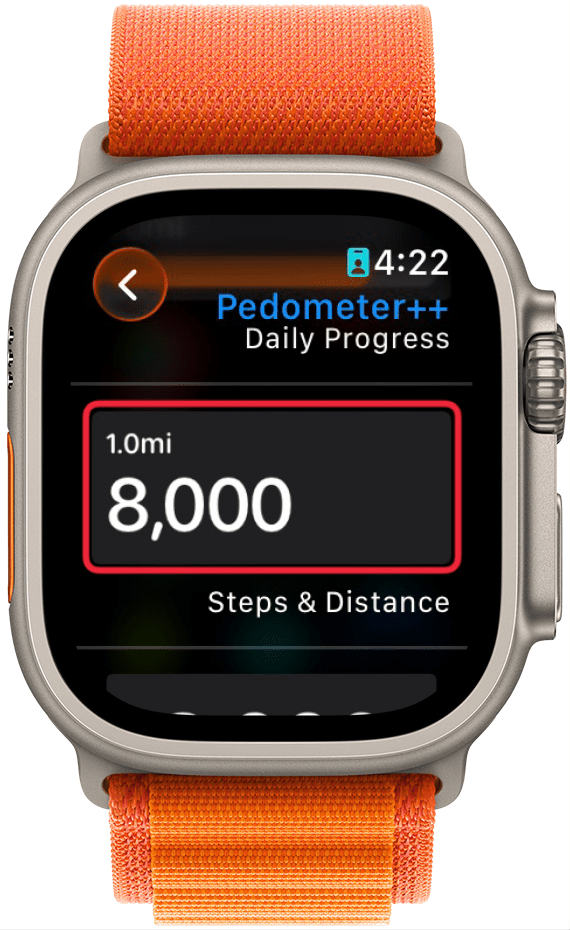
- Pick the option you want to see. I prefer Steps & Distance. Once you choose your option, it will save automatically or you can press the Digital Crown.
![a screenshot of the complication selection screen on apple watch displaying the pedometer++ complication with a red box around the complication itself]()
Pro Tip
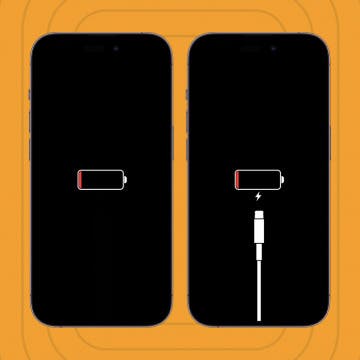
If your watch runs out of battery on a walk, your iPhone step counter will continue to count your steps.
Now you know how to count steps on Apple Watch faces; but if you don't want your steps to be visible on your main watch face, you can add the step complication to a secondary watch face and switch between Apple Watch faces by swiping. To receive more Apple Watch tips, check out our free Tip of the Day newsletter.

How to Add Steps on Apple Watch Face Using the iPhone
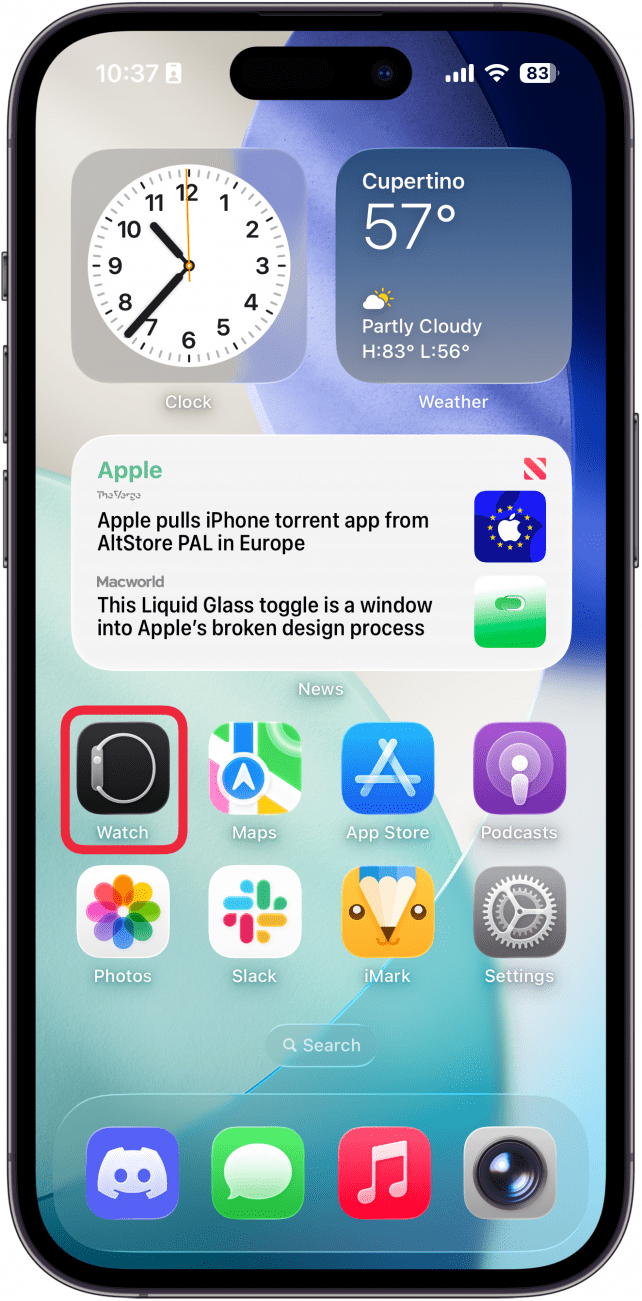
- Open the Watch app.
![a screenshot of the iphone home screen with a red box around the watch app]()
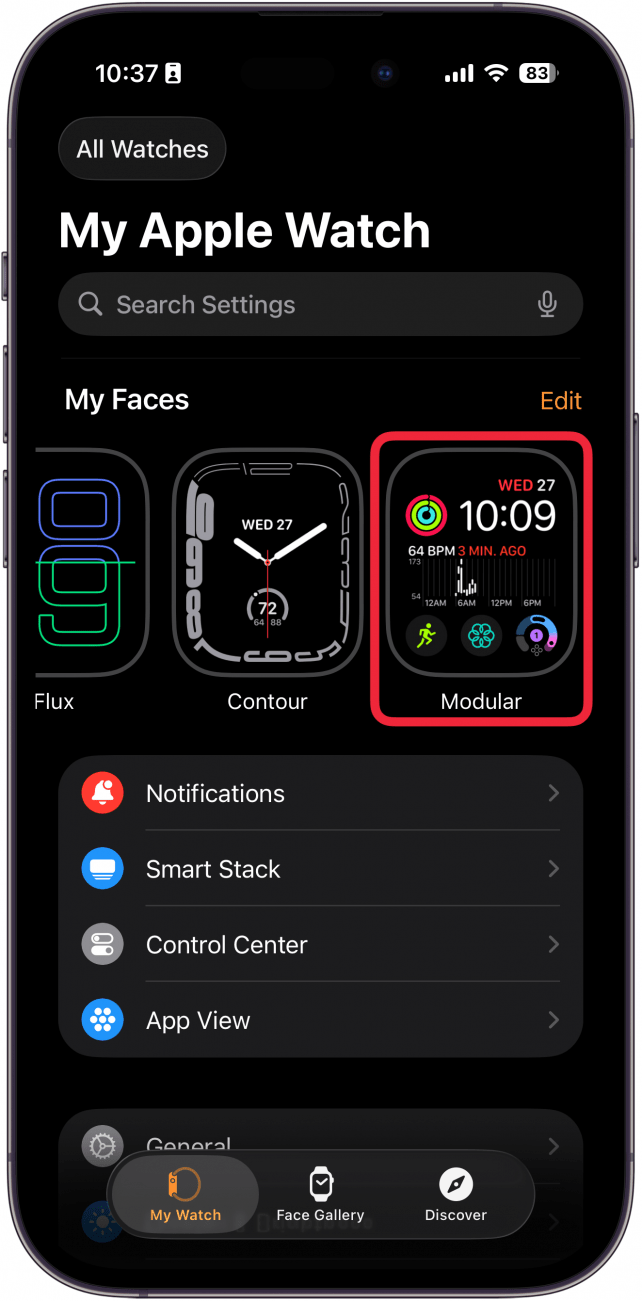
- Tap the My Watch tab (if it's not already selected), then tap the watch face you want to add the step counter complication to.
![a screenshot of the apple watch app on iphone with a red box around a watch face]()
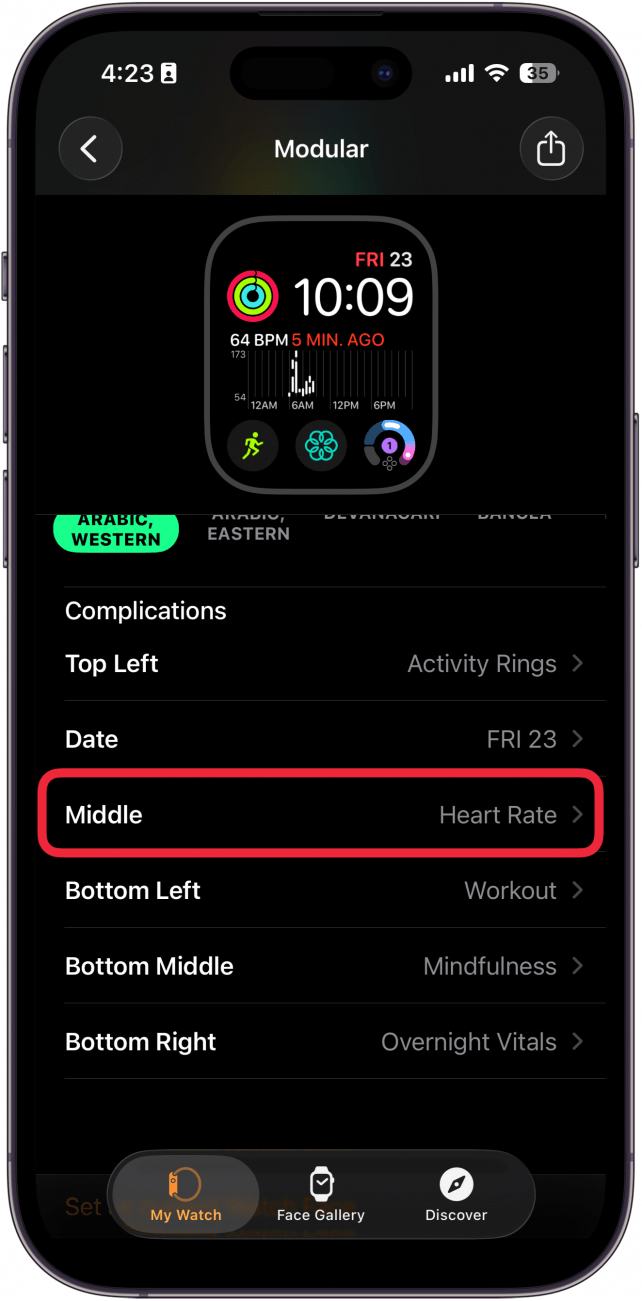
- Under Complications, select the location you want the complication to go. Pedometer ++ offers complications in various sizes, so they can go in almost every spot.
![a screenshot of the apple watch app displaying watch face details with a red box around the middle complication]()
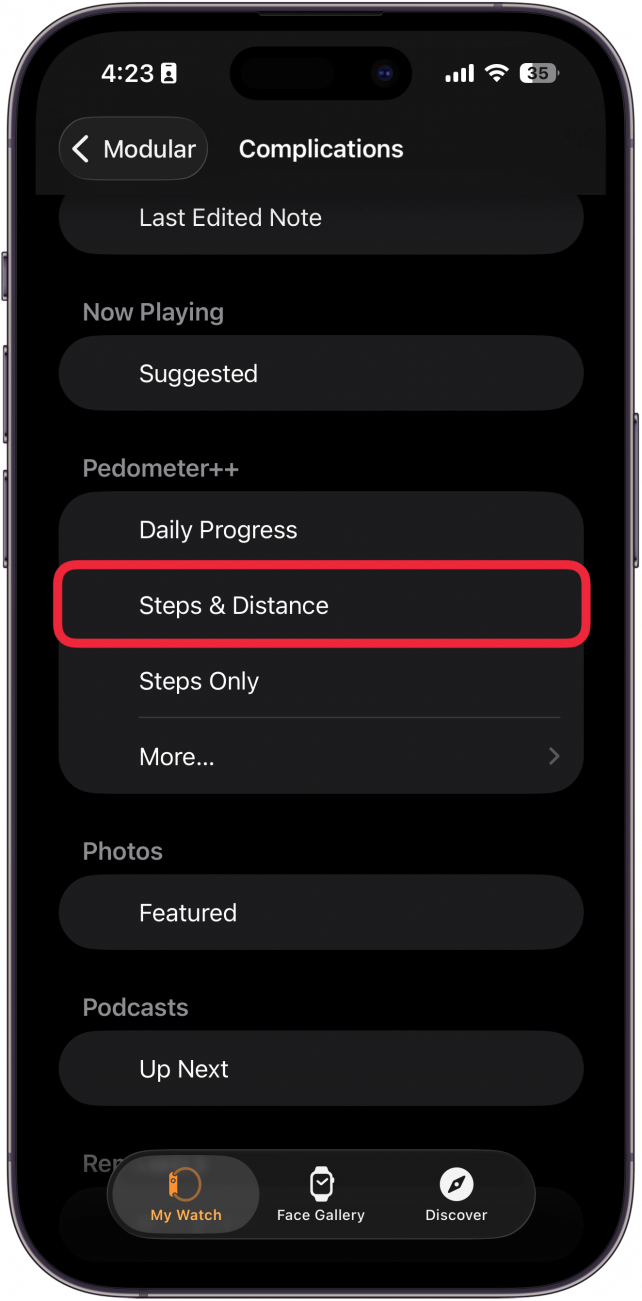
- Scroll down to PEDOMETER and pick the data you want to see. Steps & Distance is a great choice.
![a screenshot of the apple watch app displaying a list of complications with a red box around the pedometer++ compliction]()
- If you tap More… you will see many other types of complications. There may be different options depending on the size of the complication that particular watch face allows.
![a screenshot of the apple watch app displaying a list of complications with a red box around the more option under pedometer++]()
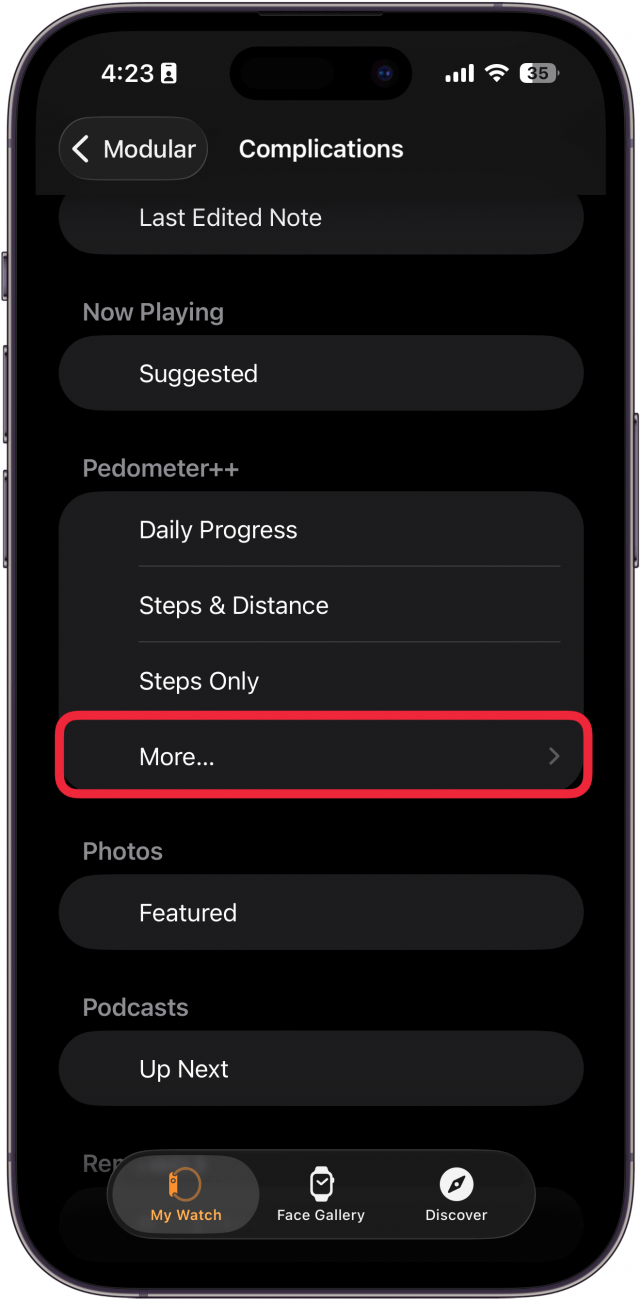
Now you know how to add steps to Apple Watch faces. Keep in mind that not all watch faces can allow Apple Watch complications. Infograph Modular is my go-to, but you can browse other Apple Watch faces here. Check out our Apple Watch complication article to discover more ways to enhance your watch face.
How to Find Apple Watch Step Counter in the Activity App
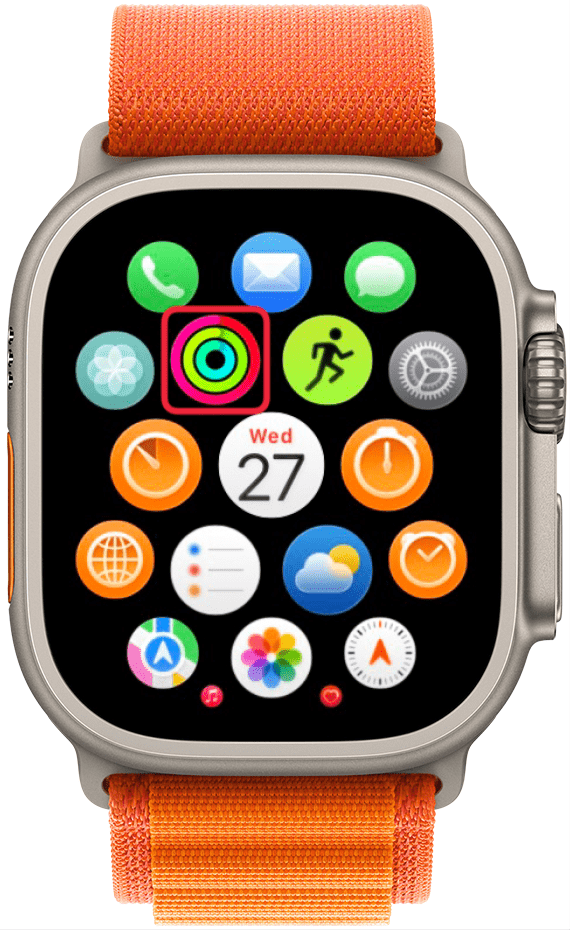
Does Apple Watch track steps without a third-party app? While the Pedometer++ complication allows you to display steps on your Apple Watch face, it can be slow to update. If you need to see steps on your Apple Watch and only the most up-to-date number will do, it's best to go directly to the Apple Watch Activity app. Here's how to check steps on Apple Watch via the Activity app:- Open the Activity app on your Apple Watch.
![a screenshot of the apple watch app view with a red box around the activity app]()
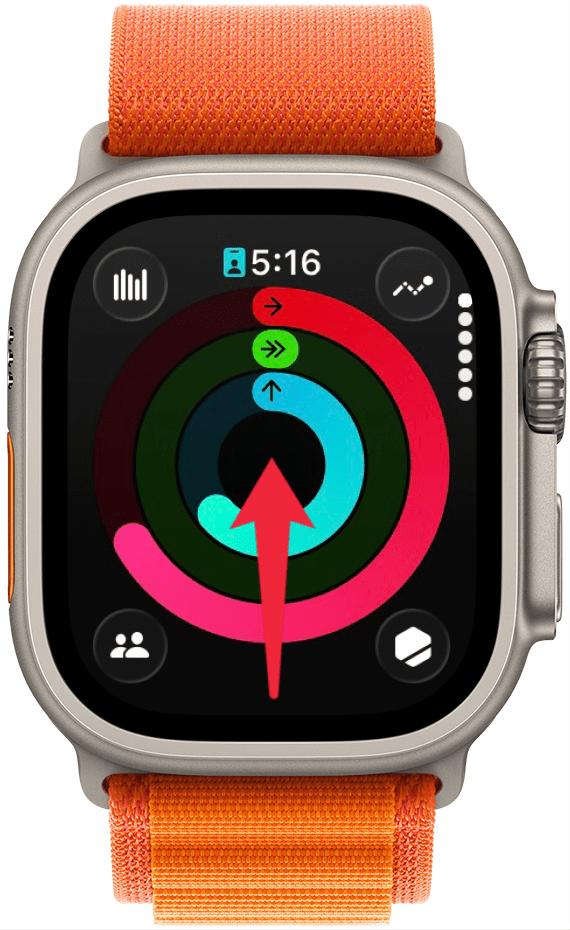
- Scroll down using the Digital Crown or by swiping up with your finger.
![a screenshot of the activity app on apple watch with a red arrow point upward, indicating to swipe up]()
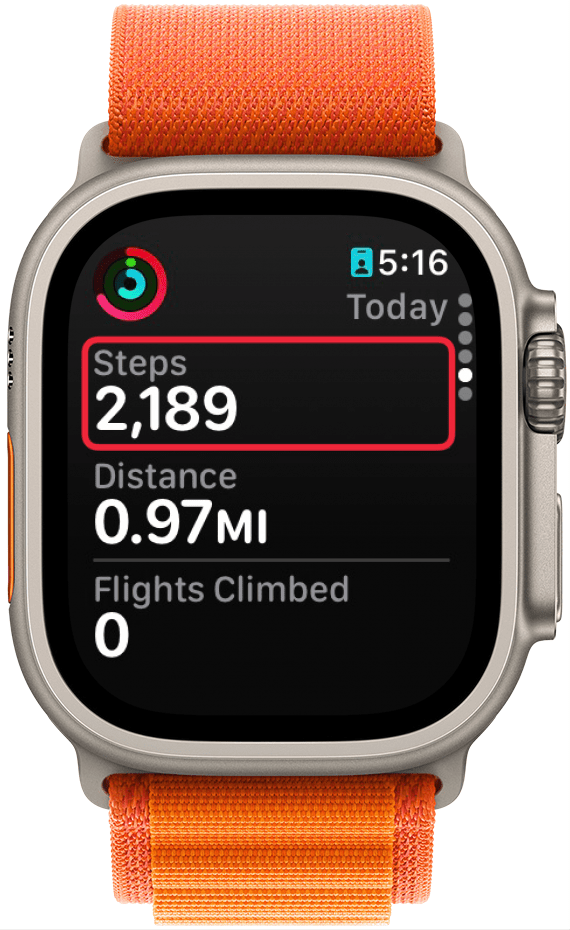
- You can find your steps under STEPS. You can also see the distance tracker info under DISTANCE.
![a screenshot of the steps page in the activity app on apple watch, with a red box around the number of steps taken]()
That's how to view steps on Apple Watch and see them directly on your watch face. Next, learn how to see total calories on your watch or learn more about your Apple Watch rings.
FAQ
- Can you manually add steps to Apple Activity? Yes. You can manually add workouts and steps that didn’t get recorded on your Apple Watch in the iPhone Health app.
- Why are my steps not showing up on my Apple Watch? There are several reasons your Apple Watch might not be tracking steps correctly, including not wearing your watch properly, the sensors needing cleaning, or your watch needing calibration. Learn more about how to fix inaccurate Apple Watch step tracking.
- How accurate is Apple Watch tracking? Your Apple Watch is very accurate, as long as you have calibrated your watch and your health information such as your weight, height, and age are up to date in the Health apps.
Top image credit: Framesira / Shutterstock.com