What to Know
- You can type the trademark ™, copyright ©, and registered symbol ® on an iPhone or iPad in a few easy steps.
- To type the tm symbol on an iPhone, tap the smiley face icon, find the ™ emoji, and tap it.
- You can also type tm on iPhone by typing trademark, then tapping the predictive text suggestion.

Here's how to type the trademark symbol, copyright symbol, or registered symbol on your iPhone and iPad. There are three ways to type the TM symbol ™, R circle symbol ®, or C circle symbol © on your iPhone keyboard, and they're all quick and easy.
Jump To:
- How to Type Keyboard Symbols with Predictive Text
- How to Type the Trademark Symbol with the Emoji Keyboard
- How to Type Keyboard Symbols with Copy & Paste
How to Type the Trademark & Copyright Symbol on iPhone
You can use any of the three methods below to type the copyright symbol, trademark symbol, or registered symbol on your iPad or iPhone keyboard. Before you use these tips, be sure to enable your iPhone Emoji keyboard and Predictive Text.
How to Type the TM Sign & Other Symbols with Predictive Text
Apple's predictive keyboard feature is the quickest way to type the trademark sign on your iPhone. To do this, open an app where you can type using your iPhone or iPad keyboard.

Note
This method didn't work for me until I'd used the emoji keyboard method a few times. I'm not sure why this is, but if the © , ® , or ™ options don't show up in predictive text, give it a try!
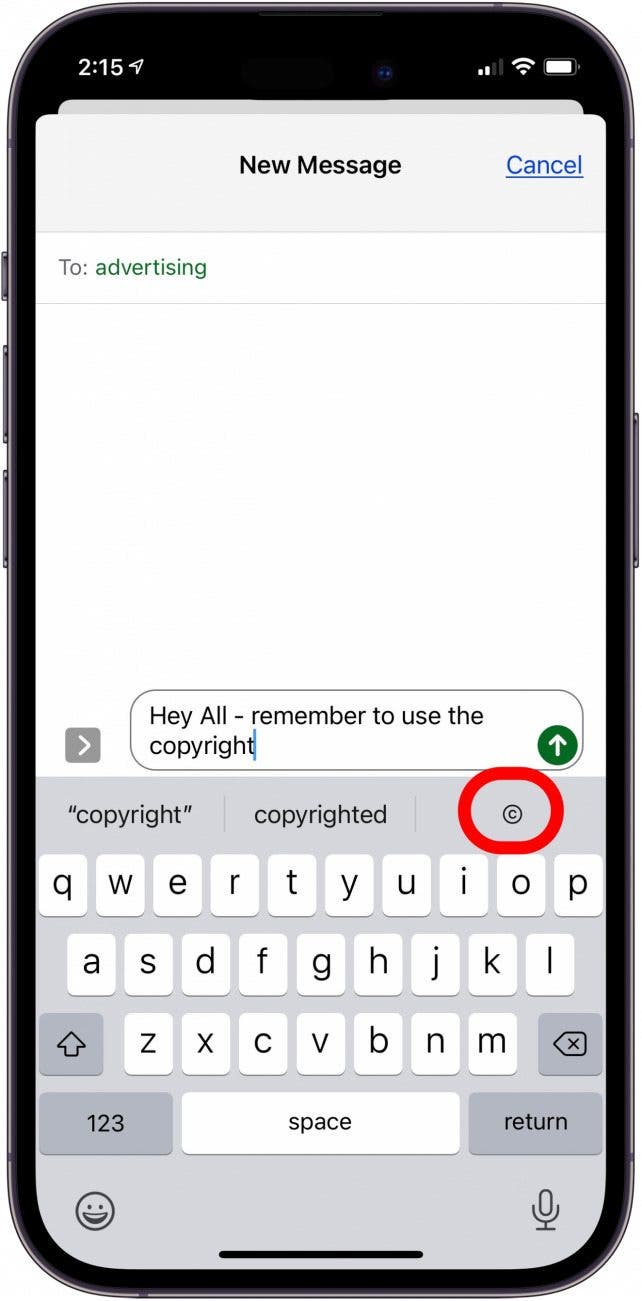
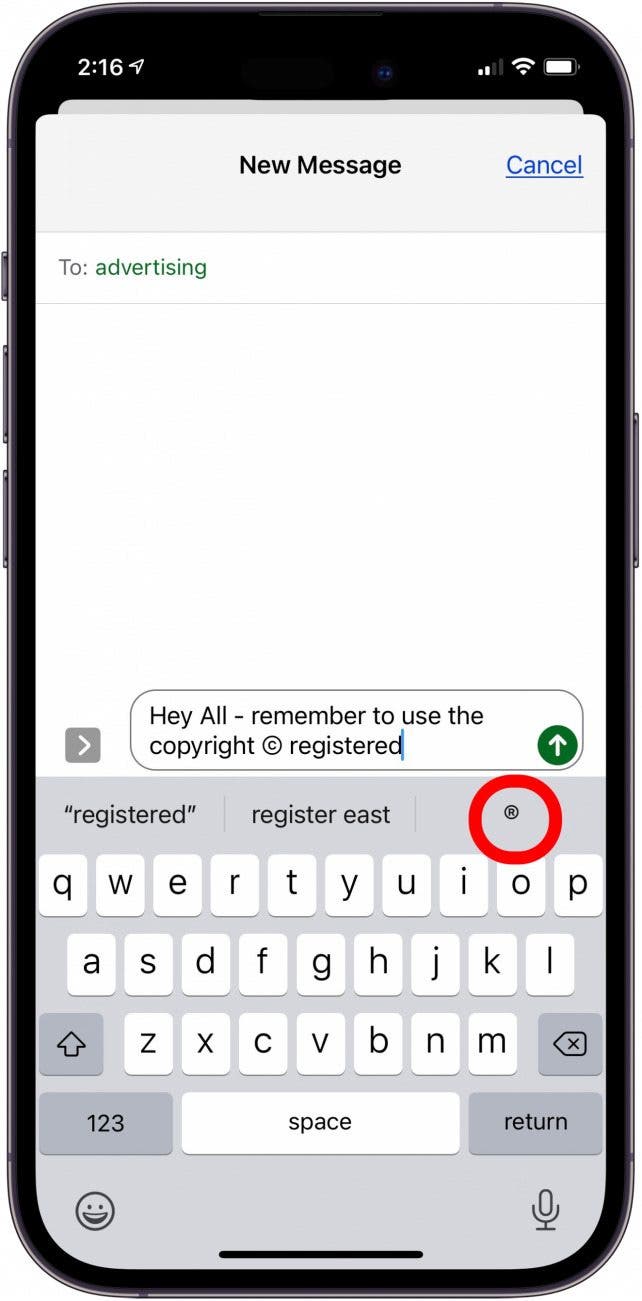
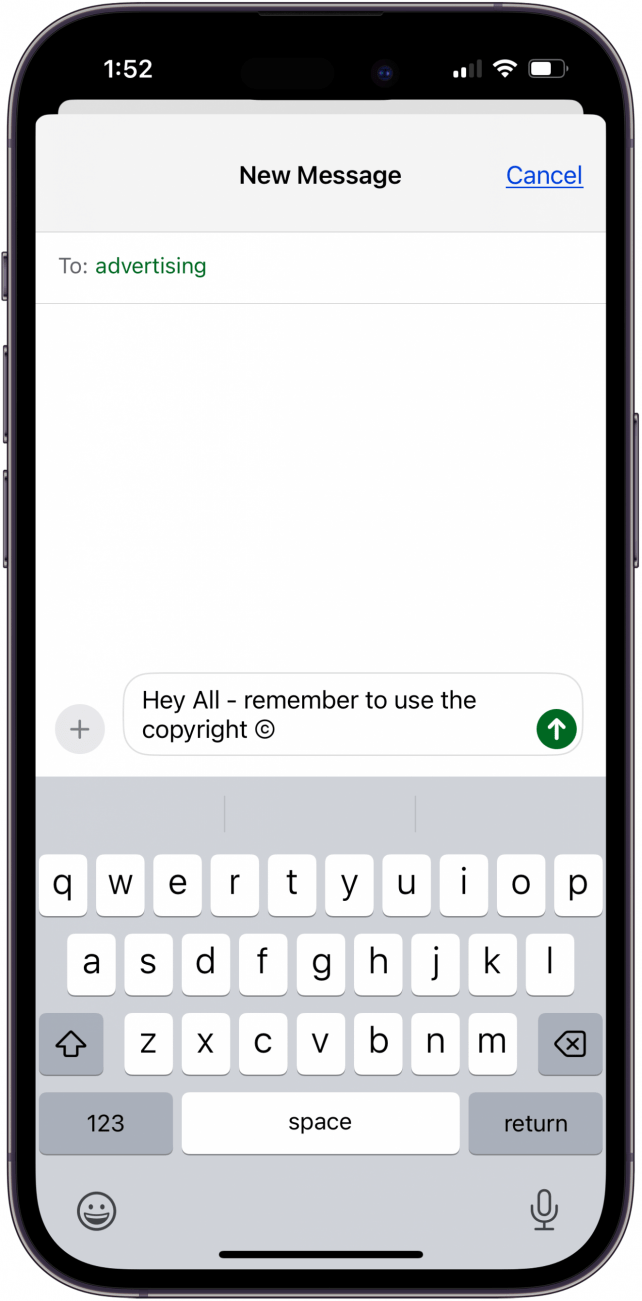
- Type copyright; the C circle symbol will appear below the text box. Tap it to replace the word copyright, or type a space, then tap © to show both.

- Type registered; the R circle symbol will appear below the text box. Tap it to replace the word registered, or type a space, then tap ® to show both.

- Type trademark; the TM circle symbol will appear below the text box. Tap it to replace the word trademark, or type a space, then tap ™ to show both.

- You can type any of these symbols in your message as often as you need.



How to Type the Trademark Symbol, Registered Symbol & Copyright Symbol with the Emoji Keyboard
To type the trademark symbol on an iPhone or iPad, start typing your message in any application that uses the keyboard. For this example, I'm using Messages.
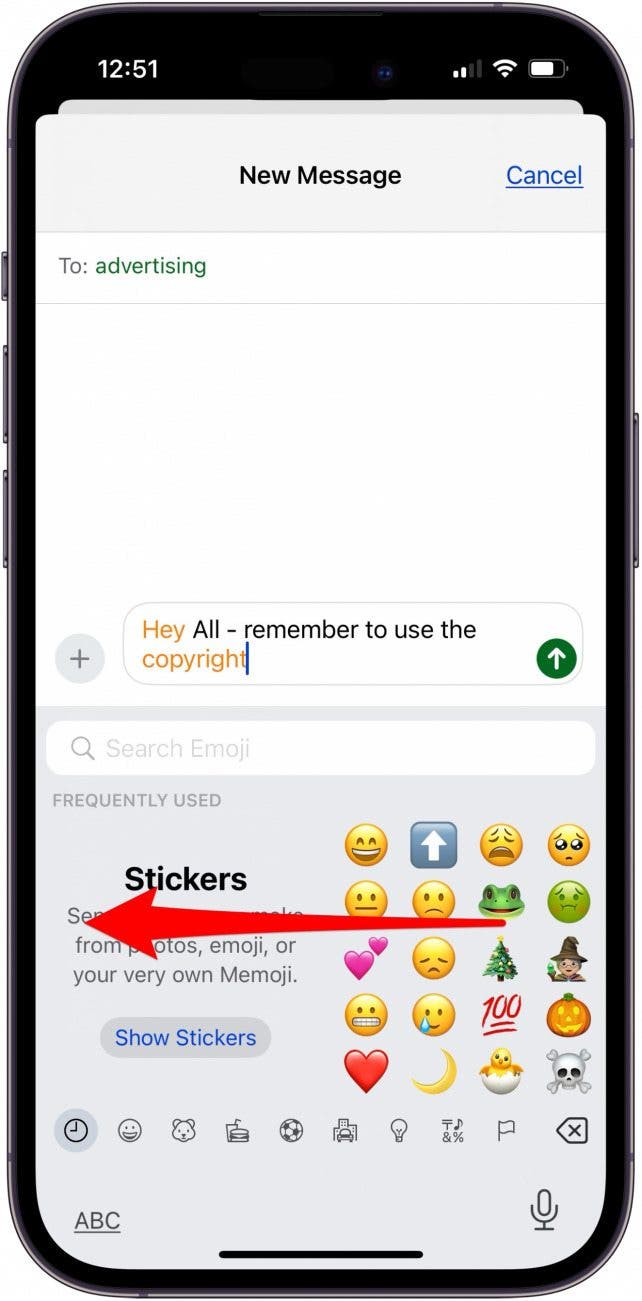
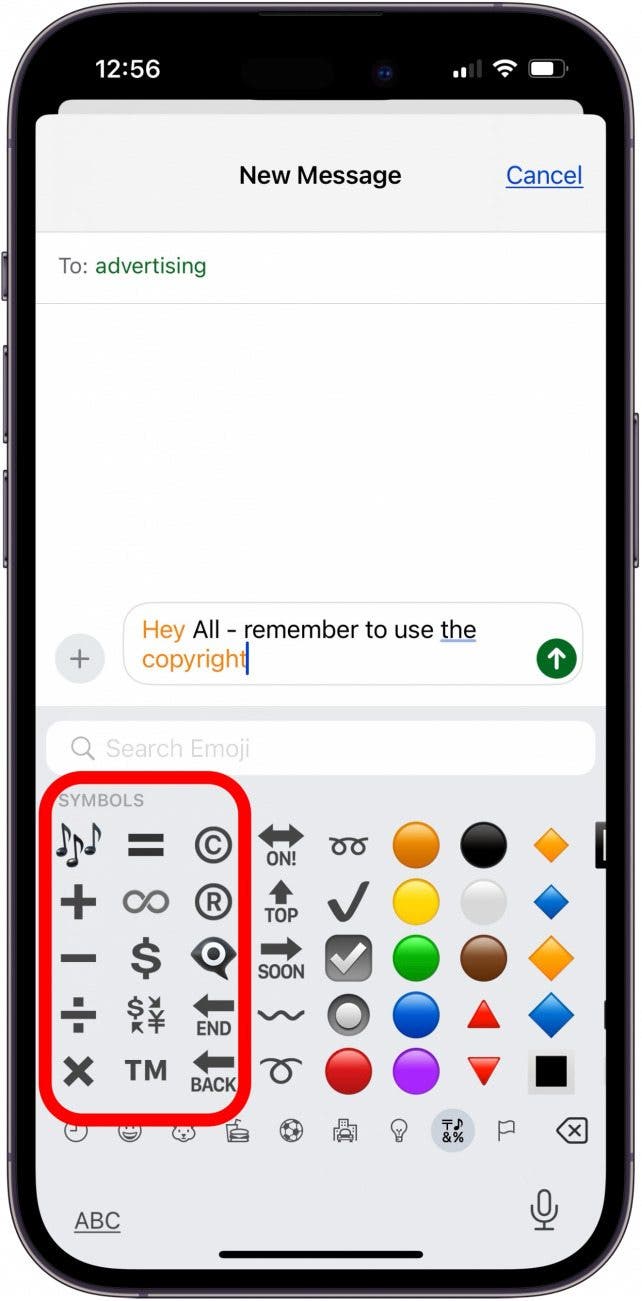
- When you're ready to use the trademark, copyright, or registered trademark symbol, tap on the smiley face icon on the lower left of your screen.

- Now, you can swipe to the left until you arrive at the Symbols section.

- Tap the Circle R symbol, Circle C symbol, or TM symbol.

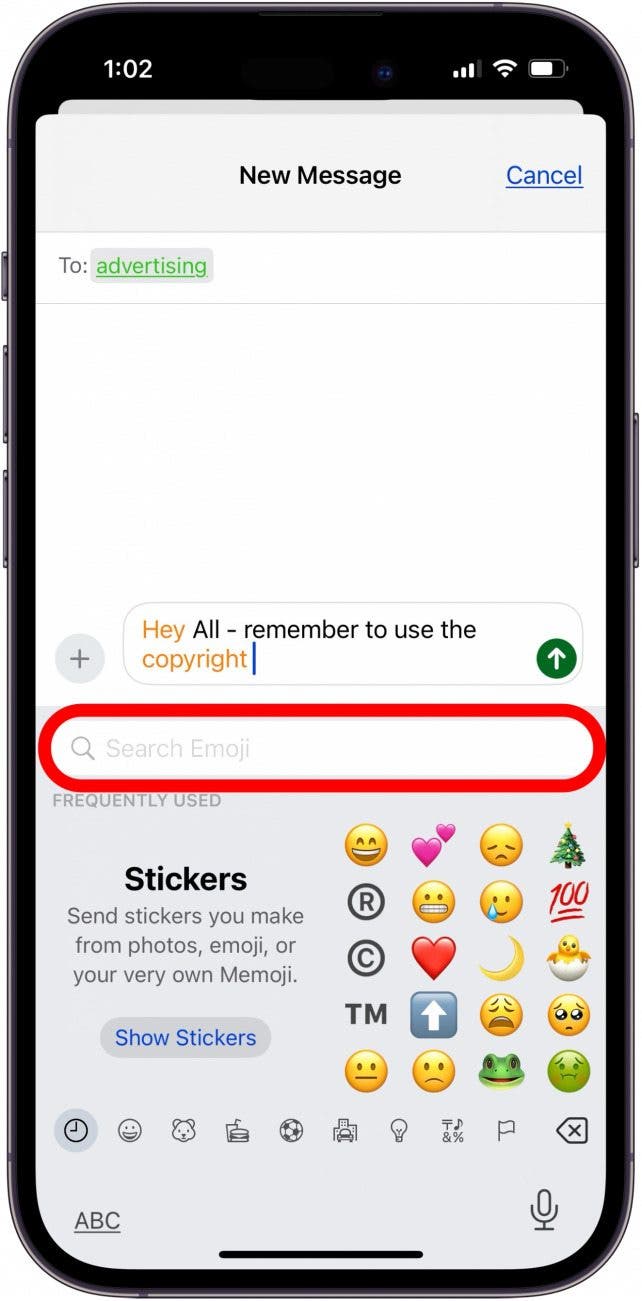
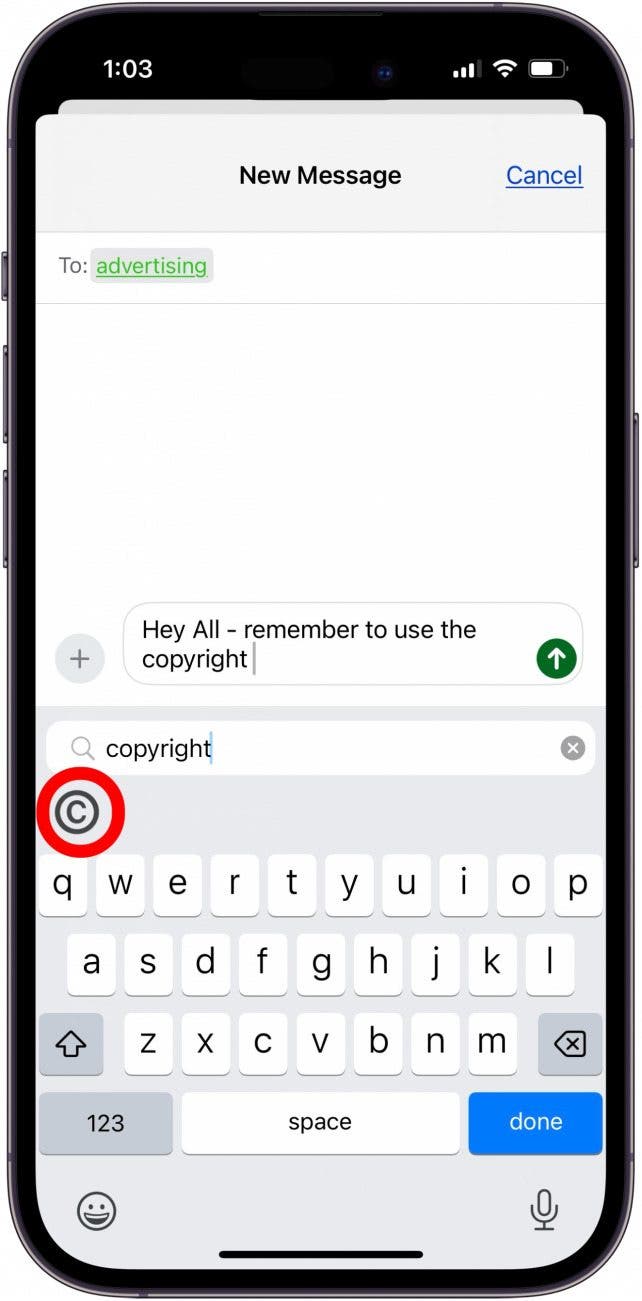
- Alternatively, you can type copyright, registered trademark, or trademark into the Search Emoji field.

- Tap the copyright, registered trademark, or trademark symbol to add it.

- Once you've used these symbols often enough, they'll appear in your Frequently Used emoji menu.



How to Type the Copyright Symbol, Trademark Symbol & Registered Trademark Symbol with Copy & Paste
You probably won't need a third method to make the copyright or other keyboard symbols, but if needed, you can copy and paste symbols on your iPhone. To do this:
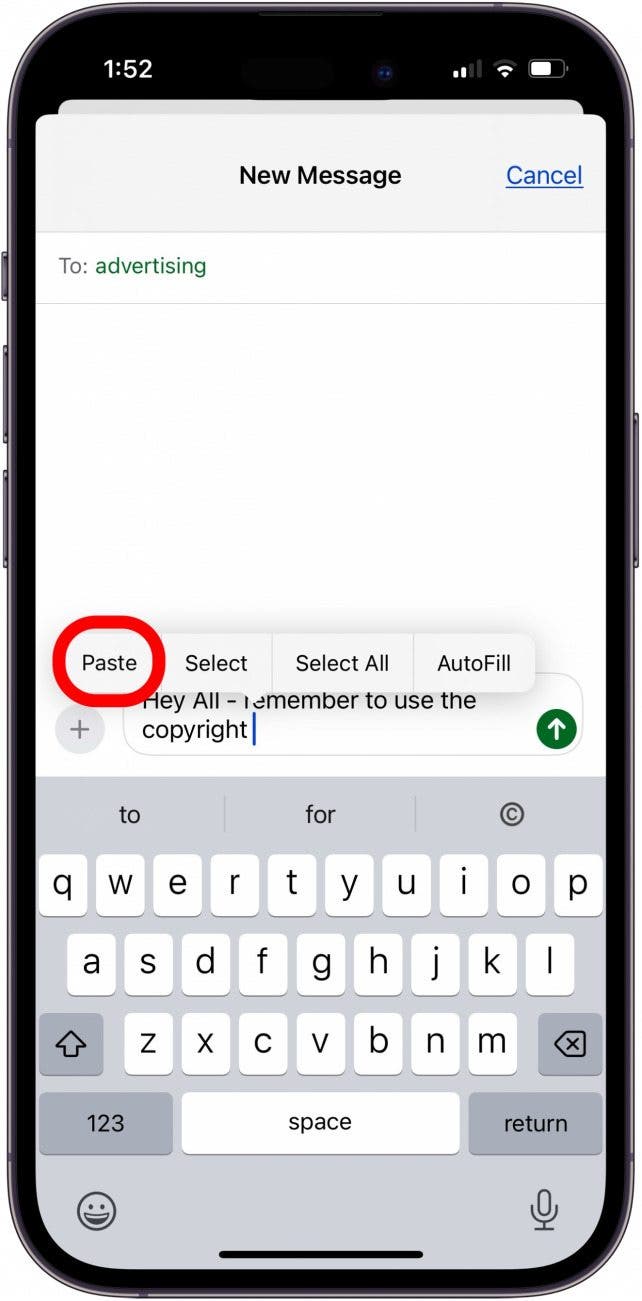
- Find the symbol you need, then touch and hold it until a menu appears, and tap Copy.

- Touch and hold the area in the body of your text where you want to insert the symbol and tap Paste.

- The symbol will be inserted into your text.


For more great tutorials about your iPhone keyboard, check out our free Tip of the Day. Also, be sure to learn how to type special characters on a Mac!
FAQ
- How do I get the copyright symbol on my iPhone? To get the copyright, registered, or tm symbol on your iPhone or iPad, you need to enable your iPhone emoji keyboard and predictive text.
- How do you make the R circle on iPhone? You can type the registered trademark symbol on an iPhone or iPad using copy and paste, the emoji keyboard, or predictive text.
- Is there a TM symbol on iPhone? Yes! You can find the trademark symbol on an iPhone or iPad in the emoji keyboard.
Now you know how to type the trademark symbol, copywrite symbol, and registered symbol on your iPhone and iPad. Be sure to check back with us to learn more Apple keyboard tips and tricks!