By Conner Carey
Updated 09/16/2024
* This article is from our Tip of the Day newsletter. Sign Up. *
The iPad and iPhone's Mail app allows users to add more than one email account from the same or different email providers. Read on to learn how to add email accounts from Gmail and Outlook, and more on your iPhone.
Why You'll Love This Tip:
- Get your emails sent directly to Apple's built-in Mail app.
- Learn how to set up an email account on an iPhone.
How to Add a New Email to iPhone
System Requirements
This tip was performed on an iPhone running iOS 18. Learn how to update to the latest iOS.
We've already gone over how to delete an email account from your iPhone's Mail app and how to change your default Gmail account. For more great Mail app tutorials, check out our free Tip of the Day. Now, let's learn how to add an email account on your iPhone.

Discover your iPhone's hidden features
Get a daily tip (with screenshots and clear instructions) so you can master your iPhone in just one minute a day.
- Open the Settings app.
![]()
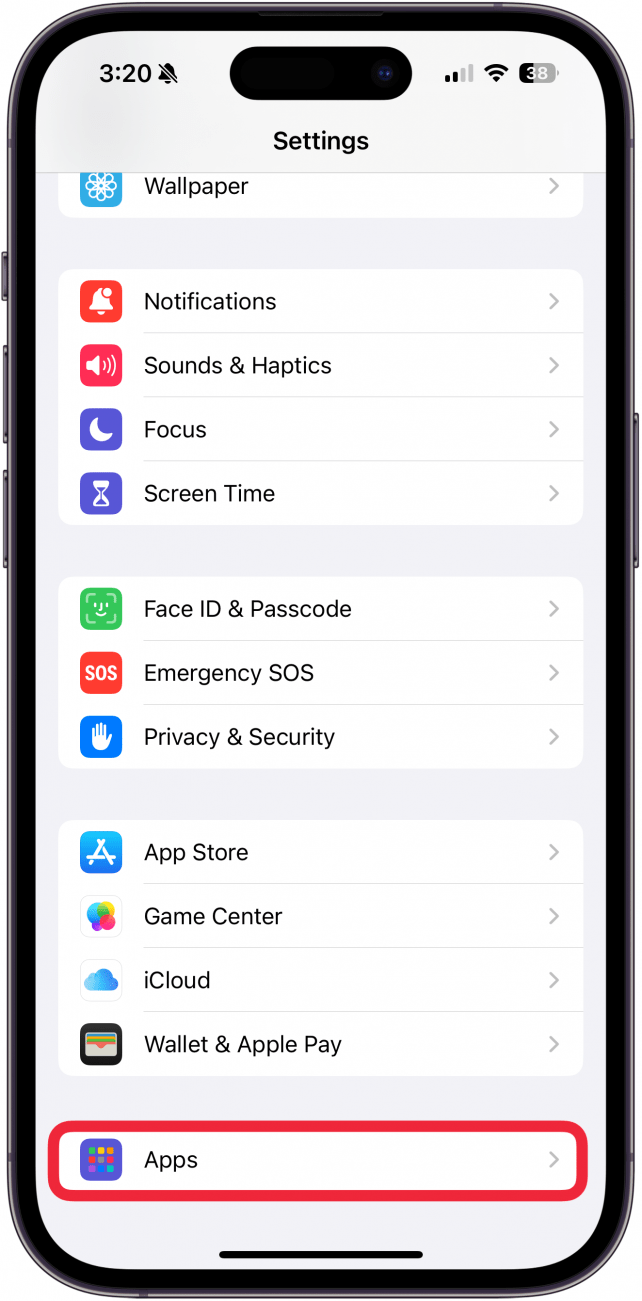
- Tap Apps.
![]()
- Tap Mail.
![]()
- Tap Accounts.
![how to add another email iphone]()
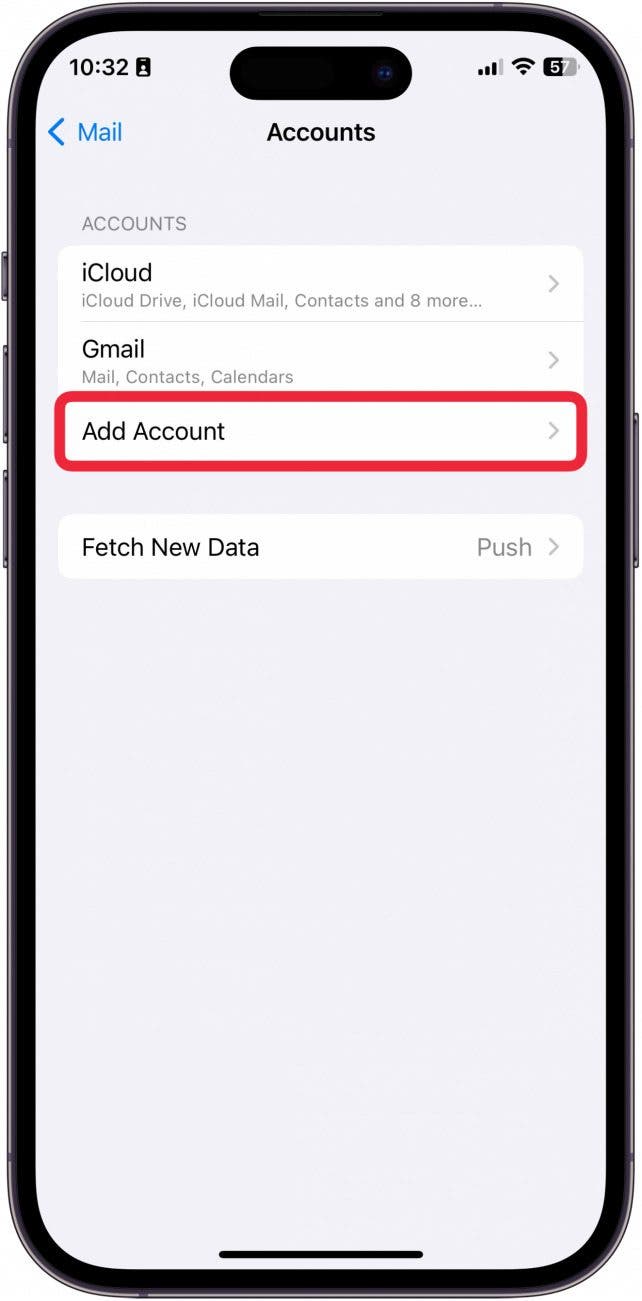
- Tap Add Account.
![how do you add another email to iphone]()
- Tap the email provider for the account you want to add. If your provider is not listed, skip to step 8.
![how to add different email to iphone]()
- Enter the login information and tap Next. You will need to enter your password information and confirm with any 2-factor Authenticators. The Mail app will verify your account.
![how to add a new email to iphone]()
- When you've added an account, you can choose what you want to share from your iPhone with the account, like contacts, calendar events, and even notes in addition to just Mail. Choose what you want to share, and then tap Save.
![how to add an email account on iphone]()
- Tap Other if your email provider is not listed. If you have already added your account, skip to step 11.
![add new email to iphone]()
- Tap Add Mail Account.
![how to add email to iphone]()
- Then, enter your account information. Tap Next. Follow the on-screen directions until you’re returned to Mail Settings.
![how to add another email account to iphone]()
- Now, open the Mail app.
![add email account to iphone]()
- Go to Mailboxes.
![how to add another email in iphone]()
- You will see your new account listed under All Inboxes. It may take a few minutes for all your emails to load.
![how to add second email to iphone]()





And that's how you add an email account to the Mail app on iPhone.