How to Use Night Mode on iPhone

Leanne puts her love of troubleshooting and repair to use managing our Ask an Expert Facebook group and has authored hundreds of how-to, Apple news, and gear review articles.
Learn More Leanne puts her love of troubleshooting and repair to use managing our Ask an Expert Facebook group and has authored hundreds of how-to, Apple news, and gear review articles.
Learn MoreIf you're into iPhone photography and looking for ways to get the best shots in low light, you're in luck. There is a feature called Night mode on the iPhone. The iPhone's Night mode makes night photography easy, allowing users to take clear, vivid pictures in low-light situations. So, how do you put your phone camera in Night mode? We'll go over the ins and outs of these camera settings below.
Why You'll Love This Tip
- Take vivid photos even if you're in a low-light situation.
- Avoid your photos turning out blurry when shooting at night.
How to Turn On Night Mode on iPhone
System Requirements
This tip was performed on an iPhone 15 Pro running iOS 26.3. Find out how to update to the latest version of iOS.
One of the most convenient aspects of Night mode on the iPhone is that it turns on automatically when the camera detects low-light settings. Keep in mind that Night mode doesn't work for some models when using optical zoom. Read our article to learn about optical zoom before using Night mode, and to learn more about your Camera app and other iPhone apps, sign up for our Tip of the Day newsletter. Now, here's how to shoot in low light with your iPhone:
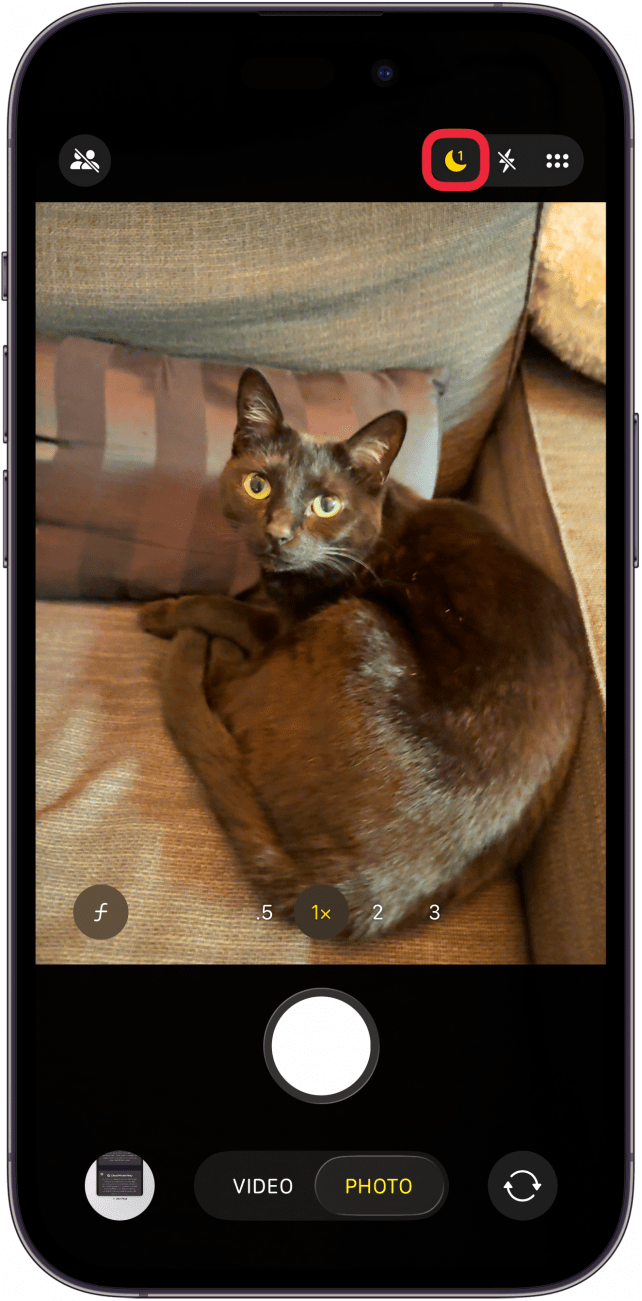
- In the Camera app, the crescent moon icon indicates when Night Mode is on or off. When your iPhone does not detect low-light conditions, you will not see the crescent moon icon at all. If you just want to test this out, try holding your phone under a table or going into a dark room to activate the Night mode icon. When the Night mode icon on your iPhone is yellow, Night mode is on.
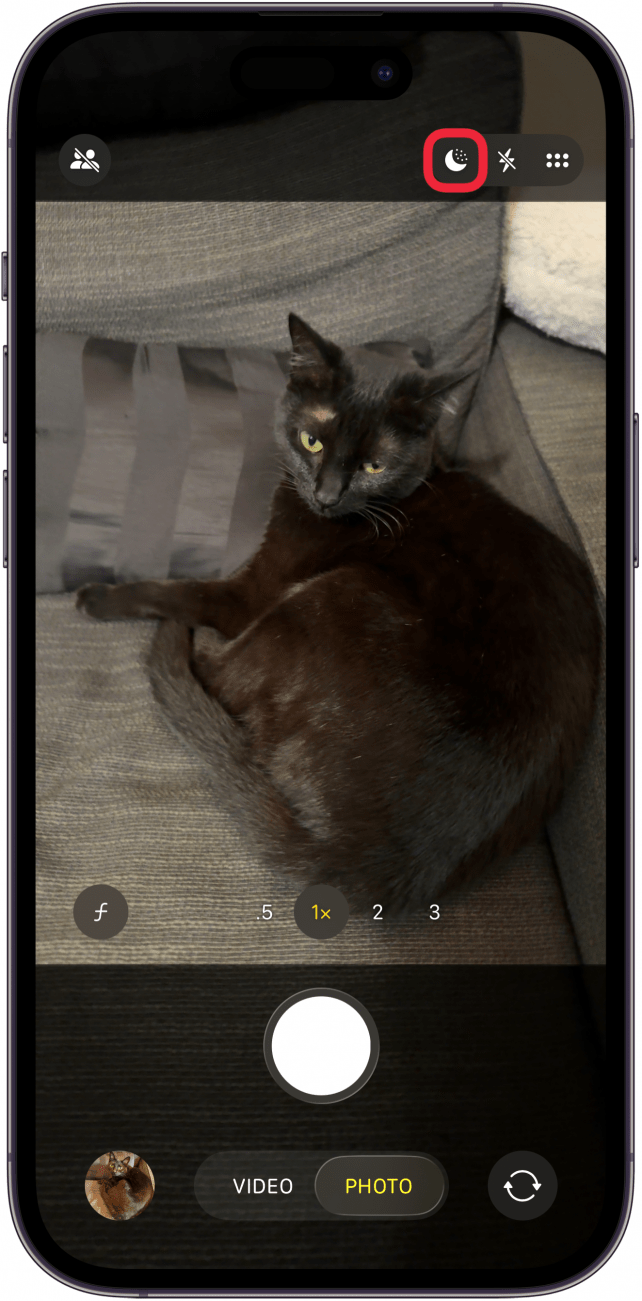
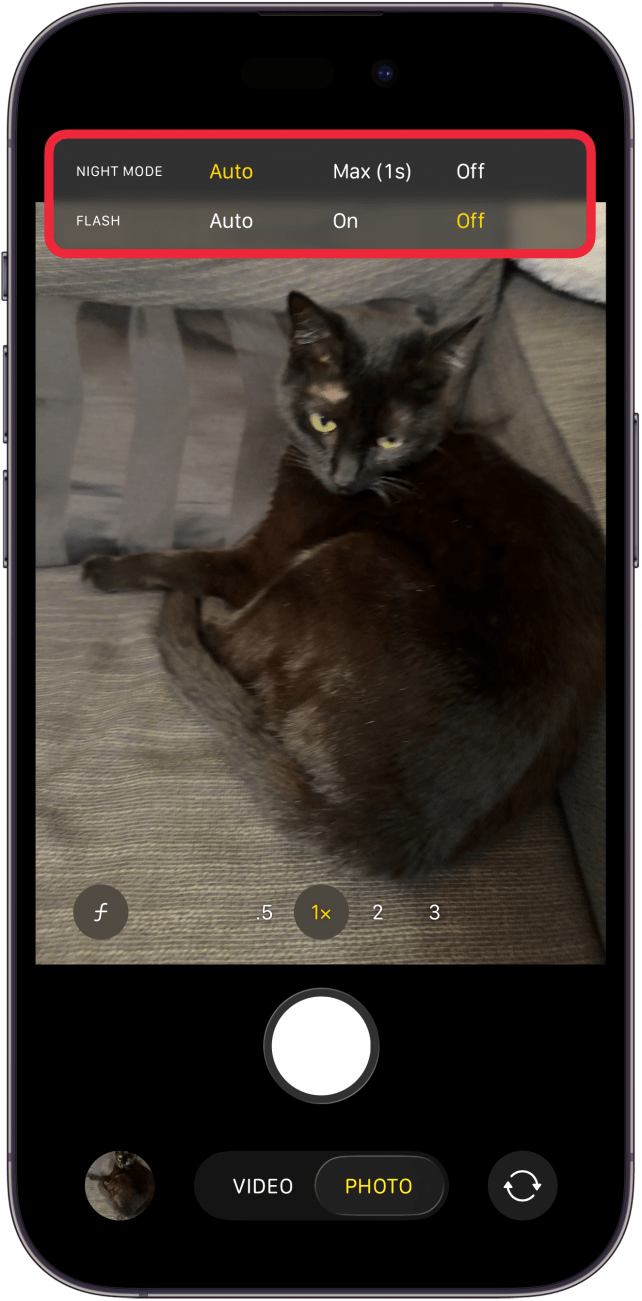
- When the icon is gray, Night mode is off. Long-press the Night Mode icon for extra options.
- Auto means Night Mode will activate automatically when low light is detected. Max sets the Night Mode timer for the longest time possible based on the lighting conditions (this ranges from 1-30 seconds). Off keeps Night Mode turned off regardless of current lighting conditions.
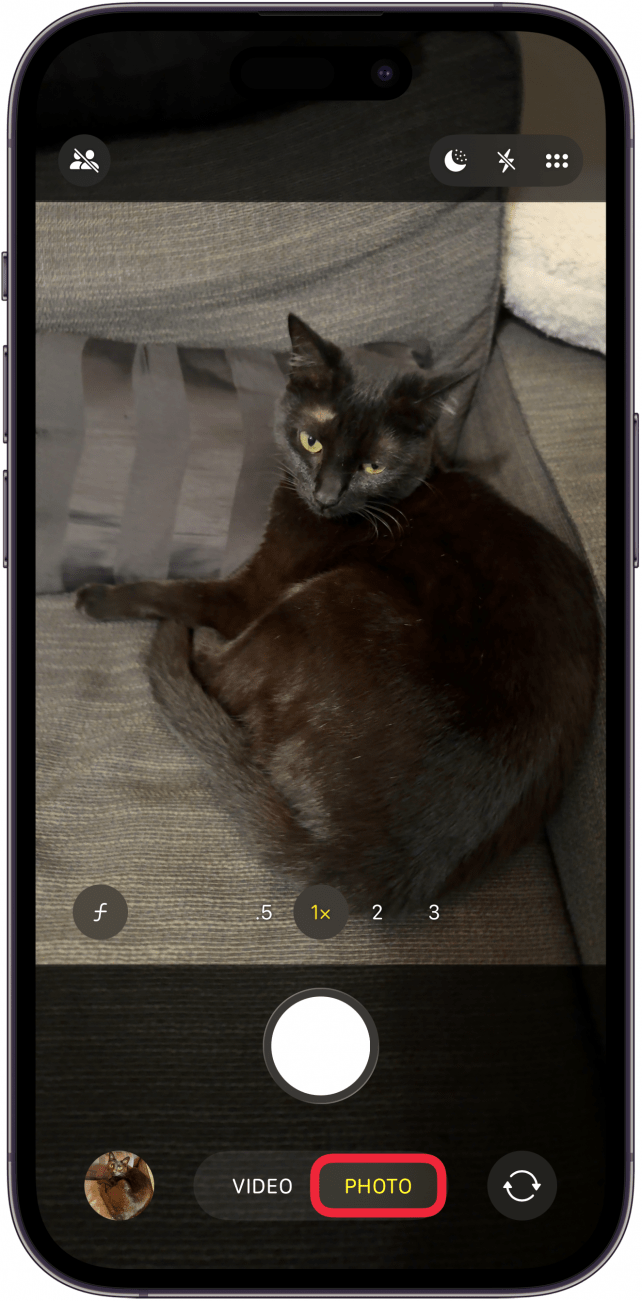
- You can also tap the word Photo to open the settings menu.
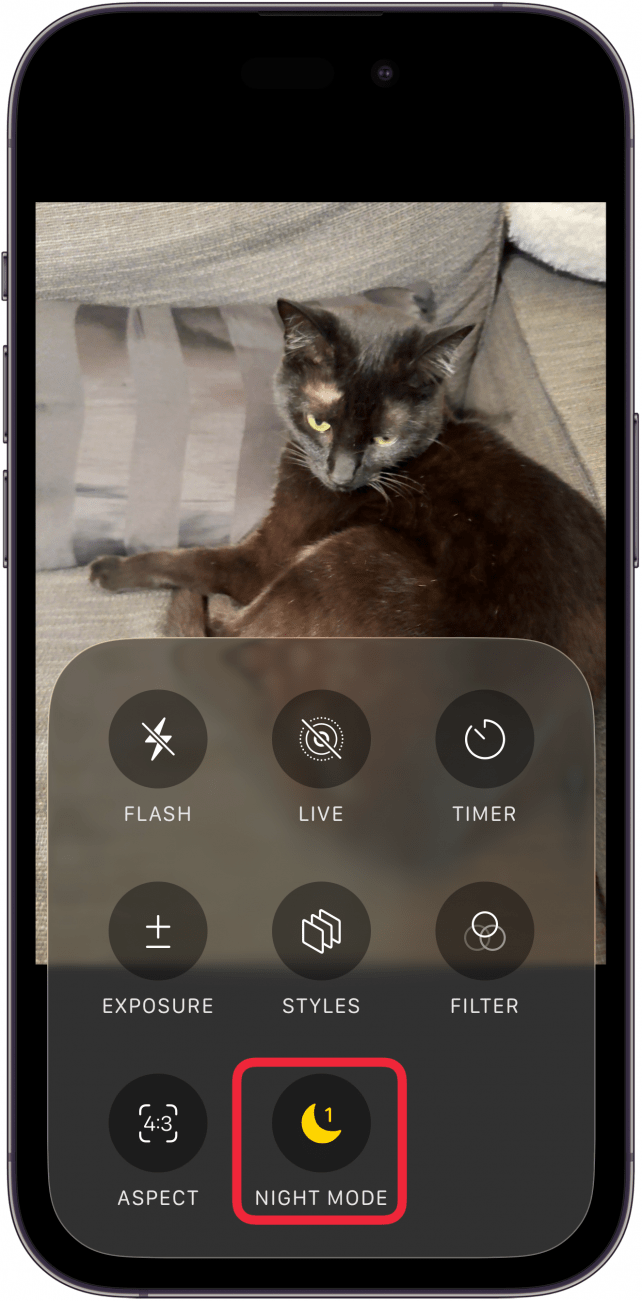
- Tap Night Mode to toggle between Auto, Max, and Off.
That's how to use Night mode on the iPhone. With your iPhone camera's night mode, you'll notice a number next to the Night mode icon. This number indicates how long it will take your iPhone's camera to capture your picture. The darker the setting, the longer your shot will take. If you're having a hard time holding your iPhone still for the number of seconds required, try holding your elbows by your sides and slowly exhaling; take your shot at the end of the exhale. To add more stability, place your iPhone on a solid surface or use a phone tripod.
More On: The iPhone Camera

Every day, we send useful tips with screenshots and step-by-step instructions to over 600,000 subscribers for free. You'll be surprised what your Apple devices can really do.

Leanne Hays
Leanne Hays has more than sixteen years of experience writing for online publications. As a SEO Specialist and Feature Writer for iPhone Life, she has authored hundreds of how-to, Apple news, and gear review articles, as well as a comprehensive Photos App guide. Leanne holds degrees in education and science and loves troubleshooting and repair. This combination makes her a perfect fit as manager of our Ask an Expert service, which helps iPhone Life Insiders with Apple hardware and software issues.
In off-work hours, Leanne is a mother of two, homesteader, audiobook fanatic, musician, and learning enthusiast.
 Olena Kagui
 Rhett Intriago

 August Garry

 Leanne Hays

 Susan Misuraca
 Rachel Needell