With the release of iOS 27, Siri has been enhanced with Apple Intelligence. Siri can now respond more intelligently and better understand your requests. If you want to access this new Siri, read on!
Why You'll Love This Tip
- Join the waitlist and get Siri AI as soon as it's available.
- Access the new Siri and get a smarter virtual assistant.
How to Get Siri AI
System Requirements
This tip was performed on an iPhone 15 Pro running iOS 27. To get Siri AI, you will need an iPhone 15 Pro or later running iOS 27. Find out how to update to the latest version of iOS.
Siri AI is a brand-new version of Siri that is snappier, smarter, and just all-around more useful than the previous Siri. However, Siri AI is still in beta, and to access it, you will likely need to join a waitlist. Keep in mind that Apple Intelligence on the iPhone, including Siri AI, is only available on iPhone 15 Pro and newer devices. For more on the new AI features of iOS 27, be sure to sign up for our free Tip of the Day newsletter. Now, here's how to get Siri AI:
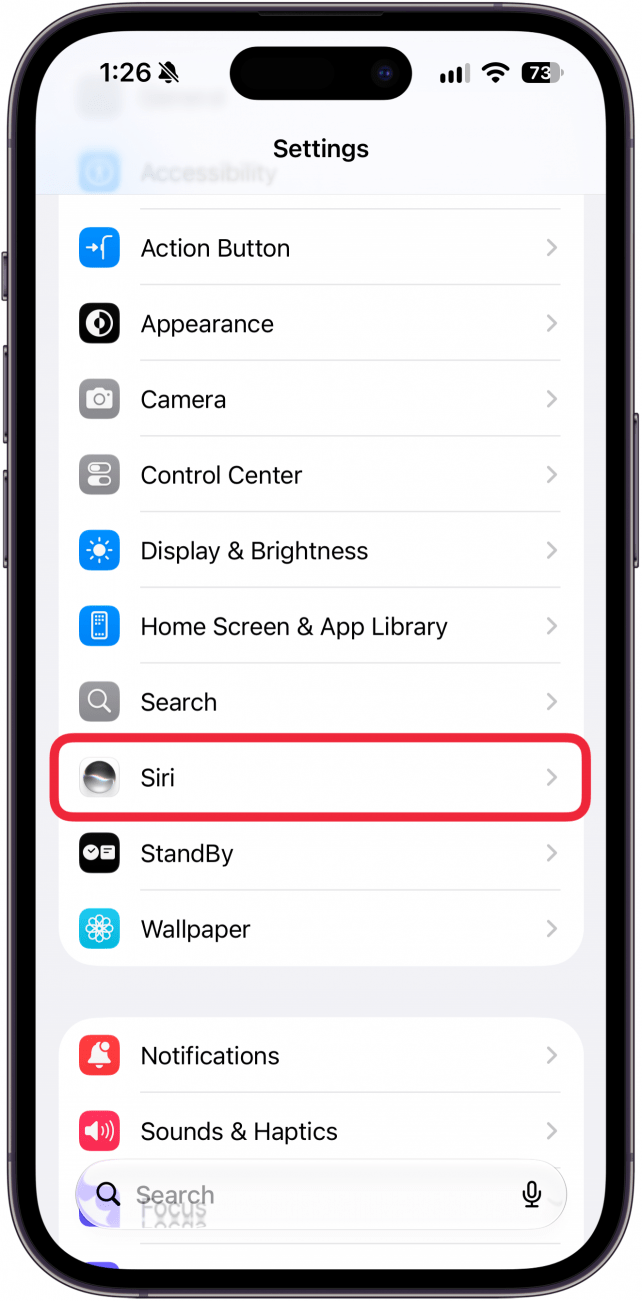
- Open the Settings app and select Siri.
![a screenshot of the settings app on iphone with a red box around siri]()
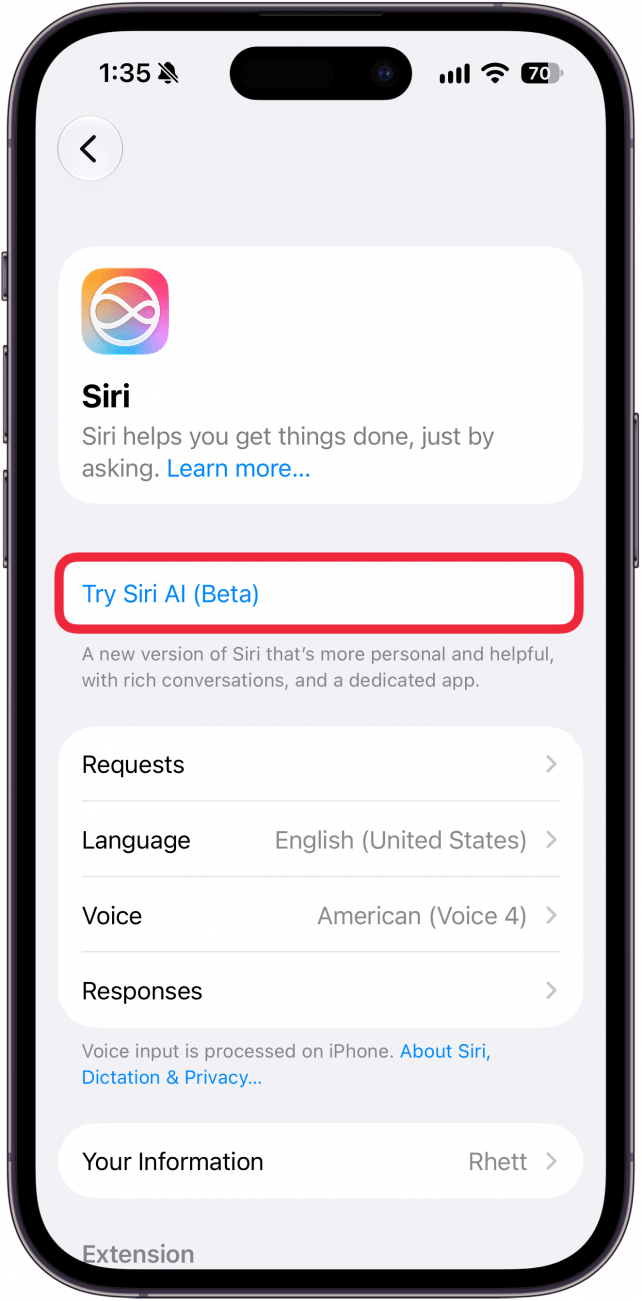
- Tap Try Siri AI (Beta). This button may also be labeled Try the new Siri (Beta).
![a screenshot of siri settings on iphone with a red box around the try siri ai button]()
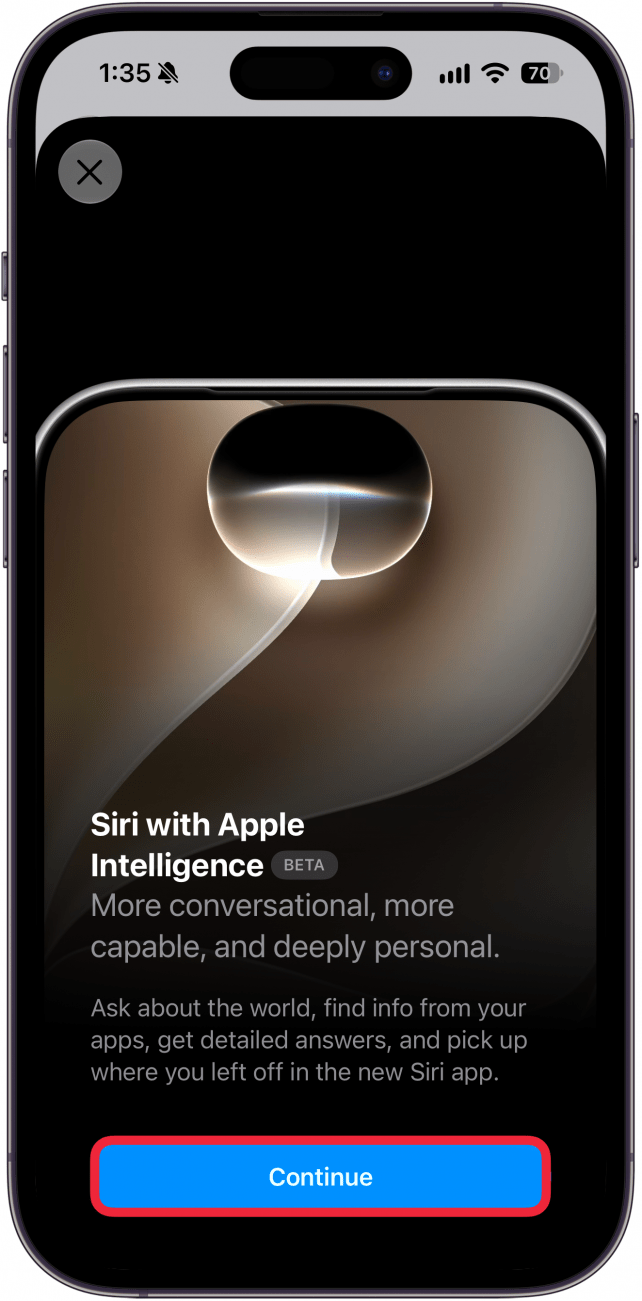
- This screen tells you about Siri AI. Tap Continue when you are ready. (If you instead see a screen asking you to join the waitlist, jump to step 7.)
![a screenshot of the siri ai setup on iphone with a red box around the continue button]()
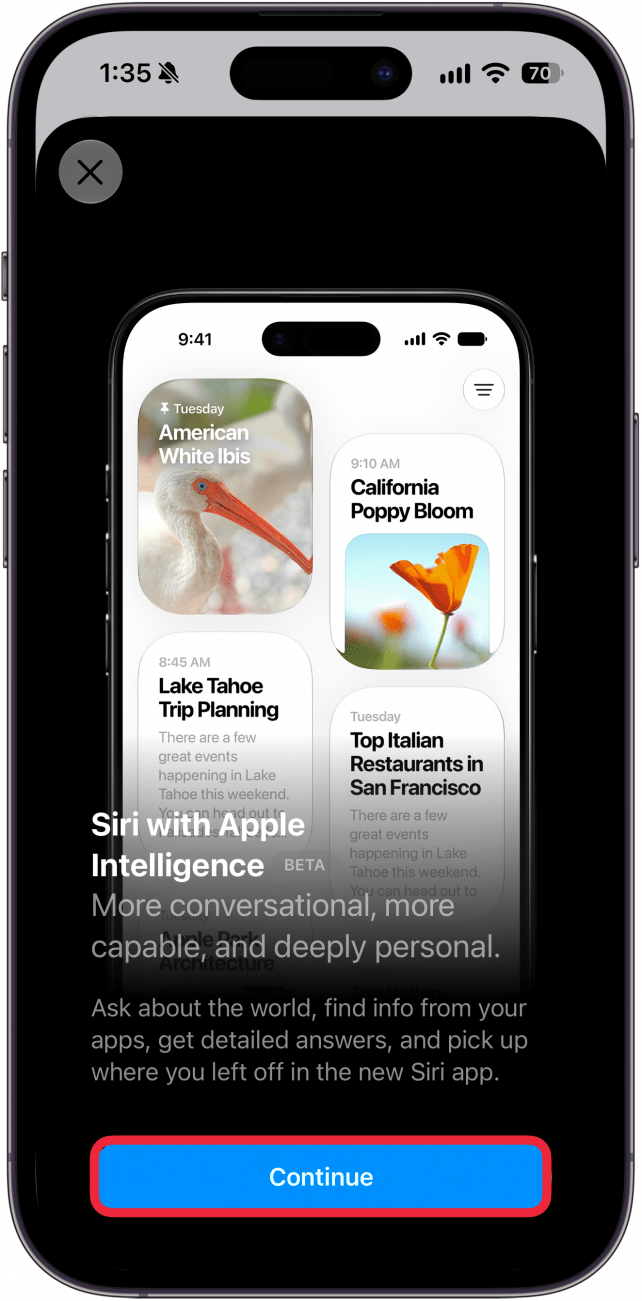
- This screen tells you about the new dedicated Siri app. Select Continue.
![a screenshot of the siri ai setup on iphone with a red box around the continue button]()
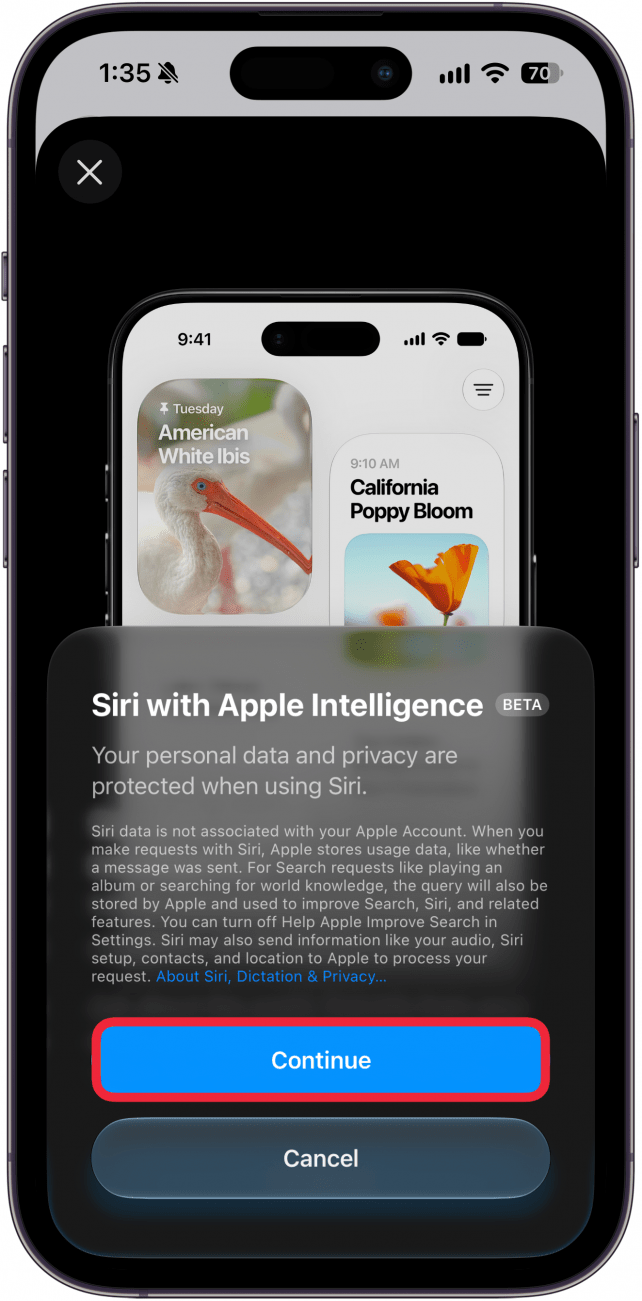
- Lastly, you'll be informed about the privacy policy for using Siri AI. Tap Continue.
![a screenshot of the siri ai setup on iphone with a red box around the continue button]()
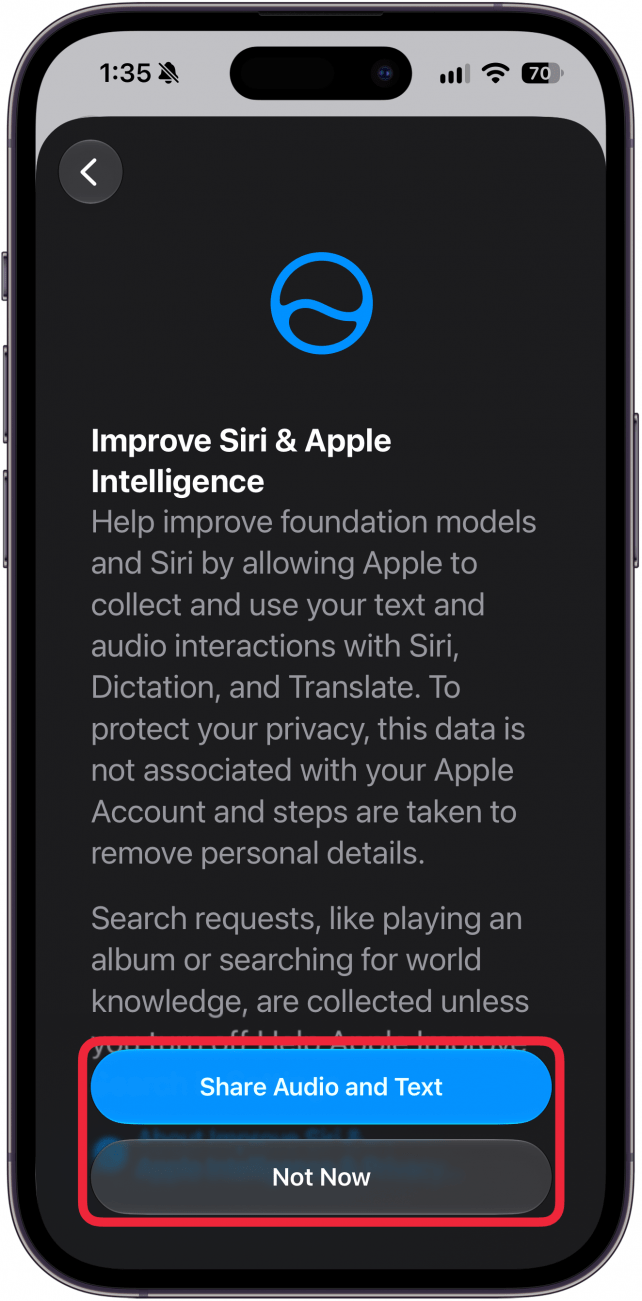
- On this screen, you'll be asked whether or not you want to share text and audio recordings with Apple to help improve Apple Intelligence. For maximum privacy, I recommend selecting Not Now.
![a screenshot of the siri ai setup on iphone with a red box around the not now button]()
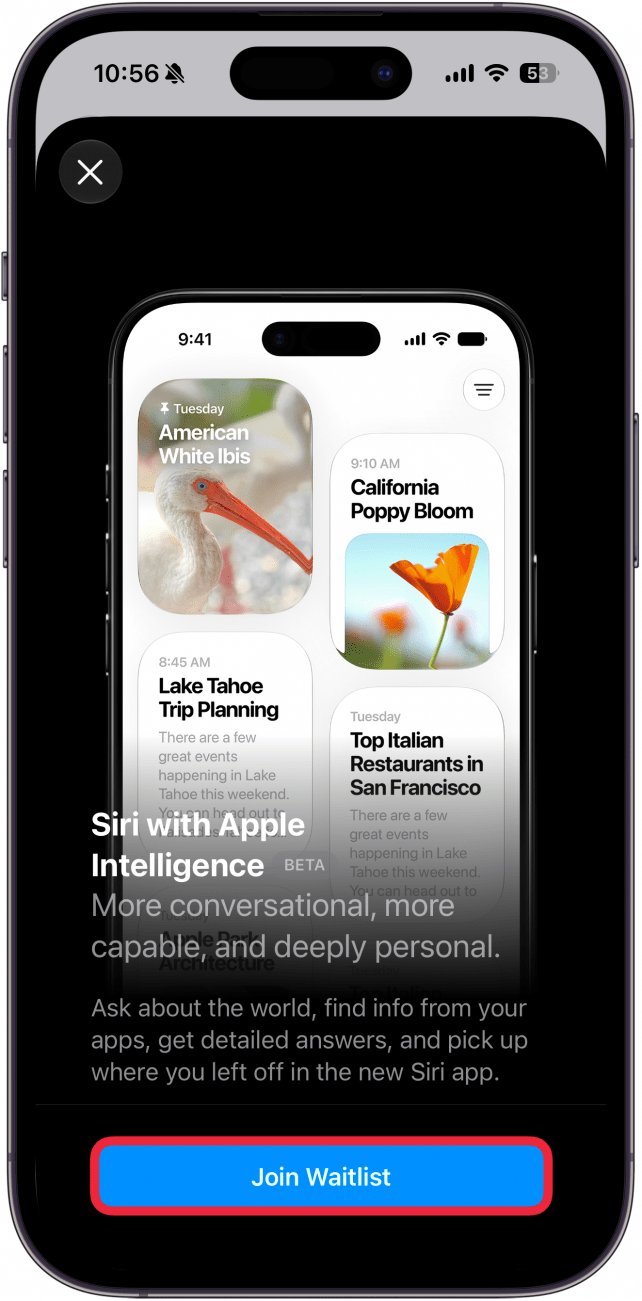
- During this process, you may be asked to join a waitlist. Fear not, you probably will not have to wait long to try the new Siri. If you do not get a notification that you can now use the new Siri AI in a couple of days, try restarting your phone. That has worked for some people.
![a screenshot of siri ai setup on iphone with a red box around the join waitlist button]()
- If you joined the waitlist, you can see your status here in the Siri settings. You will receive a notification when Siri AI is ready. Again, if you don't receive a notification within a few days, you can try restarting your phone. If that doesn't work, you may have to resign yourself to waiting a bit longer.
![a screenshot of siri settings on iphone with a red box around the siri ai status which reads "joined waitlist"]()

Note
If you have an iPhone 17 Pro or newer, you will also have the opportunity to customize Siri's voice during this process.
The Siri AI waitlist may be long during the first few months of iOS 27's release. How long you are on the waitlist can vary wildly. For example, I was granted access to Siri AI within 30 minutes of joining the waitlist, while some of my coworkers had to wait days despite signing up before I did. Still, you should join the waitlist as soon as possible, even if you need to wait days to get Siri AI. Joining the waitlist will ensure you get access as soon as Siri AI is ready.