By Leanne Hays
Tue, 02/17/2026
Did you make a mistake or change your mind about a Markup you added to a photo? Don't worry, we'll show you how to remove Markup from photos on your iPhone or iPad.
Why You'll Love This Tip
- Get rid of all or part of Markups you've made in pictures on your iPhone or iPad.
- Go back and erase saved Markups, or erase Markups you haven't saved yet.
How to Erase Markup from a Photo on an iPhone & iPad
System Requirements
This tip works on iPhones running iOS 16 or later, and was tested on an iPhone 17 Pro running iOS 26. Find out how to update to the latest version of iOS.
Don't like a Markup you drew on one of your pictures? Learn how to use the object eraser in Markup, so you can undo Markup mistakes you've made in photos.
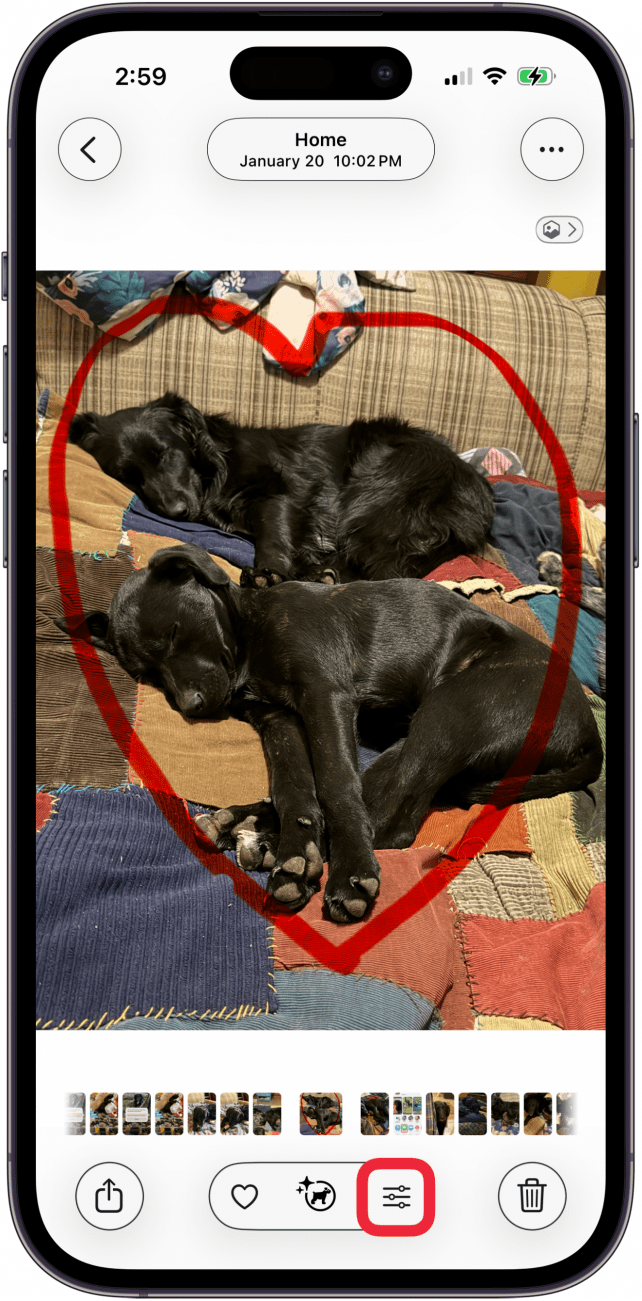
- Open the photo with Markups that you want to erase, and tap the Edit icon.

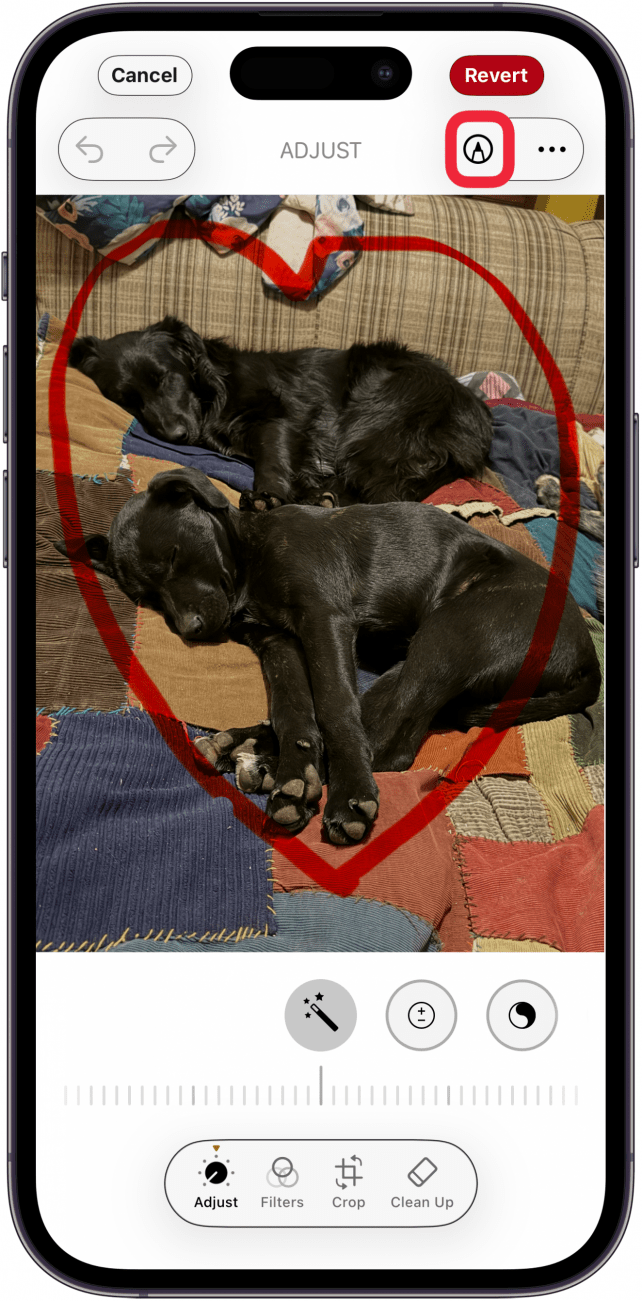
- Tap the Markup icon.

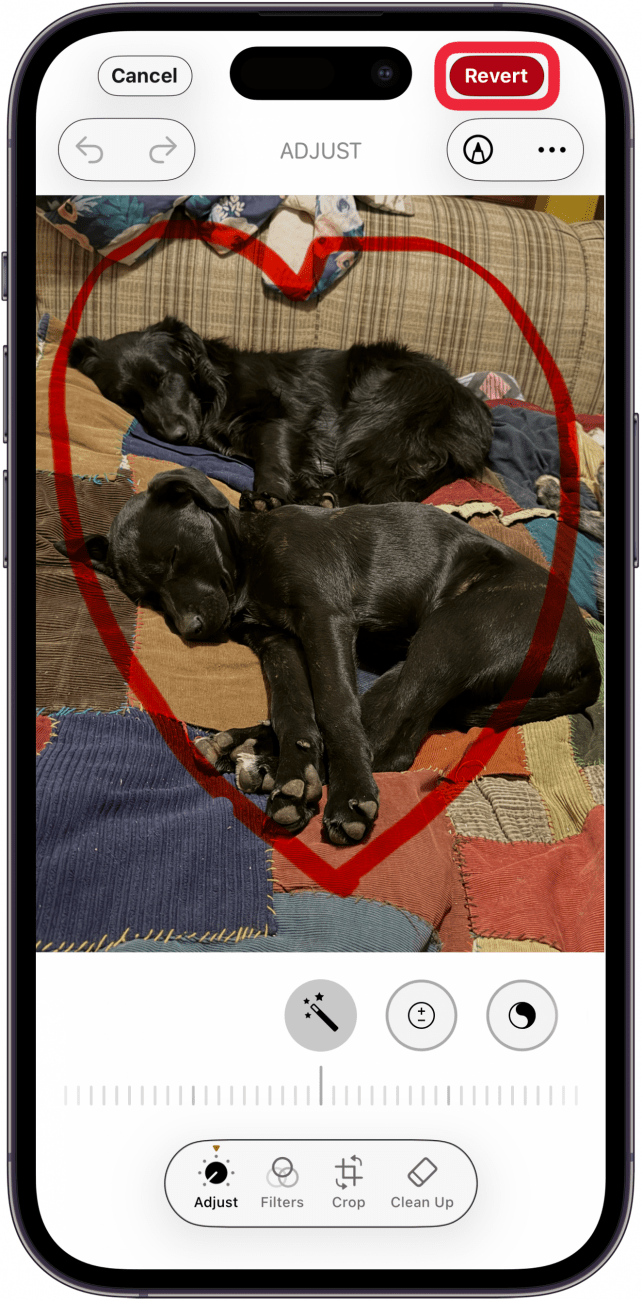
- If you're opening a photo with Markups you made previously, you can tap Revert to undo all the Markups.

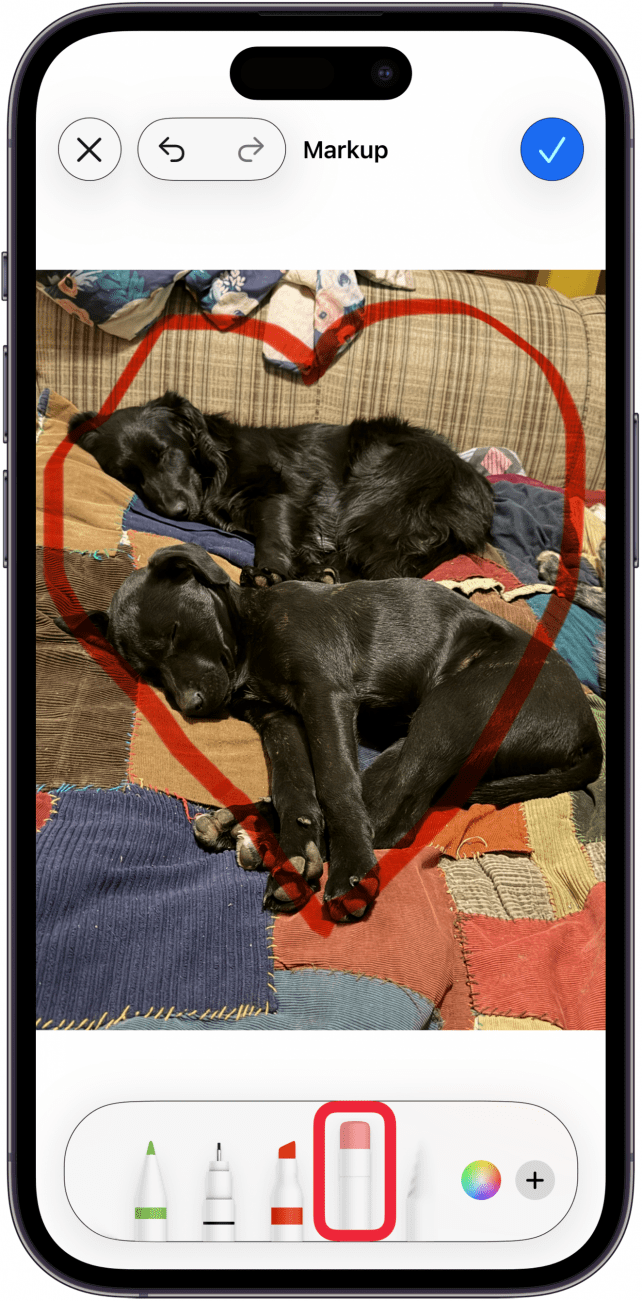
- Tap the Eraser tool.

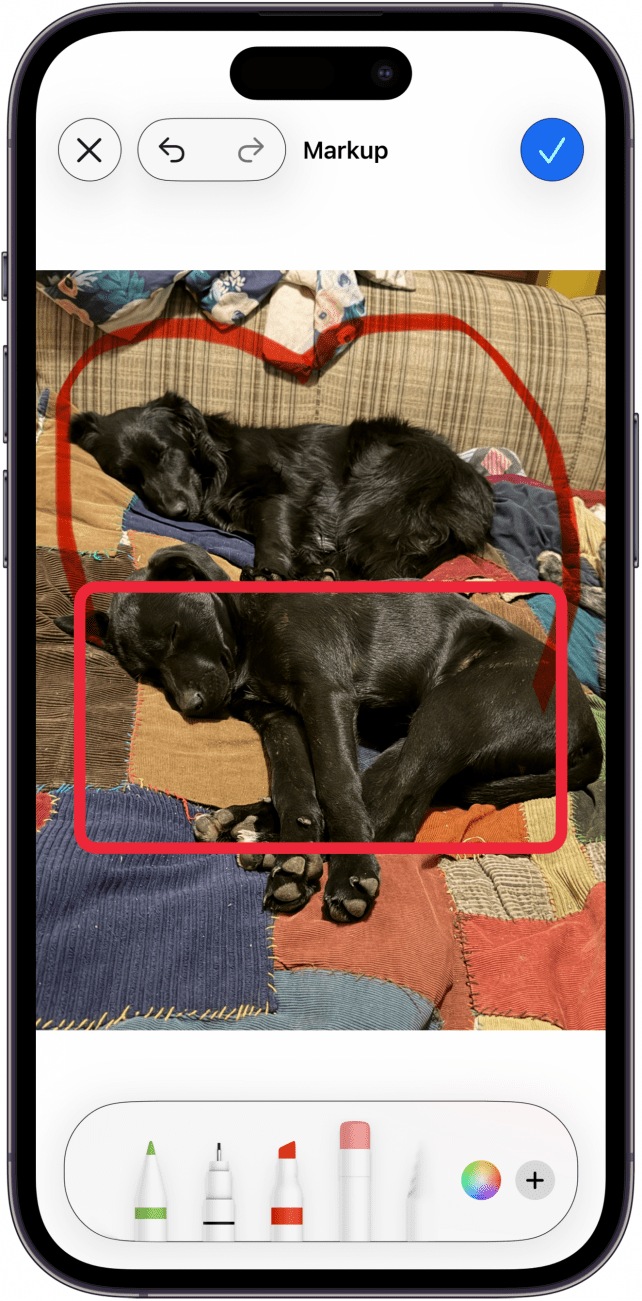
- You can scrub your finger across the Markups you want to erase, or tap small areas one at a time to erase them.

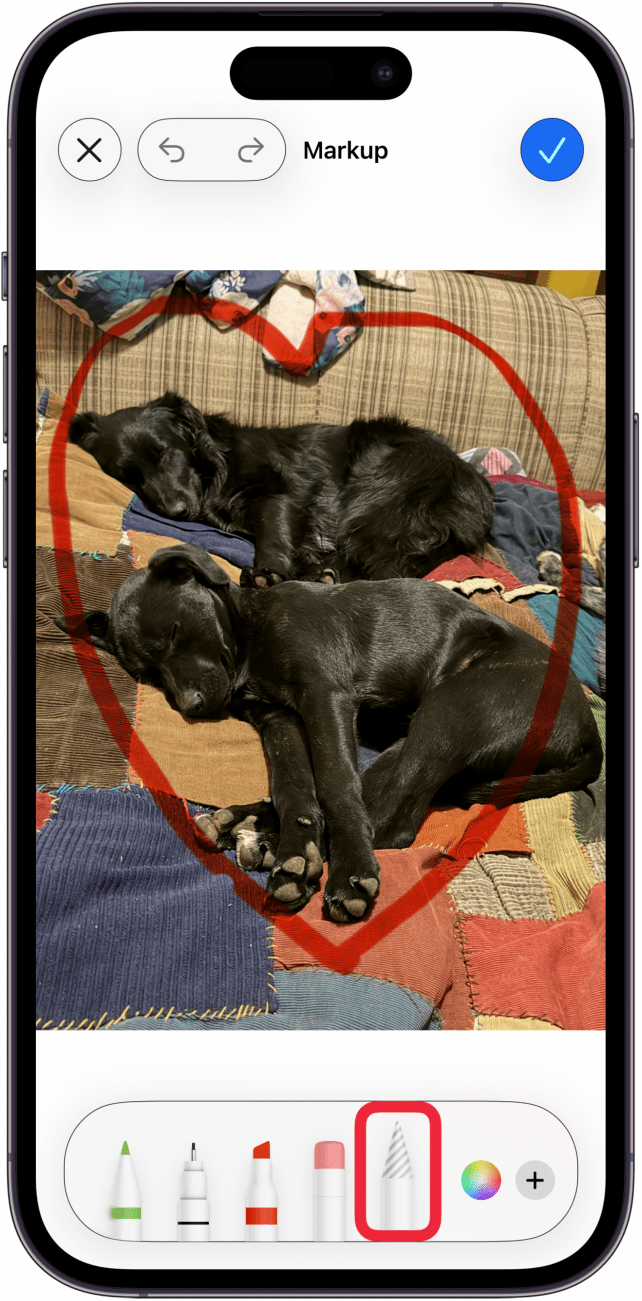
- Tap the Object Eraser Markup tool if you want to delete all Markups.

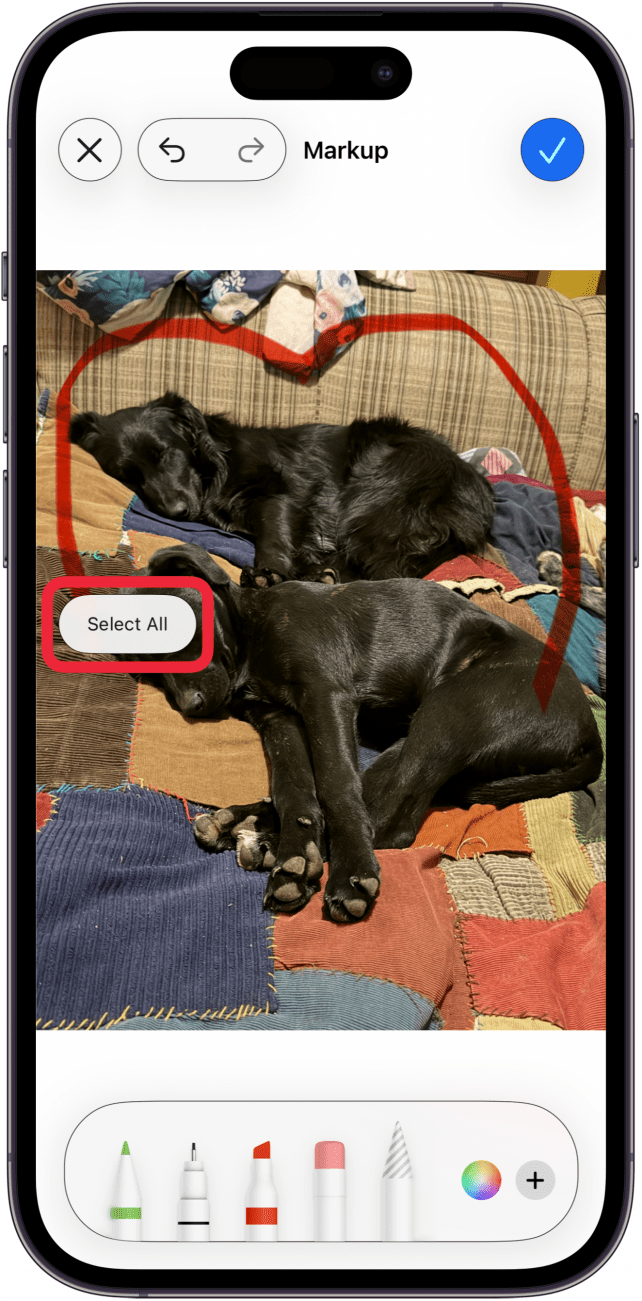
- Touch and hold the screen, then tap Select All.

- Tap the Trash Can icon to delete all Markups.


That's how to erase Markups on your iPhone or iPad. Be sure to check out our free Tip of the Day for more great iPhone photo editing tutorials.

Discover your iPhone's hidden features
Get a daily tip (with screenshots and clear instructions) so you can master your iPhone in just one minute a day.