By Leanne Hays
Updated 01/08/2026
Did you know you can use the Notes app to record and transcribe audio on your iPhone and iPad? Here's how to record audio on an iPhone and transcribe your spoken words to text in the Notes app!
Why You’ll Love This Tip
- Make audio notes on your iPhone whenever you need to, and turn audio into text.
- Record lectures, meetings, and more, then transcribe them with the Notes app, no transcription app needed!
How to Record Audio on an iPhone in the Notes App
System Requirements
This tip works on iPhones running iOS 18.1 or later, and was tested on an iPhone 17 Pro running iOS 26.2. Find out how to update to the latest version of iOS.
If you've been wondering how to record sound on an iPhone in the Notes app, then transcribe those audio notes, this is what you've been looking for. Here's how to record and transcribe on iPhone.
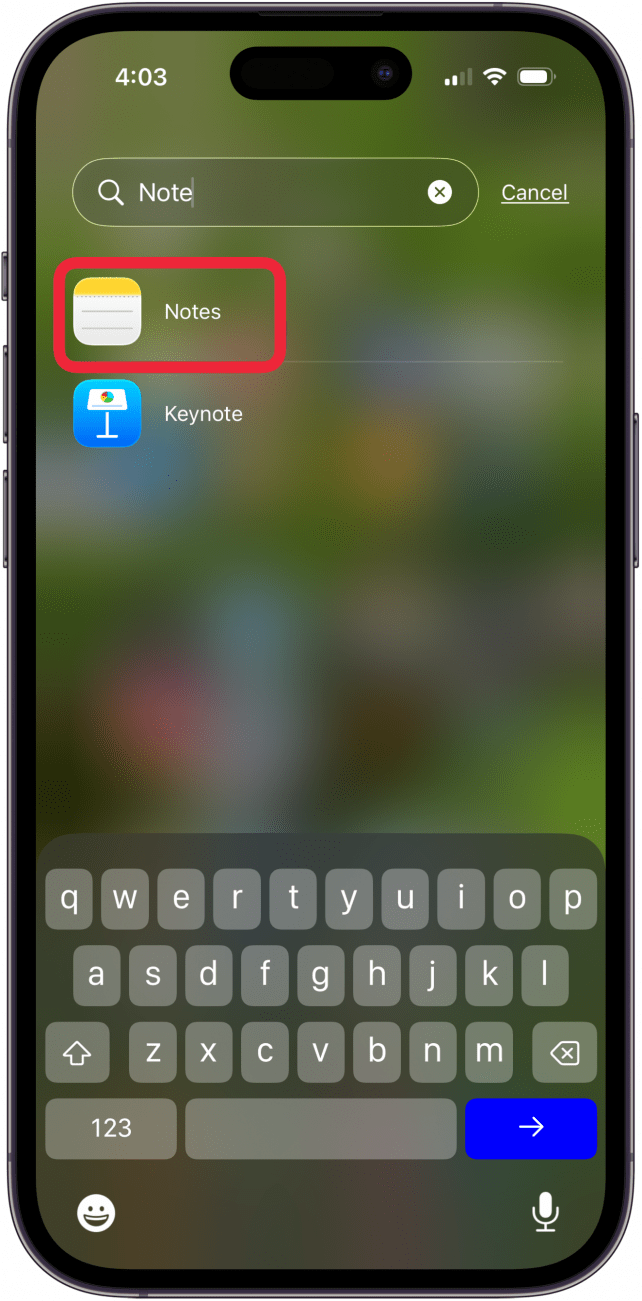
- Open the Notes app on your iPhone.

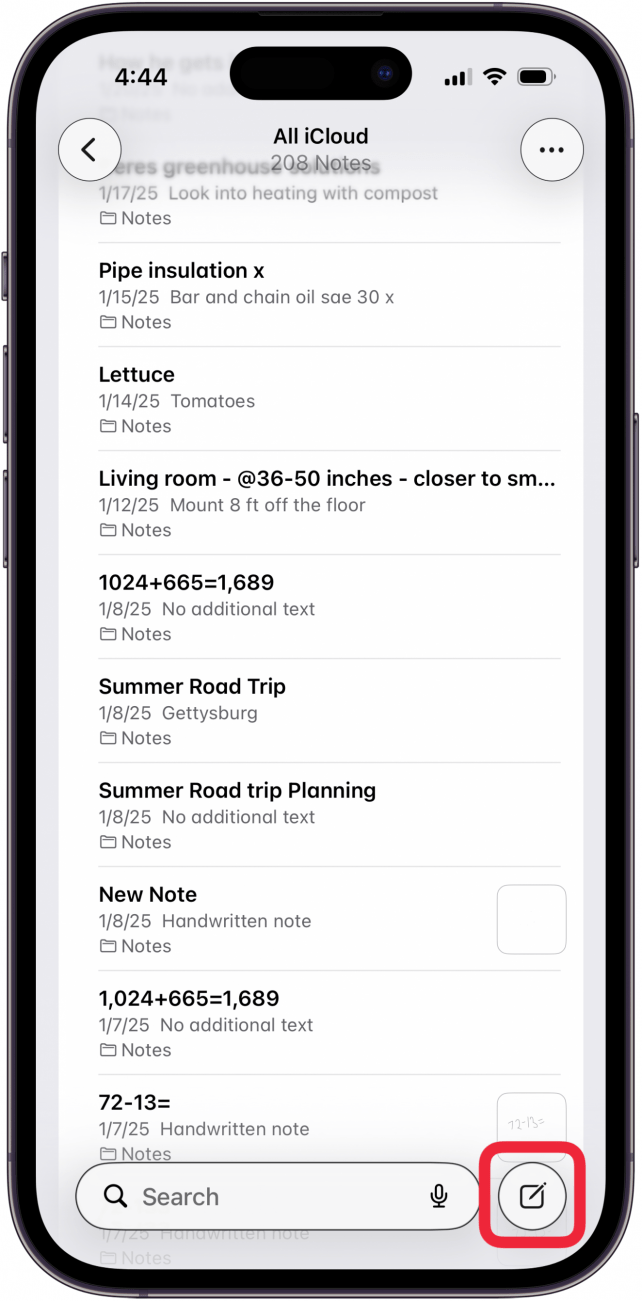
- Tap a note to open it, or tap the Compose Note icon to start a new note.

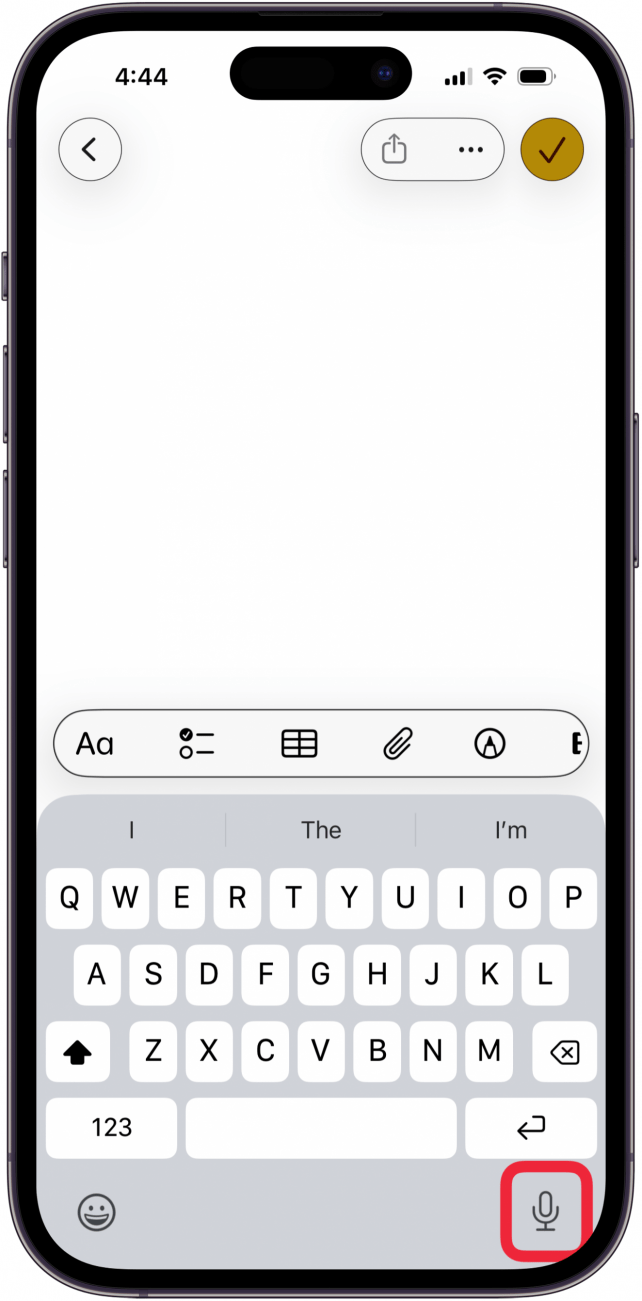
- Tap the Record Audio icon.

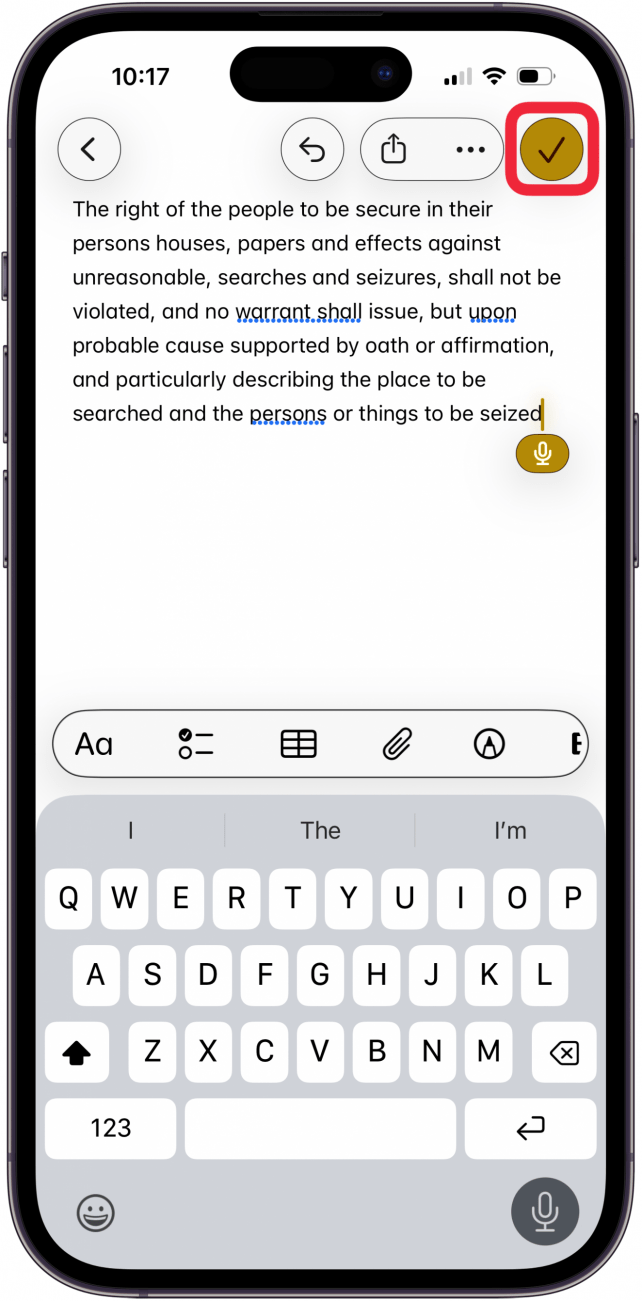
- You'll see a cursor and the Microphone icon, and you can begin recording.

- Tap the microphone icon to stop recording. You can tap the microphone icon again to restart.

- Tap the check mark to save the transcription of your note.

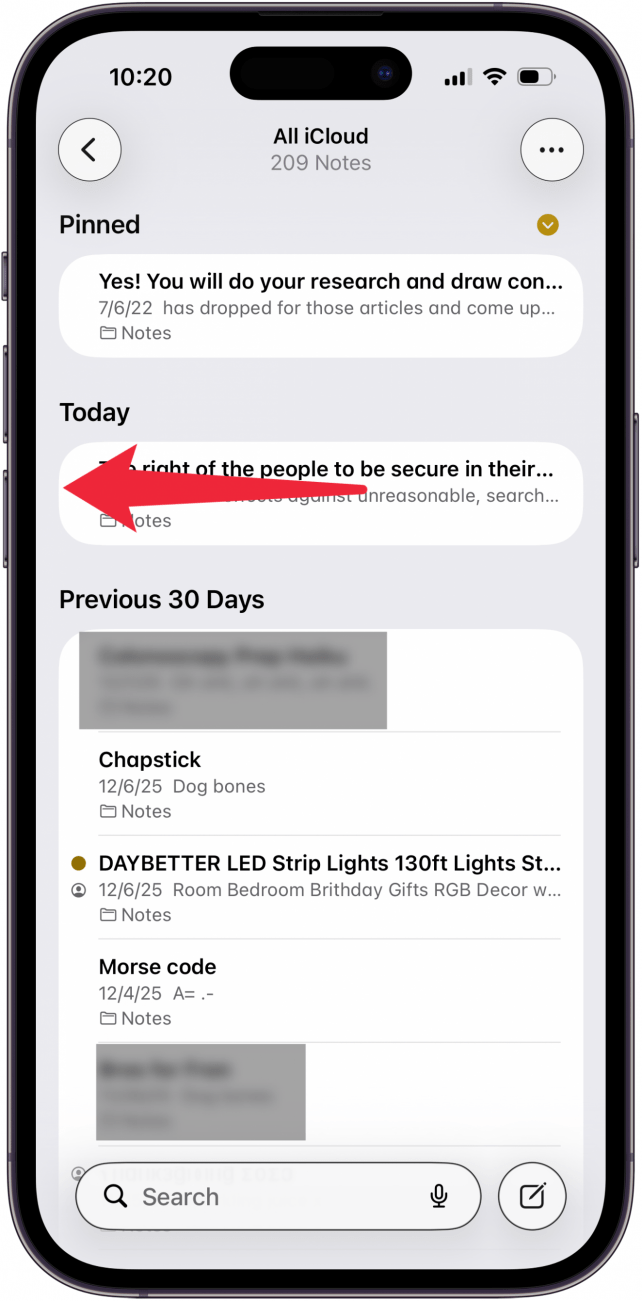
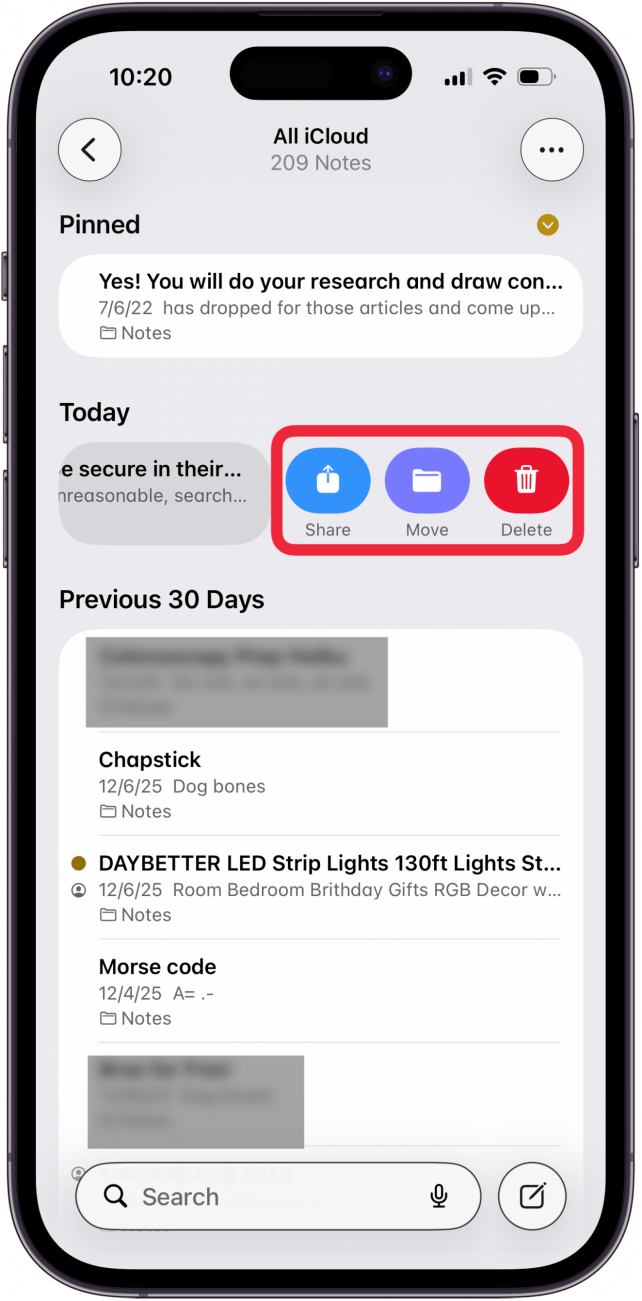
- Swipe across the audio transcription to open more options.

- You can tap Share, Move, or Delete.



Now you know how to make audio notes on an iPhone, and how to turn audio into text! Be sure to sign up for our free Tip of the Day for more great Notes app tutorials.

Discover your iPhone's hidden features
Get a daily tip (with screenshots and clear instructions) so you can master your iPhone in just one minute a day.