What to Know
- You can remove audio from a video using the Photos app on your iPhone.
- This allows you to eliminate unwanted background noise and add your own soundtrack.
- Simply tap the Edit button, then tap the speaker icon to remove audio from videos.
I recently recorded a video I thought would be cute, but then I rewatched it. My peaceful, agrarian video was ruined by earsplitting background noise! Luckily, I knew how to remove sound from an iPhone video right in the Photos app, so I could still send the video without sound. I'll show you the easiest way to remove audio from your own video on the iPhone, just in case you run into the same issue.
How to Remove Sound from iPhone Video
Note
If you're hoping to use this audio-free footage for B-roll in a film or music video, removing audio this way will completely remove the audio track from the clip. That means when you export the video to iMovie or another app, the audio will not be available.
Can you remove sound from a video on iPhone? You can! I almost always remove audio from videos before I send them to friends since the audio is usually not the reason for sending a video. I like to think this ensures that if the recipient's phone volume is turned up, they won't be blasted by whatever sound is present in the video. Now, here's how to mute a video on iPhone:
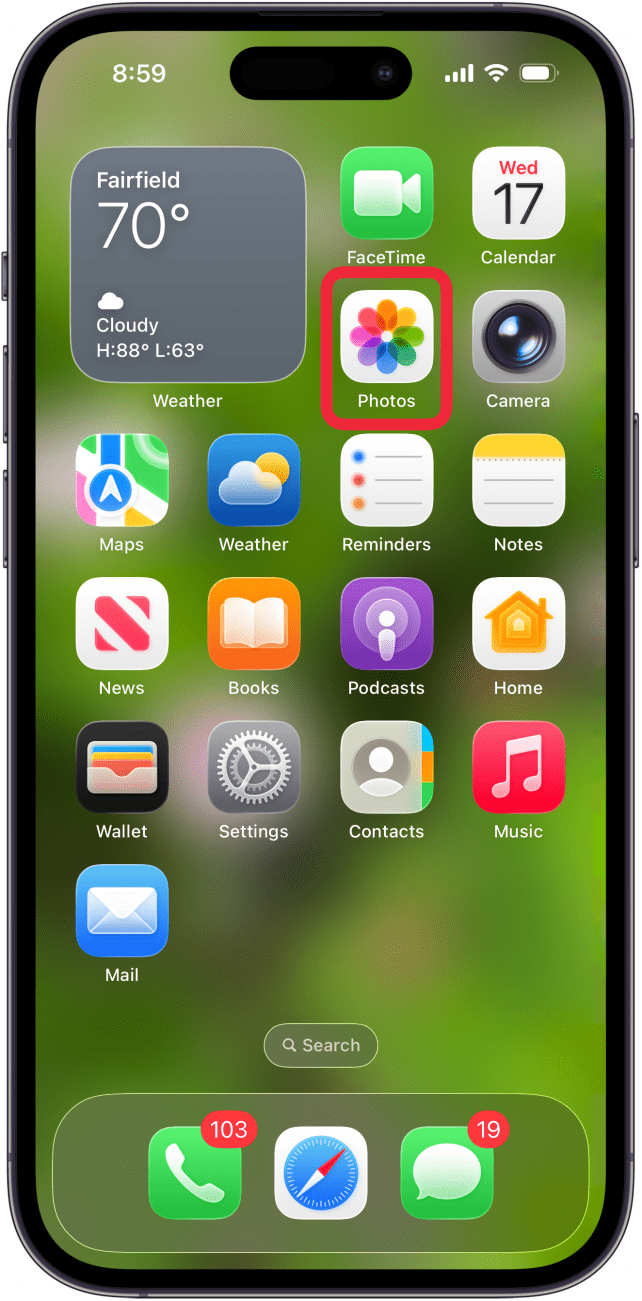
- Open the Photos app.

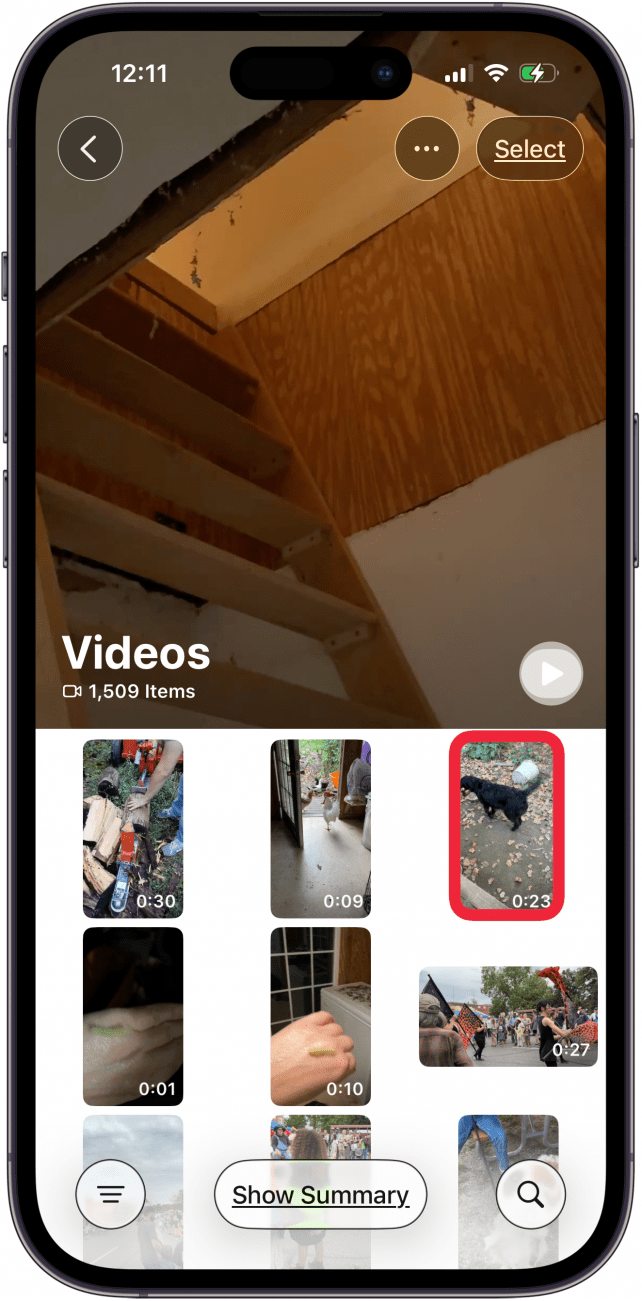
- Tap the video you'd like to remove sound from.

- Tap the Edit button at the bottom of your screen.

- Tap the speaker icon in the top-left corner.

- Tap Done in the top-right corner.

- Your video should now be muted.
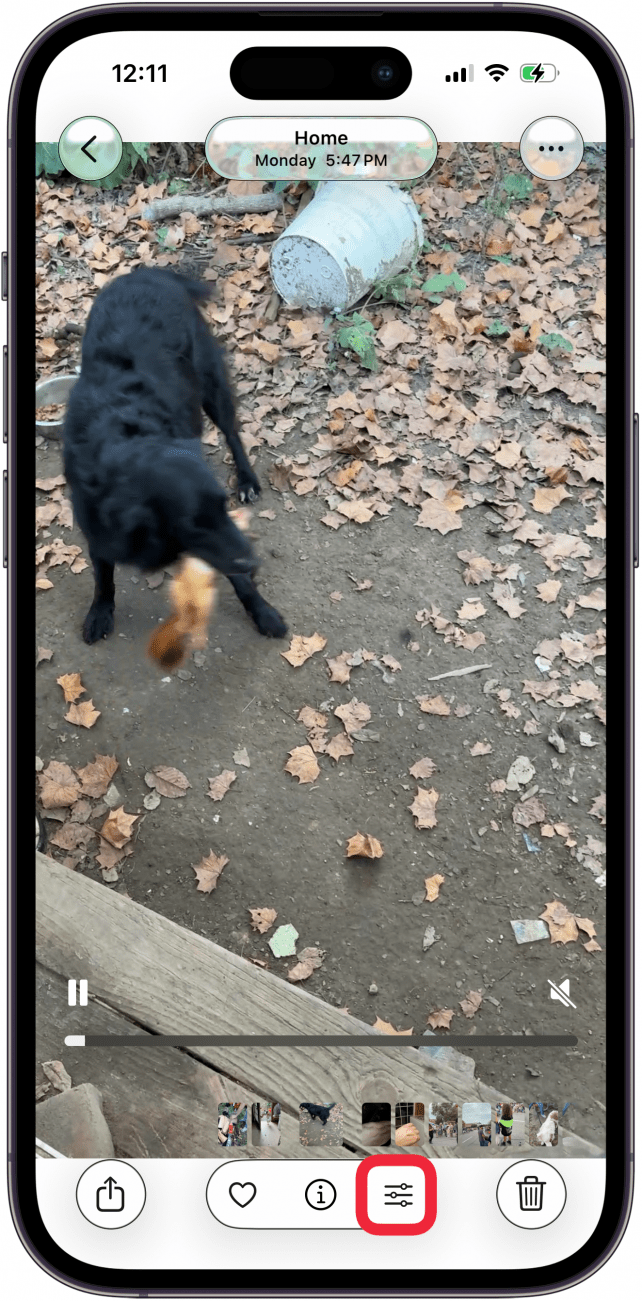
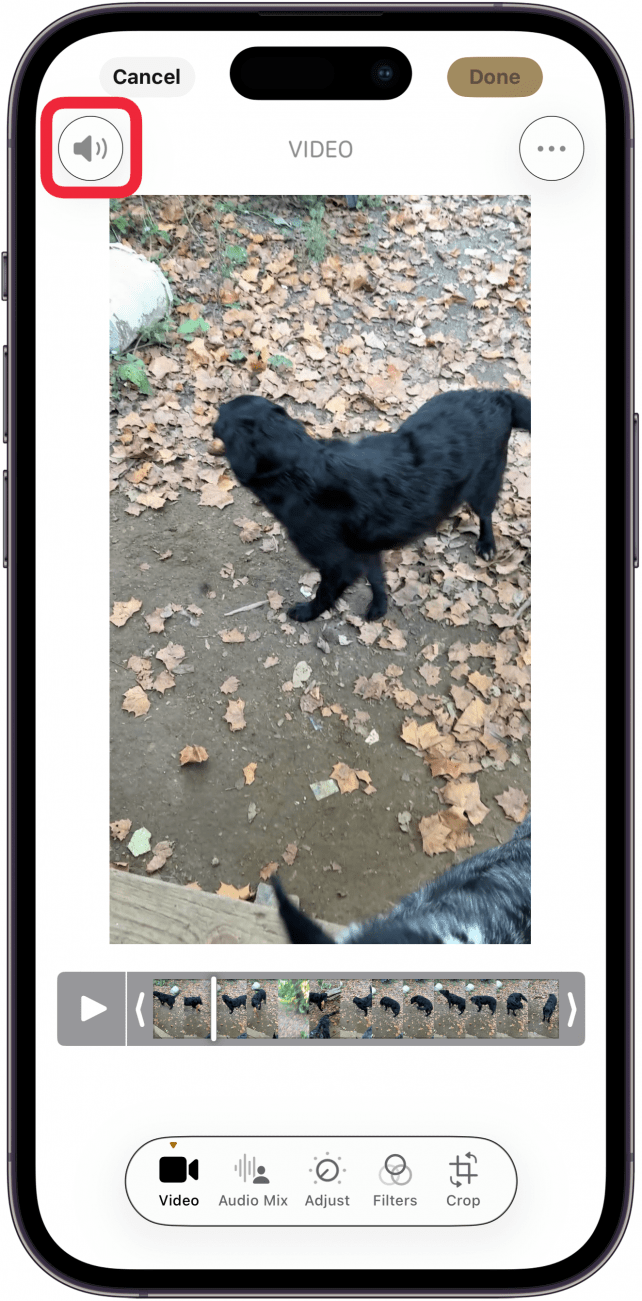
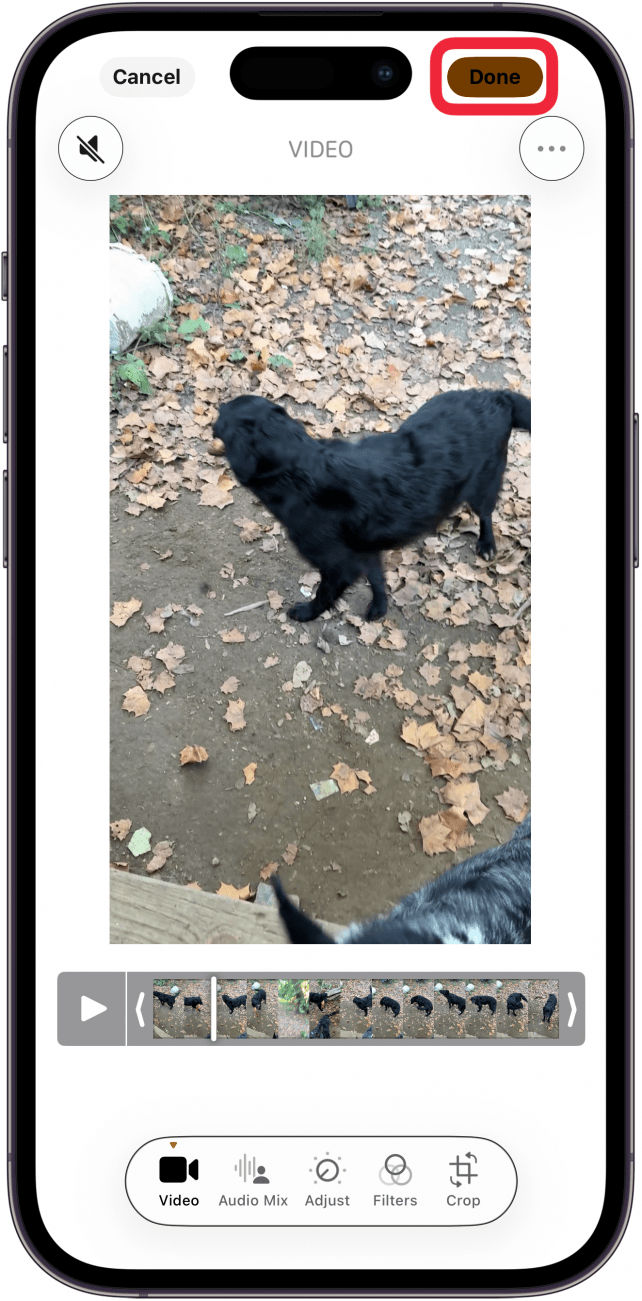
That's how to remove sound from videos on iPhone. Next, find out how to record your iPhone screen with audio. To learn more about shooting and editing videos with your iPhone, sign up for our Tip of the Day newsletter, and if you need help sending videos, check out our guide on how to send large files.

FAQ
- How do I send a video on my iPhone without sound? Simply follow the steps above before sending a video over Messages. You can also edit photos and videos in the Messages app before you send them. Just attach the photo or video like normal, tap it, and then tap Edit.
- How do I add audio back to a video? If you later decide you'd like to get the audio back, never fear. Your iPhone saves the audio, so you can simply repeat the process above, turning the audio on instead of off.
- Can you make a slideshow video? If your device is Apple Intelligence-capable, you can create memory videos on your iPhone. Removing sound from your videos before creating a memory movie can improve the montage by removing distracting background sounds.
Top image credit: B art / Shutterstock.com