What to Know
- Don't tap on any fake virus warning or pop-up that you see when browsing the web.
- To block the link or virus alert pop-up, close the tab and clear your cookies & data in the Settings app.
- Fraudulent virus alert pop-up warnings and phishing sites are common scams.
It can be alarming when you're browsing a website and you see a "your phone has been hacked" pop-up. A fake virus alert or fake Apple security alert is a scam designed to get you to call or tap on a link. A fake iPhone virus warning is dangerous, so follow the steps below to safely stop virus scams on iPhone and iPad by turning on pop-up blocker settings.
Jump To:
Quick Facts About Your iPhone Virus Warning
- How do I know if my iPhone virus warning is real? Your iPhone and iPad don't perform malware scans, so any security alert on iPhone or pop-up warning is fake, every single one of them.
- How do I know if my iPhone has a virus? The iPhone can't get viruses in the traditional sense, but you can still be subjected to phishing attempts. Check out our article on how to check if you have a virus on your iPhone.
- How do I install Apple security updates to make my iPhone and iPad less vulnerable to malware, including viruses? The latest iOS update for your iPhone and the latest iPadOS update will improve your device's security, but you'll still need to follow the steps below to safely get rid of a fake Apple virus warning or security alert.
How to Get Rid of a Fake Virus Alert on iPhone
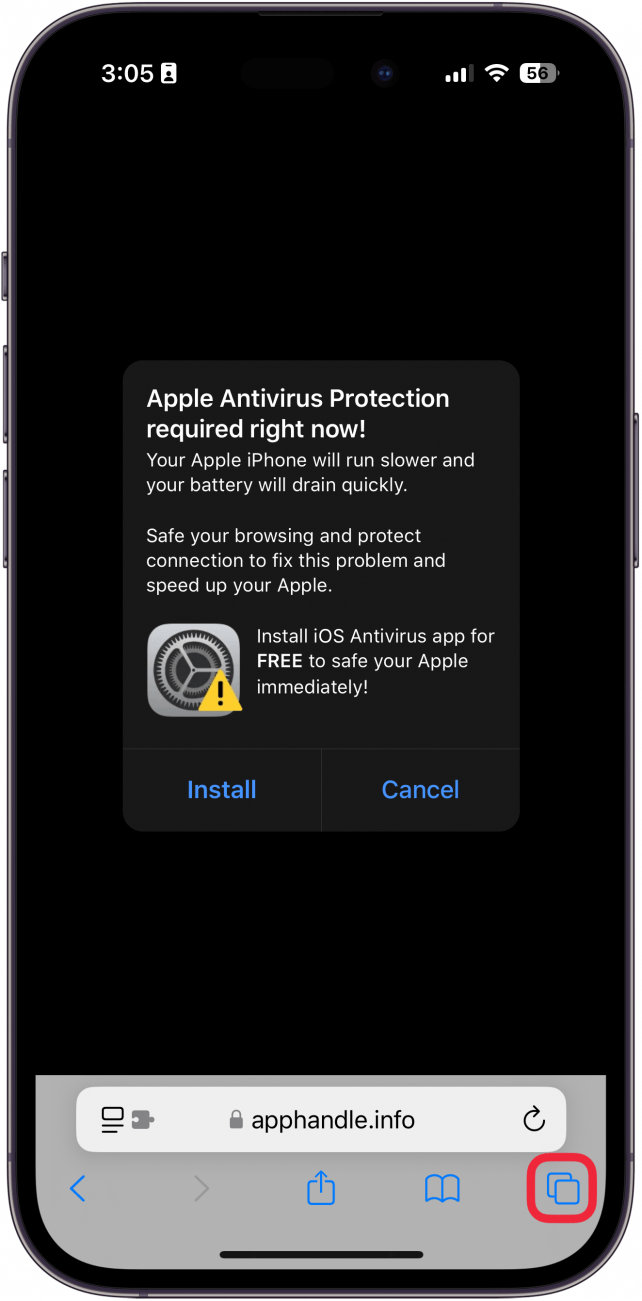
Does Apple tell you when you have a virus? No, you will never see a pop-up from Apple about viruses. If you get an "iPhone has been hacked" pop-up that says something like "Apple Security Warning on iPhone, Virus Detected," the first thing to remember is that there is no such thing as a real Apple security alert on an iPhone or iPad. Don't tap on it or call any numbers listed on the fake alert; don't even tap on the pop-up to close it! Some scam alerts seem to have an X or Close option that only resembles a close button but will actually direct you to the phishing site. Instead, follow the steps below to get rid of fake virus alerts:
- Do NOT tap anywhere on the pop-up. Instead, tap the tab icon.
![iphone safari with a red box around tabs button]()
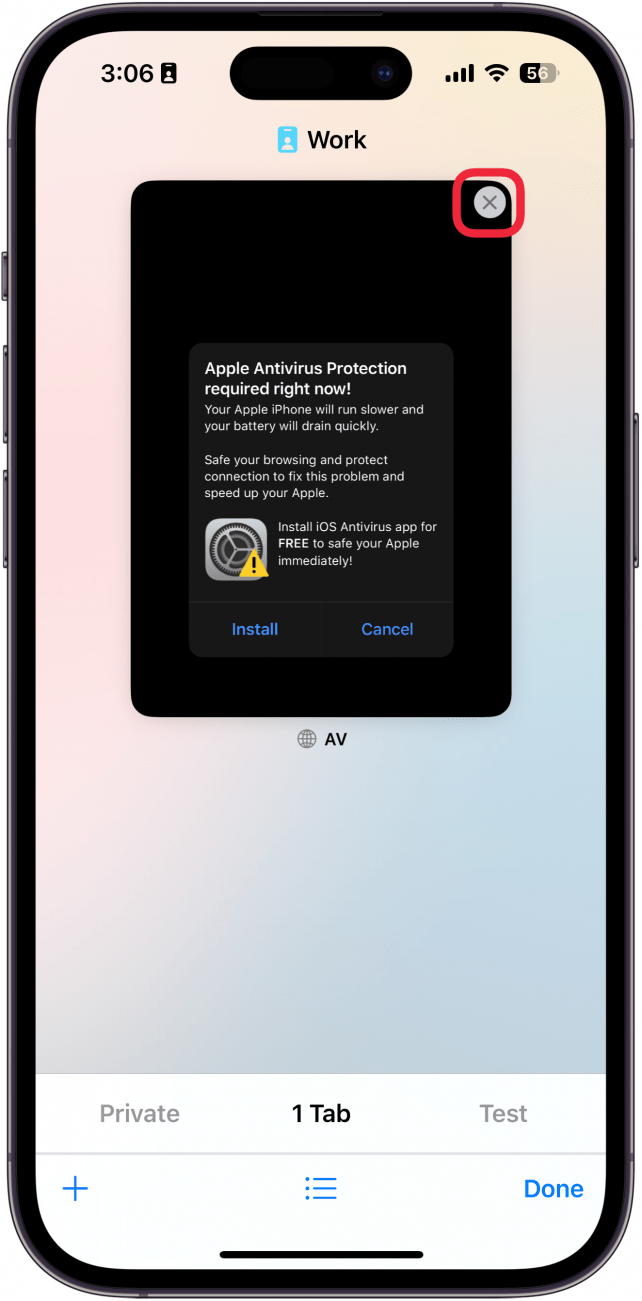
- Tap the X button on the tab or swipe up to safely close it.
![iphone open tabs with a red box around x button]()
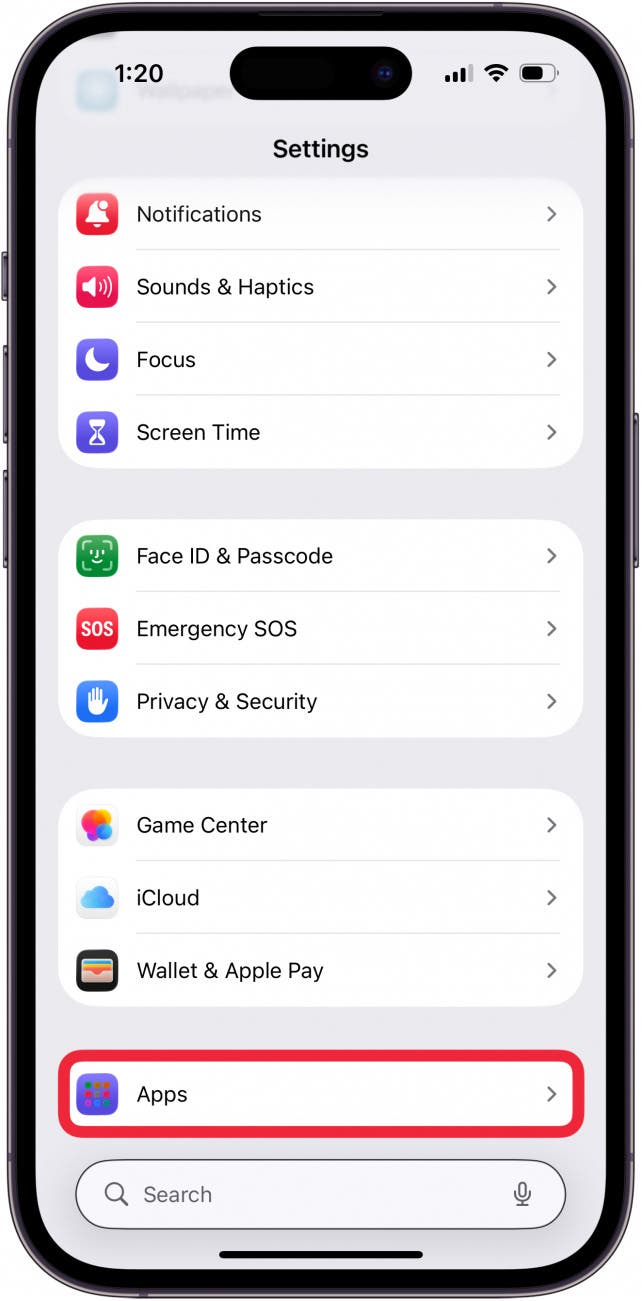
- Open the Settings app, and scroll down to Apps.

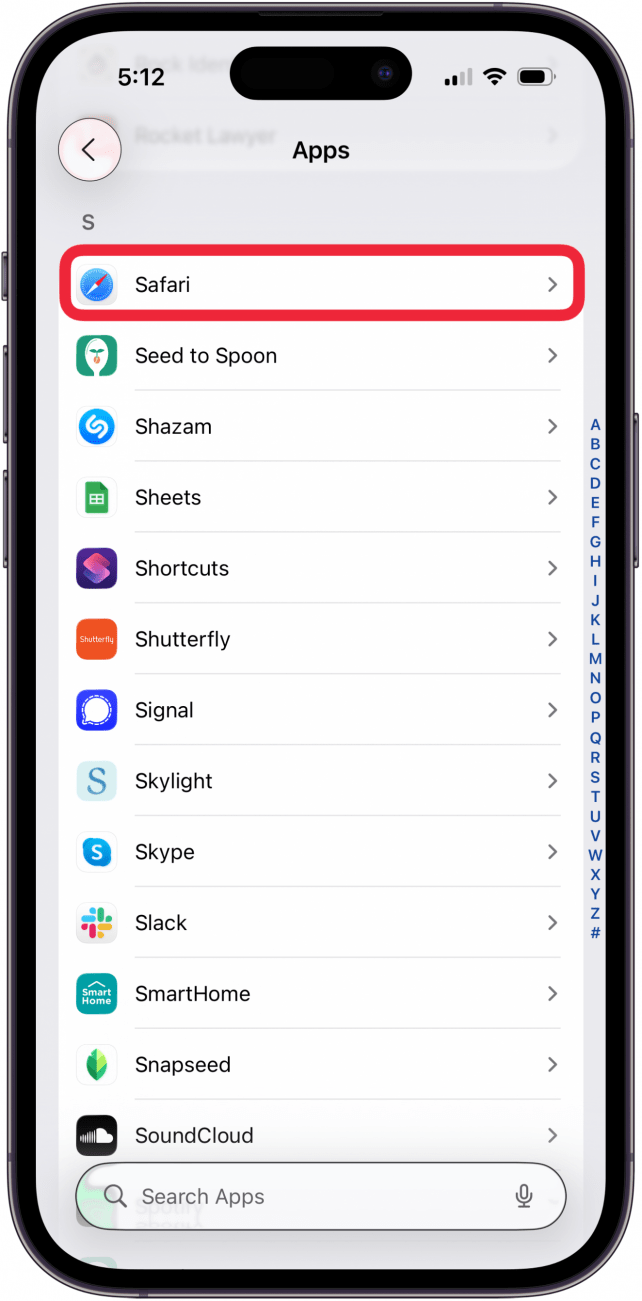
- Find Safari in the app list.

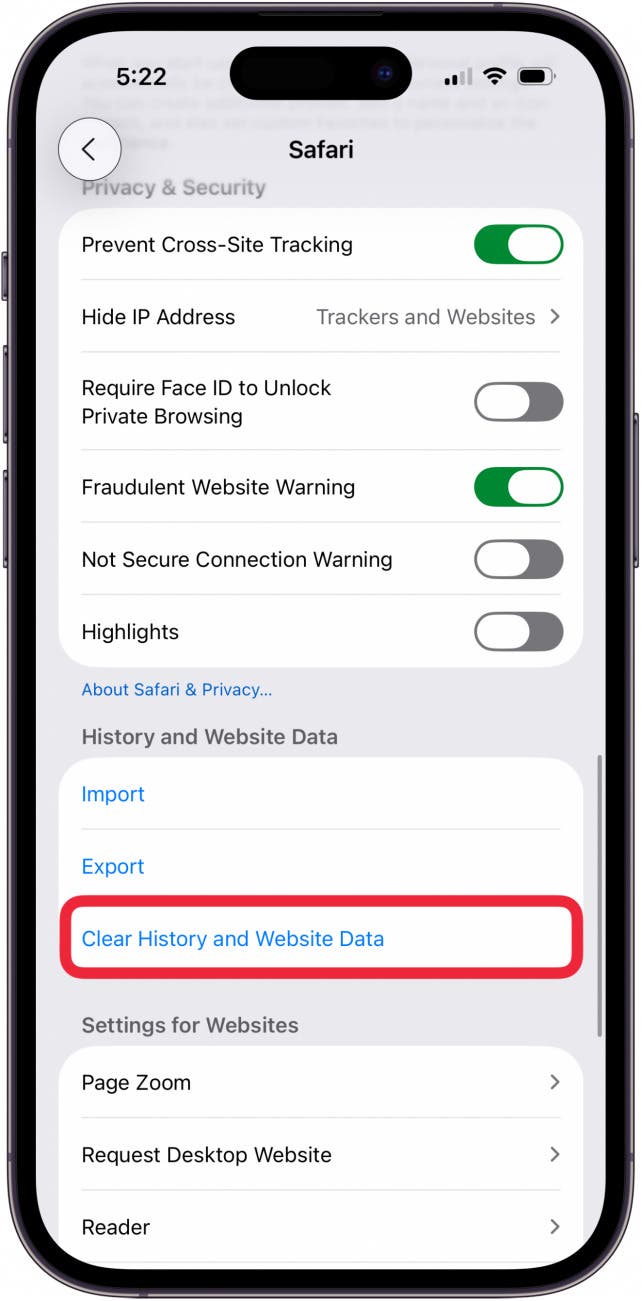
- Tap Clear History and Website Data.

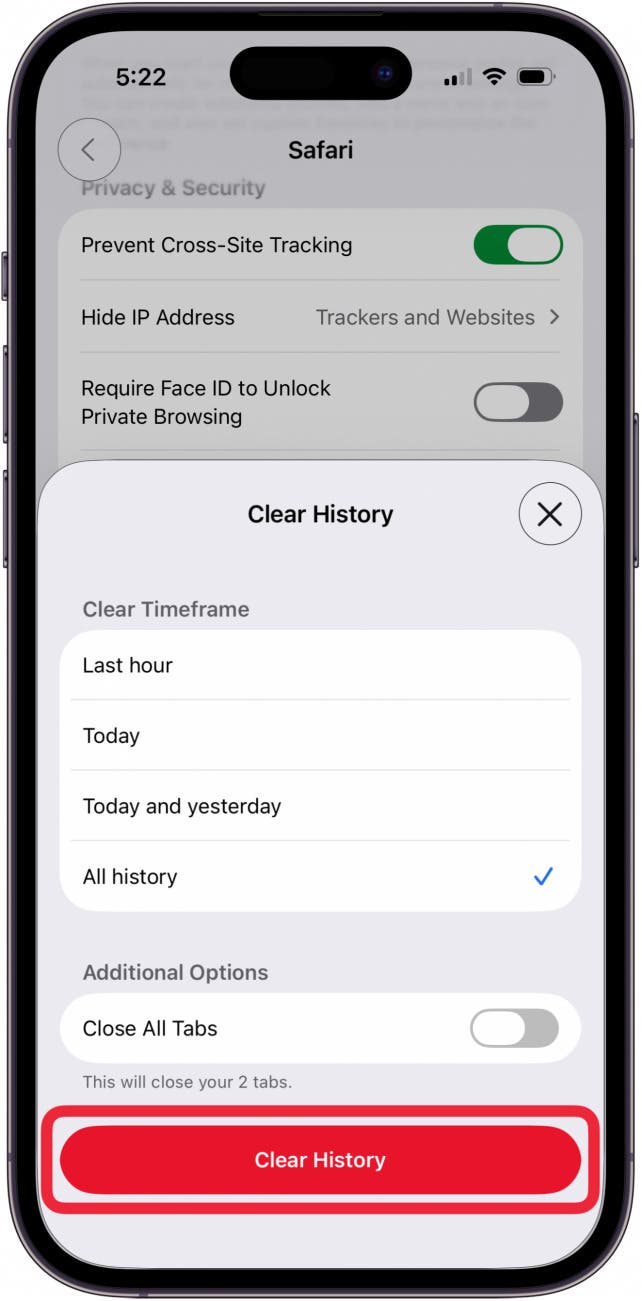
- Choose what data you want to delete and then select Clear History.

- While in Safari settings, make sure Fraudulent Website Warning and Not Secure Connection Warning are both toggled on.

- Toggle on Block Pop-ups as well.

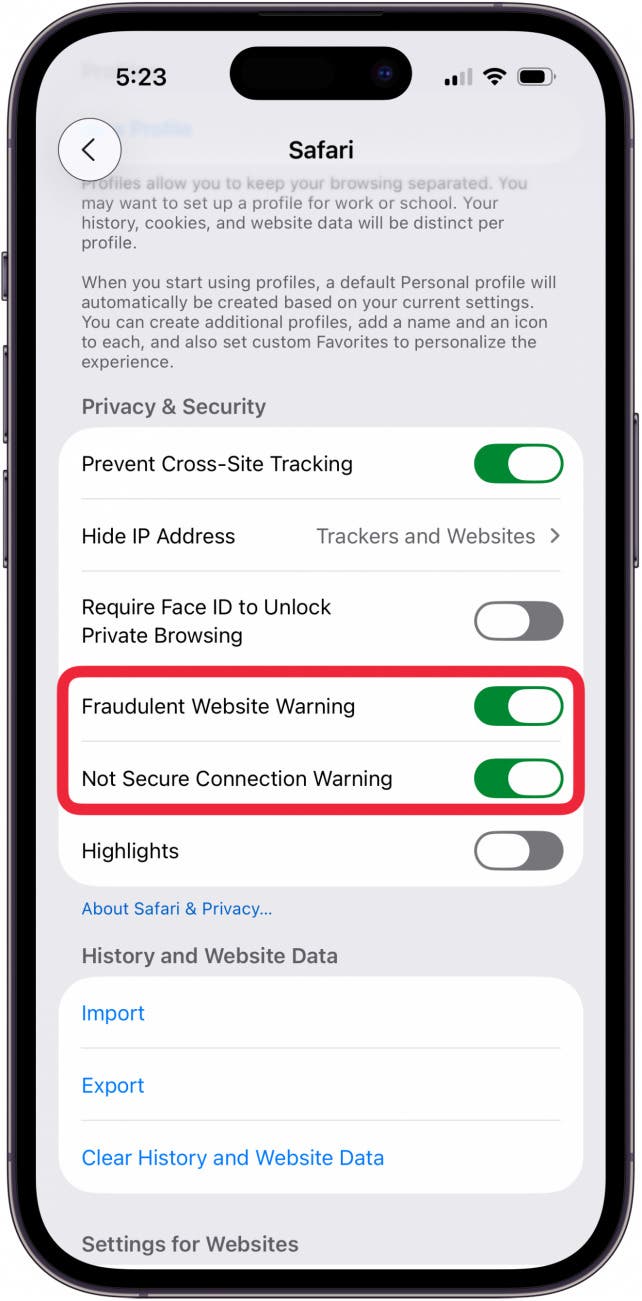
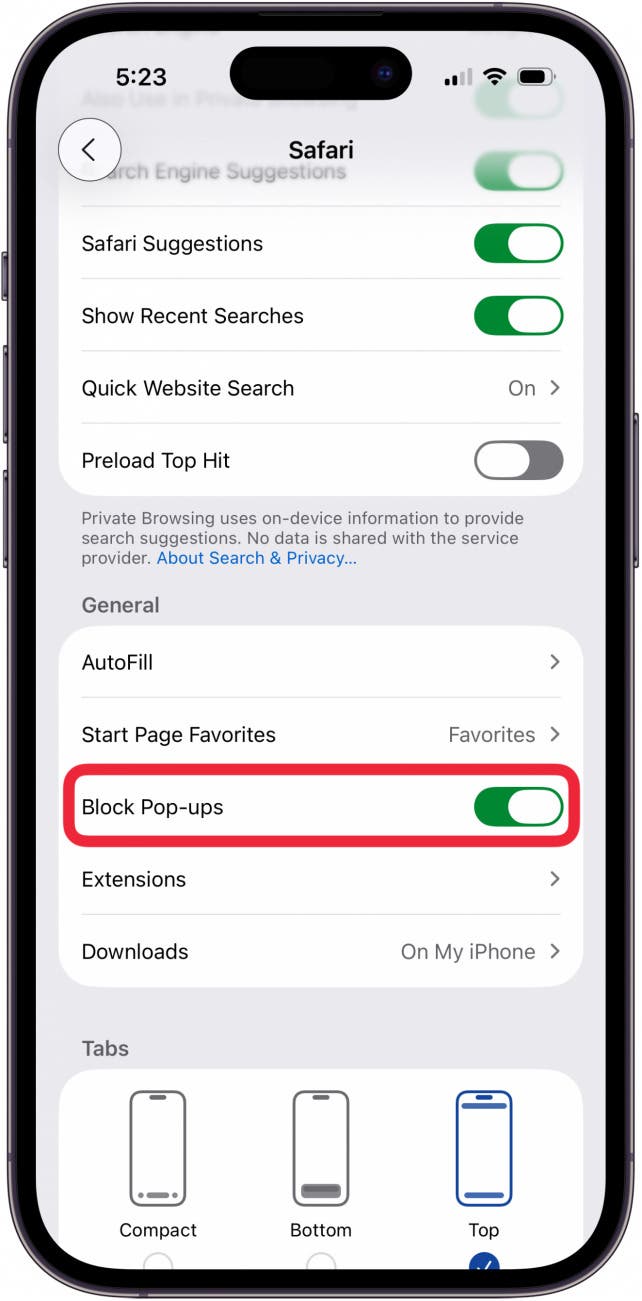
Now that you've gotten rid of the fake virus warning, you can open Safari again; at this point, you shouldn't see another iPhone virus warning. If you didn't click on or interact with the fake virus warning, all should be well with your iPhone. If you're curious to learn more about iPhone security, we've also published other articles about iPhone viruses and security, including Step Up Your Security: 7 Ways to Up Your Game, and How to Block Caller ID on iPhone & Make Private Calls.

FAQ
- Can iPhones get viruses and other malware? Yes, but you can stop your iPhone from getting viruses with some basic precautions.
- Can Apple really keep your data private? Our security expert Cullen Thomas has written an op-ed about browser tracking and Apple, viruses and malware, and more.
- What is iOS Rapid Security Response? Will it protect my iPhone from fake Apple security alerts? Rapid Security Response is an automatic update to your iPhone. You can learn all about Rapid Security Response from our roundup.
Top image credit: wk1003mike / Shutterstock.com