By Conner Carey
Updated 07/15/2024
* This article is from our Tip of the Day newsletter. Sign Up. *
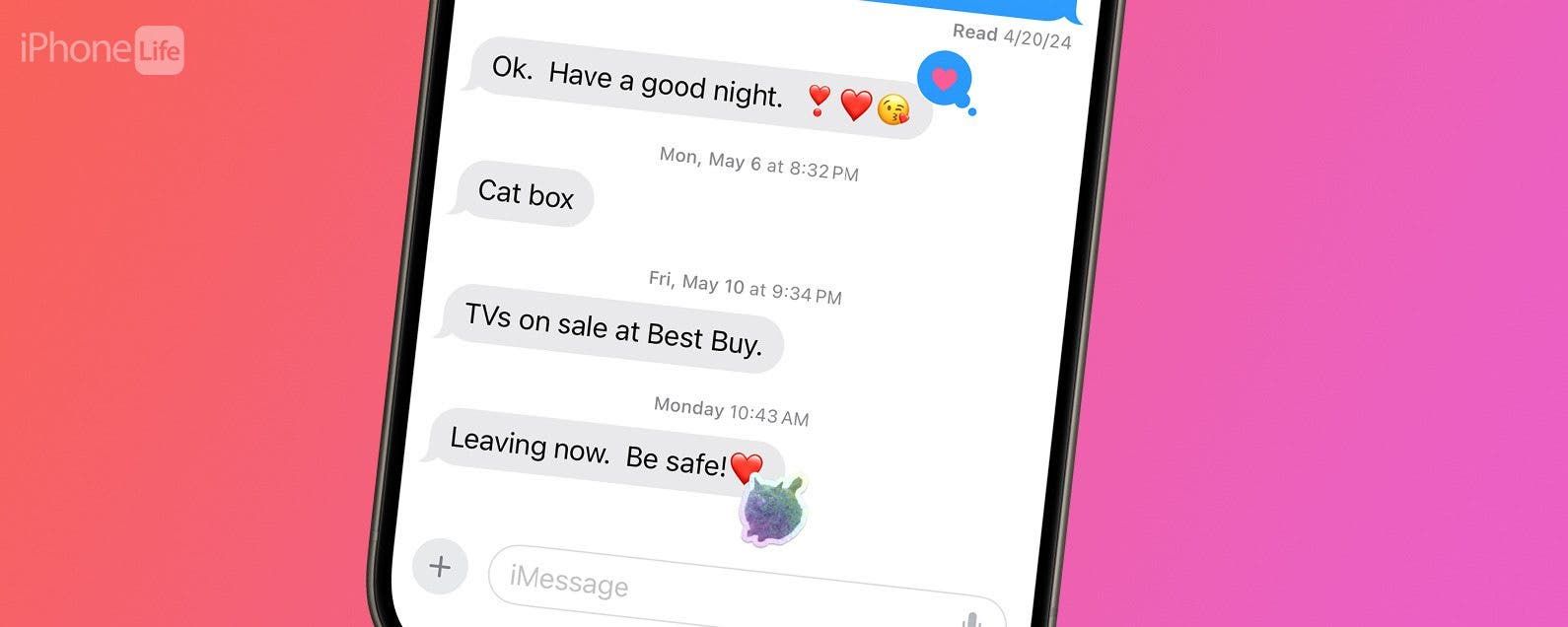
Stickers are always a fun way to communicate via iMessage. Did you know that you can quickly respond to a text in the Messages app with a sticker? Luckily, Apple makes it super easy. Here's how to reply to a text with a sticker!
Why You'll Love This Tip:
- Quickly respond to a text with a sticker.
- Choose which kind of sticker you want to use for the perfect reply.
How to Reply to a Text with a Sticker
System Requirements
This tip was performed with an iPhone 12 running iOS 17.5 or later. Learn how to update to the latest iOS.
There are a lot of fun ways to use stickers in iMessage. Being able to reply to a text directly is a great way to let someone know your thoughts without having to type a message. If you like learning fun ways to use your iPhone, be sure to sign up for our free Tip of the Day!

Discover your iPhone's hidden features
Get a daily tip (with screenshots and clear instructions) so you can master your iPhone in just one minute a day.
- Open the Messages app.
![imessage react]()
- Go to the message thread that you want to send a sticker reply to.
![react with stickers imessage]()
- Long press the text you want to reply to.
![imessage reactions]()
- Tap Add Sticker.
![iphone text reactions list]()
- Tap the Sticker button to view the stickers you've made yourself.
![how to react with a sticker on imessage]()
- Or tap the Emoji button to add an emoji as a sticker.
![imessage emoji reactions]()
- If you scroll through the other buttons at the top, you may find additional stickers that you can add based on the apps you have downloaded to your iPhone.
![imessage reactions meaning]()


And that's how you reply directly to a text with a sticker!