Notifications on your iPhone provide you with important updates and information at a glance. However, if you're like me and don't dismiss or interact with your notifications frequently, they can start to pile up. When your Notification Center becomes cluttered and clogged up, you can easily clear all your notifications at once. Read on to find out how to clear notifications on iPhone!
Why You'll Love This Tip
- Instantly get rid of all your notifications at once.
- Declutter your Notification Center in a matter of seconds.
How to Clear Notifications on iPhone
System Requirements
This tip was performed on an iPhone 15 Pro running iOS 26.0.1. Find out how to update to the latest version of iOS.
If you're feeling overwhelmed by all the unread notifications in your Notification Center, it might help to delete all your notifications. There's a trick to make this easy. For more tips and tricks for managing notifications, be sure to sign up for our free Tip of the Day newsletter. Now, here's how to clear notifications on iPhone:
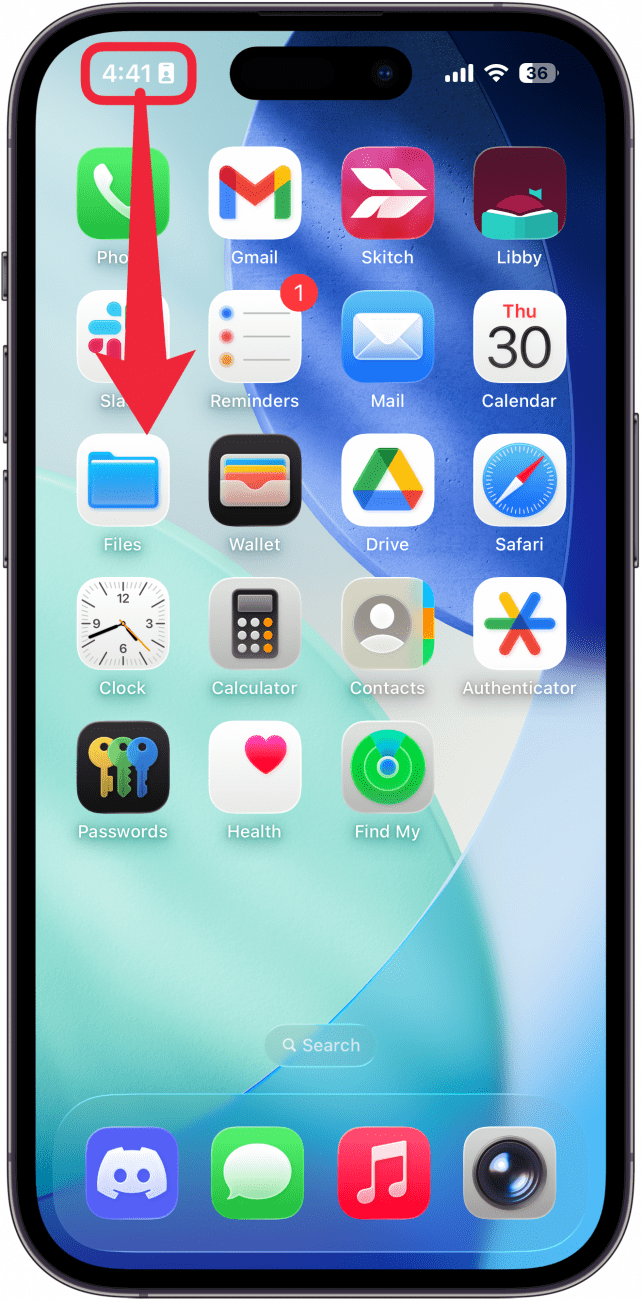
- If your iPhone is unlocked, swipe down from the top left of your screen to open the Notification Center.
![iphone home screen with red arrow pointing downward from upper left edge, indicating to swipe down from the upper right edge]()
- If you don't see any notifications, try swiping up from your Lock Screen to pull them up.
![iphone lock screen with red arrow pointing up from center of screening, indicating to swipe up from center of screen]()
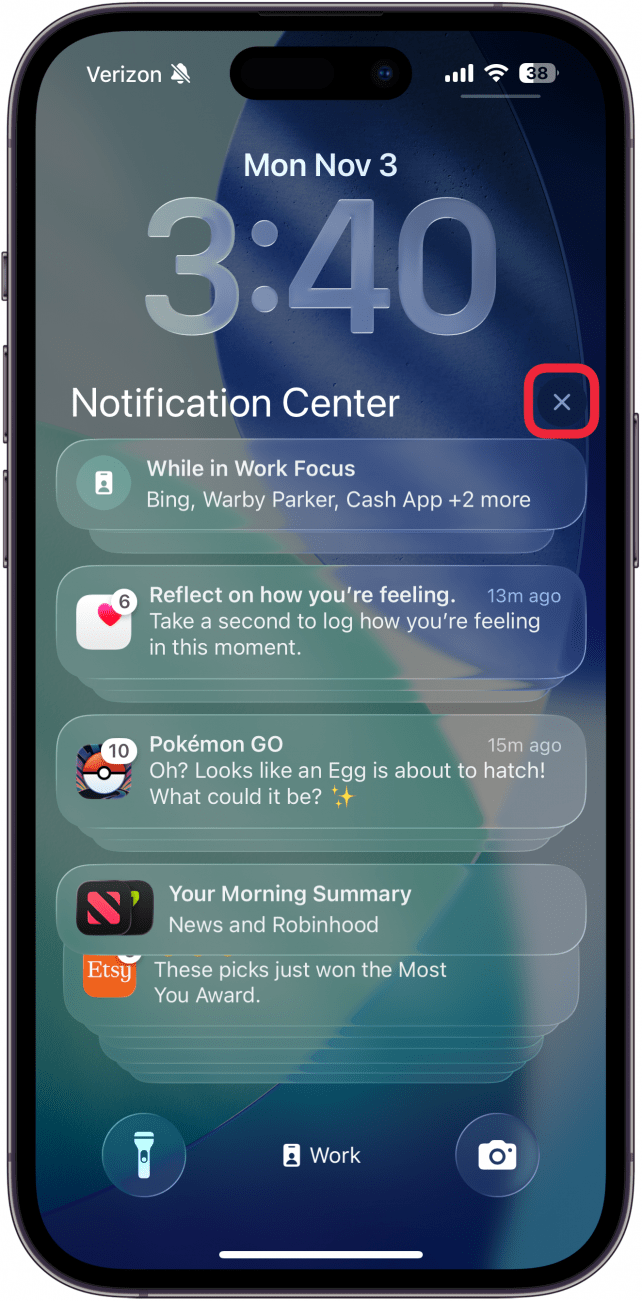
- Tap and hold the X icon for a moment.
![iphone notification center with X icon circled in red]()
- Tap Clear All Notifications when it pops up.
![iphone notification center with clear all notifications button circled in red]()

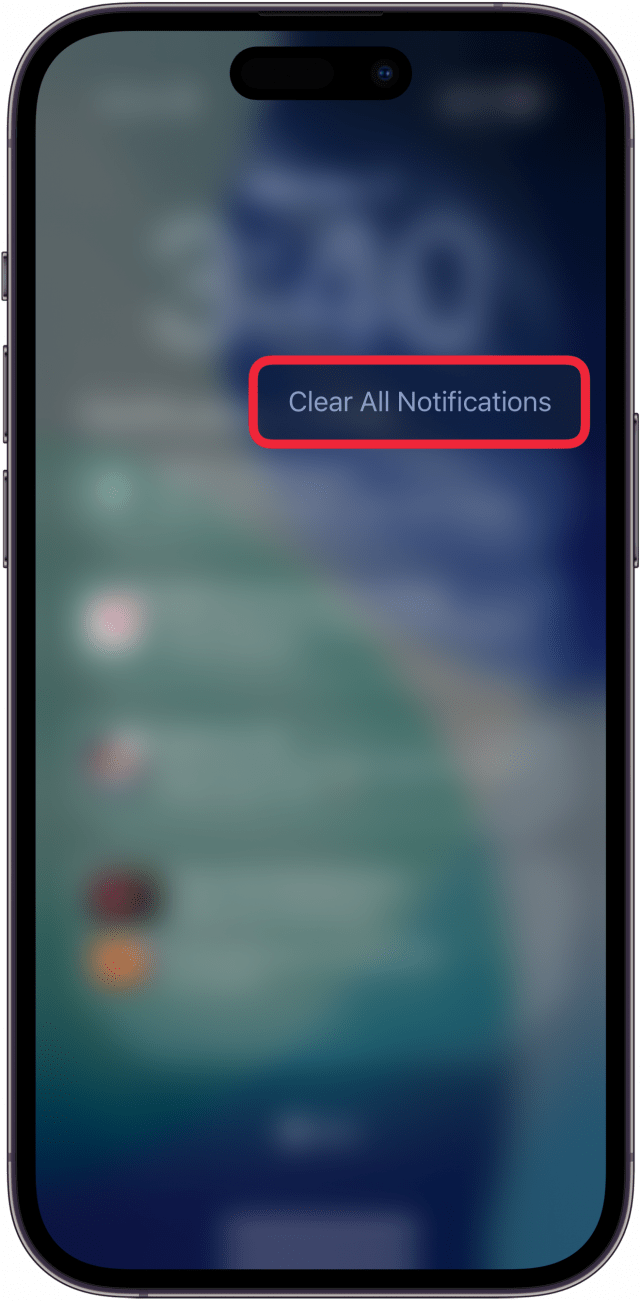
That's how to clear iPhone notifications. Once you tap Clear All Notifications on your iPhone, all of your notifications will instantly disappear from the Notification Center. Now you don't have to deal with hundreds of notifications clogging up your phone every day! Next, find out how to make your notifications private.