If you've ever tapped delete when you didn't mean to, you'll want to know how to retrieve deleted photos on your iPhone. If you want to recover deleted photos on your iPhone, you can easily do it, as long as it's within a 30-day window. You can also permanently delete photos from your iPhone. Here's how to recover deleted photos from your iPhone.
Why You'll Love This Tip
- Recover deleted photos and videos you didn't mean to delete.
- Learn how to permanently delete photos from iPhone and save iPhone storage.
How to Retrieve Deleted Photos on Your iPhone
System Requirements
This tip was performed on an iPhone 15 Pro running iOS 26. Find out how to update to the latest version of iOS.
Where are deleted photos on iPhone? After you delete photos on your iPhone, you can still find them in the Recently Deleted section of the Photos app. The Recently Deleted section contains all your deleted photos and videos, and each item shows the days remaining before deletion (30 days). When this time is up, the items will be gone forever, and there is no way to recover permanently deleted photos on your iPhone. Before the 30-day limit is over, you can recover the photo or permanently delete it. To learn more about photo management, sign up for the Tip of the Day newsletter. Here's how to find deleted photos on iPhone, then recover or permanently delete them:
- Open the Photos app.
![screenshot of an iphone home screen with a red box around the photos app]()
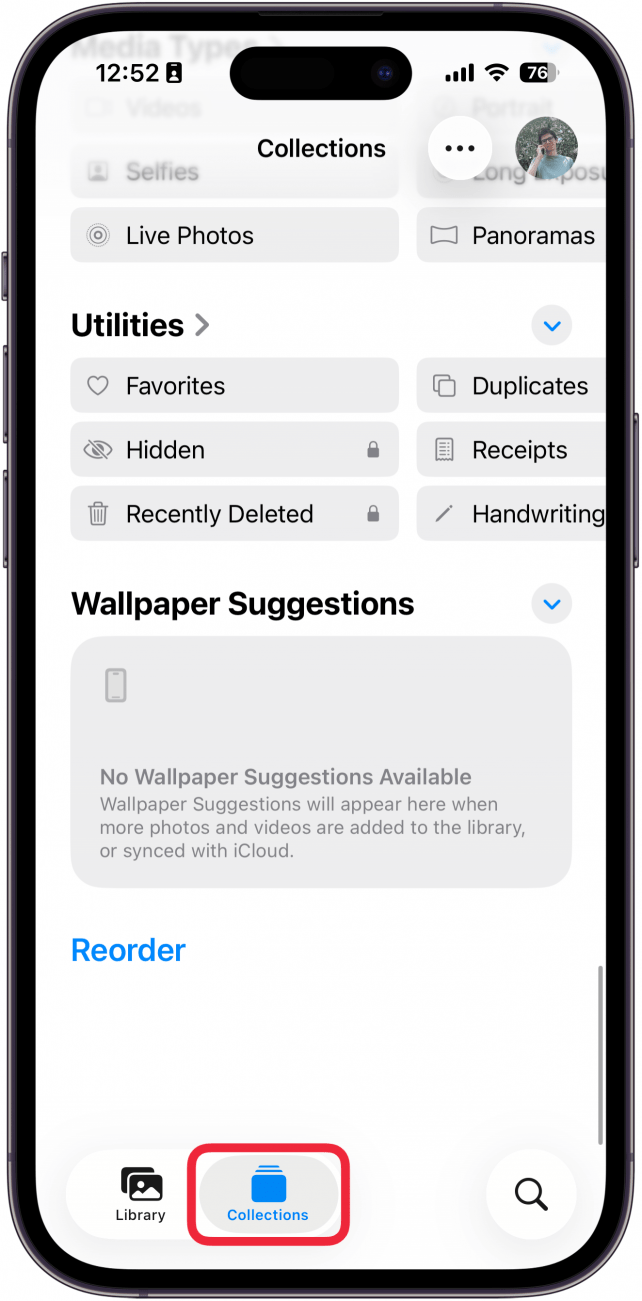
- Tap the Collections tab if it is not selected.
![screenshot of the iphone photos app with a red box around collections tab]()
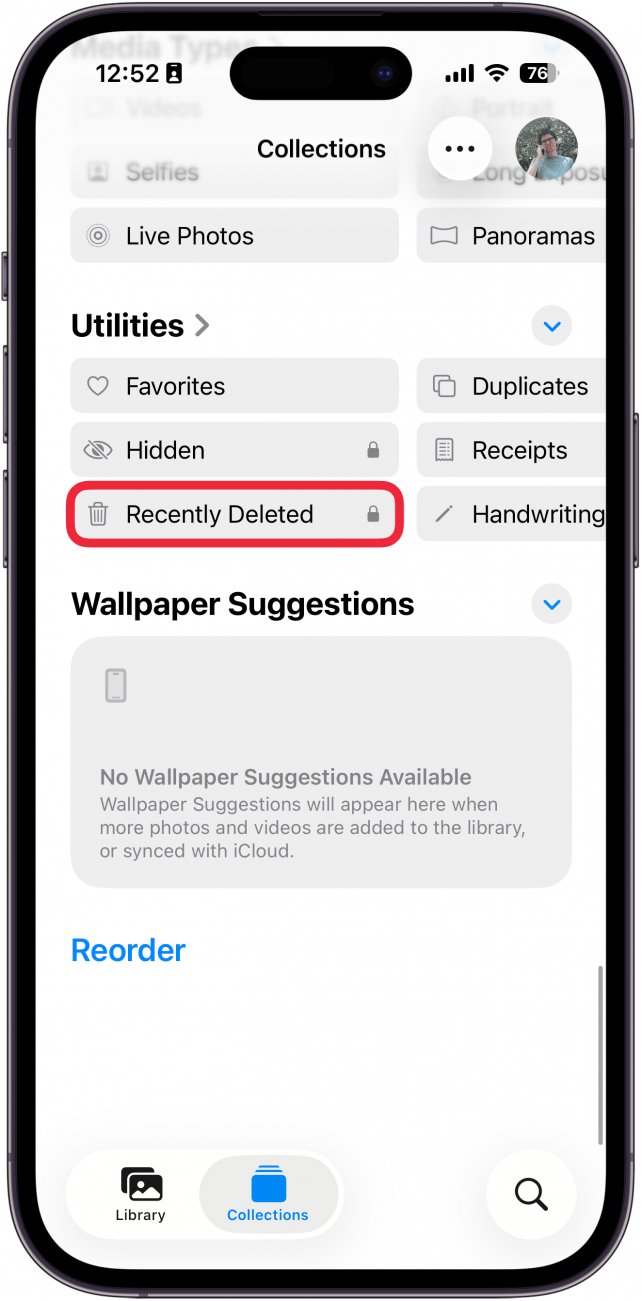
- Scroll down until you see Utilities. Tap Recently Deleted.
![screenshot of the iphone photos app with a red box around recently deleted]()
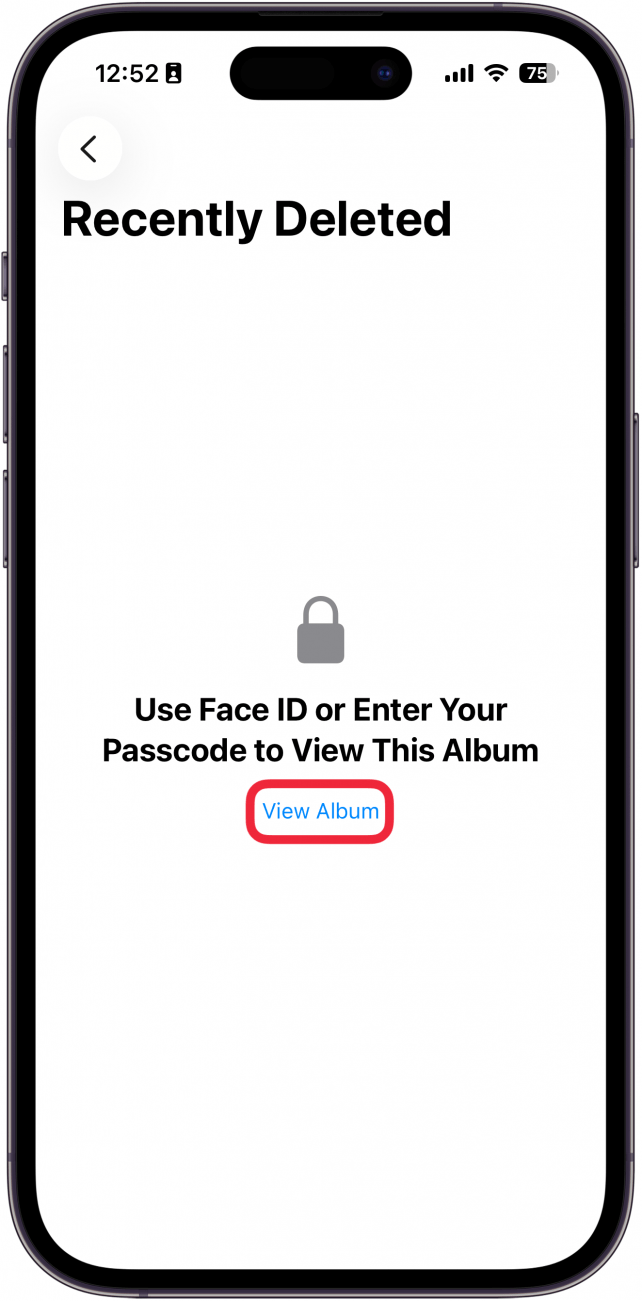
- You may be prompted to use Face ID. Tap View Album to trigger Face ID and unlock the album.
![screenshot of the iphone photos app recently deleted folder with a red box around view album]()
- Tap on the photo you want to recover.
![screenshot of the iphone photos app recently deleted folder with a red box around a photo of a chicken]()
- Tap Recover.
![screenshot of the iphone photos app recently deleted folder displaying a photo of a chicken with a red box around the recover button]()
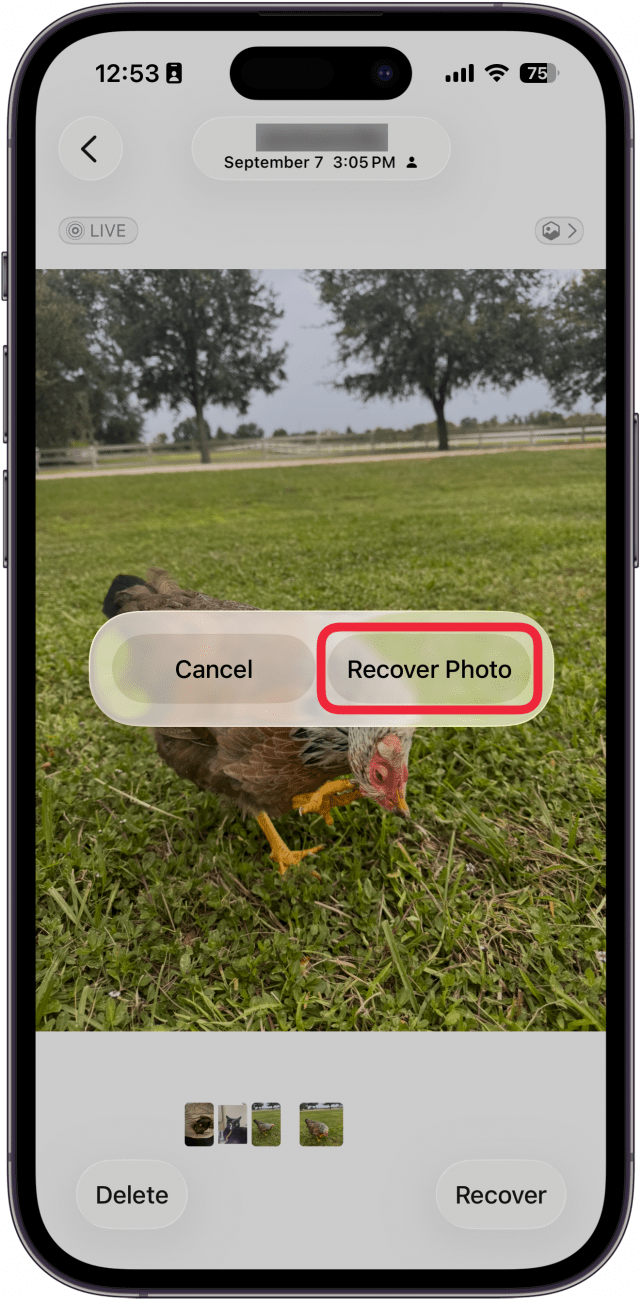
- Tap Recover Photo (or Video) to confirm.
![screenshot of the iphone photos app recently deleted folder displaying a photo of a chicken and a prompt asking to recover the photo, with a red box around the recover button]()
- If you want to recover them in a batch, tap Select.
![screenshot of the iphone photos app recently deleted folder with a red box around the select button]()
- Select the photos you want to recover.
![screenshot of the iphone photos app recently deleted folder with a red box around multiple photos]()
- Tap the more icon.
![screenshot of the iphone photos app recently deleted folder with multiple photos selected and a red box three dot menu button]()
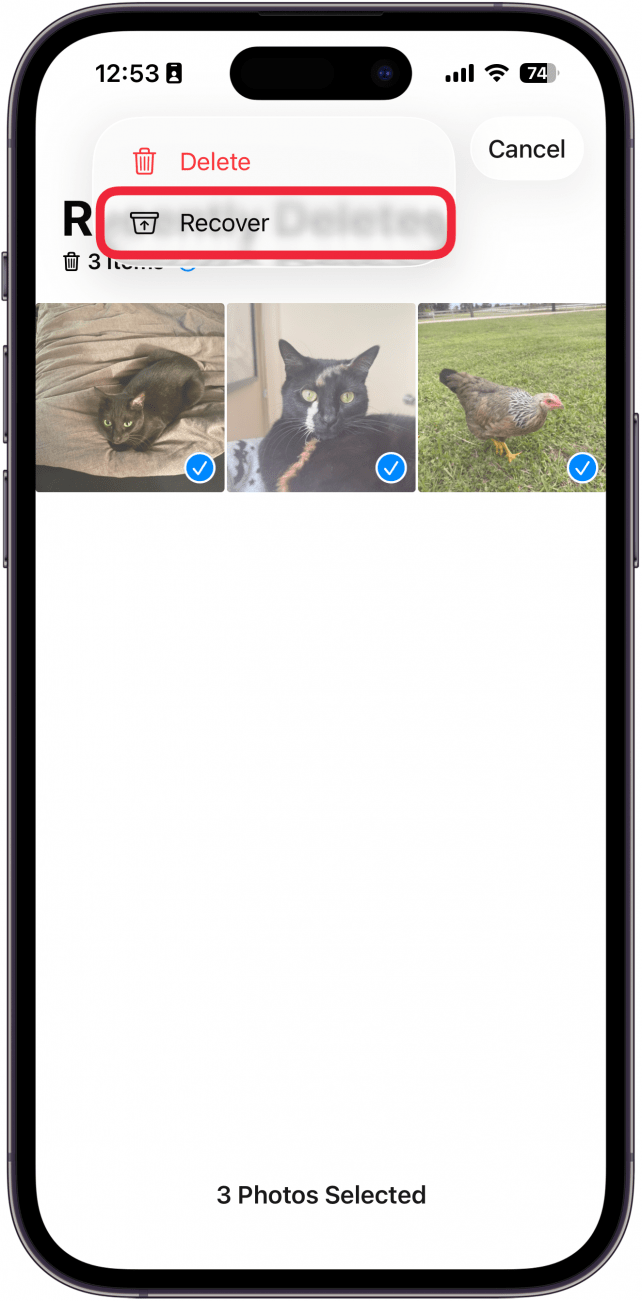
- Tap Recover.
![screenshot of the iphone photos app recently deleted folder with a red box around recover button]()
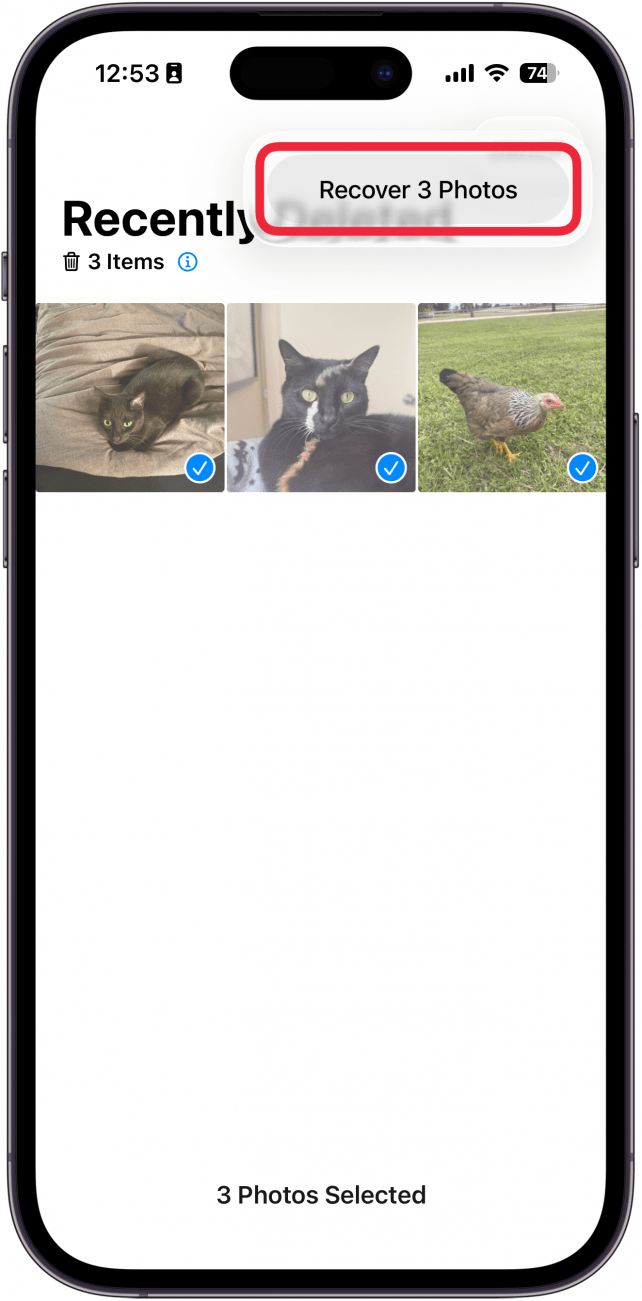
- Tap Recover Photos (or Videos) to confirm.
![screenshot of the iphone photos app recently deleted folder and prompting to confirm recovering the photo with a red box around recover button]()





Pro Tip
If you want to recover all of the photos/videos in your recently deleted folder, you can skip 9, and the recover button will read "Recover All Photos" instead.
If you want to delete photos permanently, a 'Delete' option will be available instead of 'Recover' for both individual and batched photos.

Now you know how to find recently deleted photos on your iPhone! To keep your future photos safe from accidental deletion, consider checking out this article on how to delete duplicate photos automatically.
More On: Photos
Top image credit: panitanphoto / Shutterstock.com