Apple Passwords: How to Use the New App

A lifelong tech enthusiast, with experiences ranging from jailbreaking his iPhone to building his own gaming PC, Rhett specializes in maintaining privacy in a digital world and iPhone security.
Learn More A lifelong tech enthusiast, with experiences ranging from jailbreaking his iPhone to building his own gaming PC, Rhett specializes in maintaining privacy in a digital world and iPhone security.
Learn MoreYour iPhone, iPad, and Mac now have a dedicated Passwords app. Your iPhone passwords used to be stored in iCloud Keychain, which you could access from the Passwords section in Settings. Let’s take a tour of the new iPhone password app!
Why You’ll Love This Tip:
- Keep all your passwords in one place, protected by Face ID.
- Easily access your passwords and MFA codes whenever you need them.
How To Find Passwords Saved on iPhone
System Requirements
This tip works on iPhones running iOS 18 or later. Find out how to update to the latest version of iOS.
Where are iPhone passwords stored? In past versions of iOS, iPadOS, and macOS, your passwords were stored in iCloud Keychain. You could access iCloud Keychain by going into Settings and selecting Passwords. Now, that section has been split off into a dedicated app, with some useful new features added to make using saved passwords in your iPhone much easier. Here’s how to find passwords saved on your iPhone:
- Open the Passwords app.
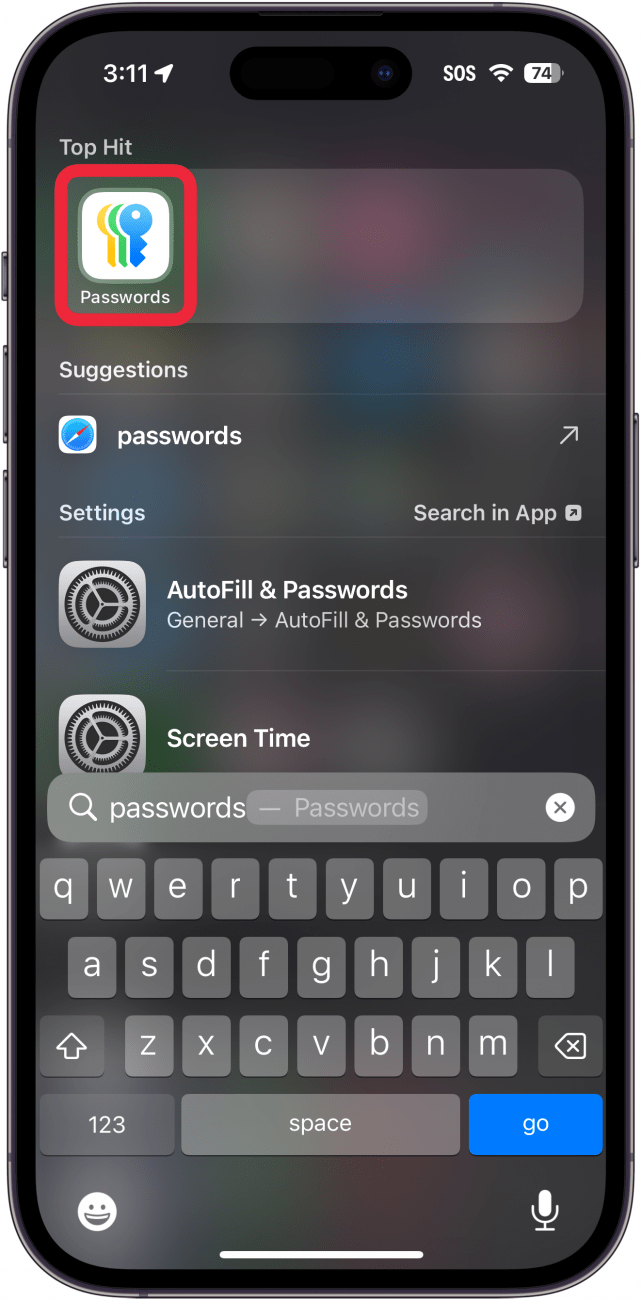
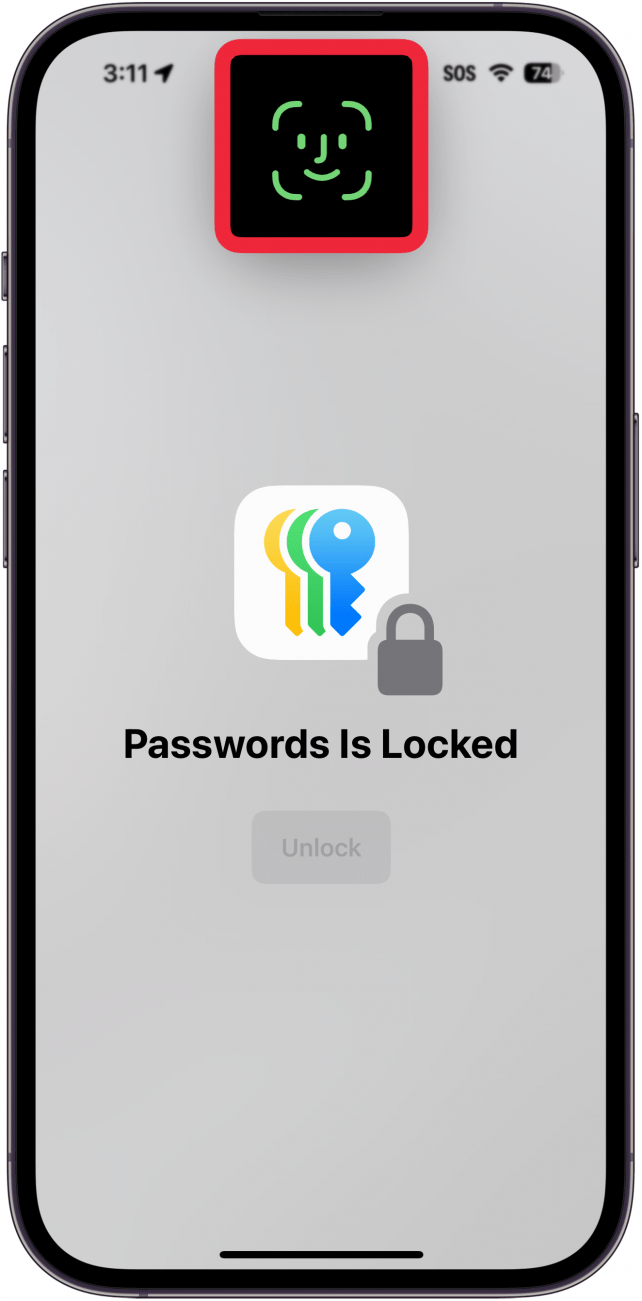
- You will need to use Face ID to authenticate.
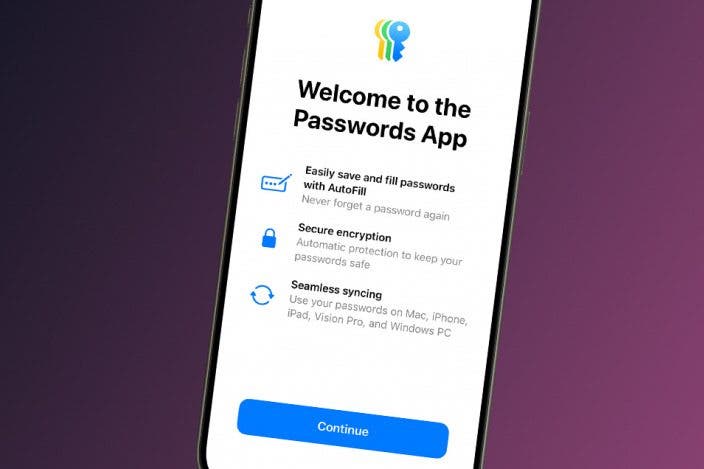
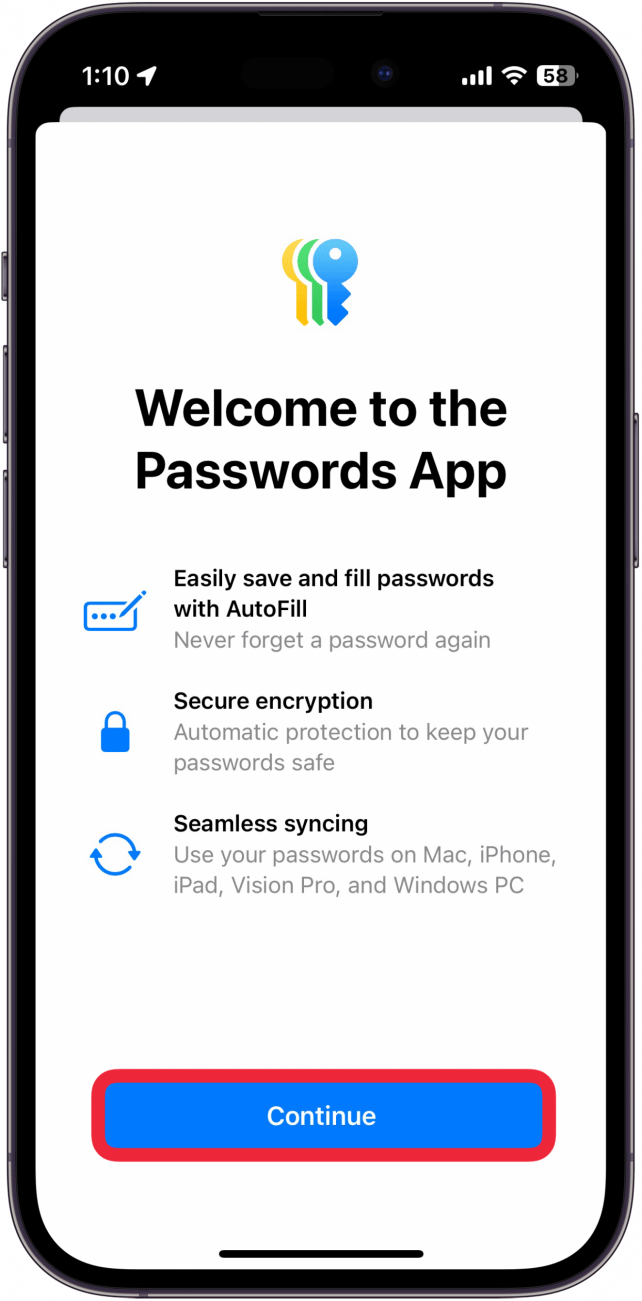
- If this is your first time opening the app, you’ll be presented with a series of cards explaining the app. Tap Continue.
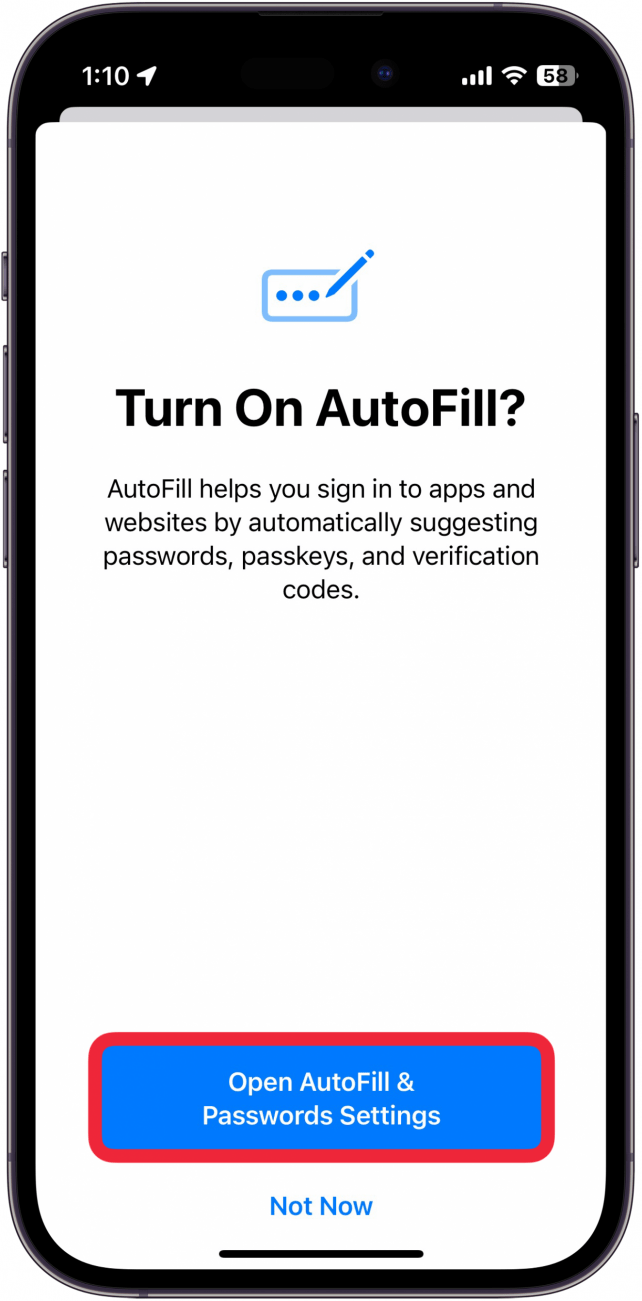
- If you want to use Passwords to autofill forms, tap Open AutoFill & Passwords Settings. This will allow you to select your primary password manager.
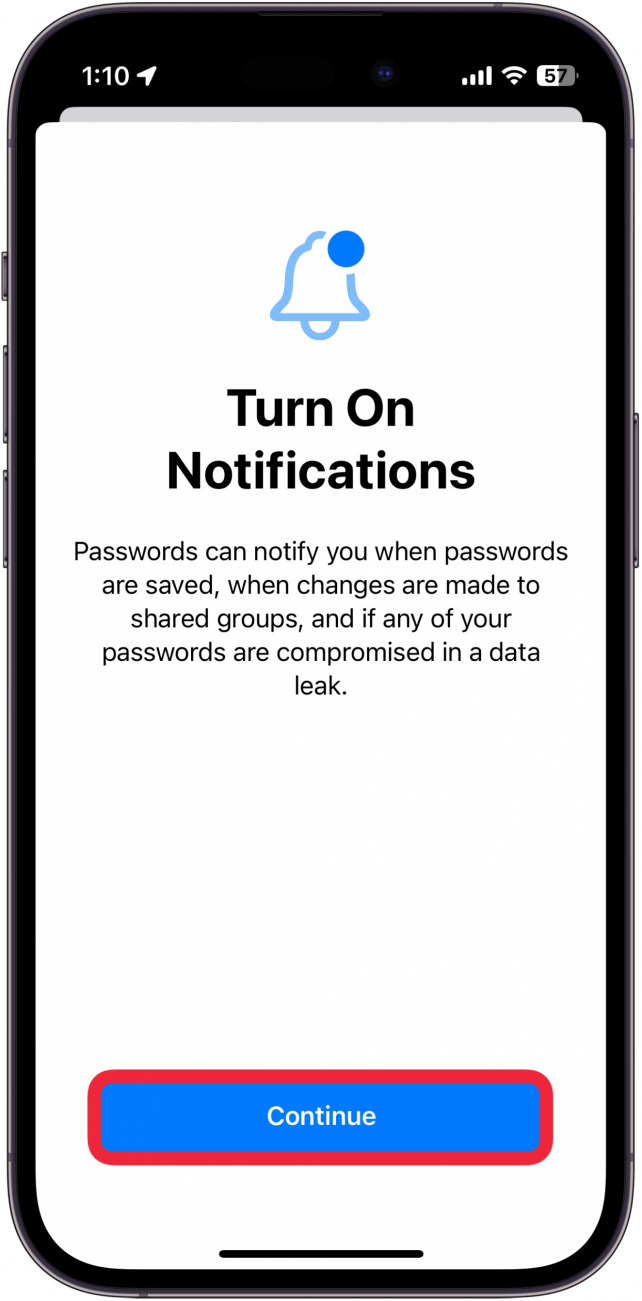
- The app will ask you to turn on notifications. Tap Continue and select Allow when prompted.
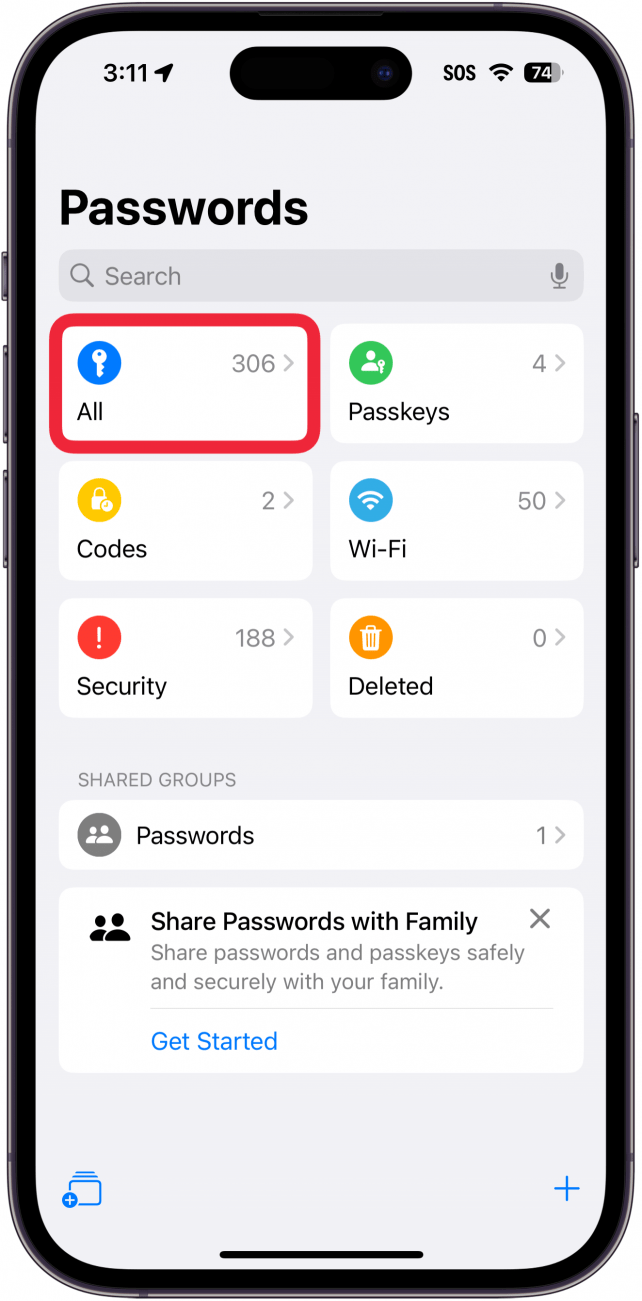
- Here is the new Passwords app. To start, tap All.
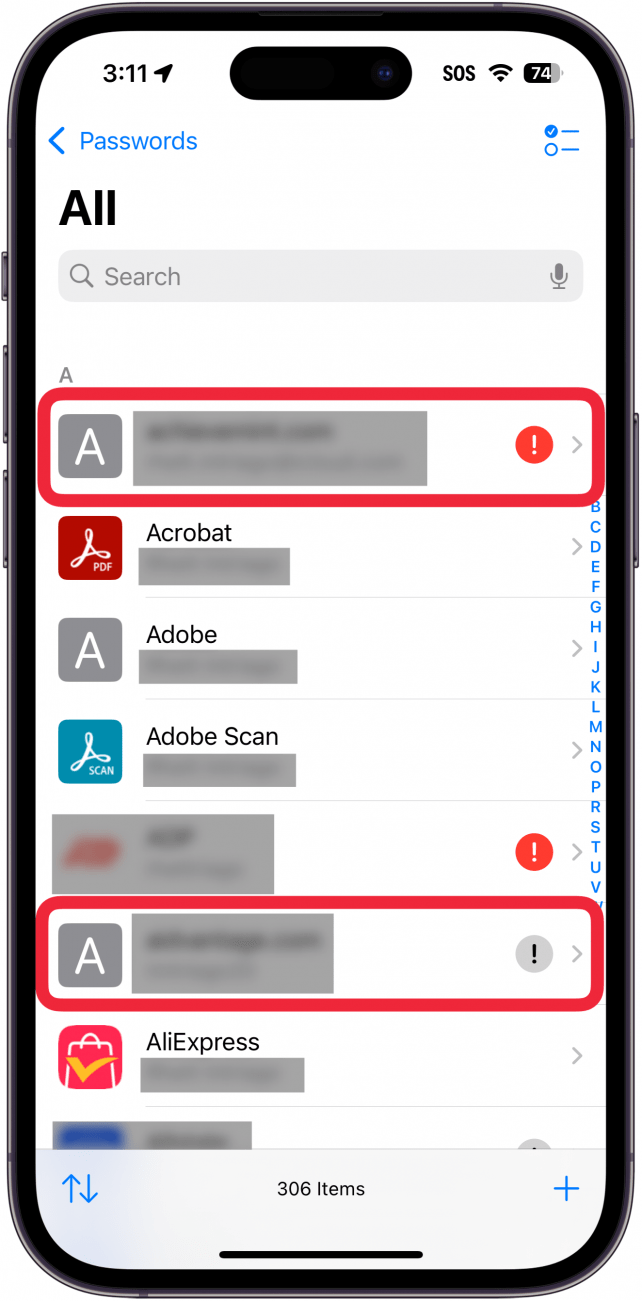
- This will show you a list of all of the passwords you have saved. A red exclamation icon means that a particular password was found in a data leak. A gray exclamation icon indicates that you are using that same password for multiple accounts.
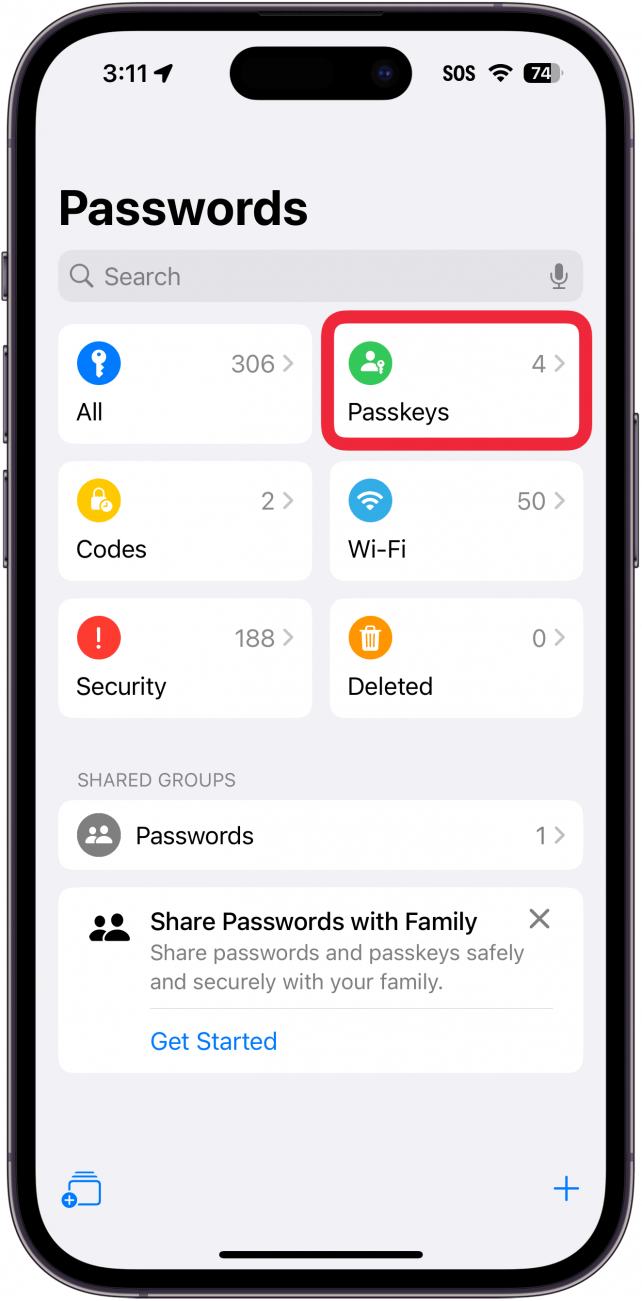
- Next, let’s check out Passkeys.
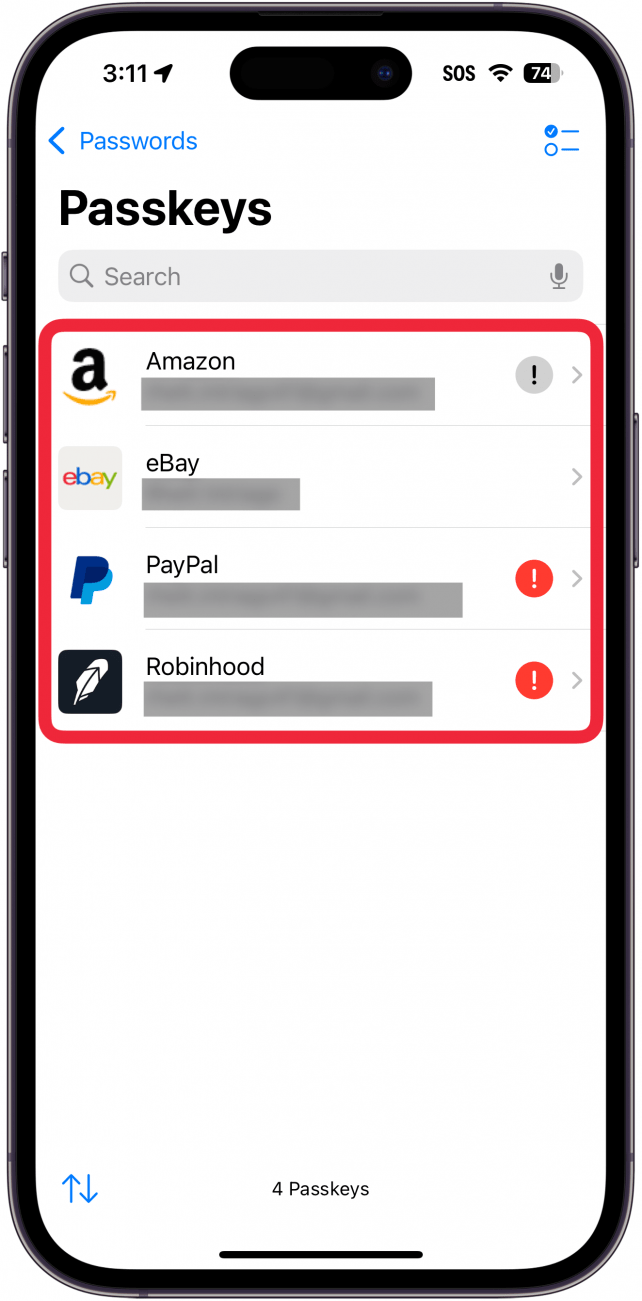
- Here, you can manage accounts for which you have saved a Passkey on your iPhone. Passkeys are a way for you to log into an account without a password.
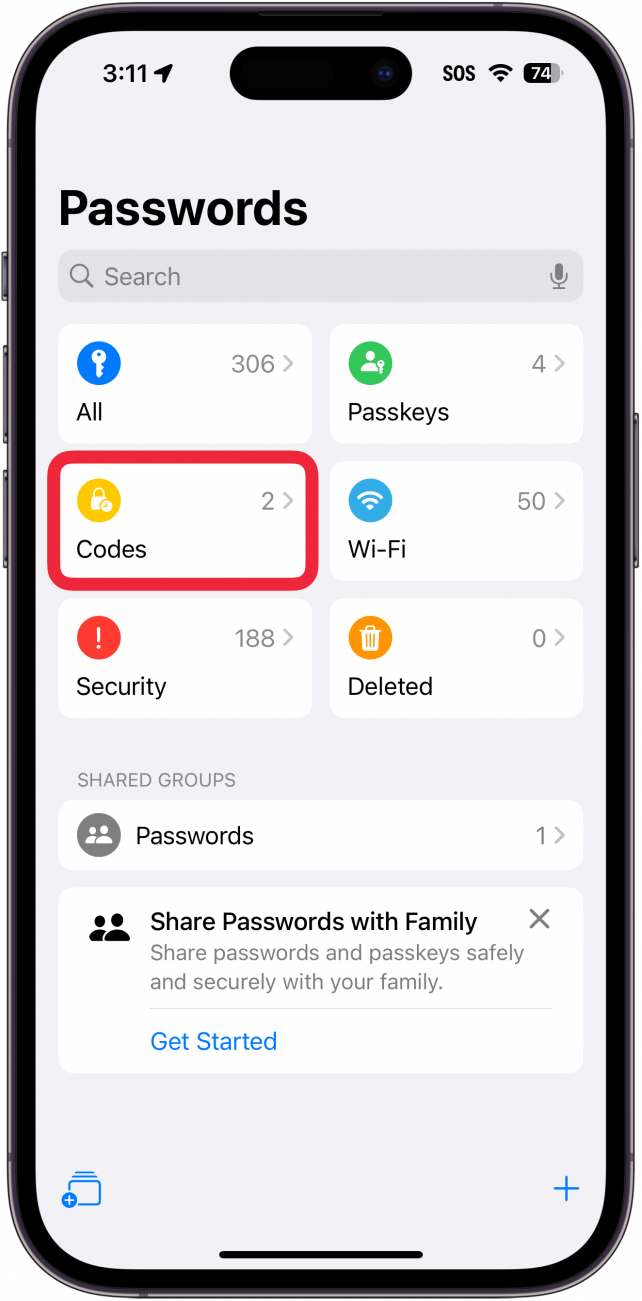
- Now, tap Codes.
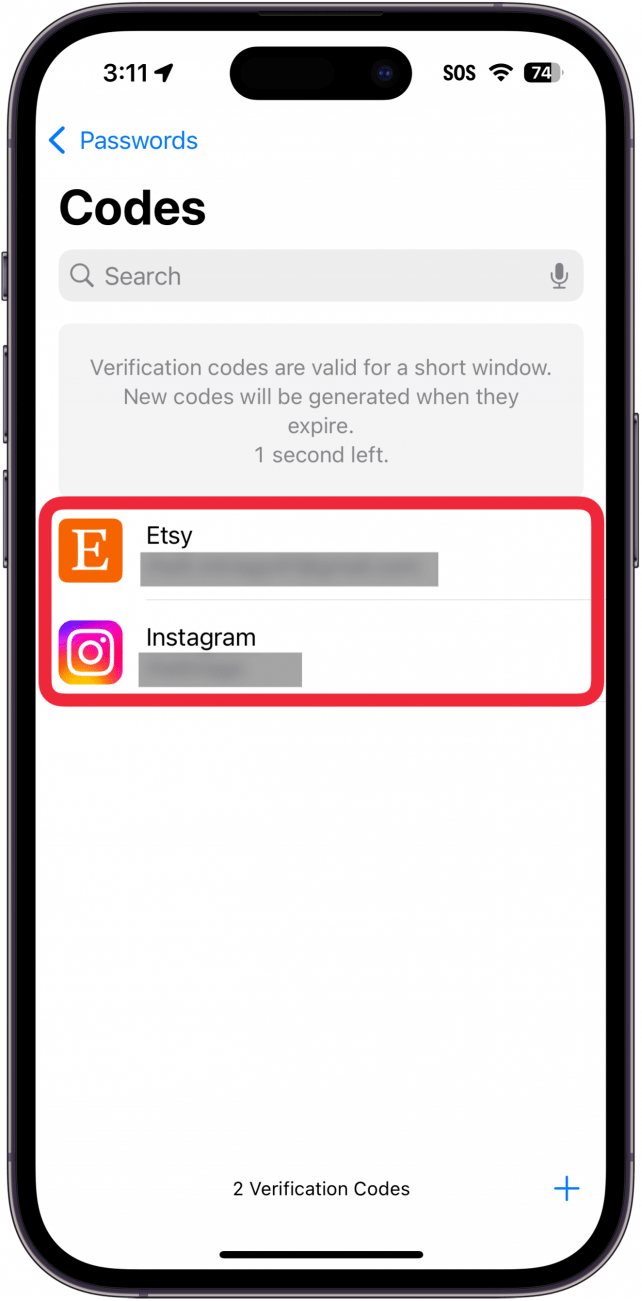
- Here, you can find your multi-factor authentication codes. These are randomly generated 6-digit codes which are used to authenticate when logging into an account.
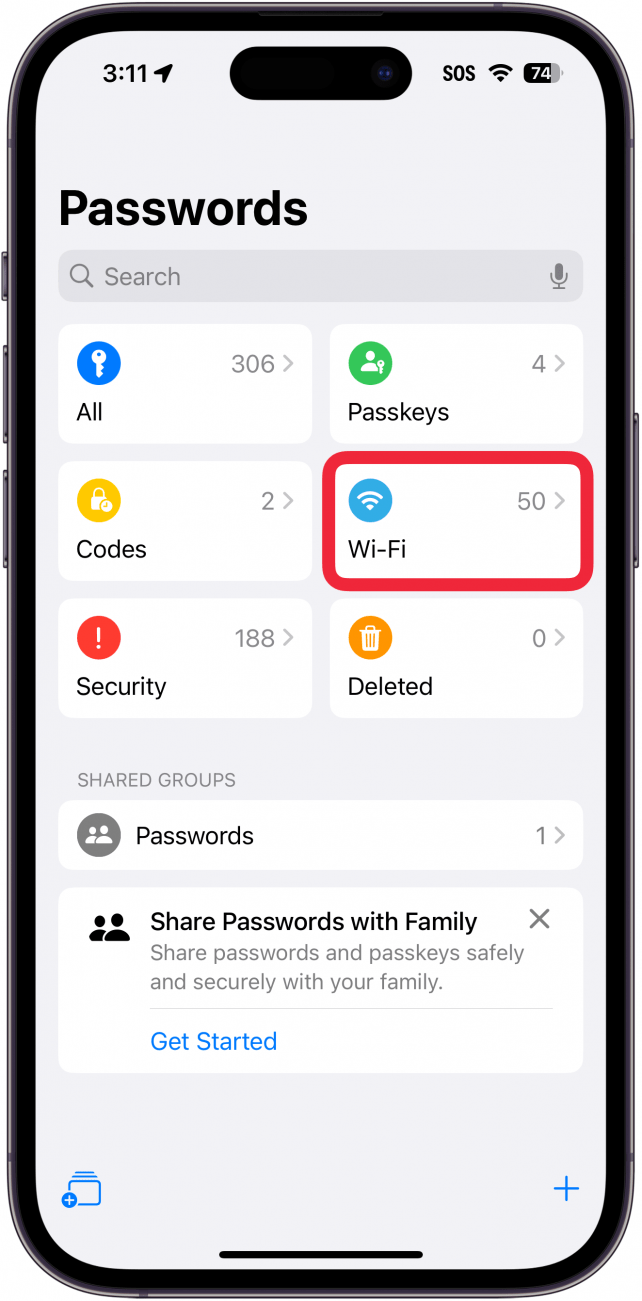
- Tap Wi-Fi.
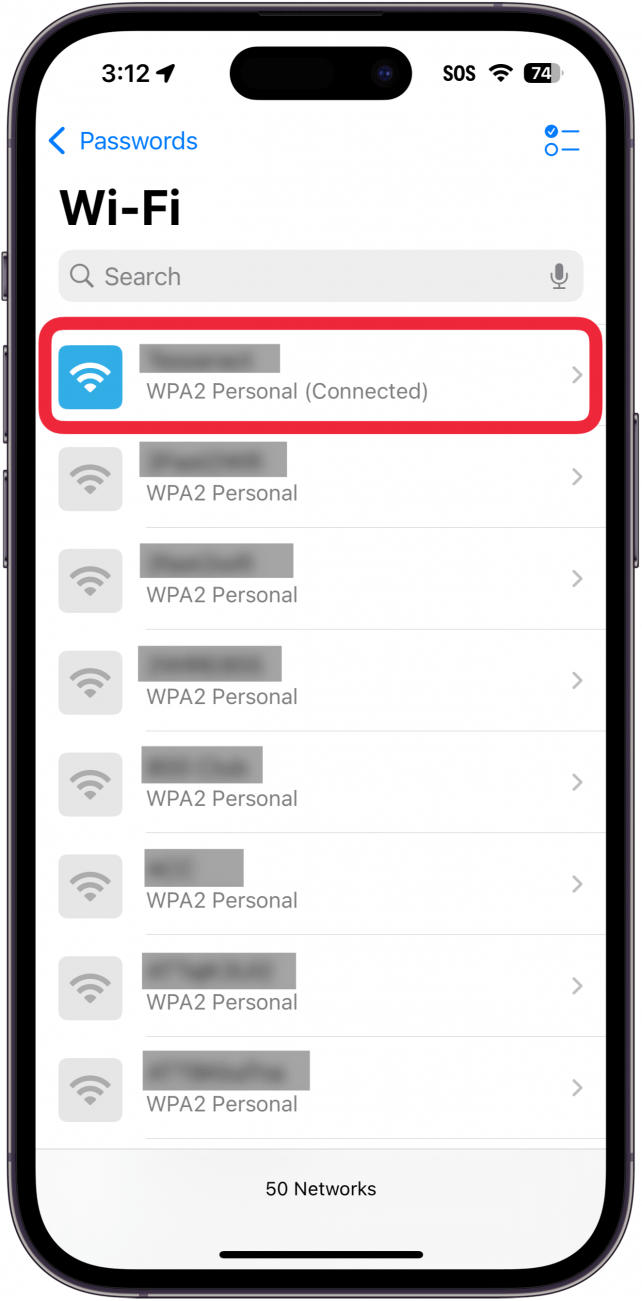
- This section holds a complete list of every Wi-Fi network you have ever connected to. You can tap on any network and view its password. These are shared across devices, which means you can easily connect your iPad or Mac to your home network without entering the password, as long as you’ve already done it once with your iPhone.
- Head over to the Security section next.
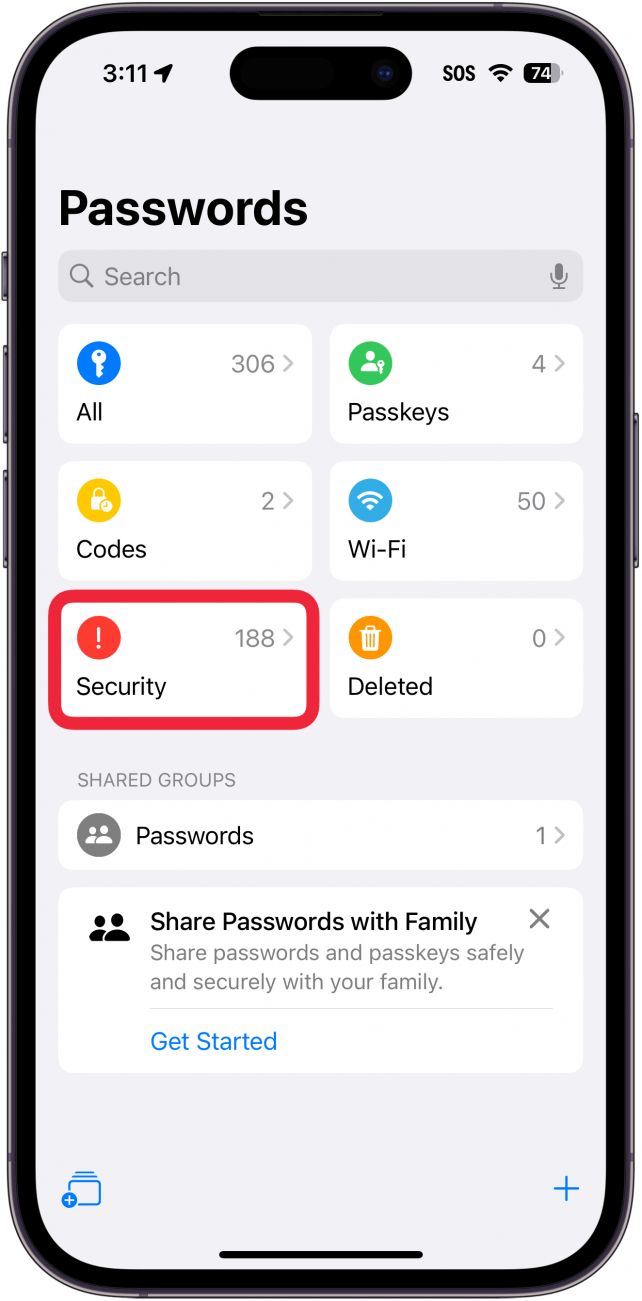
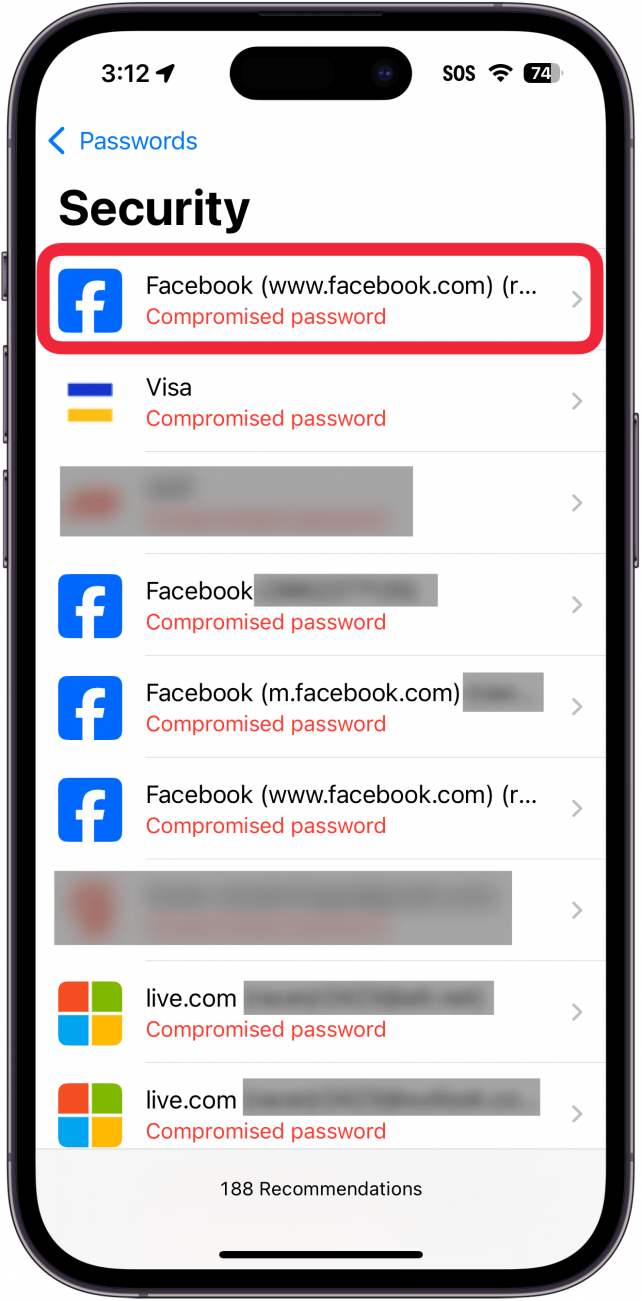
- You will see a list of security recommendations, showing you which of your passwords are compromised and which ones you are reusing for multiple accounts. As you can see, I have a lot of compromised passwords. However, I use a third-party password manager so these security recommendations are based on outdated information.
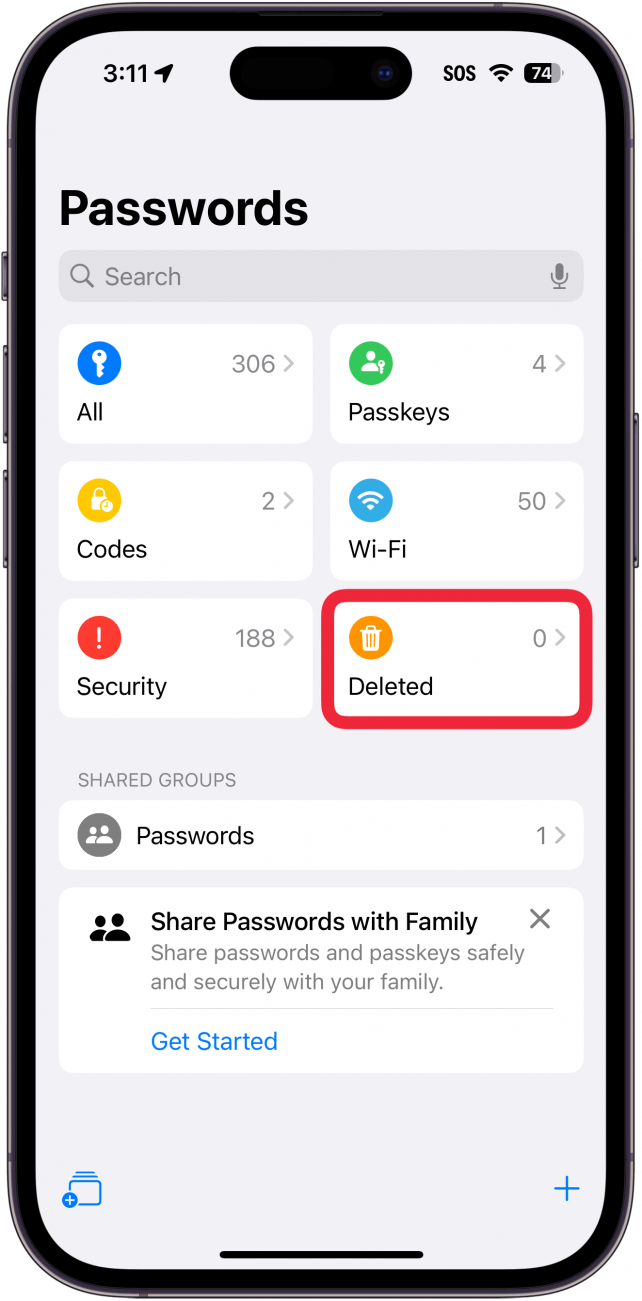
- New to the Passwords app is the Deleted section.
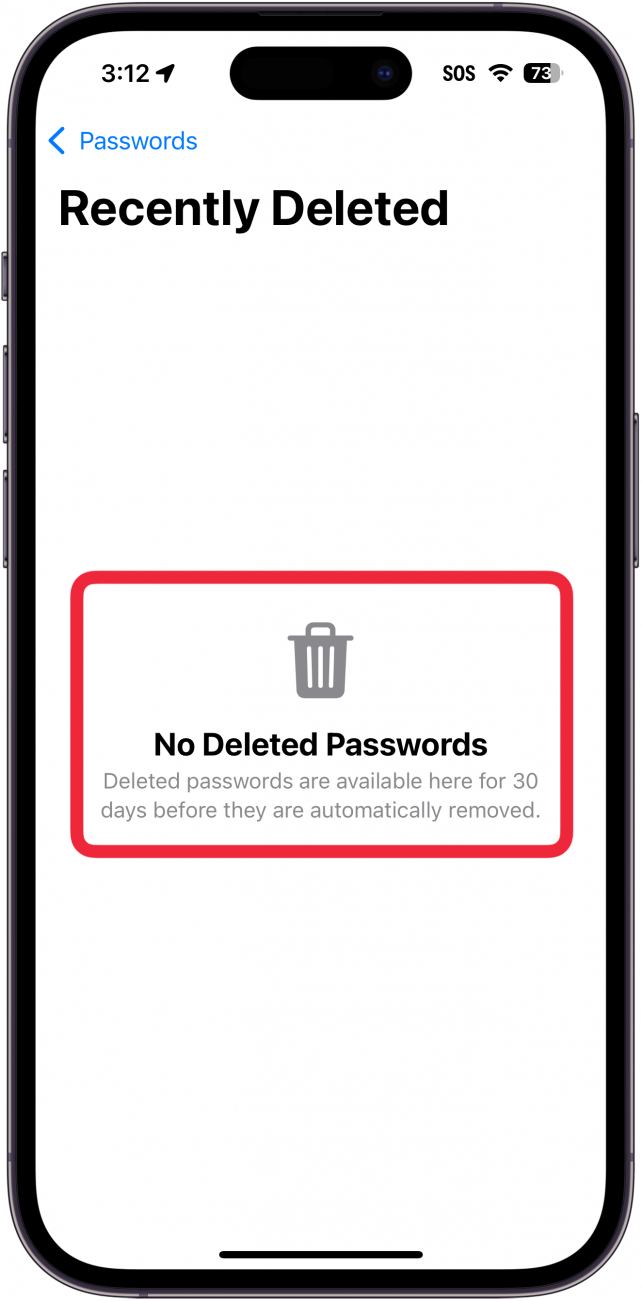
- Now, whenever you delete a password, it will stay in this folder for 30 days before it is permanently removed from your iCloud account and local devices.
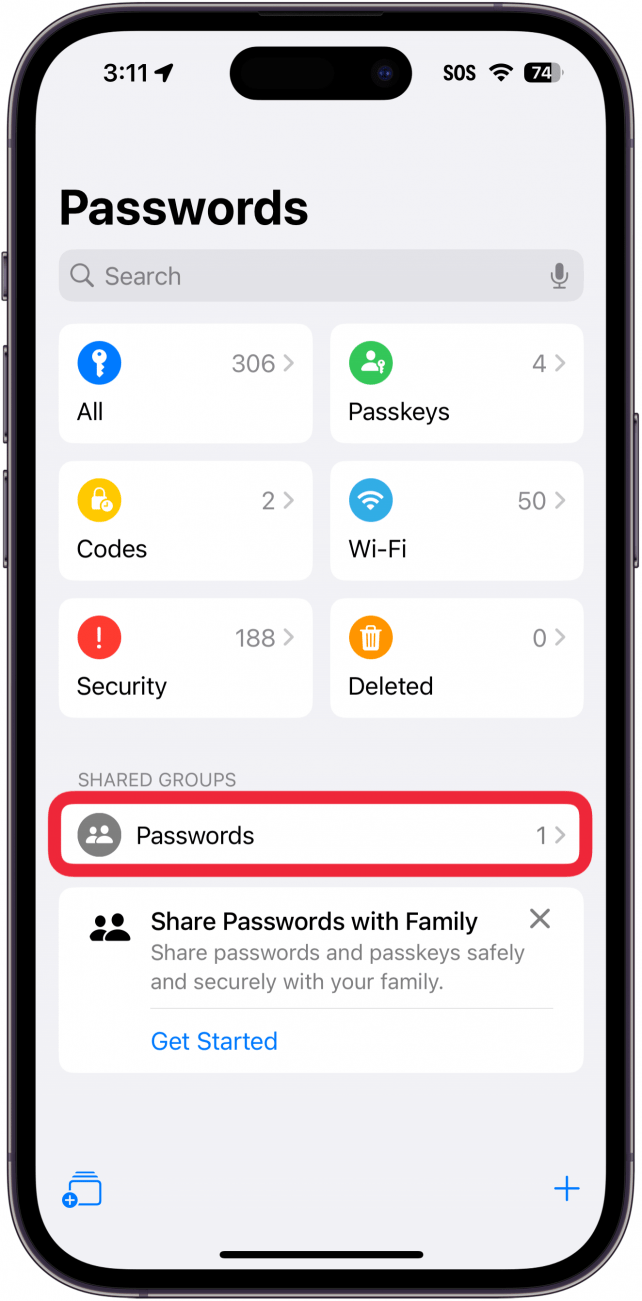
- If you have any shared password groups, you will see them listed under Shared Groups.
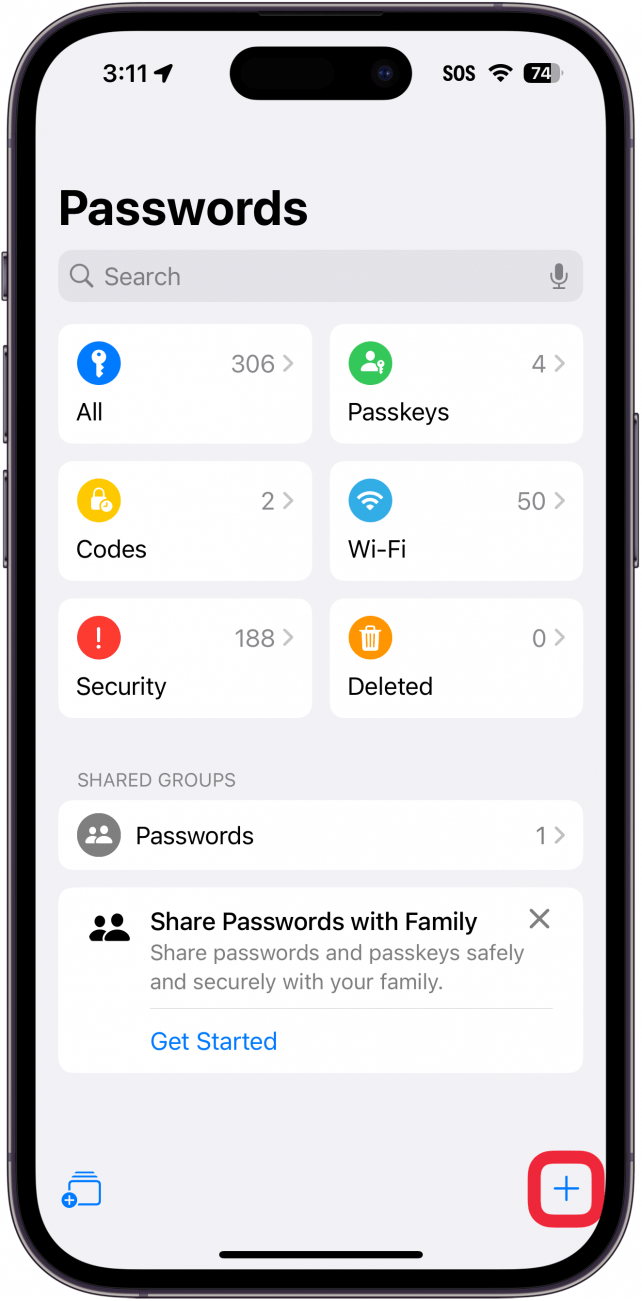
- Anywhere in the app, you can tap the plus icon to add a new password (or verification code).
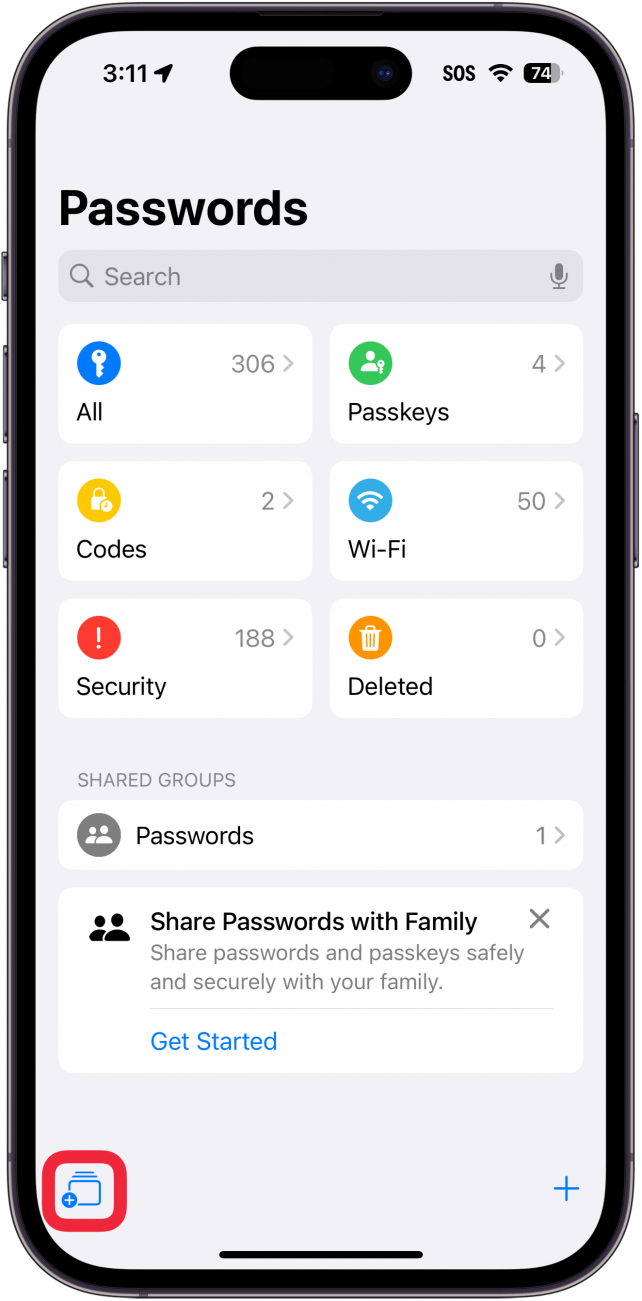
- On the home page, tap the square icon with a plus next to it to create a new password-sharing group.
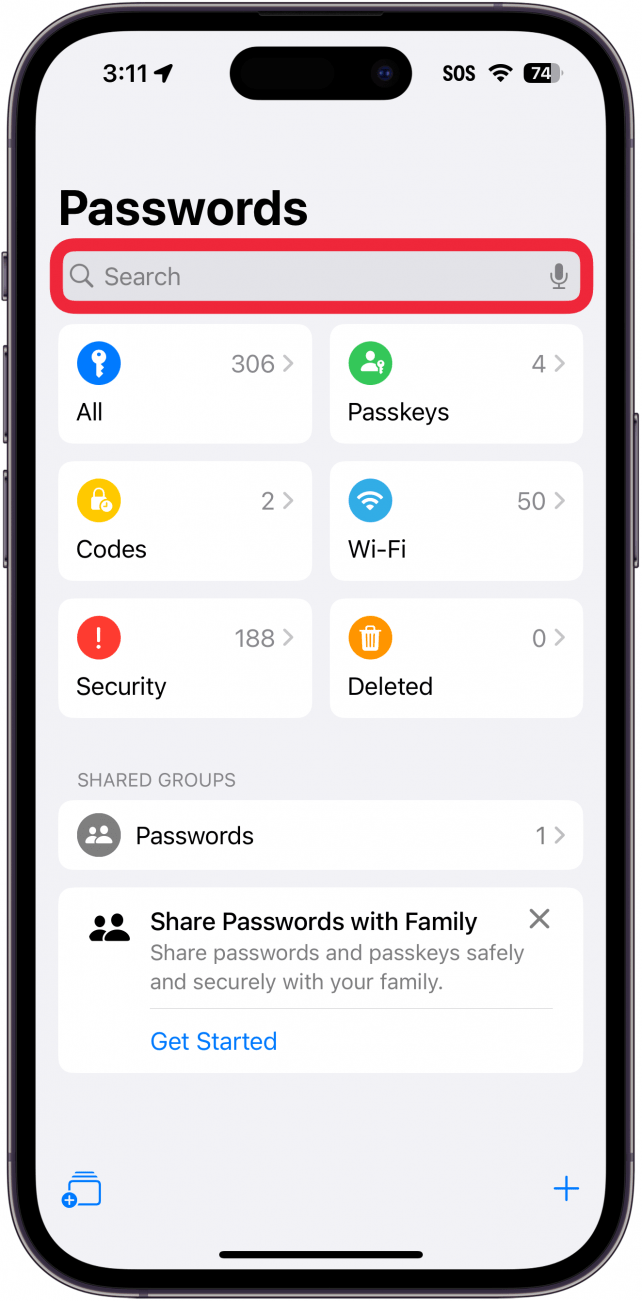
- Tap the Search bar to search for a specific login.
That's how to look at saved passwords on your iPhone and everything there is to know about the Passwords app. Simply tap a password to copy it to your clipboard and paste it into the website or app. The Passwords app is also available on your other Apple devices running iPadOS 18 or macOS Sequoia or newer. Next, find out how to turn on keychain on iPhone.

Every day, we send useful tips with screenshots and step-by-step instructions to over 600,000 subscribers for free. You'll be surprised what your Apple devices can really do.

Rhett Intriago
Rhett Intriago is a Feature Writer at iPhone Life, offering his expertise in all things iPhone, Apple Watch, and AirPods. He enjoys writing on topics related to maintaining privacy in a digital world, as well as iPhone security. He’s been a tech enthusiast all his life, with experiences ranging from jailbreaking his iPhone to building his own gaming PC.
Despite his disdain for the beach, Rhett is based in Florida. In his free time, he enjoys playing the latest games, spoiling his cats, or discovering new places with his wife, Kyla.
 Leanne Hays
 Rhett Intriago
 Rachel Needell
 Olena Kagui



 Amy Spitzfaden Both
 Susan Misuraca