You probably already know you can call a phone number from within an email by tapping on the number. But did you know that you can also quickly add the phone number to Contacts? Here's how to add a phone number to Contacts from an email.
Why You'll Love This Tip
- Touch and hold a phone number in an email to add phone number to Contacts.
- No need to write down the phone number or remember it, your iPhone easily saves the phone number to Contacts.
- Add a new phone number to a new contact or an existing contact.
How to Add a Phone Number to a Contacts from Mail
System Requirements
This tip was checked on an iPhone 17 Pro running iOS 26. Learn how to update to the latest operating system.
If you're sent a phone number in an email, there's no need to write it down, then add it to the Contacts app. You can automatically transfer the number in a few easy steps. Here's how.
- Open the Mail app.

- Open the email with the phone number.

- Press and hold the phone number.

- Tap Add to Contacts.

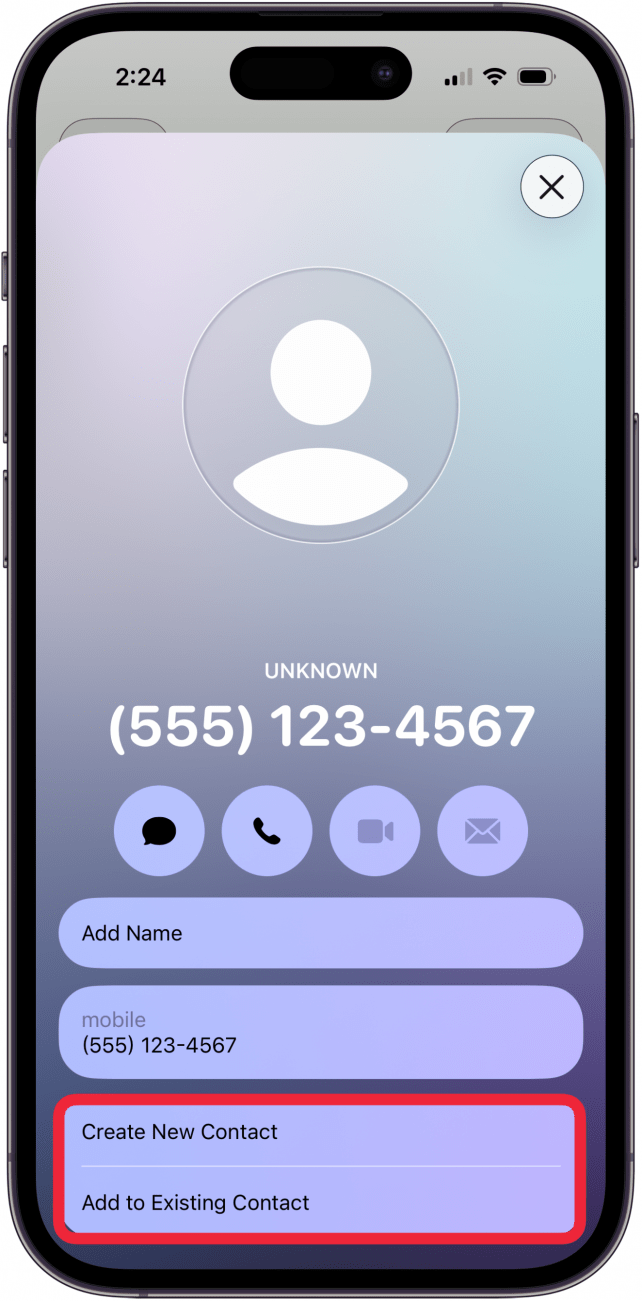
- Tap Create New Contact or Add to Existing Contact. From there, you can fill out all the contact details as usual.

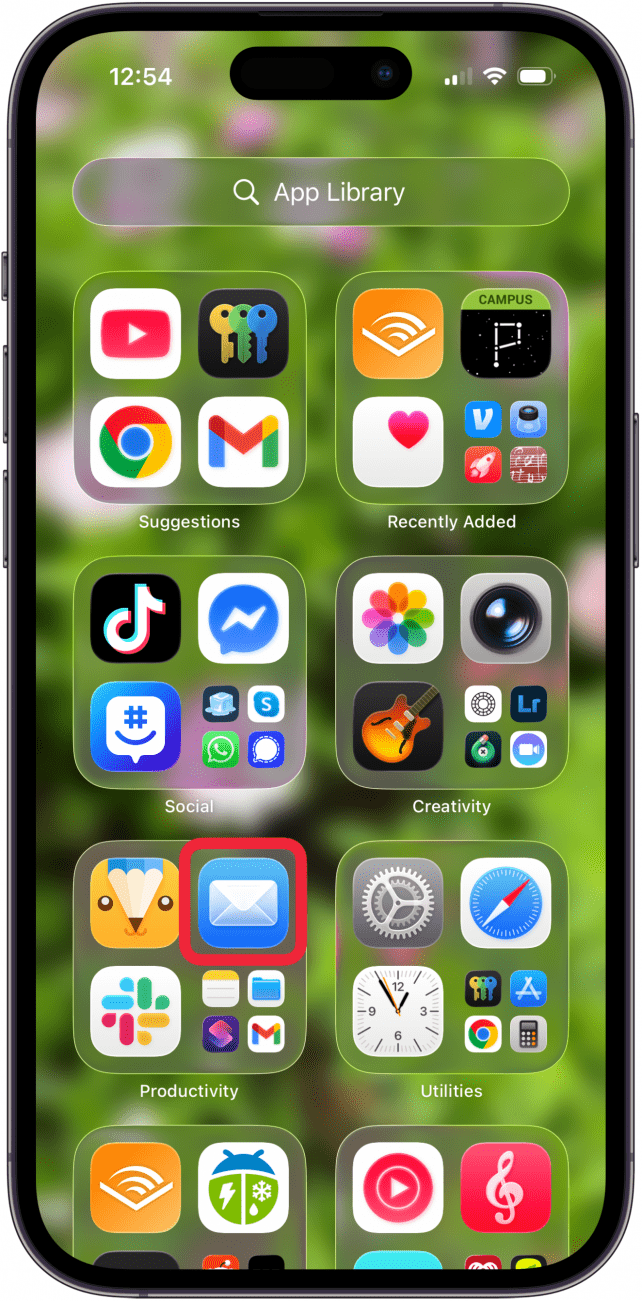
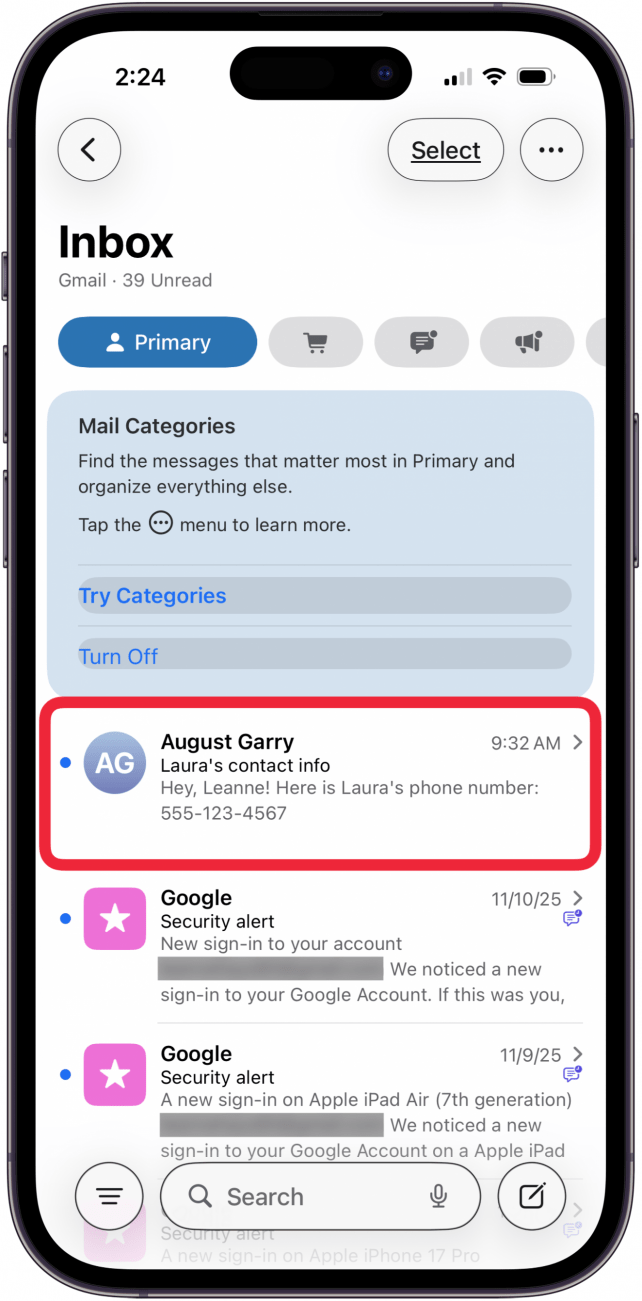
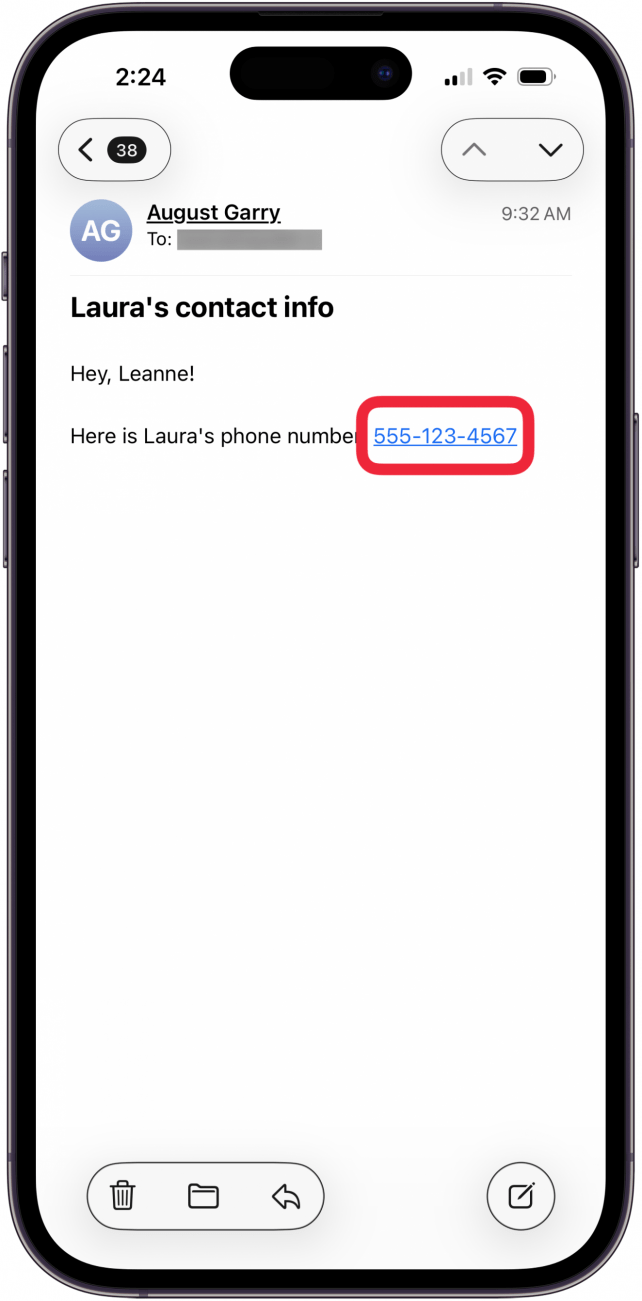
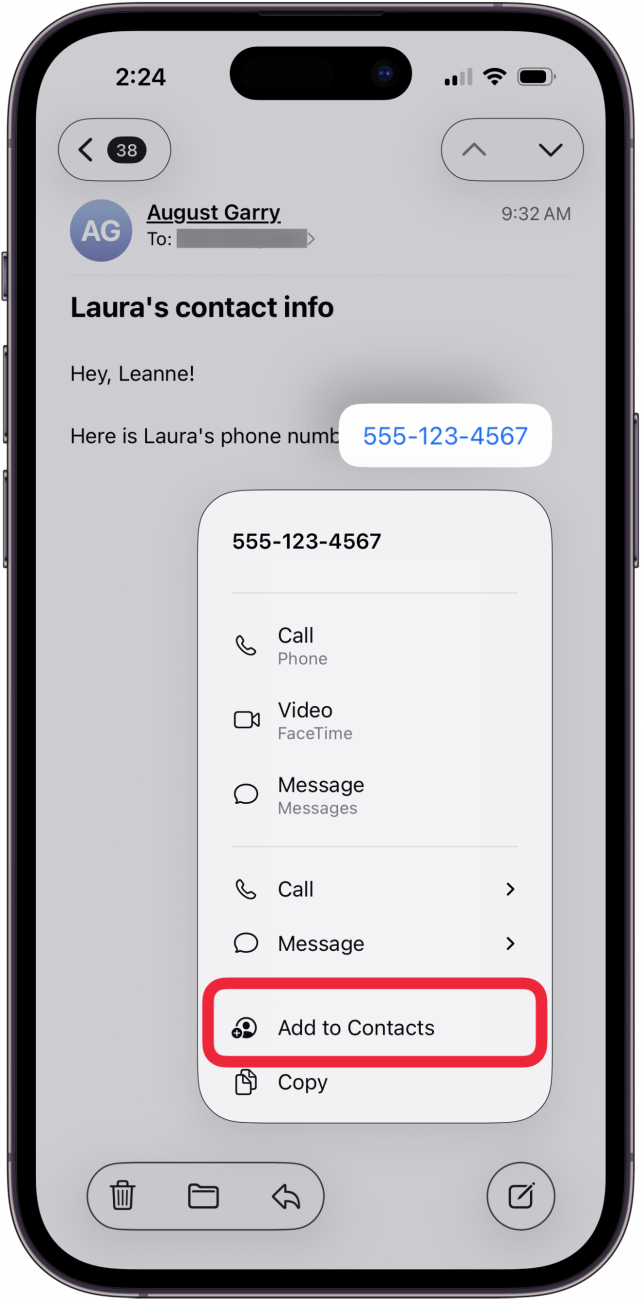
Tapping and holding on a phone number in an email also gives you the option of placing a FaceTime call, sending a message, or copying the number.

If you choose to create a new contact, the sender's phone number will automatically be added to the new contact card. If you choose to add the number to an existing contact, you will be taken to your contact list so you can select the contact to which you are adding the phone number.
If you enjoyed learning about this handy feature, check out our free Tip of the Day for more like it!
More On: Contacts
- Sync iPhone Contacts from iPhone to Mac
- How to Merge Contacts on iPhone & iPad
- Group Contacts by How You Know Them
Top image credit: wk1003mike / Shutterstock.com