iPhone Life - Best Apps, Top Tips, Great Gear
Why Is Apple Watch Not Tracking Sleep?
By Rachel Needell

One of my favorite things about my Apple Watch is the sleep tracker. It is so cool and helpful to be able to view your sleep stages and understand your sleeping patterns and general health better. But sometimes the Apple Watch will stop tracking your sleep or randomly skip a night. Here are a few potential fixes for Apple Watch not tracking sleep.
How to Find iPhone Featured Photos in the Photos App
By Amy Spitzfaden Both
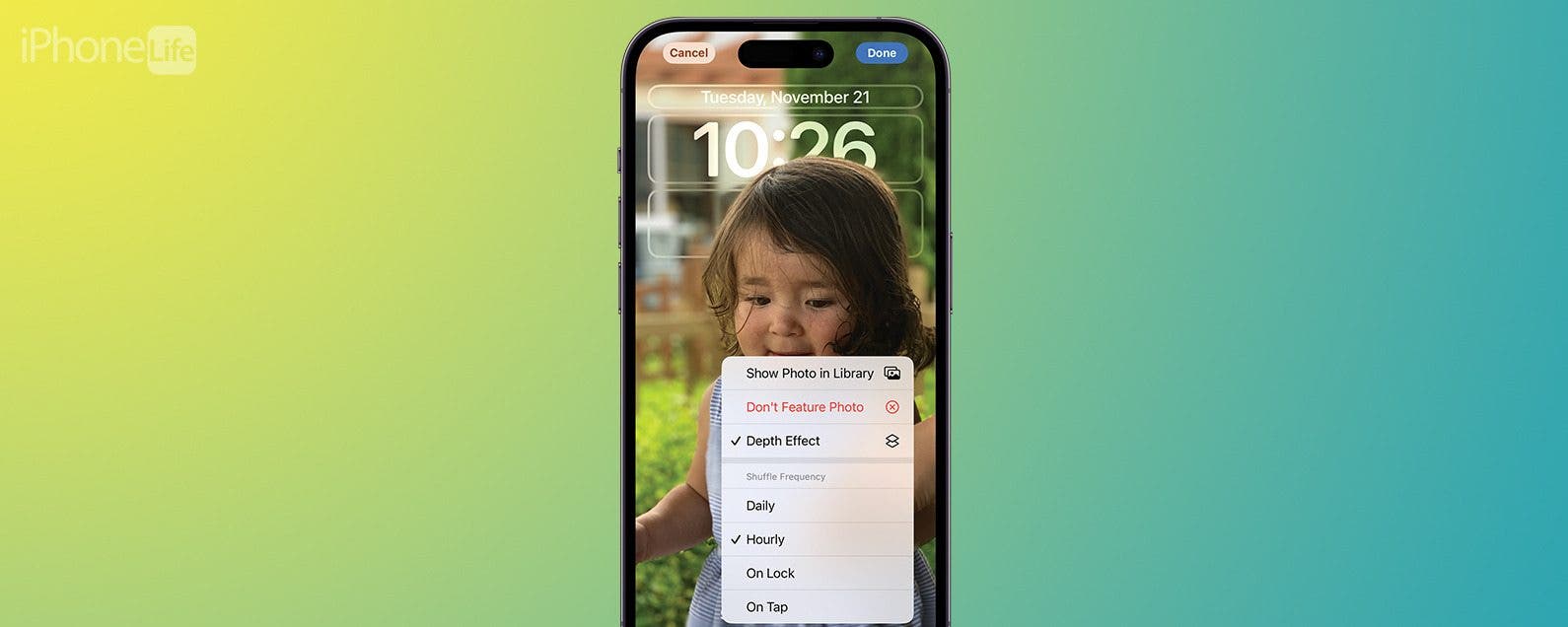
If you see a photo you like in your Feature Photos on your iPhone and want to locate it in an album or your camera roll, it's possible, but still a little tricky to find. Here are two ways to find Featured Photos in your camera roll or albums.
- ‹ previous
- 308 of 2483
- next ›
Due to the Apple SDK constraints on developers of iPhone software, data exchanges with your phone is limited to email and local area network connectivity.
Some iPhone applications such as “Files” allow you to import and read your Word, Excel, and PDF files from your desktop computer to your phone, and move that data to the iPhone by establishing a wireless connection between the phone and desktop over a LAN.
There is a starbucks near where I live, but the wifi there is horrible. Worse, I cannot get 3G, so basically, I go elsewhere. Then AT&T announced they were going to give iPhone users free wifi access. Great! But, you have to go through this silly login process: Link to process.. Whatever. It’s not a chore so much as just plain annoying. So much so, I do not bother and stick with edge.
If you want to transfer files from machine to machine on your network (without using a USB drive), there is a very simple application available in the iTunes App store called "Files lite". Look under the Productivity category to find it. It is an ingenious and free (if somewhat limited) way to turn your iPhone or Touch into a network attached storage device, as well as expand the ability to share files.
How to Customize Your iPhone Dock
By Erin MacPherson

The iPhone Dock lets you access your most frequently used apps from any of your Home screens. The default iPhone Dock apps are the Phone, Safari, Messages, and Music apps. I’ll teach you how to add and remove apps, rearrange apps in your Dock, and organize those apps into folders.
Free App of the Week: Take Me To My Car
By Anonymous
Weekly review of select 'Free' applications from the iPhone App Store.
This week's review will will focus on a simple but surprisingly effective application named, "Take Me To My Car".
Free wallpapers from Portable Themes
By Jim Karpen
In our Best Sites page I list a number of sites that offer free wallpapers for your iPhone or iPod Touch. A new site that I heard about recently is PortableThemes, which has nearly 2,000 images that you can use as wallpapers.
How Do You Resend an Email on iPhone? Easiest Way!
By Rachel Needell

Work with your IMAP e-mail offline
By Anonymous (not verified)
IMAP e-mail accounts (such as Gmail and Hotmail) keep all of your e-mail on online servers, which means that you can't delete messages or read them unless you are online. Fortunately, you can set up your iPhone/iPod touch to copy your IMAP messages onto the device so that you can work with them offline. Here's how you do it:
Live links make life easier
By Anonymous (not verified)
Phone numbers, e-mail and Web addresses, and street addresses that appear in the body of an e-mail or text message are linked to the appropriate application on the iPhone. This allows you to…
- Tap on a phone number to place a call.
- Tap on an e-mail address to compose and send an e-mail.
- Tap on a Web address to open a Web page.
- Tap on a street address to see it in Maps.
Swipe your finger across an e-mail to delete it
By Anonymous (not verified)
A quick and fun way to delete e-mail messages (in the list view of a folder) is to simply swipe your finger across it (in either direction). A red Delete button will appear to the right of the message to confirm the deletion. If you change your mind, you can tap anywhere outside the button to cancel the action. This finger swiping action lets you delete items in a number of the built-in applications.
Double-tap the Home button to open the Phone/music playback control
By Anonymous (not verified)
Double-tapping the Home button on the iPhone (from within any application) will open the Phone application. On the iPod touch, it will open a pop-up control for music playback. When the iPhone and iPod touch are locked, double-tapping the Home button will bring up the music playback control; double-tapping it a second time will close the control.
Get the camera removed
By Anonymous (not verified)
If you work at a secure facility that prohibits the use of cameras, you can get the camera removed from your iPhone. A service called iResQ (iresq.com) will send you a preaddressed shipping box and will return your iPhone with the camera removed for about $100. This will void your warranty.
Find Wi-Fi hotspots quickly
By Anonymous (not verified)
If you want to find the nearest Wi-Fi hotspot in your area, visit jiwire.com and type your address or city to locate the closest one. You can also use your Maps application and do a search like “wifi chicago” or “wifi 90004.” Red pushpins should then show you were to go.
Locked up? Reboot!
By Anonymous (not verified)
If your iPhone locks up or stops working for any reason other than a low battery, you’ll need to reboot it. This is analogous to turning your desktop or laptop computer off and on again, and it clears up a lot of problems. Press and hold down the Sleep/Wake button on the top edge of the device and the Home button until the Apple logo appears on the screen. Then release both buttons and wait until the Home screen appears.
The Home button is a “force quit” button
By Anonymous (not verified)
You can use the Home button to completely shut down whatever program is running—just hold it down for six seconds. This is useful if a program freezes or if you have multiple programs open at once and want to close one of them.
Apple’s warranty does not cover misuse
By Anonymous (not verified)
The iPhone is covered by a one-year limited warranty that covers it against defect, but not misuse. So, for example, if you bounce it off the wall or throw it on the ground, you’re responsible for the damages. In addition, if you hack the device, open up the case, or make unauthorized repairs, you void the warranty. You can extend the iPhone limited warranty for an additional year for $69 ($59 for the iPod touch).

