Do you know about your iPhone's nightstand mode? There is a feature called StandBy mode on the iPhone, which allows you to see information—such as the time, your calendar, photos, and weather—at a glance while charging your device. In this tip, we'll show you how to use the iPhone's StandBy mode and how to get a red clock and calendar on iPhone.
Why You’ll Love This Tip
- Easily check the time when you wake up in the middle of the night.
- Snooze or turn off alarms with ease each morning.
How to Use the iPhone's StandBy Mode
System Requirements
This tip was performed on an iPhone 15 Pro running iOS 26. Find out how to update to the latest version of iOS.
What is StandBy on iPhone? The iPhone StandBy mode is similar to a feature called Nightstand mode on the Apple Watch, which turns your Apple Watch into a digital clock when it rests on your nightstand. Now, if you turn your iPhone sideways (into landscape orientation) while it’s charging, you’ll be greeted by a clock on your iPhone Lock Screen, called StandBy. This is particularly useful if you have a charging station that charges your iPhone in landscape orientation. StandBy mode should be turned on by default, but if it's not, here’s how to turn it on and customize it:
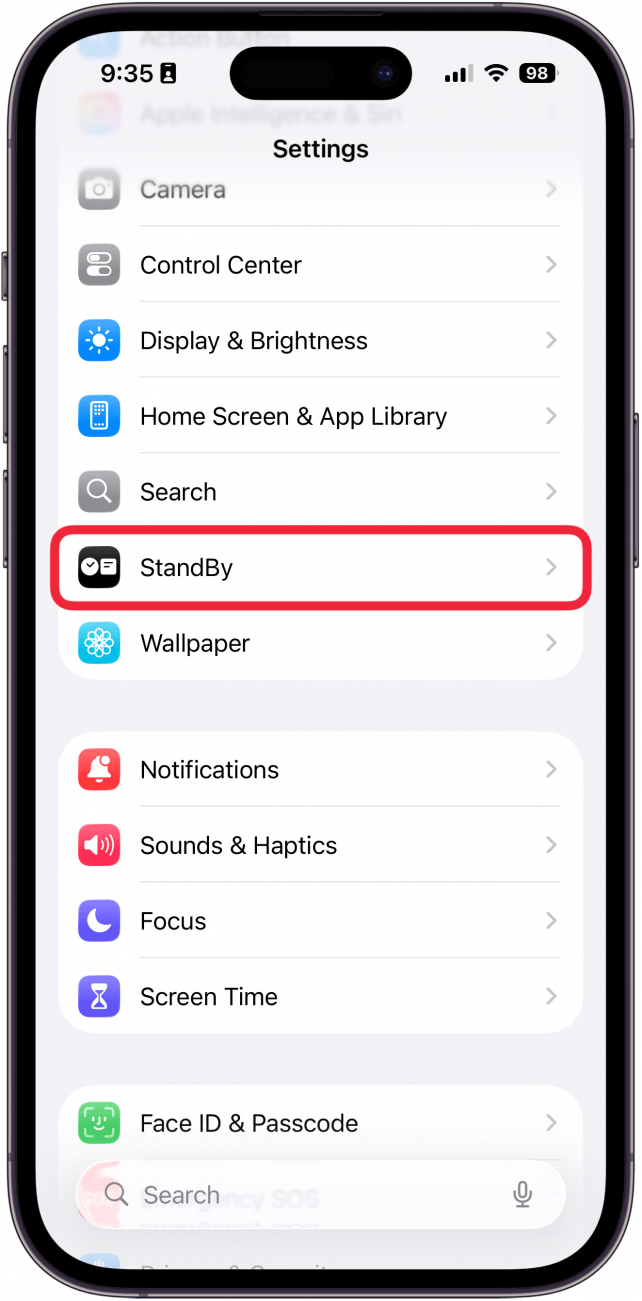
- Open the Settings app, and tap StandBy.
![a screenshot of the iphone settings app with a red box around standby]()
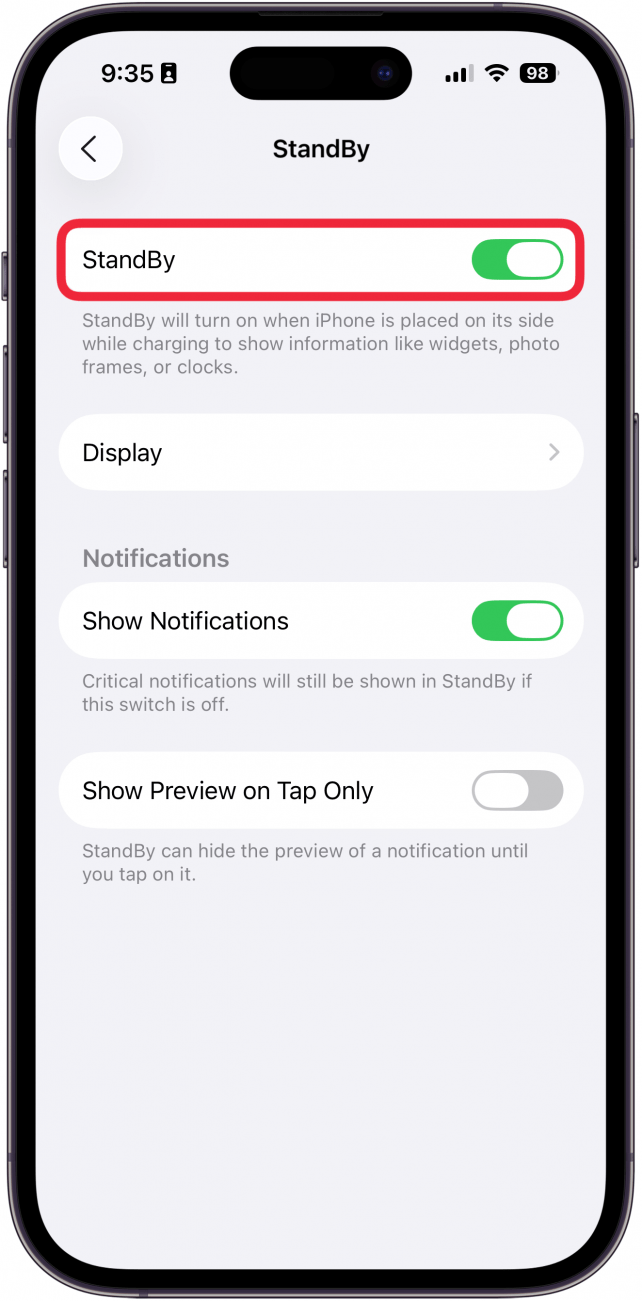
- You can tap the toggle next to StandBy to enable or disable the feature.
![a screenshot of the iphone standby settings with a red box around the standby toggle]()
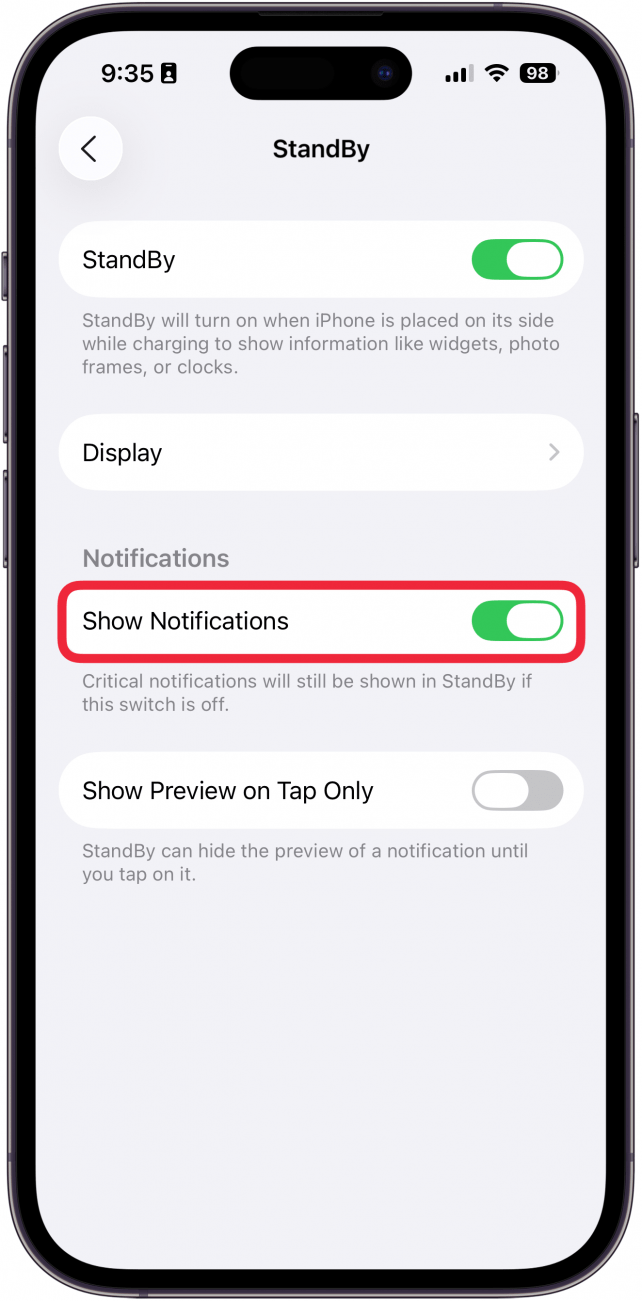
- You can also choose whether or not to Show Notifications when in StandBy mode.
![a screenshot of the iphone standby settings with a red box around the show notifications toggle]()
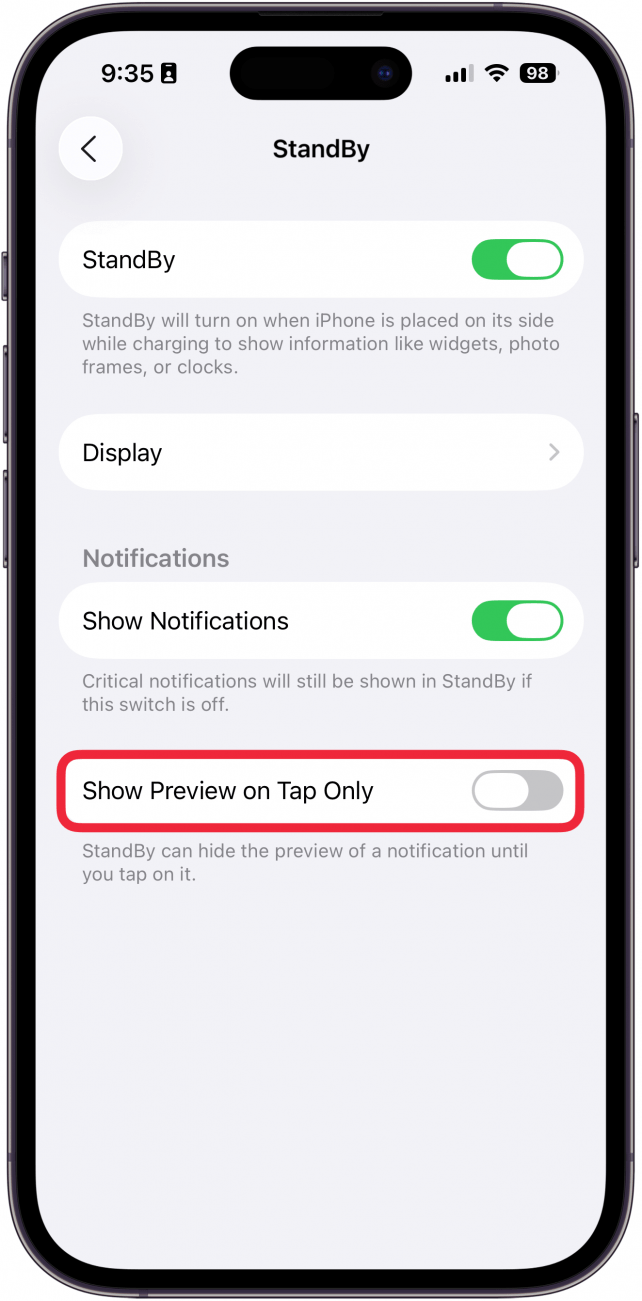
- If you want to hide notification previews, you can enable Show Preview on Tap Only.
![a screenshot of the iphone standby settings with a red box around the show preview on tap only toggle]()
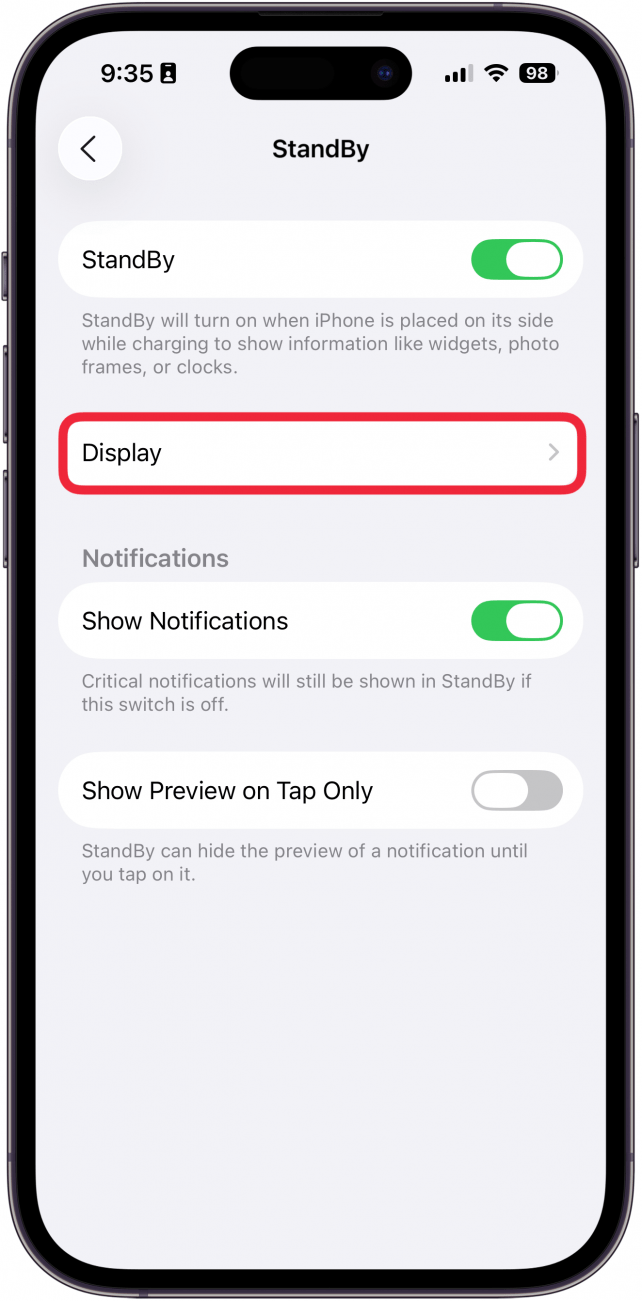
- Lastly, you can tap Display. Note: This option only appears on Pro iPhones. If you do not have a Pro iPhone, you will instead see a toggle labeled Night Mode. The Night Mode toggle is explained further in step 7.
![a screenshot of the iphone standby settings with a red box around display]()
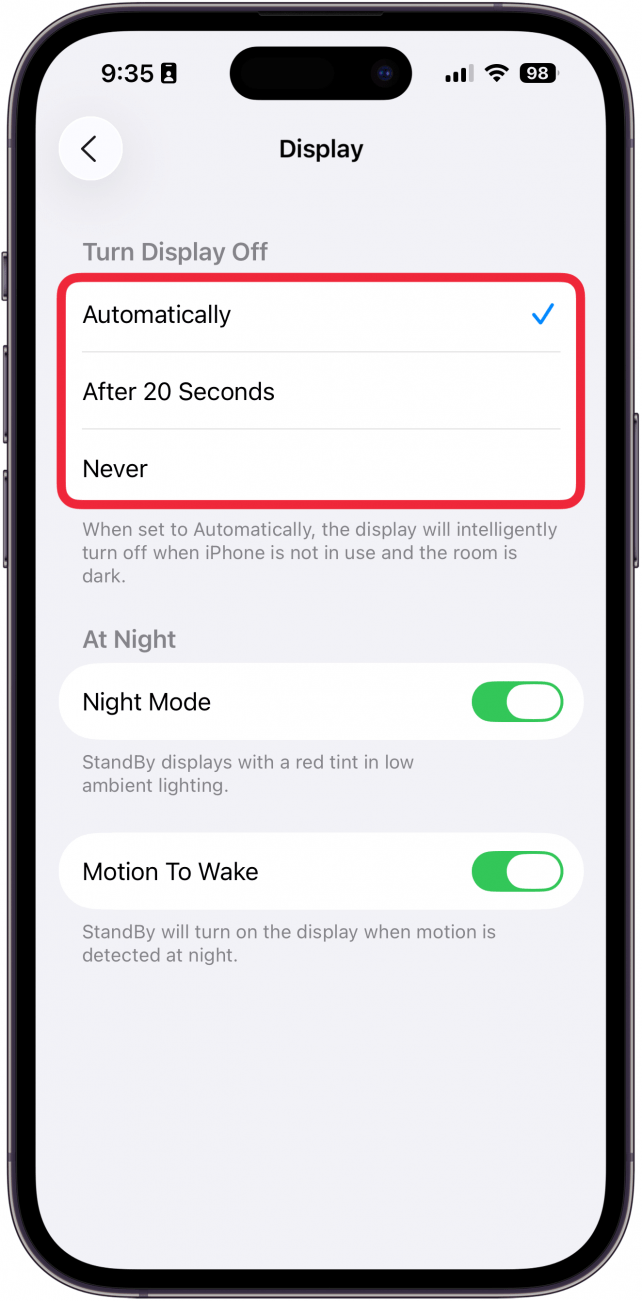
- This takes you to a new menu with options for how your iPhone screen behaves in StandBy mode. The Automatically setting means your screen will be off when your device is not in use and the room is dark. After 20 Seconds simply turns off the display after 20 seconds. Never will keep the display turned on indefinitely.
![a screenshot of the iphone standby display settings with a red box around the automatically, after 20 seconds, and never options]()
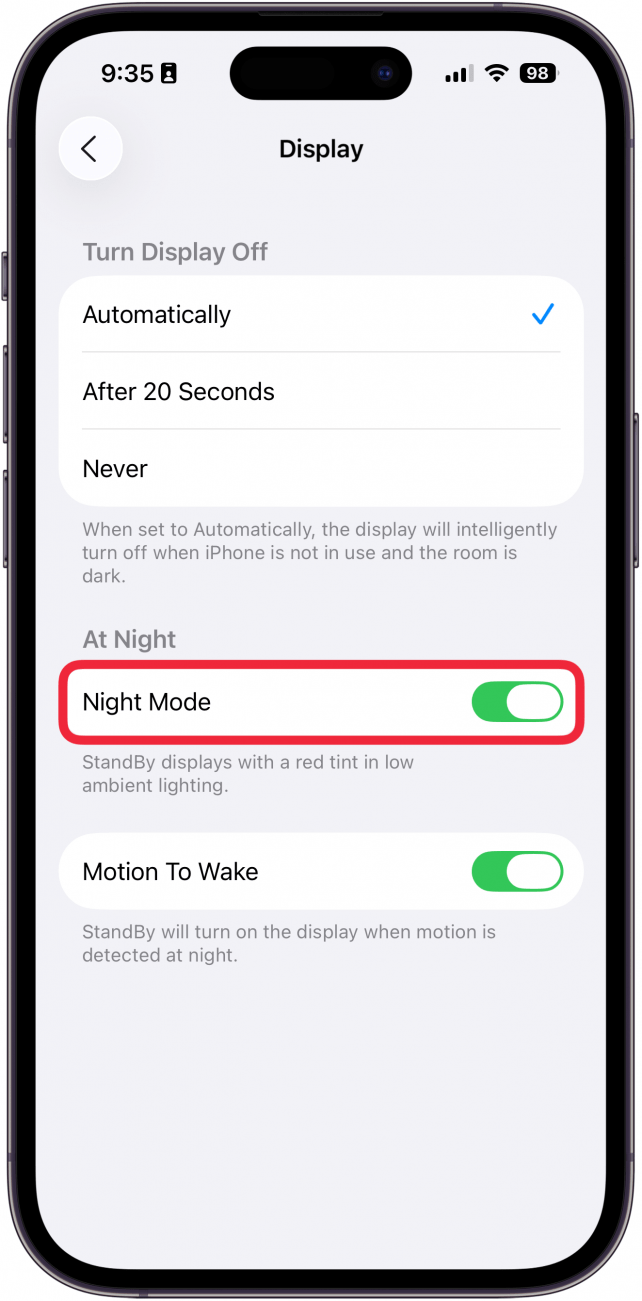
- Night Mode makes it so that all StandBy screen display in red when your device detects low light conditions. The red clock on your iPhone Lock Screen is to make it easier to see in the dark.
![a screenshot of the iphone standby display settings with a red box around the night mode toggle]()
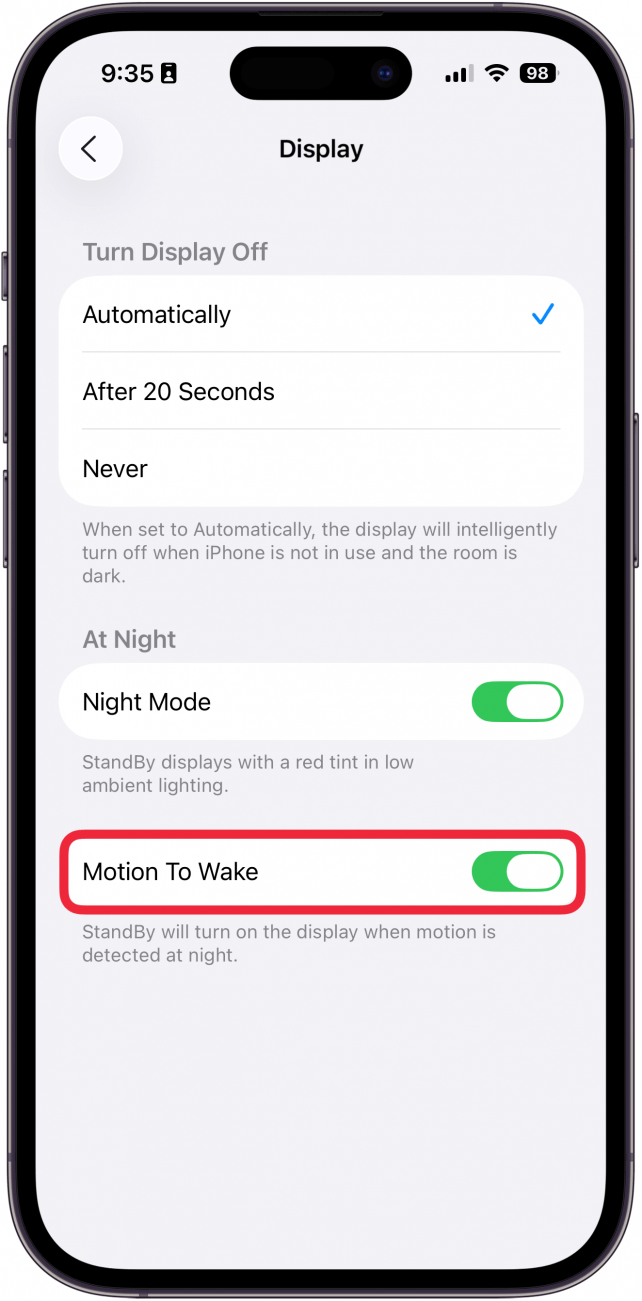
- Motion to Wake is a setting that will automatically wake your iPhone when in StandBy mode if it detects motion.
![a screenshot of the iphone standby display settings with a red box around the motion to wake toggle]()
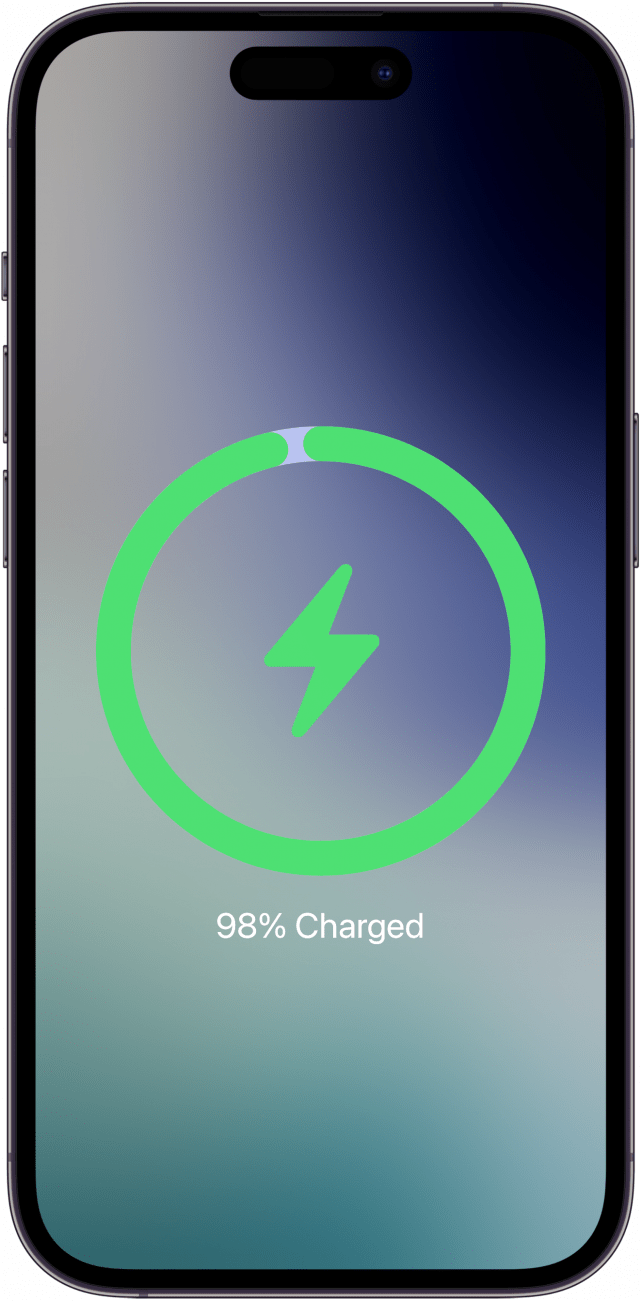
- With StandBy mode enabled, simply begin charging your phone and then turn it sideways. StandBy should activate automatically.
![a screenshot of the iphone lock screen displaying an iphone charging notification]()
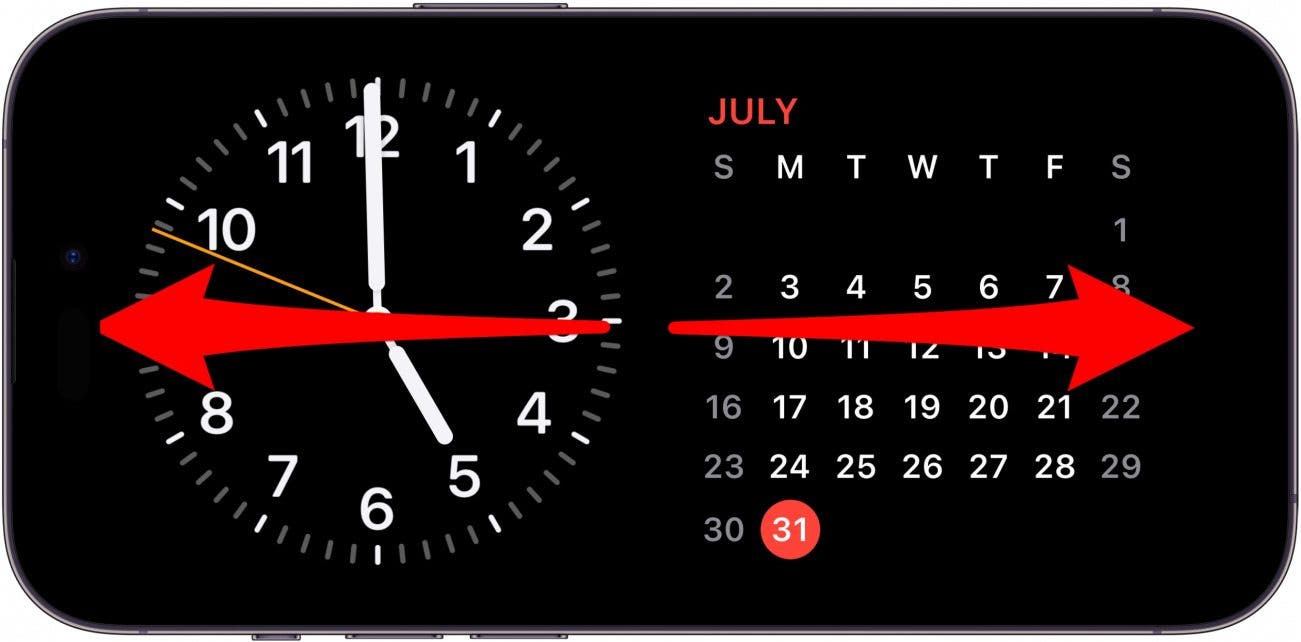
- When your iPhone is in StandBy, you have a few different options. You can swipe left and right to choose between three different StandBy displays.
![iphone standby screen with clock and calendar widgets, and red arrows pointing left and right, indicating left and right swipes]()
- On the first display, you can swipe up and down on the right and left widget stacks to switch between the available widgets.
![iphone standby screen with clock and calendar widgets, with red up and down arrows on both widgets indicating to swipe up or down on the widgets]()
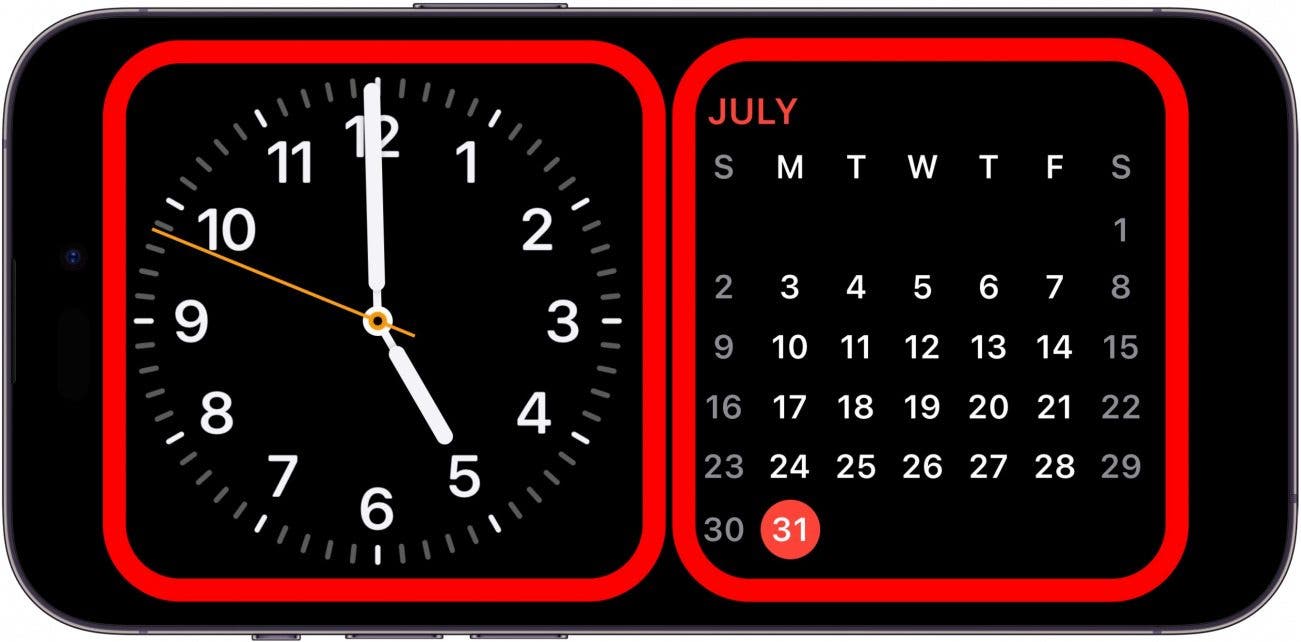
- Tap and hold either of the widget stacks to bring up some customization options for that particular stack.
![iphone standby screen with clock and calendar widgets and a red box around each of them, indicating to tap and hold on one or the other]()
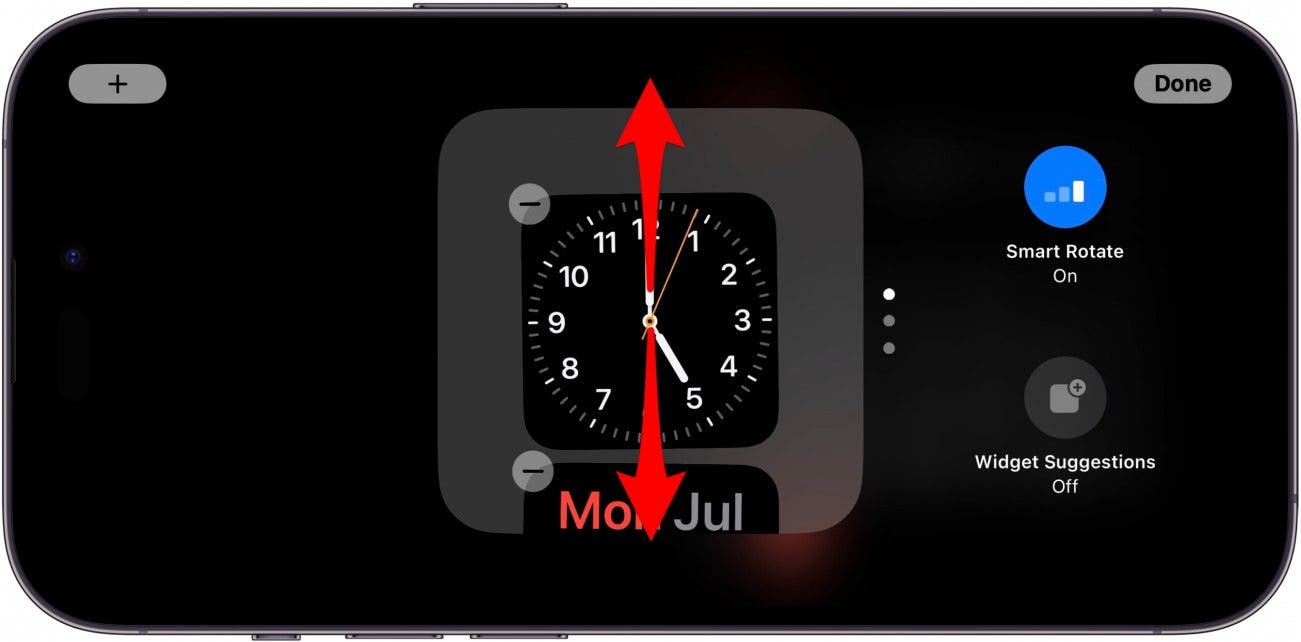
- Swipe up or down on the widget stack to swipe through the available widgets, or tap the minus icon to remove one.
![iphone standby widgets screen with red arrows pointing up and down on widget stack, indicating to swipe up or down]()
- Tap the plus icon to add a widget to the stack.
![iphone standby widgets screen with a red arrow pointing to plus icon]()
- Tap Smart Rotation to turn it on or off. Smart Rotation allows your iPhone to dynamically switch between which widgets it thinks are most relevant to you.
![iphone standby widgets screen with smart rotation option circled in red]()
- Tap Widget Suggestions to get suggestions about which widgets to use.
![iphone standby widgets screen with widget suggestions option circled in red]()
- When you swipe left to switch to the second display, you will see a slideshow of your photos. Note: The Photos StandBy mode requires the iPhone to be unlocked to view them.
![iphone standby screen with clock and calendar widgets, and a red arrow pointing left across the screen, indicating to swipe left on the screen]()
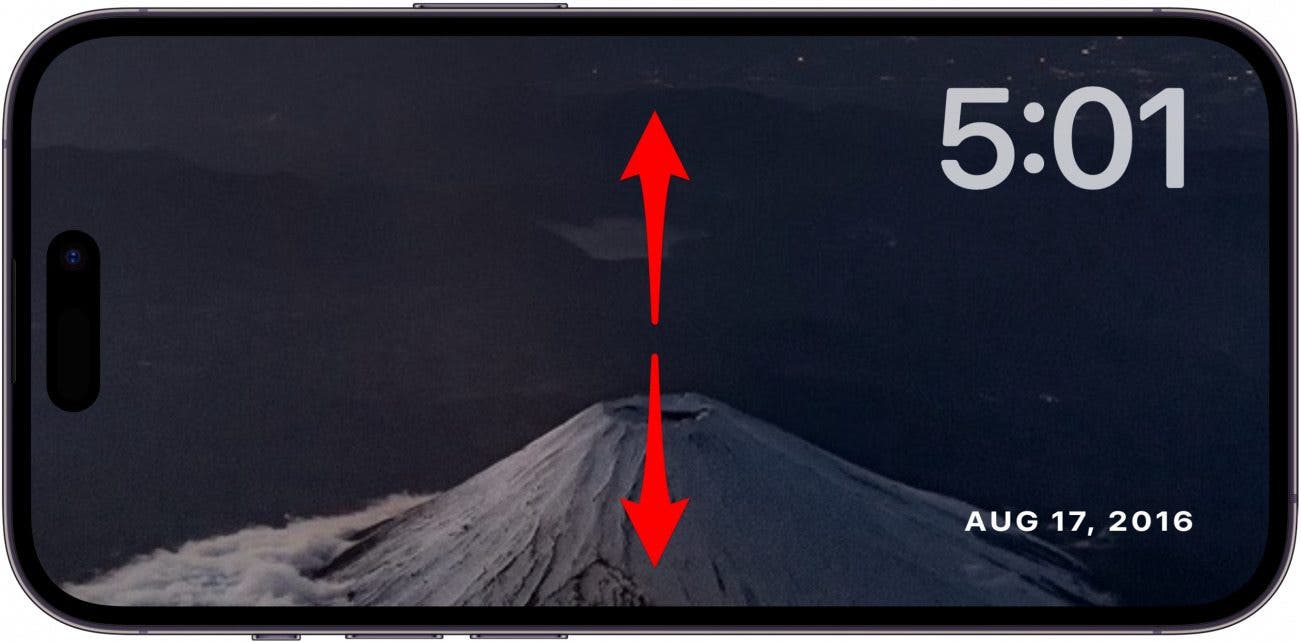
- You can swipe up or down to view different photo albums.
![iphone standby photos screen with red arrows pointing up and down, indicating to swipe up or down on the screen]()
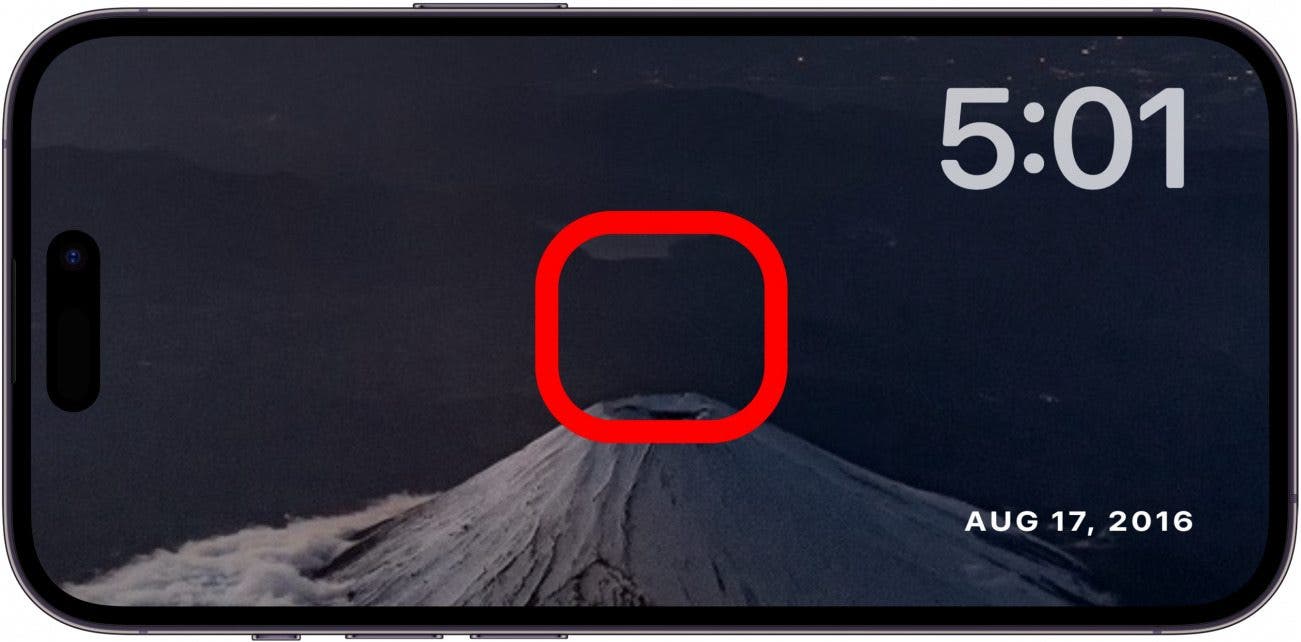
- Tap and hold the display to bring up some customization options.
![iphone standby photos screen with red box in the center of the screen, indicating to press and hold on the screen briefly]()
- You can tap the eye icon to hide or unhide a particular album when this StandBy mode is active.
![iphone standby photos screen with eye icon circled in red]()
- You can tap the plus icon to add any of your other photo albums.
![iphone standby photos screen with red arrow pointing at plus icon]()
- When you swipe left again to view the third and final display, you will see a digital clock.
![iphone standby photos screen with red arrow pointing left across the screen, indicating to swipe left on the screen]()
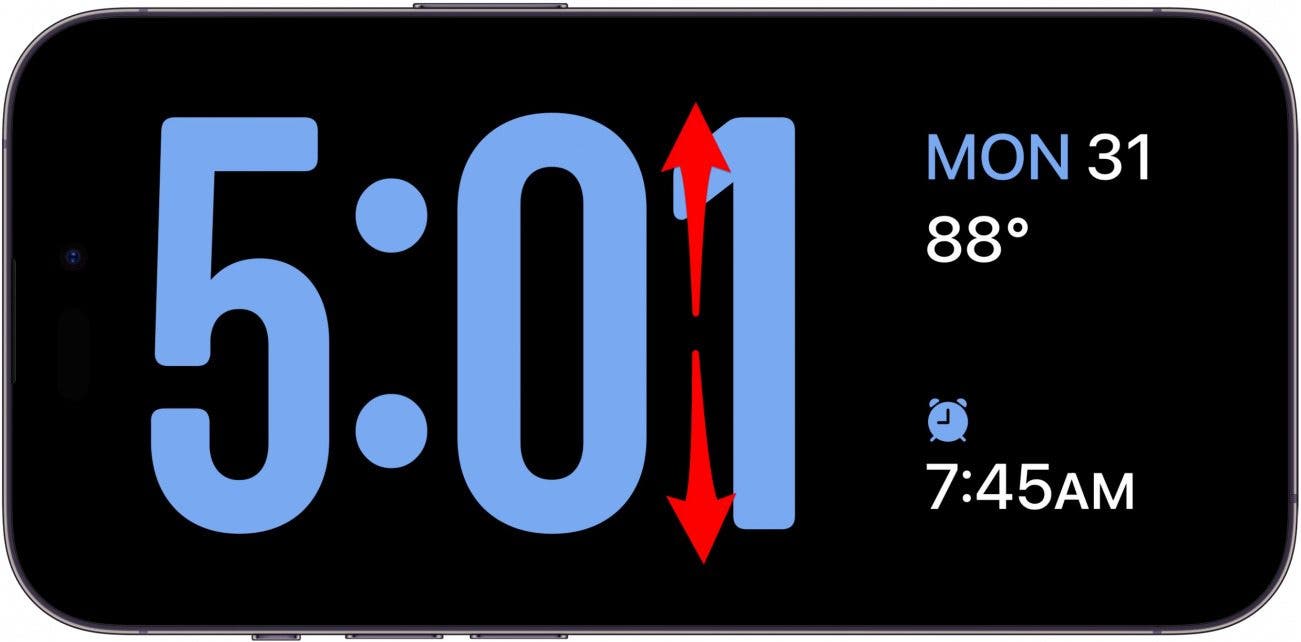
- You can swipe up and down to choose between different styles of digital clocks.
![iphone standby clock screen with red arrows pointing up and down, indicating to swipe up or down]()
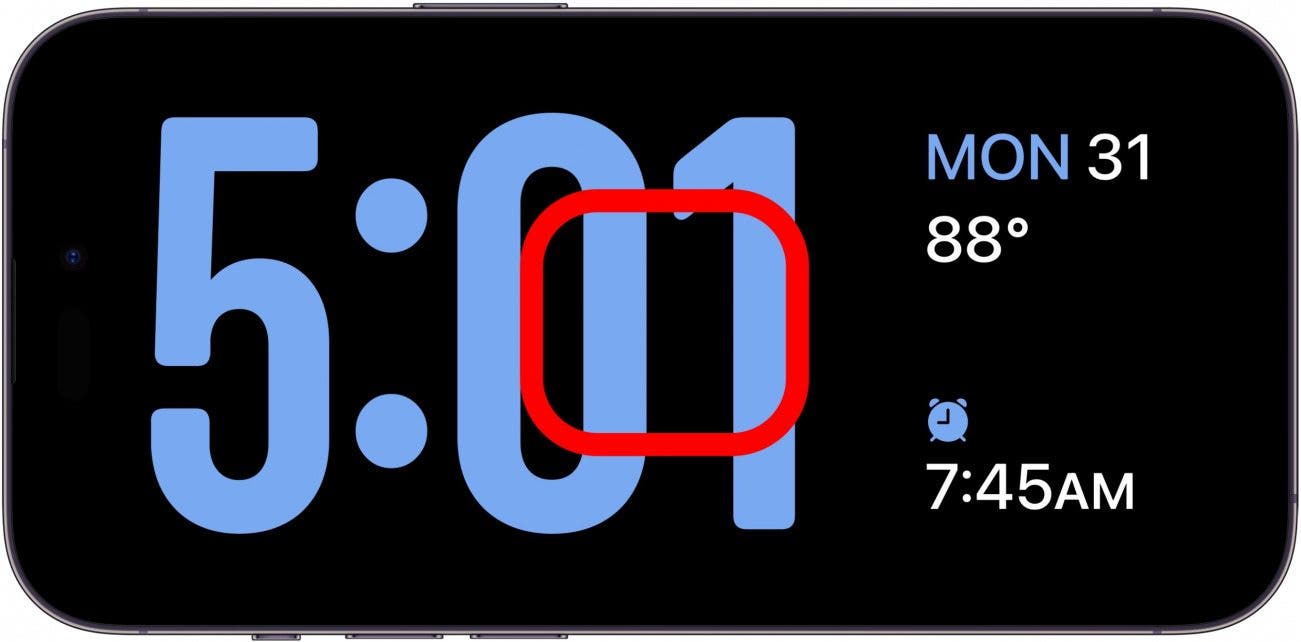
- Tap and hold the display to bring up customization options.
![iphone standby clock screen with red box in the center of the screen, indicating to tap and hold on the screen]()
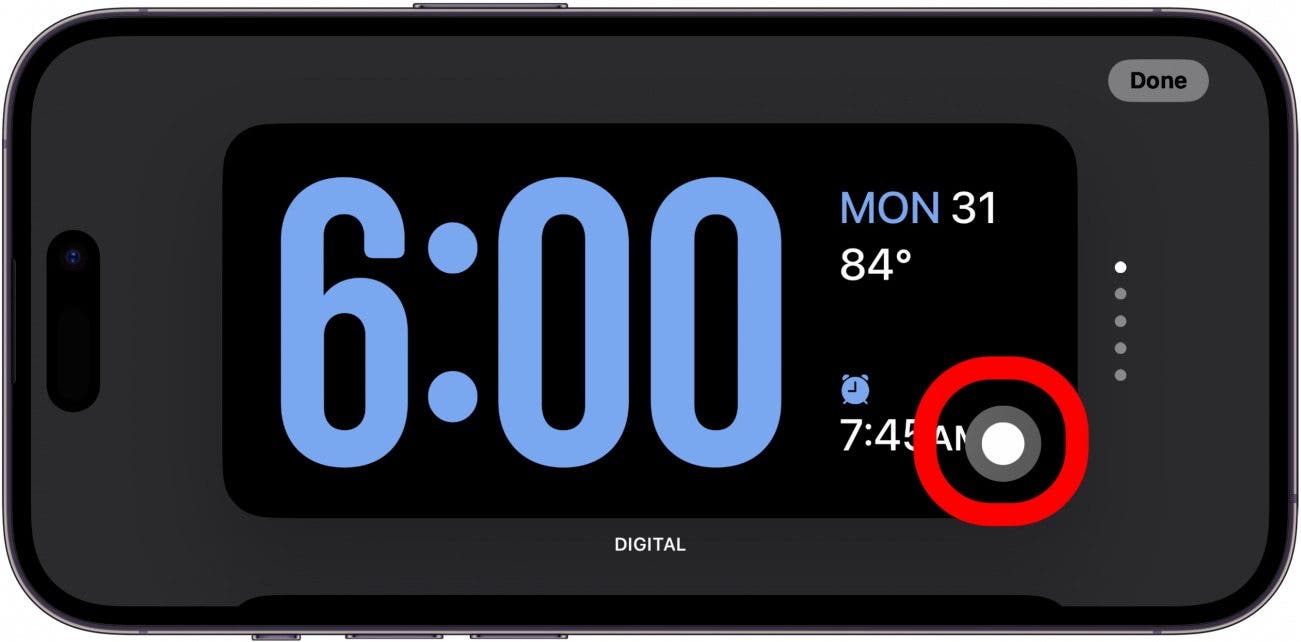
- Tap the gray circle to customize the color of the clock.
![iphone standby clock screen with clock color icon circled in red]()
- When your alarm or a timer goes off, you will see an enlarged display with buttons for snoozing, repeating, or turning off the alarm/timer.
![iphone standby screen showing a timer at 0 with repeat and stop buttons circled in red]()
- If you're listening to music or a podcast, you'll see album art and controls for pausing, playing, and skipping back and forth.
![iphone standby mode displaying music controls with a red box around pause and skip buttons]()
- When you get texts, they'll pop up as well.
![iphone standby mode displaying a text notification from rhett reading, "ready to go?"]()







That's how to display a clock on your iPhone at night! With only three display options and requiring the device to be unlocked to view photos, I feel like StandBy is not very intuitive, but it has potential. If you don't have an Apple Watch to use to check the time in the middle of the night or control your alarms in the morning, this is a great alternative. I have a MagSafe stand so its easy to simply place my iPhone on it horizontally when I'm going to bed.