* This article is from our Tip of the Day newsletter. Sign Up. *
The iPhone Reminders app is a great tool for making grocery, chore, and to-do lists, but it can feel disorganized at times. Tagging iPhone reminders makes viewing and filtering list items much simpler so you can spend more time being productive and less time trying to find what you're looking for. We'll show you how to tag reminders on iPhone.
Related: How to Find Hidden Apps on iPhone

Why You'll Love This Tip
- If you have a lot of reminders, tagging them will make it easy for you to see all similar reminders in one place.
- Sort your reminders by category for effortless organization.
How to Tag Reminders on iPhone for Better Organization
Use hashtags in Reminders on iPhone for more organized lists and easy filtering so you can quickly find what you're looking for. For more iPhone organization tips, sign up for our free Tip of the Day newsletter. Here's how to use hashtags in Reminders on iPhone.
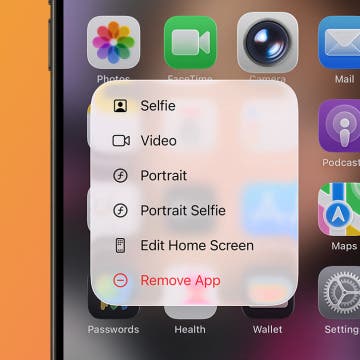
- Open the Reminders app.
![Open Reminders app]()
- Tap New Reminder.
![Add New Reminder]()
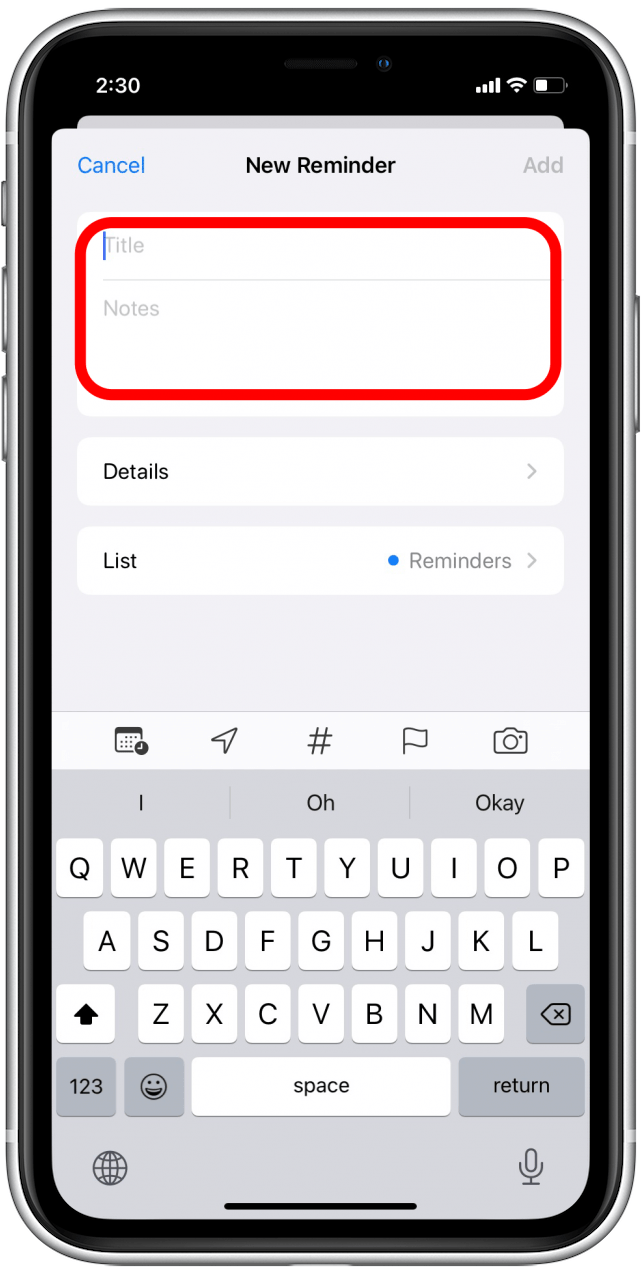
- Enter a title for your reminder.
![Title reminder]()
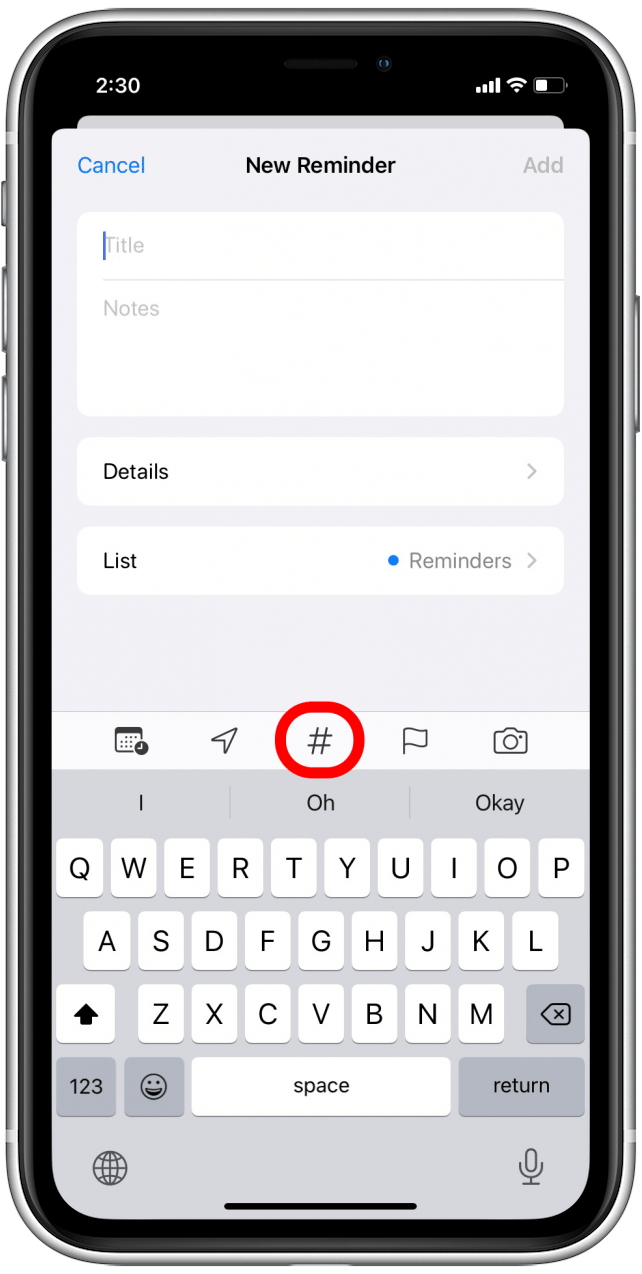
- Tap the hashtag icon to add a tag to your reminder.
![Tap hashtag icon]()
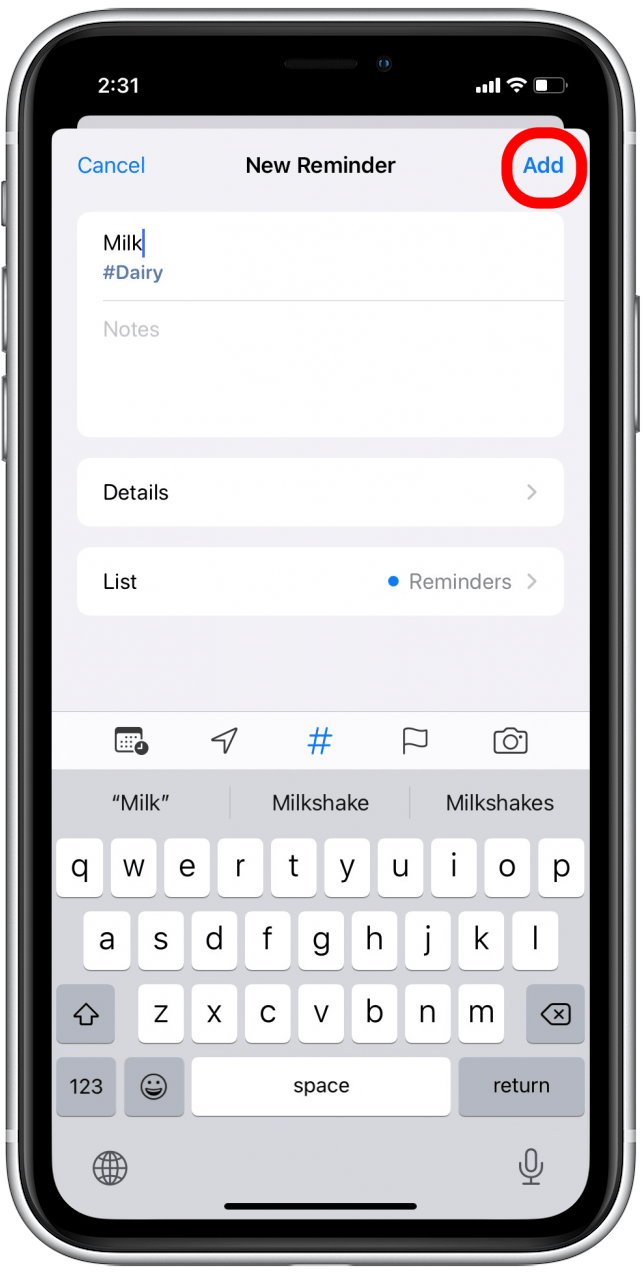
- Enter the tag you want to add to your reminder. It can be anything you want, such as someone's name, a category of food, a special event, or other tags that might make you feel more organized.
![Enter tag name]()
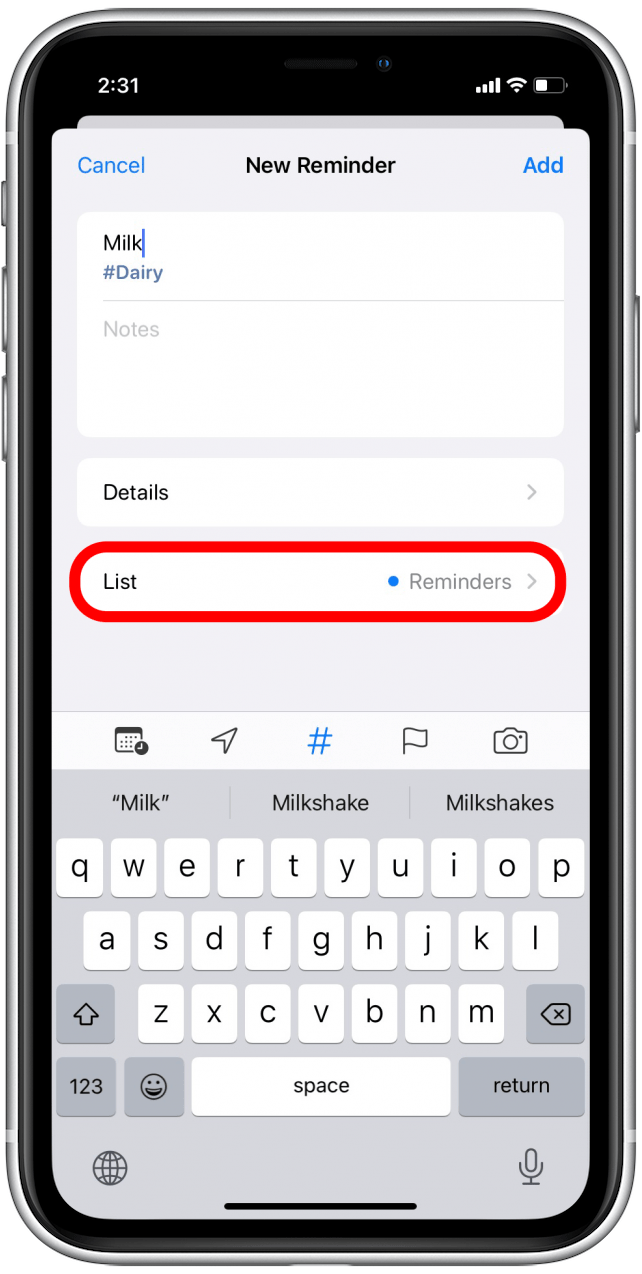
- Choose the list you want to add your reminder to by tapping List.
![Choose List]()
- Tap Add.
![Add reminder]()
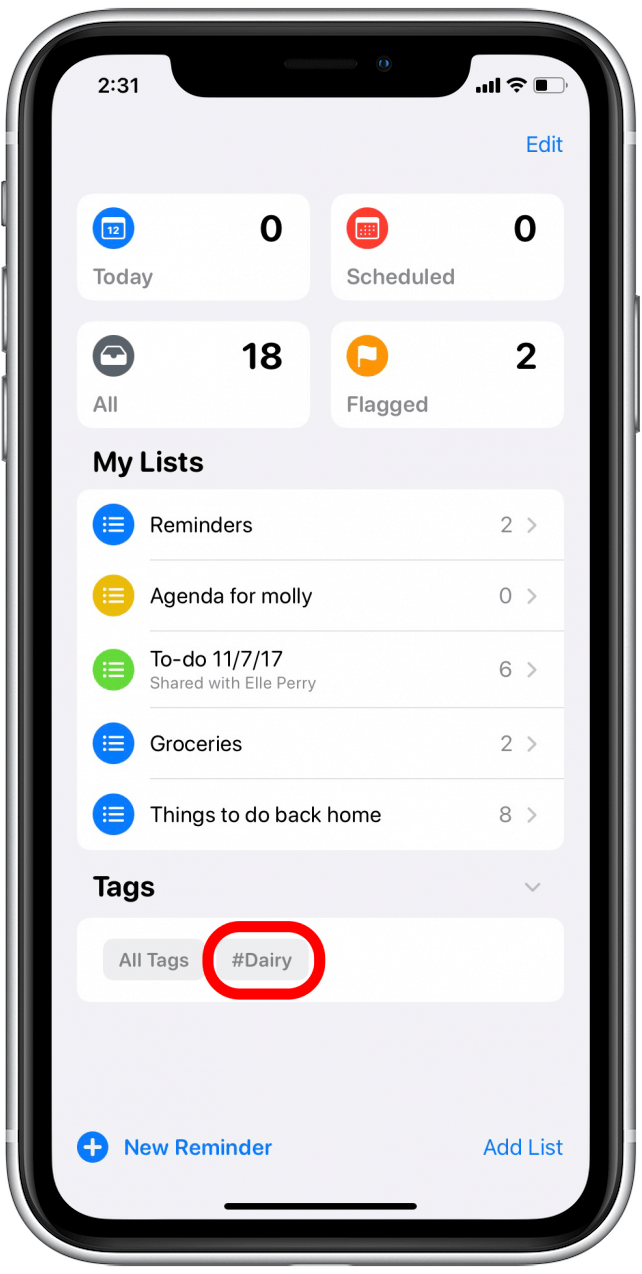
- At the bottom of the main Reminders screen, you should now see a section called Tags. You can tap on any of the tags to see all reminders associated with the tag.
![Tap tag]()



And that's it! Now you know how to add tags to reminders, plus how to filter reminders on iPhone using these new tags.