The Messages app allows users to pin a contact or even pin a group on their iPhone or iPad. Pinning keeps contacts at the top of the Messages app, making it faster and easier to send a text message to the people you message the most. Pin up to nine text threads, and if you change your mind, it's just as easy to unpin contacts in Messages. We'll walk you through how to pin a contact on iPhone and then unpin them.
Why You'll Love This Tip
- No more searching for buried conversation threads; pin your favorites to the top of the screen in Messages instead.
- Pin a group on your iPhone to keep track of plans made in group messages.
How to Pin Messages on Your iPhone & iPad
System Requirements
This tip was performed on an iPhone 16 running iOS 26. Find out how to update to the latest version of iOS.What does pinning a message mean? When you pin a contact in Messages on your iPhone, the conversation thread with that person stays at the top as an icon so that you can easily tap into and read the conversation at a moment's notice, without having to search iPhone messages to find what you're looking for.
Here's how to pin messages on your iPhone:

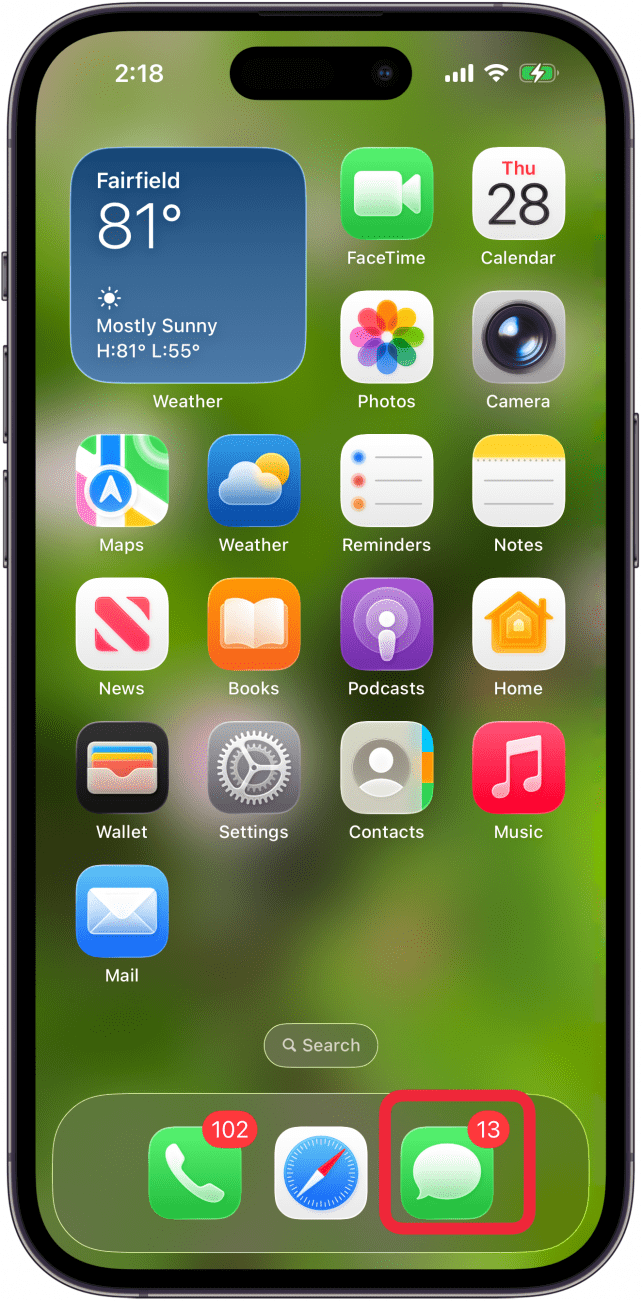
- Open the Messages app.

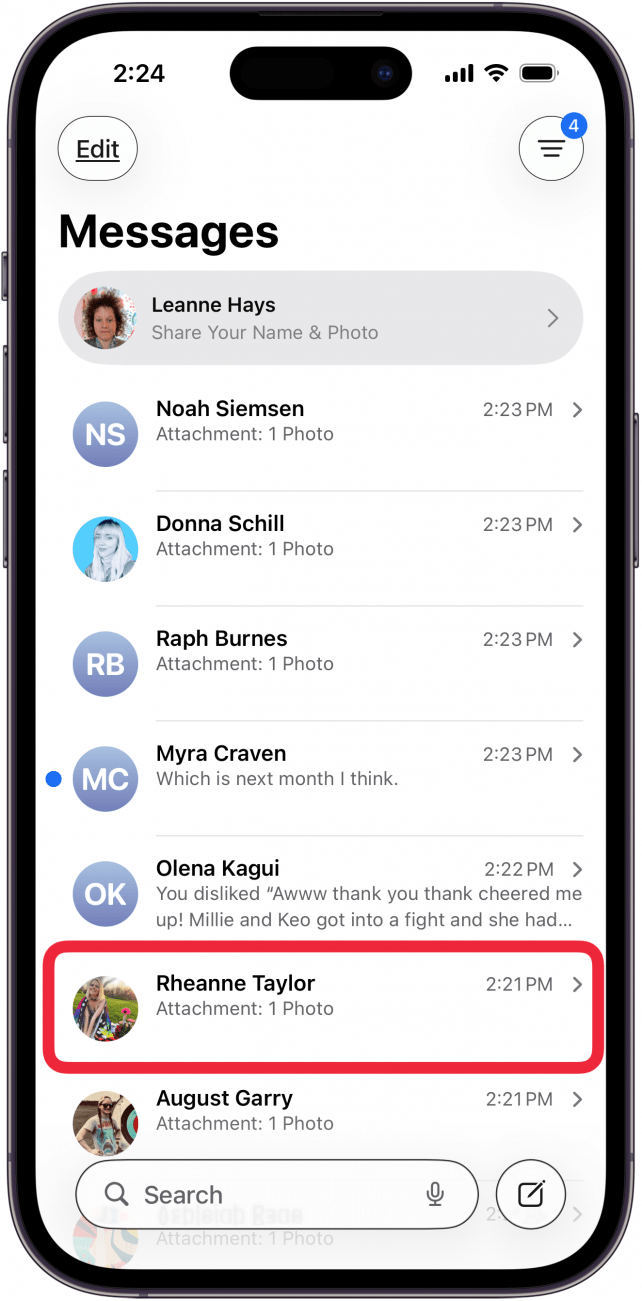
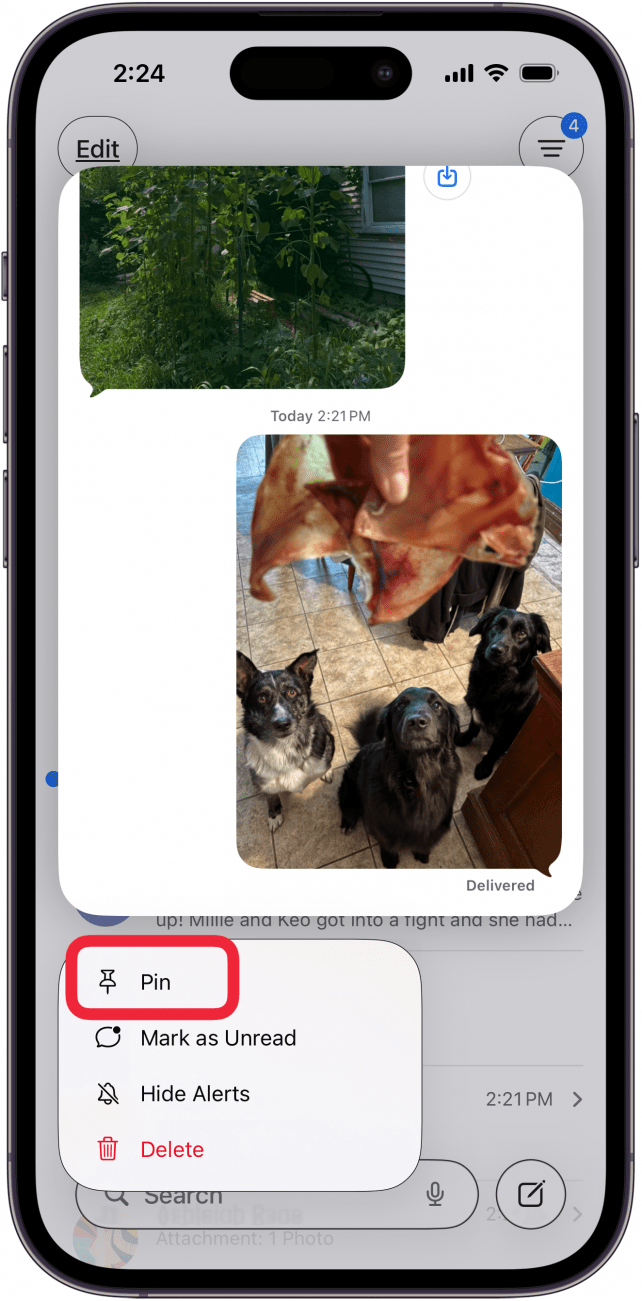
- Find and long-press the text message (not the contact icon) from the person or group you'd like to pin.

- Tap Pin in the menu that appears.

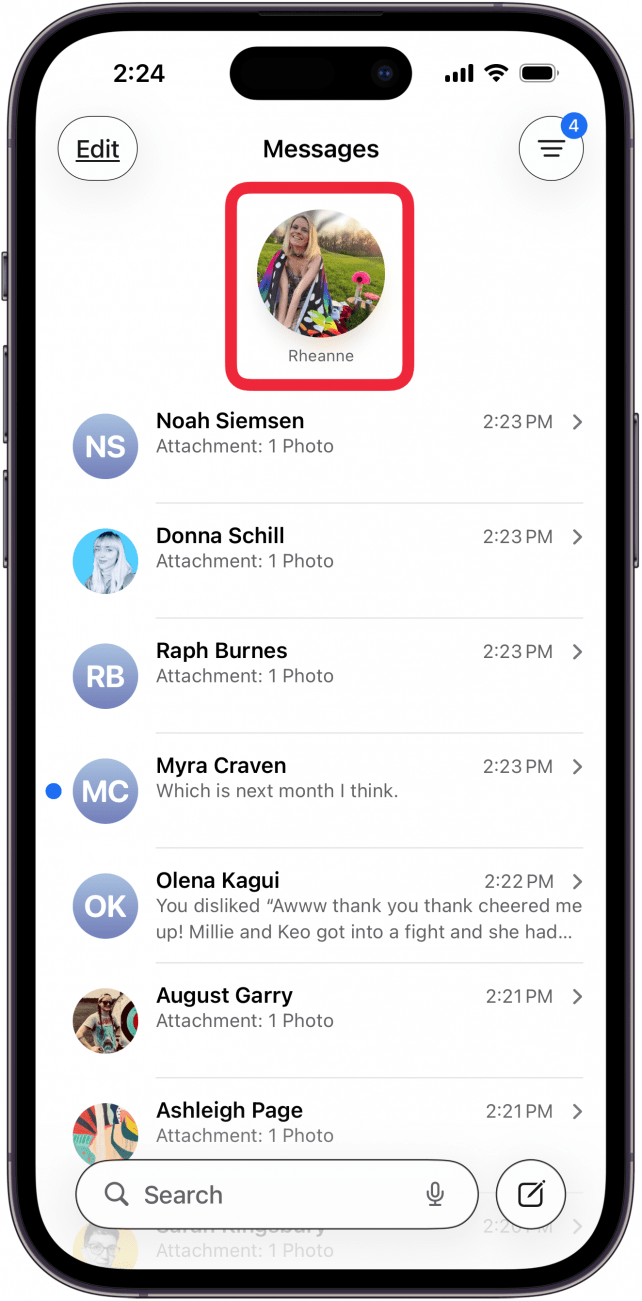
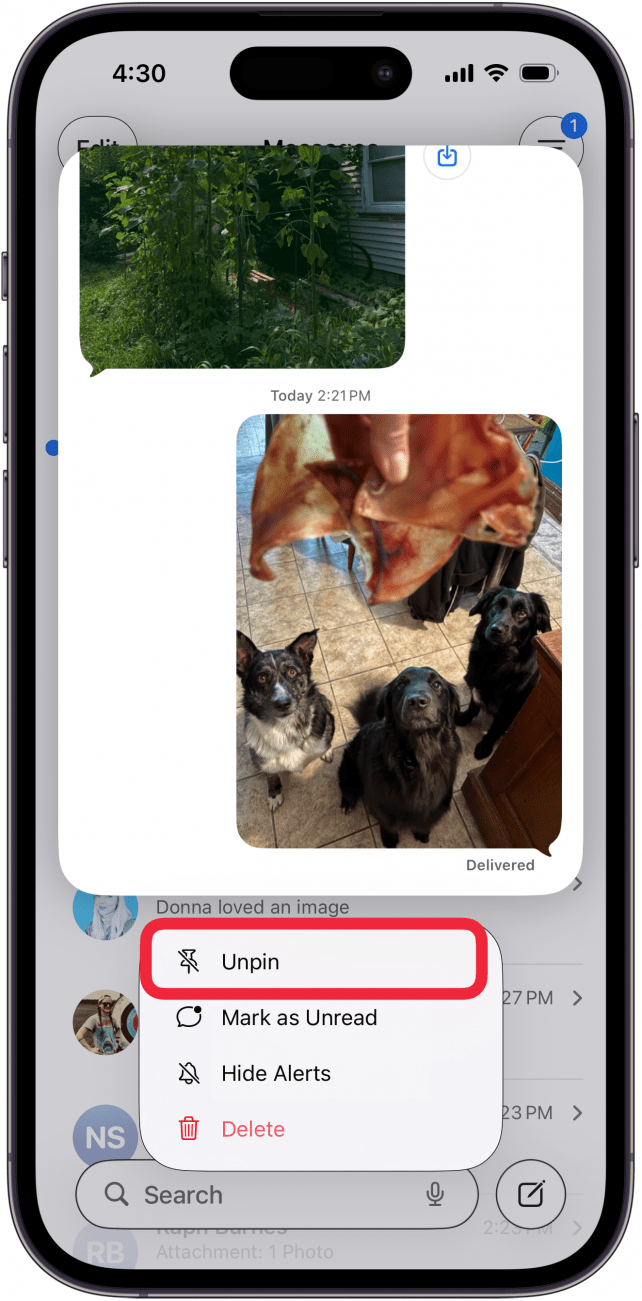
- Your contact will now be pinned to the top of your Messages list. If you want to unpin your chosen contact, long-press the icon.

- Touch and hold the pinned contact at the top of the page, then tap Unpin to unpin the contact on your iPhone or iPad.

That's how to pin someone on the Messages app on your iPhone! Now, you can keep the contacts you text the most at the top of the Messages app. Next, find out how to send a message with Siri without having to confirm it.
To learn more about managing the Messages app, sign up for our Tip of the Day newsletter!