* This article is from our Tip of the Day newsletter. Sign Up. *
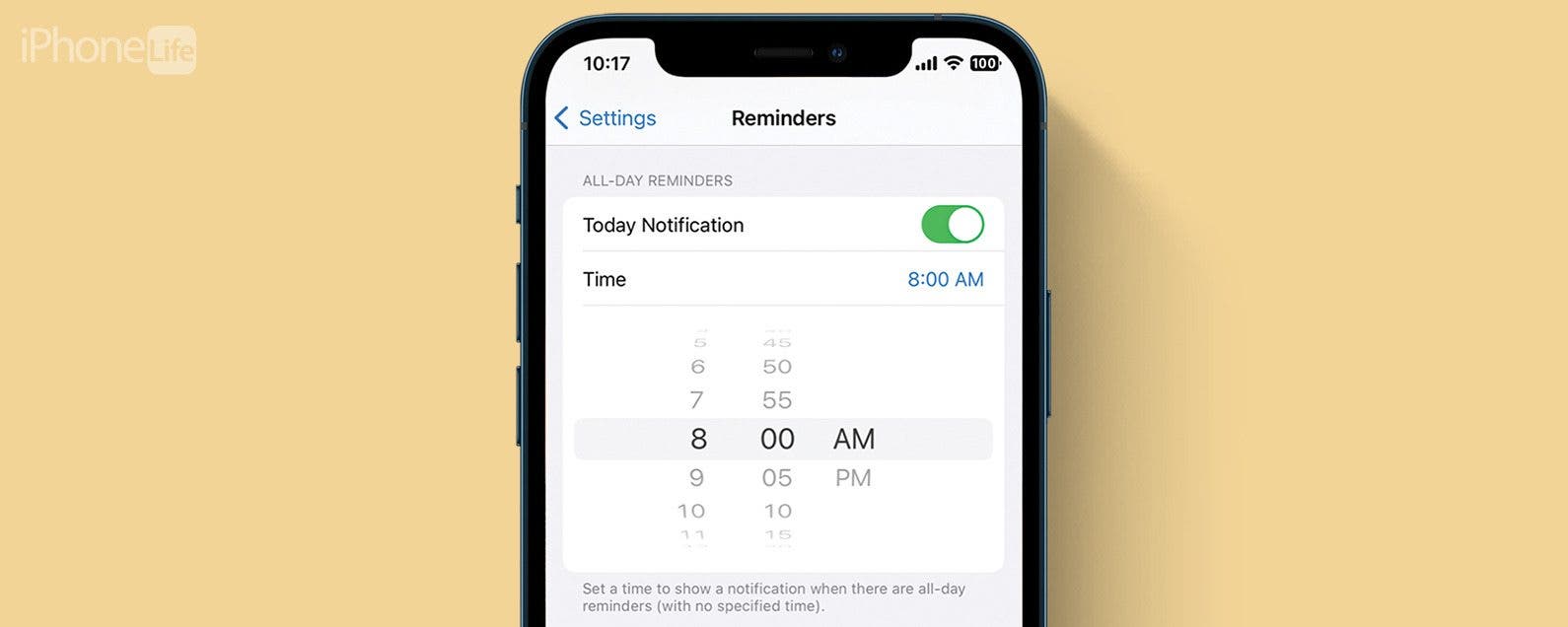
By default, when you set a Reminder for an all-day event, you receive a notification at 9 am that morning. But this is useless if your event starts two hours earlier! To solve this problem, we'll show you how to adjust the start time of all-day Reminders on your iPhone. This way, you'll receive notifications when they're most useful.
Why You’ll Love This Tip
- Adjust when you receive alerts for all-day Reminders.
- Avoid having your all-day Reminder notifications alert you after your event has already begun.
Update the Start Time of All-Day Reminders
To learn more about the fun and useful features on your iPhone, sign up for our free Tip of the Day Newsletter. Now, here's how to update the start time of all-day Reminders on your iPhone:

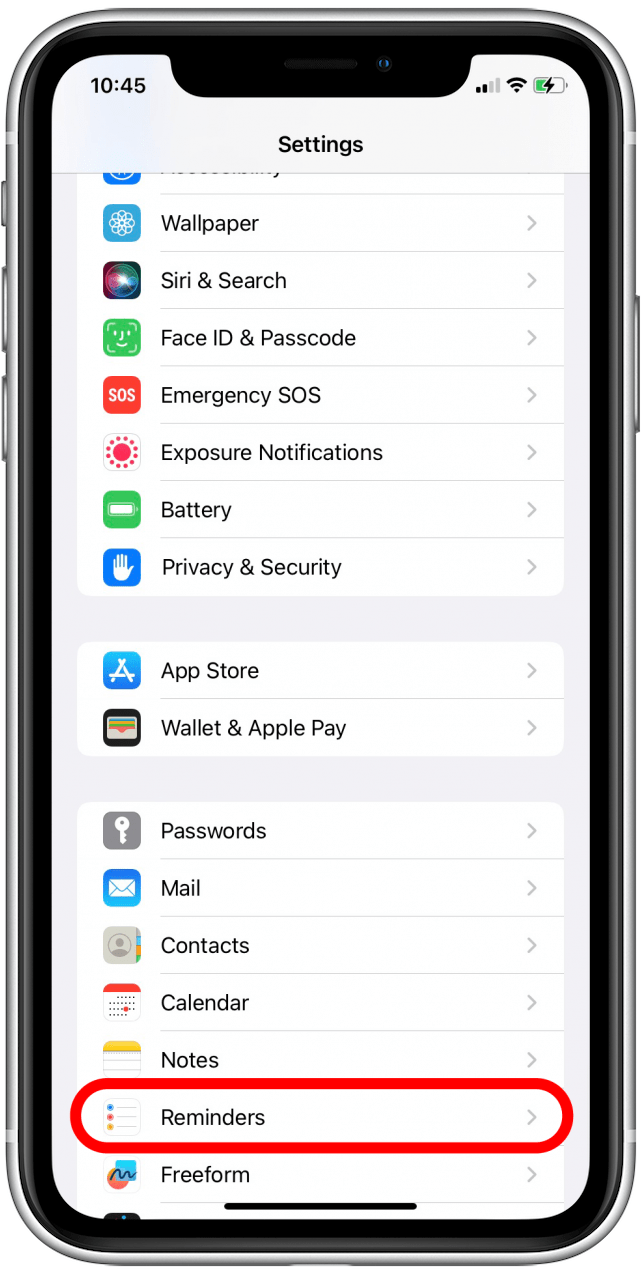
- Open Settings app, then scroll down and tap Reminders.
![Scroll down and tap on Reminders.]()
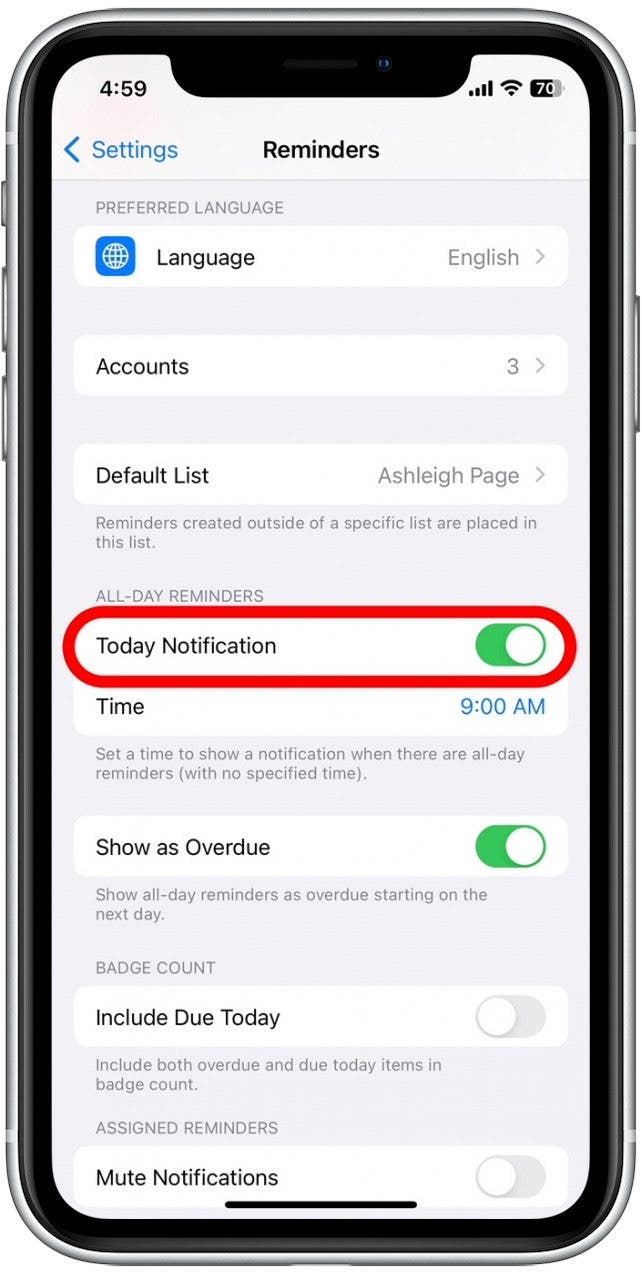
- Tap the Today Notification toggle to turn it on, if it isn't already enabled.
![Make sure you've enabled the toggle for all-day notifications.]()
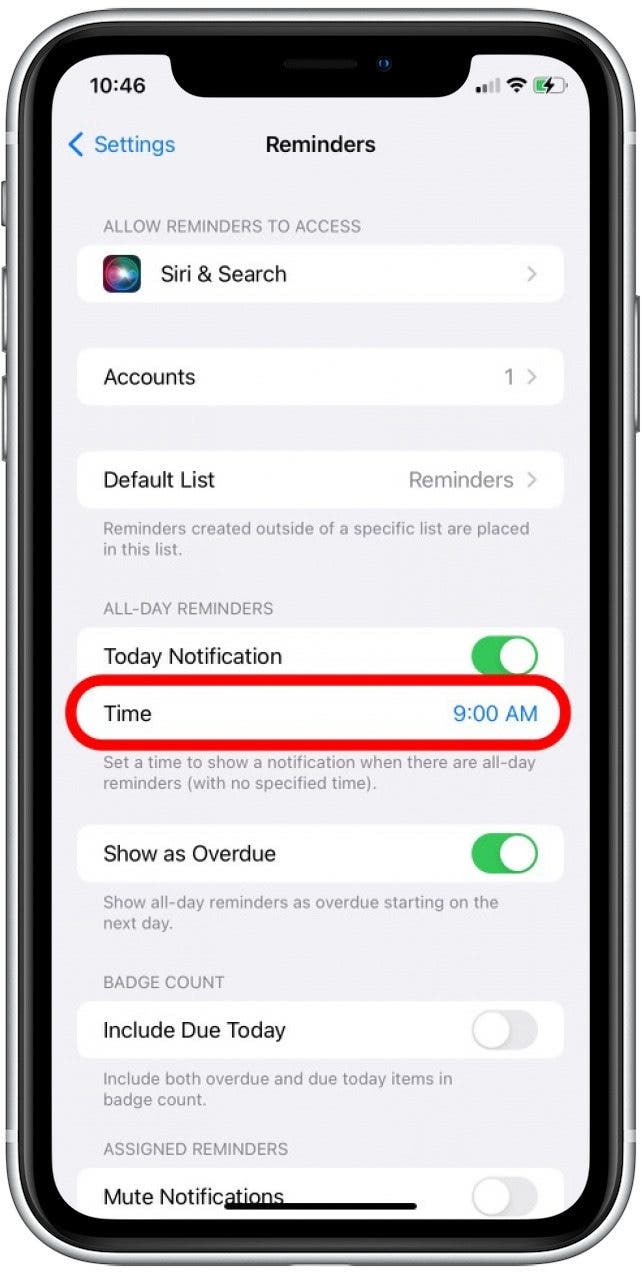
- Under the All-Day Reminders header, tap Time.
![Under the All-Day Reminders header, tap on Time.]()
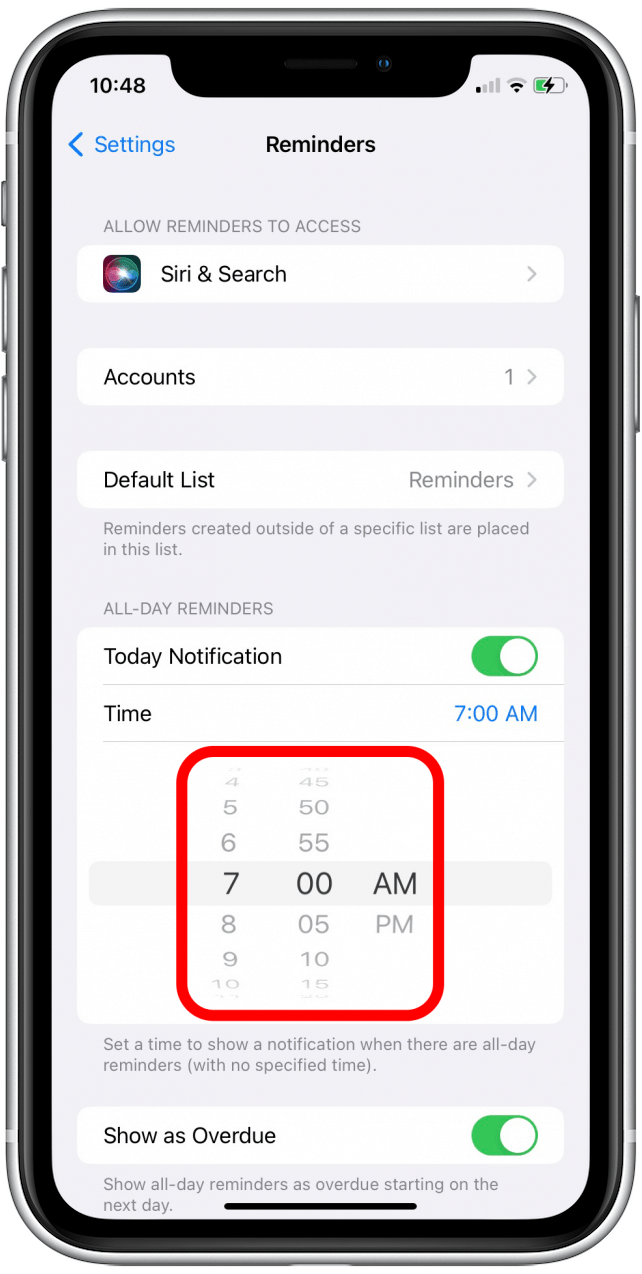
- Swipe up and down over the hour, minute, and AM/PM dials to select when want to receive all-day Reminders.
![Slide the hour and minute dials to select whatever time you want to receive all-day reminders at.]()
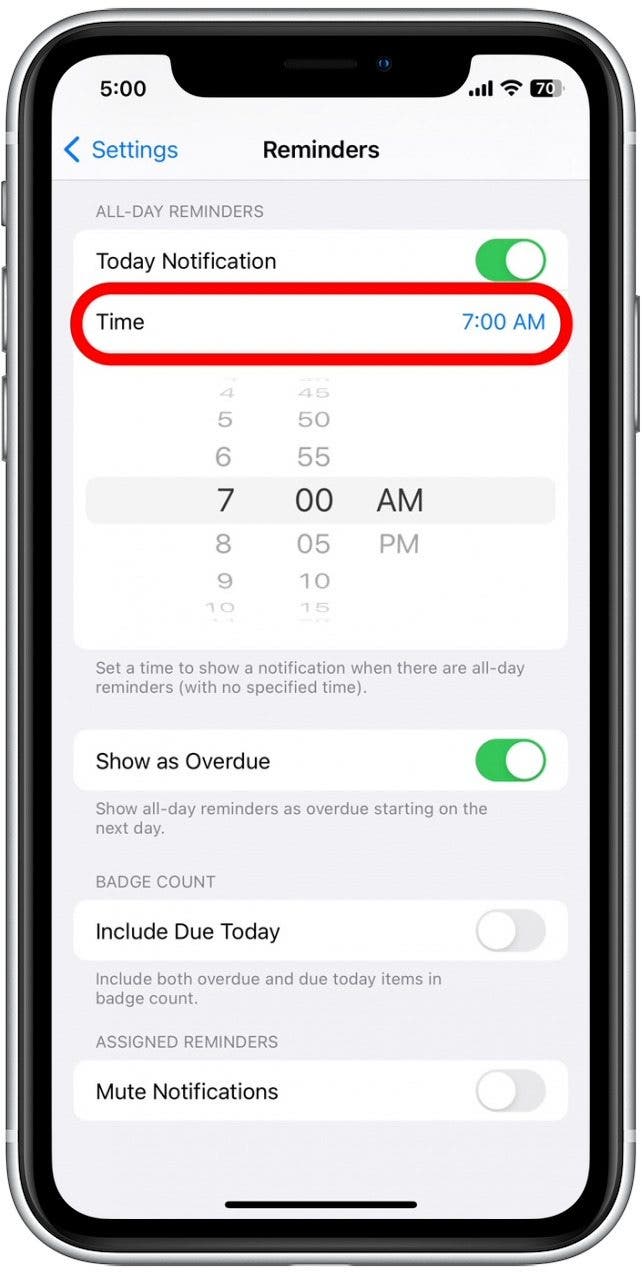
- Tap Time to close the menu and save your new start time.
![Tap Time to set a new time to receive all-day Reminder alerts.]()
Now you'll begin receiving all-day notifications at the newly-set time on the day of your Reminder. If you enjoyed this tip, you might also want to learn the easy way to recover deleted texts in the Messages app.