
Restricted! iPhone & iPad Parental Control with iOS 12
By Leanne Hays

This will sound strange coming from someone who works for a tech publication, but I’ve been so worried about buying my daughter a cellphone that I’ve put it off until she was literally the last kid in her grade without one. What have I been worried about? Everything from the more minor things like screen addiction and gigantic data overages, to larger, 60 Minutes-level fears of her getting cyberbullied or meeting an online predator. Now, though, she’s almost 14 and will be in high school next year. I’ve come to the realization that it’s part of my job as a parent to ease my teenager into the technology that’s an everyday part of all our lives, rather than keeping her from it so she has to acclimate herself all at once when she’s old enough to purchase her own smartphone.
How to Connect & Set Up Your Apple TV & Apple TV Remote
By Leanne Hays

I'll confess that when I first learned about the Apple TV, I thought that it was, well, a TV. I remember being surprised at the price; "Wow! $149 for an HDTV, that's so reasonable for an Apple product!" Clearly, I had no idea what an Apple TV is, let alone how to hook one up or use one. Things have changed, though (it was a steep learning curve), and now I actually know how an Apple TV works, what's needed to connect one, how to set up an Apple TV, and even how to pair the remote or use your iPhone as a remote. Let's get started setting up your Apple TV!
What Is the Best Password Manager for iPhone?
By Leanne Hays


Through the years, FaceTime has evolved and improved to include more devices and capabilities. With Apple's iOS 15, we can finally place a FaceTime call to Android users via a link, not to mention all the cool features now available with SharePlay. In this guide, we'll cover how to make a call using the FaceTime app, how to FaceTime with Android users, how to share your screen, and more!
How to Use the iPhone Level in the Measure App
By Leanne Hays

Forgot Your Passcode? How to Restore a Disabled iPhone or iPad with iTunes, iCloud, or Recovery Mode
By Leanne Hays

So you forgot your iPhone passcode; now what do you do? If you've entered the wrong password for your Lock Screen too many times, you already know your iPad or iPhone is disabled and are wondering how to restore your device. There are a few ways to reset the Apple password on your device and get into a locked iPhone or iPad, whether you have an older iPhone like an iPhone 6 or 7, all the way up to the newest iPhones. Let's get started learning how to reset a disabled iPhone or iPad with iTunes, iCloud or recovery mode.
How to Share Screen on FaceTime
By Leanne Hays
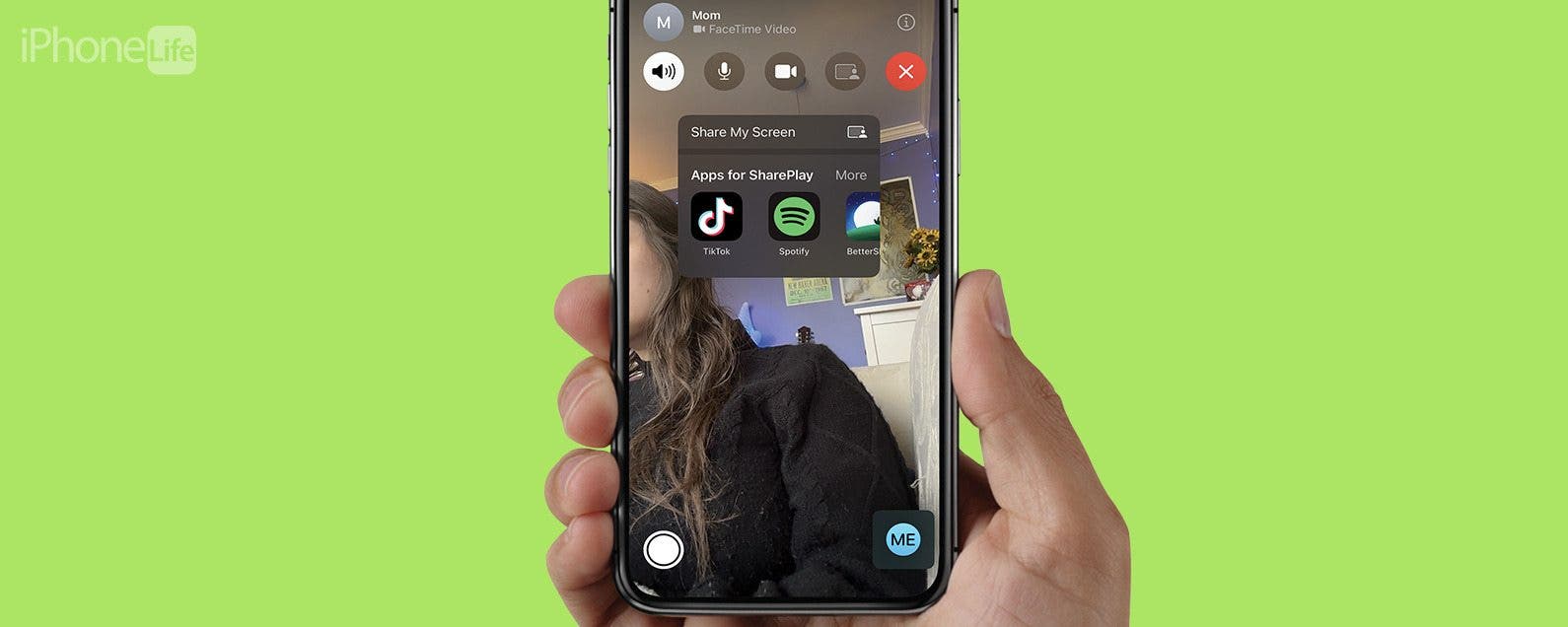
As someone who lives very far away from my closest friends and much of my family, FaceTime calls have become the lifeblood of many of my longest relationships. This also means that so much of our lives are separate, and I can’t simply lean over on the couch to show my friend or family member something cool on my phone. However, it can be that simple with Screen Sharing on a FaceTime call!
How to Add Another Face ID to iPhone
By Leanne Hays

Face ID has been the default for Apple's smartphone security since its debut. However, if you'd like to share your iPhone with a partner, friend, or child, unlocking might be a little difficult. Luckily, just like Touch ID allows you to save multiple fingers, there is a way to allow another face to unlock your iPhone. We'll show you how to add another Face ID.

We all want our kids to avoid screen addiction and be safe online, but that can be hard to accomplish when children have open access to the internet via their iPhone or iPad. Fortunately, Apple's Screen Time parental controls are easy and free to use. In the past you might have had to pay for iPad or iPhone parental control apps to make sure inappropriate content wasn't getting through on your kids' devices, but not anymore. Learn how to set up Screen Time settings on your child's iPhone and iPad, and how to lock those settings so your curious kids can't access the content you've blocked.

Now that November is here I can officially start thinking about Christmas gift ideas, and lucky for me I was tasked with writing this roundup of top tech gifts under $100. I found so many cool things to buy for the 2018 holidays; gifts for women and men, and even a few things kids and teenagers will love. Let's get started with my 2018 Buyer's Guide for tech gadgets, including toasty warm winter texting gloves, a GPS tracker to help find lost items, a smart water bottle, and more. Your friends and loved ones are going to be really happy with their presents this year!
Pages

