Some iPhone users find the Tap Recents to Call feature very convenient. Others want to be able to see information about recent calls without calling the person back. Here's how to turn on Tap Recents to Call, or turn off Tap Recents to Call.
Why You'll Love This Tip
- Learn how to disable the Tap Recents to Call feature if you want to see recent call details without calling the contact back.
- Turn Tap Recents to Call on if you want the option to call back right from the Recents tab of your Phone app.
How to Turn Tap Recents to Call Off & On
System Requirements
This tip works on iPhones running iOS 18 or later, and was tested on an iPhone 17 Pro running iOS 26. Find out how to update to the latest version of iOS.
Do you want the convenience of tapping a call in the Recents tab to dial that contact? If so, you'll want to turn on Tap Recents to Call. If you decide you don't like the setting after all, you'll need to turn Tap Recents to Call back off. To begin, you'll need to make sure you're in the Unified view of the Phone app to see the Tap Recents to Call setting (you'll need to go bak to the Classic view to use Tap Recents to Call). To do this:
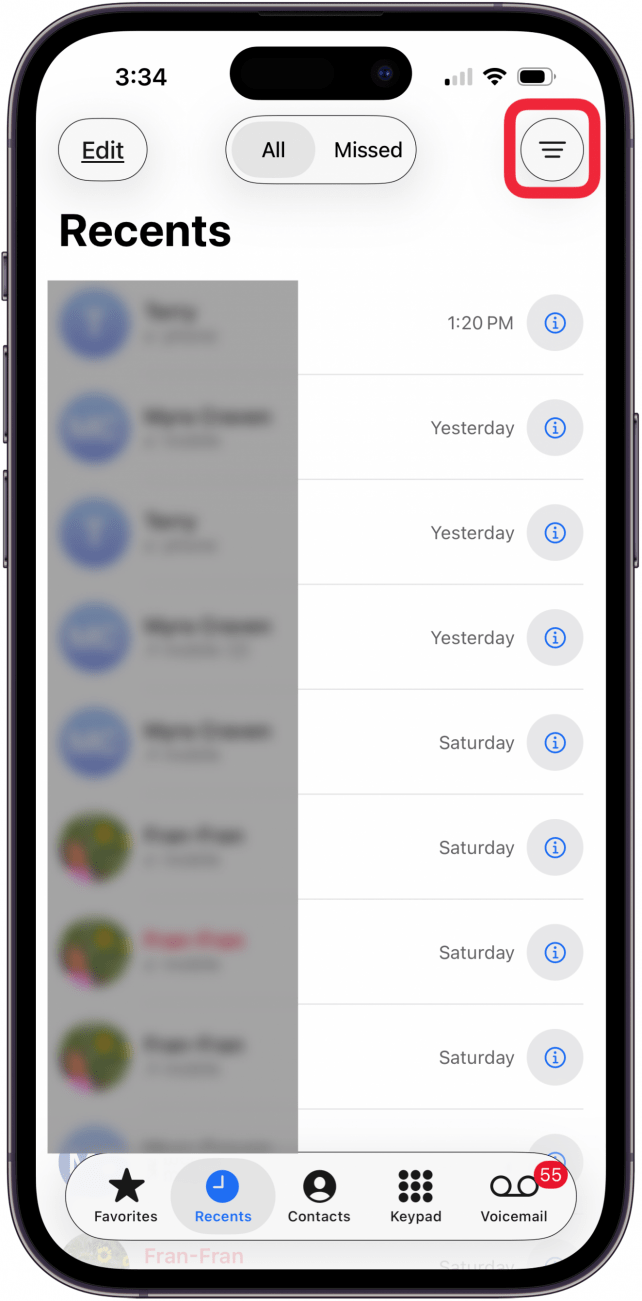
- Open the Phone app and tap the three horizontal bars icon at the top-right of the screen.

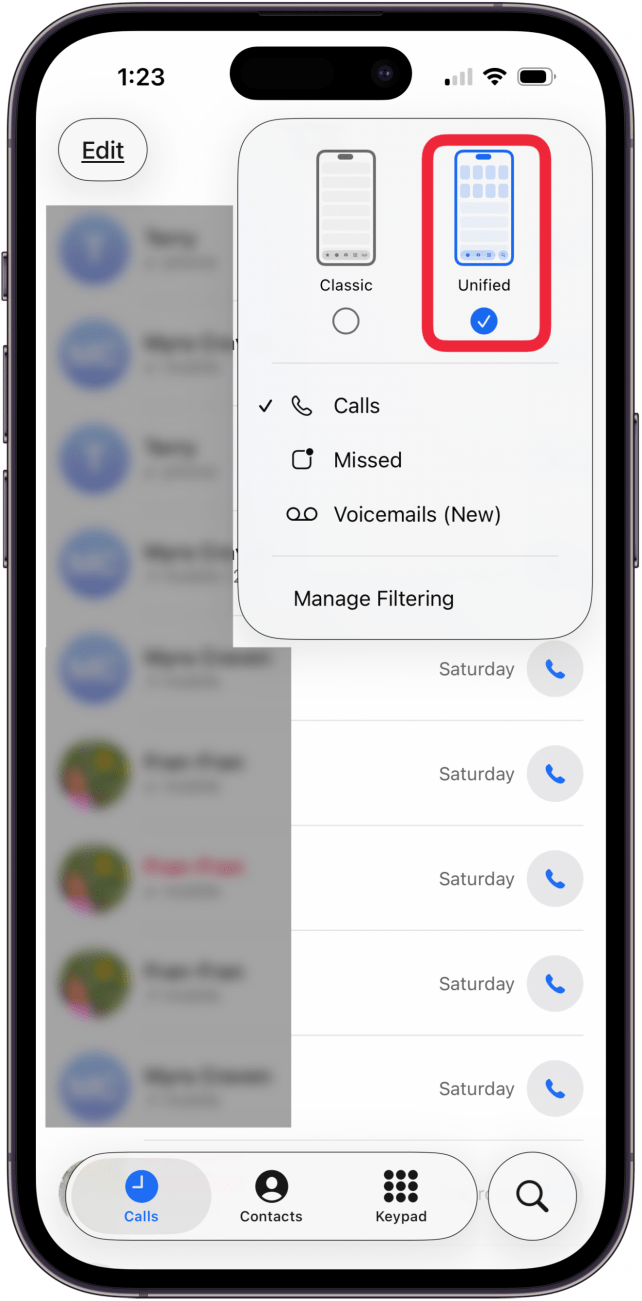
- Tap Unified. (If you use the Classic Phone app layout, you won't be able to complete the rest of the steps.)

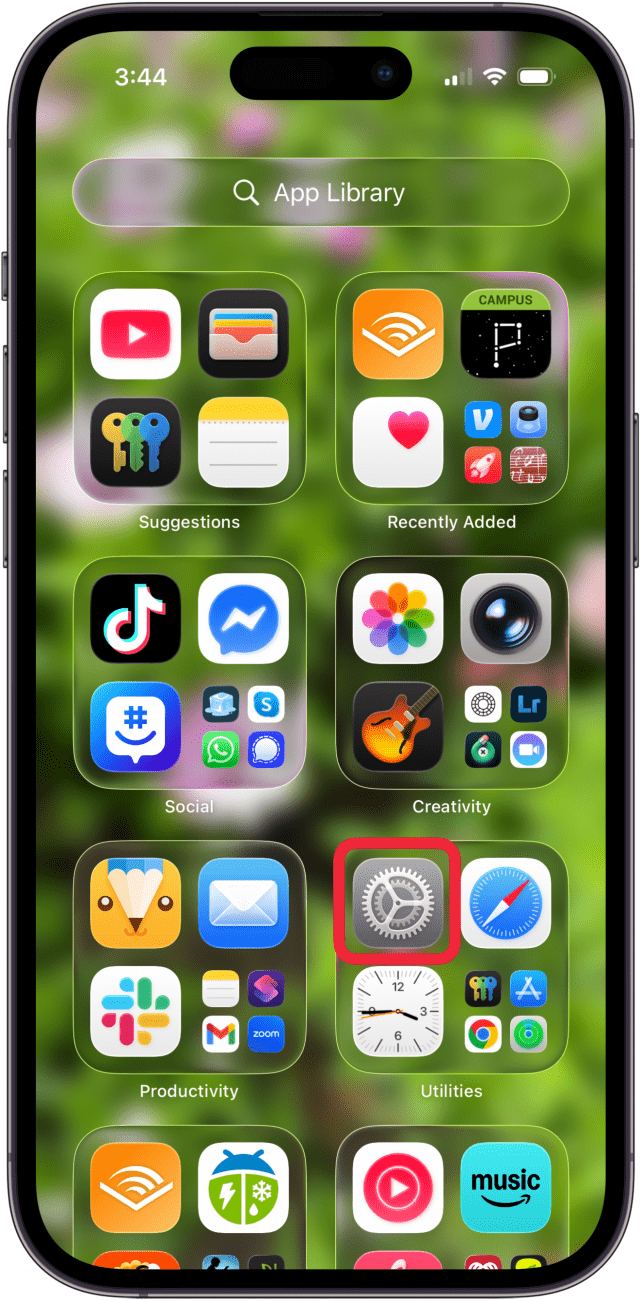
- Now, open the Settings app.

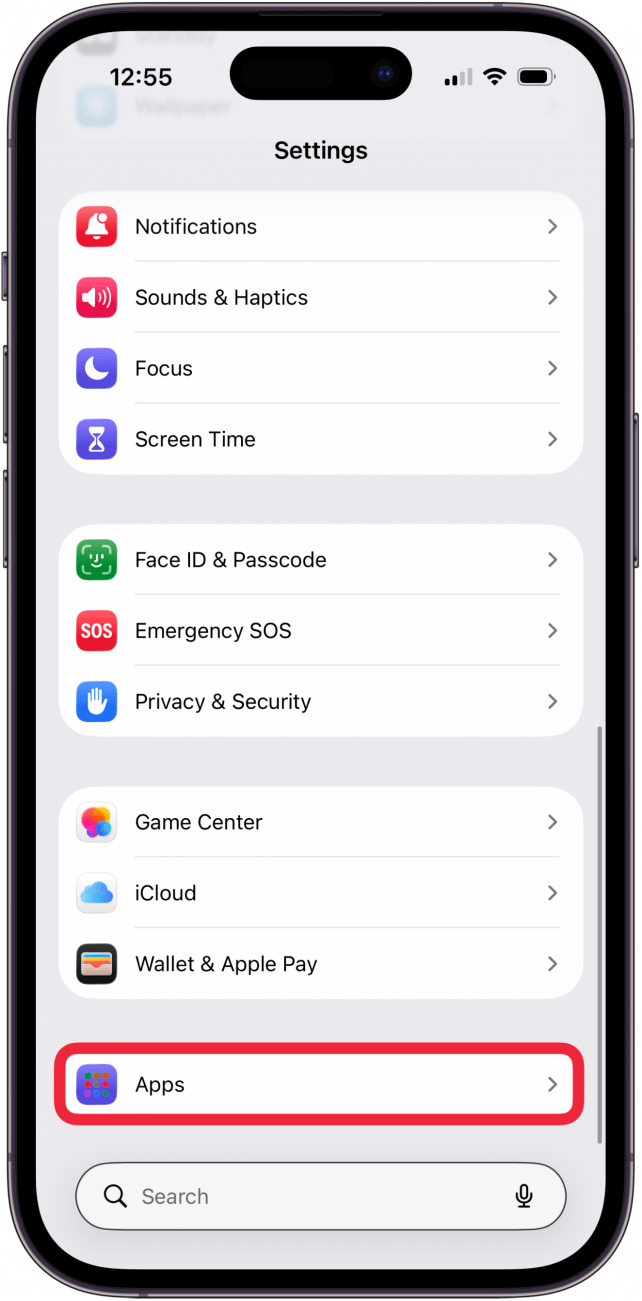
- Tap Apps.

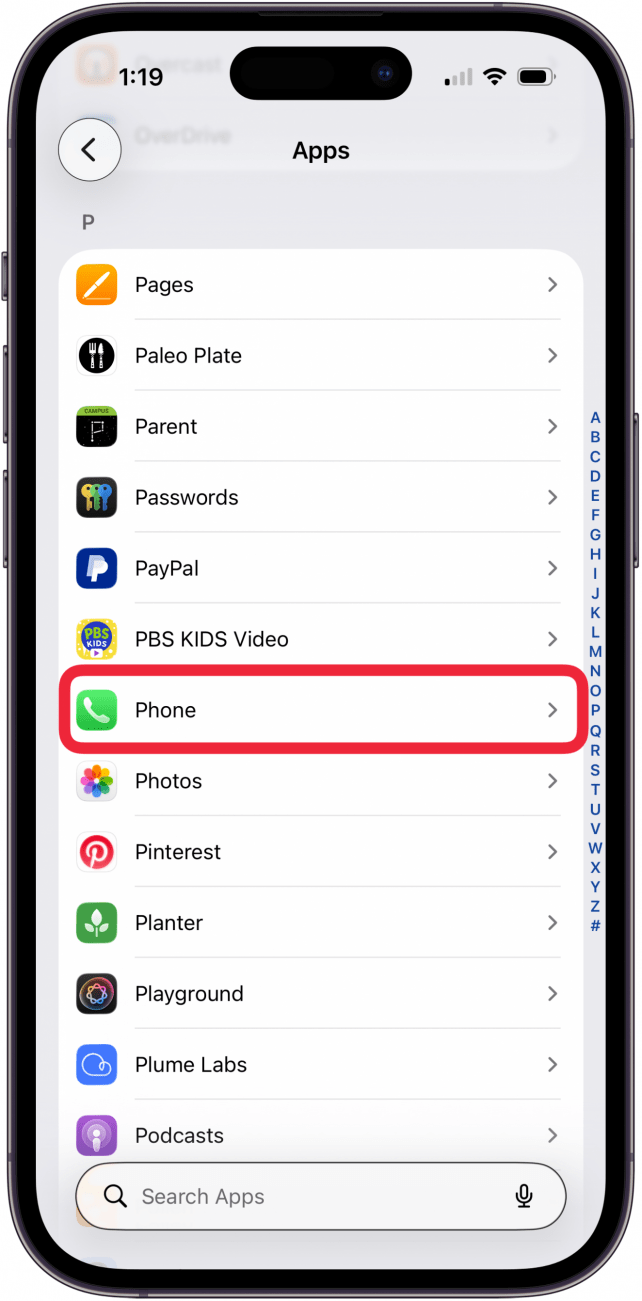
- Tap Phone.

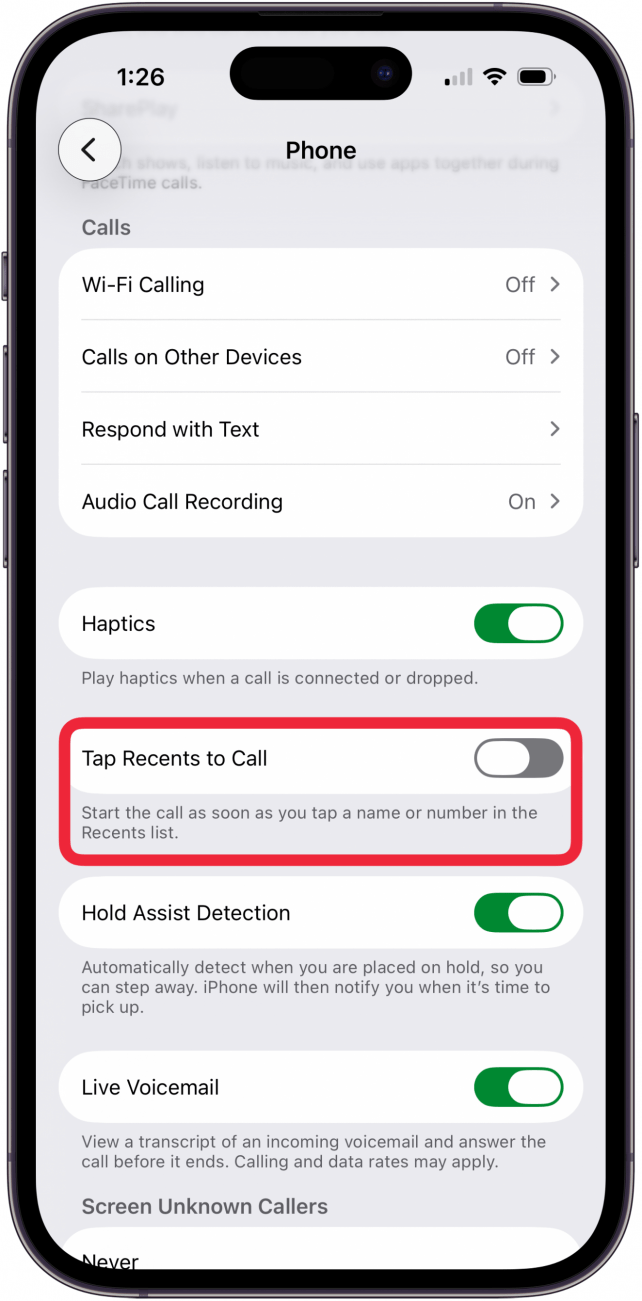
- Toggle off Tap Recents to Call. If you change your mind later, you can come back and toggle the setting back on.

That's how to turn on or off Tap Recents to Call on your iPhone. Be sure to check out our free Tip of the Day for more great Phone app tutorials.