* This article is from our Tip of the Day newsletter. Sign Up. *
There are hundreds of Mac keyboard shortcuts to help boost your productivity and streamline multitasking. Mac hot corners are nifty shortcuts that are simple to set up and even faster than common keyboard shortcut commands. Below, we'll show you how to set up hot corners on your Mac. Once I started using hot corners I wondered how I ever got along without it.
Related: This Simple Gesture Is the Fastest Way to Share Photos between iPhone, iPad & Mac

Why You’ll Love This Tip
- Launch up to four commonly-used commands with the flick of your mouse.
- Access handy features such as Mission Control and Quick Note without even having to use keystrokes.
How to Set Up Hot Corners on Mac
To learn more time-saving Mac shortcuts, sign up for our free Tip of the Day newsletter. To set up a hot corner, you will select a pre-programmed shortcut in System Preferences. Then, whenever you move your cursor to that corner of the screen, you will activate that command. For example, I have my computer set up to automatically go to sleep whenever I shift my cursor to the lower-left corner. You can set up a shortcut for only one corner of your screen, or add a shortcut for each corner. In the example below, we’ll show you how to set up a hot corner to launch Mission Control:
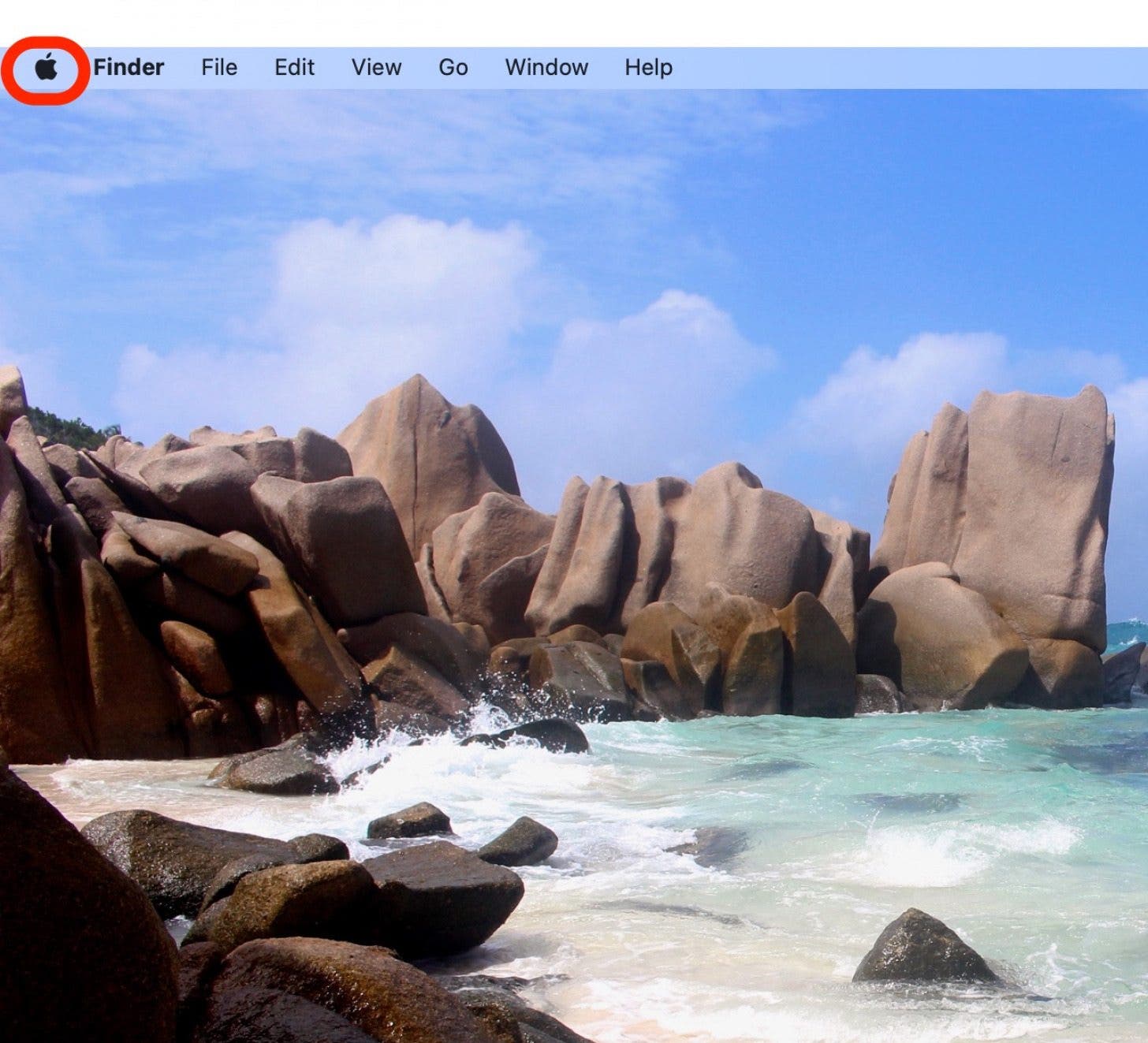
- Click on the Apple Menu.
![How to Use Mac Hot Corners Step 1 - Apple Menu]()
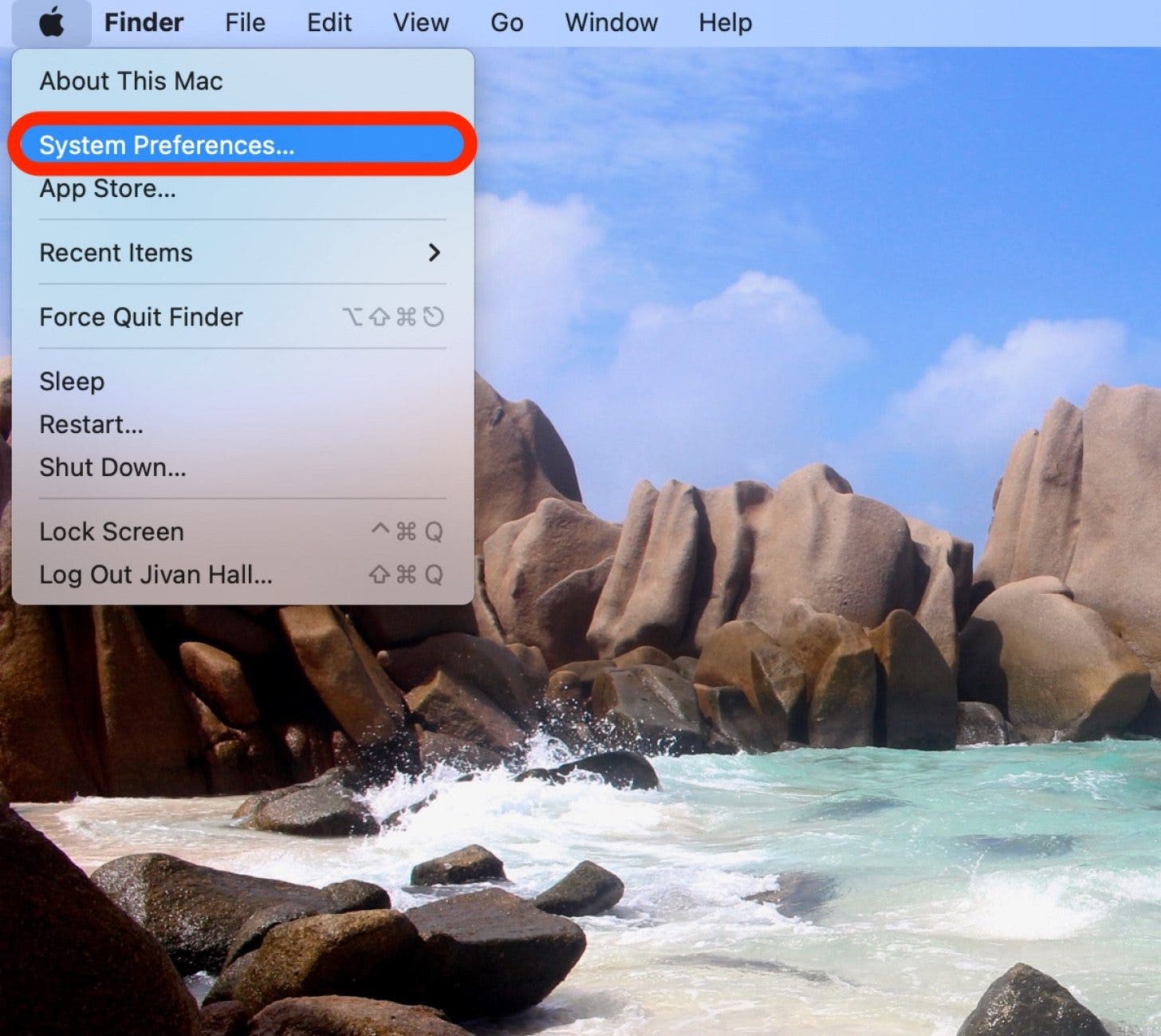
- Click System Preferences.
![How to Use Mac Hot Corners Step 2 - System Preferences]()
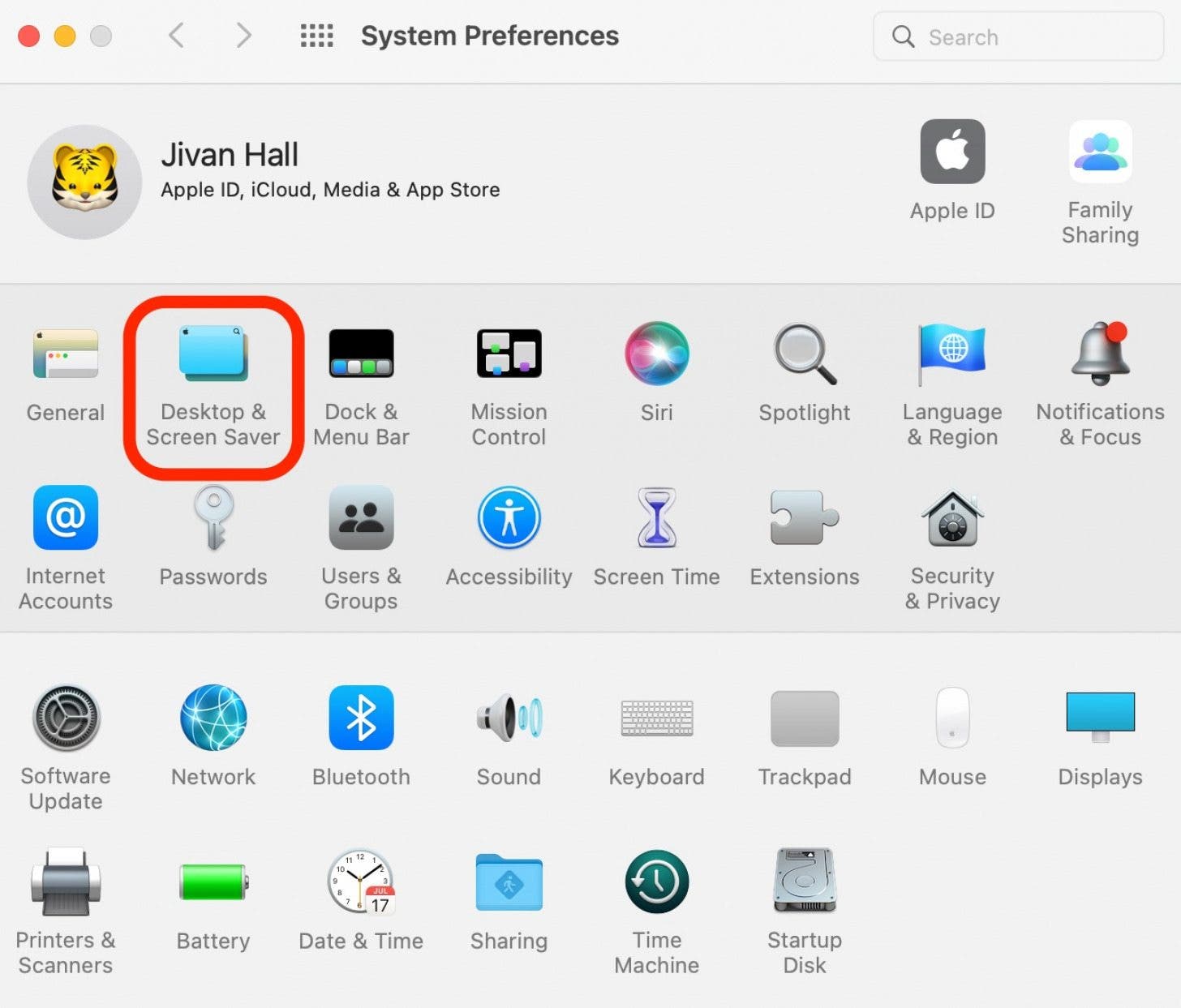
- Click Desktop & Screen Saver.
![How to Use Mac Hot Corners Step 3 - Desktop & Screensaver]()
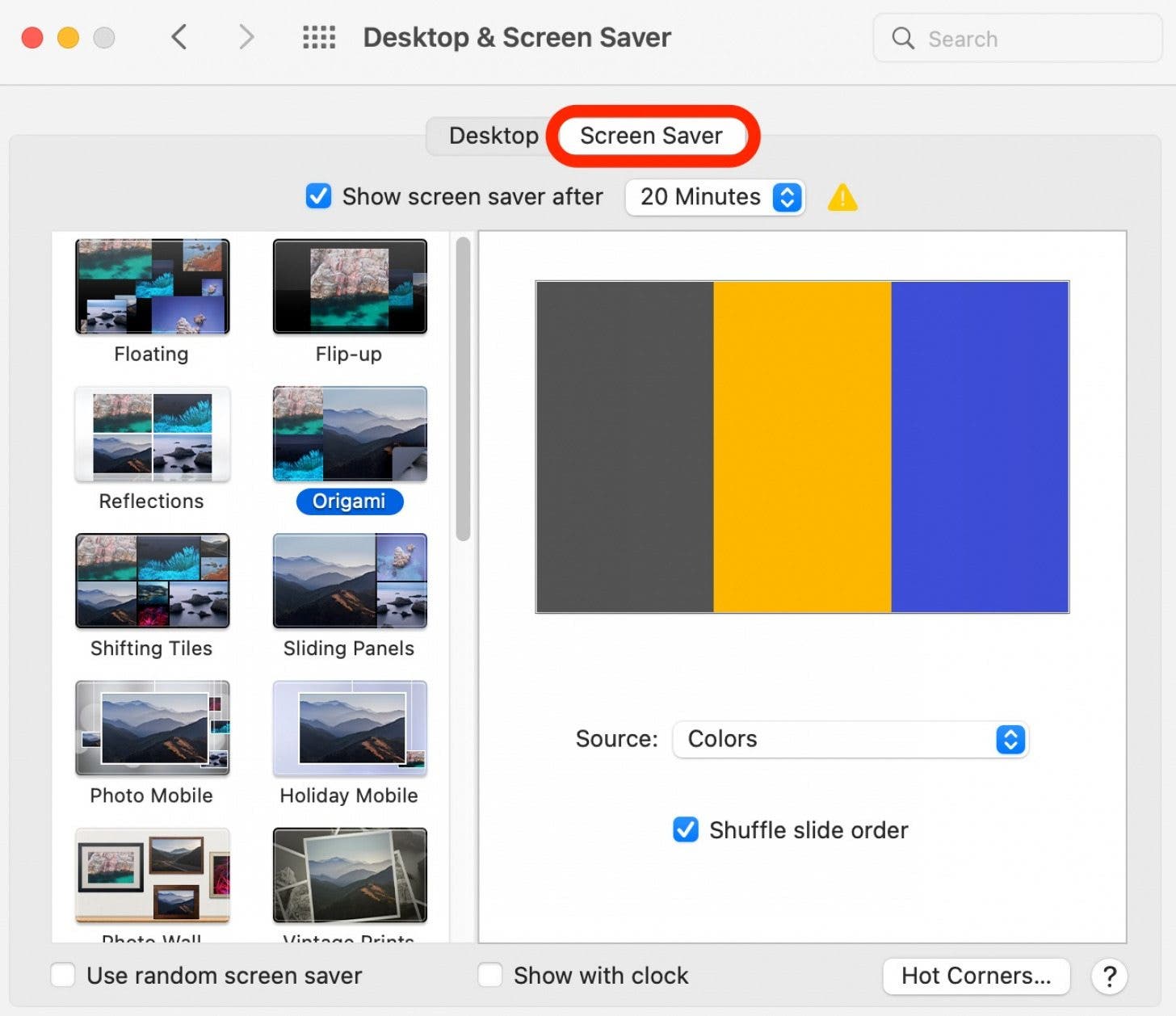
-
Click Screen Saver.
![How to Use Mac Hot Corners Step 4- Select screen Saver]()
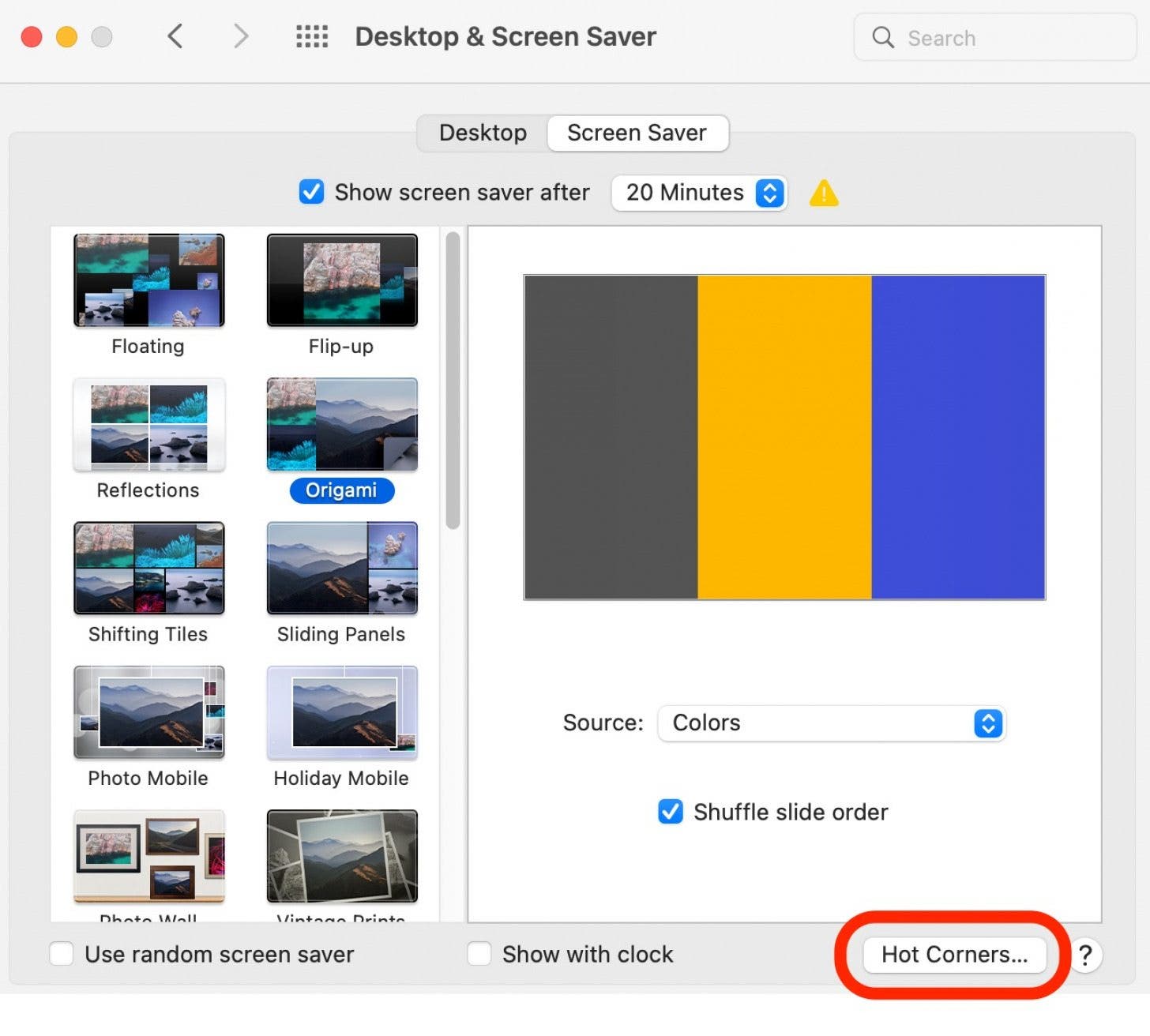
- Click Hot Corners.
![How to Use Mac Hot Corners Step 4- Select Hot Corners]()
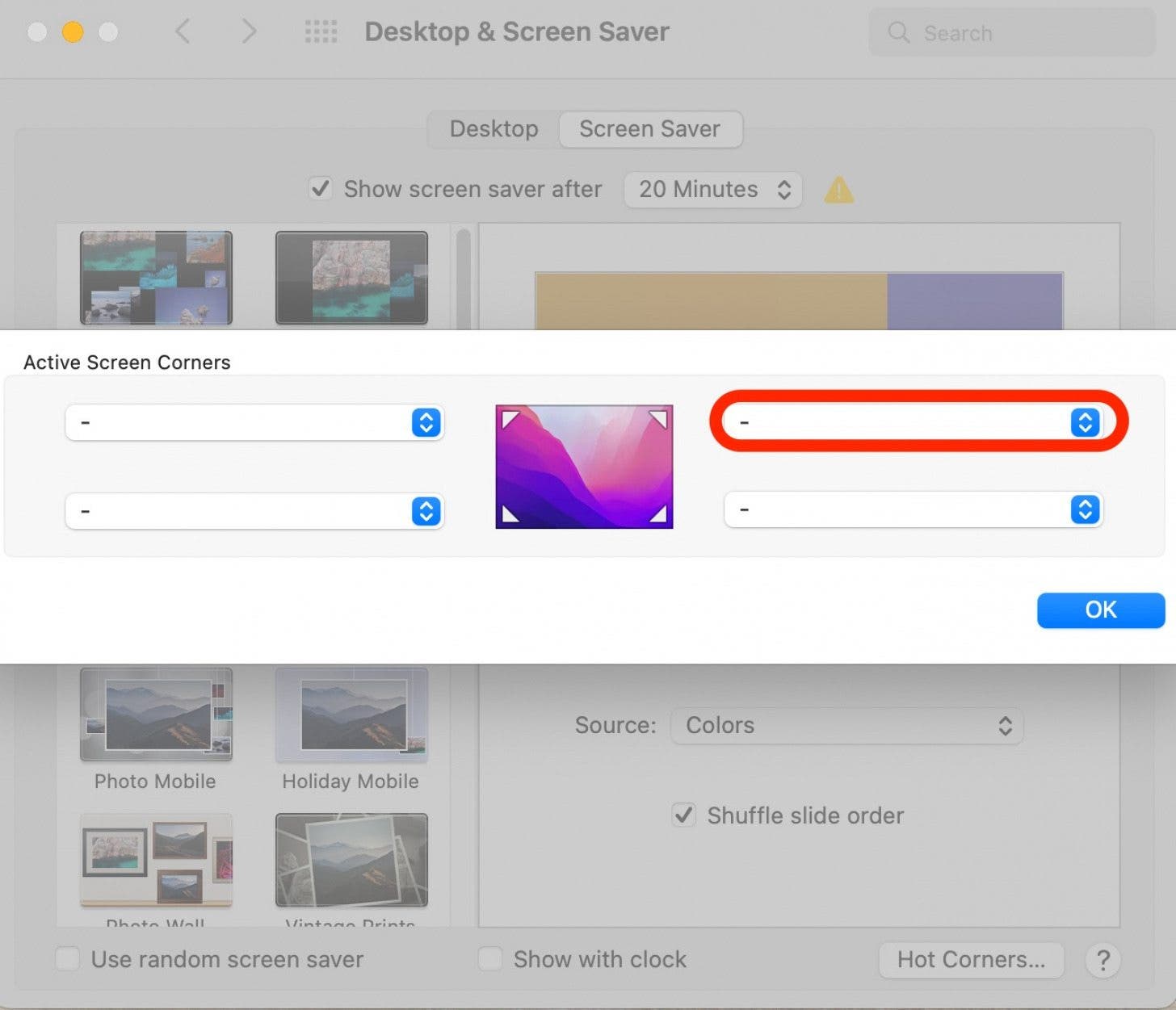
- Select which corner of your screen you would like to use for a hot corner and click on the drop-down menu.
![How to Use Mac Hot Corners Step 5- Select a Corner]()
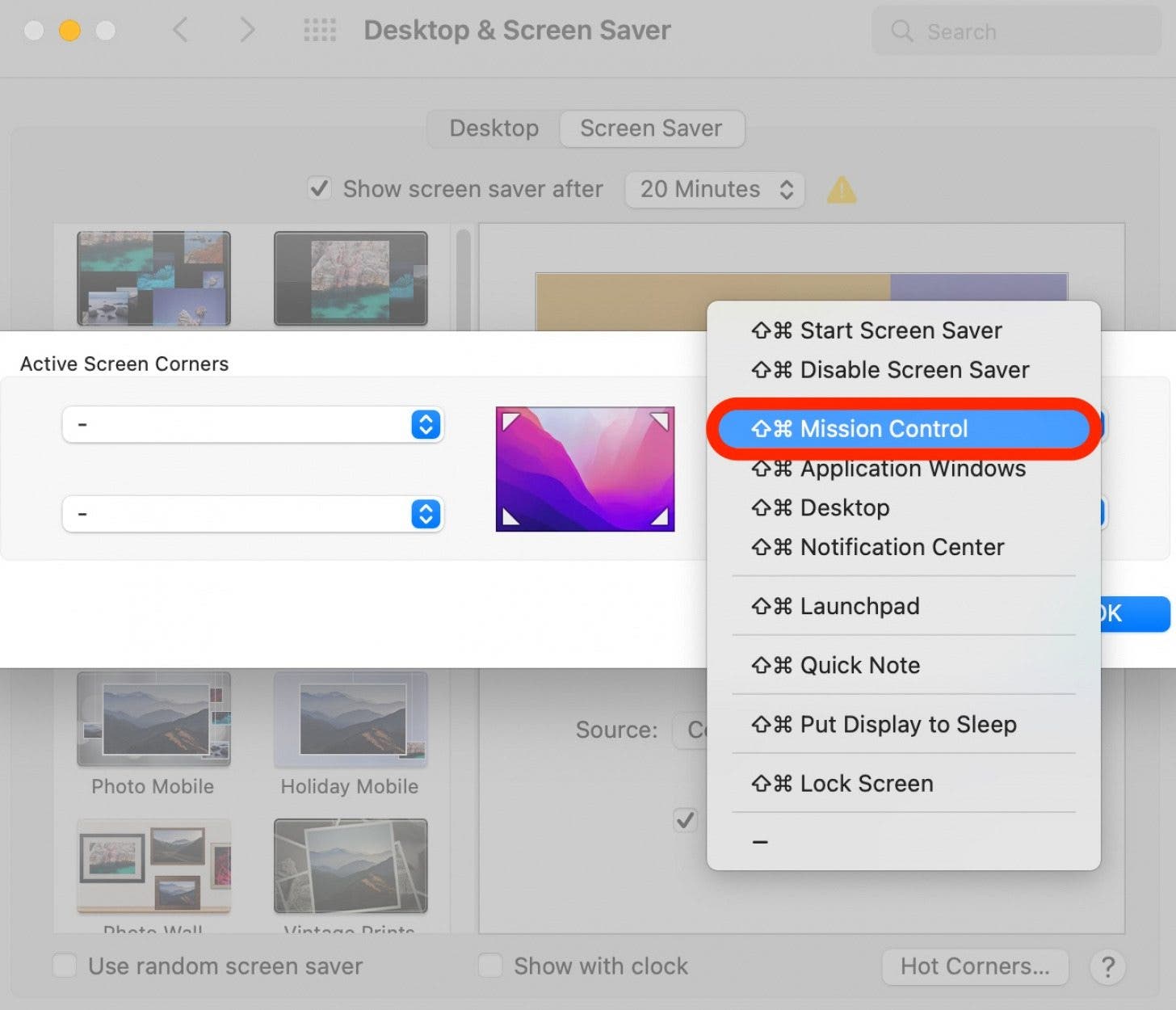
- You will see a list of common macOS commands. Choose Mission Control from the drop-down menu.
![How to Use Mac Hot Corners Step 6- Select Mission Control]()
- If desired, repeat steps 5 and 6 for the other corners.
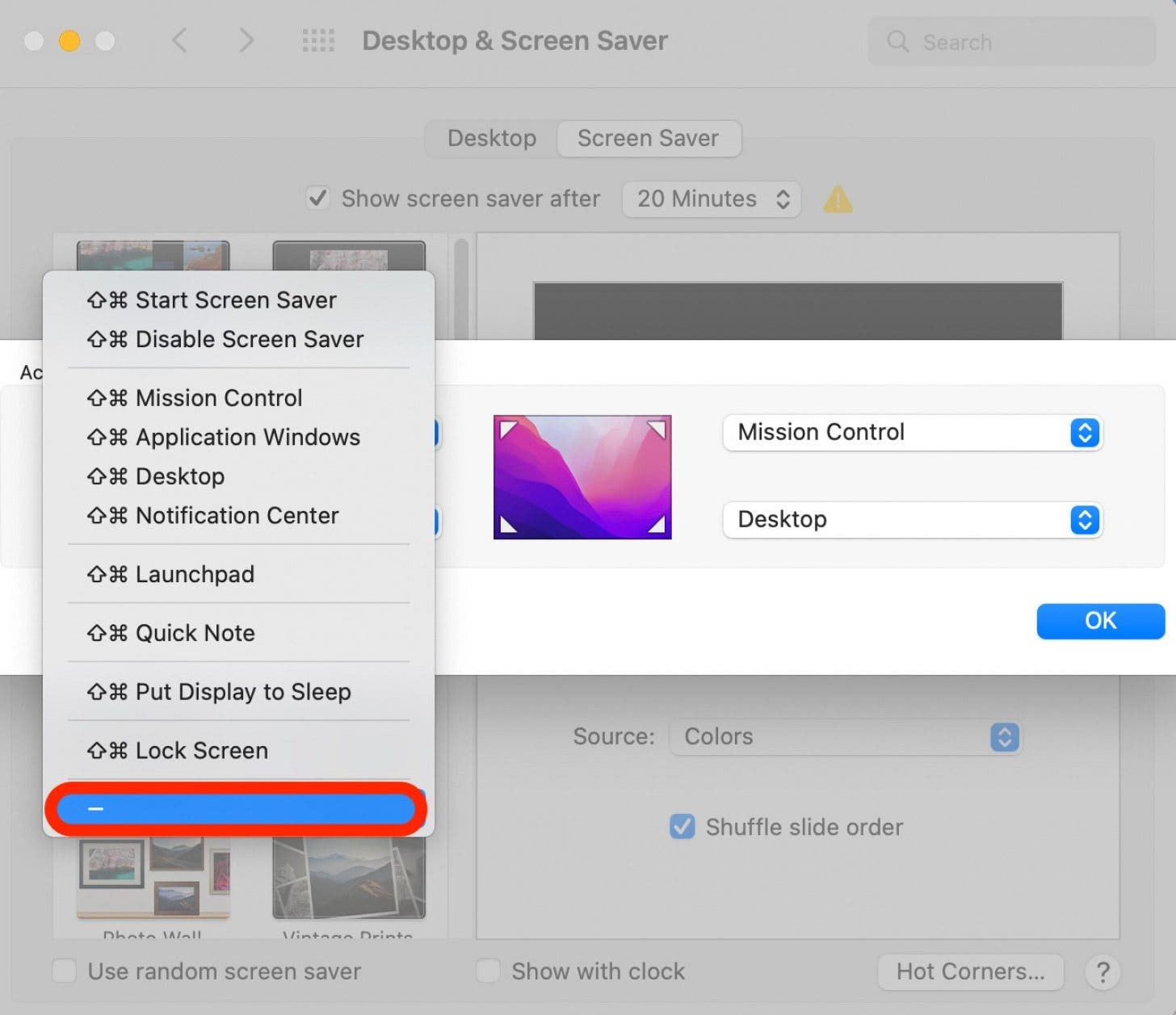
- To disable a hot corner select the hyphen (-) option to remove the shortcut command.
![How to Use Mac Hot Corners Step 7 - Disable a Hot Corner]()
- Click OK.
![How to Use Mac Hot Corners Step 9 - Click OK]()
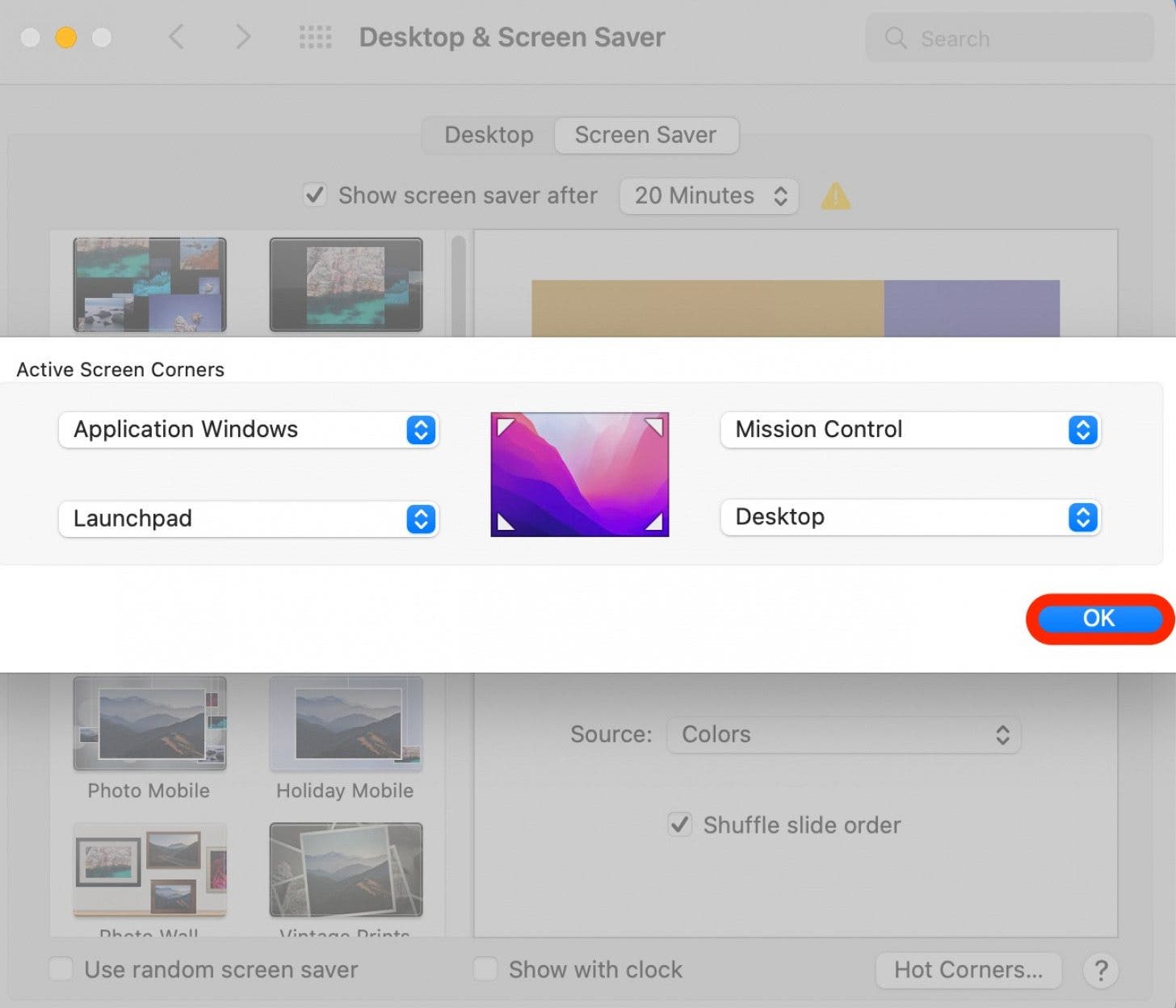
Now test out your new hot corners! Just drag your mouse to the corner of the screen you selected to activate your shortcut. In the beginning, you may find yourself activating the hot corners by accident, but after a little practice, I found this happened less and less. I love this feature and use it every day. Once you get used to it, this is a great tool for streamlining your workflow.