What to Know
- Use the Apple Shortcuts app to quickly create a shortcut so you can combine two photos on an iPhone or iPad, side-by-side.
- Then, you can use this shortcut anytime you want to combine two photos for memes or before-and-after comparisons
Have you ever wondered how to make a side-by-side photo on an iPhone or iPad without a third-party app? The easiest way to put two pictures side by side on your iPhone is by creating a shortcut in the Shortcuts app. Then, you can select the images you want to combine. Let's go over how to do side by side photos on an iPhone.
Jump To:
- How Can You Put Two Pictures Side-by-Side via Shortcut
- Use the Shortcut to Put Two Pictures Side-by-Side on iPhone
- FAQ
How to Put 2 Pictures Side-by-Side via Shortcut
While apps (like Canva) can put two photos side-by-side, using the Shortcuts app on your iPhone can do the job without requiring you to purchase a third-party app. If you don't have the Apple Shortcuts app already installed on your iPhone, you can download it for free from the App Store. Here's how to merge two photos on iPhone by creating a shortcut:
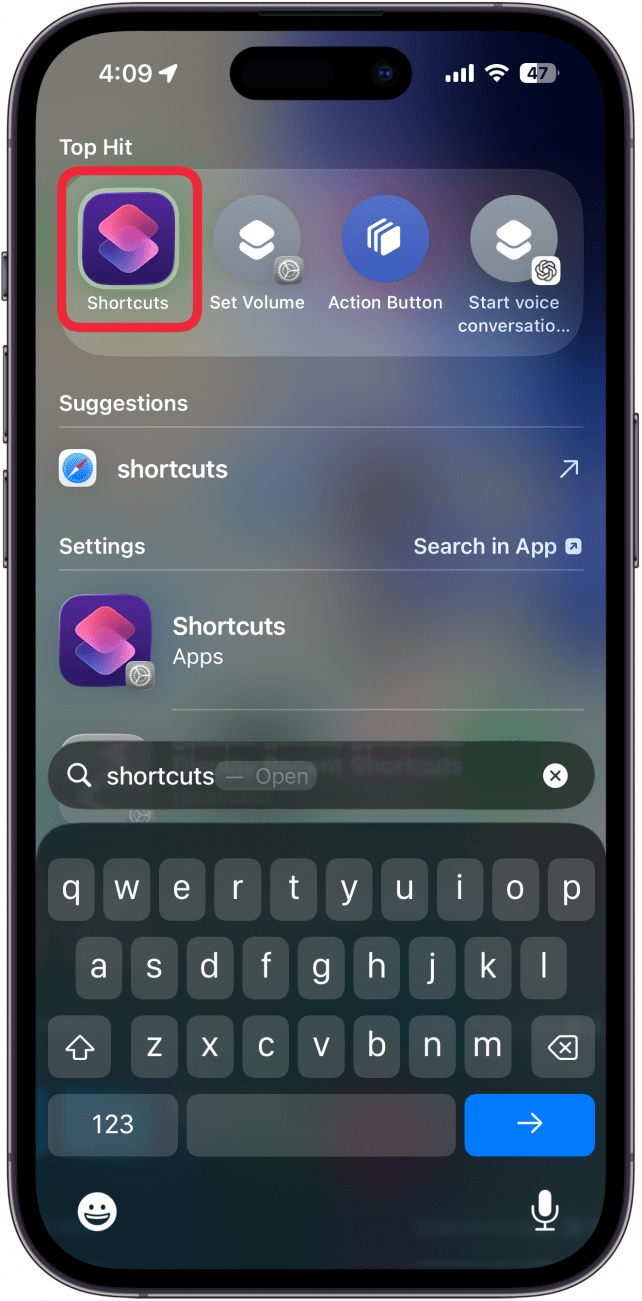
- Open the Shortcuts app.
![a screenshot of spotlight search on iphone with a red box around the shortcuts]()
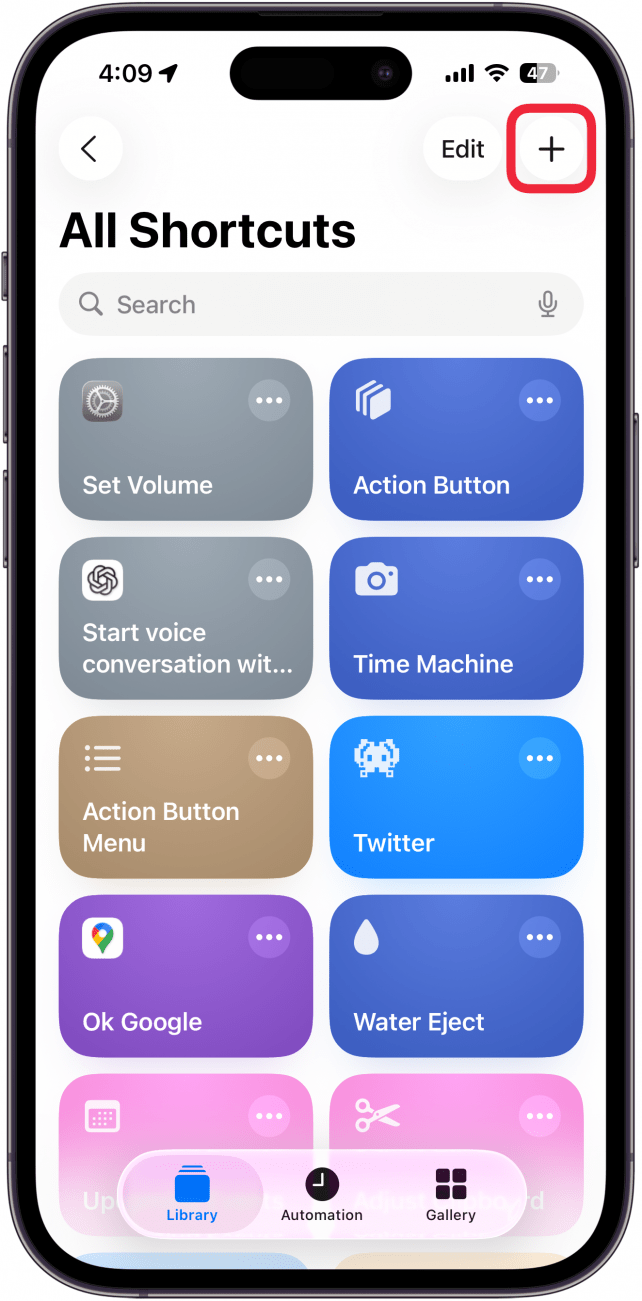
- Tap the Plus sign to create a shortcut.
![a screenshot of the shortcuts app on iphone with a red box around the plus icon]()
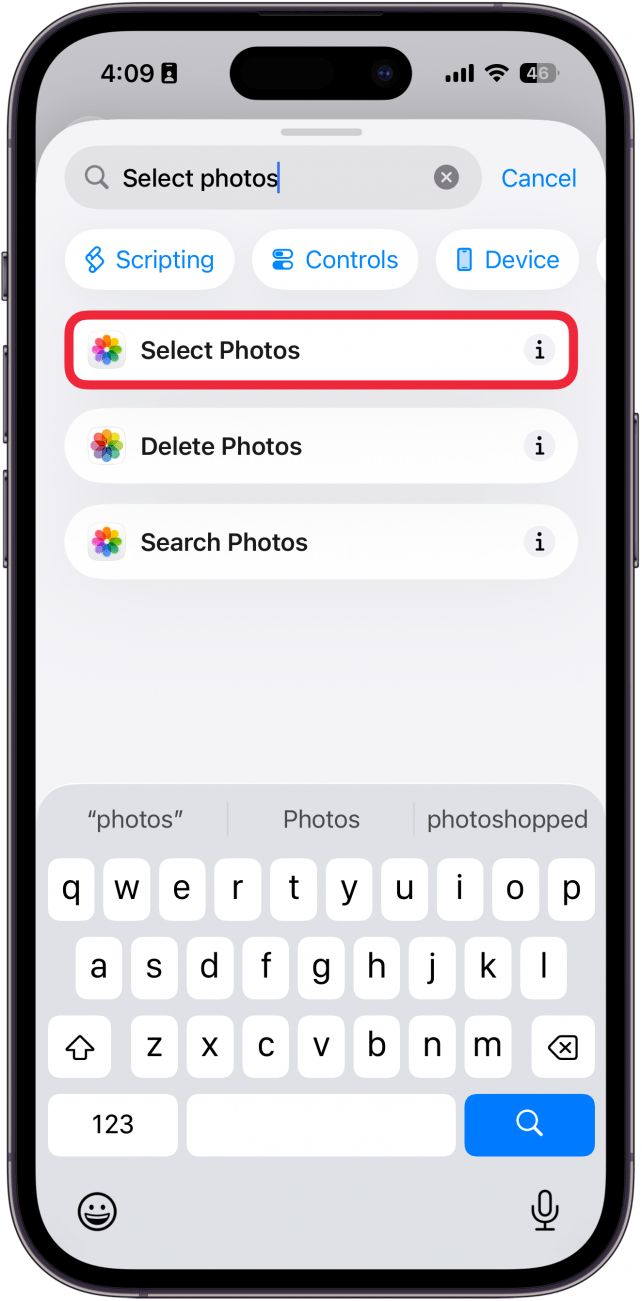
- Tap the Search Bar at the bottom of the screen. Search for and tap Select Photos.
![a screenshot of the shortcuts creation screen with a red box around the select photos action]()
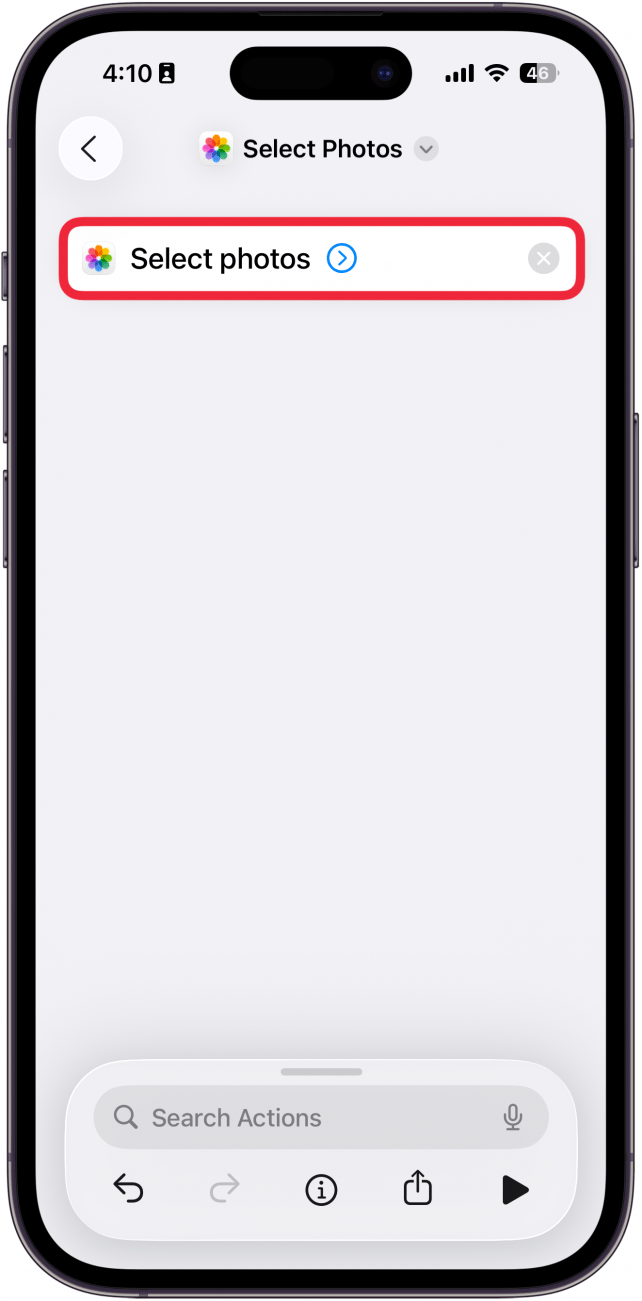
- Tap the blue arrow next to Select Photos.
![a screenshot of the shortcuts creation screen with a red box around the select photos action]()
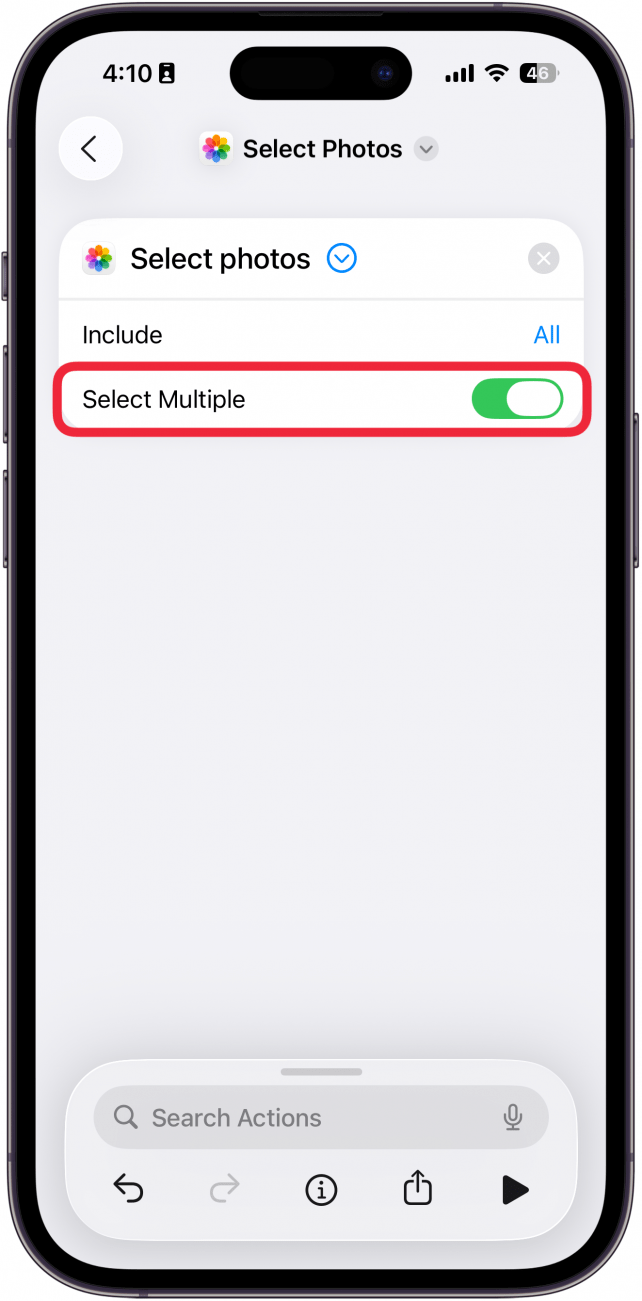
- Toggle on Select Multiple.
![a screenshot of the shortcuts creation screen with a red box around the select multiple toggle]()
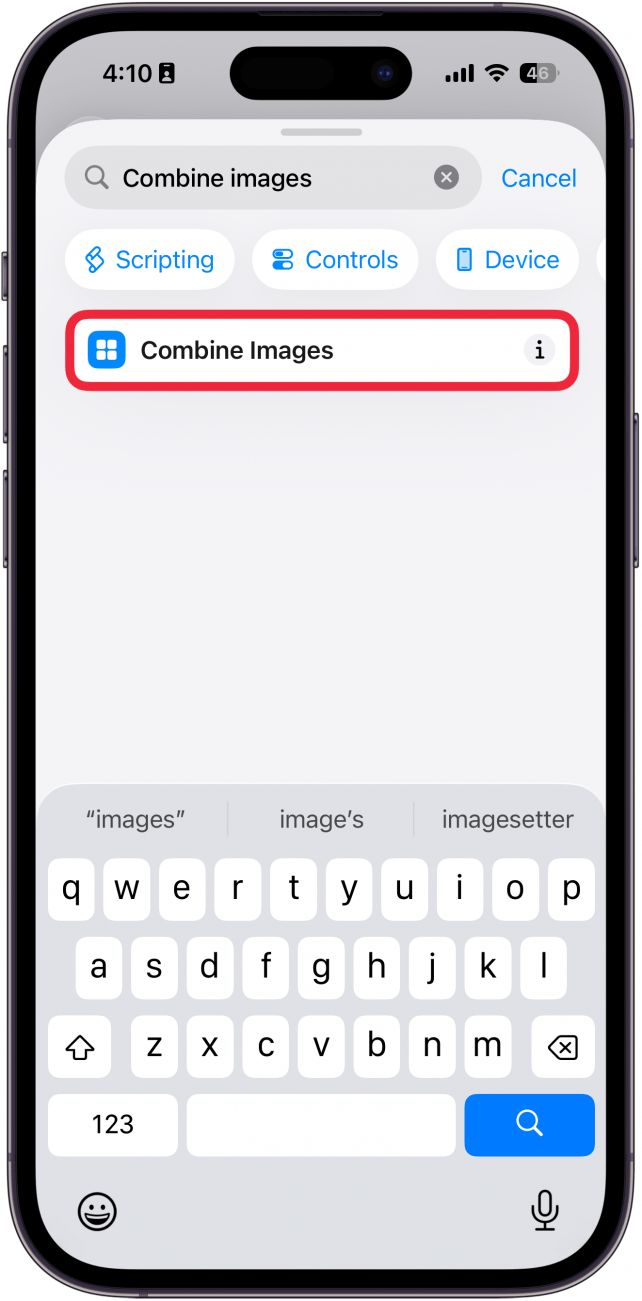
- Search again and tap Combine Images.
![a screenshot of the shortcuts creation screen with a red box around the combine photos action]()
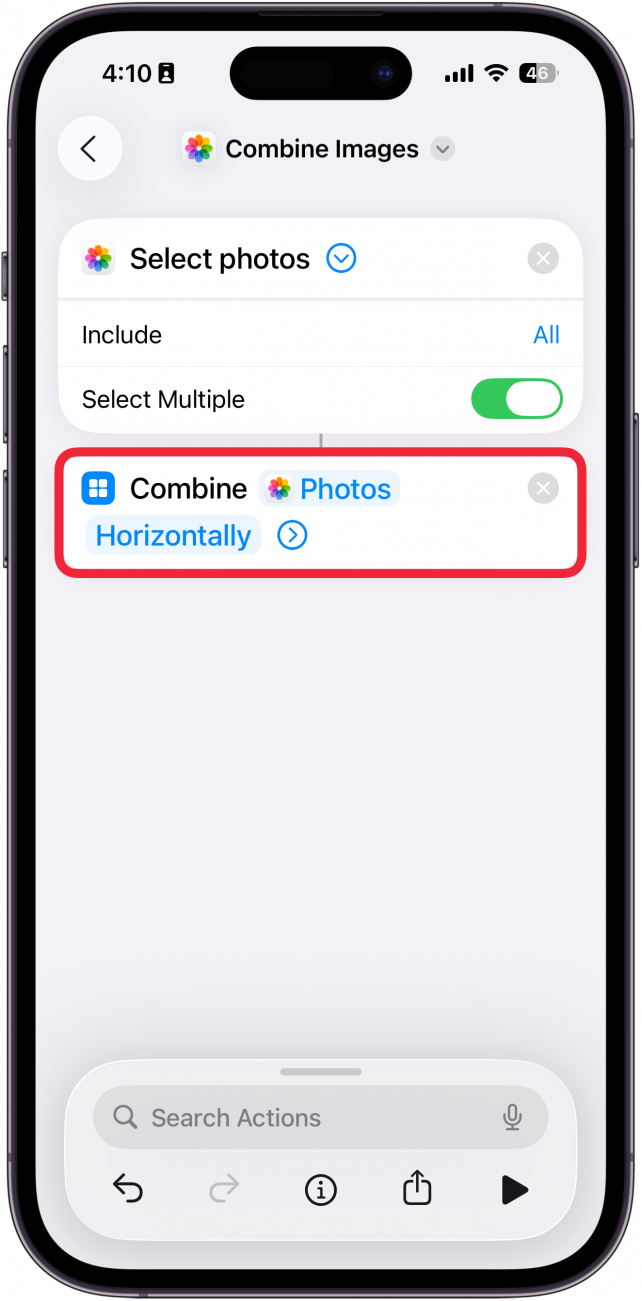
- In the Combined Images section, make sure the mode field is set to Horizontally. If not, tap on Horizontally to change it.
![a screenshot of the shortcuts creation screen with a red box around the combine photos horizontally]()
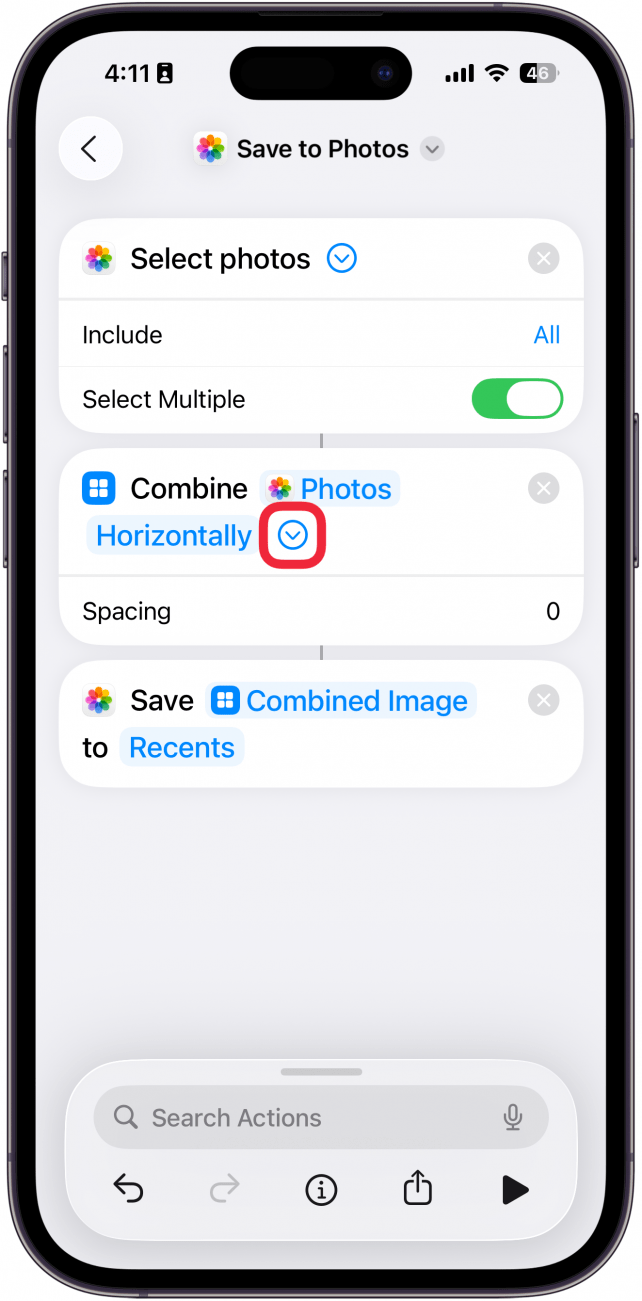
- Tap on the arrow next to Horizontally to adjust how much space you want between the photos. If you don't want any spacing, you can skip this step.
![a screenshot of the shortcuts creation screen with a red box around a downward pointing blue arrow next to the combine photos horizontally action]()
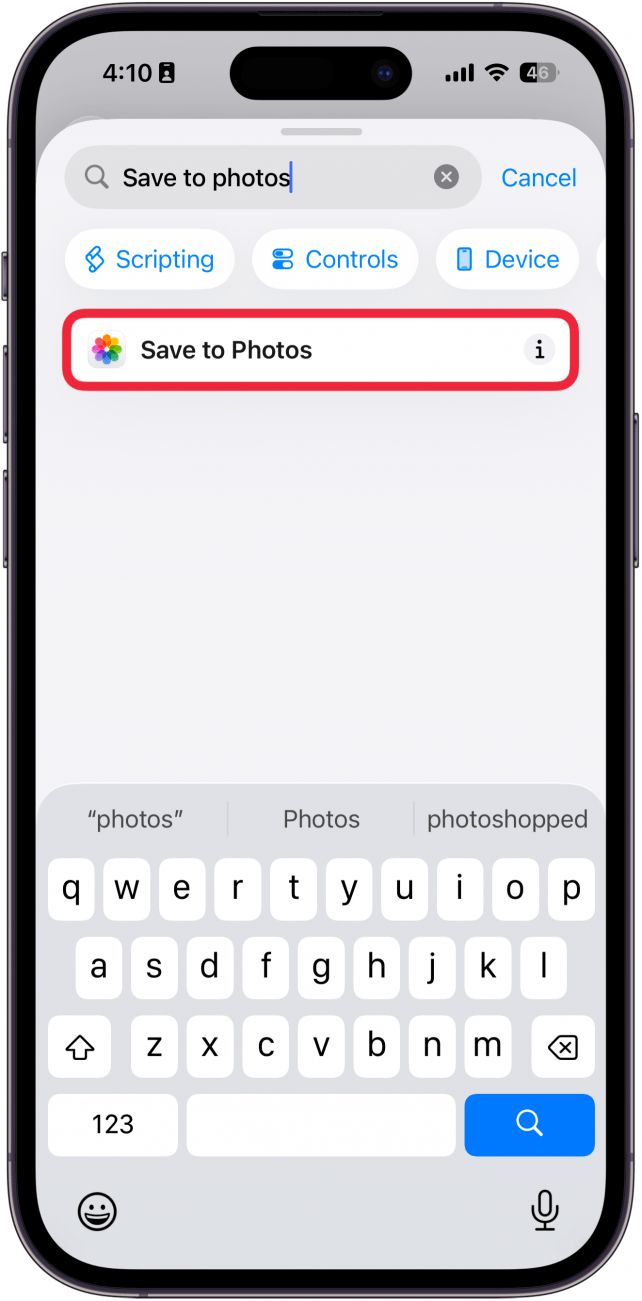
- Search for and tap Save to Photos.
![a screenshot of the shortcuts creation screen with a red box around the save to photos action]()
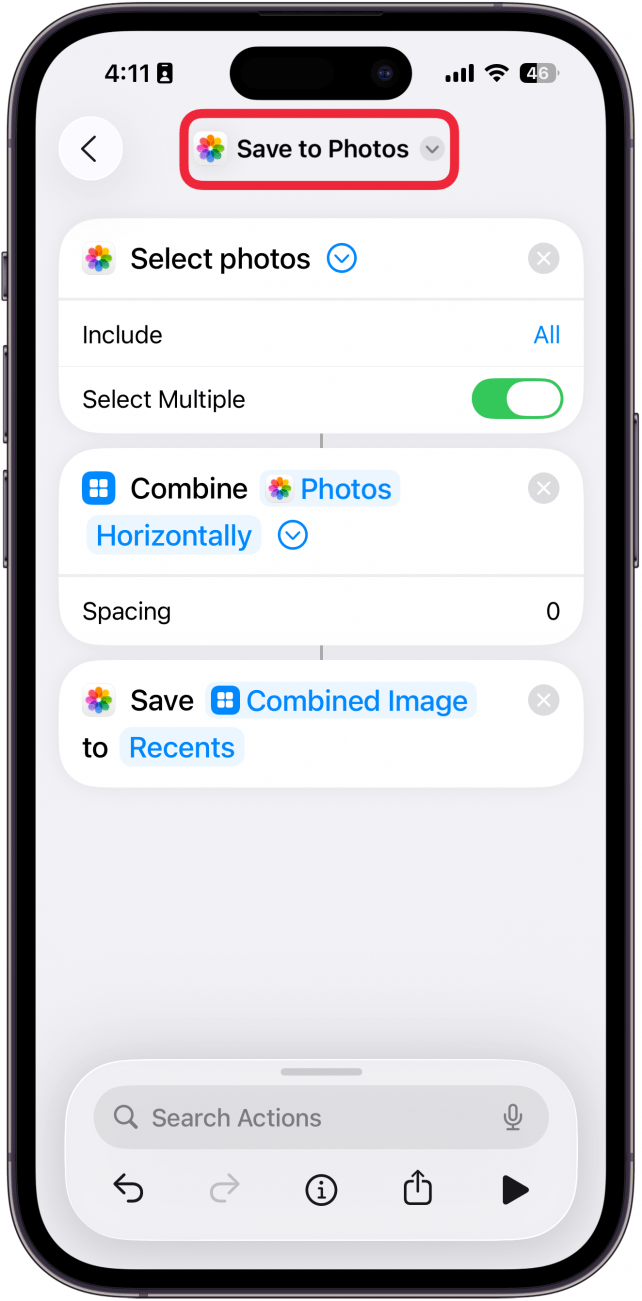
- Tap Save to Photos at the top of your screen.
![a screenshot of the shortcuts creation screen with a red box around the save to photos title at the top of the screen]()
- Tap Rename, then tap the field at the top of the screen to rename your shortcut. In this example I've named is Side by Side Photo.
![a screenshot of the shortcuts creation screen displaying a menu with a red box around rename]()
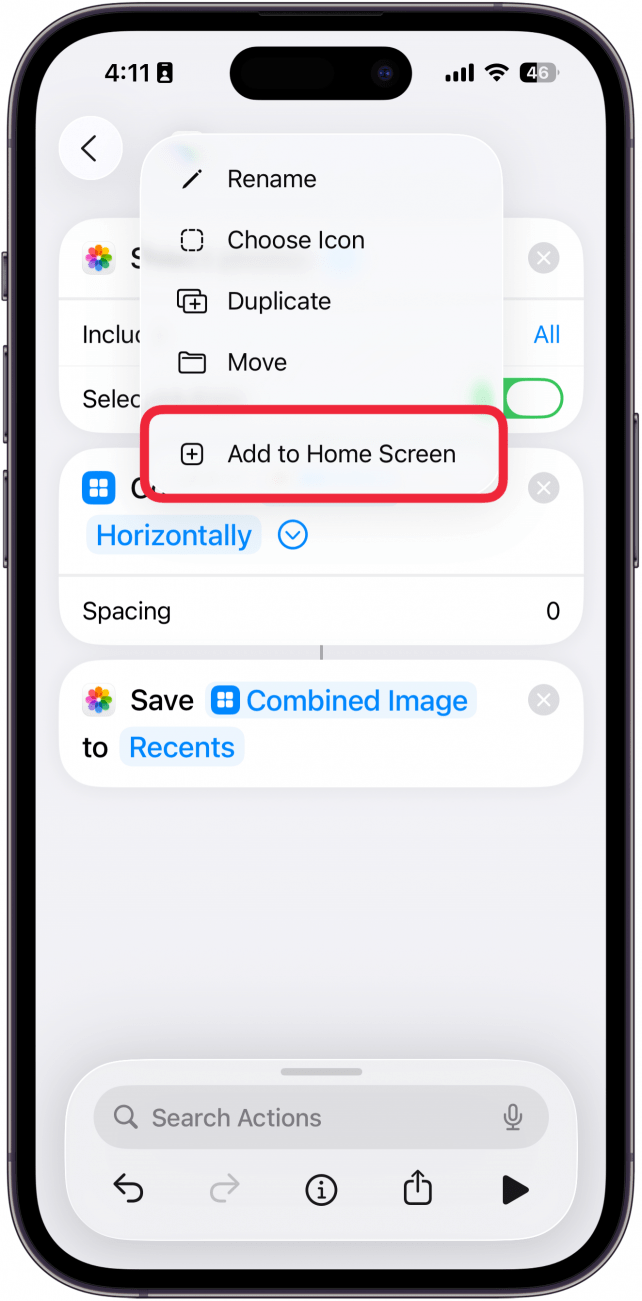
- In the same menu, tap Add to Home Screen to make the shortcut available as an icon on the Home Screen.
![a screenshot of the shortcuts creation screen displaying a menu with a red box around add to home screen]()
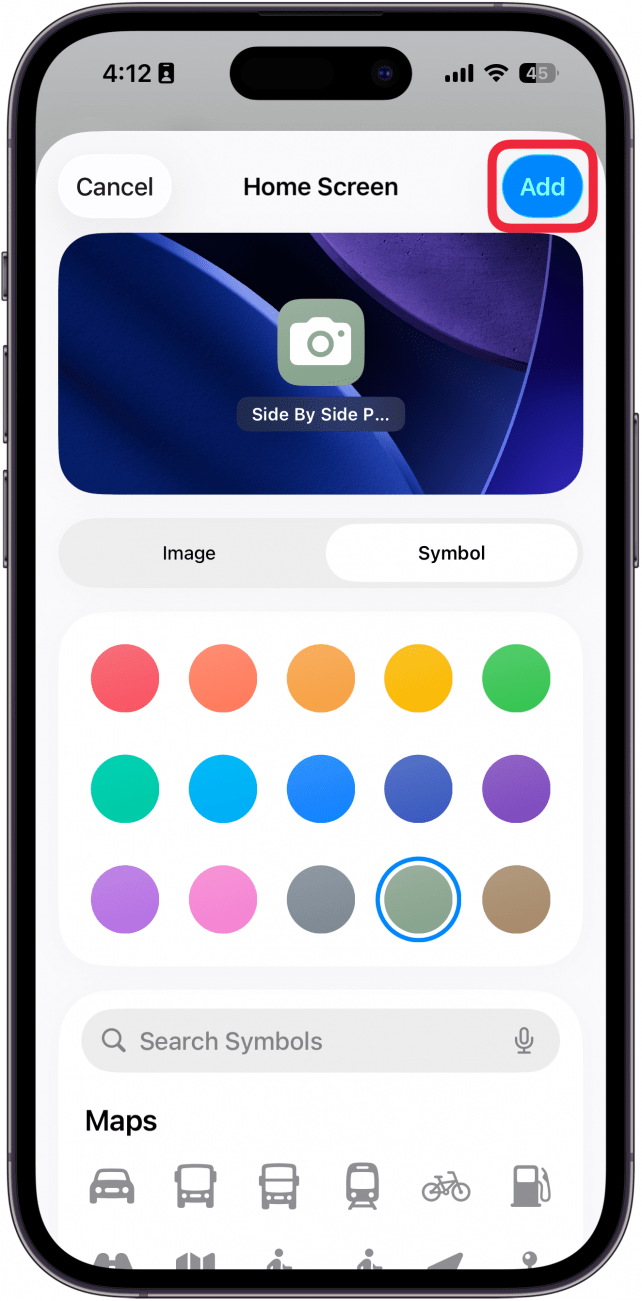
- You can customize the icon picture and then tap Add. Your shortcut will then appear on your Home Screen.
![a screenshot of the shortcuts creation screen displaying the add to home screen menu with a red box around add]()

Now you're ready to combine pictures to show a before-and-after photo of yourself, or even a side-by-side photo of a home renovation.

Use the Shortcut to Put 2 Pictures Side-by-Side on iPhone
Now that you've set up a shortcut for combining photos, it's time to try it out! For more hidden iPhone tips and tricks, don't forget to check out our free Tip of the Day newsletter. Here's how to make a photo collage on iPhone using the shortcut:
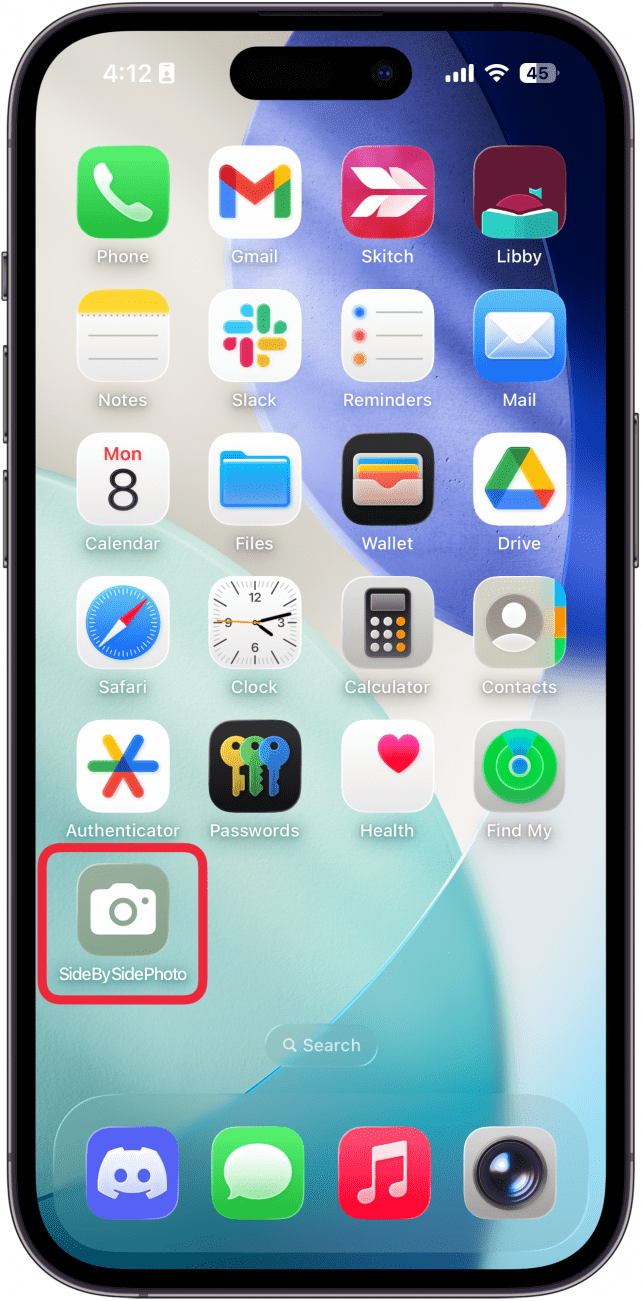
- Open the split screen photo iPhone shortcut that you've created and added to your Home Screen.
![a screenshot of the iphone home screen with a red box around the side by side photo shortcut]()
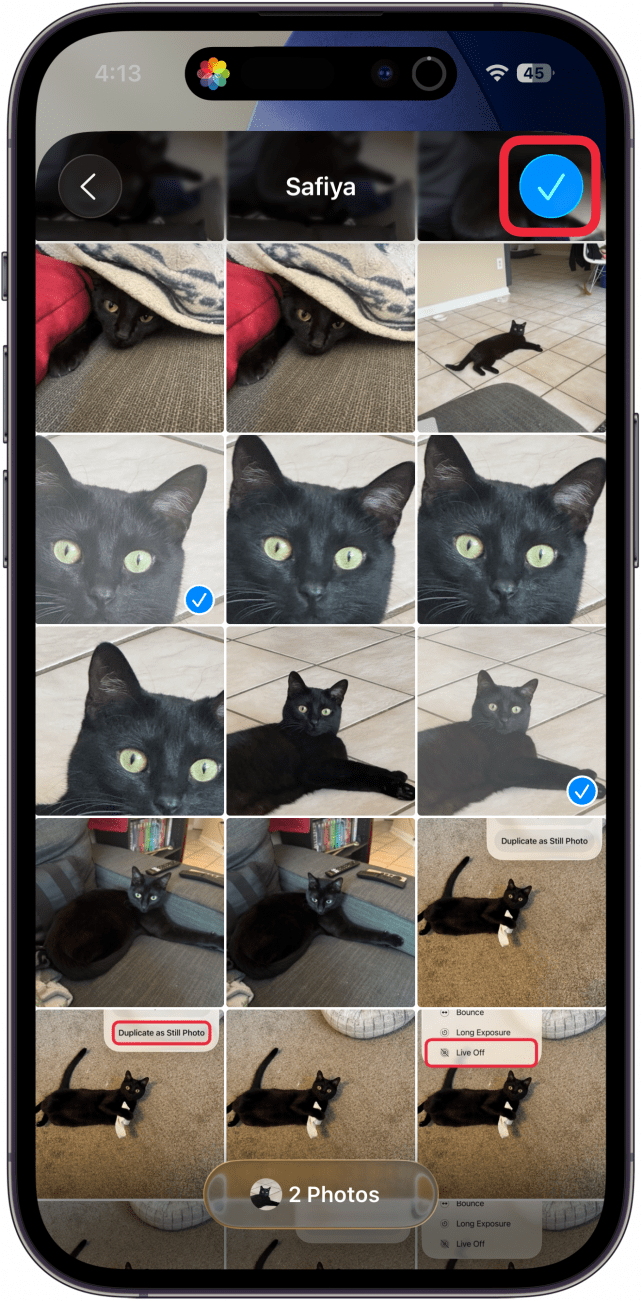
- Tap the two photos you want to combine. You can use the Photo search function to find the photos. Tap the checkmark to create the combined image.
![a screenshot of the photos app with two photos of a cat selected and a red box around the checkmark icon]()
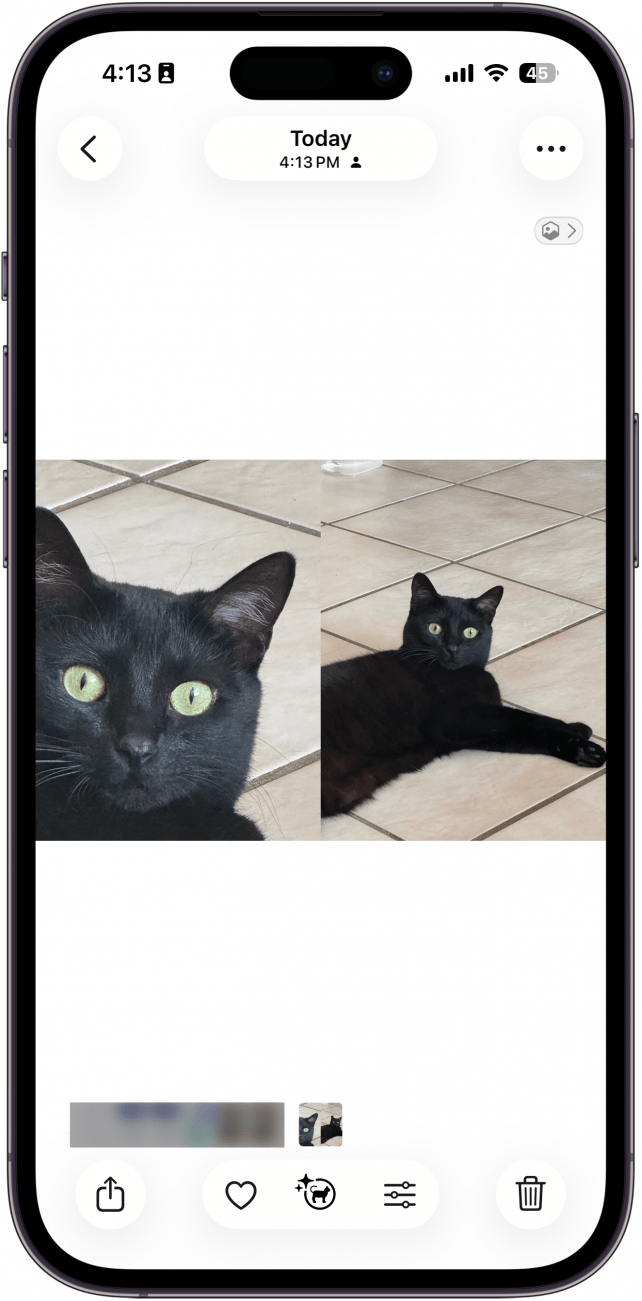
- Open the Photos app. Your combined photo will appear as the most recent image in your Photo Library, and you can tap on your combined photo to view it.
![a screenshot of the photos app displaying two photos side by side]()
Now you know how to combine two photos on iPhone! The steps are the same if you wish to do this on an iPad.
Pro Tip:
In this demonstration we combined two images. But you can combine multiple images if you select more than two in the steps above. Merging three size-by-side photos works best if they are portrait orientation images. I recommend you practice combining pics to master the best way to make a photo collage on iPhone or iPad.
Now you're ready to combine photos on your iPhone for memes, before-and-after shots, and photo collages. If you enjoyed this photos tip on how to merge two images, check out our article covering how to set an iPhone camera timer to boost your photography skills next!
FAQ
- How do I put two pictures together on my iPhone wallpaper? Once you've created a side-by-side image, you can change the background on your iPhone by opening the Settings app, tapping Wallpaper, and selecting Add New Wallpaper. Then, select the side-by-side photo to use it as your phone background. In this case, you may want to combine the photos vertically.
- How do I put pictures side by side on iPad? The steps for creating a side-by-side photo are the same for your iPad and iPhone. Follow the steps above to create a shortcut, then select the photos you want to combine.
- How can I make a photo collage on my iPhone? We recommend using the Canva app if you want to create complex photo collage layouts on your iPhone. This third-party app offers a lot of layout flexibility and is easy to use.
- Can you shorten a live photo? Yes, by tapping edit in the Photos app, you can shorten, rotate, and crop a live photo just as you would edit a still frame. Here's how to crop a live photo on your iPhone.
Top image credit: Chingraph / Shutterstock.com