This is one iPhone Life journey I’m very much going on with you all. It’s that time of year: new devices in means old devices got to go. But how? Should you sell your iPhone or trade-in your iPhone? How do you get the best deal? I’m facing these same questions. Sure, selling my iPhone would mean more money toward that shiny new iPhone X, but how much trouble do I want to go through? There are a lot of iPhone trade-in offers out there, including those from carriers like Verizon, third-party resellers like Gazelle, and even from Apple itself. We can’t make the decision for you, but we can lay out all of your options and the money (or credit) you can expect to get from each. Here’s how to sell or trade-in your iPhone so you can get that new one.
Free International Texting: Best Free Text Apps for iPhone
By Conner Carey
If you travel or do business internationally, you know how costly roaming charges are. If you are hoping to text other iPhone users, you already have a free text and calls app on your phone: Messages. There are also various third-party apps that allow for free international texting, no matter what phone model your recipient has.
Do you have an idea for an app but lack the programming knowledge to begin building it? In this weekly blog series, I will take you, the non-programmer, step by step through the process of creating apps for the iPhone, iPod touch, and iPad. Join me each week on this adventure, and you will experience how much fun turning your ideas into reality can be! This is Part 22 of the series. If you are just getting started, check out the beginning of the series here. (This post has been updated to Swift 1.2, Xcode 6.4, and iOS 8).
In the last few posts in this series, you have learned a lot about retrieving entities from a database using Core Data, and displaying the results in a table view. Now that we have we have all the other functionality working in the Write Review scene of iAppsReview, it's time to learn how to save a ReviewEntity using Core Data!
Enter the iPhone Life Photo Contest: Deadline September 4!
By Rheanne Taylor
It's photo contest time again. We know you enjoy taking the occasional artistic shot with your iPhone, so why not get rewarded for it? Enter our iPhone Photography Contest for a chance to win awesome prizes and a spot in our magazine!
How to Stream iTunes Videos on Your Apple TV
By Conner Carey
So you bought an Apple TV; now what? There are countless streaming network subscriptions, but what if you want to play a movie or song from your iTunes library? Welcome to Home Sharing. Using Wi-Fi and your Apple ID to connect your devices, Home Sharing makes it easy to watch the videos you own (or made) right on your TV screen.
00490 - video tip
How to Turn off Predictive Text Completely on Your iPhone

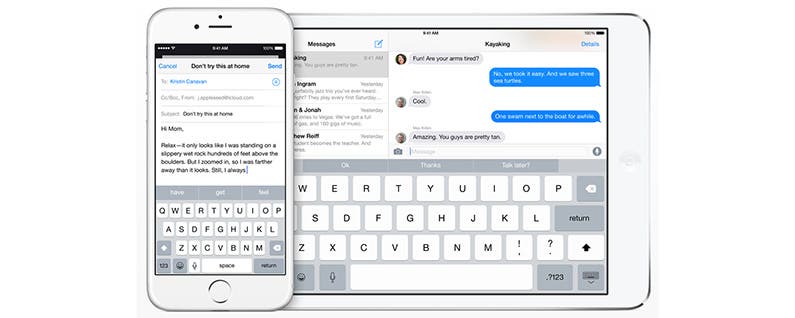
Thanks to Apple's predictive text feature, called QuickType, your iOS device will suggest words that it thinks you want to use next so you don't have to type them yourself. While AutoCorrect guesses at a word, based on the letters you typed, QuickType predicts what word you might type next based on the context of your message or document. If you find QuickType's context-based suggestions creepy rather than cool, you can easily hide the feature, or you can turn it off completely. Here's how to turn off predictive text completely on your iPhone.
You may also like: How to Create Keyboard Shortcuts on Your iPhone
To do this:
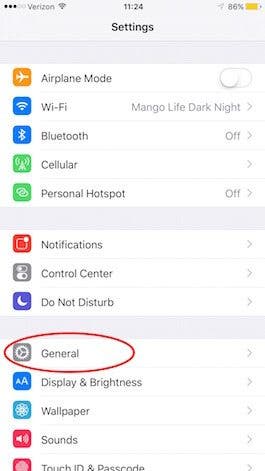
- Open the Settings apps.
- Tap General.
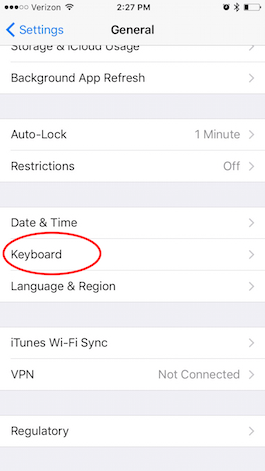
- Select Keyboard.
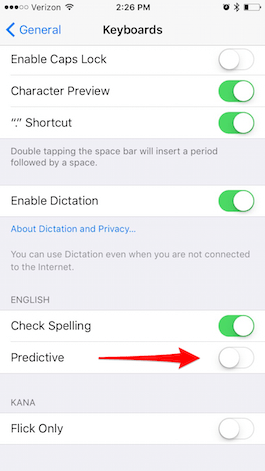
- Toggle Predictive off.
Now Apple won't put words in your mouth. If you want to turn AutoCorrect off as well, toggle Auto Correction off. It can be found in the columns above Predictive. This little tip could save you from those hilarious autocorrect mistakes, but you'll have to do all the typing yourself if both predictive and AutoCorrect are turned off.
Review: Charge Up to 7 Devices with the Skiva StandCharger
By Todd Bernhard
If you have an assortment of smart devices that need to be charged daily, you probably have USB chargers in every outlet in the house. Skiva has a smart alternative and it's on sale for half price. The StandCharger 7-Port USB Charging Station ($59.99) is normally $119.99 and even that would be worth it. The well-built charger accommodates up to seven devices, including iPads and other tablets.
How to Record Voice Memos on Your iPhone or iPad
By Conner Carey
Sometimes, you need to record a thought quickly. Using the Voice Memos voice recorder app on an iPhone or iPad to record that thought out loud is the fastest way to capture an idea before it flies away forever. The Voice Memos app is the little-known gem of the iPhone and iPad. Ease of use and clarity of sound makes the native Voice Memos app ideal for recording interviews, notes, and vocals, with the ability to record for hours at a time. If you're the type of person whose brain moves faster than your typing hands can keep up with, then Voice Memos is the ideal app for you.
How to Use Side by Side on Your iPad
By Conner Carey
With iOS 9, Apple introduces the iPad to split-screen multitasking. Also called Slide Over, this new function is supported by the iPad Air, iPad Air 2, iPad mini 2, and iPad mini 3 and later. Located on the right edge of the screen and designed to run multiple apps, Slide Over allows you view another app without leaving the one you're in; however, the two applications won't run together side by side unless you have an iPad Air 2 or later.