How to Change Your Apple Account Password on Your iPhone & iPad

With 10-plus years of experience with Apple devices, Rachel specializes in all things iPad and is a Notes app expert. Find her writing in the Daily Tip newsletter and iPhone Life magazine.
Learn More With 10-plus years of experience with Apple devices, Rachel specializes in all things iPad and is a Notes app expert. Find her writing in the Daily Tip newsletter and iPhone Life magazine.
Learn MoreWhat to Know
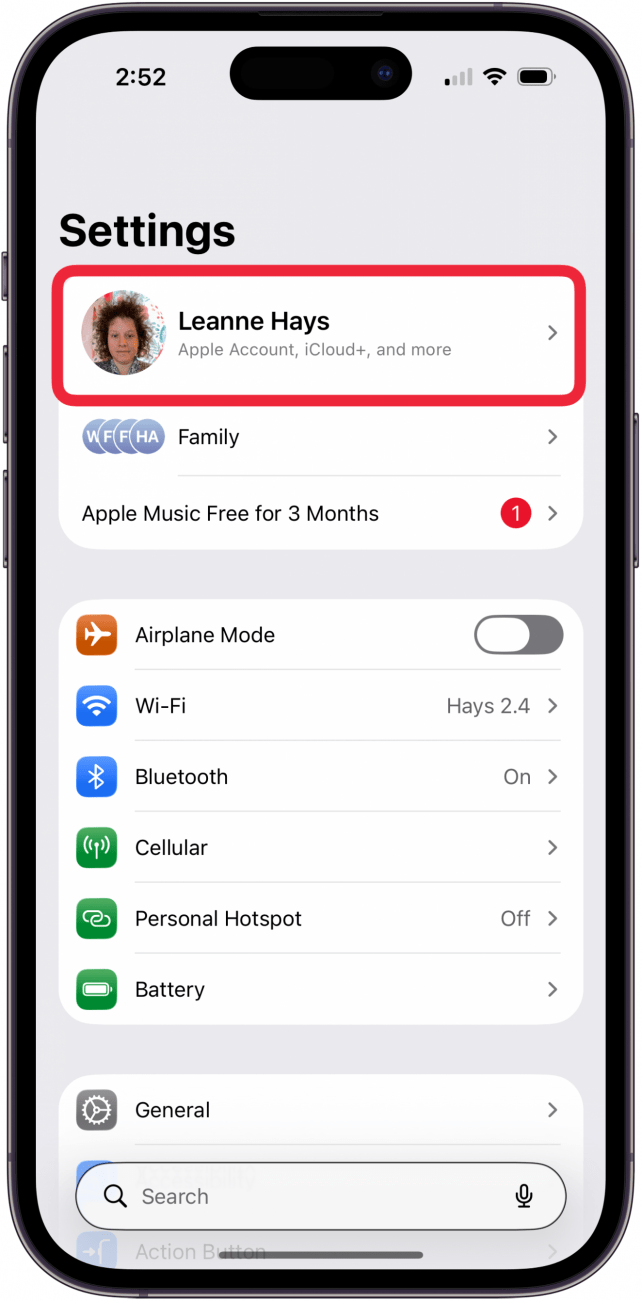
- To change your Apple Account password on an iPhone or iPad, open the Settings app, tap your profile icon, and select Sign In & Security.
- You will need to know your iPhone's passcode or be able to use Face ID in order to update the Apple password.
Your Apple Account (formerly Apple ID) password is what you use to access Apple Music, purchase apps, share photos via iCloud, use iMessage, and much more. It's easy to change your Apple account password on your iPhone or iPad; it only requires a few easy steps. Whether you've forgotten your Apple Account password or want to reset your Apple password for security purposes, knowing how to reset your Apple password on your iPhone will save you from any potential tech snafus down the road.
Important Note
You can only reset your Apple Account password from an iPhone if you have enabled two-factor authentication and have a device passcode. If you don't have the option to change your Apple Account password from your iPhone, you can reset your password from your Apple Account page.
How to Reset Apple Account Password
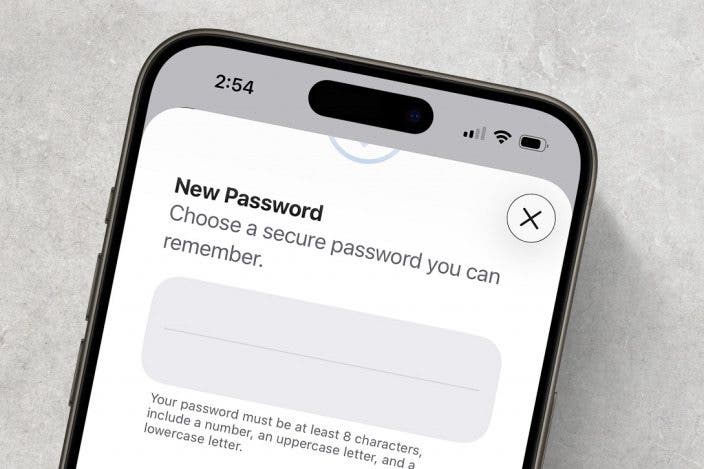
When you reset your Apple Account password, make sure that you set it to something that's easy for you to remember or keep the new password somewhere safe. If you like learning tips about your iPhone, be sure to sign up for our free Tip of the Day Newsletter! Now, here's how to reset your Apple ID from your iPhone:
- Open the Settings app.
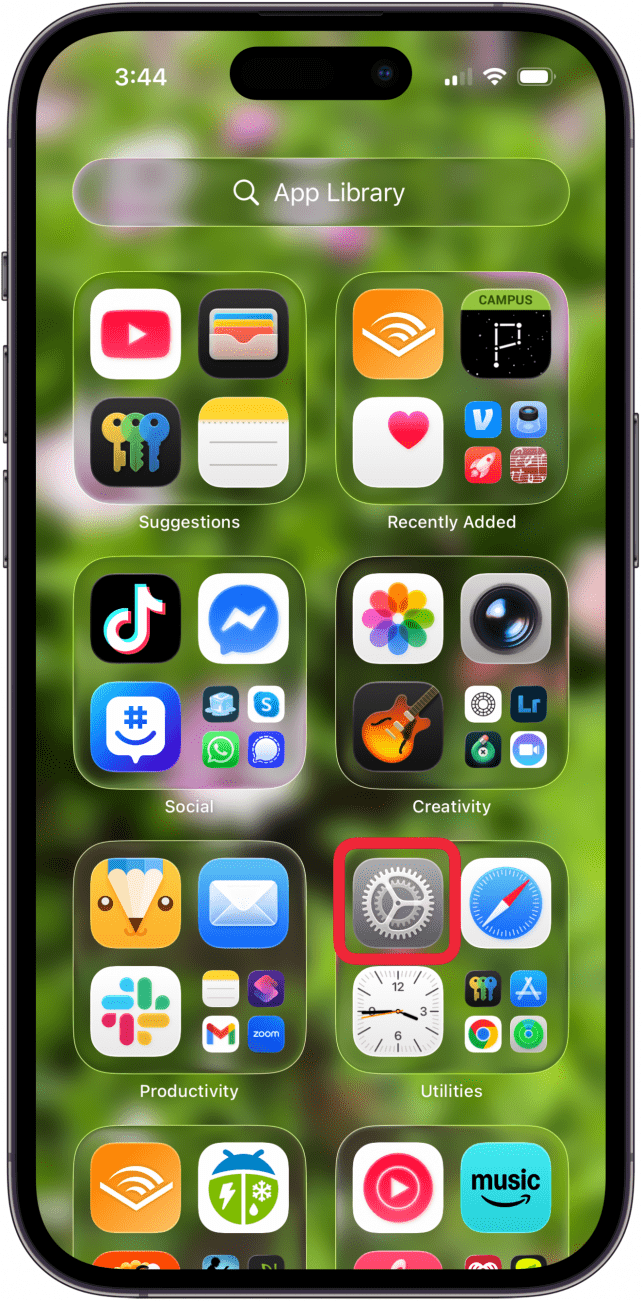
- Tap your profile icon.
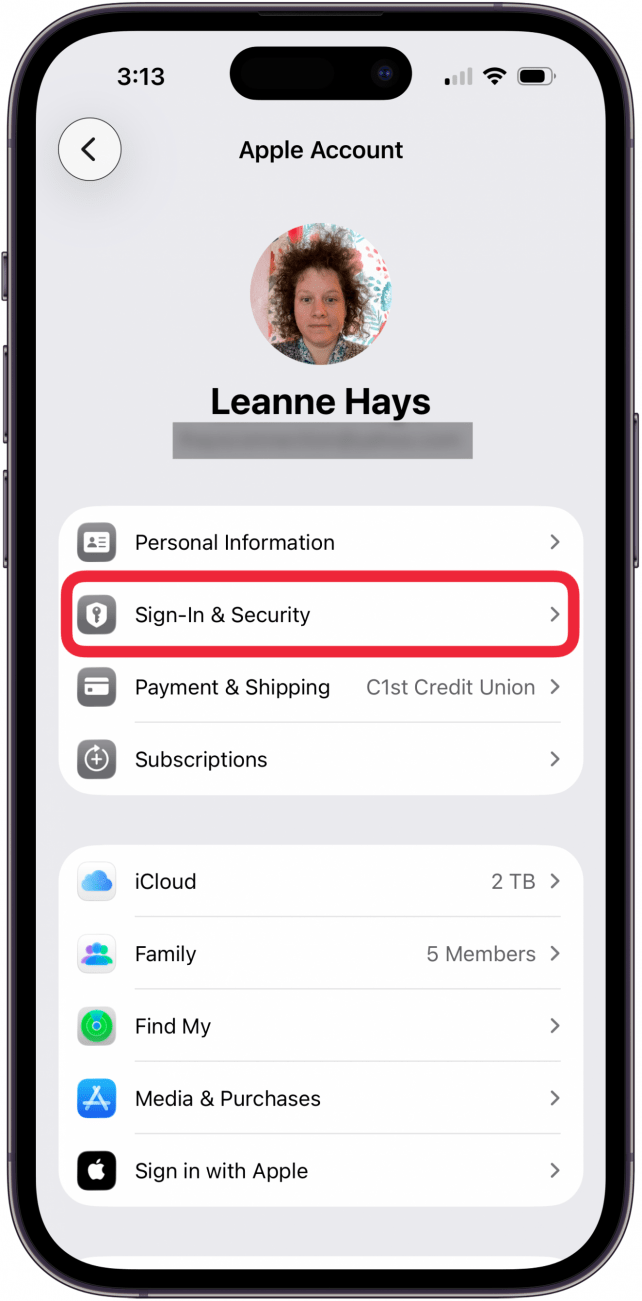
- Tap Sign-In & Security.
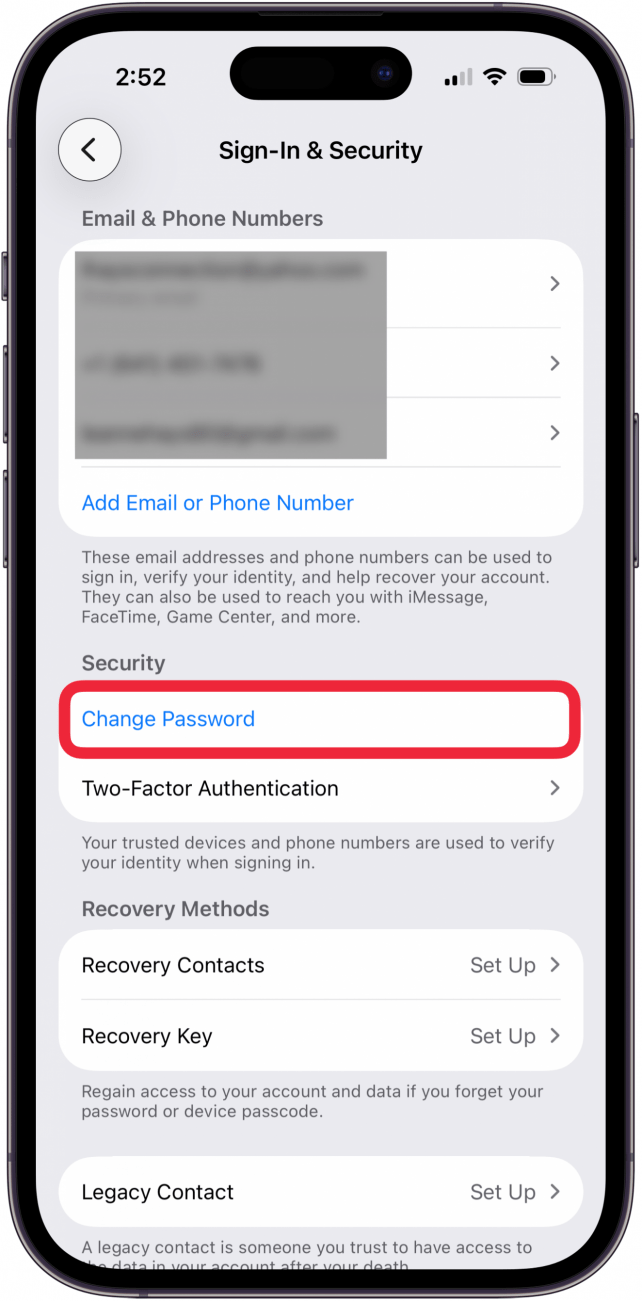
- Tap Change Password. You will be prompted to use Face ID or your iPhone's passcode.
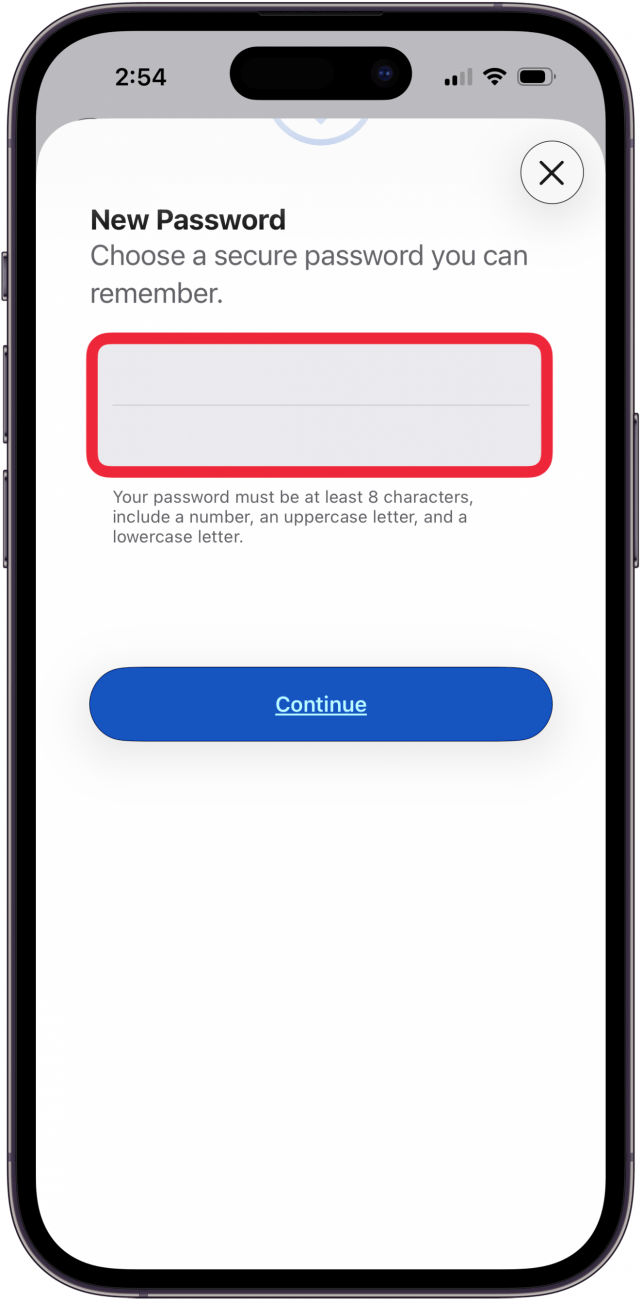
- Enter a new password, re-enter to confirm it, then tap Continue.
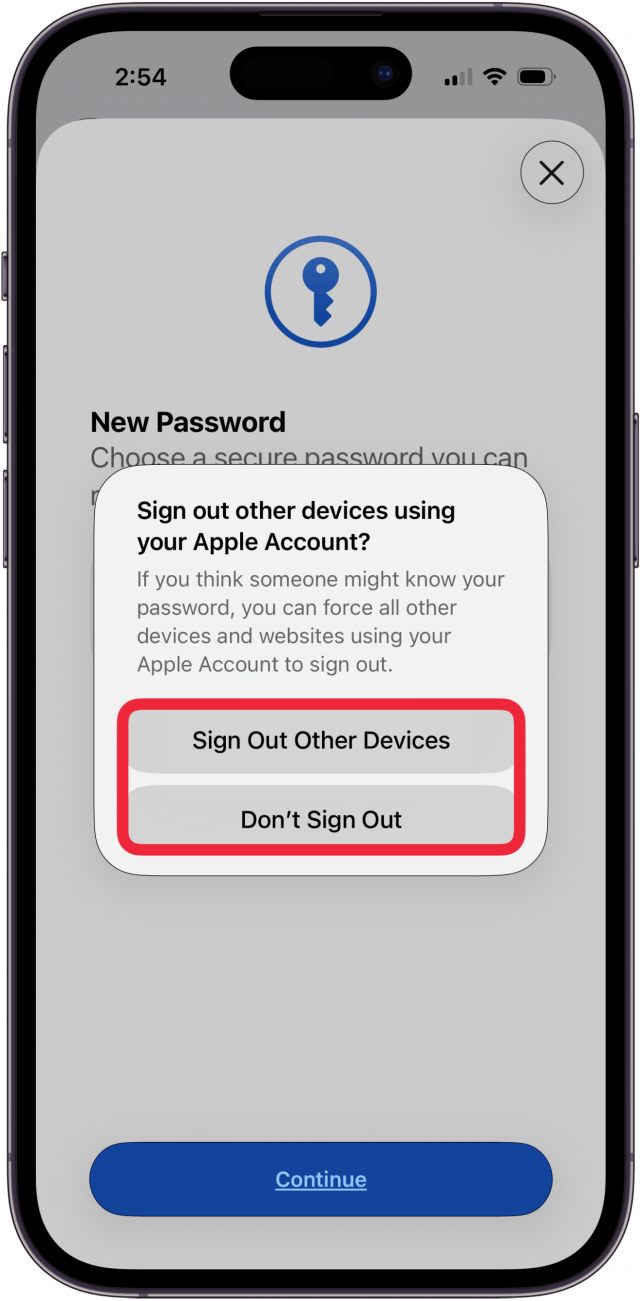
- Tap Sign Out Other Devices or Don't Sign Out.
And that's how you reset your Apple Account password. Don't forget to save it as something you can remember! Your Apple Account password on your iPhone is the same login as your Apple ID password, iTunes password and iCloud password. However, it is not the same as the password for locked Notes.
FAQ
- What can I do to keep my Apple Account secure? Setting up Two Factor Authentication is a great way to keep your Apple Account and password secure.
- What can I do to make sure I don't lose access to my Apple Account if I forget the password? Set up an Apple recovery key now, and you won't have to worry about forgetting your passcode.
- Can I sign in to websites and apps using my Apple Account without revealing my Apple ID? Yes, you can use the Hide My Email feature to sign in anonymously.
Top image credit: Chingraph / Shutterstock.com

 Rhett Intriago
 Rachel Needell
 Amy Spitzfaden Both
 Olena Kagui
 August Garry


 Leanne Hays