How to Bookmark Insider & Add It to Your Home Screen
You can make accessing your Insider content quick and easy by saving the Insider website on your iPhone or iPad Home Screen or bookmarking it on your Mac, iPad, or iPhone.
How to Add Insider to Your iPhone or iPad Home Screen
This is by far the fastest and easiest way to access Insider on your iPhone or iPad.
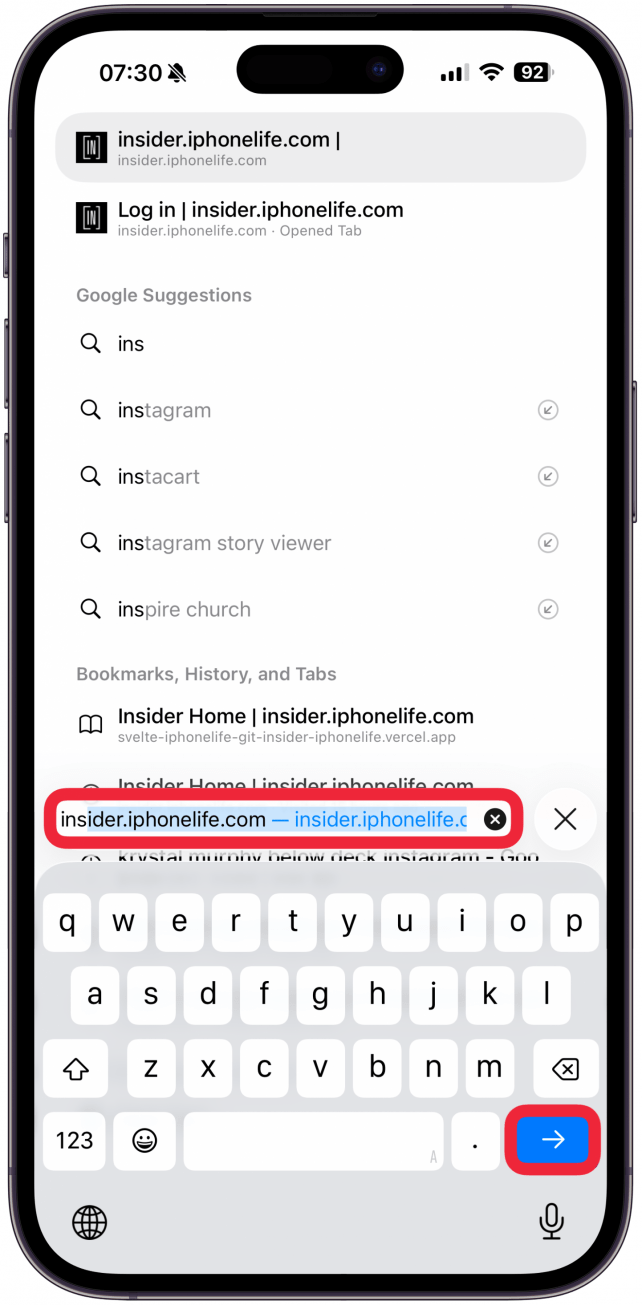
- Navigate to https://insider.iphonelife.com.
![]()
- On iPad, tap the Share icon.
![]()
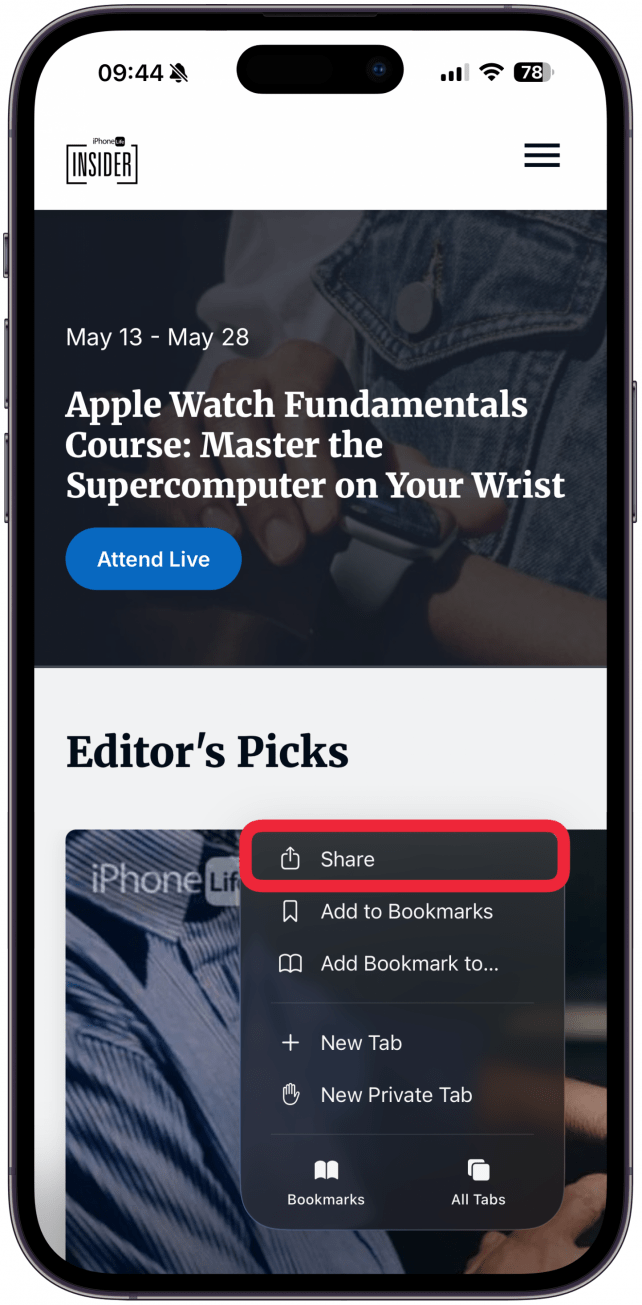
- On iPhone, tap the More icon and then tap the Share icon.
![]()
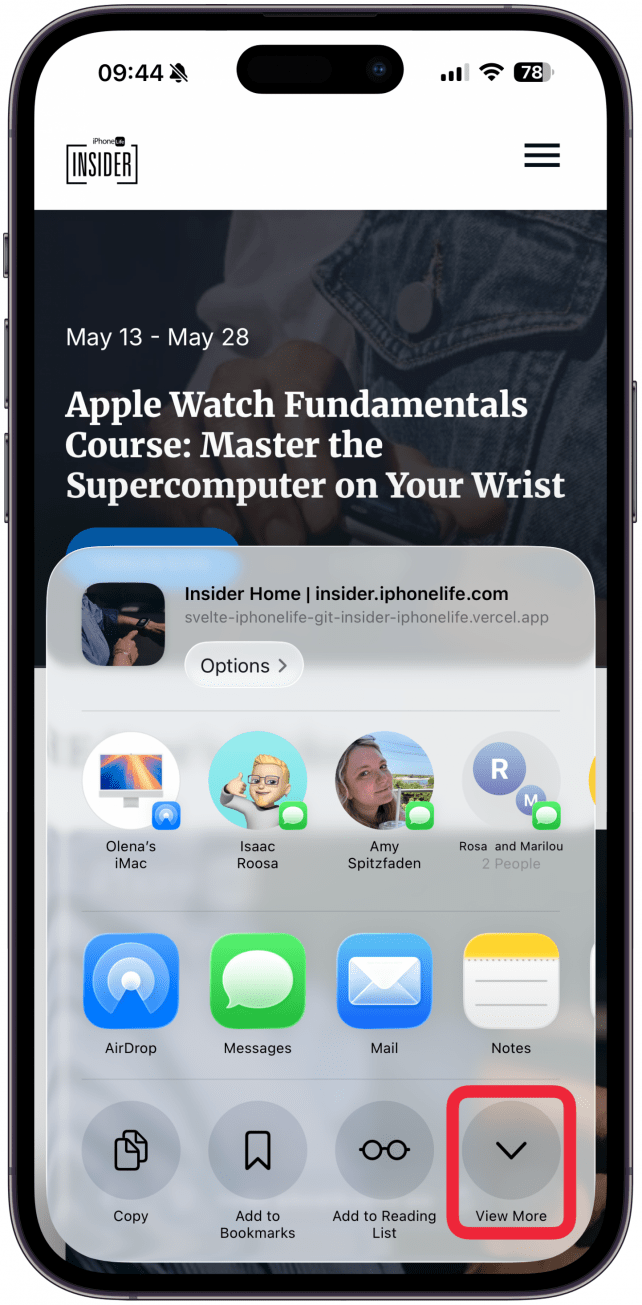
- Tap View More.
![]()
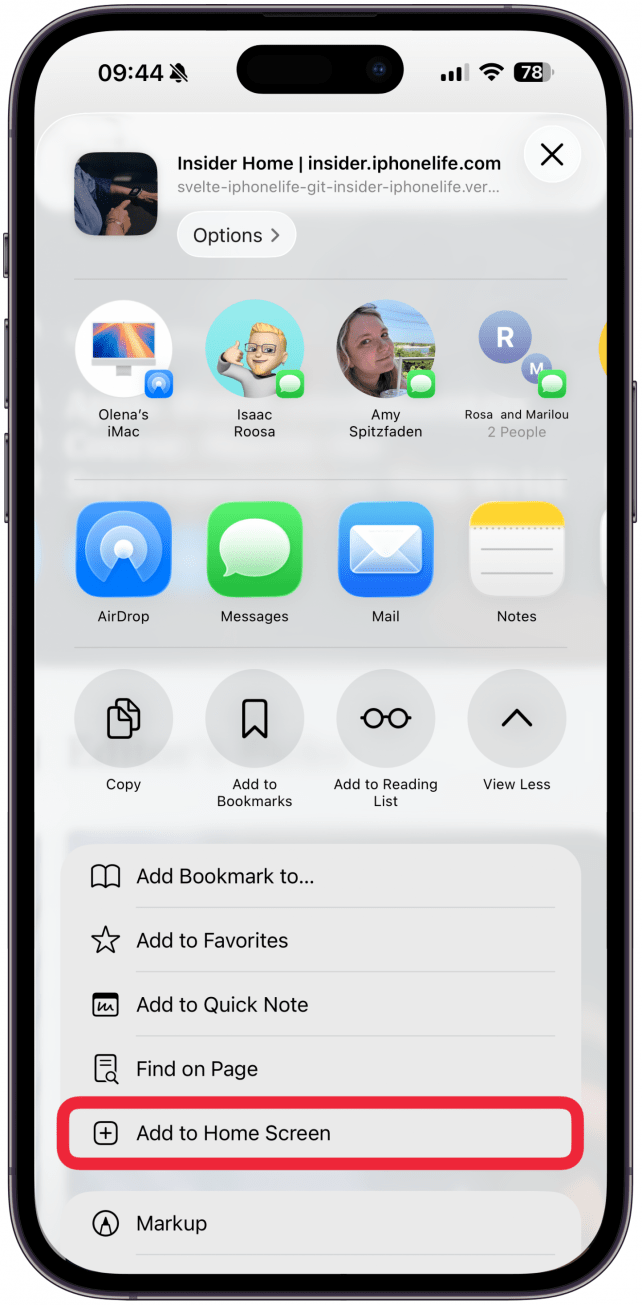
- Scroll down to Add to Home Screen to save it as a web app.
![]()
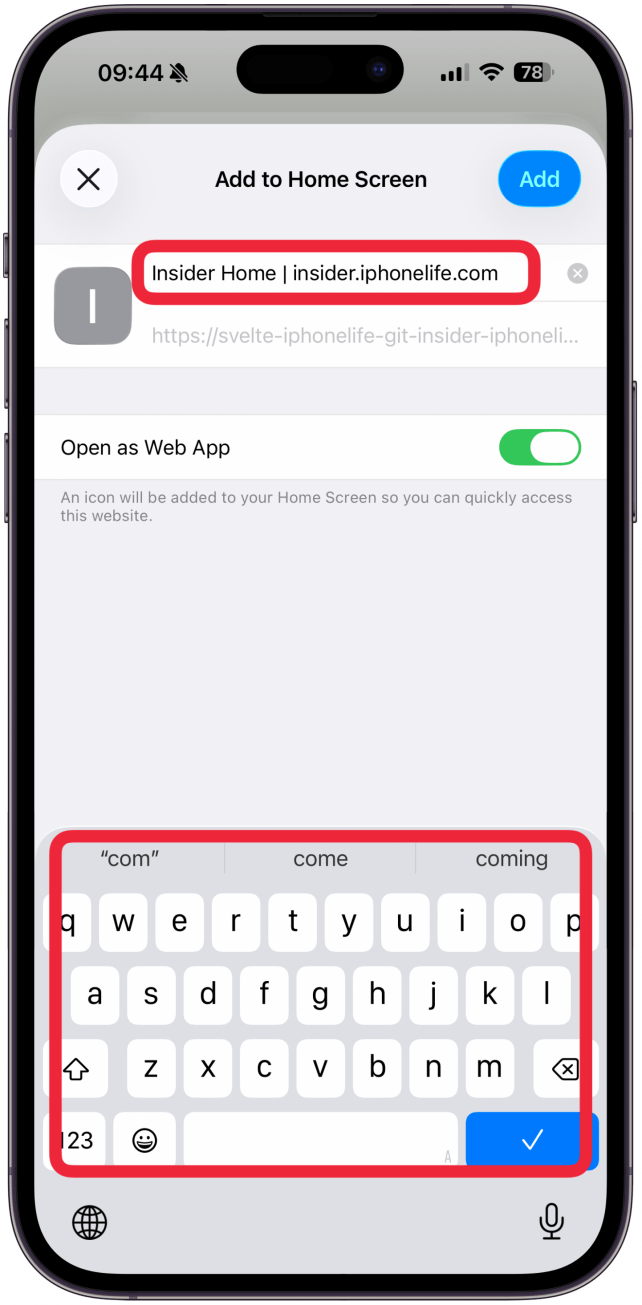
- Name the web app.
![]()
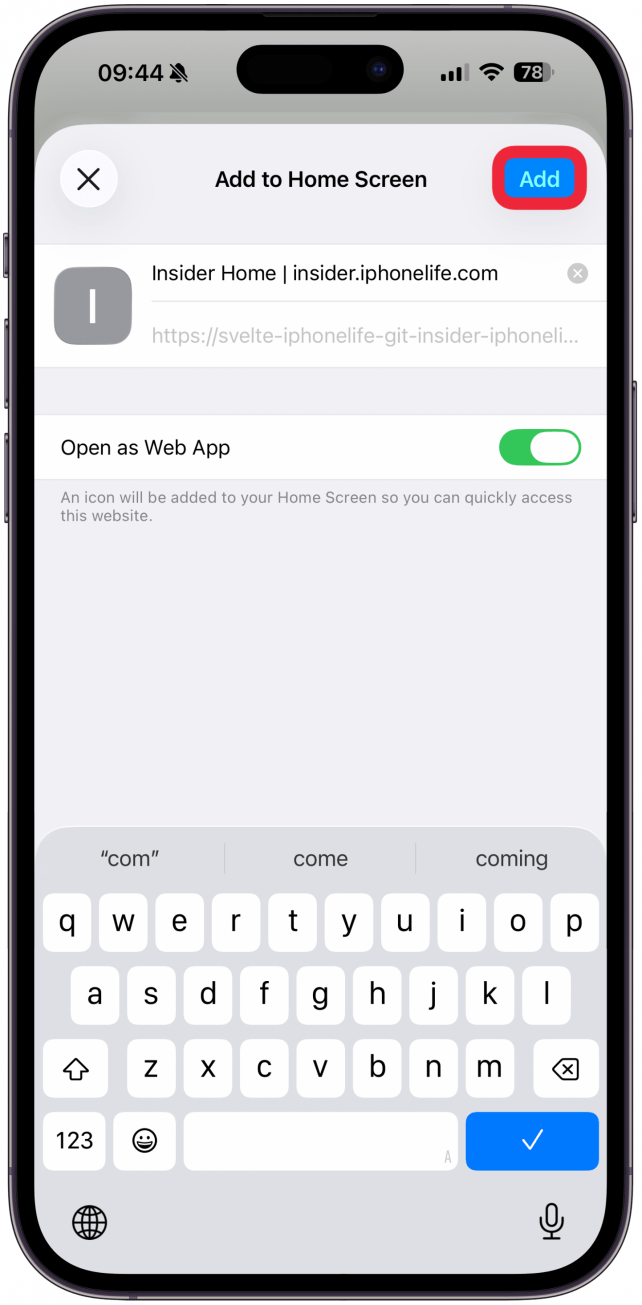
- Tap Add.
![]()
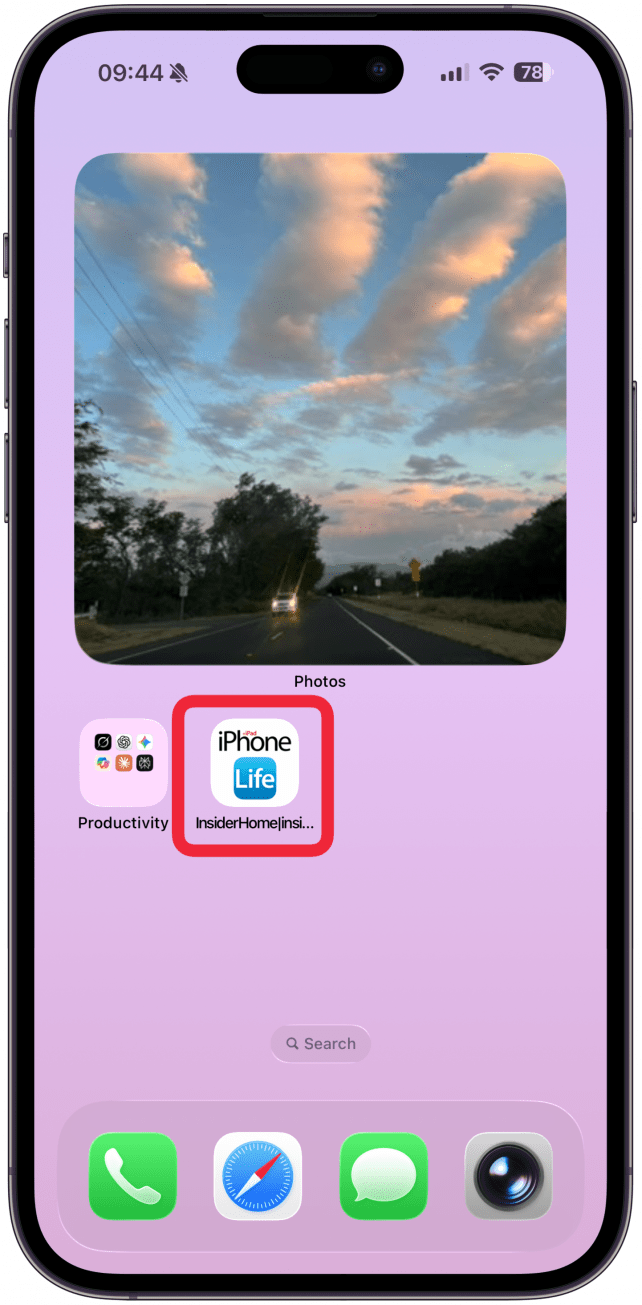
- Now you can tap the web app icon on your Home Screen whenever you want to quickly access the Insider site.
![]()

How to Bookmark Insider on a Computer
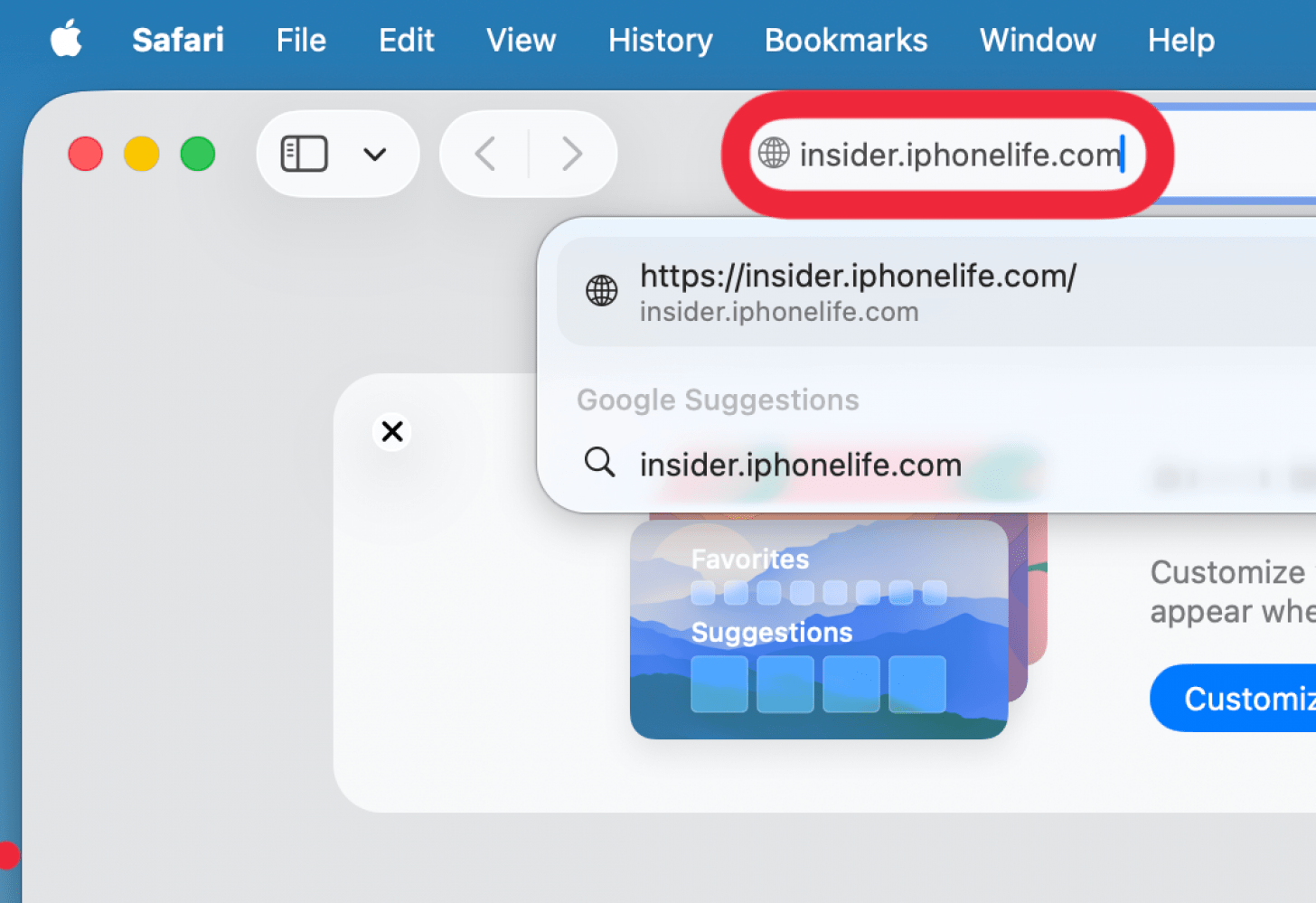
- Navigate to https://insider.iphonelife.com.
![]()
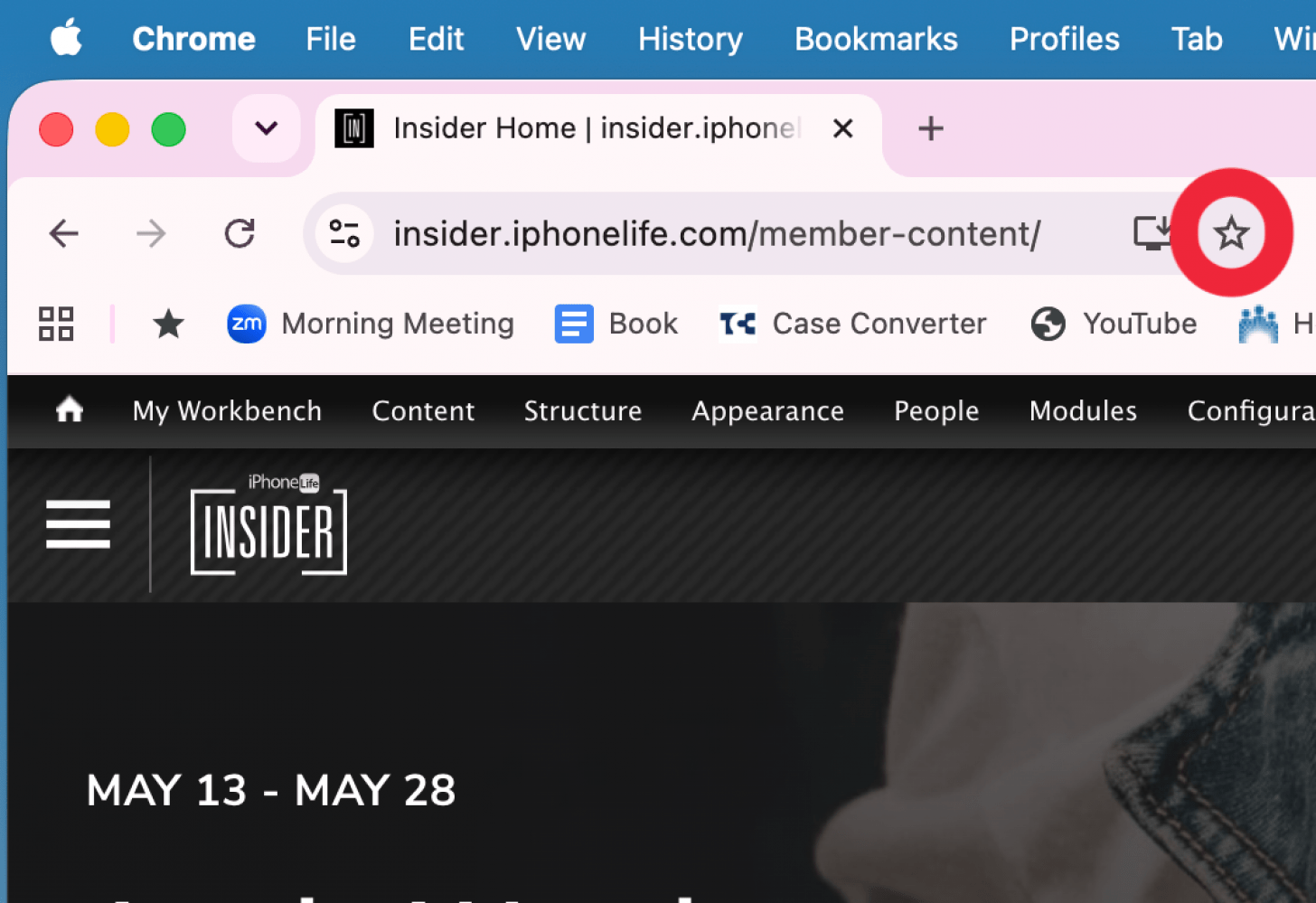
- In Chrome, click the star icon in the URL bar.
![]()
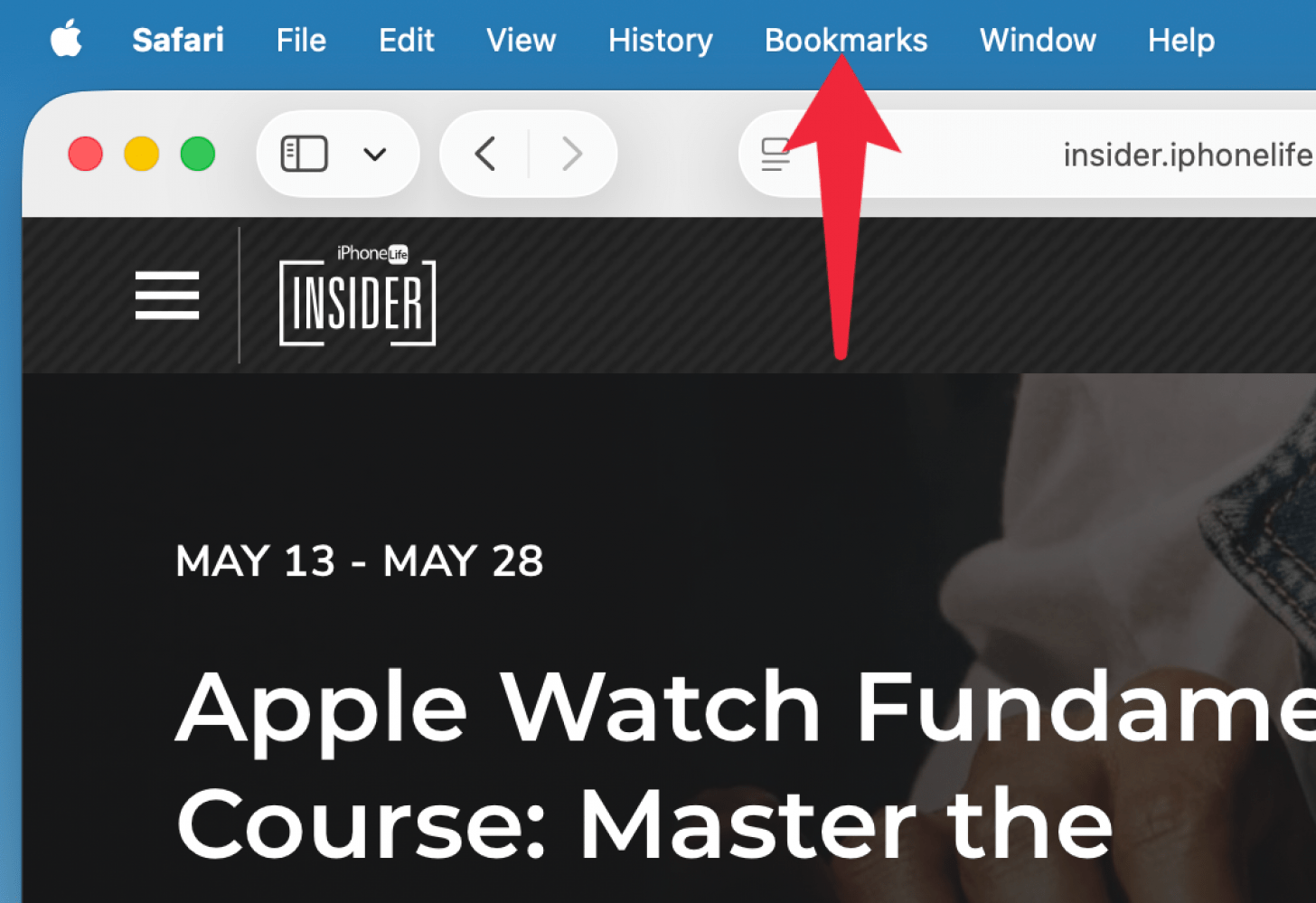
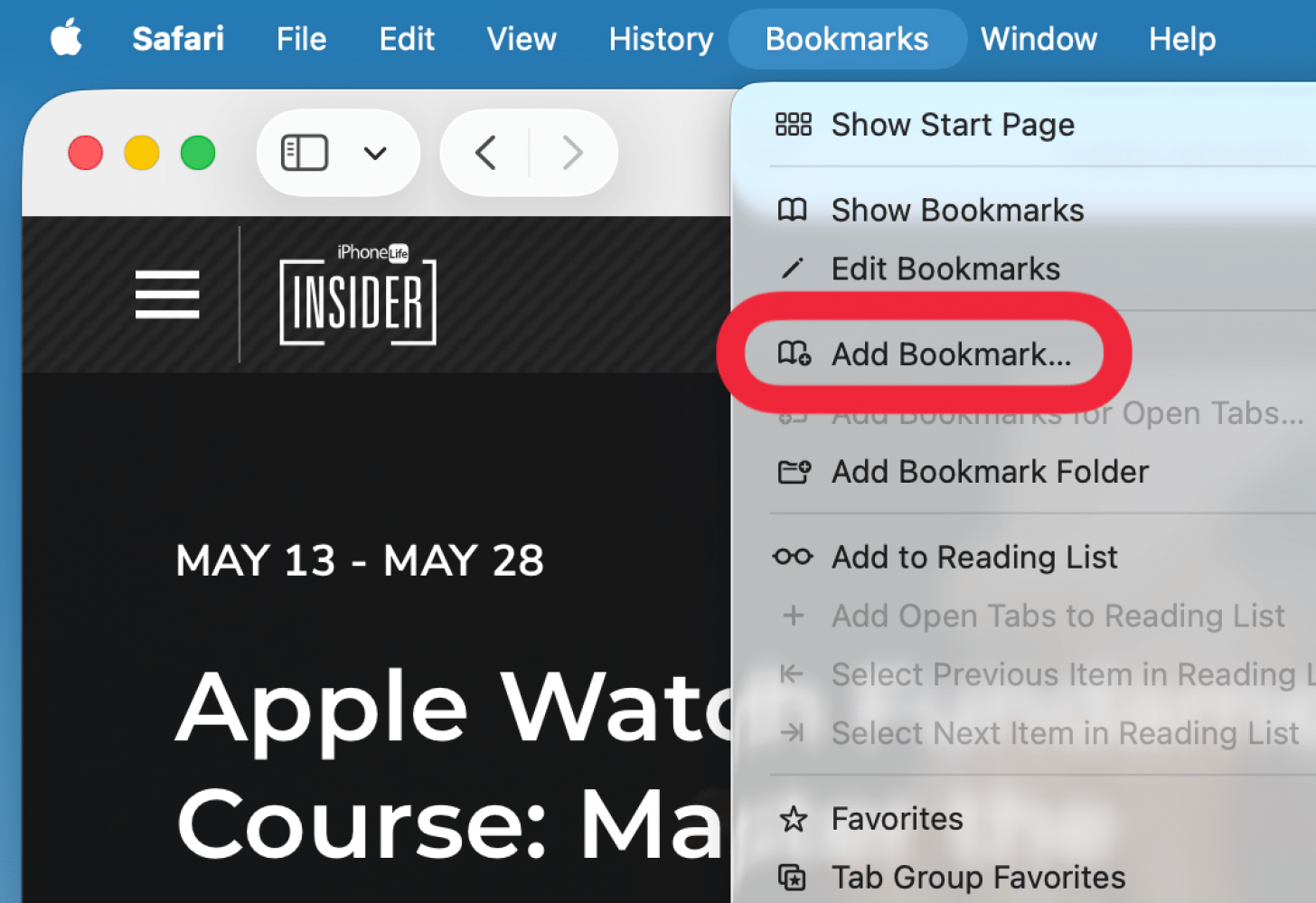
- In Safari, click Bookmarks and select Add Bookmark….
![]()
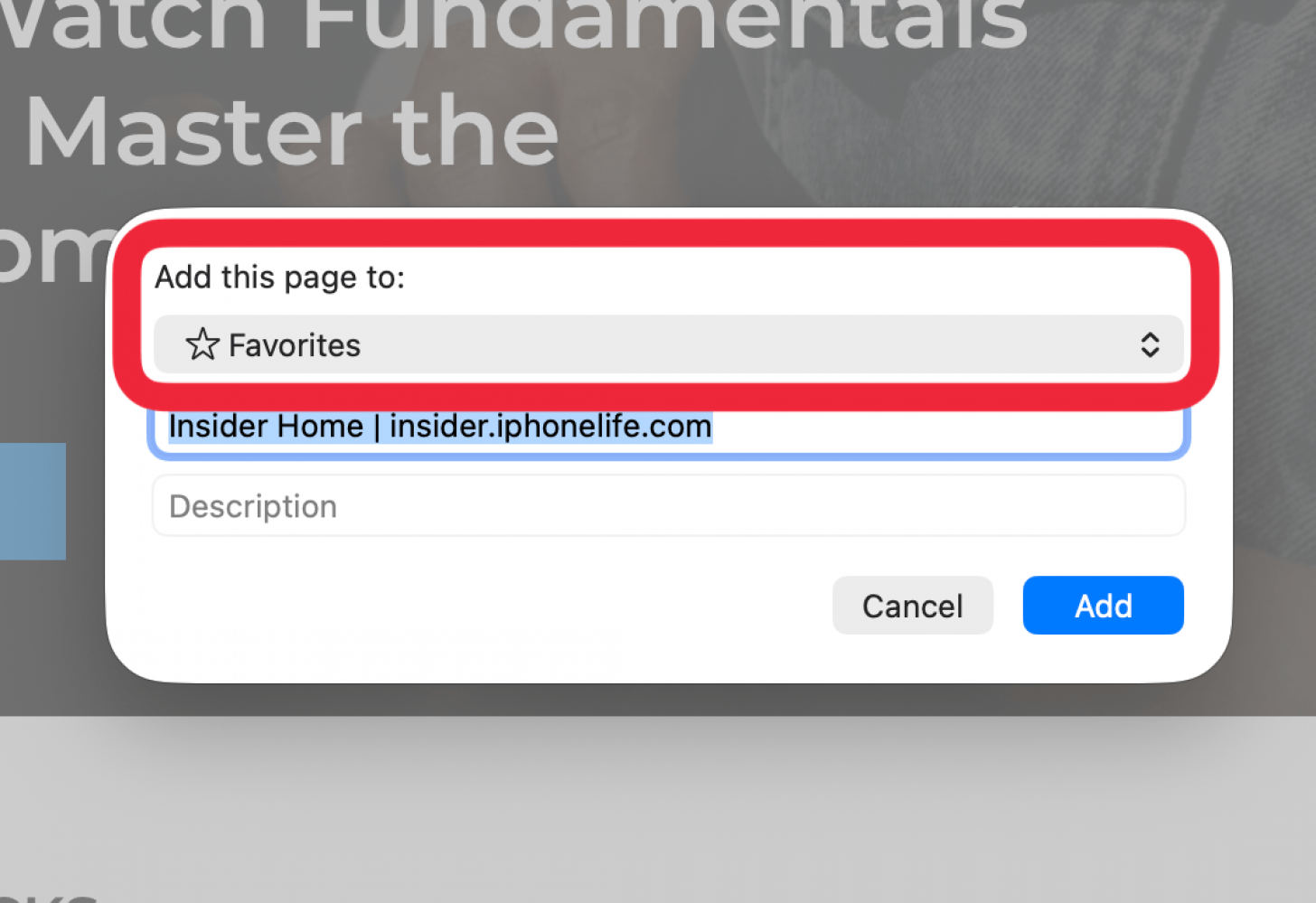
- Choose a bookmark folder to save it in.
![]()
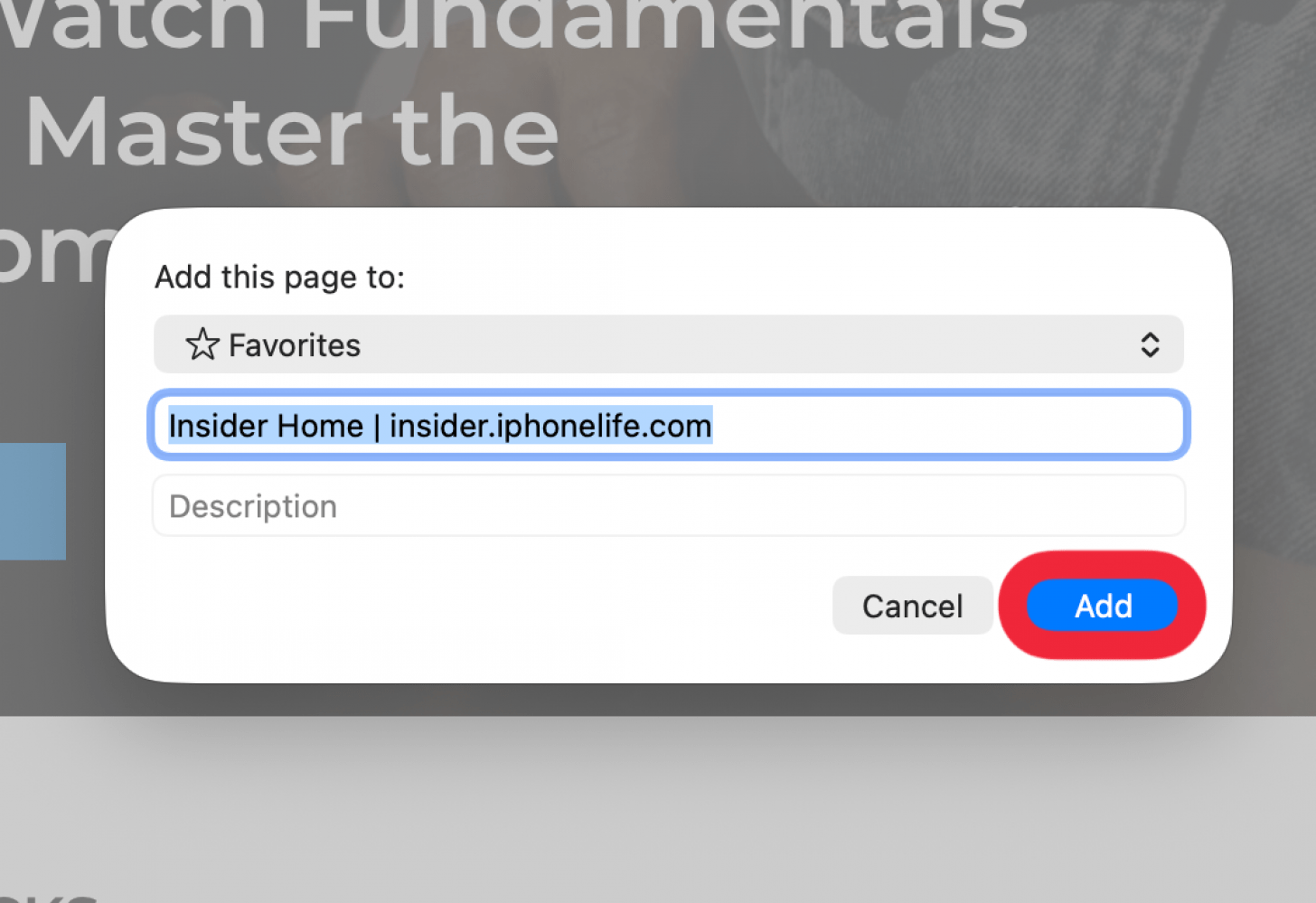
- Click Add.
![]()
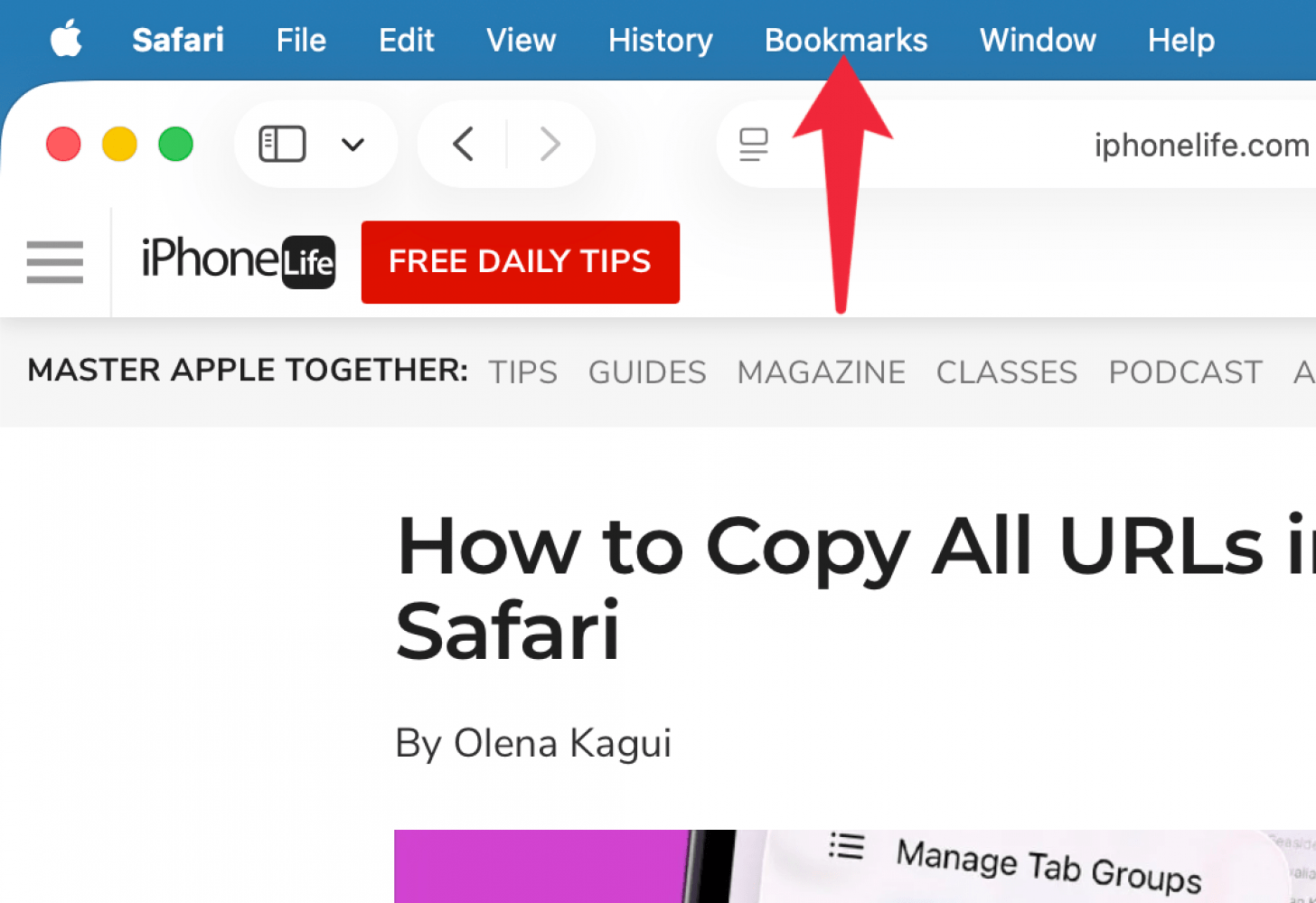
- To access it on your computer, click Bookmarks.
![]()
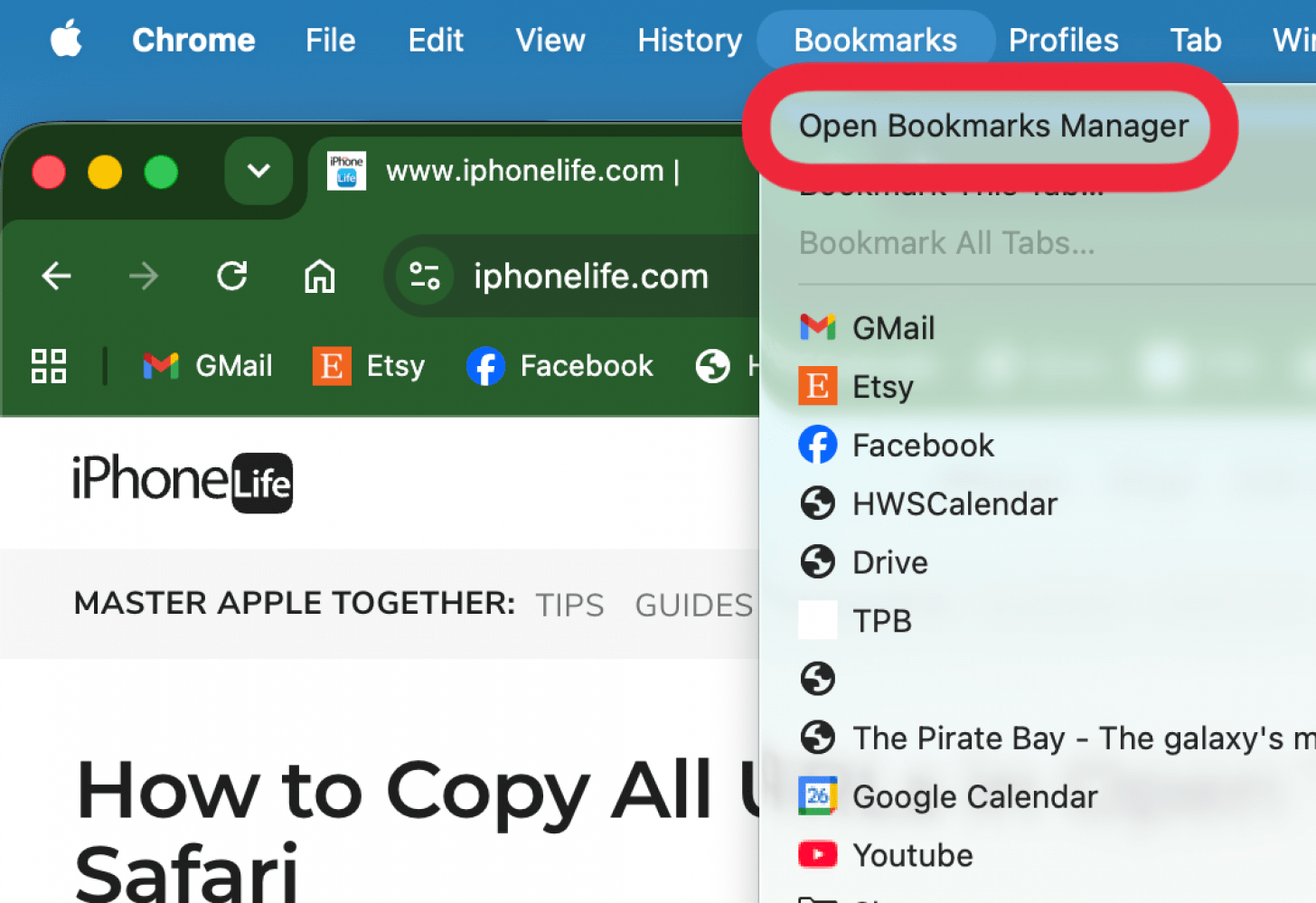
- In Chrome, select Open Bookmark Manager.
![]()
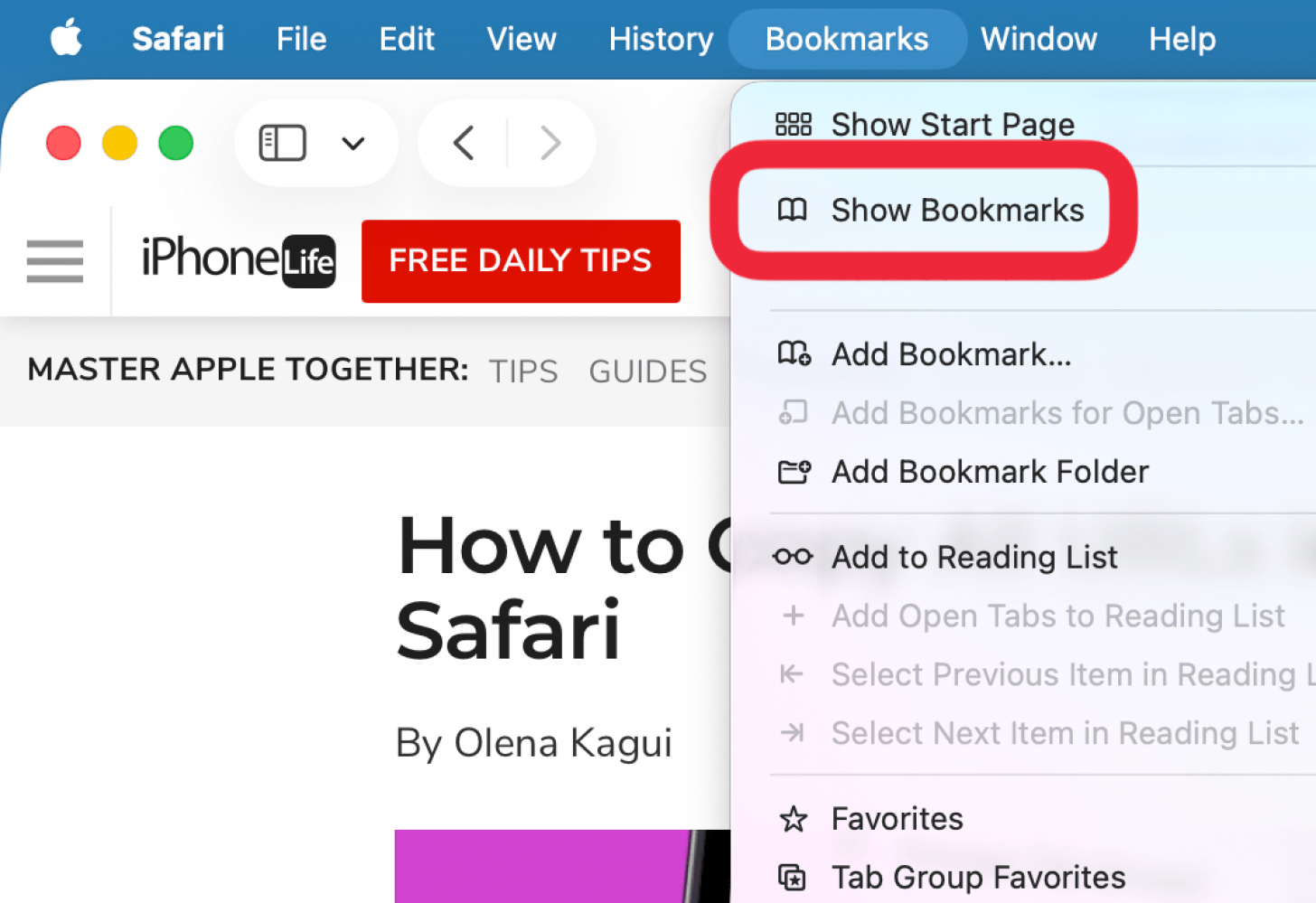
- In Safari, select Show Bookmarks.
![]()
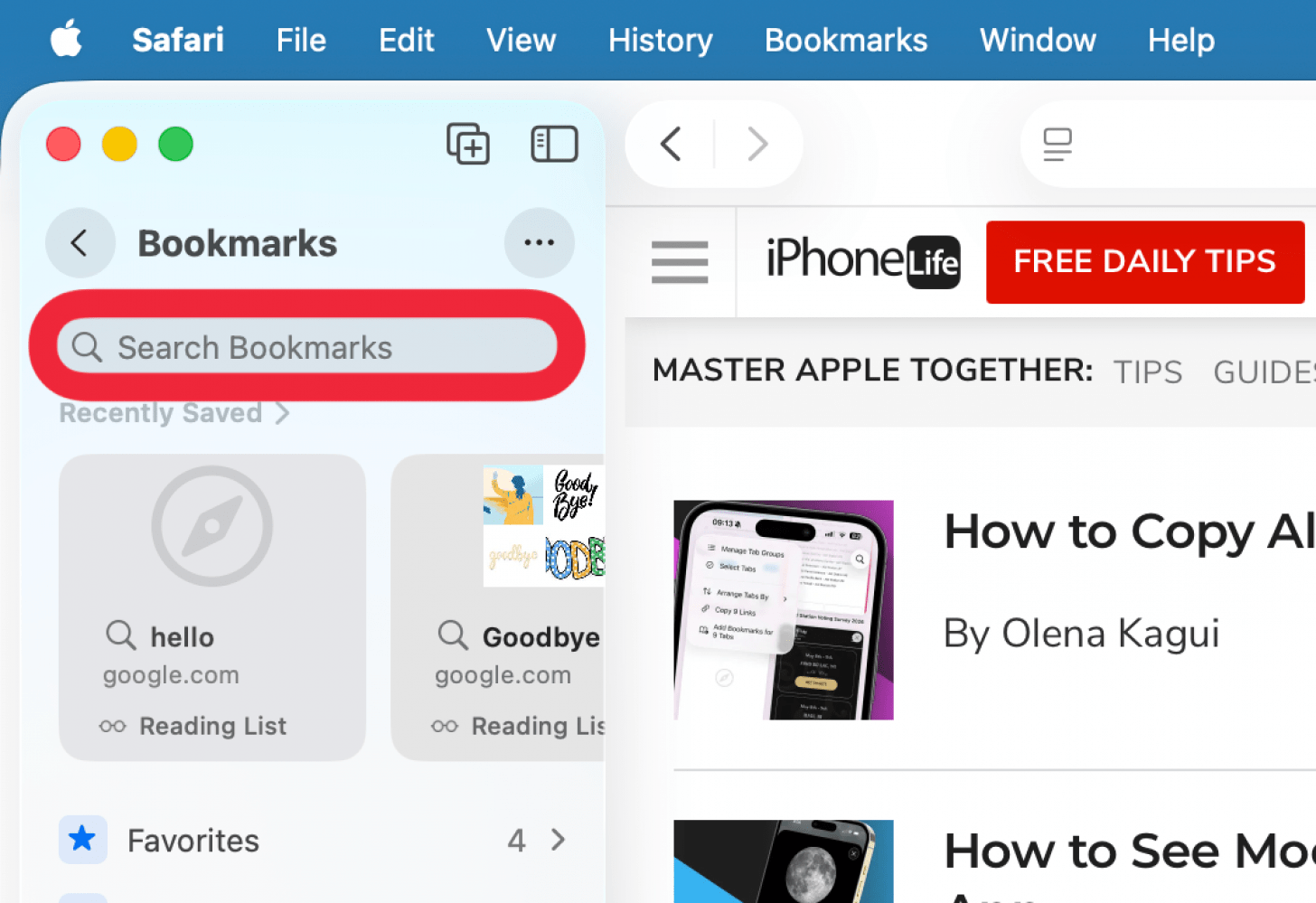
- Type Insider in the Search Bar.
![]()
- Click the bookmarked page to open.
![]()
How to Bookmark Insider on iPhone
- Navigate to https://insider.iphonelife.com on Safari.
![]()
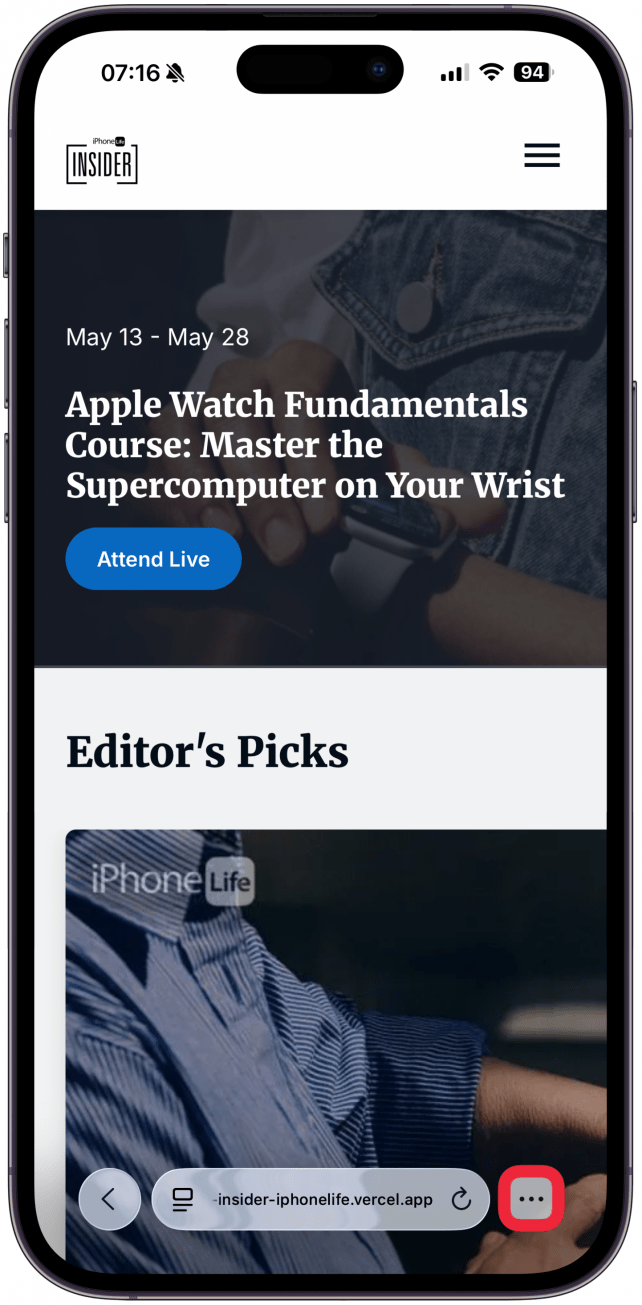
- Tap the More icon.
![]()
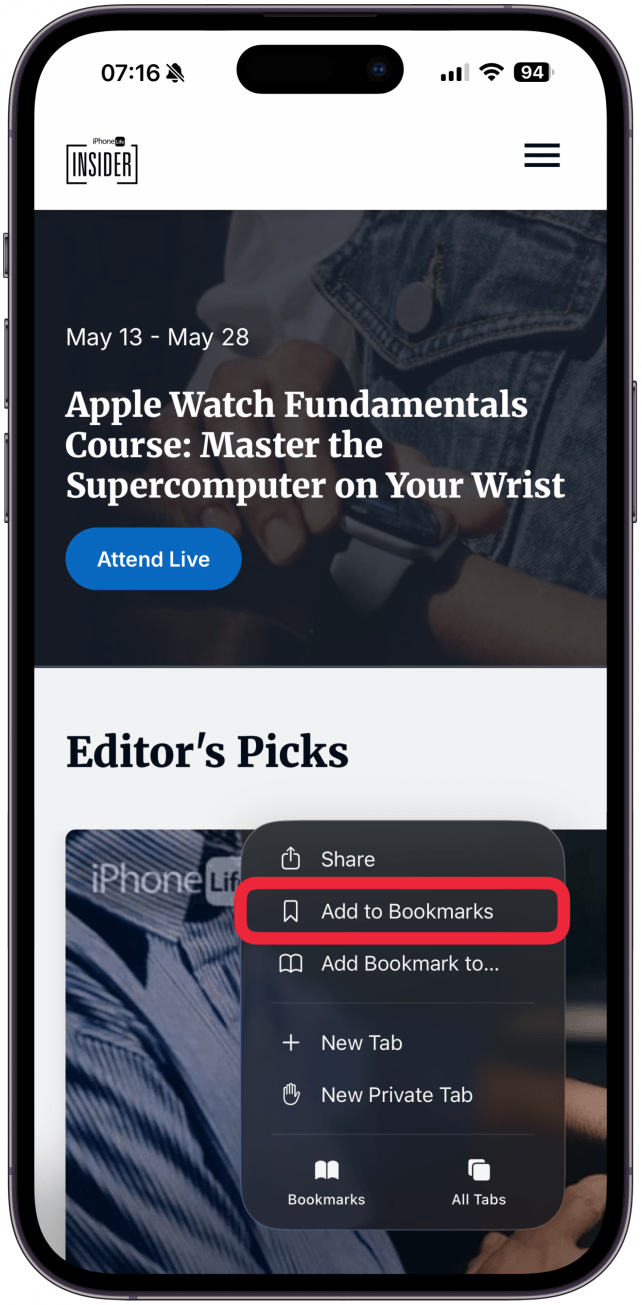
- Tap Add to Bookmarks.
![]()
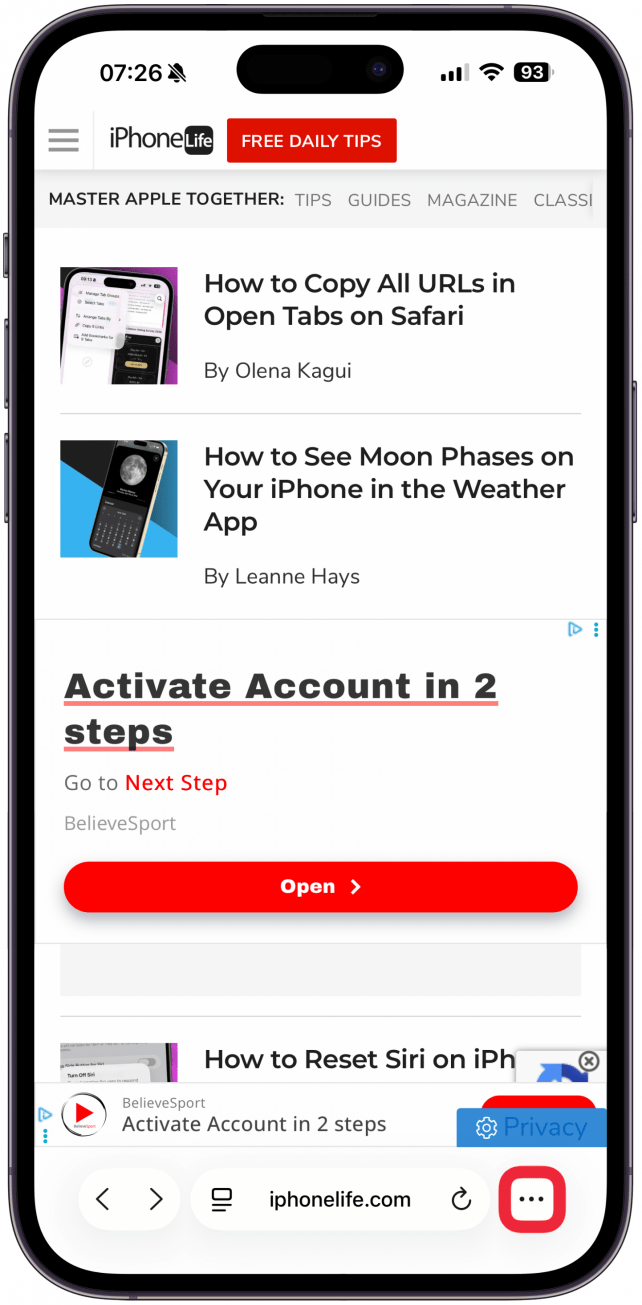
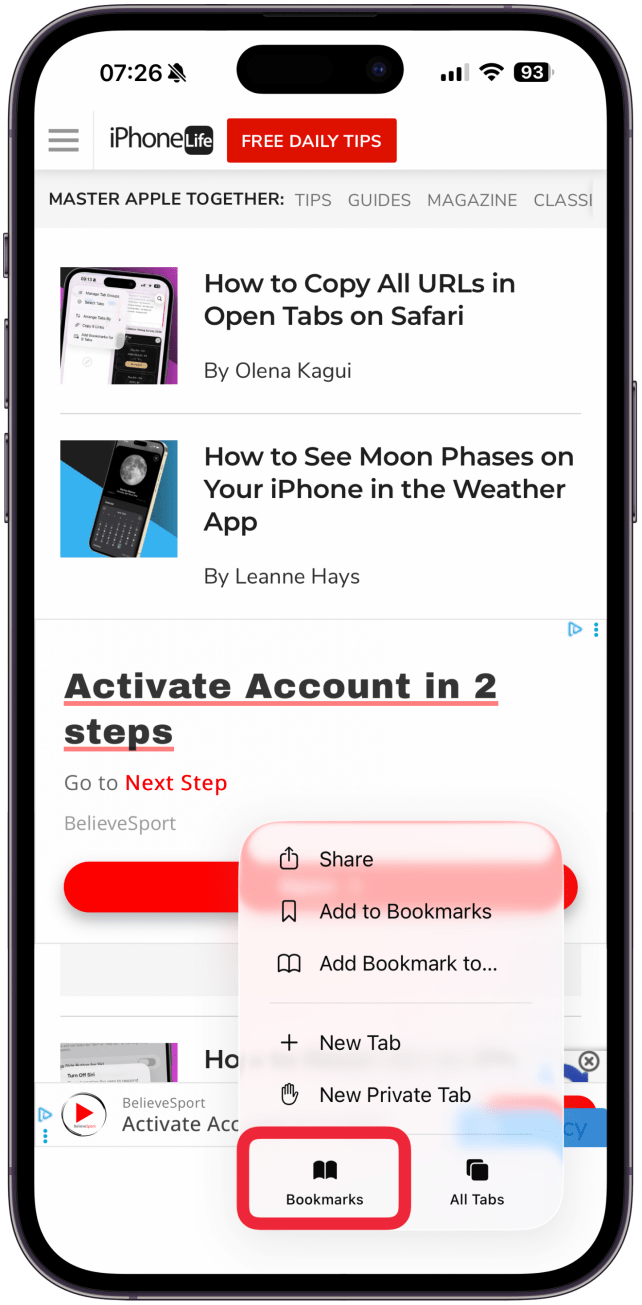
- To access the bookmark later, tap the More icon.
![]()
- Tap Bookmarks.
![]()
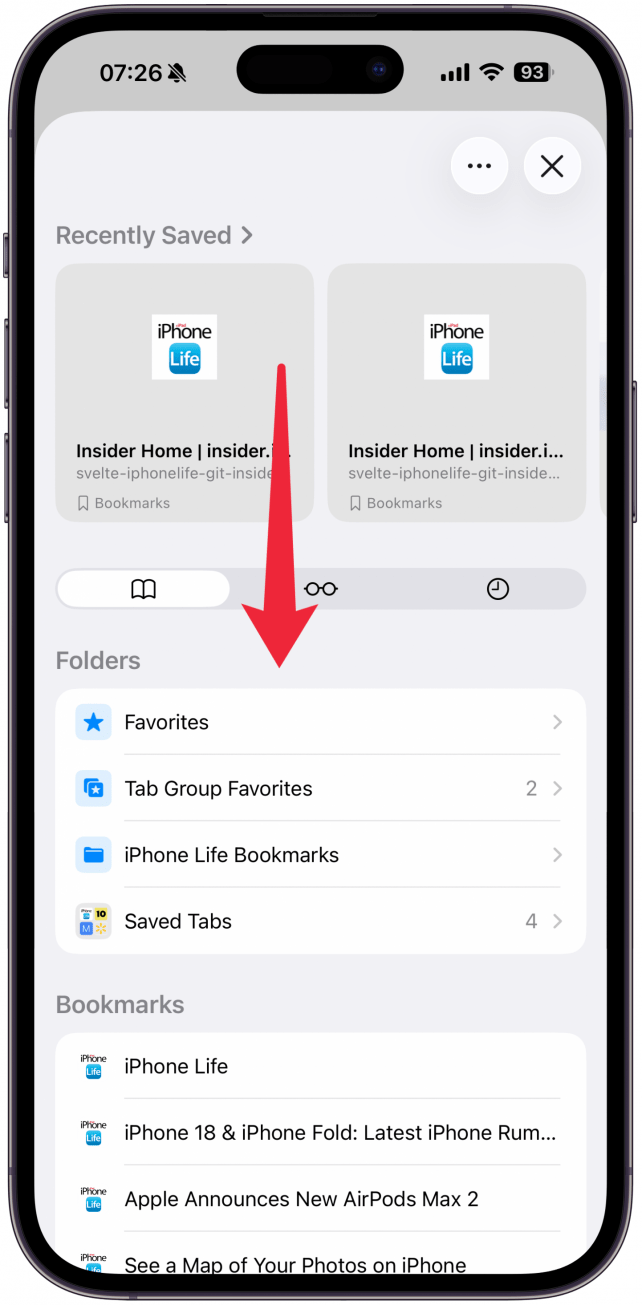
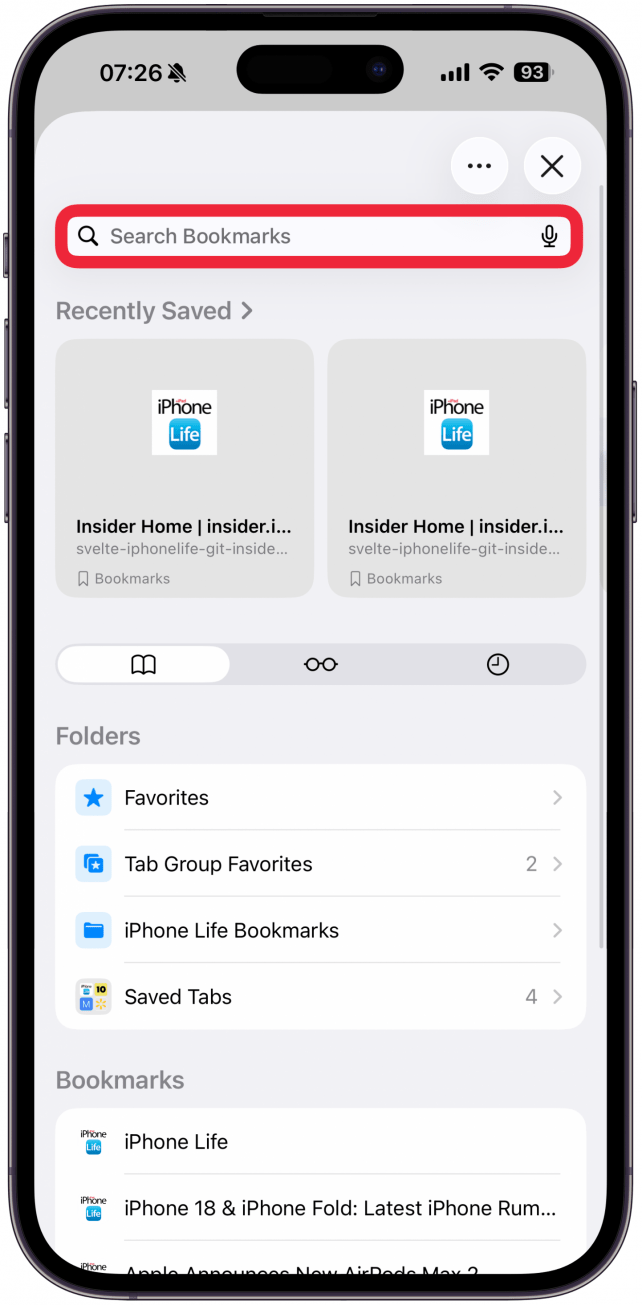
- Swipe down to access the Search Bar.
![]()
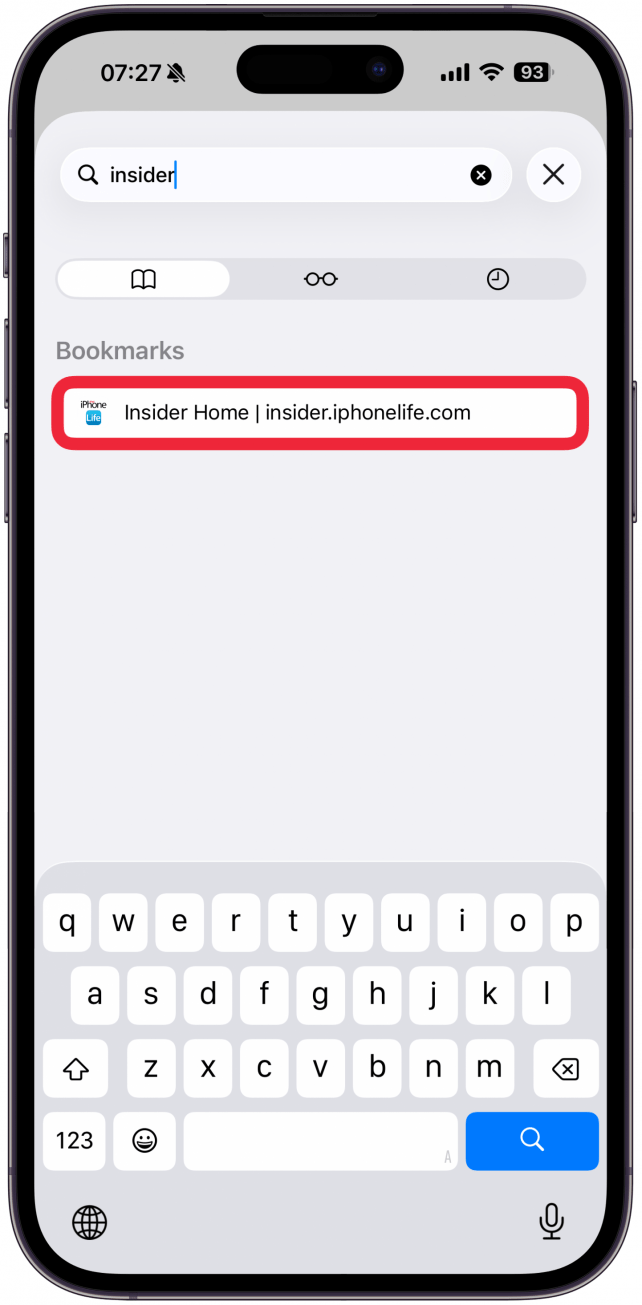
- Type Insider.
![]()
- Tap the bookmarked page to open.
![]()
How to Bookmark Insider on iPad
- Navigate to https://insider.iphonelife.com on Safari.
![]()
- Tap the Share icon.
![]()
- Tap Add to Bookmarks.
![]()
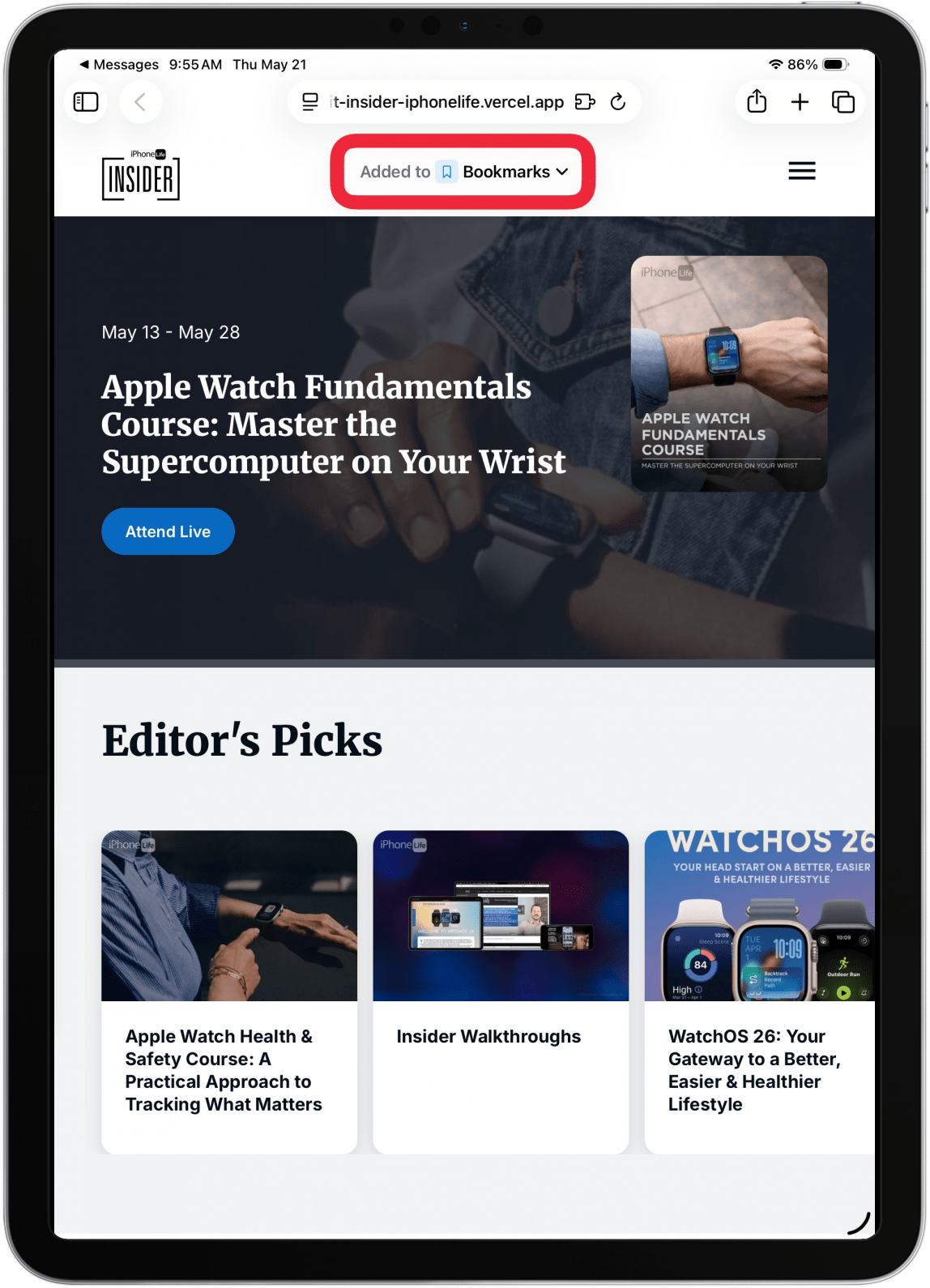
- To edit the Bookmark tap Added to Bookmarks.
![]()
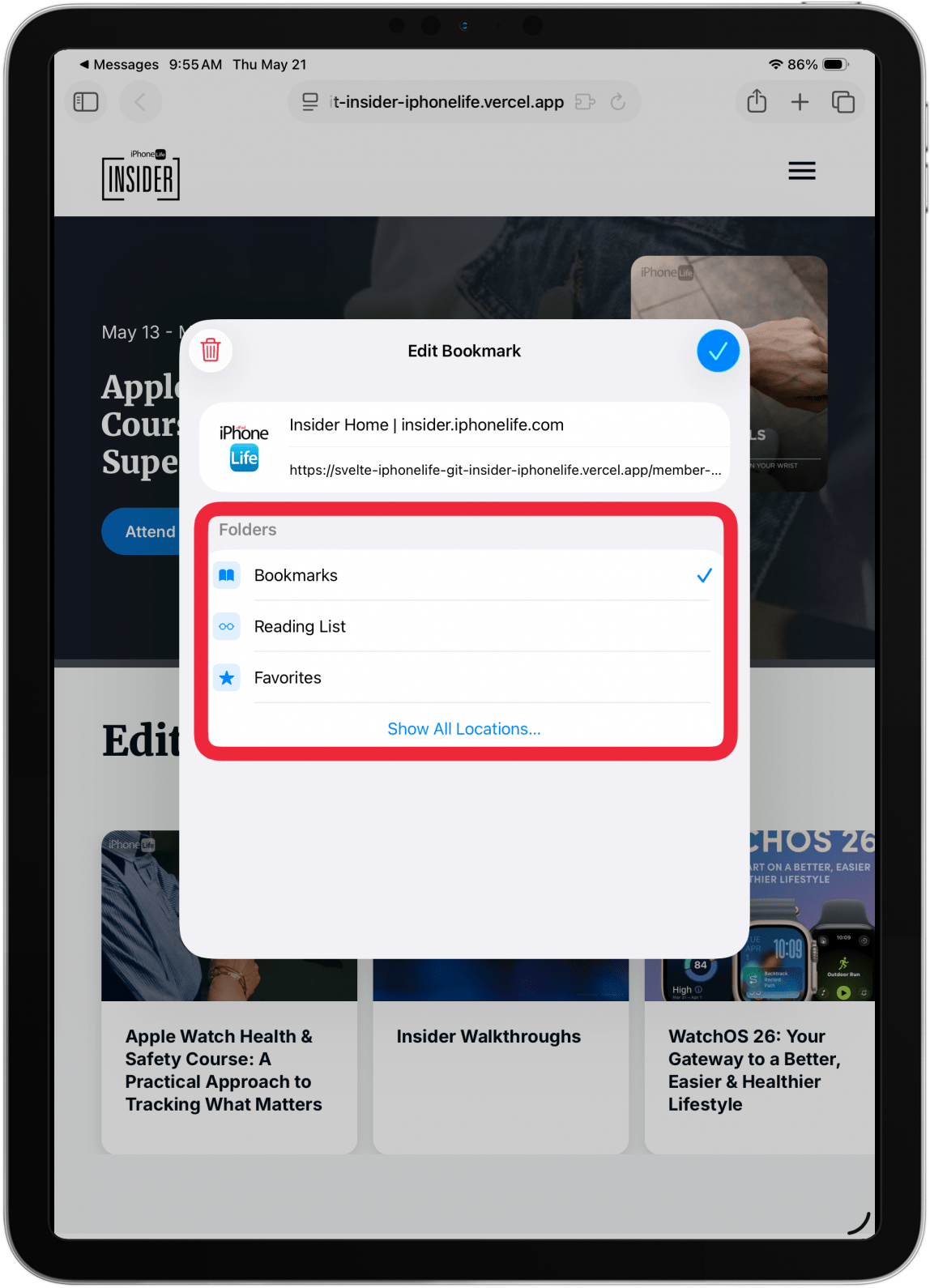
- Choose a location to save it.
![]()
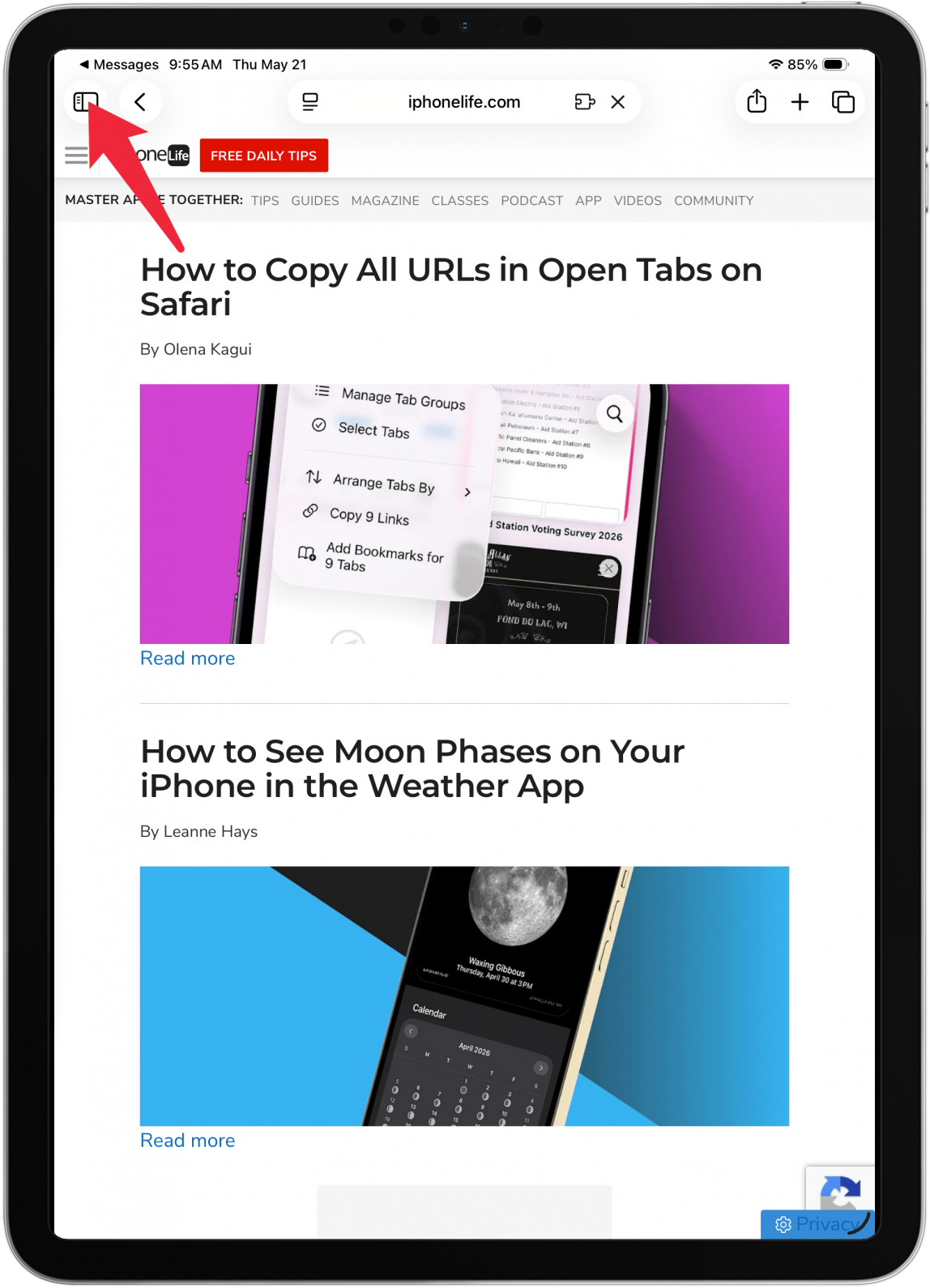
- To access the bookmark later, tap the Sidebar icon.
![]()
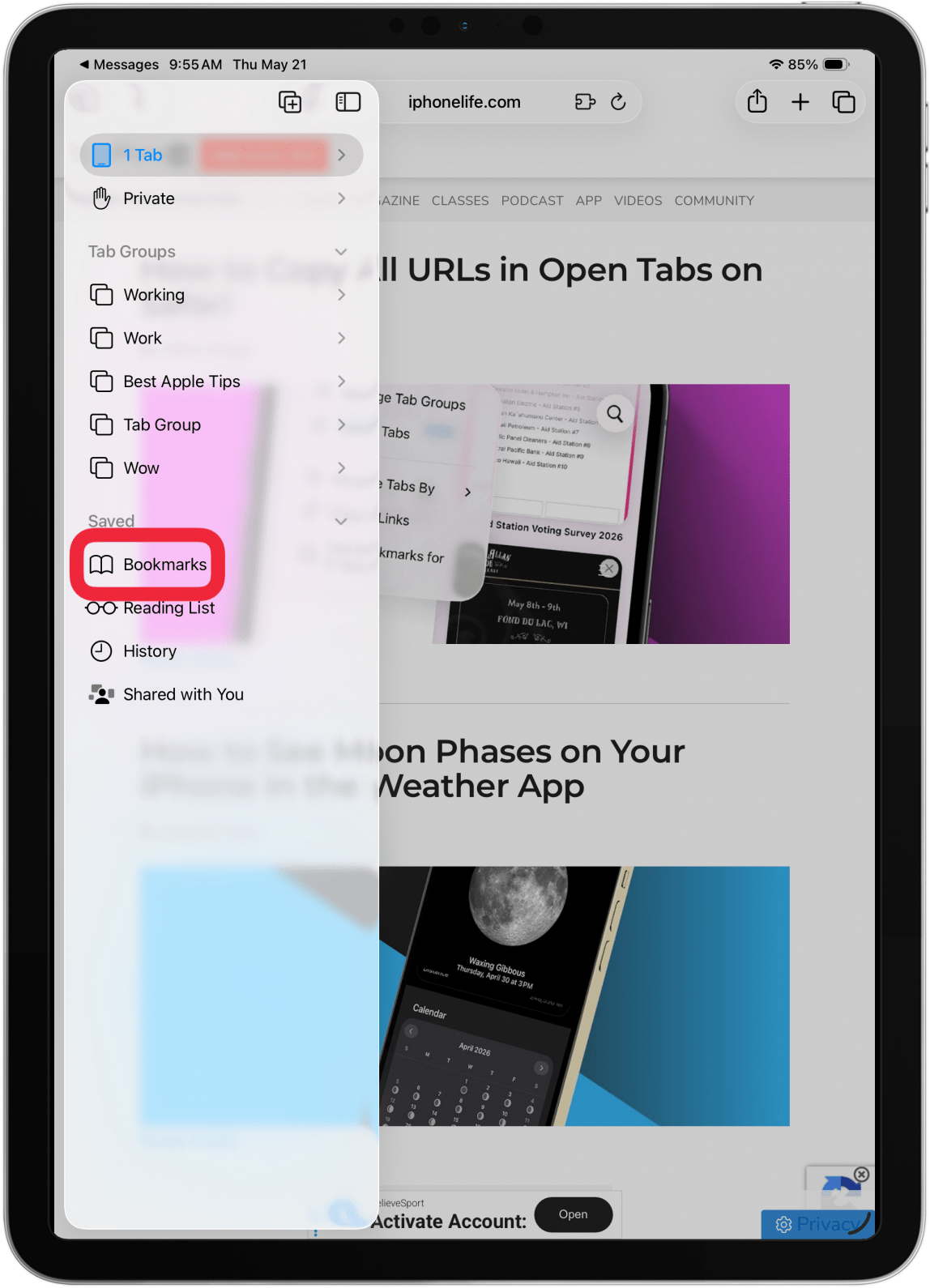
- Tap Bookmarks.
![]()
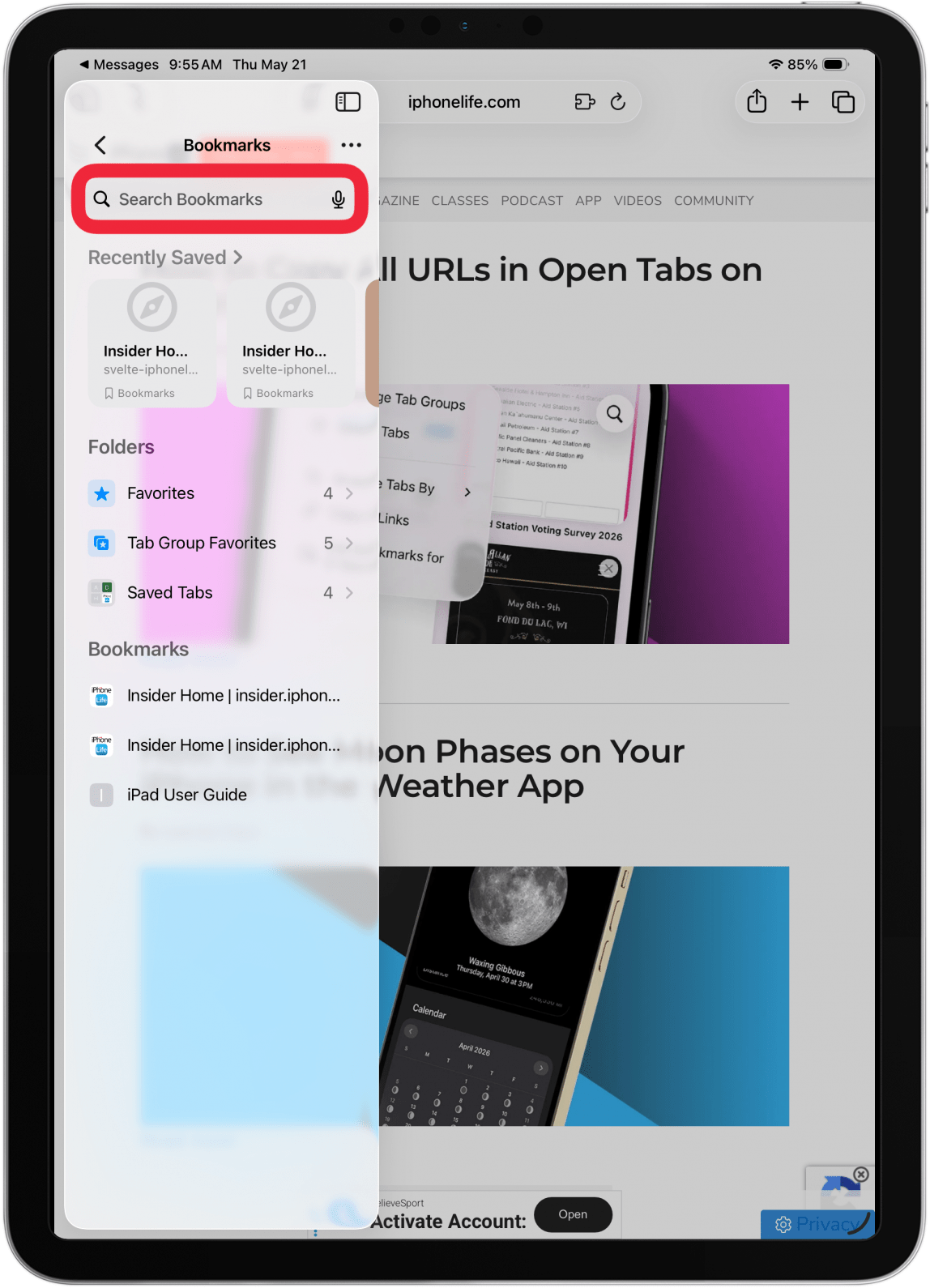
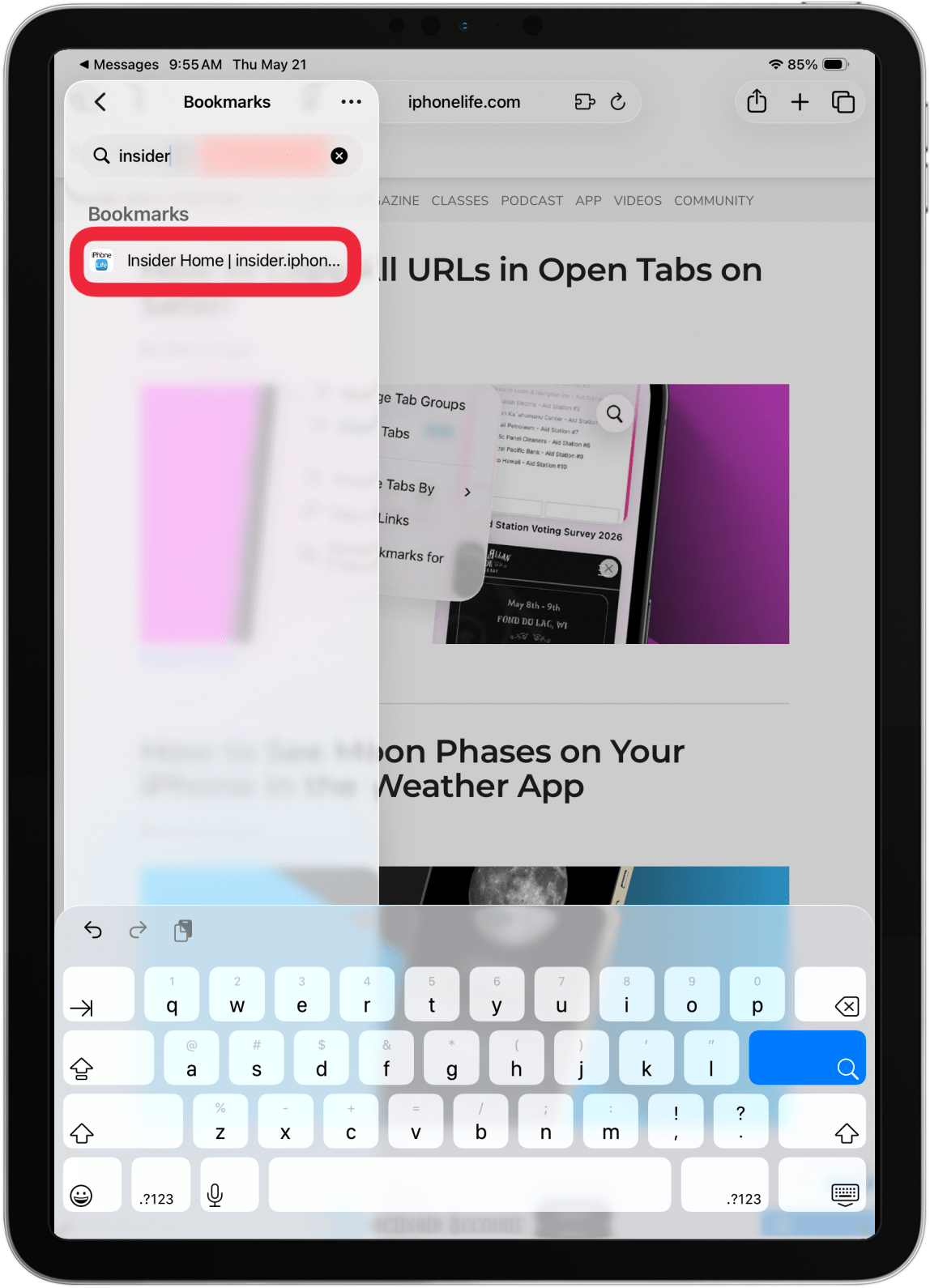
- Type Insider in the Search Bar.
![]()
- Tap the bookmarked page to open.
![]()


For more help bookmarking or saving the Insider site as a web app, contact Help@iphonelife.com.

