Watch the Full Archive of Daily Video Tips
Learn how to watch, search for, and print your favorite tips.
What Are the Daily Video Tips?
As an Insider, you receive a brief tip and video walkthrough sent directly to your inbox each day, Monday through Saturday. Every tips covers one cool thing you can do with your iPhone or other Apple devices. Every Sunday, you get a weekly roundup of that week's tips in case you've missed any. You can also search our comprehensive archive of tips for answers to any of your how-to questions.
How to Keep Tip Emails from Getting Caught in Your Spam Filter
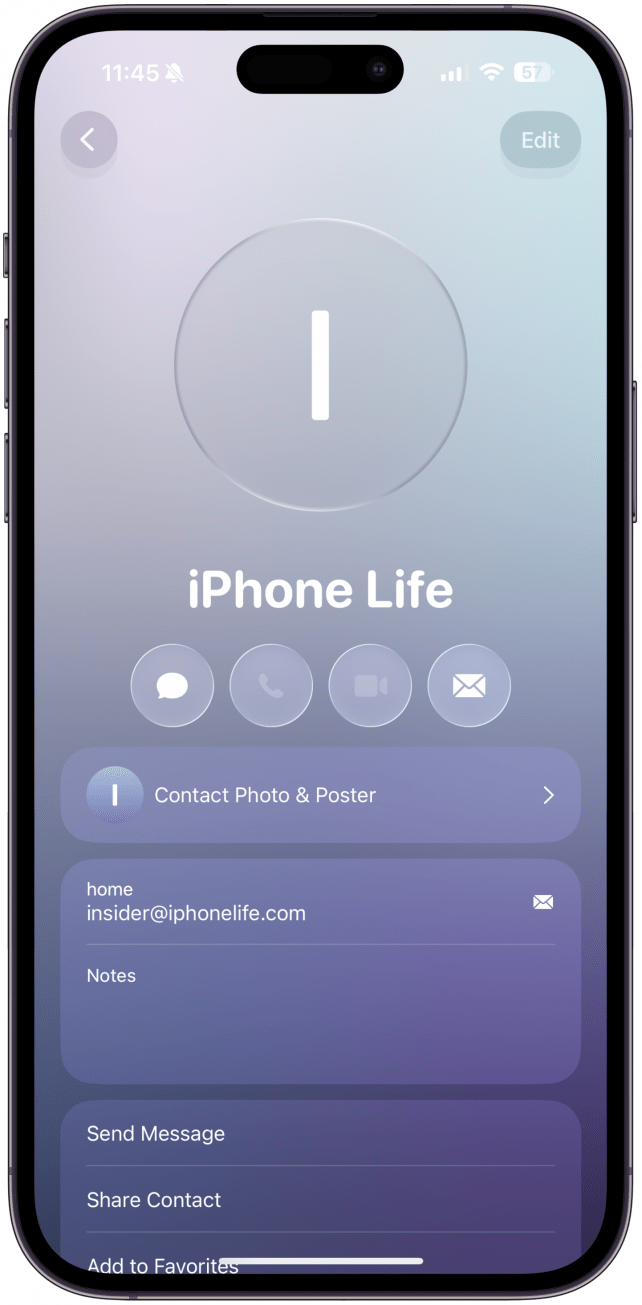
- Add iPhone Life to your contacts list: Daily Tips are sent from iPhone Life Insider using the email address insider@iphonelife.com. Add the sender and email address to your Apple Contacts app or the contacts list of your preferred email service.
![]()
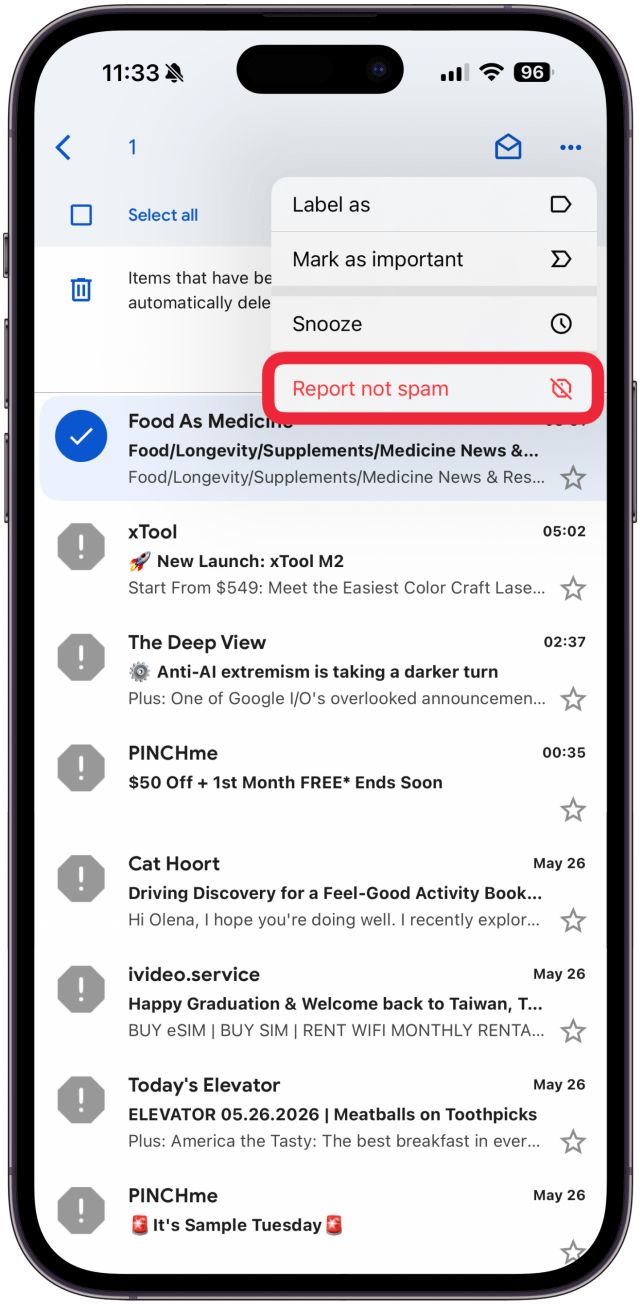
- Mark the Daily Tip emails as safe: Find the email in your junk folder and move it to your inbox in Apple Mail. In Gmail, find the email in your Spam folder, right click on it, and select Not Spam.
![]()
- Designate an inbox or folder for your Daily Tip emails to go to:
- How to set up email filters in Apple Mail
- How to set up email filters in Gmail
- How to set up email filters in Oulook
- How to set up email filters in Yahoo Mail
If you’re still not receiving your daily tip emails, email us at help@iphonelife.com.
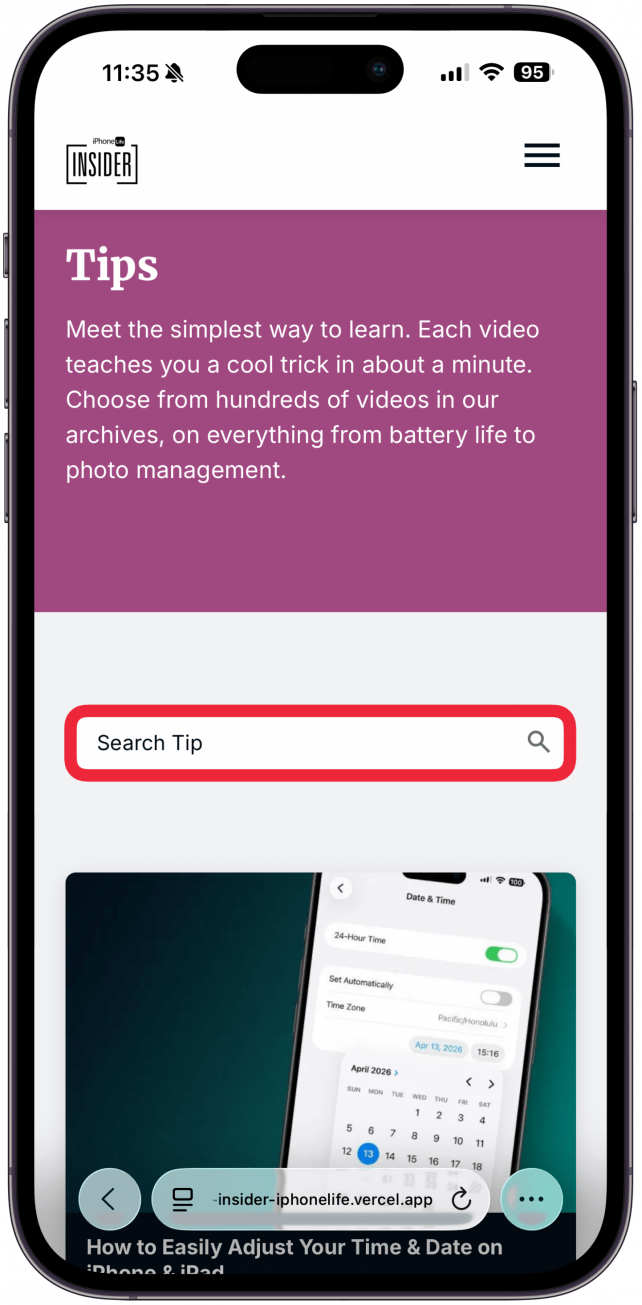
How to Search Tips on the Insider Site
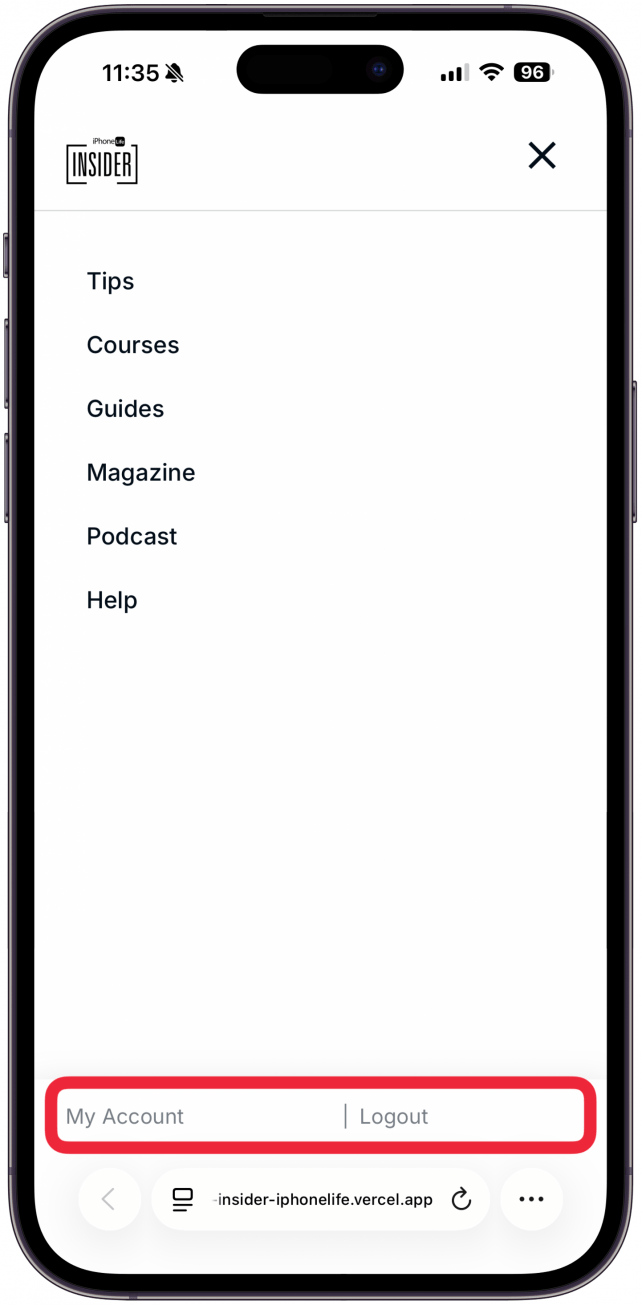
Our tips don't just exist as emails; we have over 2000 tips on our website. If you want to learn more about a certain feature or have a question in mind, you can easily search for any tips we have on the subject.- Make sure you're logged in to Insider.
![]()
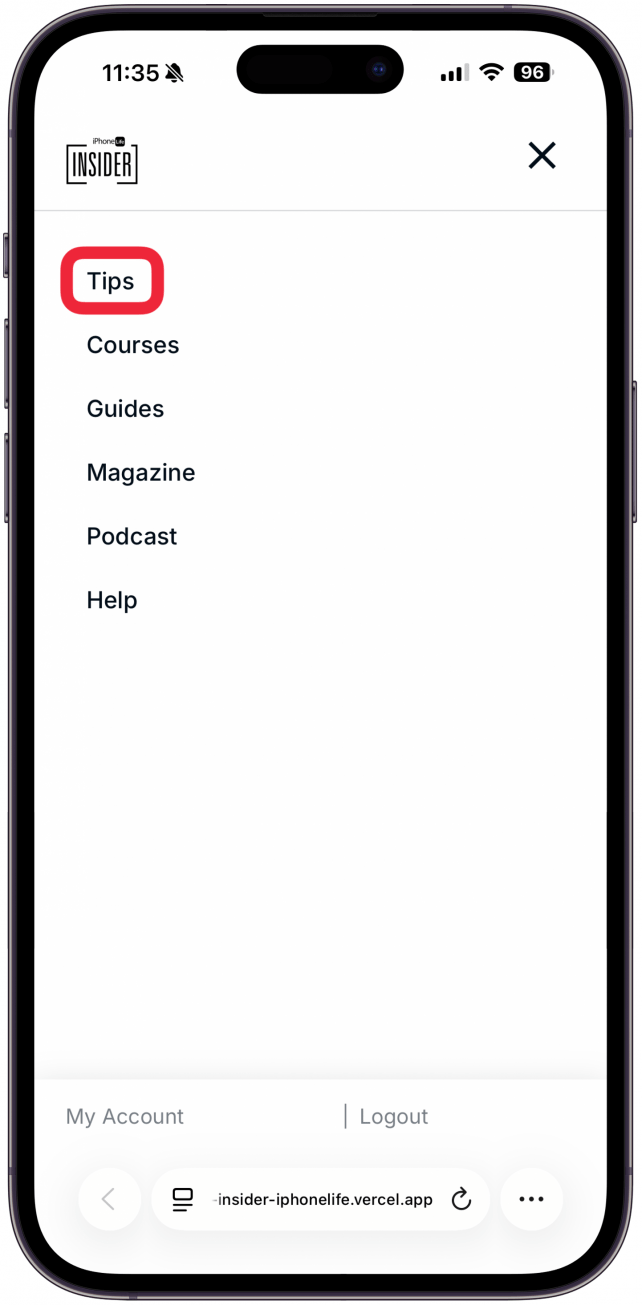
- Select Tips from the navigation bar.
![]()
- Type in whatever you are looking for is the search bar where it says Search Tip Titles.
![]()
How to Watch the Video Tips
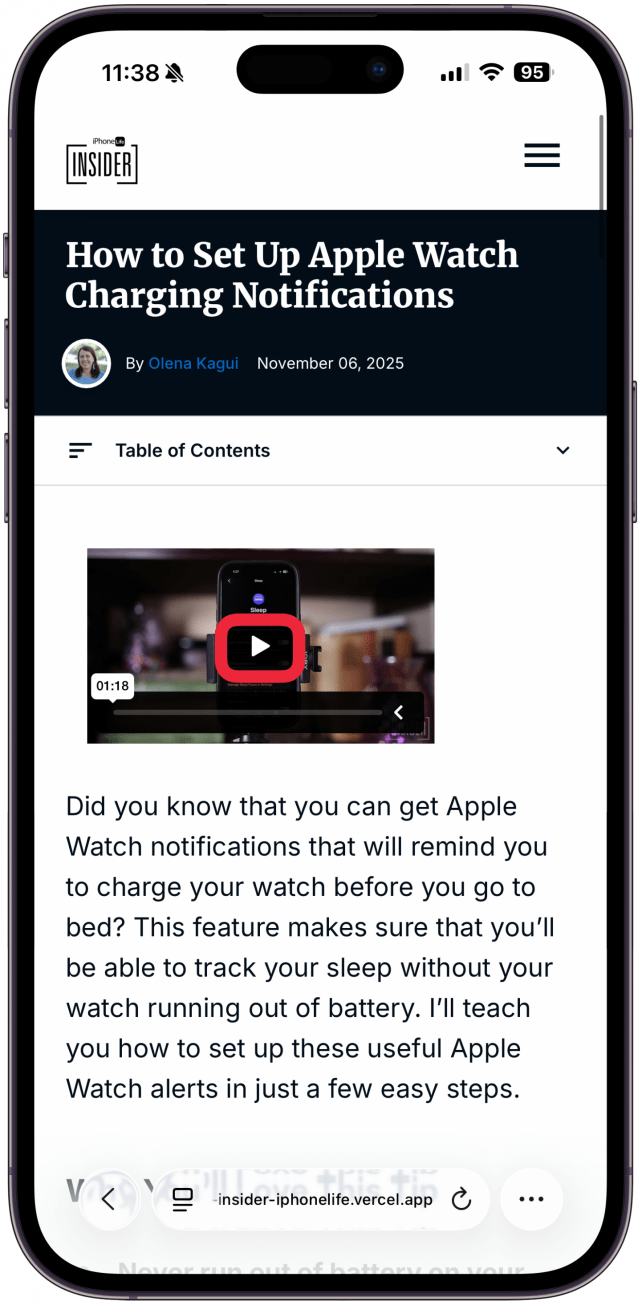
Once you’ve selected the tip that you would like to watch, you’ll see the video listed toward the top of the screen and then, beneath that, you’ll see the same tip in written form (complete with screenshots and relevant links).
- To begin a video tip, simply tap or click on it and then tap the Play icon.
![]()
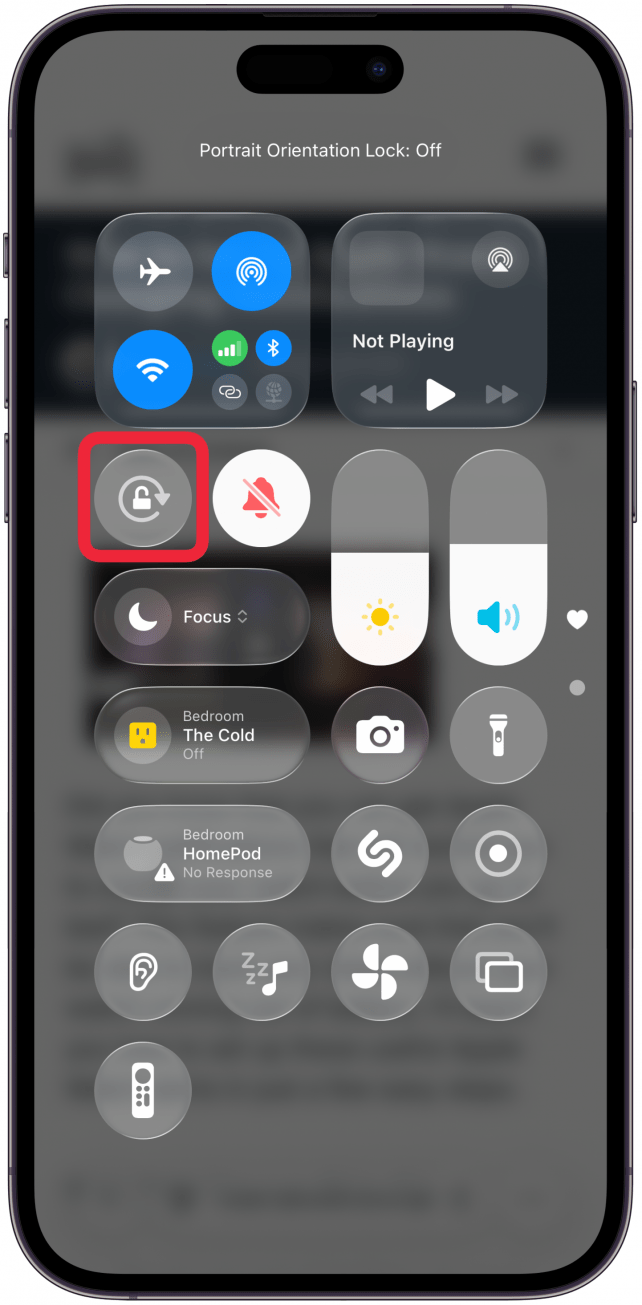
- If you’re logged in to Insider on your iPhone or iPad, you can watch your video in landscape mode by opening Control Center and making sure that Portrait Orientation Lock is off.
![]()
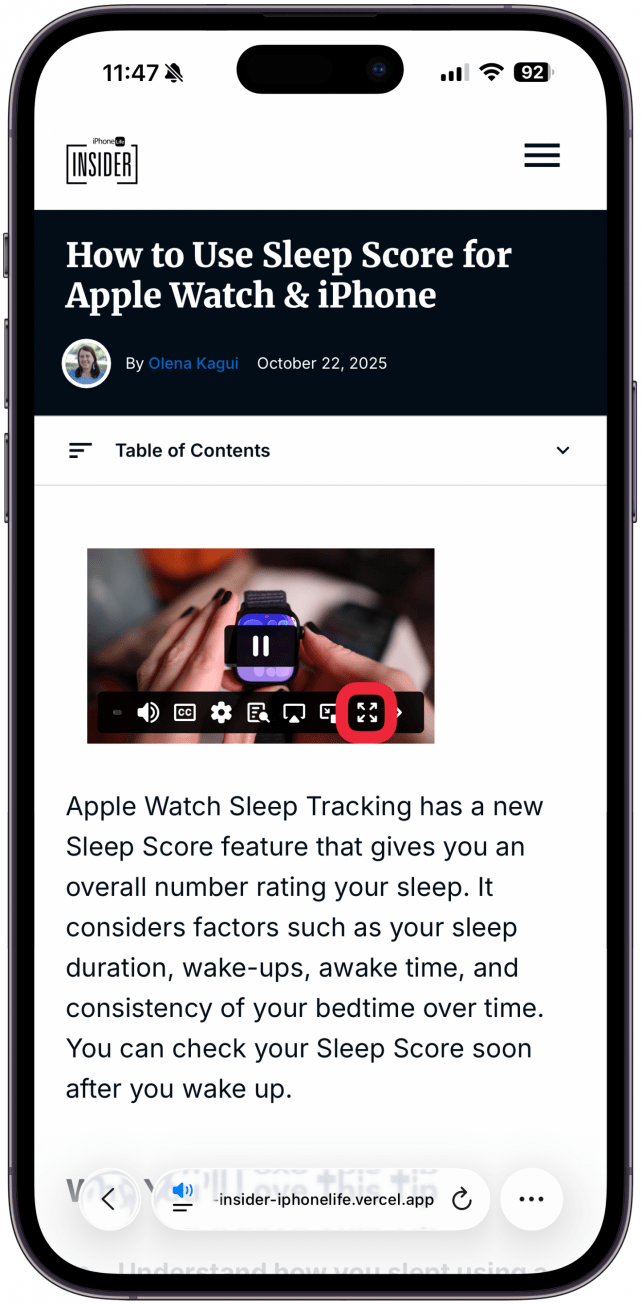
- Then select the Full Screen icon.
![]()
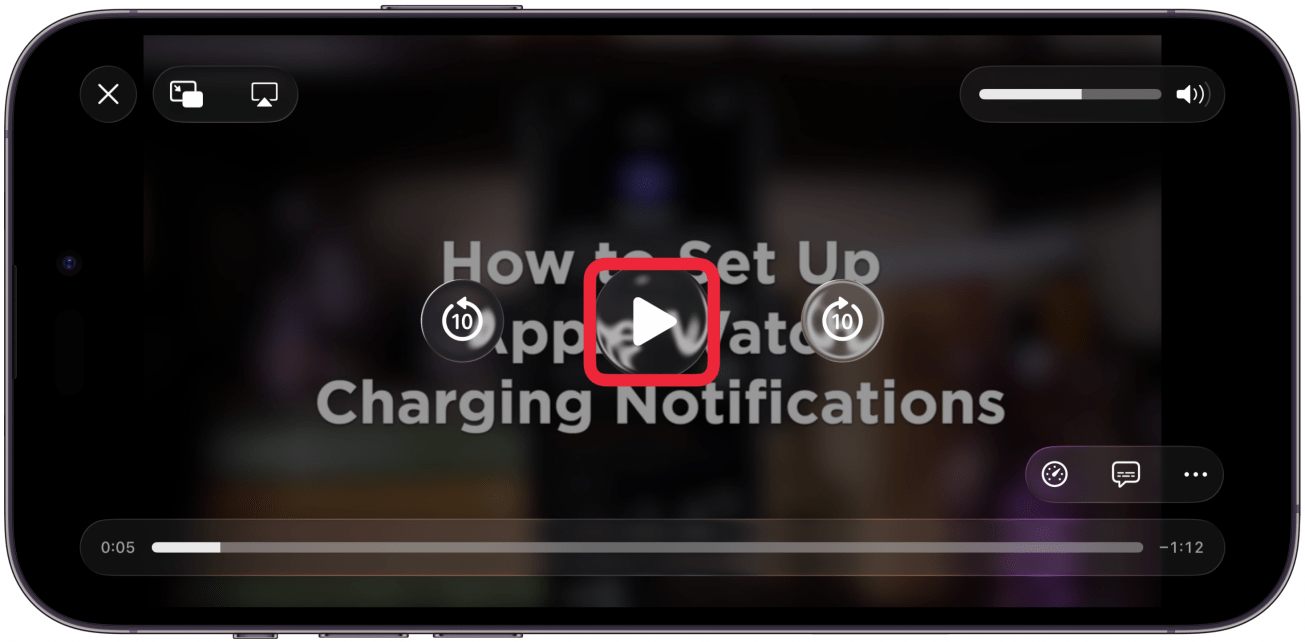
- Turn your phone sideways.
- Press play.
![]()
How to Print Tips
Print Tips from an iPhone or iPad
In order to print directly from your iPhone or iPad, you must have an AirPrint compatible printer. Hiding images before printing can save you a lot of paper and ink. However, if you would like to print the tip with all the images, skip steps 2–5.
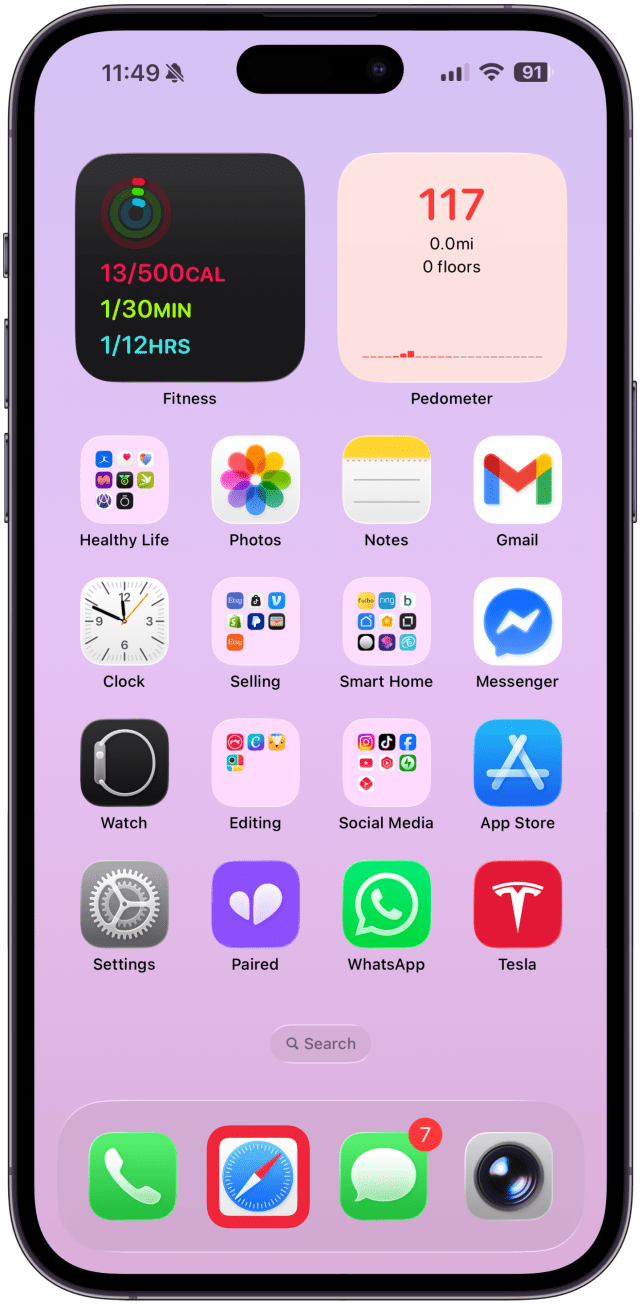
- Open the tip in Safari.
![]()
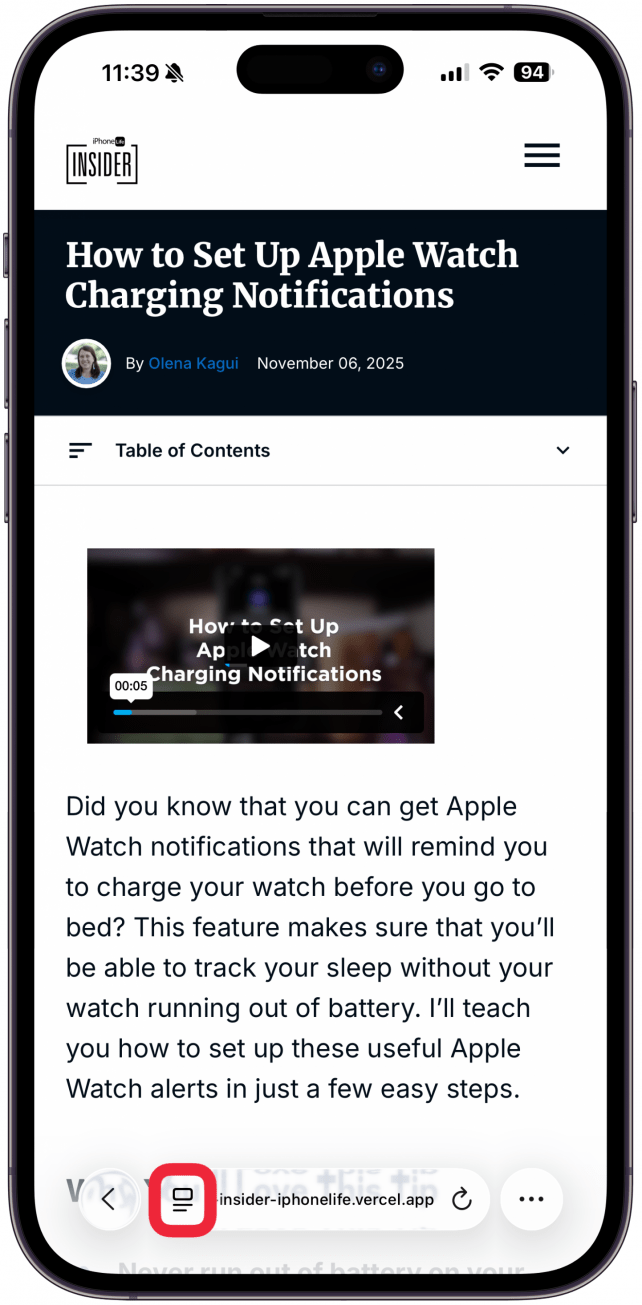
- Tap the Reader icon in the left side of the URL bar.
![]()
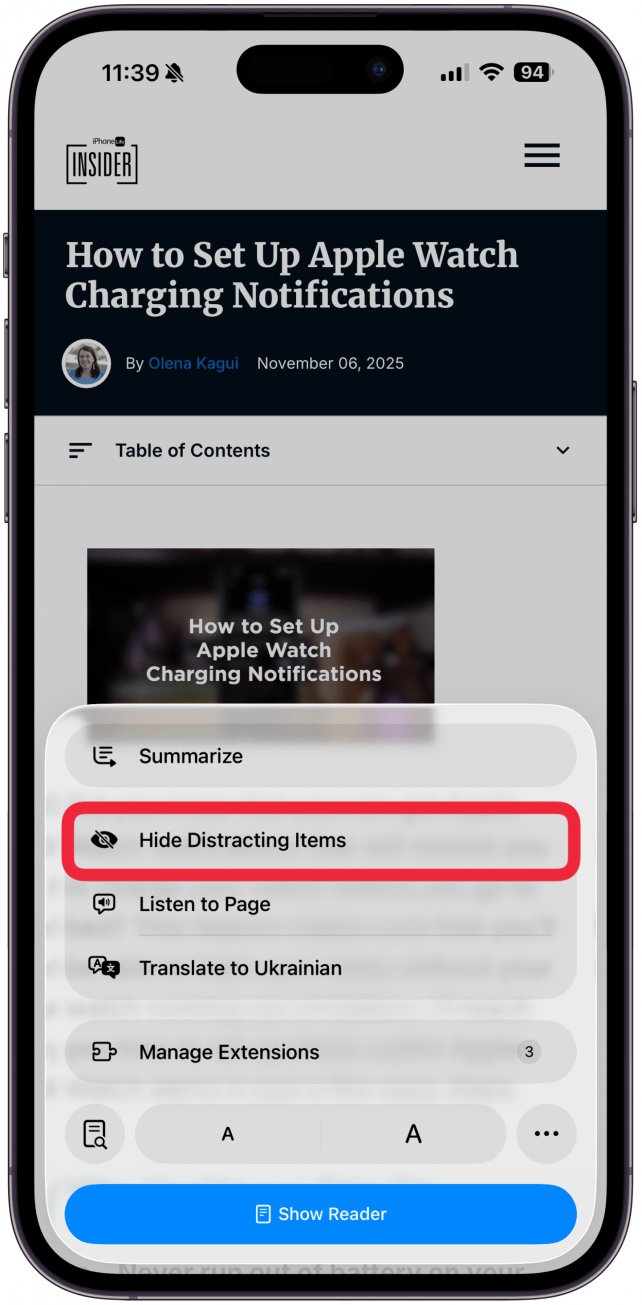
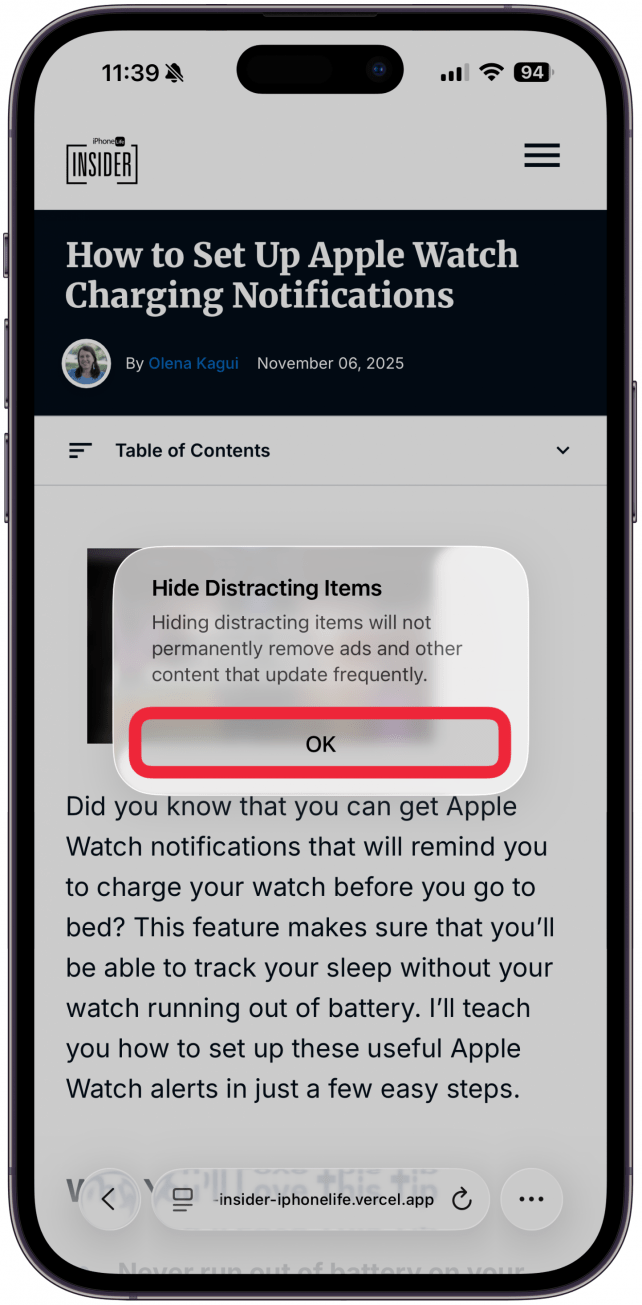
- Tap Hide Distracting Items.
![]()
- Tap OK.
![]()
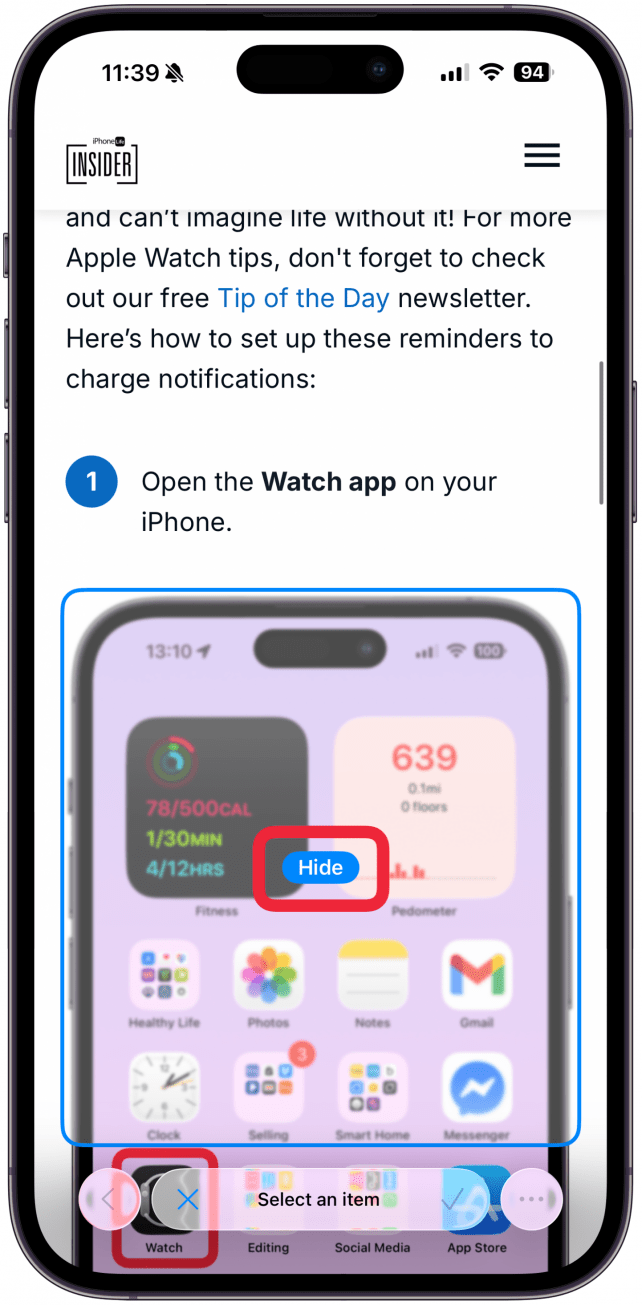
- Tap on an image and then tap Hide.
![]()
- Repeat for the rest of the images.
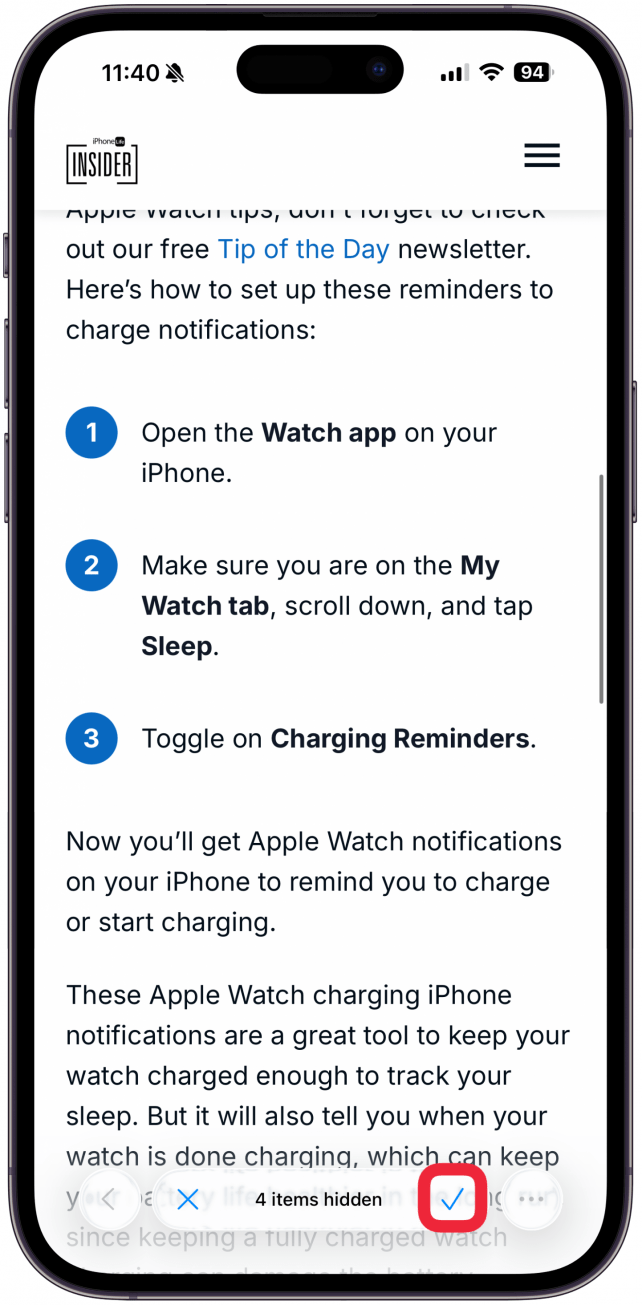
- Tap the check mark in the right side of the URL bar.
![]()
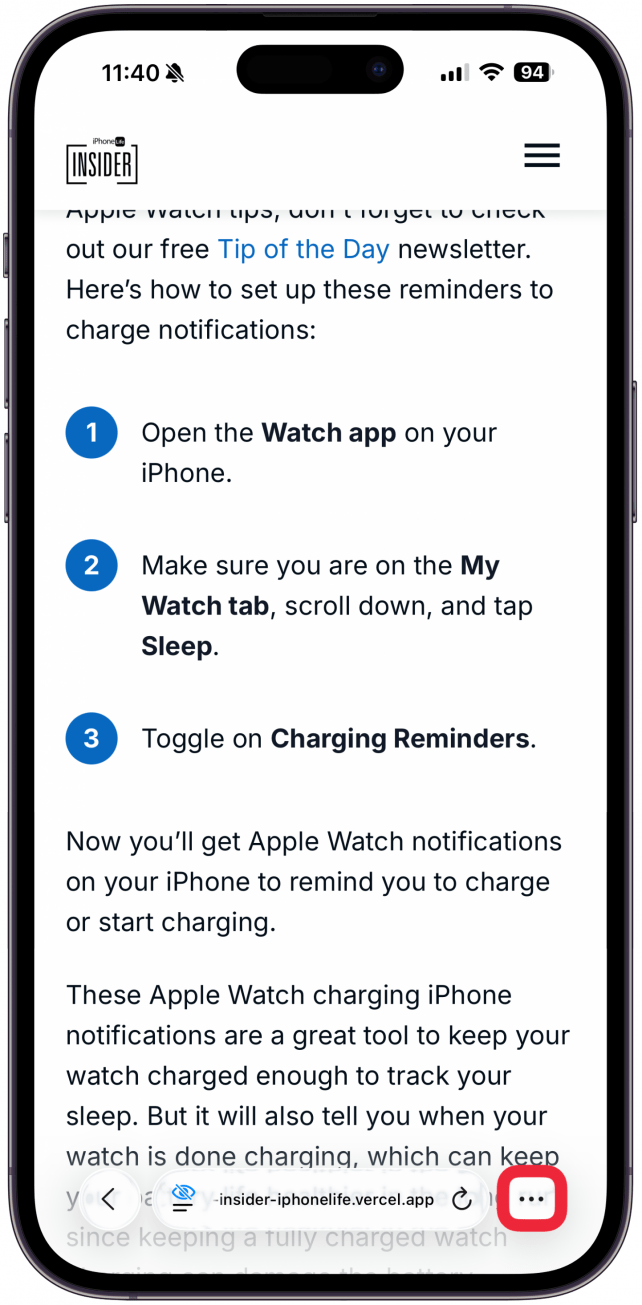
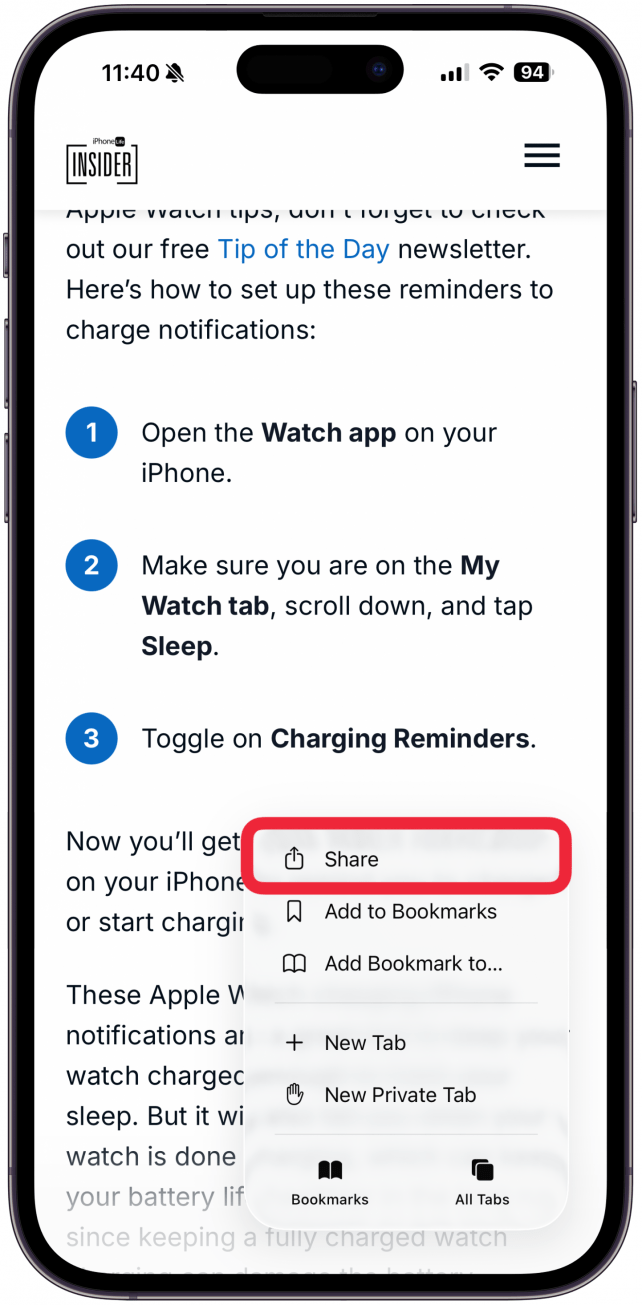
- Tap the More icon.
![]()
- Select the Share icon.
![]()
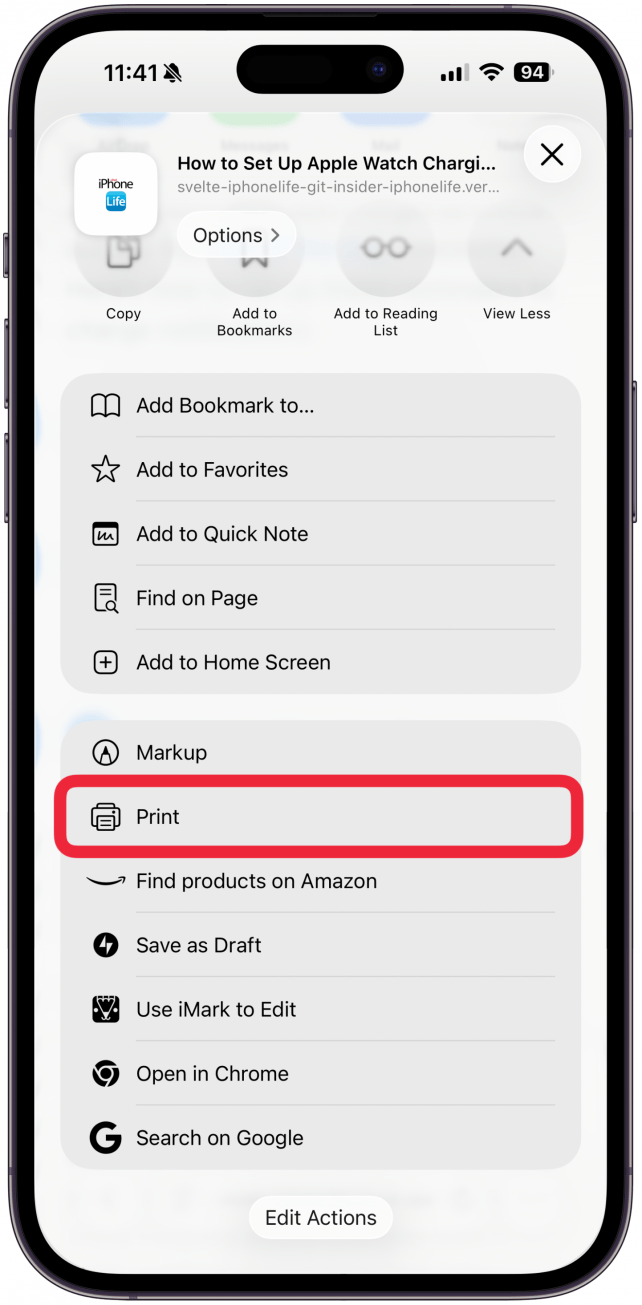
- Scroll down and select Print.
![]()
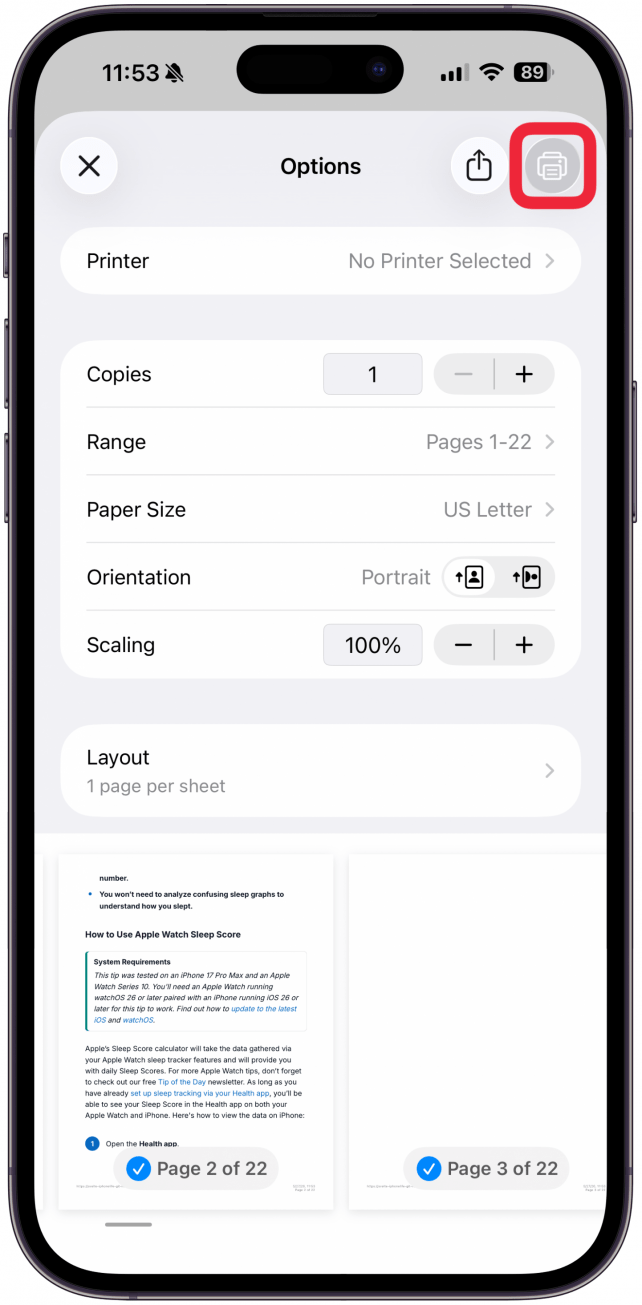
- Check your print settings and tap the Print icon.
![]()
Print Tips from a Computer
if you would like to print the images as well as the text, you can sprint from any browser and skip steps 2–5.
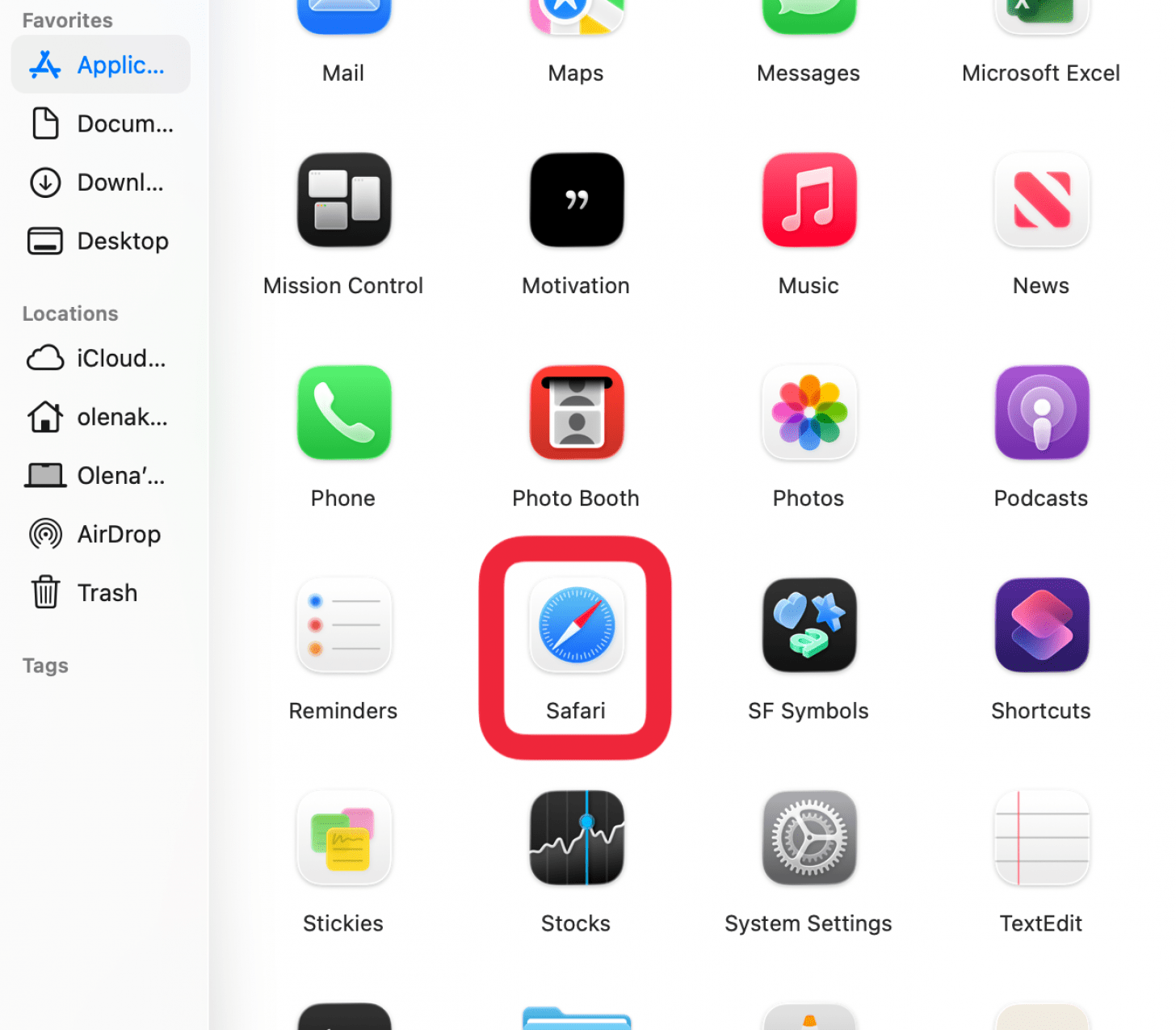
- Open the tip in Safari.
![]()
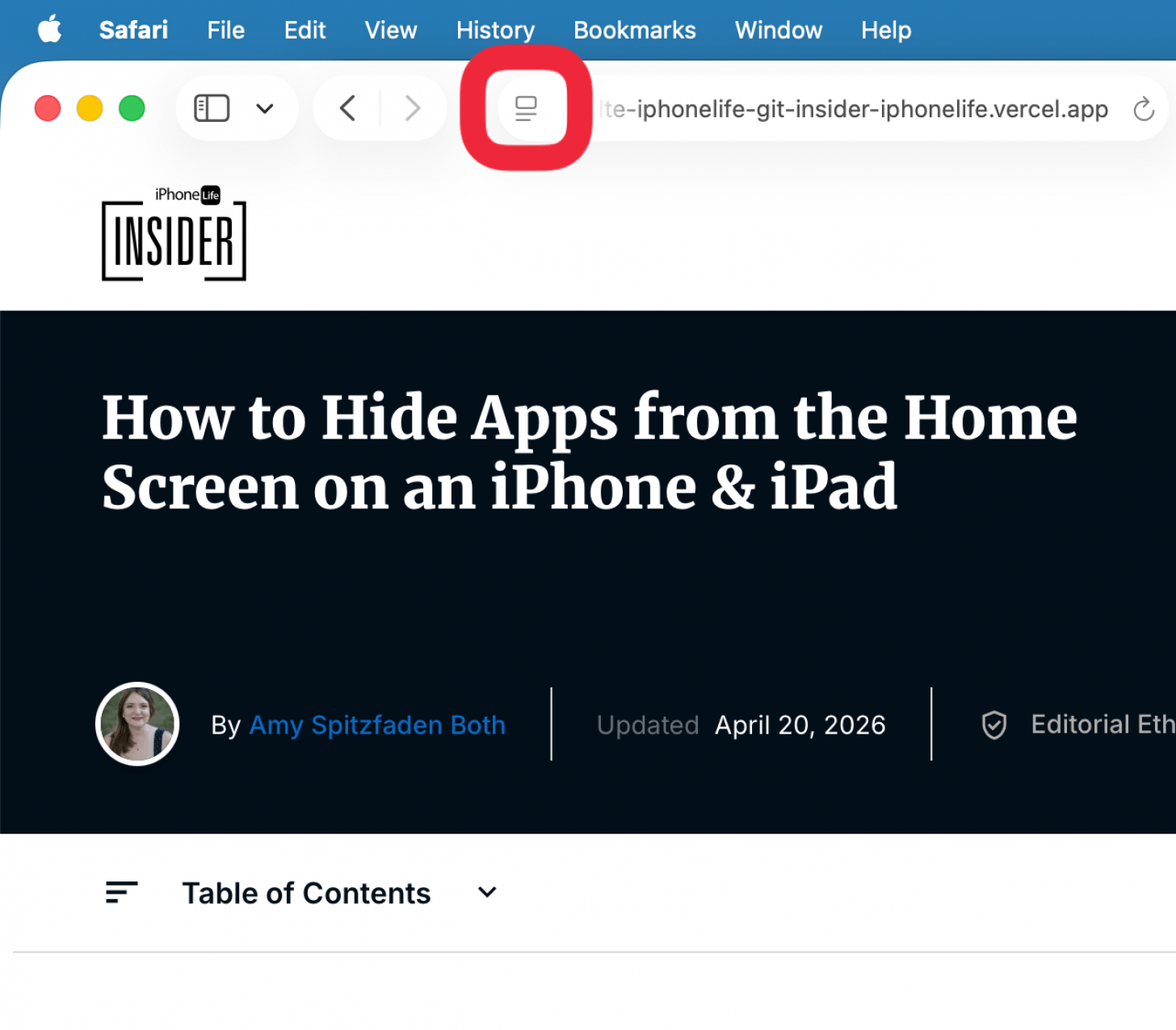
- Click the Reader icon in the left side of the URL bar.
![]()
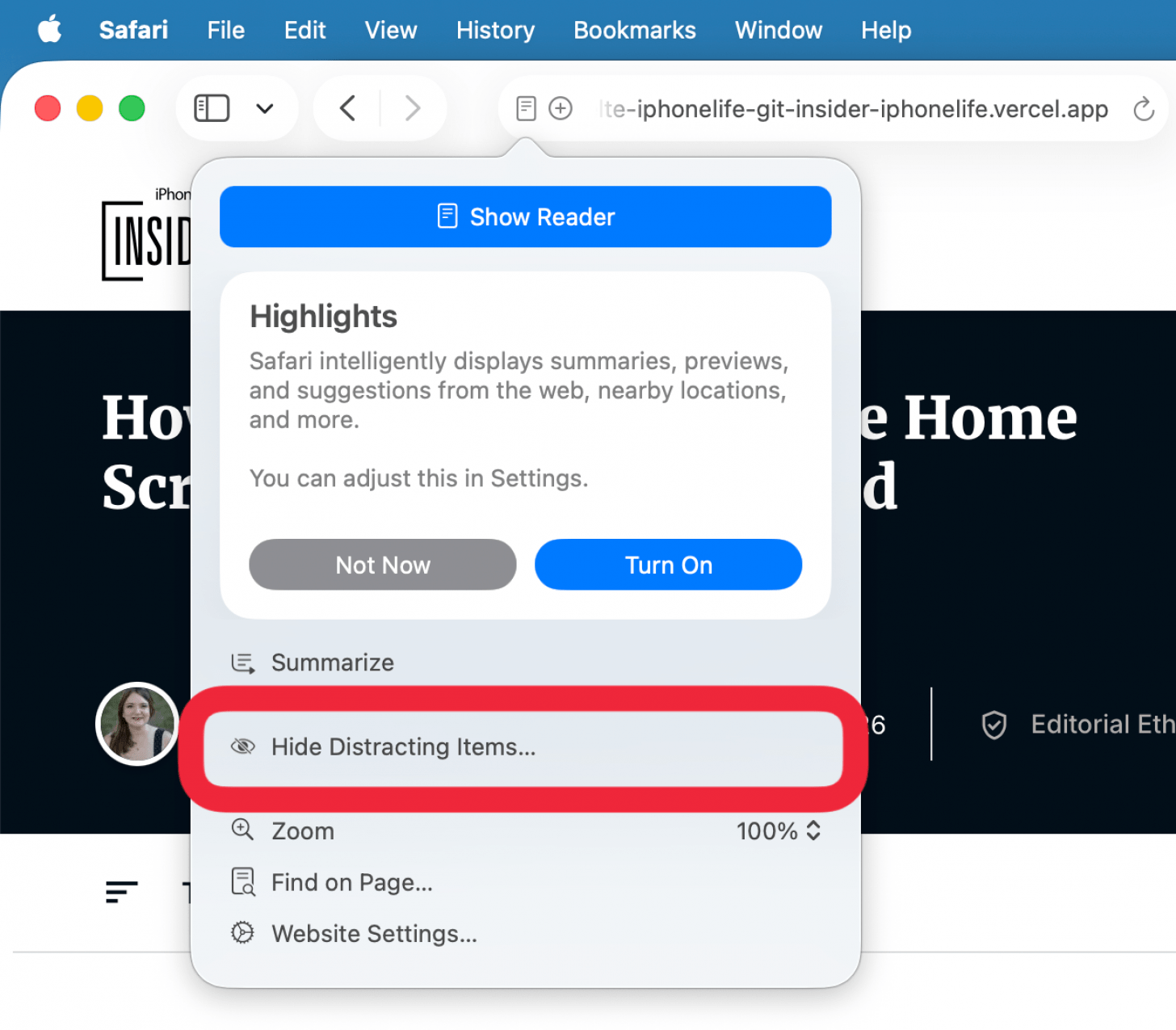
- Click Hide Distracting Items.
![]()
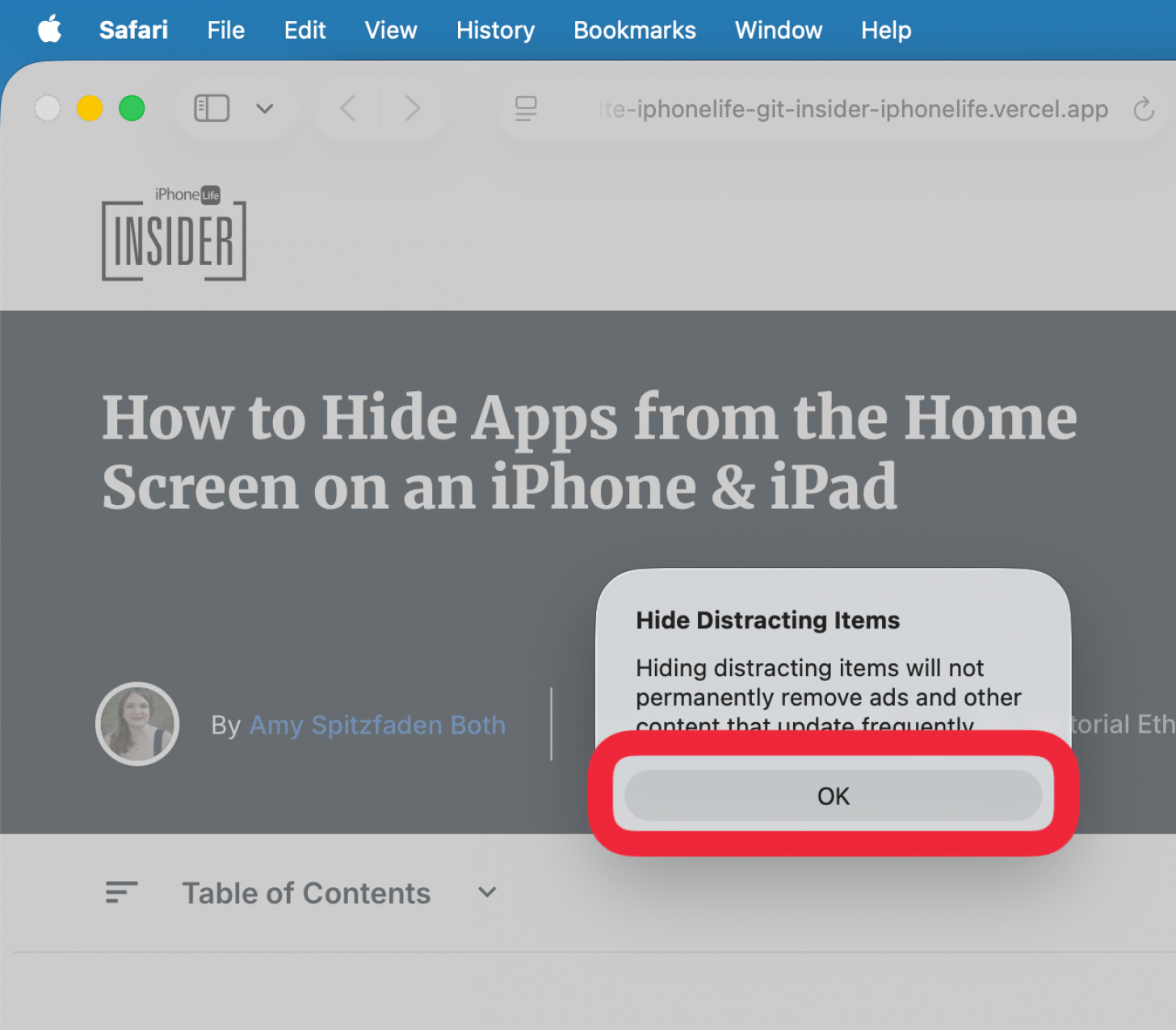
- Tap OK.
![]()
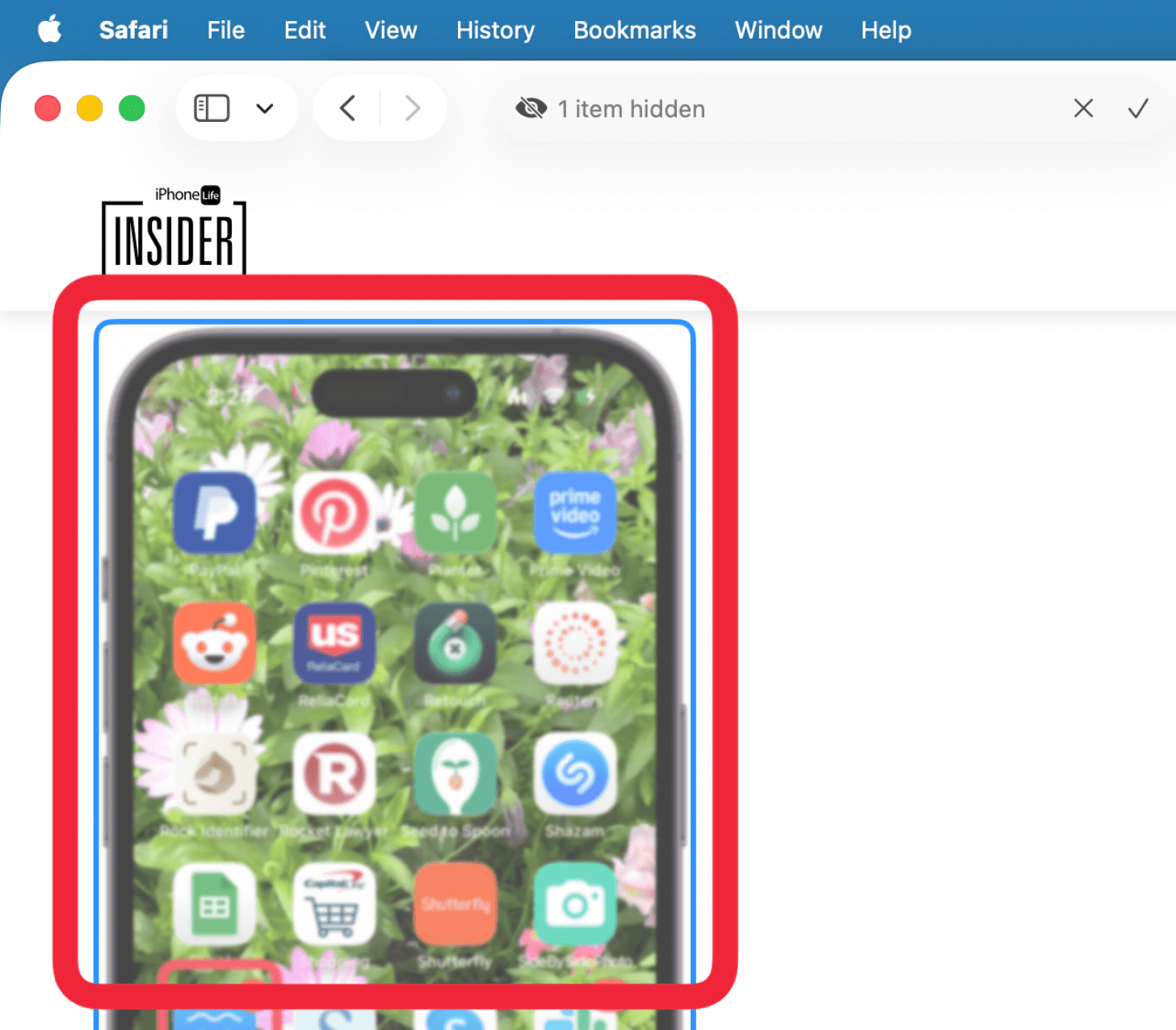
- Click on any images you want to hide.
![]()
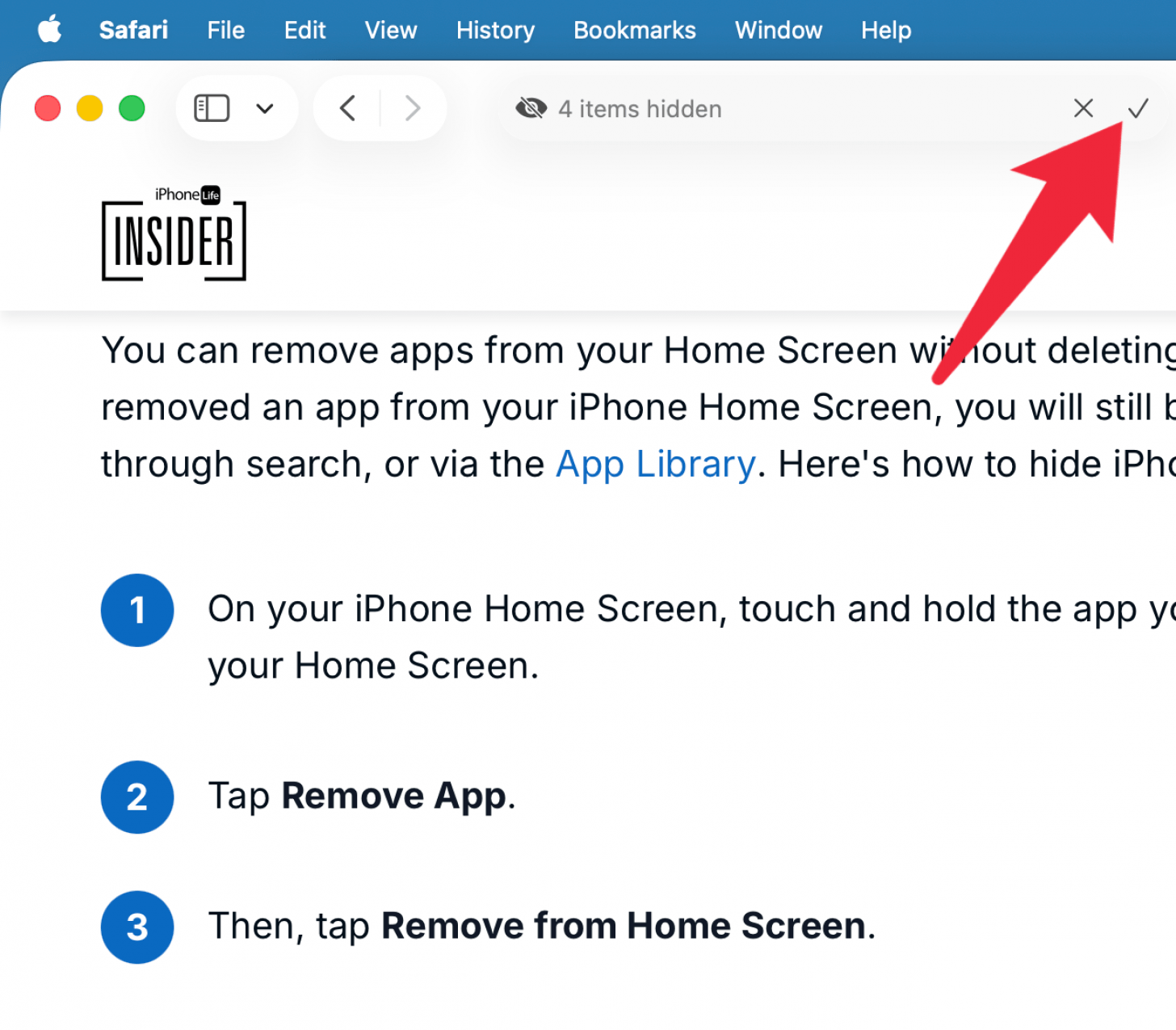
- Click on the check mark in the right side of the URL bar.
![]()
- Type Cmd+p.
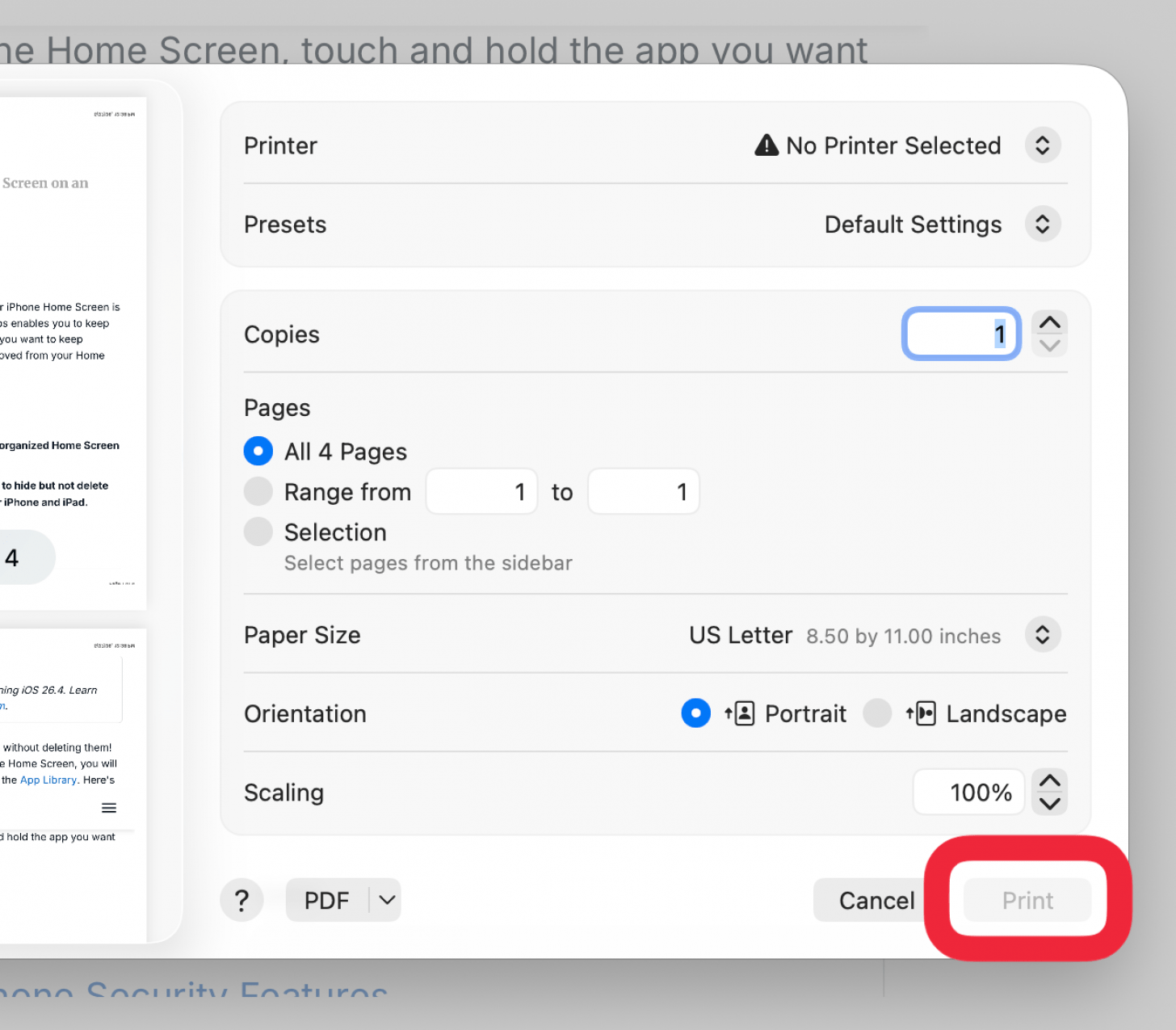
- Check your print settings and click Print.
![]()
For more help accessing the daily tips, email help@iphonelife.com.

