How to Set an Alarm on Your iPhone & iPad

Hallei has a background in creative and professional writing, with a focus on clear communication and creative thinking.
Learn More Hallei has a background in creative and professional writing, with a focus on clear communication and creative thinking.
Learn MoreThis article will tell you how to set an alarm on your iPhone or iPad. Setting an alarm can be extremely helpful. Besides helping you wake up at the right time, if you have to pick someone up or run an errand at a certain time, an alarm can save time or prevent a mistake. Here's how to set an alarm in the iPad or iPhone Clock app.
Why You’ll Love This Tip
- Learn how to use the Apple alarm clock feature to wake up on time and keep yourself from missing important appointments.
- We'll show you how to set an alarm on iPhone with a stock ringtone or a song of your choosing.
- Your iPad or iPhone alarm can recur one or more days a week, or not, and you can label the alarm to remember why it's going off.
How to Set an Alarm on the iPad or iPhone
System Requirements
This tip was performed on an iPhone 17 Pro running iOS 26.5 and works on iPhones running iOS 11 and later. Find out how to update to the latest version of iOS.
Once you set your iPhone or iPad alarm, you can customize it by learning how to change the default snooze time on your iPhone.
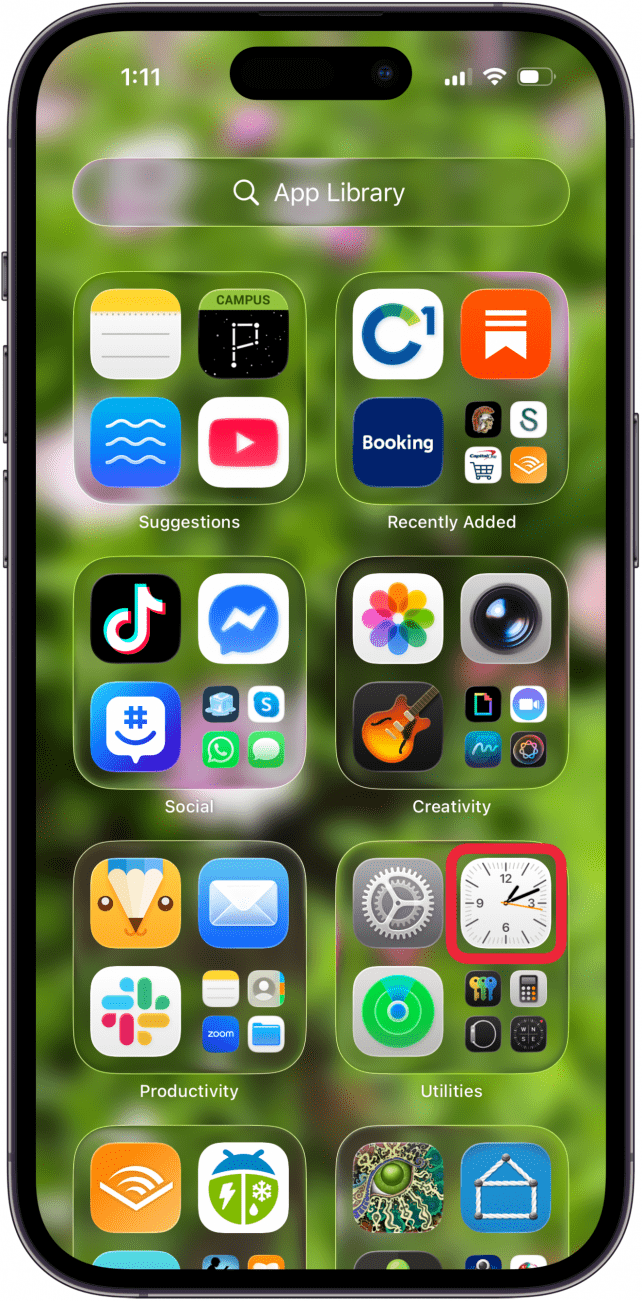
- Open the Clock app.
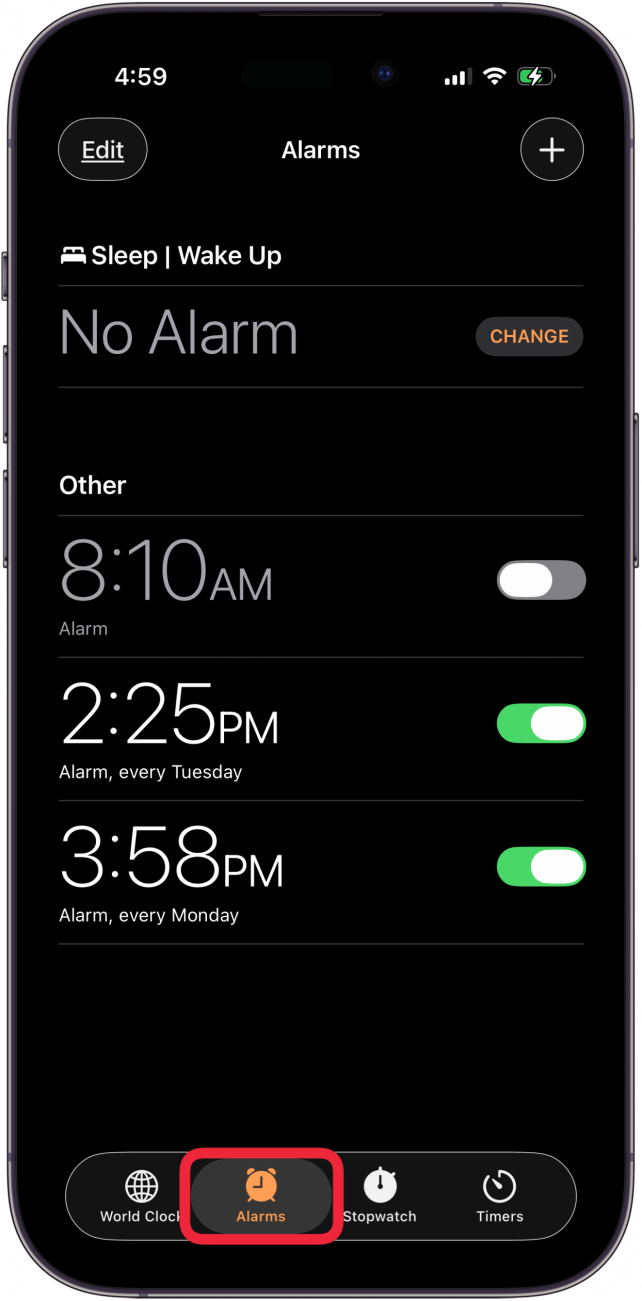
- Tap Alarms at the bottom.
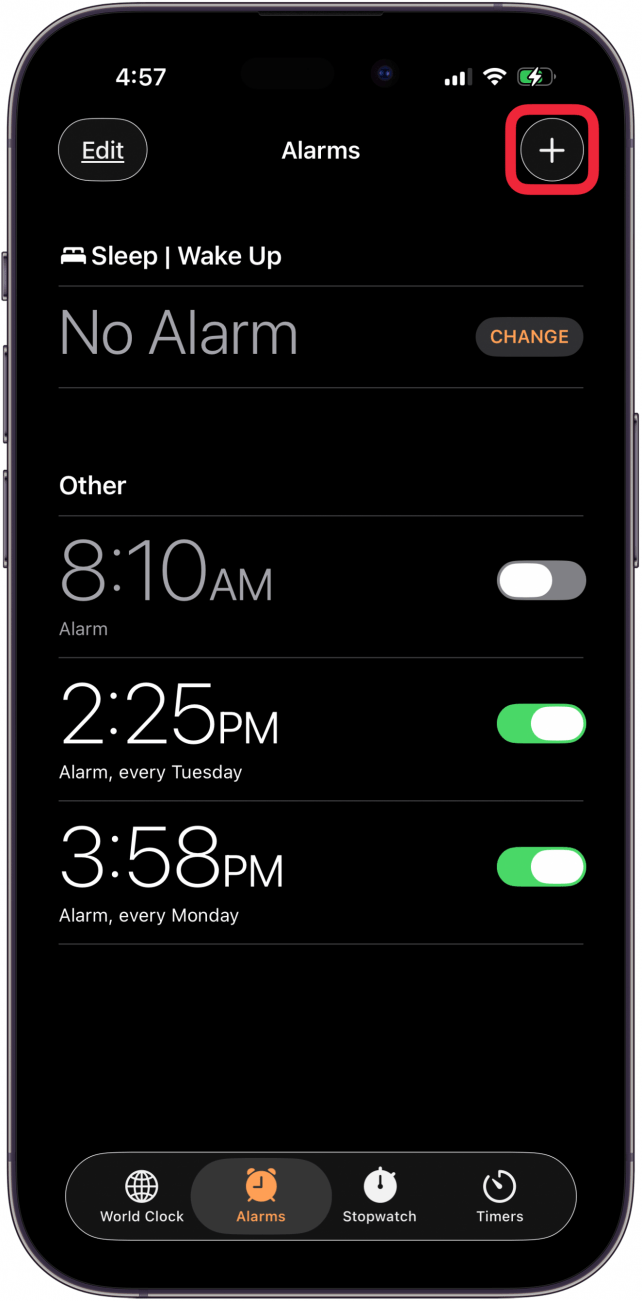
- Tap the + in the upper right corner.
- Scroll the dials to enter the hour and minute of your alarm time, and select AM or PM.
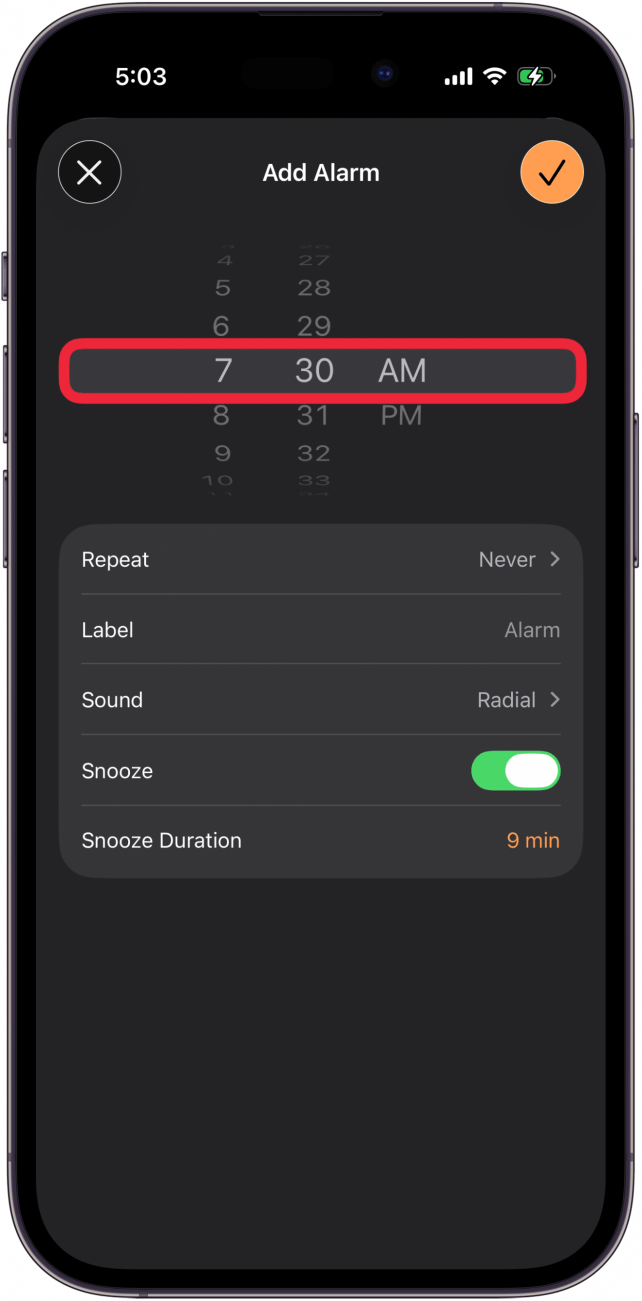
- Tap Repeat to select which days you want the alarm for, then tap the back arrow at the upper left corner. If it's a one-time alarm, you don't have to do this step.

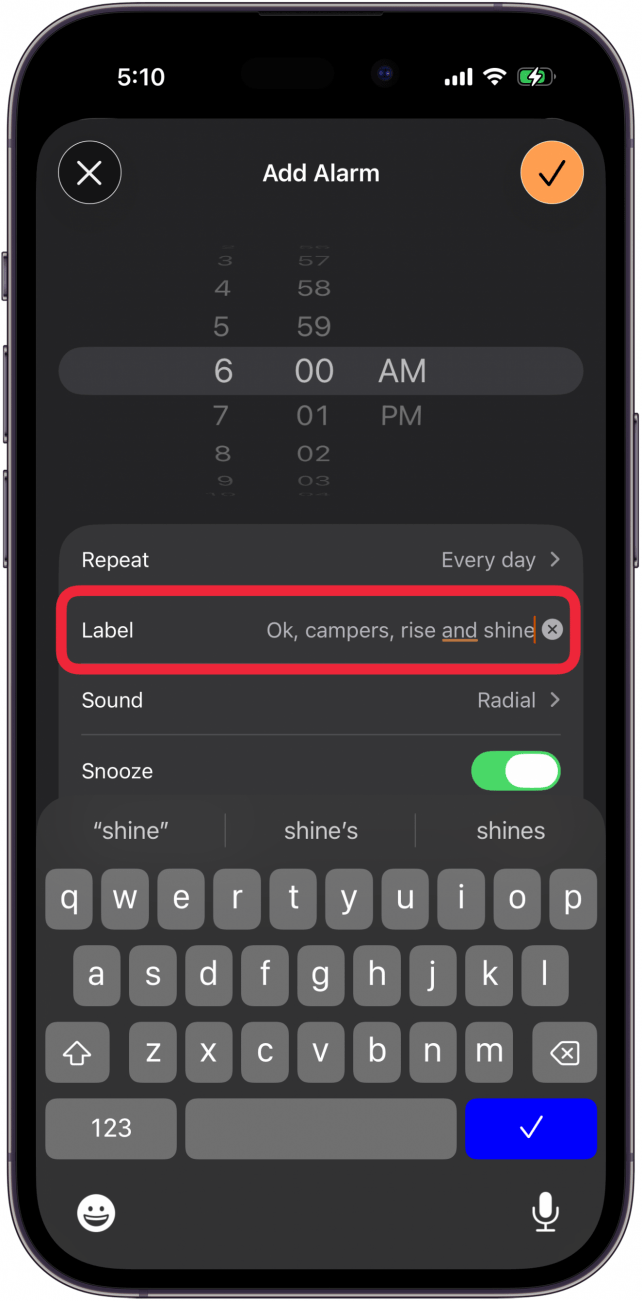
- Tap Label to name your alarm.
- Tap Sound to choose an alarm tone or song and then tap the back arrow.

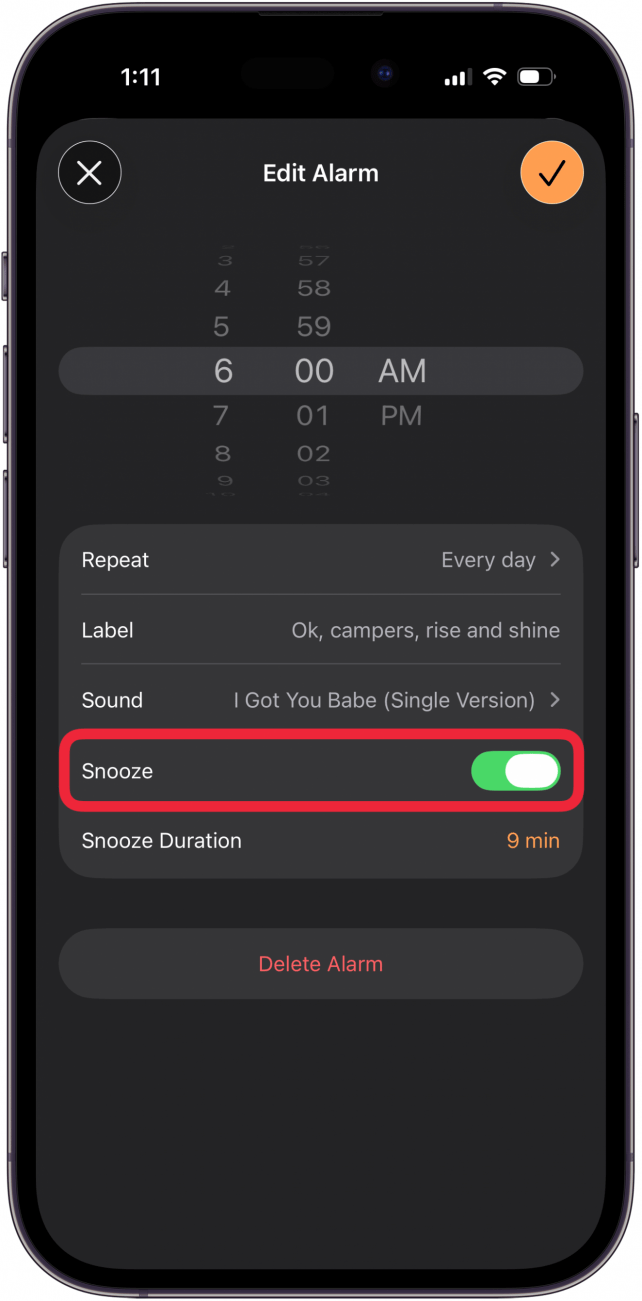
- Select whether you want Snooze enabled by toggling it on or off.
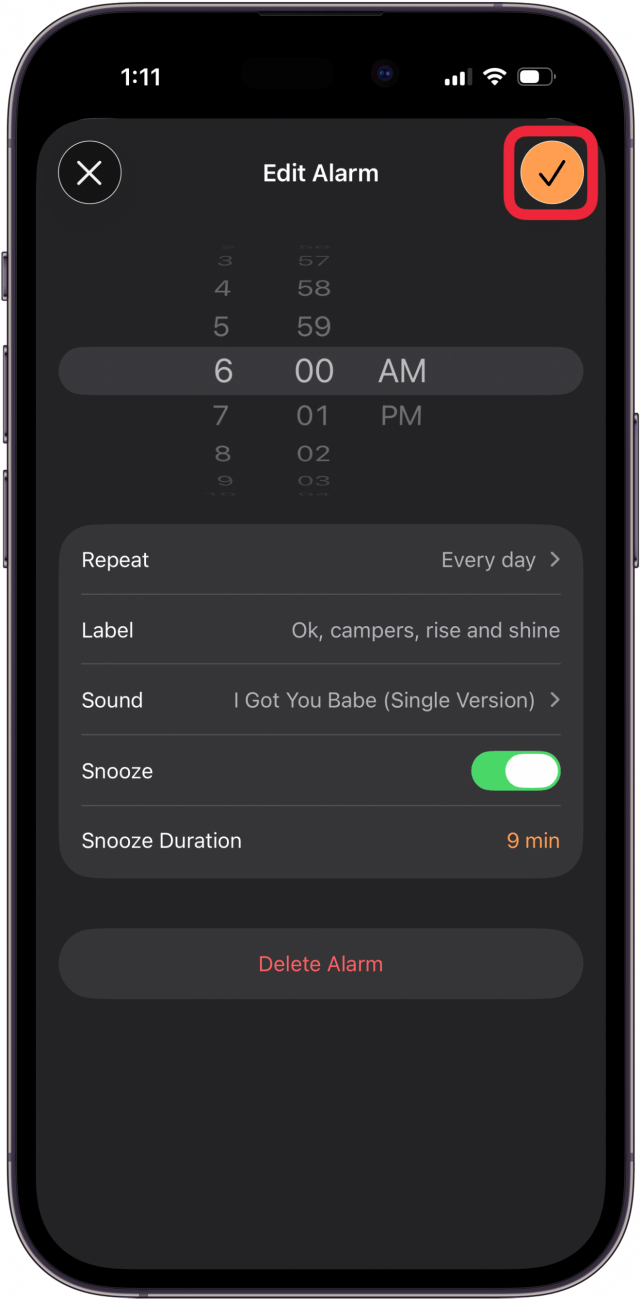
- Tap the check mark in the orange circle to save your alarm.
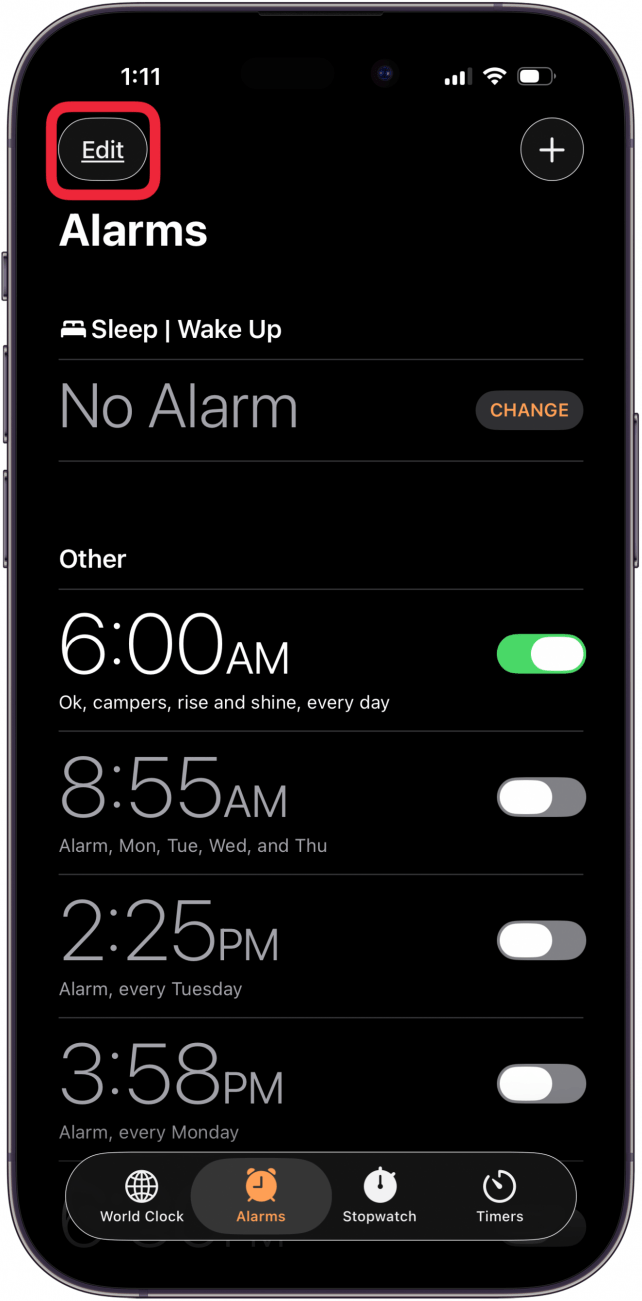
- If you want to change something, tap Edit and select the alarm you want to change.
Pro Tip
Did you know that you can set a silent alarm on your Apple Watch? This can help you wake up gently or get alerted to a deadline more discreetly.
Now you know how to use the Apple alarm clock feature on your iPhone and iPad. Next, check out how to switch to a 24-hour clock on your iPhone! Be sure to check out our free Tip of the Day for more great iPhone tutorials.

Every day, we send useful tips with screenshots and step-by-step instructions to over 600,000 subscribers for free. You'll be surprised what your Apple devices can really do.

Hallei Halter
Hallei is a 2018 graduate of Maharishi University of Management with a BFA in Creative & Professional Writing. She's currently working on a novel about people using witchcraft to clean their houses.
 Leanne Hays
 Olena Kagui
 Rhett Intriago


 Rachel Needell



 Susan Misuraca