Prioritize Your Favorite Contacts with Apple’s VIP Mail

Conner is a feature writer and contributor to iPhone Life, as well as an author, poet, and content creator.
Learn More Conner is a feature writer and contributor to iPhone Life, as well as an author, poet, and content creator.
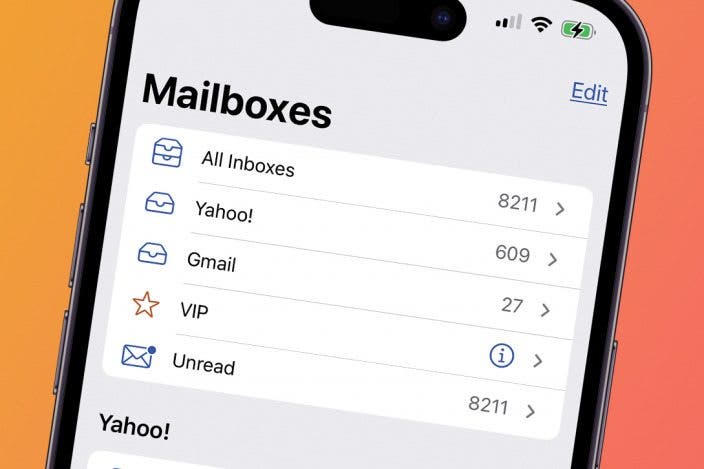
Learn MoreWe all get too much spam and junk in our email inboxes. If you don't want to miss emails from important contacts, you can set up VIP iPhone email in the Apple Mail app. VIP Mail allows you to filter emails by creating a VIP mailbox, so you can make sure to receive emails from the most important people.
Why You'll Love This Tip
- Make an iPhone VIP email folder to ensure you receive the most important emails from your favorite contacts.
- Cut through the junk and spam mail by putting important mail in a separate iPhone VIP Mail inbox.
- Create an iPhone VIP Mailbox that won't remove VIP contacts from the regular email inbox.
How to Set Up VIP Mail on iPhone
System Requirements
This tip was tested on an iPhone 17 Pro running iOS 26.4. Learn how to update to the latest operating system.
When you set up an iPhone VIP mailbox, your VIPs will have a brown star next to their names across all of your mail lists, and if you have iCloud enabled, that same person will be a VIP across all of your devices. Now, here's how to set up iPhone email VIP notification for your important contacts.
Note: You need to have entered the person's email address into their contact card in Contacts to add them to VIP Mail.
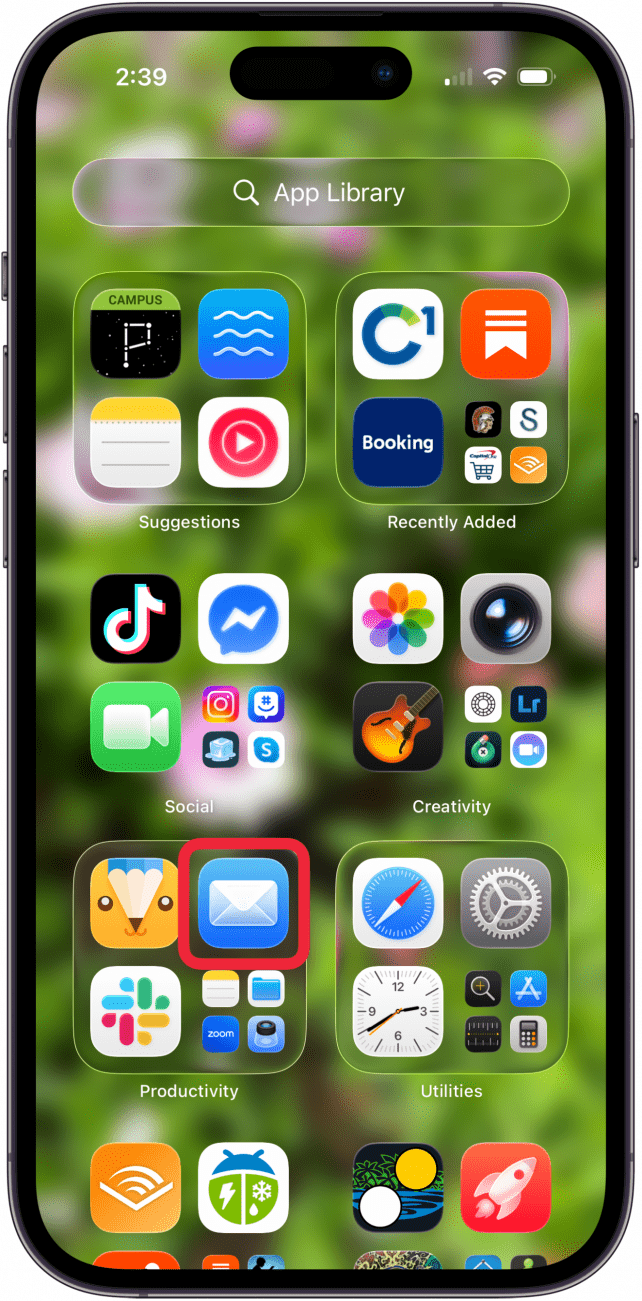
- On your iPhone, open the Mail app.
- If it opens to a particular inbox, tap the back arrow to go to all Mailboxes.

- If you haven't set up VIP before, tap the caret to the right of VIP.

- Tap Add VIP.

- If you've previously set up VIP mail, tap the info icon next to VIP to add or delete contacts from your VIP inbox.

- Tap Add VIP.
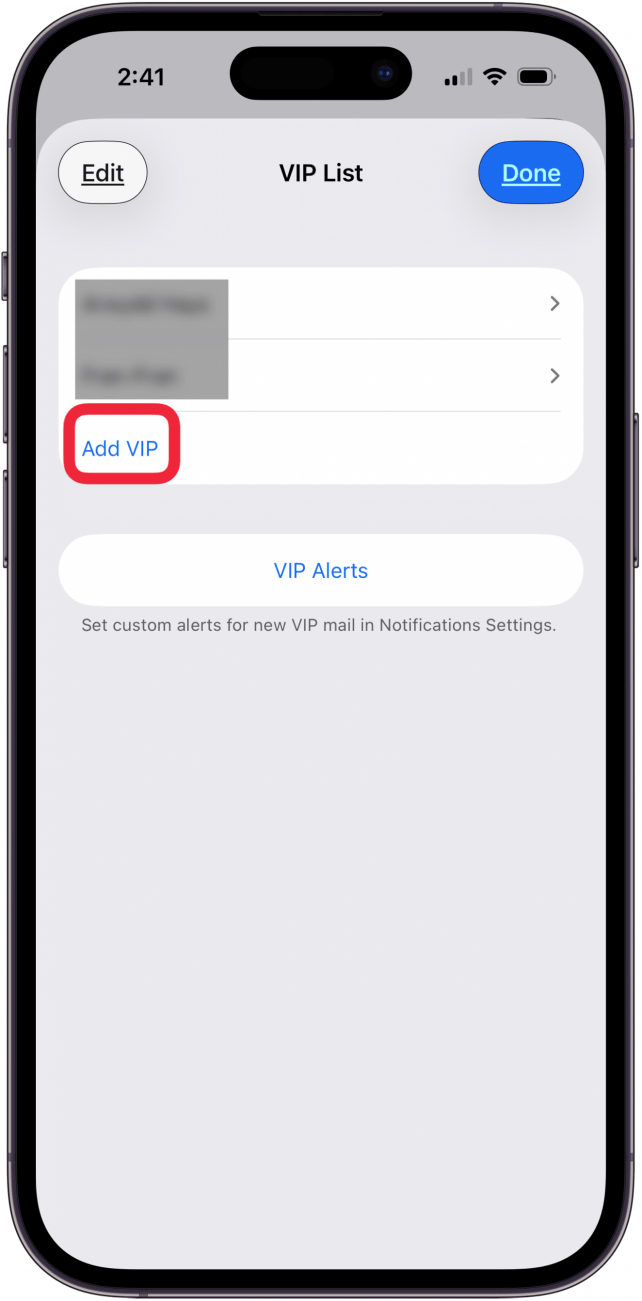
- Tap a name in your contact list, or tap the Search field, enter a name, and tap it.

- You'll see your new VIP in the VIP List. Tap Done.

- To edit or delete your VIP contacts, tap the Information icon again, then tap Edit.

- Tap the red circle next to any VIP you want to remove, and tap the check mark when you're finished.

Note
If you don't see VIP in Step 3 above, tap Edit, then tap the circle next to VIP to enable this inbox.
Note that adding someone to your iPhone VIP notifications list does not remove them from your Inbox mail list. You can also set up notifications so that you receive only Mail notifications from your VIP contacts.
If you like tips about using your iPhone, sign up for our free Tip of the Day!
More On: iPhone Mail App

Every day, we send useful tips with screenshots and step-by-step instructions to over 600,000 subscribers for free. You'll be surprised what your Apple devices can really do.

Conner Carey
Conner Carey's writing can be found at conpoet.com. She is currently writing a book, creating lots of content, and writing poetry via @conpoet on Instagram. She lives in an RV full-time with her mom, Jan and dog, Jodi as they slow-travel around the country.
Related Articles
 Rhett Intriago
Apple Watch Series 9 & Ultra 2 Ditch Sensor Upgrades, Focus on Usability
 Cullen Thomas
Best Photography Gear for iPhone 14 Pro Max (2025)
 Olena Kagui

The Top Hits and Biggest Misses from Apple’s iPhone 17 Event
 Amy Spitzfaden Both
 Rachel Needell

 Hal Goldstein