How to Hide Files & Find Hidden Files on an iPhone or iPad

Leanne puts her love of troubleshooting and repair to use managing our Ask an Expert Facebook group and has authored hundreds of how-to, Apple news, and gear review articles.
Learn More Leanne puts her love of troubleshooting and repair to use managing our Ask an Expert Facebook group and has authored hundreds of how-to, Apple news, and gear review articles.
Learn MoreWhat to Know
- If you want privacy for your important documents, you can hide files on an iPhone or iPad by using the lock or password option in the Files app.
- To find hidden files on an iPhone or iPad, open the Files app, tap the More icon, tap View Options, and tap Show All Extensions.
Want to know how to hide files on an iPhone, and how to find hidden things on an iPhone? We'll cover everything you need to know about hidden files on an iPhone!
How to Hide Files on iPhone & iPad
If you have documents or files you want to keep private, Apple offers a few options. If the file is a PDF, you can password protect it, and if it's a Pages document, you can lock it. To begin:
- Open the Files app.

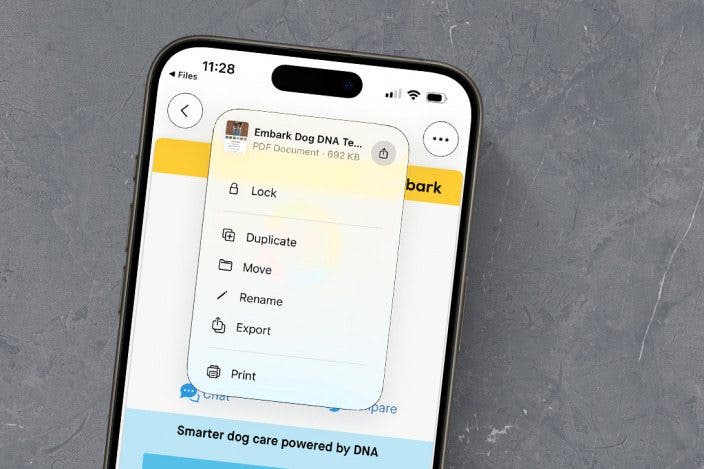
- Tap the Browse tab at the bottom of your screen, then tap the PDF you want to lock.

- Tap the caret next to the PDF name.

- Tap Lock.
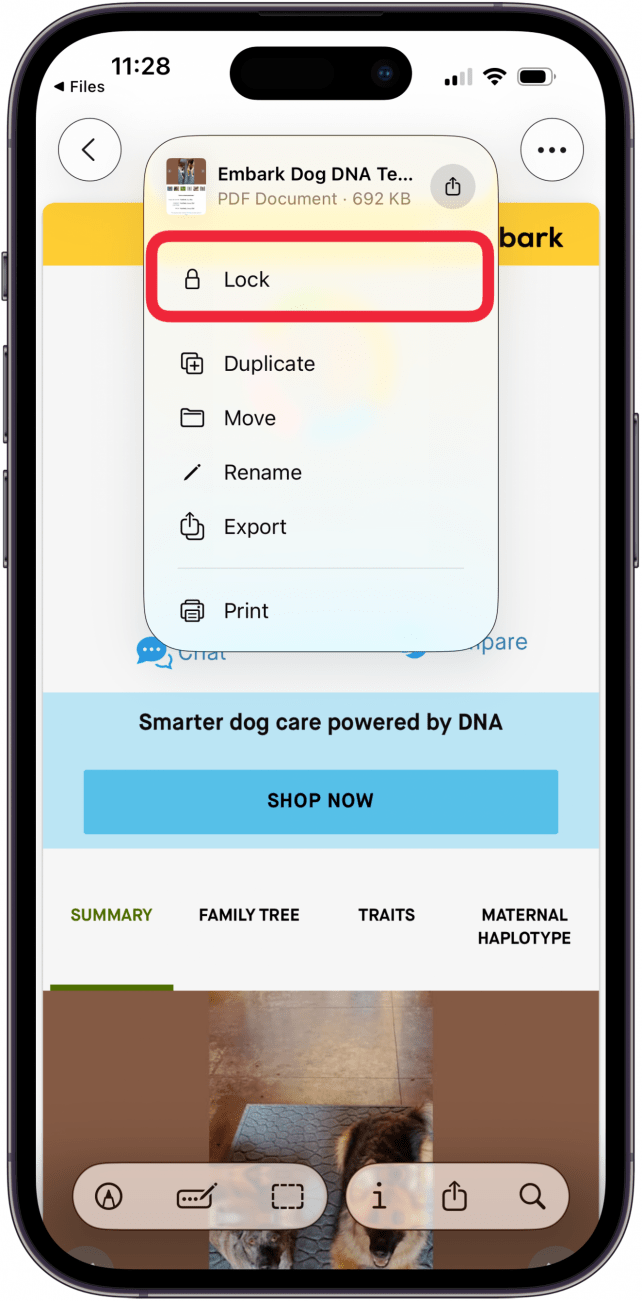
- Toggle on Require Password.

- Enter and verify your password, then tap the check mark in the blue circle.

You can also lock spreadsheets in the Numbers app!
Note: For another way to hide files on an iPhone or iPad, save files to the Photos app, then hide the photos!
How to Find Hidden Files on iPhone & iPad
Note: Keep in mind that the Electronic Communications Privacy Act of 1986 "makes it a criminal offense to: (1) willfully access, without authorization, a facility through which an electronic communication service is provided; or (2) willfully exceed an authorized access to such facility." Also, "Allows any person whose wire, oral, or electronic communication is intercepted, disclosed, or willfully used to bring a civil action to recover damages."
If you need to know how to find hidden stuff on an iPhone or iPad, you've come to the right place. You don't need a third-party app or software to hide files on your iPhone; you can use free settings and features that Apple has already built in; here's how:
- Open the Files app on your iPhone or iPad.
- Tap the More icon (three dots in a circle) at the top-right corner of your screen.

- Tap View Options.

- Toggle on Show All Filename Extensions, then tap the checkmark in the blue circle.

- Tap the Browse tab at the bottom of the screen if you're not already in that tab, and you can see every file in the Files app, even all hidden files.

Now you know how to hide files, as well as find hidden files on your iPhone or iPad. Be sure to check back with iPhone Life for all your digital privacy needs! Be sure to check out our free Tip of the Day for more great iPhone privacy tutorials.
FAQ
- Can I hide apps on my iPhone or iPad? You can hide an app, or even a whole page of apps, from your Home Screen, Search function, Siri Suggestions, and App Store purchase history. However, there's no way to hide apps from your App Library (at least not yet).
- How do I hide previously purchased apps? It's pretty easy to hide book and app purchases on your iPhone or iPad through the App Store or Books app.
- Can you lock hidden photos on an iPhone? There are several ways to hide photos on your iPhone or iPad; you can even use third-party apps to lock private photos and videos.
Top image credit: The-DesignStudio / Shutterstock.com

Leanne Hays
Leanne Hays has more than sixteen years of experience writing for online publications. As a SEO Specialist and Feature Writer for iPhone Life, she has authored hundreds of how-to, Apple news, and gear review articles, as well as a comprehensive Photos App guide. Leanne holds degrees in education and science and loves troubleshooting and repair. This combination makes her a perfect fit as manager of our Ask an Expert service, which helps iPhone Life Insiders with Apple hardware and software issues.
In off-work hours, Leanne is a mother of two, homesteader, audiobook fanatic, musician, and learning enthusiast.

 Rhett Intriago
 Rachel Needell
 Olena Kagui
 Amy Spitzfaden Both





 Susan Misuraca