How to Connect 2 AirPods to 1 iPhone or iPad


Leanne puts her love of troubleshooting and repair to use managing our Ask an Expert Facebook group and has authored hundreds of how-to, Apple news, and gear review articles.
Learn More Leanne puts her love of troubleshooting and repair to use managing our Ask an Expert Facebook group and has authored hundreds of how-to, Apple news, and gear review articles.
Learn MoreCan you connect two AirPods to one phone? Absolutely! If you want to share audio on your iPhone without having to share the same set of AirPods, this tip is for you. We'll show you how to share AirPods audio by pairing two sets of earbuds to your iPhone.
Why You'll Love This Tip:
- Connect two pairs of AirPods to one iPhone to listen to music, audiobooks, podcasts, or movies together.
- Temporarily share your audio with another pair of AirPods and learn how to disconnect them quickly.
How to Connect Two AirPods to One Phone
System Requirements
This tip works on iPhones running iOS 16 or newer. Find out how to update to the latest version of iOS.
In the steps below, we'll show you how to connect two AirPods pairs to one iPhone or iPad for shared listening, plus how to disconnect the extra AirPods once you're done. If you don't want to share audio and just want to listen on someone else's device, learn how to connect Airpods to another iPhone instead. Here's how to connect two AirPods to one phone:
- With your AirPods connected to your iPhone, open the Control Center.
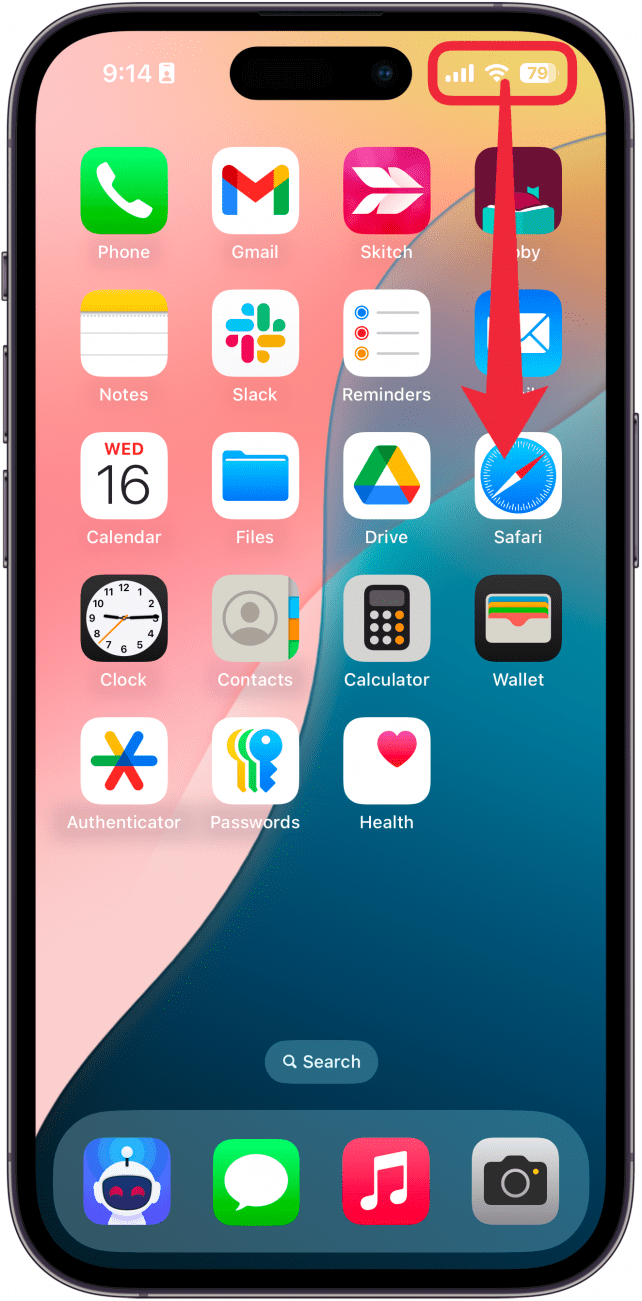
- Tap the AirPods icon in the media player widget. If you are running iOS 18 and you removed the media widget, you will need to add it back or scroll down to find it.
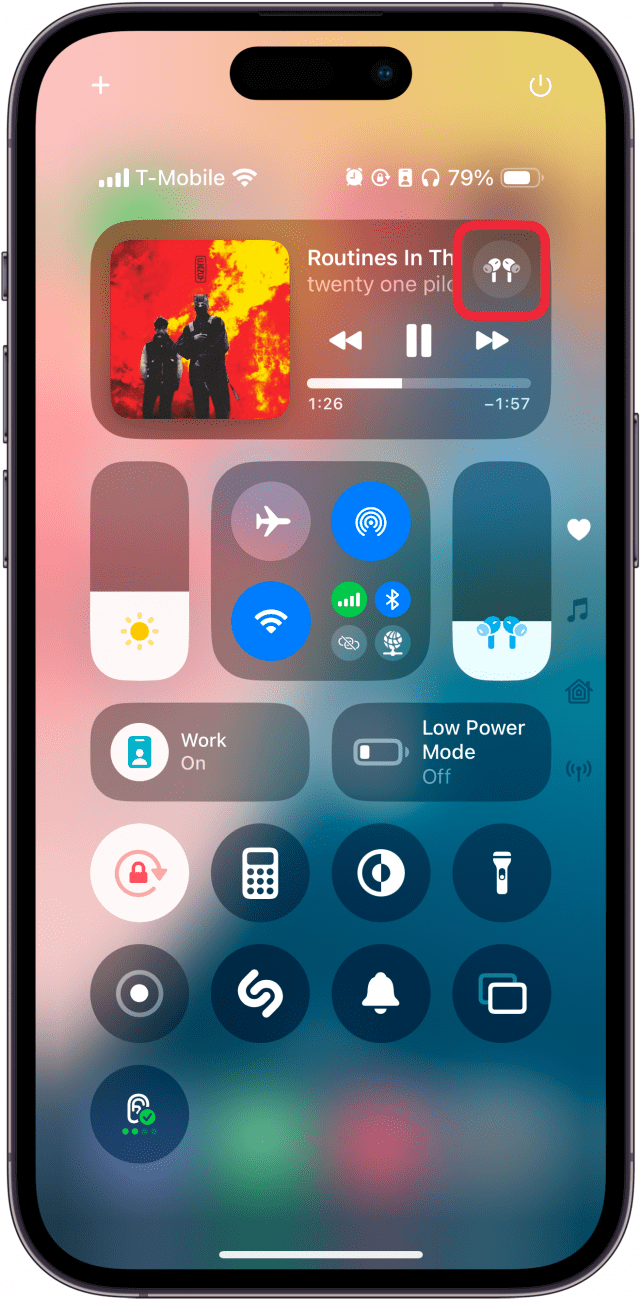
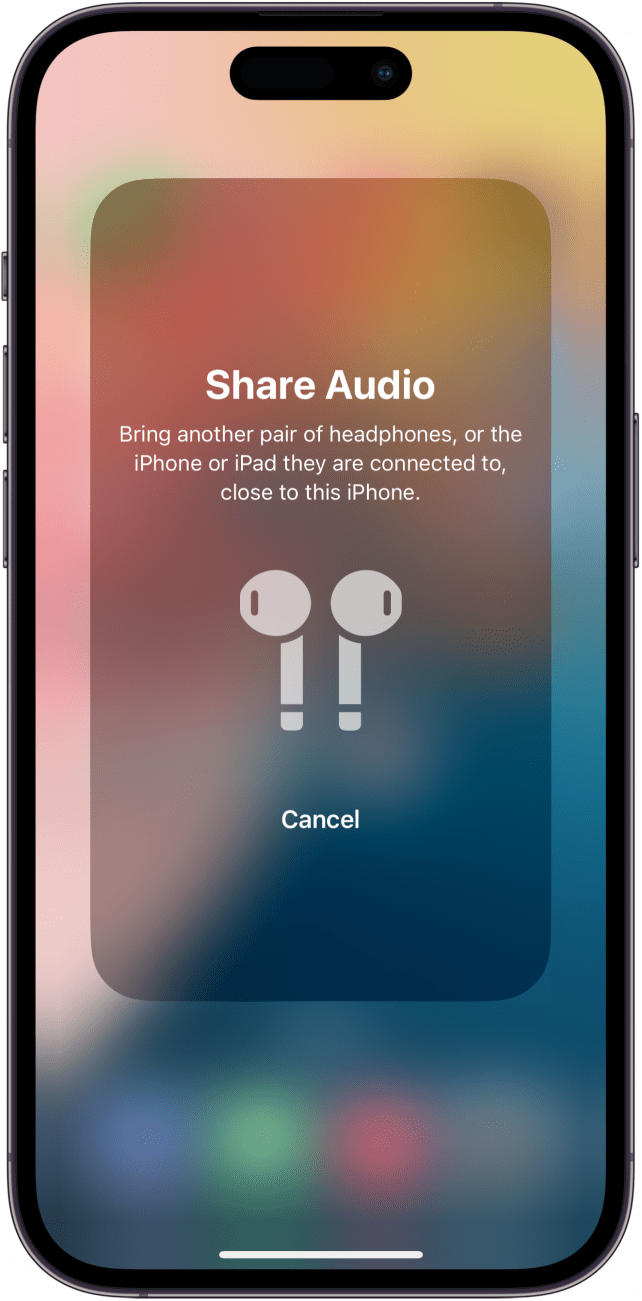
- Tap Share Audio...
- Bring the second pair of AirPods that you'd like to connect close to your iPhone, with the case open.
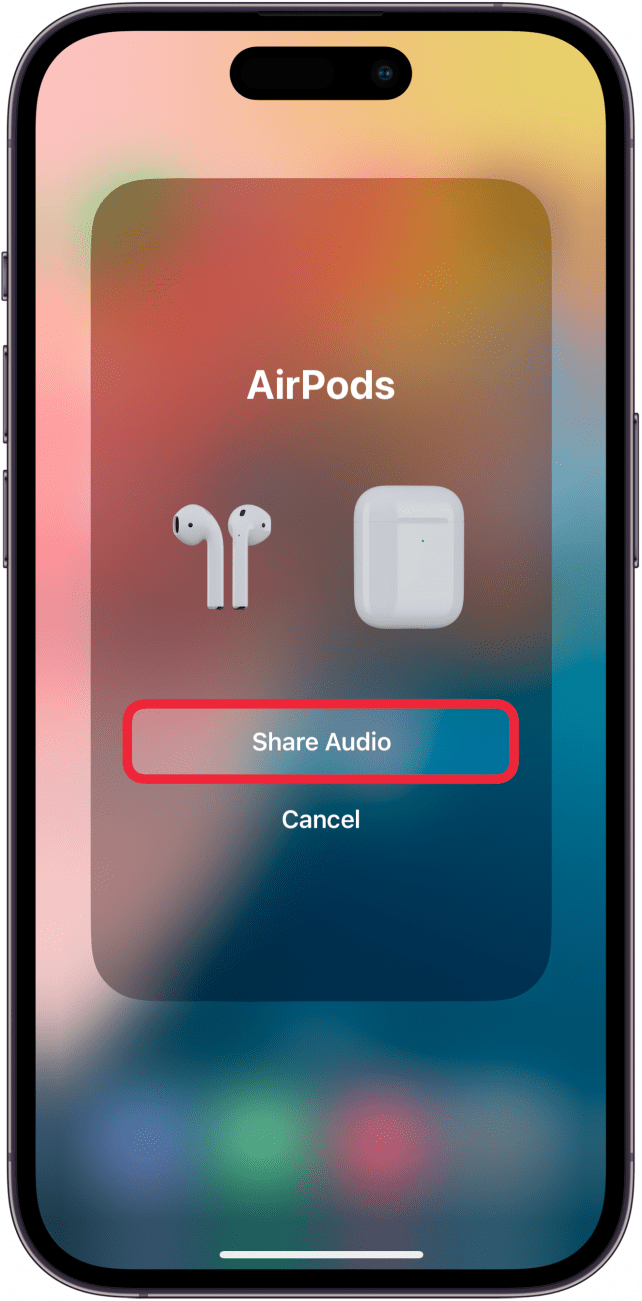
- Tap Share Audio.
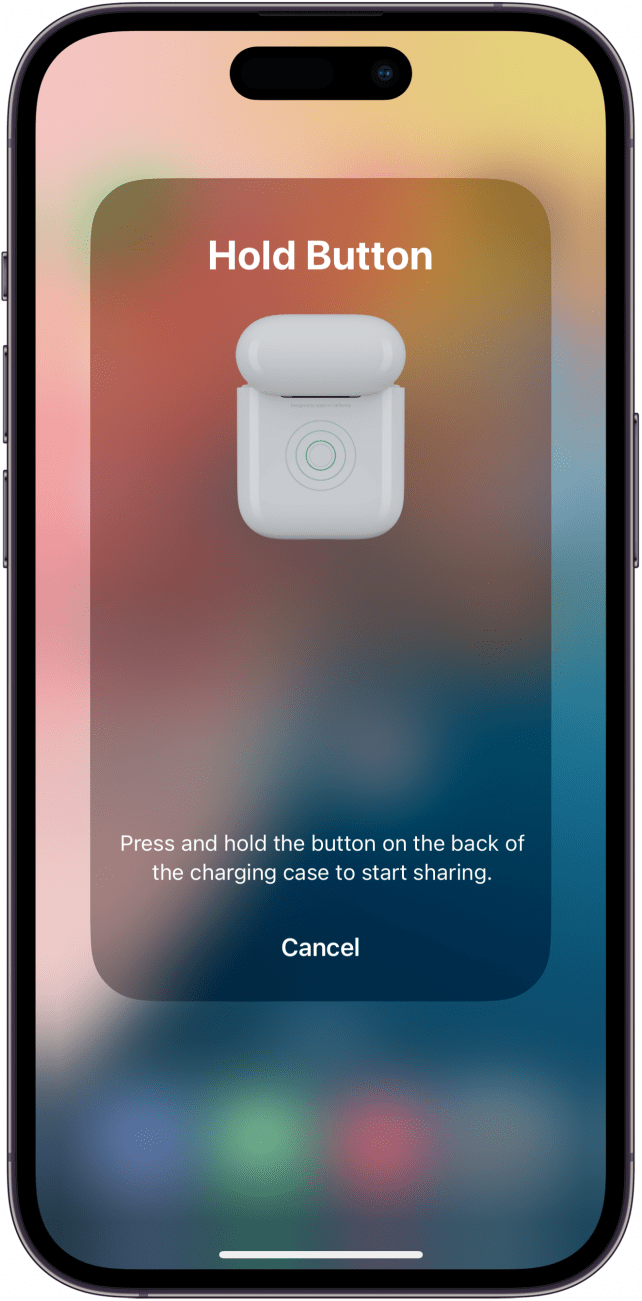
- Press and hold the button on the AirPods case to connect to the guest's pair.
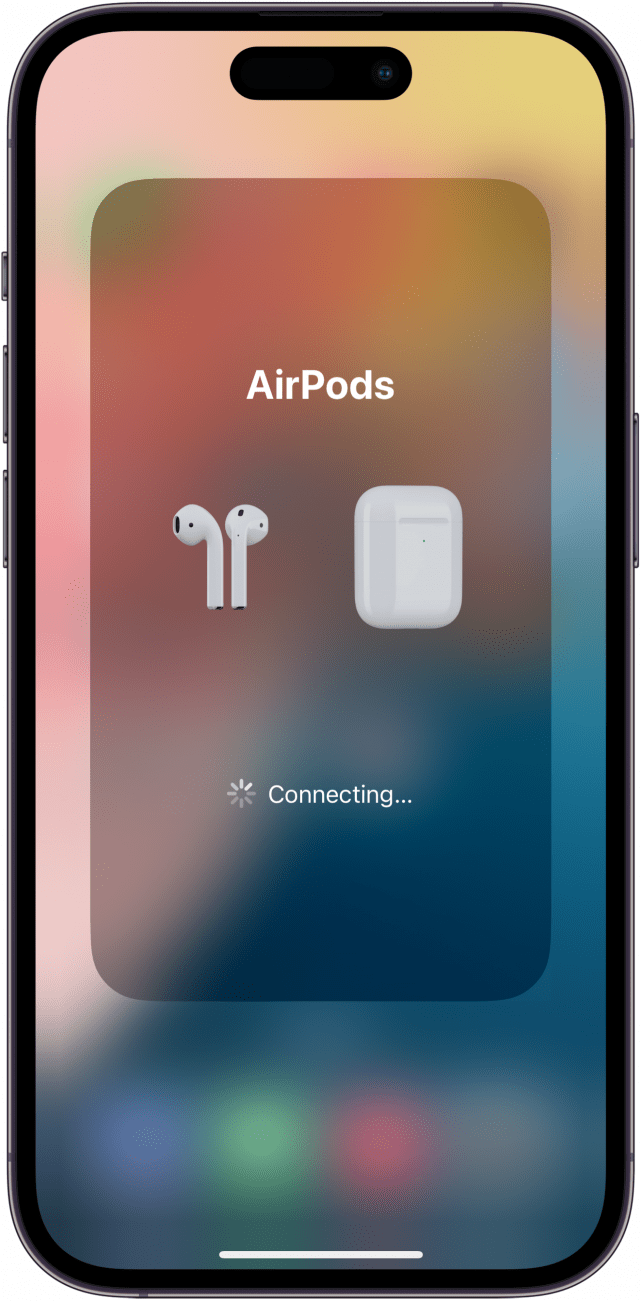
- You may see a notification that the guest pair of AirPods is connecting.
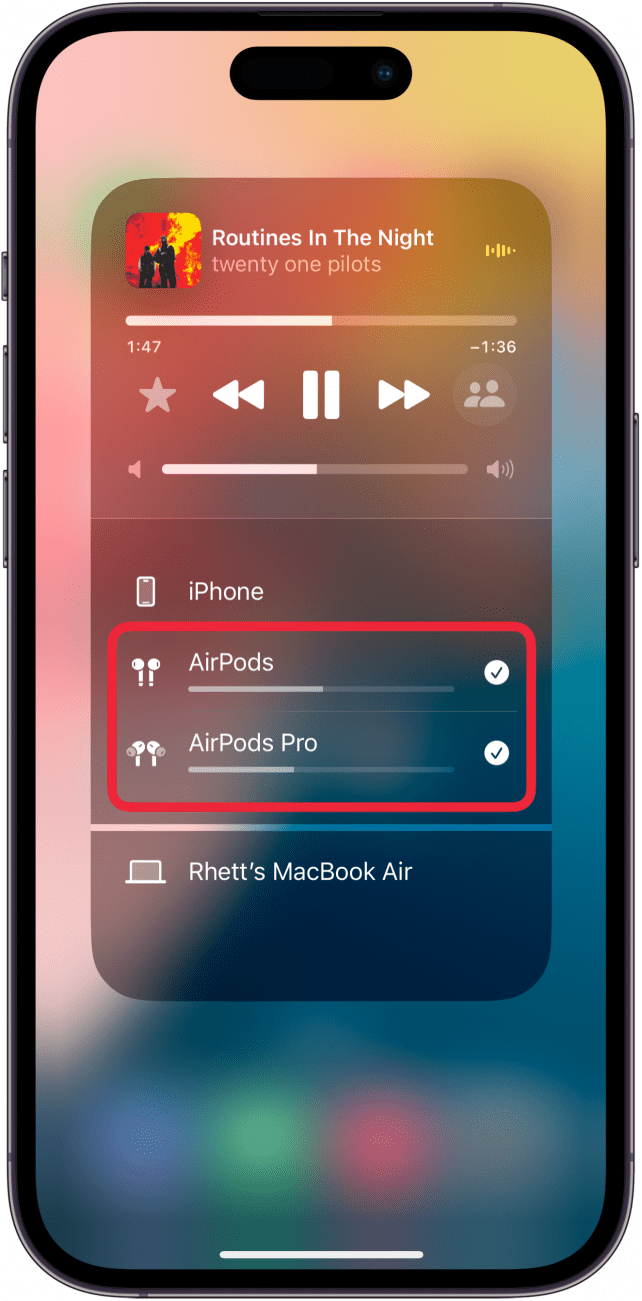
- Once the second pair of AirPods is connected to your iPhone, you can share audio simultaneously to both sets of AirPods. When audio is playing, you can drag the slider underneath each pair of AirPods to adjust the volume.
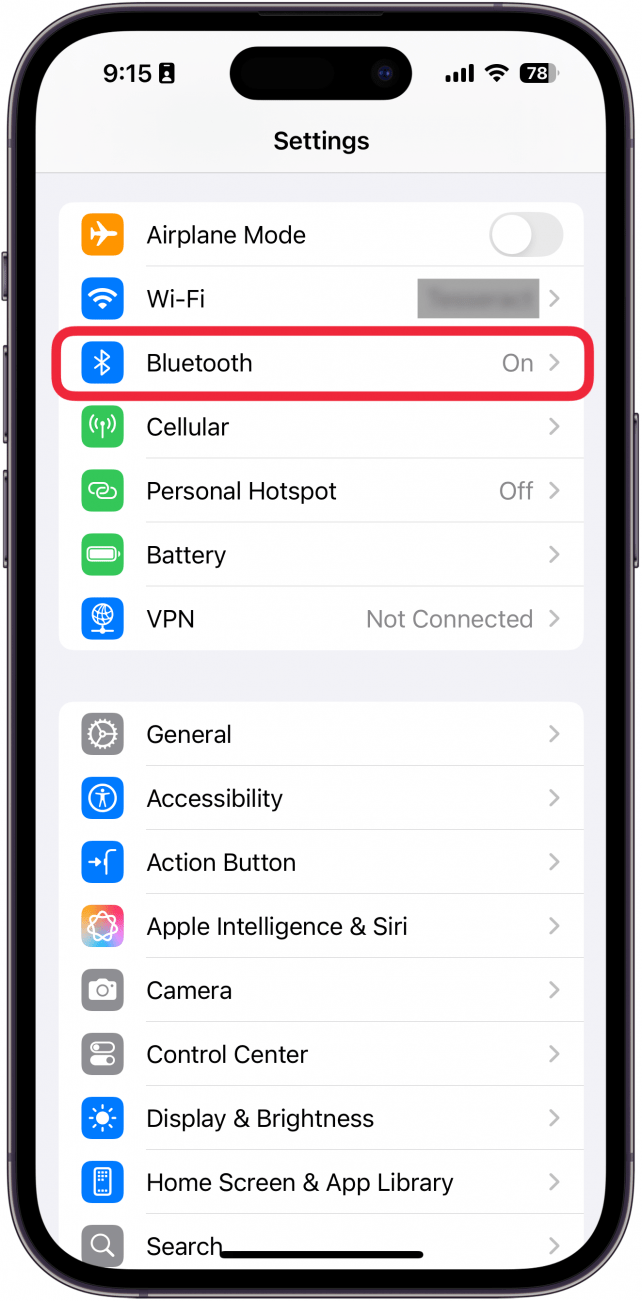
- When you're ready to disconnect the second pair of AirPods, have your friend put their AirPods back in their case. Alternatively, you can open the Settings app and select Bluetooth.
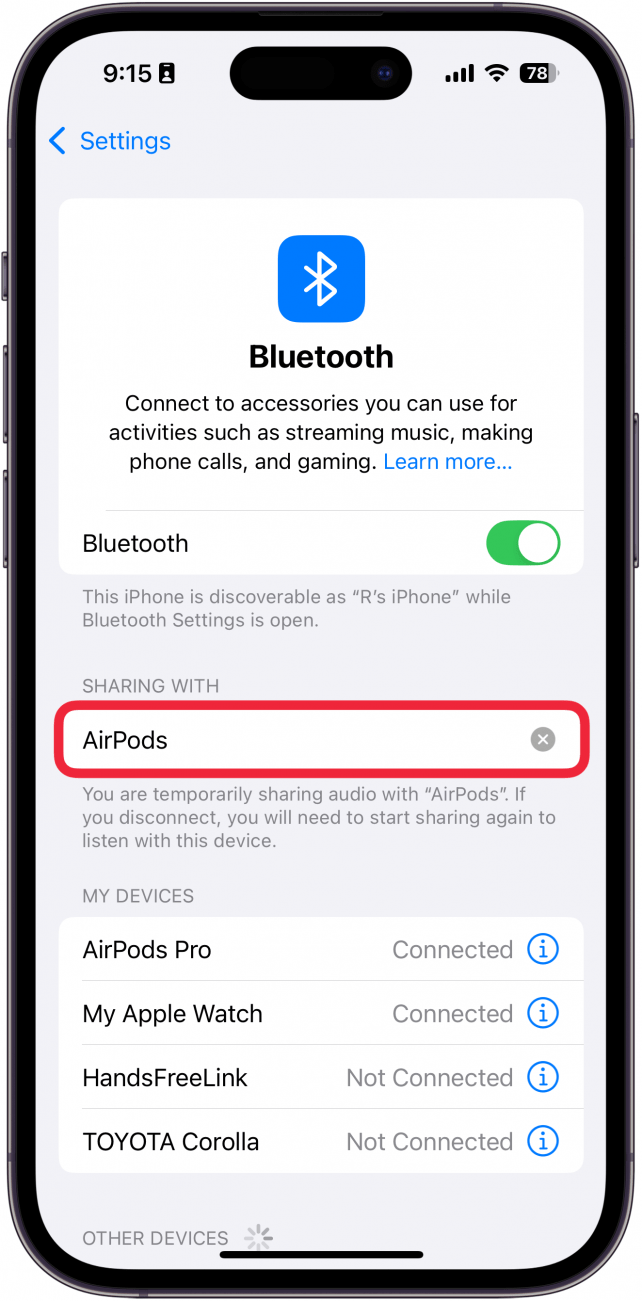
- Tap the X icon next to the name of the AirPods in the Sharing With section.
That's how to share audio on AirPods. If you're ever without a second pair of AirPods, you can still share audio without missing any details by setting your iPhone to Mono Audio mode and splitting your left and right AirPods between you and your friend. It's not a perfect solution, but it works in a pinch. Regardless of which method you choose, now you can enjoy sharing your music with friends or family!

Every day, we send useful tips with screenshots and step-by-step instructions to over 600,000 subscribers for free. You'll be surprised what your Apple devices can really do.

Leanne Hays
Leanne Hays has more than sixteen years of experience writing for online publications. As a SEO Specialist and Feature Writer for iPhone Life, she has authored hundreds of how-to, Apple news, and gear review articles, as well as a comprehensive Photos App guide. Leanne holds degrees in education and science and loves troubleshooting and repair. This combination makes her a perfect fit as manager of our Ask an Expert service, which helps iPhone Life Insiders with Apple hardware and software issues.
In off-work hours, Leanne is a mother of two, homesteader, audiobook fanatic, musician, and learning enthusiast.
 Leanne Hays
 Rhett Intriago
 Amy Spitzfaden Both
 Olena Kagui

 Susan Misuraca