How to Set Up Face ID on Your iPhone & Use It to Unlock Apps

Conner is a feature writer and contributor to iPhone Life, as well as an author, poet, and content creator.
Learn More Conner is a feature writer and contributor to iPhone Life, as well as an author, poet, and content creator.
Learn MoreWhat to Know
- You can set up Face ID on any iPad or iPhone that has a TrueDepth camera system.
- After you set up Face ID on your iPad or iPhone, you can set up Face ID for apps.
Apple has long used biometric identification like Touch and Face ID as privacy and security features for the iPhone. Once you set up Face ID on your iPhone, you can unlock your device with it as well as unlock and open apps. Let's get started learning how to set up Face ID on your iPhone and iPad.
How to Set Up Face ID (Facial Recognition) on your iPhone & iPad
Face ID is available for the iPhone X and later iPhone models and some iPads. This includes the iPhone X and later (except SE models), M4 and M5 iPads, as well as the iPad Pro 12.9-inch (3rd through 6th generations) and iPad Pro 11-inch (1st through 4th generations). Here's how to set Face ID on an iPad or iPhone.
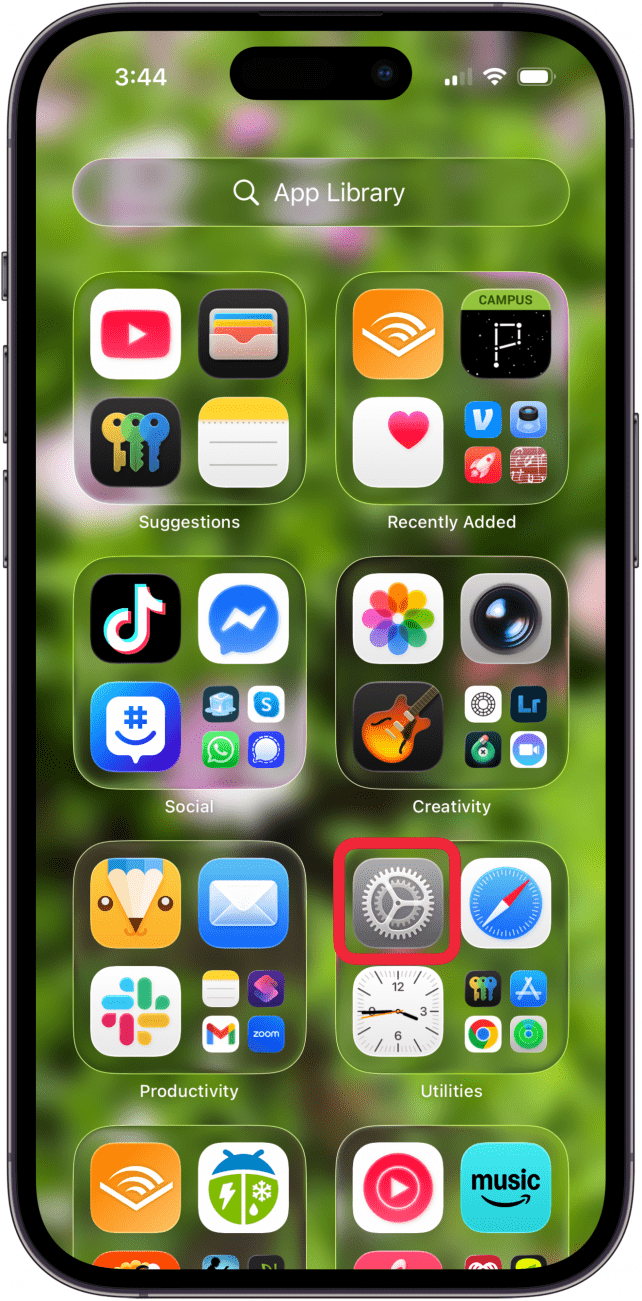
- Open the Settings app.
- Select Face ID & Passcode.

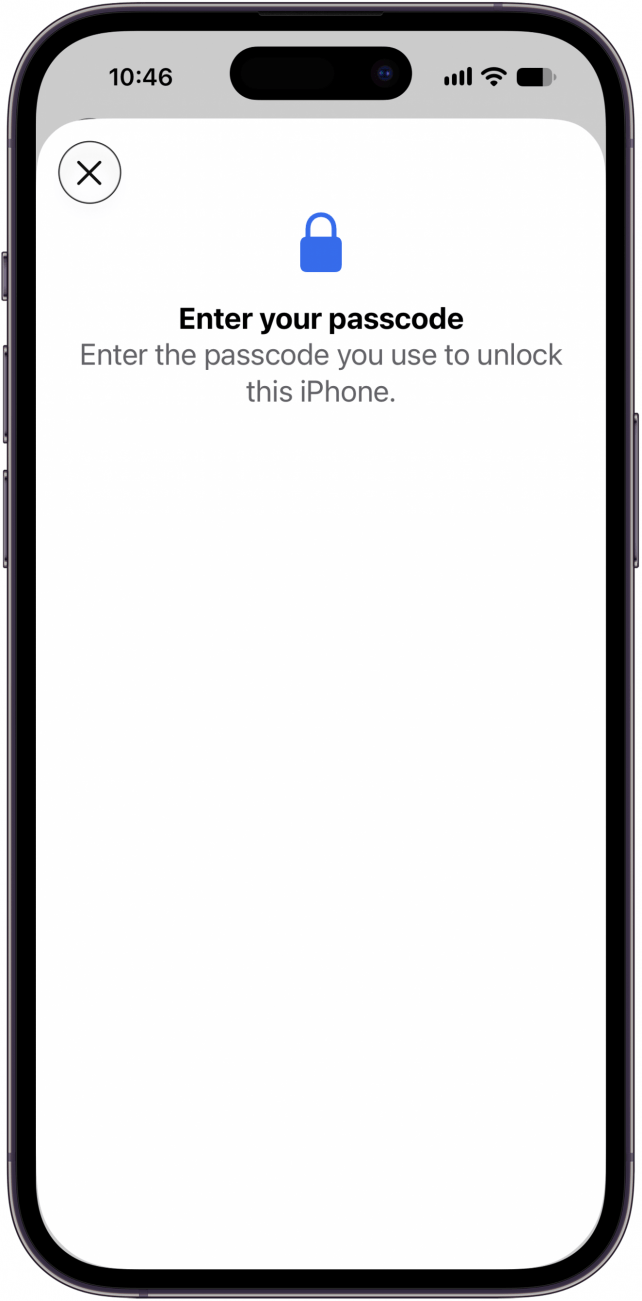
- Enter your passcode.
- Scroll down and tap Set Up Face ID; if you’ve already set up Face ID, you’ll see the option to Reset Face ID.
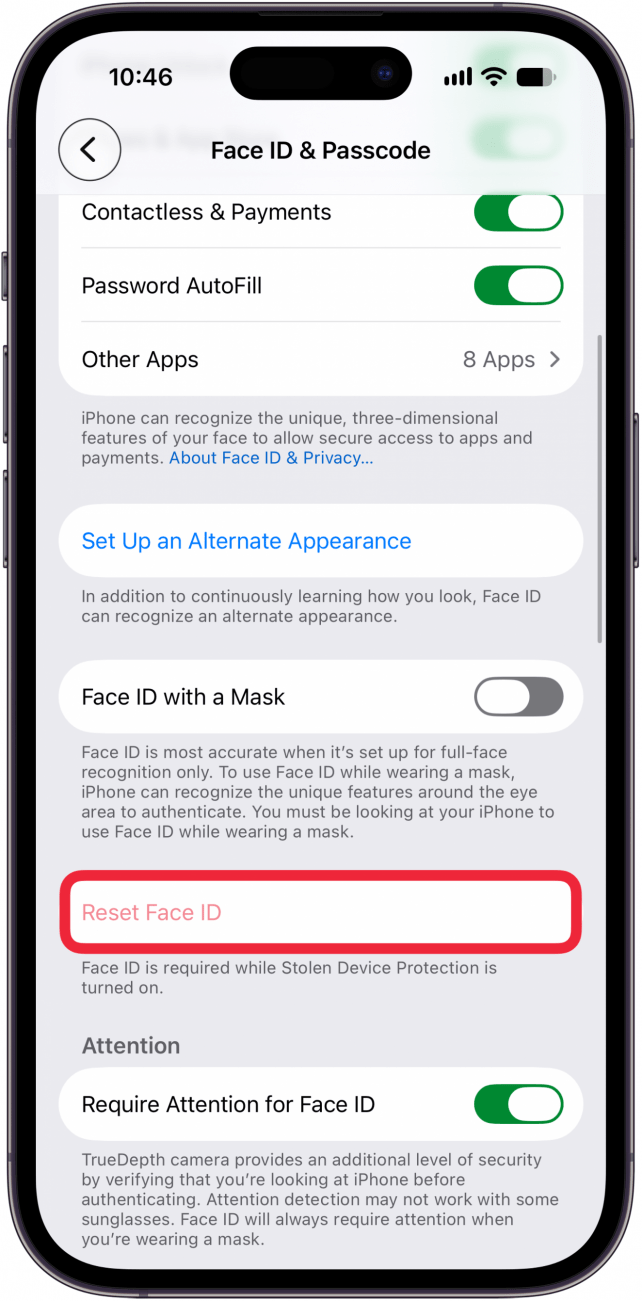
- Tap Get Started. Your iPhone will ask you to position your face within the frame and slowly move your head around in a circle so it can get a map of your face. It will ask you to do this twice, and then you’ll be set up!

Interestingly enough, Face ID will continue to learn your face as time goes on. So if it doesn't work at a certain angle, don’t reposition the phone and try again. Instead, enter your passcode so that your phone will learn more about the shape and angles of your face.
This also applies to aging or growing out a beard—if you go from having a beard to suddenly clean-shaven, you’ll need to enter your passcode, so the phone takes note of how your face has changed. But if you go from clean-shaven and slowly grow a beard over time, the phone will unlock at every stage and already be accustomed to your face by the time your beard has fully grown out.
How to Set Up Face ID for Apps
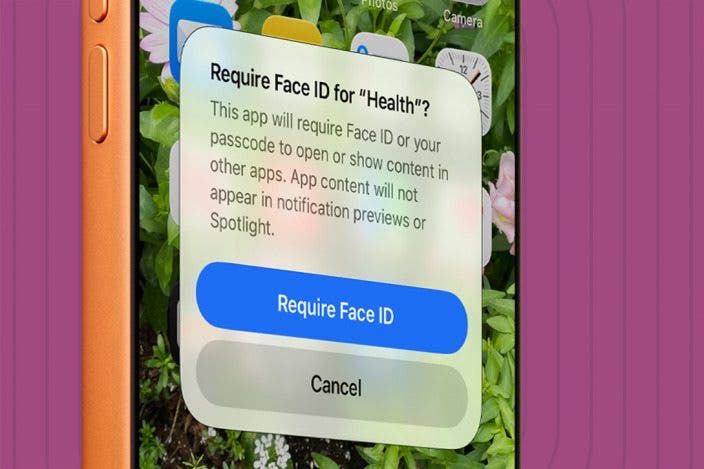
You can't enable Face ID for every app, but many of them do offer the option. Here's how to enable Face ID on an app-by-app basis:
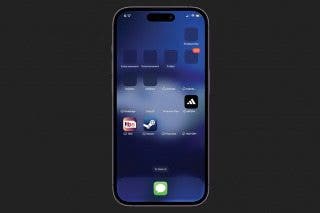
- Touch and hold an app on your Home Screen.
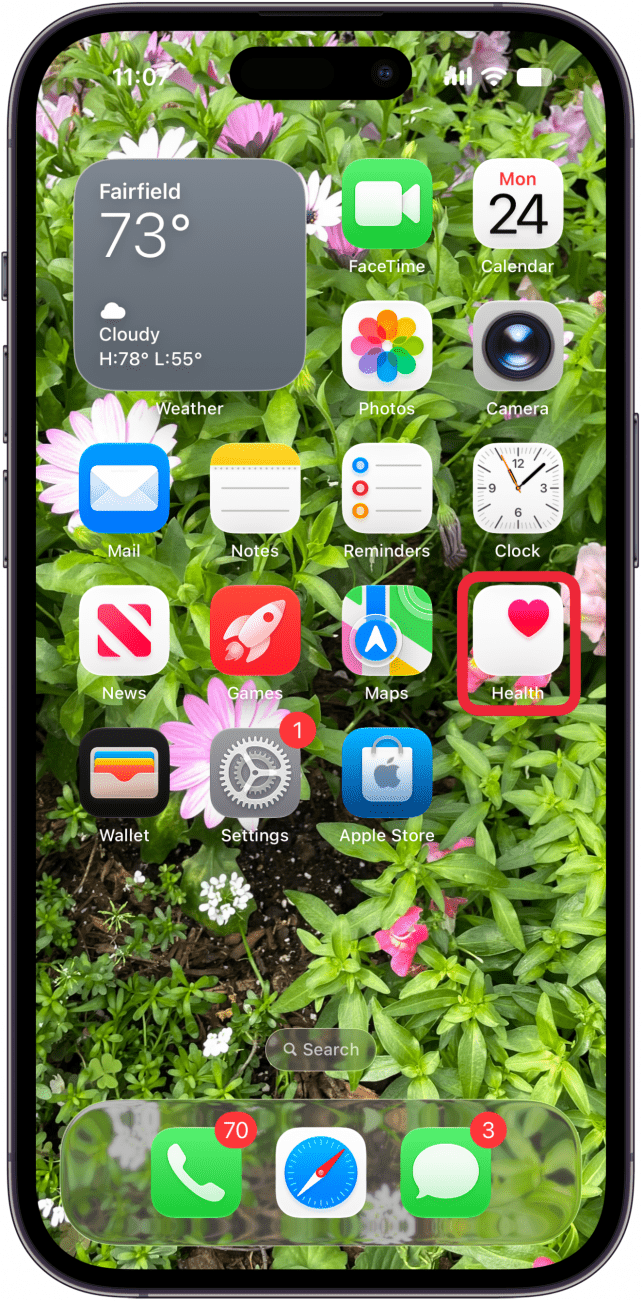
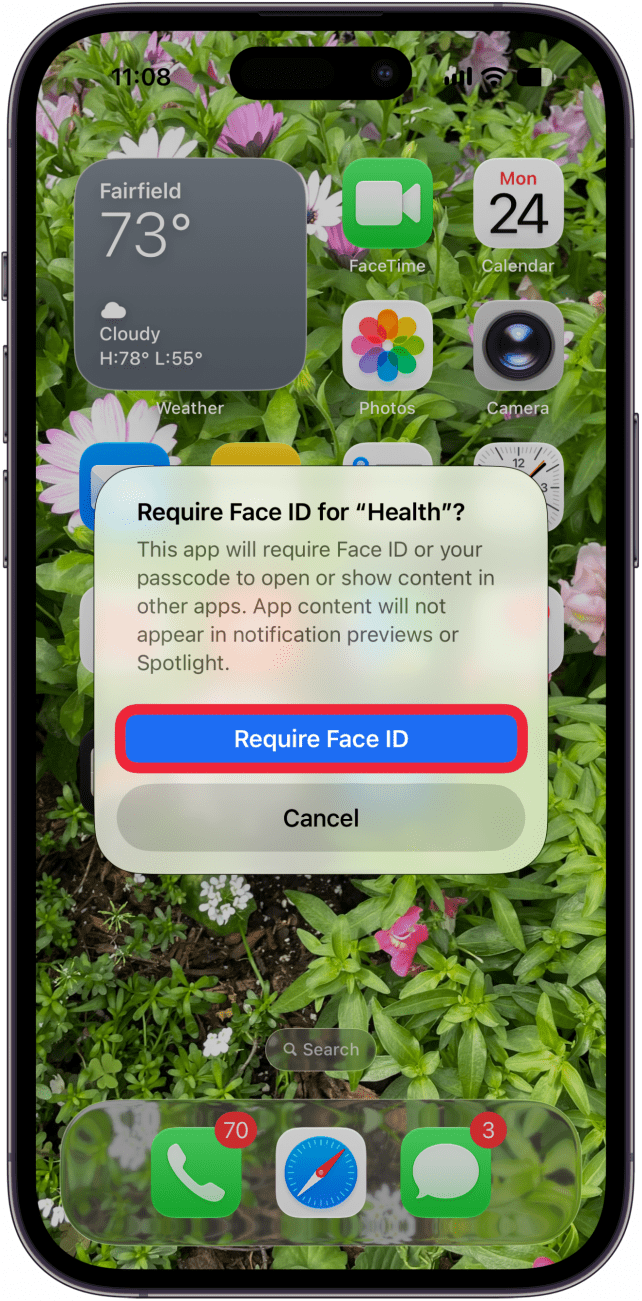
- Tap Require Face ID and then tap Require Face ID again to confirm.
How to Use Face ID to Unlock Apps
Now that you’ve set up Face ID, it’s time to learn how to use Face ID for apps. One way that Face ID is used for apps is to unlock certain apps. In addition to unlocking apps, the feature can also be used to access your saved usernames and passwords that are stored on your device. You can also learn how to use Face ID with a mask. Here’s how to use Face ID to unlock apps.
- Tap an app with Face ID enabled.
- You'll see a very quick notification: Face ID Required to open (app name). Then, your app will open.

Now you know how to enable Face ID on your iPhone, how to enable Face ID for apps, and how to use Face ID to open apps. Be sure to check out our free Tip of the Day for more great security tutorials.
FAQ
- I want to learn how to put Face ID on Messages; can I do that? Yes. Messages is one of the many apps you can add Face ID to; just follow the steps in the article above.
- I also want to know how to use Face ID for the App Store; is that possible? Again, yes! You can add Face ID to the App Store by touching and holding the app icon, then tapping Require Face ID.
- Can you have more than one Face ID on your iPhone? Yes, you can add a second appearance to Face ID so a friend or family member can access your iPhone.

Conner Carey
Conner Carey's writing can be found at conpoet.com. She is currently writing a book, creating lots of content, and writing poetry via @conpoet on Instagram. She lives in an RV full-time with her mom, Jan and dog, Jodi as they slow-travel around the country.
 Leanne Hays
 Rhett Intriago
 Olena Kagui
 Amy Spitzfaden Both
 Rachel Needell
 Cullen Thomas