How to Find a Lost iPhone, Even if the Battery Is Dead

With two decades of writing and editing experience, Sarah has written hundreds of how-to articles, founded the Daily Tip newsletter, and now oversees iPhone Life’s online content.
Learn More With two decades of writing and editing experience, Sarah has written hundreds of how-to articles, founded the Daily Tip newsletter, and now oversees iPhone Life’s online content.
Learn MoreWhat to Know
- Find My can be used to see where a dead iPhone was located at the moment its battery died.
- It can also help locate a lost iPhone that is turned off or offline if the Find My network is enabled.
- Find My can be used in the Find My app on any Apple device or by signing into icloud.com from a web browser.
The only thing worse than losing your iPhone is having the battery die before you can find it again. But there’s good news: Find My iPhone still works if your iPhone’s battery is dead or if it’s been turned off or disconnected from the internet. Apple has also made it possible to access Find My from almost any device using a web browser, meaning you don’t need access to another Apple device in order to use it. Read the whole article or skip ahead to the section that applies to you.
How to Make Sure Your iPhone Can Still Be Found If It's Dead or Offline
Note
These steps were performed on an iPhone 17 Pro running iOS 27. Find out how to update to the latest version of iOS.
Apple Find My can only help you find your dead or offline iPhone if Find My is turned on and you already have the right settings enabled before losing your iPhone. While these settings should be on by default, it’s a good idea to double check.
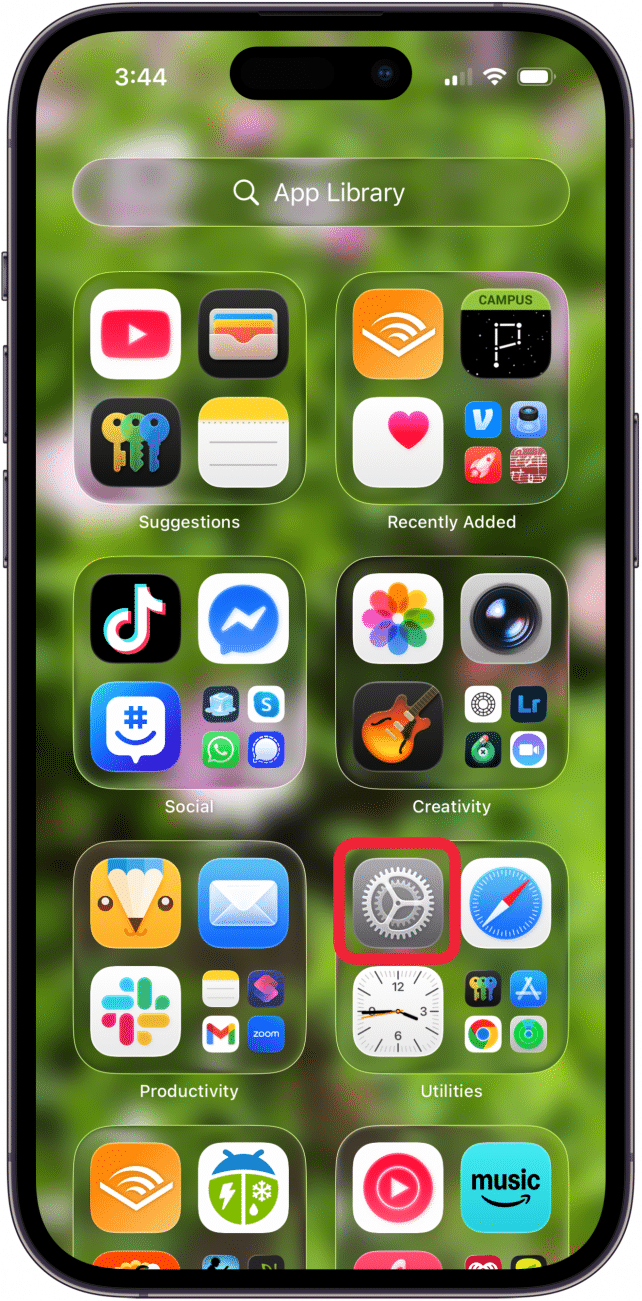
- Open your iPhone Settings app.
- Tap your Apple Account profile.

- Select Find My.

- Tap Find My iPhone.

- Make sure the toggles next to Find My Network and Send Last location are green.

- If the toggles are gray, tap them to enable them.
The Apple Find My Network is a network of encrypted Bluetooth signals coming from nearby Apple devices. The network relays the location to iCloud and makes it possible to find iPhones that are turned off or offline. If you see the words “iPhone Findable After Power Off’ under the power off slider when turning off your iPhone, this means the Find My Network is enabled on your device.
Send Last Location does exactly what it says; it makes it easier to find a lost iPhone with a dead battery by having your iPhone send its last location to Apple right before the battery dies.
How to Find Your iPhone from Another Apple Device
Use this method if you own another Apple device, such as an iPad or Mac, or have access to an Apple device belonging to someone you share location with.
- Open the Find My app and make sure you're in the Devices tab.

- Swipe up on the gray line to see all devices if the menu isn't there.
- Select your iPhone from the list.

- If your lost iPhone is dead, it will appear with a black screen.
- If your lost iPhone is turned on, it will appear with an active (colorful) Home Screen.

- Tap the More icon (three dots) to the right of your iPhone's name.

- Tap Directions to get Apple Maps directions to your lost iPhone's location. If your iPhone is turned on, you can also tap Play Sound to help you locate your iPhone.

- Tap Lost Mode under Lost iPhone to remotely lock your device and display a custom message with a phone number where you can be reached in case someone finds your lost iPhone. Tap Continue to confirm that you want to turn on Lost Mode.

- If you believe your iPhone is unrecoverable, tap Erase. This will remove all your data and turn off location tracking. Activation Lock will remain on, meaning no one can set up and use the iPhone without your Apple Account login.

- Tap Continue.
- Tap Erase again.
How to Find Your iPhone from Someone Else's Apple Device
Use this method if you are using Find My on an Apple device belonging to someone you don’t share your location with. Read more about the Help a Friend feature.
- Open the Find My app and make sure you’re in the Me tab.

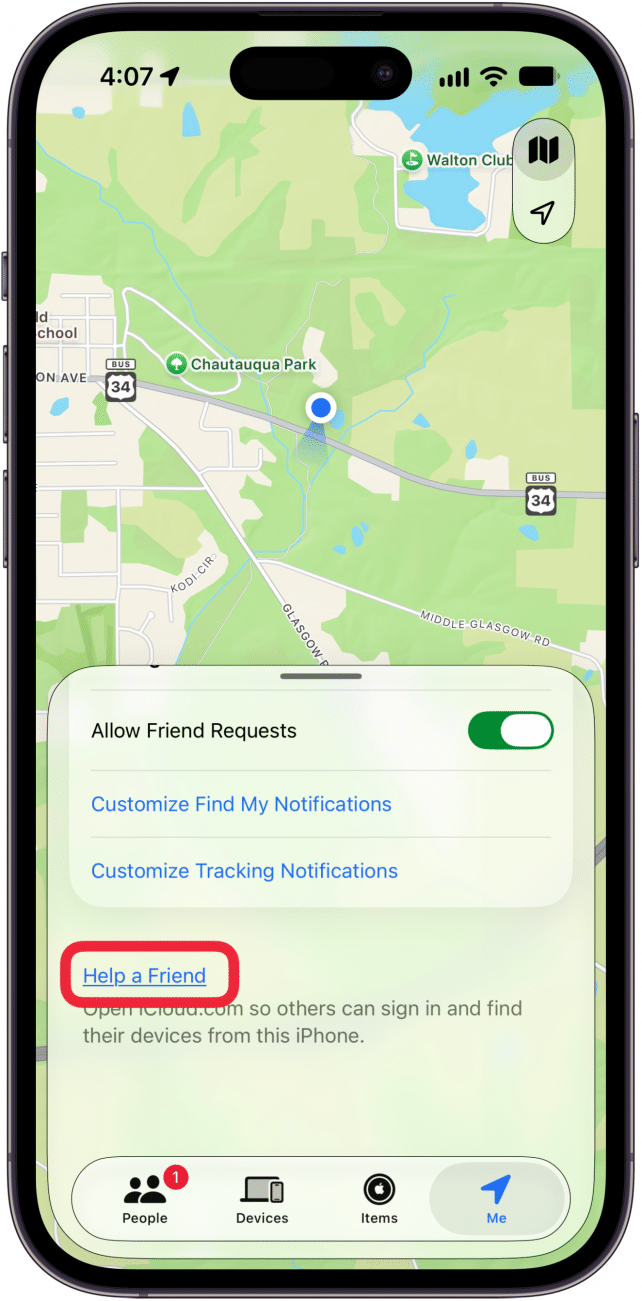
- Scroll down and tap Help a Friend. This will open iCloud.com.
- Tap Sign In.

- Sign in using your Apple Account login.

- Find your iPhone in the list and select it.
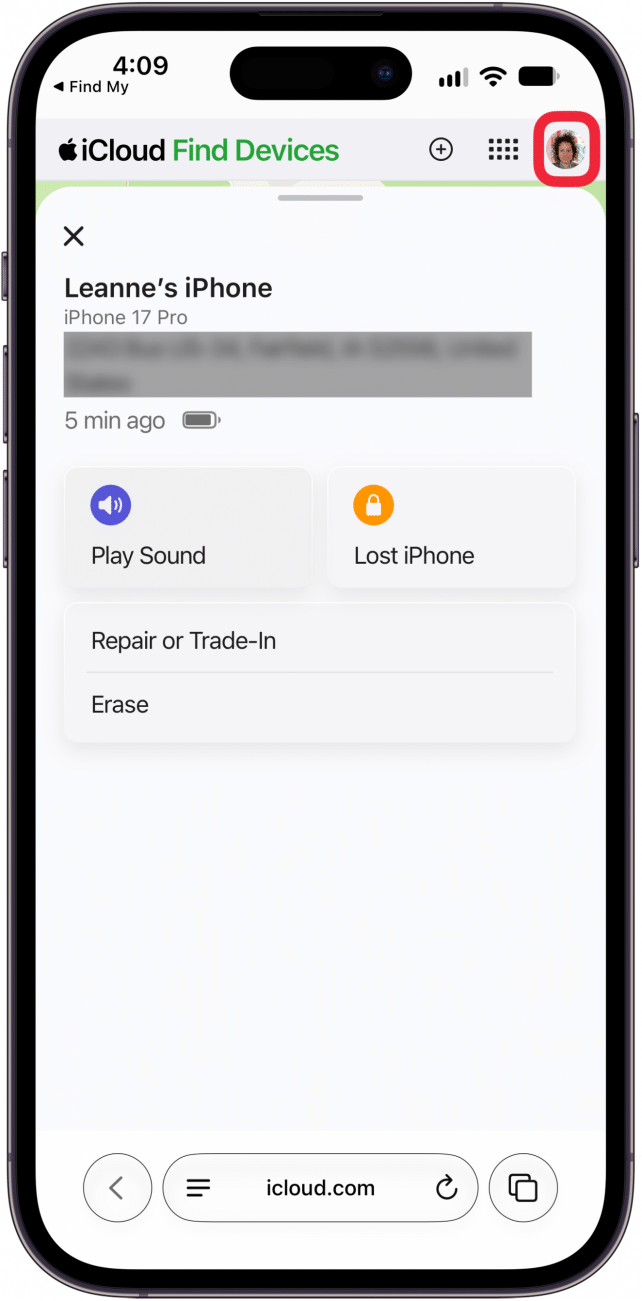
- Now you can view your iPhone’s location, play a sound, mark your iPhone as lost, or erase your iPhone.

- When you are finished, don’t forget to tap the profile icon in the upper right and sign out before returning the device to its owner.
How to Find Your iPhone with an Android or PC
Use this method if you only have access to an Android phone or a PC or you prefer to use a web browser.
- Go to iCloud.com/find and tap Sign In, then sign in to your Apple Account.

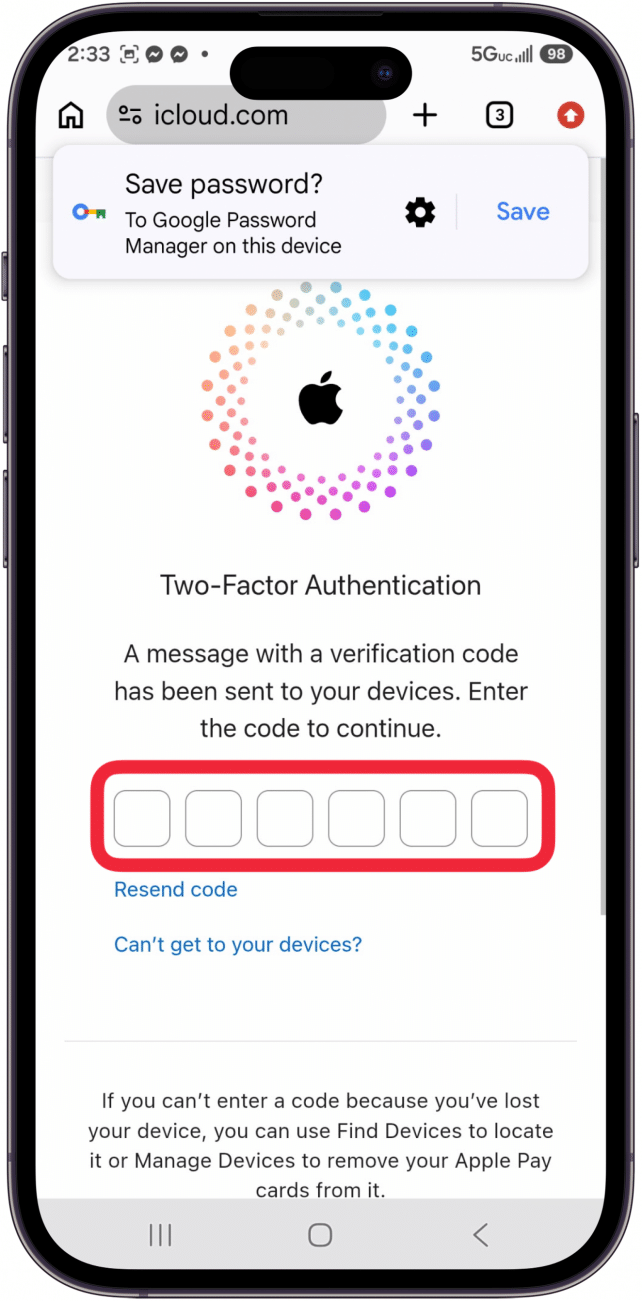
- If prompted, click Allow to allow use of iCloud.com on the device you're using and complete two-factor authorization.
- Tap Trust or Don't Trust.

- If your lost iPhone is dead, the icon will show a black screen. If it's turned on, you will see a colorful Home Screen. Select your iPhone from the list.

- Tap Find My.

- Tap Continue or Sign in with iPhone.

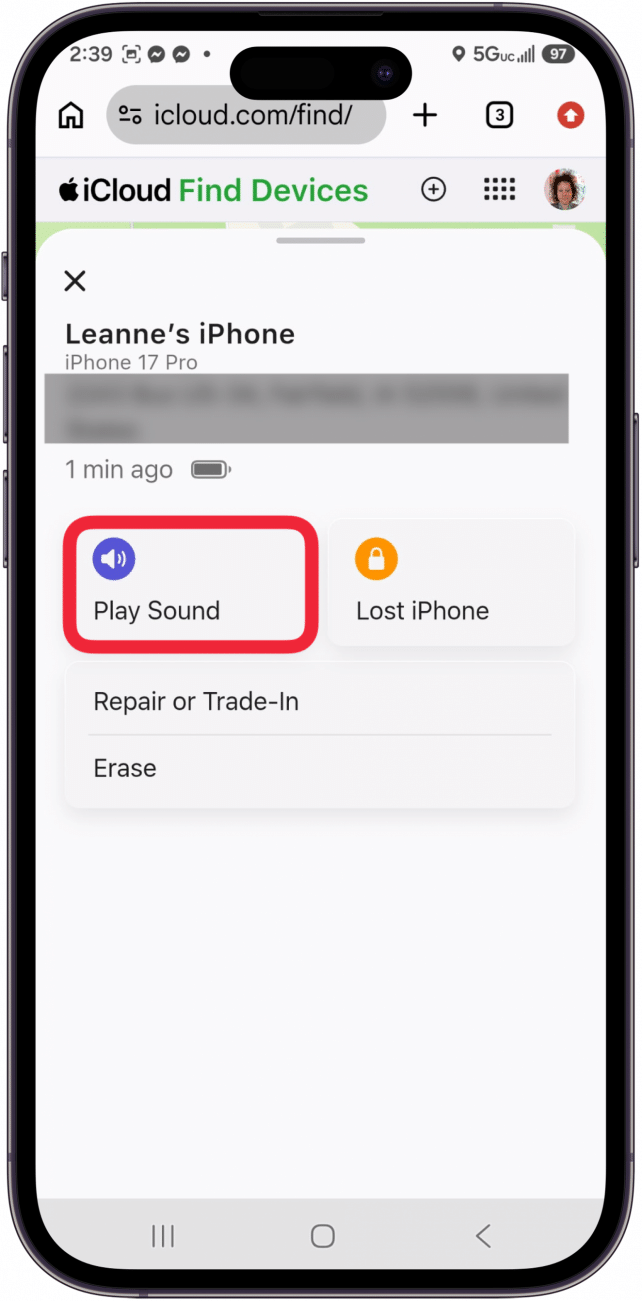
- If the iPhone is turned on or offline (not dead), you can select Play Sound to help you locate your iPhone when you get close to it.
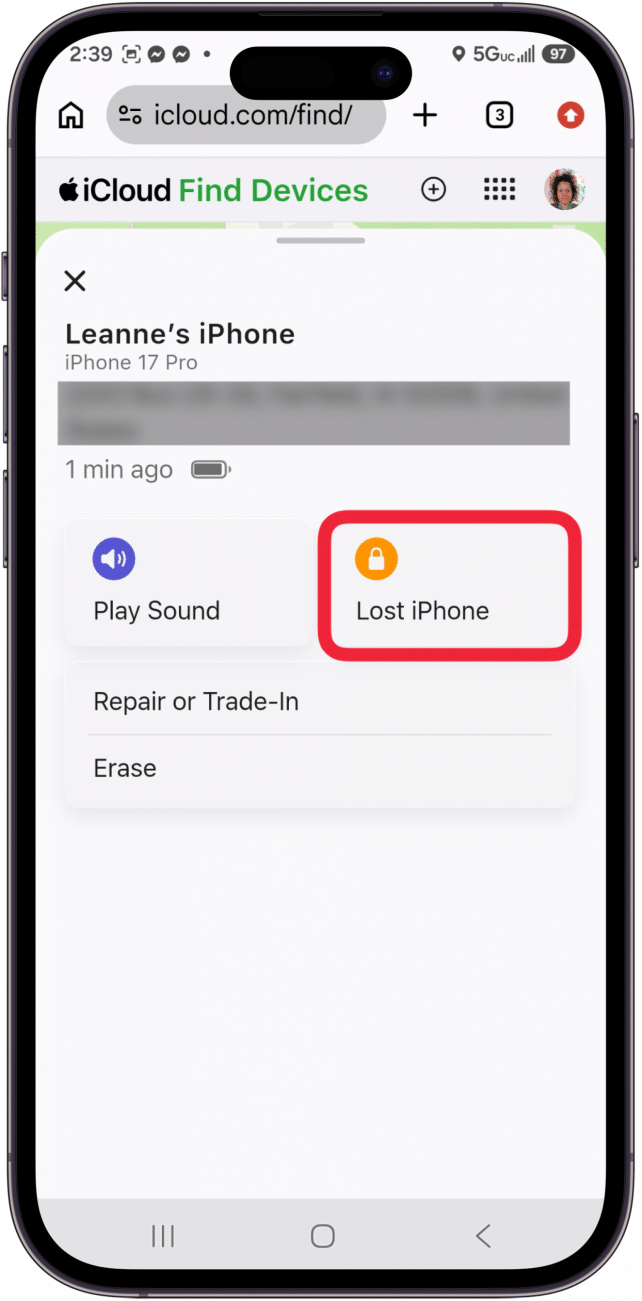
- Select Lost iPhone to remotely lock your device and display a custom message with a phone number where you can be reached in case someone finds your lost iPhone.
- If you believe your iPhone is unrecoverable, tap Erase. This will remove all your data and turn off location tracking. Activation Lock will remain on, meaning no one can set up or activate the phone without your Apple account login.

.
For more Find My iPhone tips and tricks, be sure to check out our free Tip of the Day newsletter.
FAQ
- What should I do if my iPhone is stolen? Immediately protect your data by erasing your iPhone remotely. Activation Lock will remain on, making it harder for the thief to sell or use your iPhone. Next steps include changing your Apple Account password and filing a police report and an insurance claim. Do not put yourself at risk by attempting to recover your phone without the police. Read more about what to do if your iPhone is stolen.
- I can't find my dead iPhone even though I have Find My set up correctly. What should I do? Make sure you are signed in to iCloud and connected to the internet. If that doesn’t work, make sure Location Services are enabled and try turning your iPhone off and on again. Read our article on troubleshooting Find My issues for more ways to fix Find My.
- Can I find my iPhone using my Apple Watch? Yes, you can! If your iPhone is turned on and in Bluetooth range, you can ping the iPhone with your Apple Watch.

Sarah Kingsbury
As the Editorial Director at iPhone Life, Sarah Kingsbury manages the online editorial team and oversees all website content. She is a long-time Apple enthusiast who never goes anywhere without her Apple Watch and owns way too many HomePods. Since joining iPhone Life in 2013, Sarah has done everything from writing hundreds of how-to articles to founding the Daily Tip newsletter. She even co-hosted the early episodes of the iPhone Life Podcast. When not at work, Sarah can be found hiking in the mountains and canyons around Las Vegas, where she lives with her partner and dogs.
 Susan Misuraca
 Amy Spitzfaden Both
 Rachel Needell
 Leanne Hays
 Olena Kagui
 Rhett Intriago