How to Drag & Drop Emojis in iMessage on Your iPhone & iPad

With 10-plus years of experience with Apple devices, Rachel specializes in all things iPad and is a Notes app expert. Find her writing in the Daily Tip newsletter and iPhone Life magazine.
Learn More With 10-plus years of experience with Apple devices, Rachel specializes in all things iPad and is a Notes app expert. Find her writing in the Daily Tip newsletter and iPhone Life magazine.
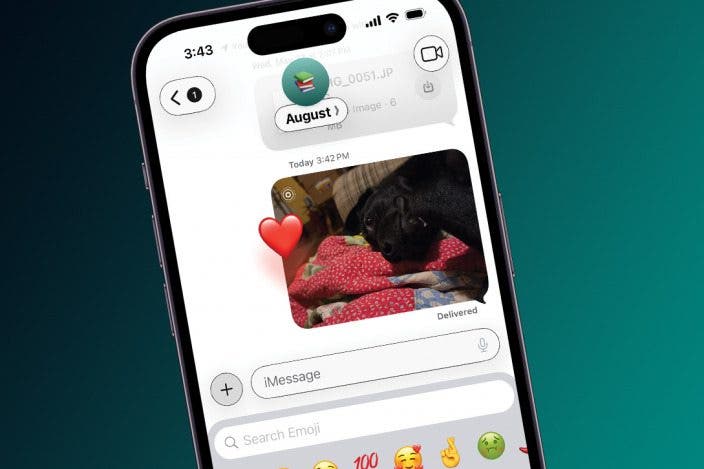
Learn MoreDid you know that you can drag and drop emojis in your iMessage app the same way you can drag stickers and memojis? We didn't either! It's super fun, easy to do, and a great way to communicate with your friends. Here's how to drag an emoji into your messages.
Why You'll Love This Tip
- Learn how to add emojis to iPhone messages like stickers.
- You can add emoji to iPhone and iPad messages by dragging and dropping.
How to Drag Emojis in iMessage
System Requirements
This tip was performed on an iPhone 17 Pro running iOS 26.5, and works on iPhones running iOS 18.3 or later. Learn how to update to the latest iOS.
Unlike stickers or memojis, you don't have to create your own to drag and drop emojis in your messages. Here's how to drop an emoji from the emoji keyboard into your iMessage.
- Open the Messages app.
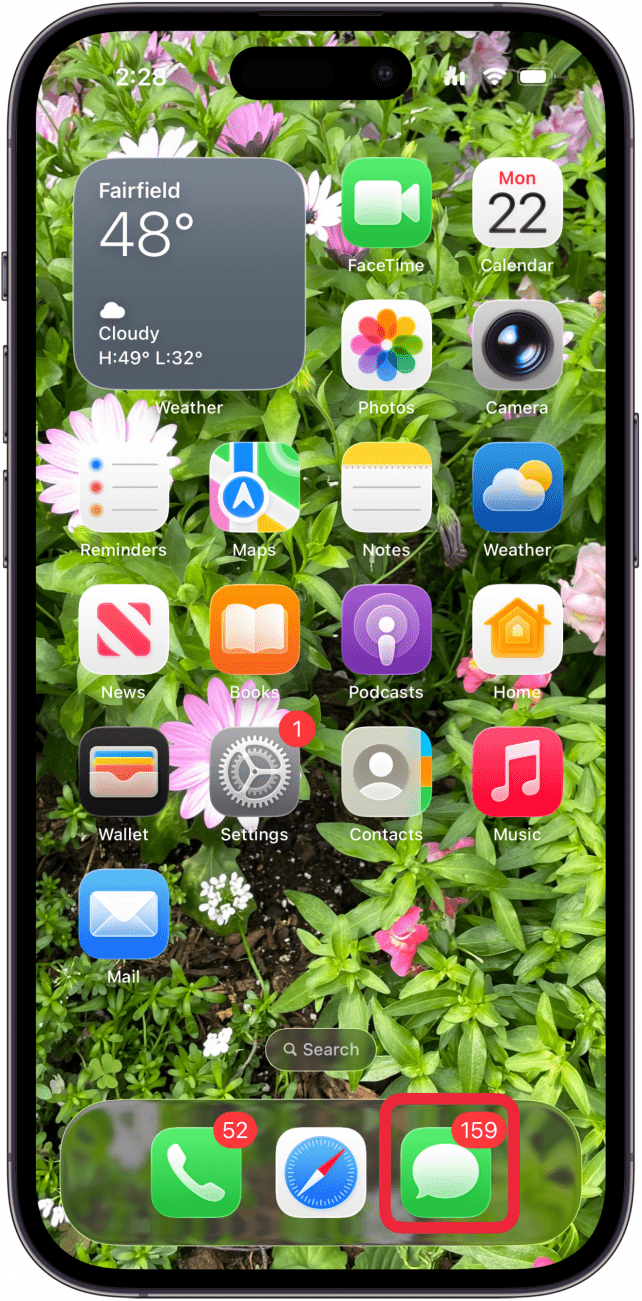
- In a text to another iPhone, open the emoji keyboard by tapping the smiley face icon.

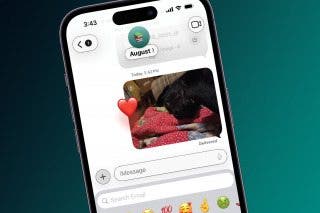
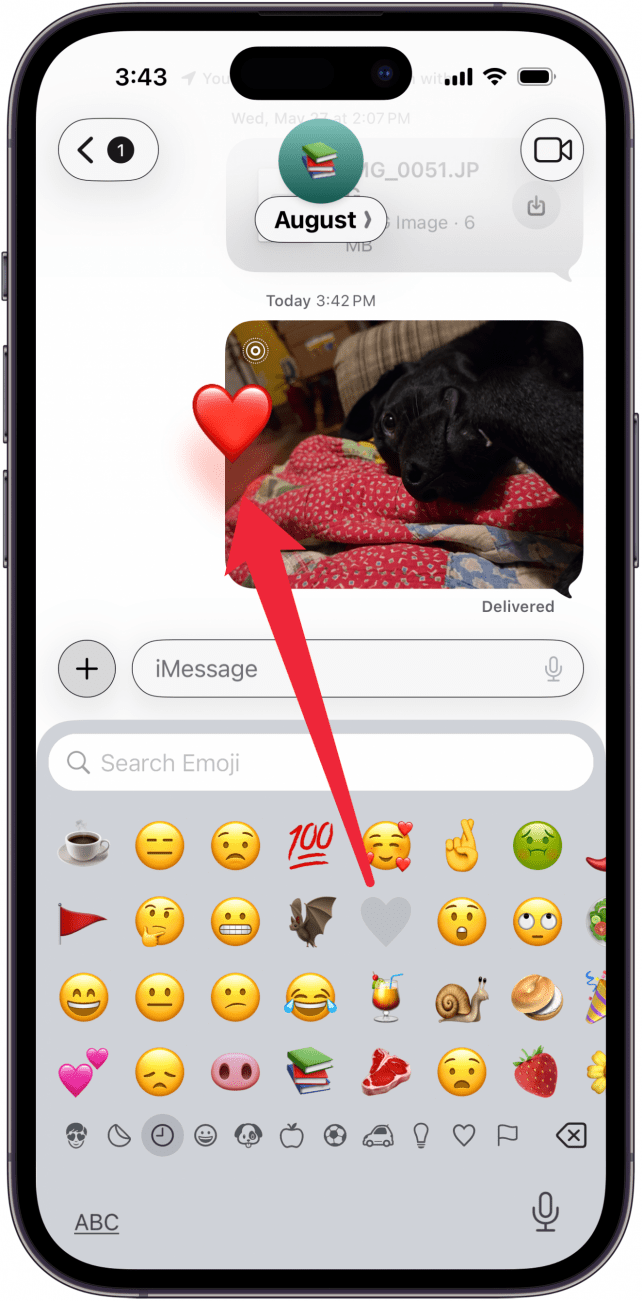
- Find the emoji you'd like to use like a sticker, then touch and hold it. You'll see a copy of the emoji above the one on the keyboard.
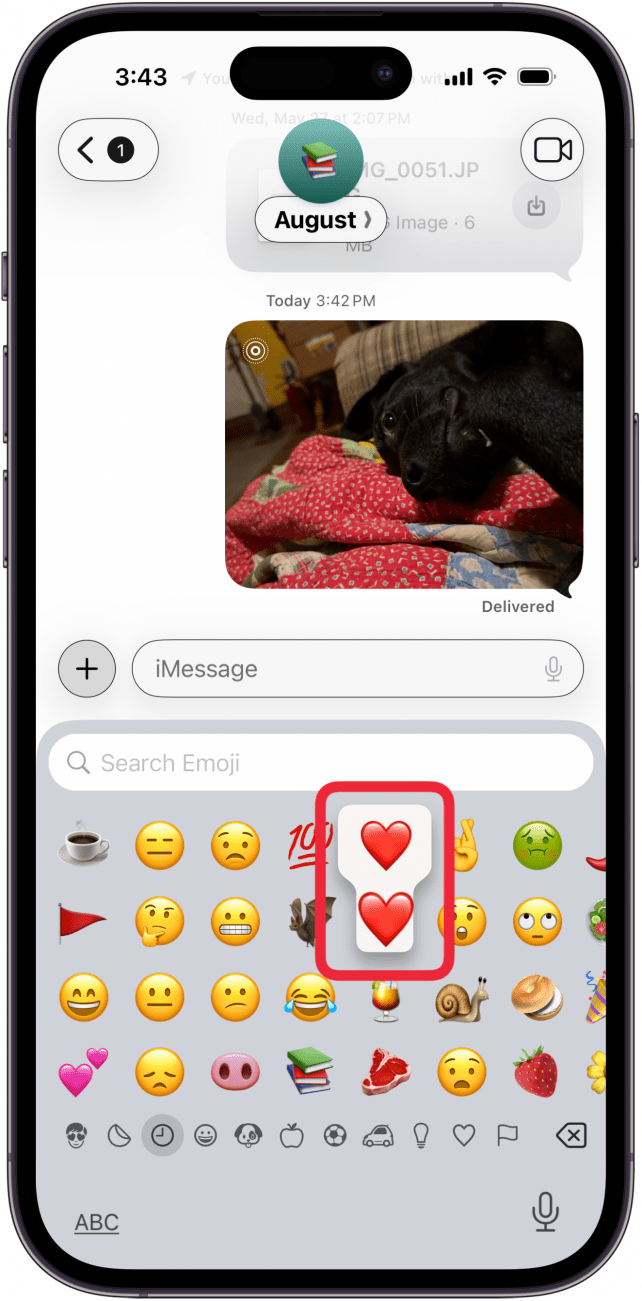
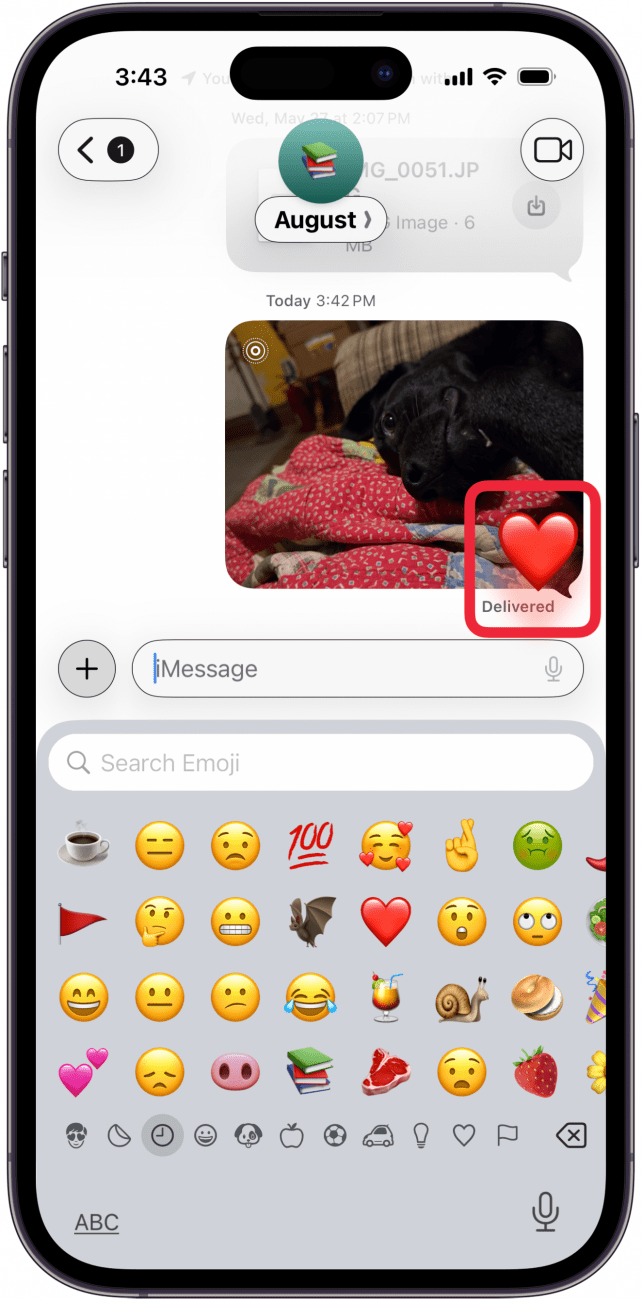
- Drag the emoji anywhere in the messages window. Release it to place it like a sticker.
- If you want to move the emoji later, press and hold it again until it comes unstuck and then move it where you like.
Note
If you try this with an Android user, the emoji will simply appear as a normal text with that single emoji. It will not stay wherever you place it in the text window because this feature only works with iMessage.
And that's how you drag emojis into your texts with friends; have fun! Next, learn how to create an emoji from a photo on your iPhone. To learn more about fun ways to use the Messages app on your iPhone and iPad, be sure to sign up for our free Tip of the Day!

Every day, we send useful tips with screenshots and step-by-step instructions to over 600,000 subscribers for free. You'll be surprised what your Apple devices can really do.

 Rhett Intriago
 Rachel Needell
 Olena Kagui


 Linda Ruth
 Leanne Hays

 Amy Spitzfaden Both