How to Swipe Email Drafts out of the Way Temporarily


Jim Karpen has been writing about technology since 1994 and brings decades of experience with Apple products, along with a Ph.D. in literature and writing.
Learn More Jim Karpen has been writing about technology since 1994 and brings decades of experience with Apple products, along with a Ph.D. in literature and writing.
Learn More
You may have had the experience of working on a draft of an email but then needing to look at a different email in your inbox. But the draft obscured the screen and couldn't be quickly pushed aside and then returned to. Fortunately, you can easily swipe away a draft, access your other email, and then quickly bring it back into view to continue working on it. This is typically referred to as "minimizing" the email draft.
In the screenshot below I'm working on an email to Sarah, our blog editor, that I've given the subject heading "Blog topic." But then I need to see more detail about the app that I'm referring to in the email.
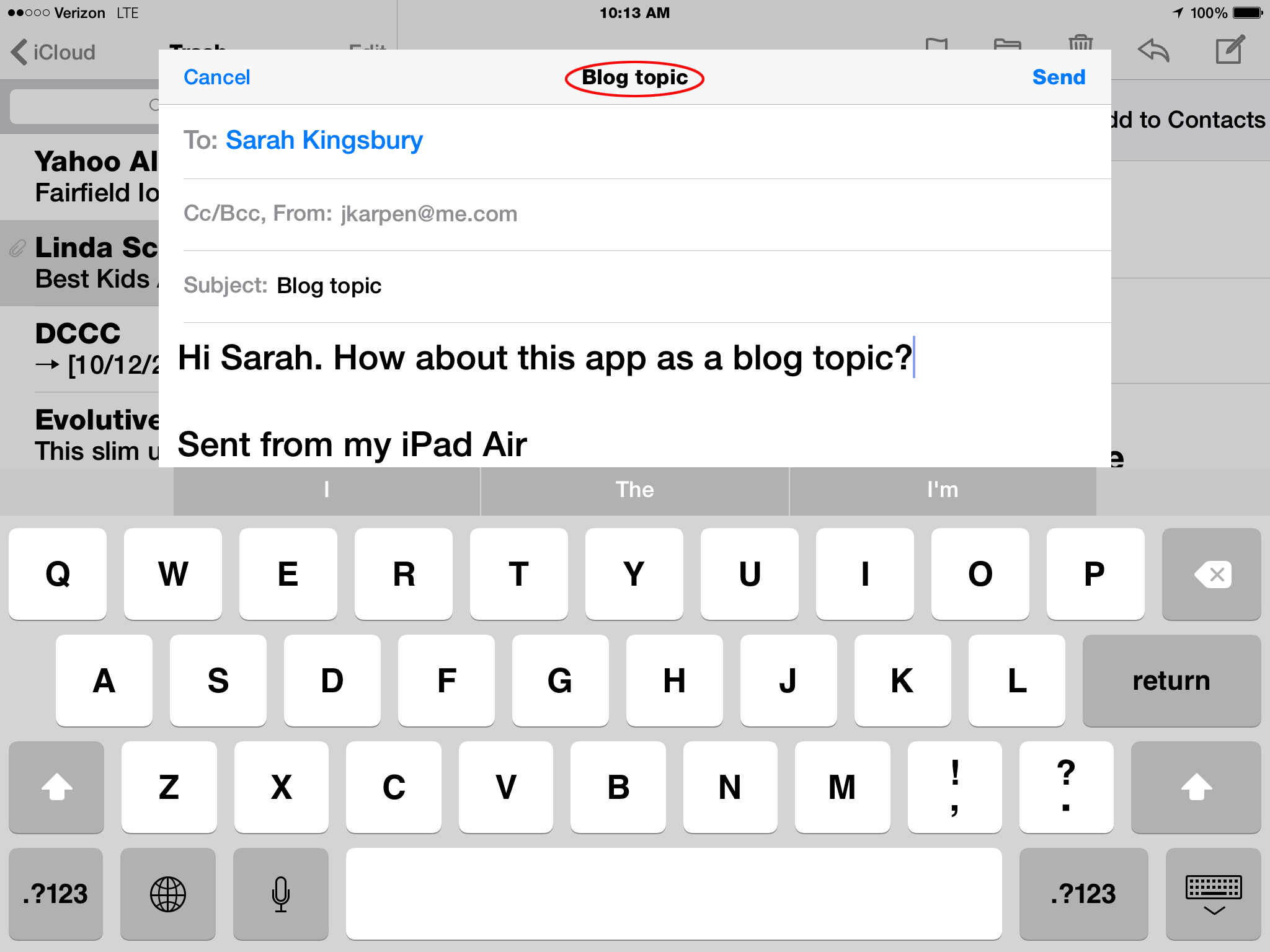
So in order to minimize the email, I tap and hold on the title of the email at the top ("Blog topic," in this case) and then drag down toward the bottom of the screen. It disappears from view except for the title, which appears at the bottom of the screen.
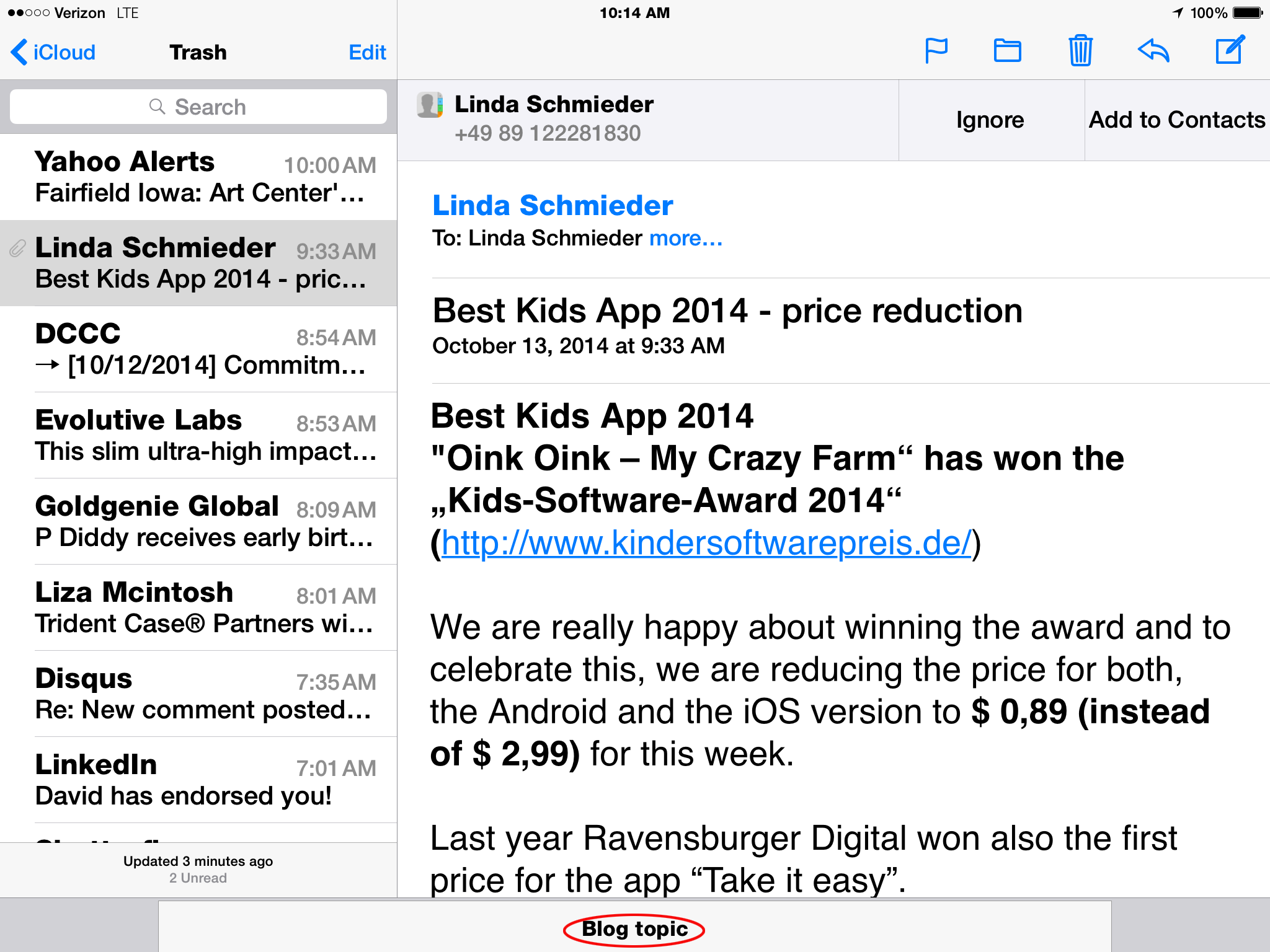
To bring the draft email back into view, simply tap on the title of the email at the bottom of the screen, and it will pop back into view.
Top image credit: Ditty_about_summer / Shutterstock.com

Every day, we send useful tips with screenshots and step-by-step instructions to over 600,000 subscribers for free. You'll be surprised what your Apple devices can really do.


 Susan Misuraca
 Rachel Needell
 Rhett Intriago
 Olena Kagui