How to Share a Contact on iPhone—the Fastest Way!

With two decades of writing and editing experience, Sarah has written hundreds of how-to articles, founded the Daily Tip newsletter, and now oversees iPhone Life’s online content.
Learn More With two decades of writing and editing experience, Sarah has written hundreds of how-to articles, founded the Daily Tip newsletter, and now oversees iPhone Life’s online content.
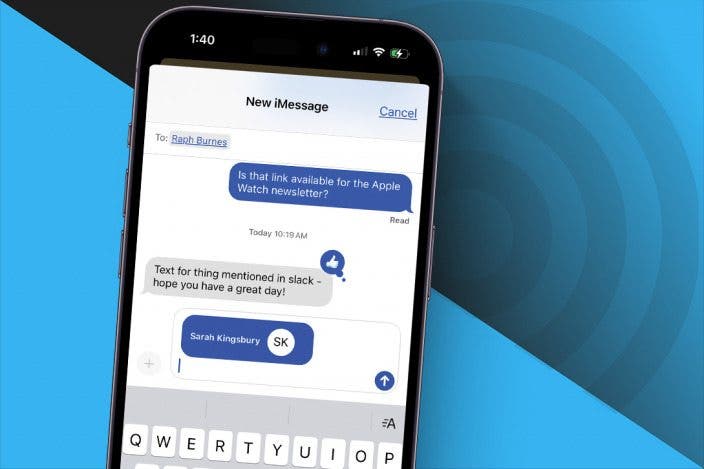
Learn MoreYou can share iPhone contacts (also known as a contact card) directly from the Contacts app on your iPhone, and it doesn't involve copying and pasting or tediously typing it out! Here's how to share a contact on iPhone.
Why You’ll Love This Tip
- Learn how to share contacts on iPhone so you can send your own or someone else's contact card; no more typing out numbers!
- Customize which parts of the contact card you want to share; you can leave off the email address, phone number, first name, and/or last name.
How to Share Contacts on iPhone
System Requirements
This tip was performed on an iPhone 17 Pro running iOS 26.2. Find out how to update to the latest version of iOS.
We've gone over how to create a contact group, how to search contacts on your iPhone, and how to add a contact on your iPhone. When you add people to your contacts, a contact card is automatically created on your iPhone for each contact so that all of the contact's information is grouped into one place. This makes it simple to share or send a contact on iPhone.
Here's how to share a contact on iPhone:
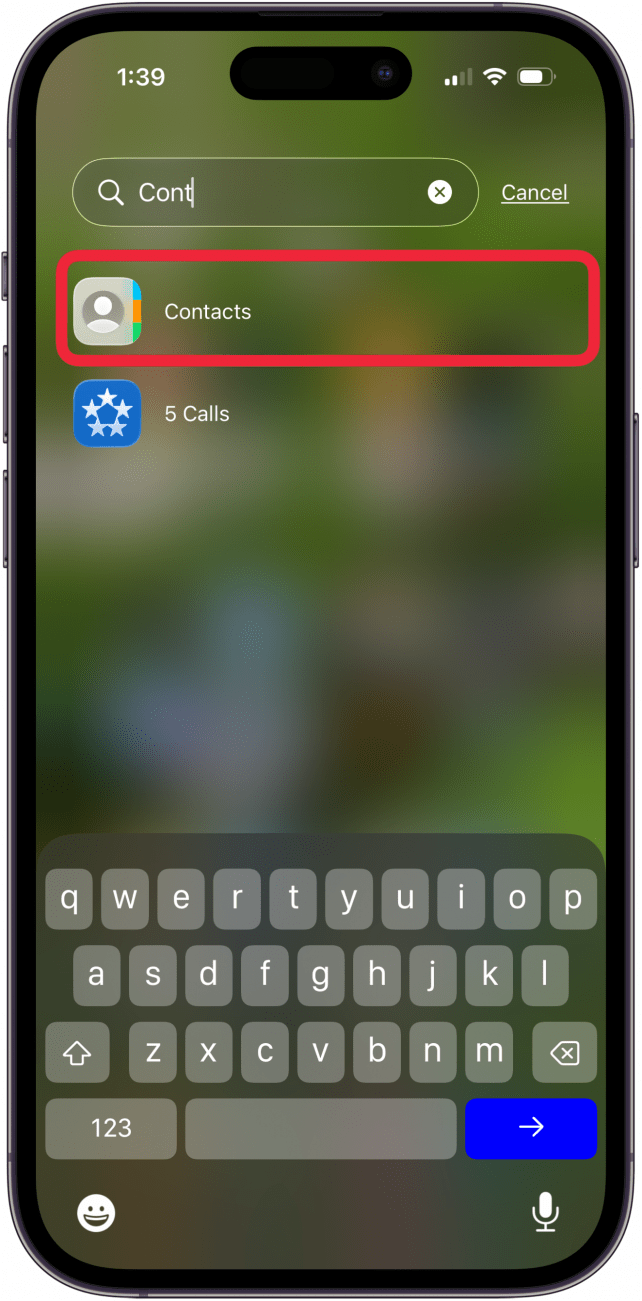
- Open the Contacts app.
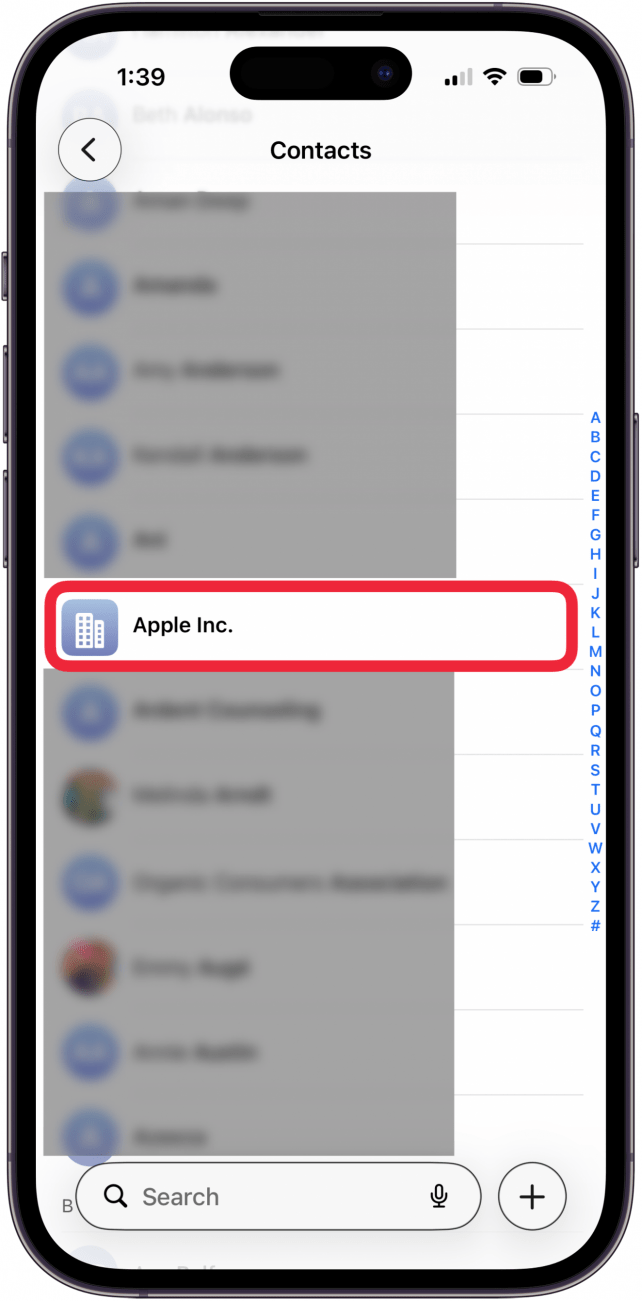
- Tap the contact you wish to share.
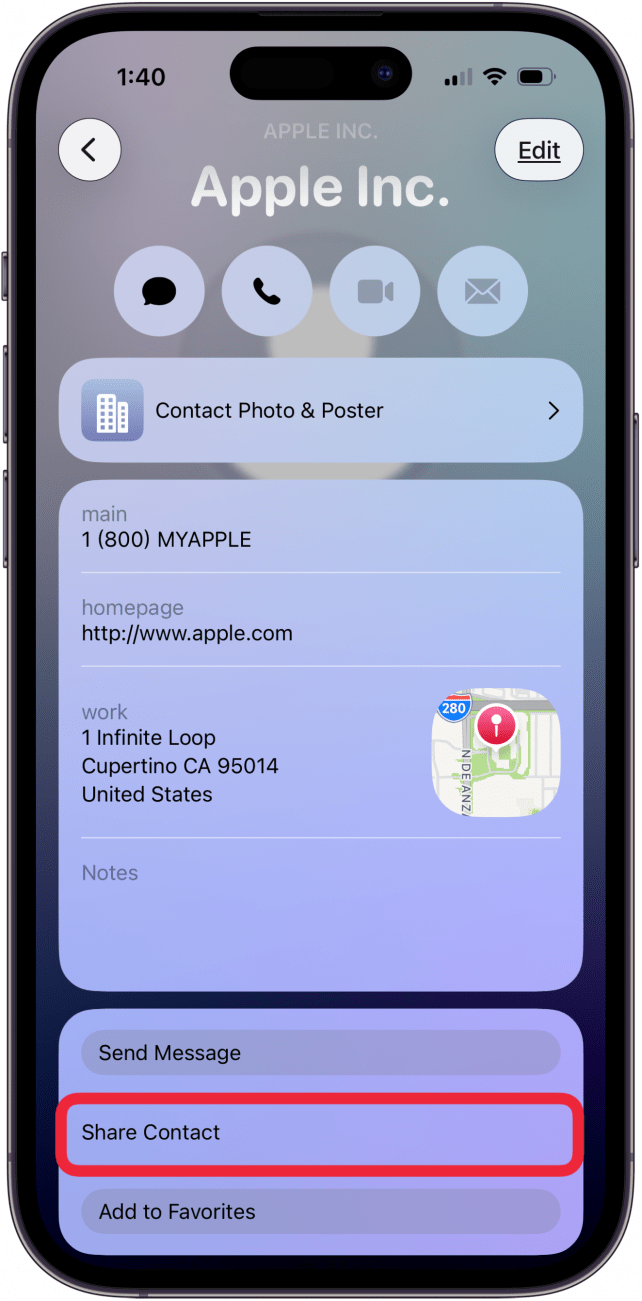
- Tap Share Contact.
- Tap the blue dot next to any part of the contact card you do NOT wish to share, then tap the check mark in the blue circle.

- Tap a sharing method, such as email, text message, AirDrop, and more.
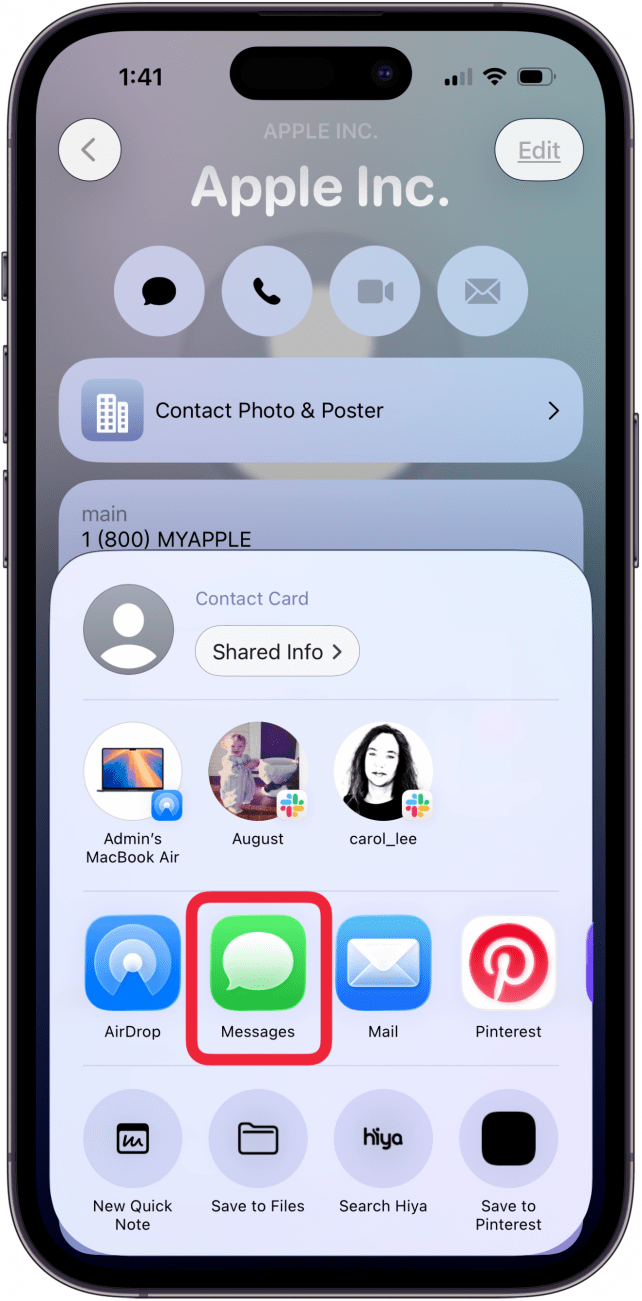
- Choose a recipient and tap the Send icon to share the contact.
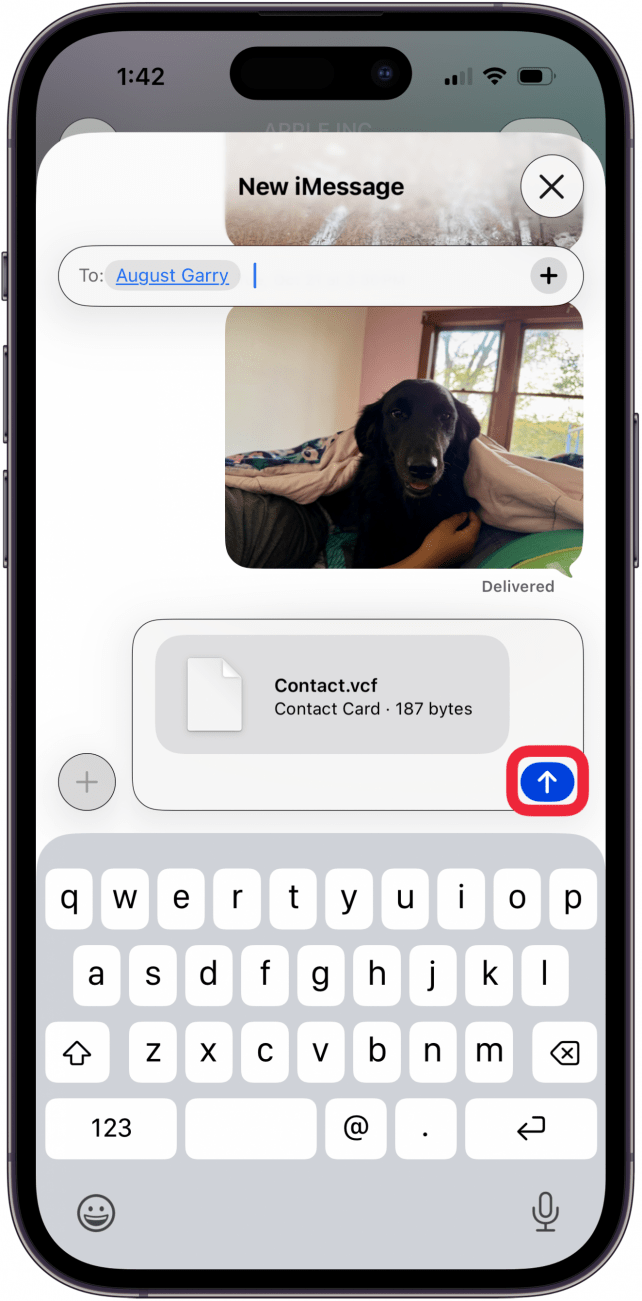
Pro tip: You can customize your share sheet to prioritize your favorite contacts and apps!
Now you know how to send contact information on iPhone to recipients using the contact card on your phone! It's never been easier to share a contact on iPhone. For more tips about the Contacts app and Phone app, check out our free Tip of the Day.

Every day, we send useful tips with screenshots and step-by-step instructions to over 600,000 subscribers for free. You'll be surprised what your Apple devices can really do.

Sarah Kingsbury
As the Editorial Director at iPhone Life, Sarah Kingsbury manages the online editorial team and oversees all website content. She is a long-time Apple enthusiast who never goes anywhere without her Apple Watch and owns way too many HomePods. Since joining iPhone Life in 2013, Sarah has done everything from writing hundreds of how-to articles to founding the Daily Tip newsletter. She even co-hosted the early episodes of the iPhone Life Podcast. When not at work, Sarah can be found hiking in the mountains and canyons around Las Vegas, where she lives with her partner and dogs.
 Rachel Needell
 Olena Kagui
 Leanne Hays
 Amy Spitzfaden Both
 Susan Misuraca
 Rhett Intriago